

Run remote commands with SSH
SSH (Beta) is a Mindflow integration that runs a non-interactive command on a remote host over SSH. Each step runs one command, then returns exit code, stdout, and stderr. You authenticate with an SSH Password or SSH Private Key credential; the host always comes from that credential.
When to use
Section titled “When to use”- You need to run a script, CLI, or health-check on a server you already reach over SSH.
- You chain several shell lines that must share the same directory or environment in one step.
- Prefer Exchange files with SFTP when the job is upload, download, list, or rename on the remote filesystem.
- Prefer a native integration when the remote tool exposes a documented REST or GraphQL API.
Before you begin, you need an SSH server you can reach on TCP port 22 (or the port in your credential URL) and permission to create a credential in the environment. Ask your Mindflow administrator for the platform static egress IP, then allow that address inbound on the server firewall or security group. See Credentials.
Find SSH
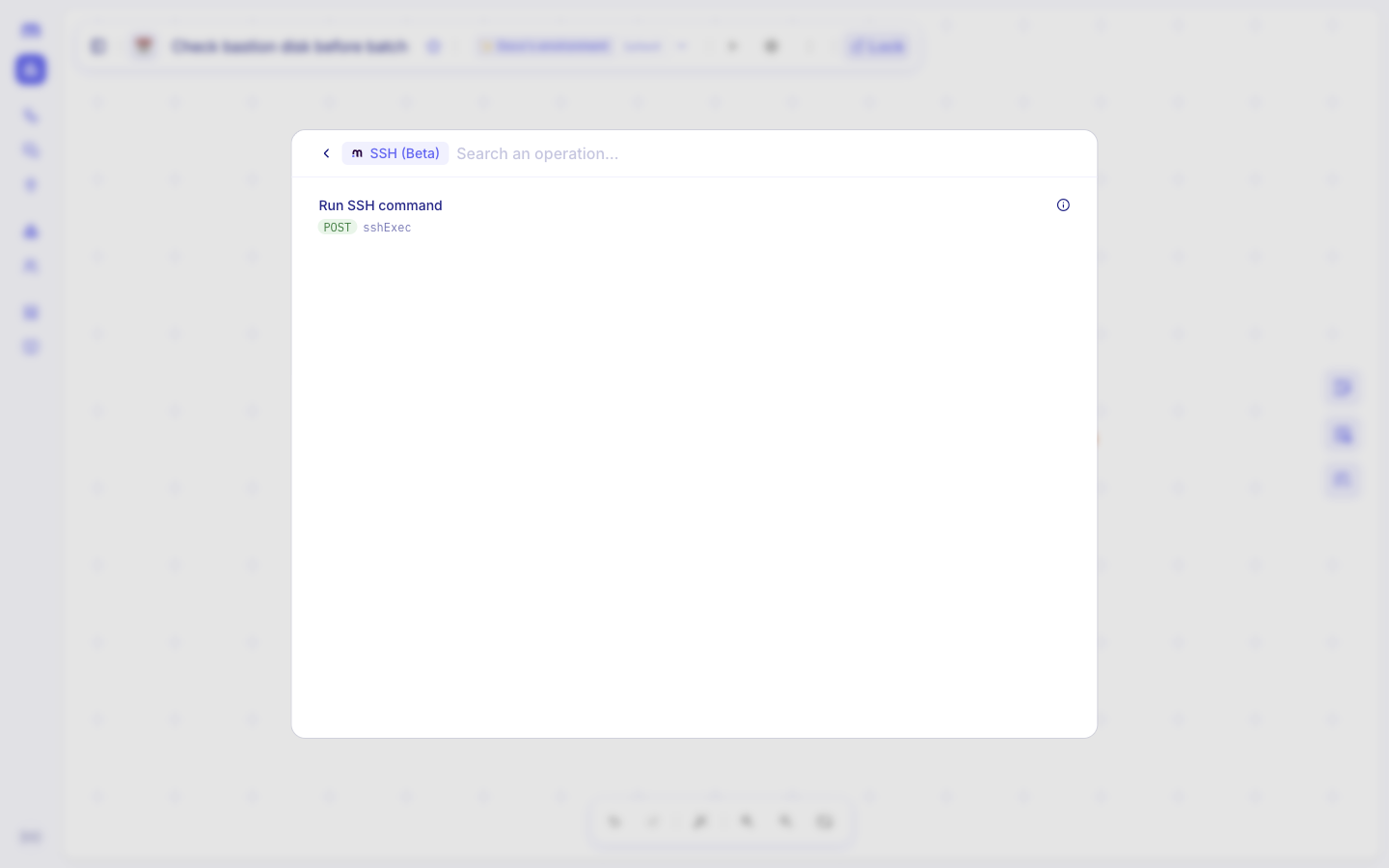
Section titled “Find SSH”Enable SSH (Beta) in the current environment, then add Run SSH command from the step menu.
Open Integrations. In Studio, go to Integrations.
Open the Mindflow vendor group. Search for
ssh, then enable SSH (Beta) if it is not already on.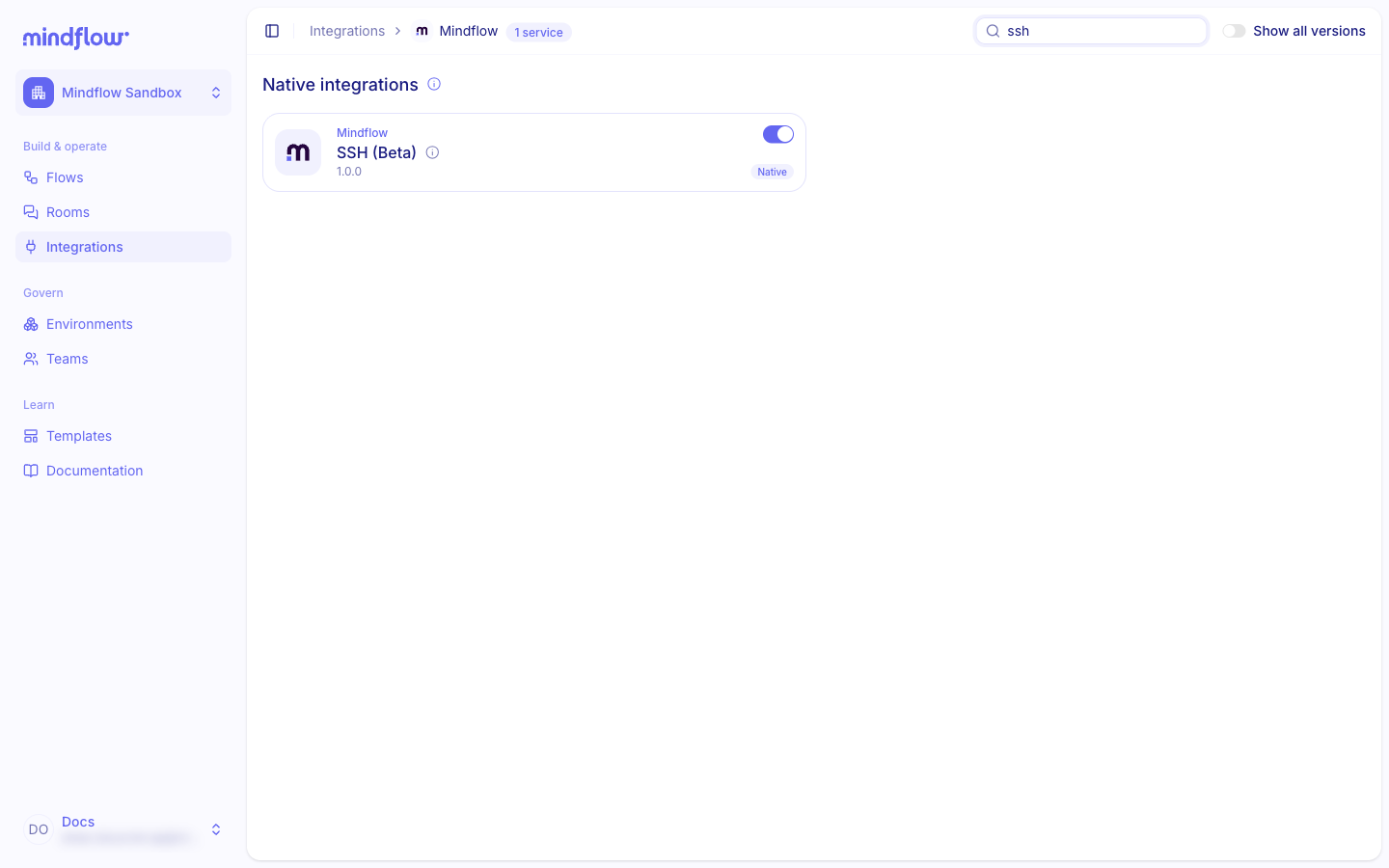
Add the step. In a flow, open Add a step, choose Integrations, then SSH (Beta) → Run SSH command.
Create an SSH credential
Section titled “Create an SSH credential”Every SSH step authenticates with an SSH Password or SSH Private Key credential in the environment. Host and
port come from the credential Address URL (ssh:// or sftp://), not from the step body.
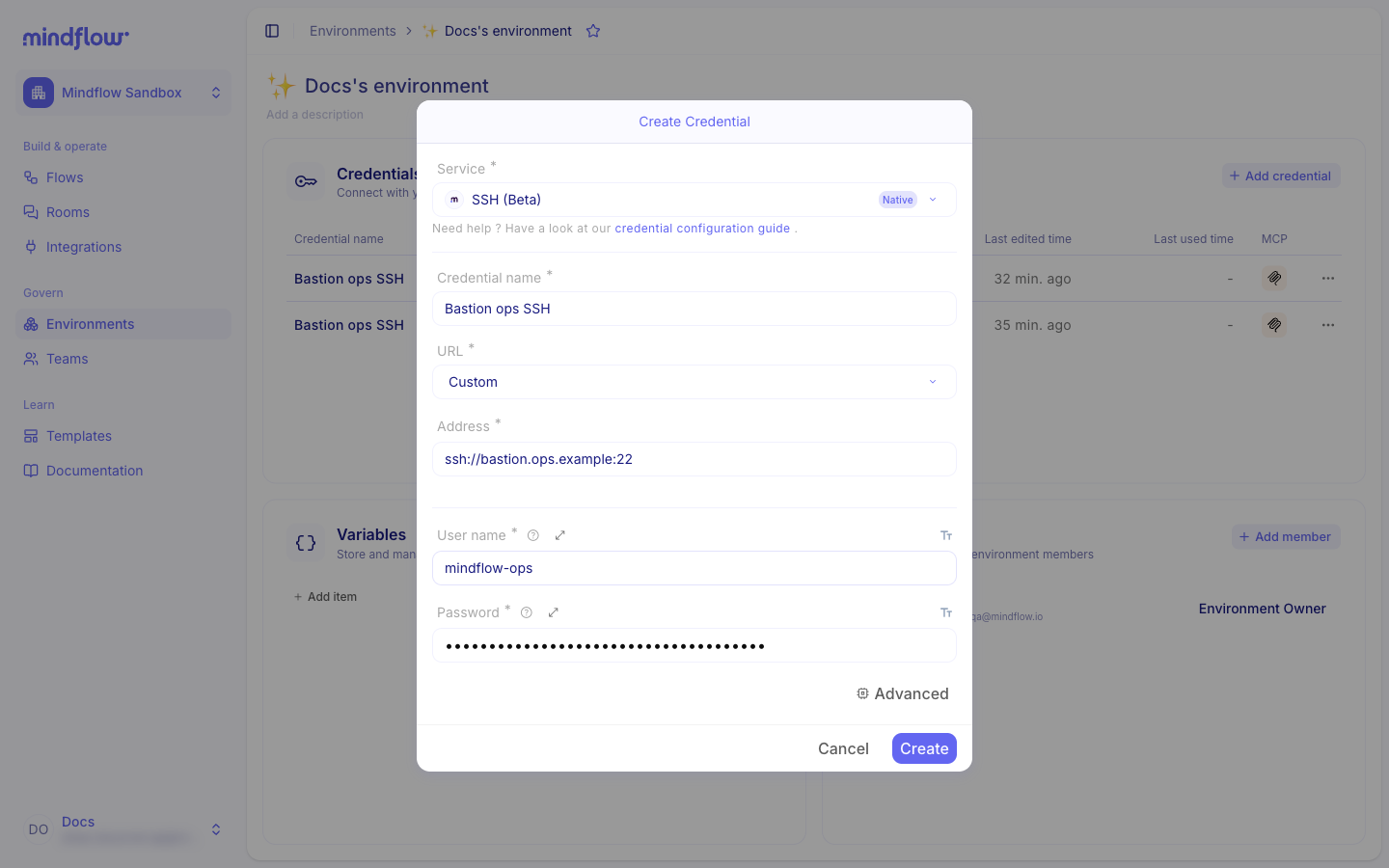
Open Environments. Open the environment that will run the flow, then choose Add credential.
Choose SSH (Beta). Set Service to SSH (Beta). Set Credential name, and keep URL as Custom.
Then choose the authentication flavor:
Use SSH Password when the server authenticates with a username and password. Fill Address, User name, and Password.
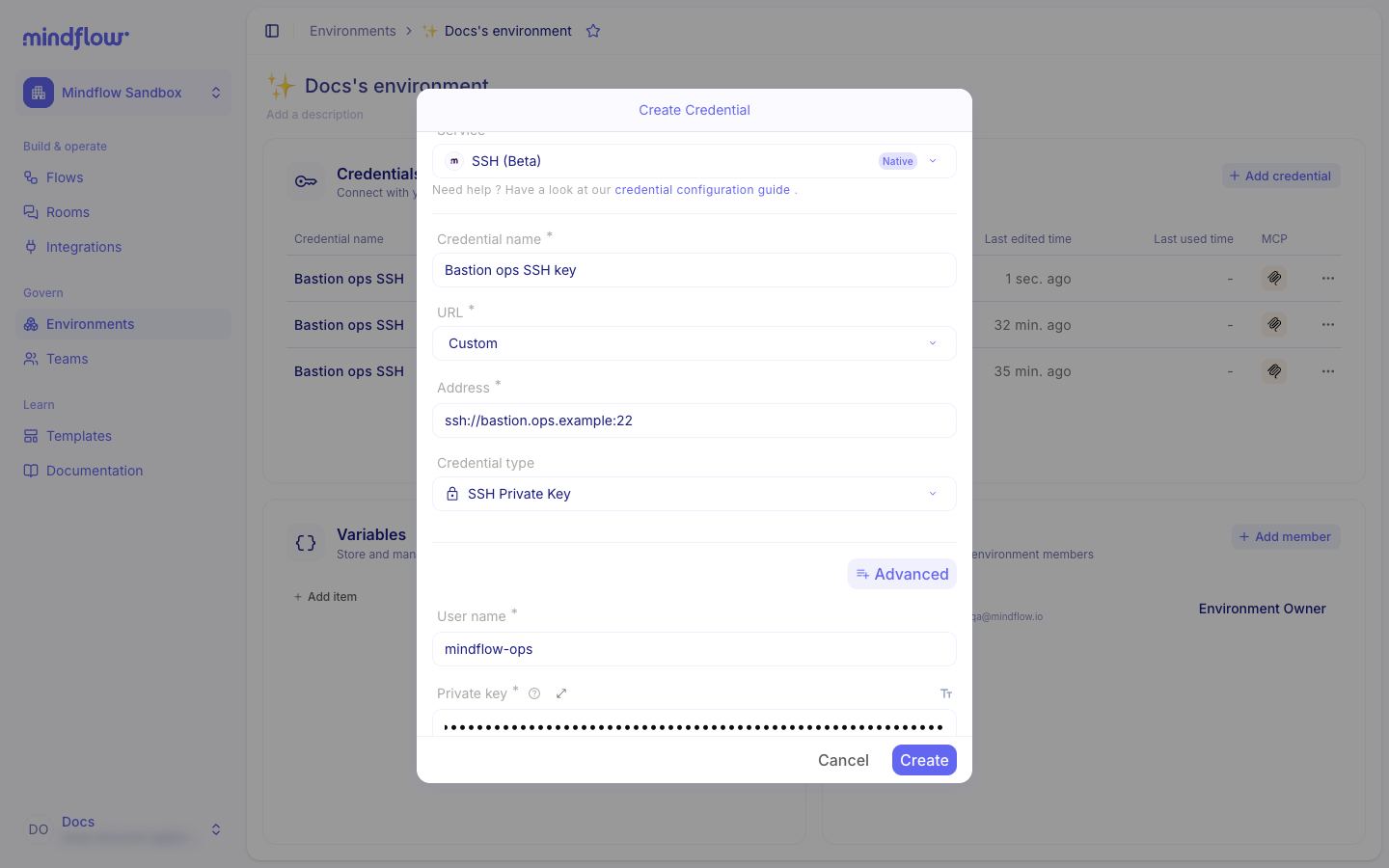
Open Advanced, set Credential type to SSH Private Key, then fill Address and User name. Paste the
full PEM (including BEGIN and END lines) into Private key. Fill Passphrase only when the key is encrypted.
Run a command
Section titled “Run a command”Fill the step input with the remote command and optional shell context. The host always comes from the credential.
Open Settings on the step. Select the SSH credential.
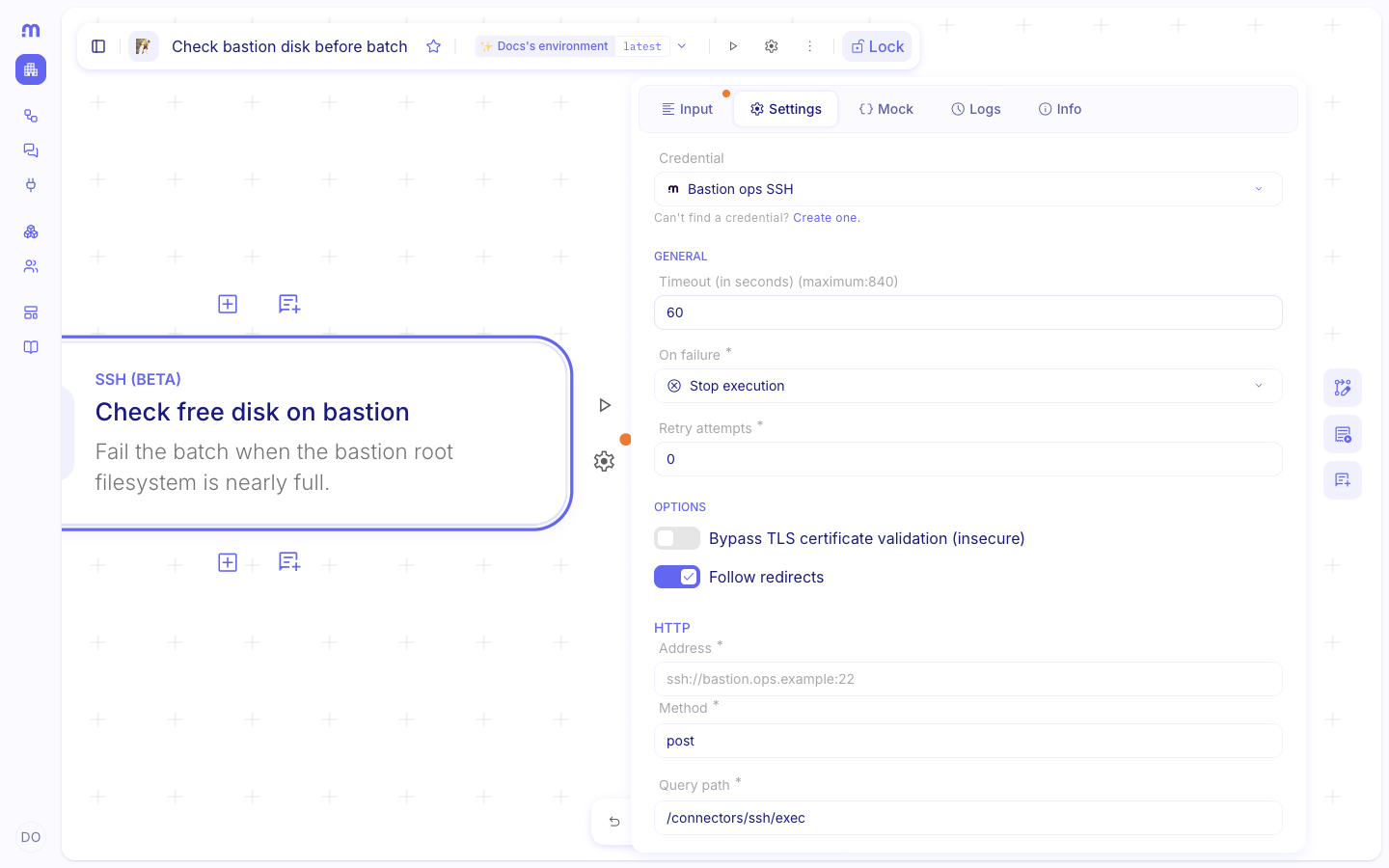
Open Input on the step. Set Command to the non-interactive shell string to run. Absolute paths in the command are fine; maximum length is 8192 characters.
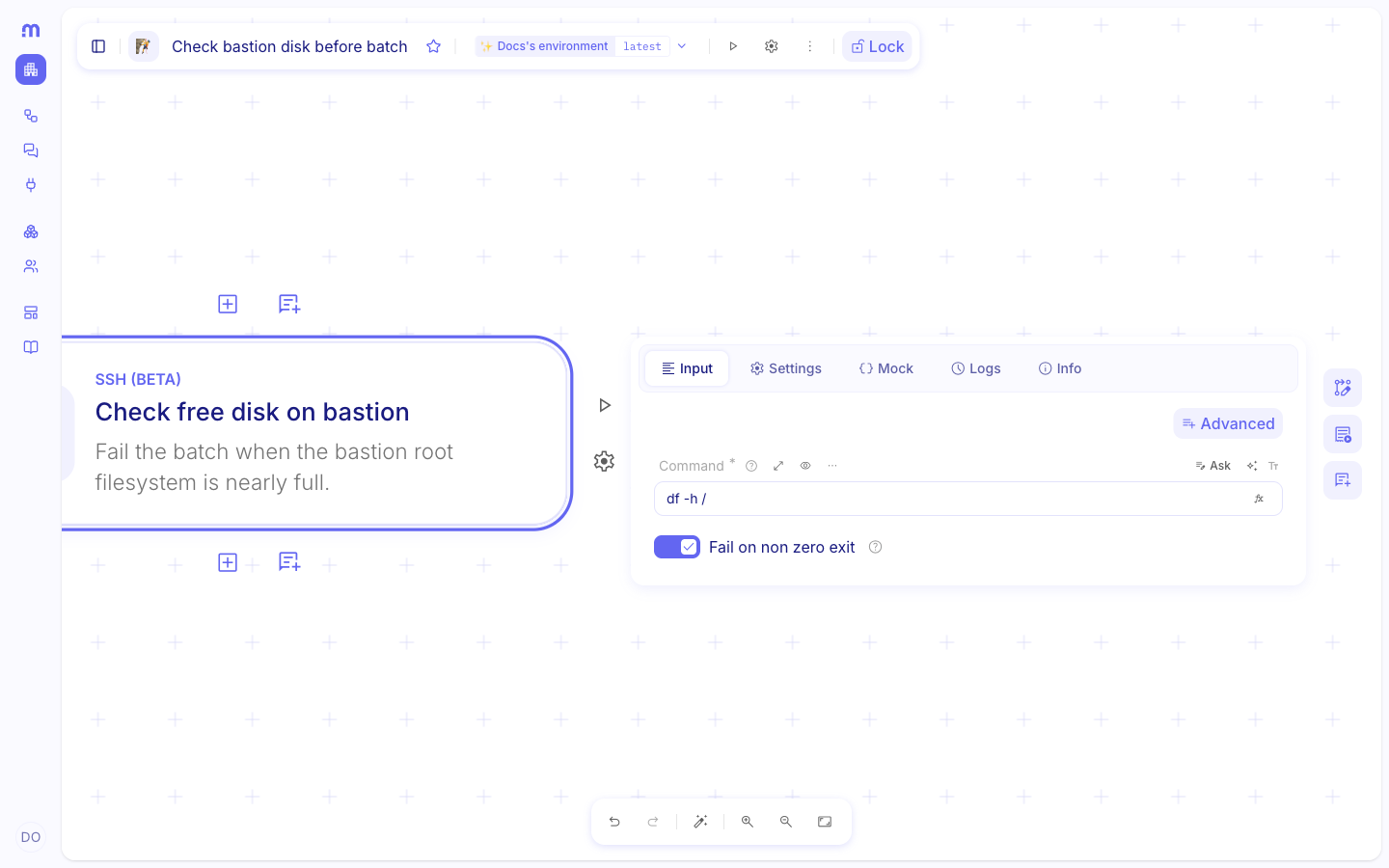
Optional: open Advanced. Expand Advanced on the Input tab when you need Working directory, Environment variables, or Standard input.
Optional: set Working directory. When the command must start in a fixed path, set Working directory instead of a prior
cdstep. Relative paths resolve from the remote login directory. Maximum length is 1024 characters.Optional: set Environment variables. Add key/value pairs the remote process should see. Prefer this over a prior
exportstep. Keys must match^[A-Za-z_][A-Za-z0-9_]*$(at most 128 characters). You can set up to 50 variables; each value is at most 4096 characters.Optional: set Standard input. Paste a UTF-8 string written once to the command stdin, then closed (EOF). Maximum size is 65536 UTF-8 bytes. Leave it empty when the command does not read stdin.
Choose Fail on non-zero exit. Leave it on (default) so a failed remote command fails the Studio step while stdout and stderr stay in the step result. Turn it off only when you want the flow to continue and branch on
exitCodeyourself.Set step Timeout. Open the step Settings and set Timeout to how long the command may run (default is 30 seconds; maximum is 840 seconds). SSH does not expose a separate timeout field in the request body. See Handle timeout.
Read the result
Section titled “Read the result”After a successful connect, the step result includes exitCode, stdout, stderr, and whether the command timed out
(timedOut). Use those fields in later steps or conditions. When Fail on non-zero exit is on (default), a
non-zero exit, missing exit code, or timeout fails the step with the same result body.
- Inspect stdout. Read the captured standard output from the step result when the remote tool prints status or JSON.
- Branch on exit code. When Fail on non-zero exit is off, add a condition on
exitCode(for example0for success).
Example
Section titled “Example”The screenshots on this page use Check bastion disk before batch.
- Create the credential. Add an SSH Password or SSH Private Key credential named Bastion ops SSH for
ssh://bastion.ops.example:22asmindflow-ops. - Add and rename the step. Add Run SSH command, rename it to Check free disk on bastion, and describe why the batch depends on free disk.
- Configure and dry-run. Set Command to
df -h /, keep Fail on non-zero exit on, set step Timeout to 60 seconds if needed, then dry-run. ConfirmexitCodeis0andstdoutlists the root filesystem. A later condition can fail the run when stdout shows the root filesystem above a capacity threshold.
Keep in mind
Section titled “Keep in mind”- Beta: SSH (Beta) may change; confirm operation labels in Studio if a release renames them.
- Each step is an isolated shell. Chain
cd,export, and dependent commands in one Command, or use Working directory and Environment variables. - Interactive shells, PTY sessions, and TCP forwarding are out of scope.
- For file transfer, use Exchange files with SFTP instead of piping files through SSH commands.
- Captured stdout and stderr are size-capped; oversized output fails the step.
- Network: The connector connects from the platform static egress IP. A connect timeout fails the step as a gateway timeout (HTTP 504) and usually means the firewall or security group does not allow that IP.
- Private keys: Paste the full PEM, including line breaks. A key that cannot be parsed often lost those breaks in the form.
Related: Reach out to services · Exchange files with SFTP · Handle timeout · Credentials