

Report executions by email
Email notifications on a flow send run status to the addresses you list, so you do not have to watch the designer for every execution. By default a flow sends No notifications. You choose when to notify (On successful run, On any failure, or On successful runs and any failure) and add recipients on the flow Settings tab. Screenshots on this page show the condition picker, recipients, and sample alert emails.
When to use
Section titled “When to use”- Operators or stakeholders should learn about run outcomes without opening Studio.
- You want failure alerts for production-critical flows, or success confirmation for important jobs.
- Prefer Logs when you need step-level detail, reruns, or filters instead of an email summary.
Before you begin, open the flow in the designer in an environment where you can edit it. Deploy the flow after you change notification settings if you need the next run to use the saved configuration.
Configure email notifications
Section titled “Configure email notifications”Each flow has its own Email notifications section under designer Settings. Changes can take up to 15 minutes to apply on the next run.
Open Settings. In the designer, open the flow inspector and select the Settings tab.
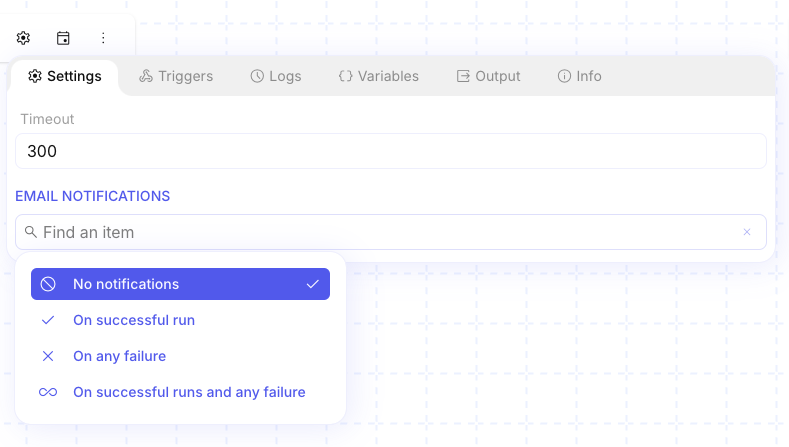
Choose a condition. Under Email notifications, pick one of:
- No notifications (default)
- On successful run
- On any failure
- On successful runs and any failure
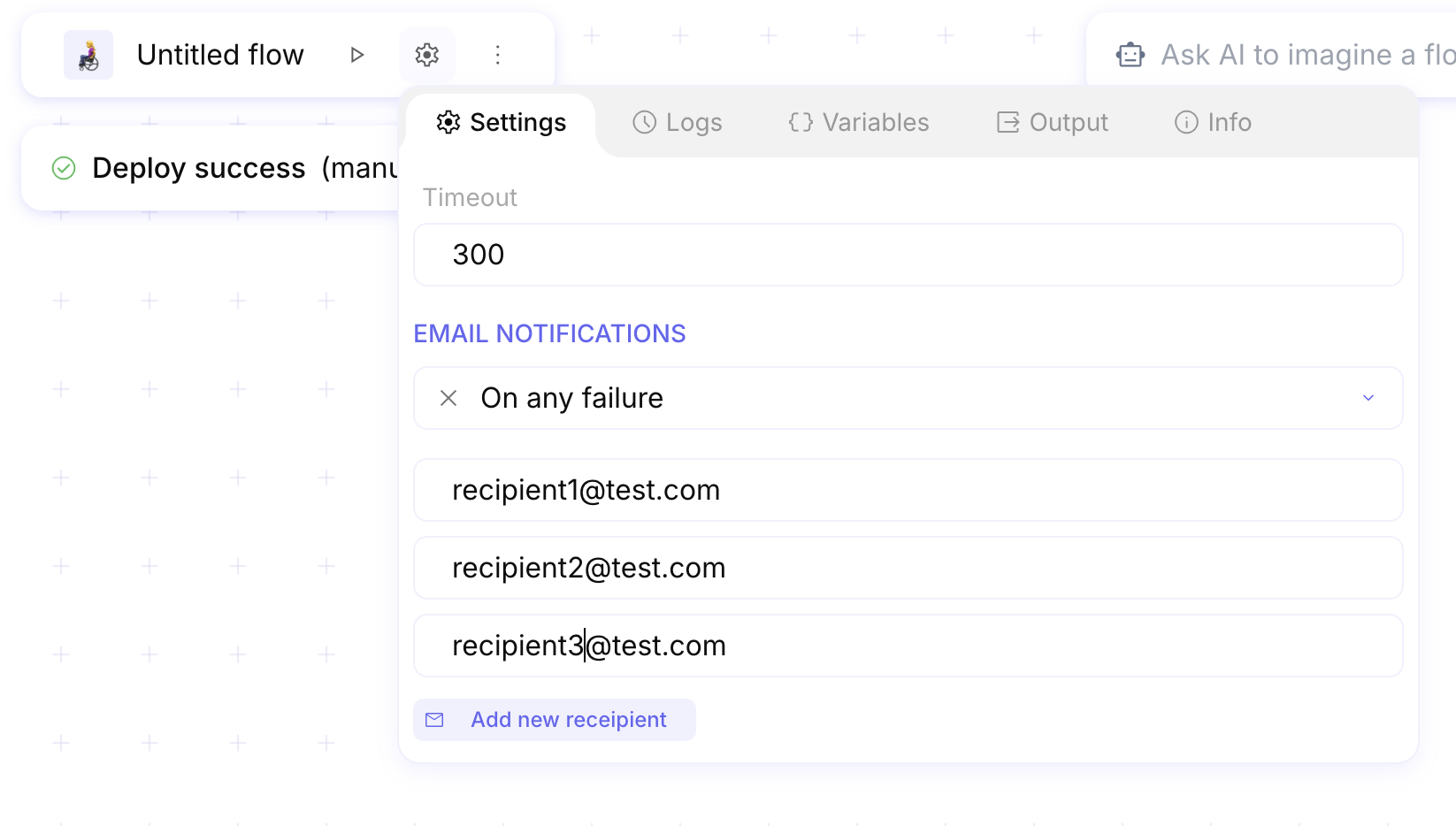
Add recipients. Enter one or more addresses in Email to notify. Use Add new recipient for additional addresses. Any valid email works, including an emailhook inbox address if you want another flow to receive the alert.
Read failure and success emails
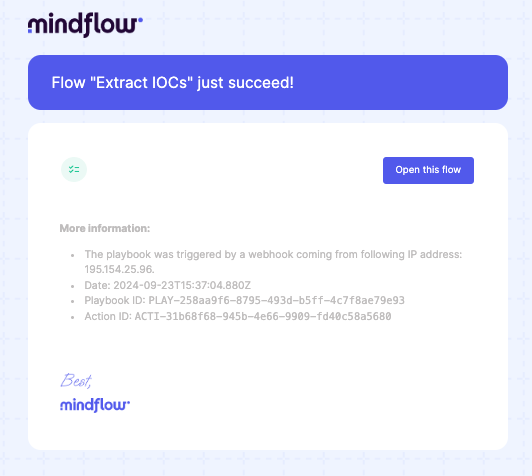
Section titled “Read failure and success emails”When a run matches your condition, Mindflow emails the listed recipients. Failure messages highlight the error. Success messages confirm the run completed.
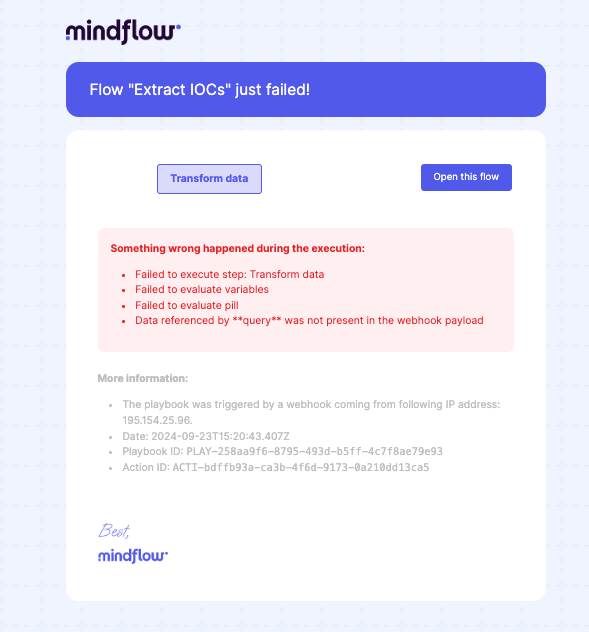
Inspect a failure email. The message names the flow and shows the failure reason (for example missing data a step expected).
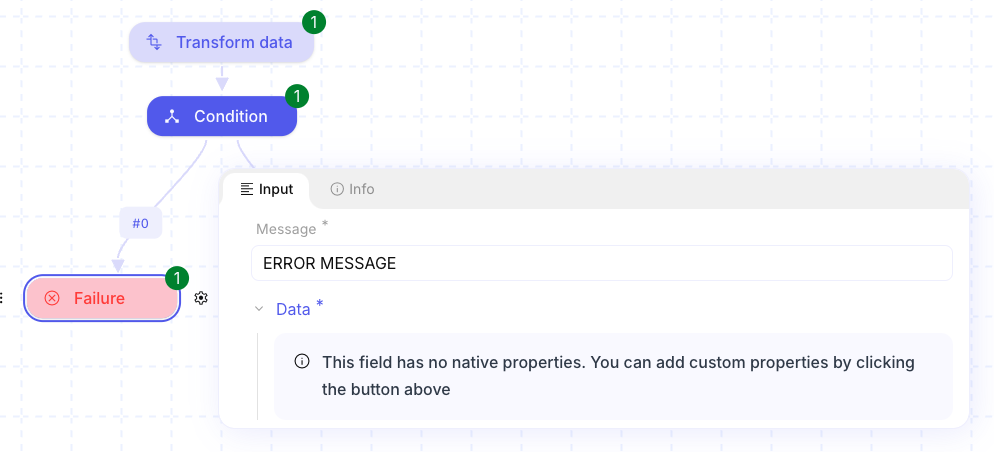
Optional: set a Failure step message. If the flow ends on a Failure step, the Message you set there can appear in the failure email so recipients see a clear operator-facing reason.
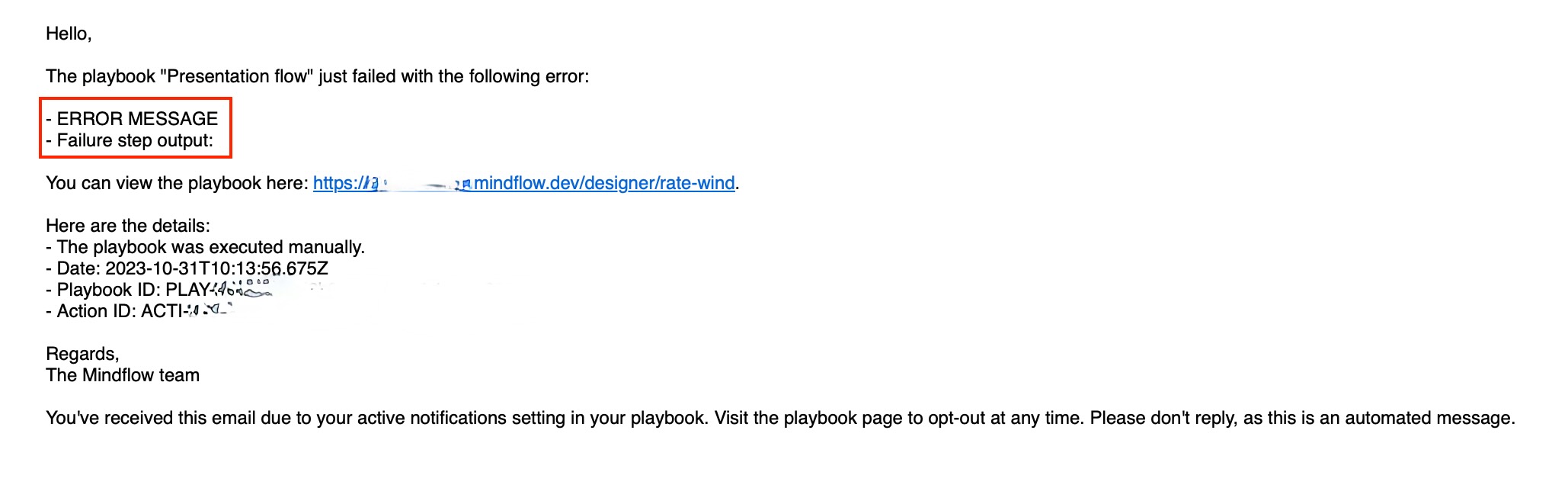
Inspect a success email. With On successful run (or On successful runs and any failure), recipients get a success notice when the run completes without error.
Example
Section titled “Example”A SOC lead configures Enrich phishing URL for On any failure and adds secops-alerts@example.com. When the
webhook payload is missing a required field, the Failure step Message explains the gap, and the alert email carries that
reason so on-call can fix the upstream payload without opening Studio first.
Keep in mind
Section titled “Keep in mind”- Notification changes may take up to 15 minutes to take effect on runs.
- Each flow is configured separately; there is no workspace-wide default beyond No notifications.
- Emails summarize run status. Use Logs for step detail and Rerun.