

AI··Rooms: Turning prompts into powerful actions
An AI··Room is an auditable chat surface where you ask for information and actions in natural language. You mention
services (credentials in the environment) or flows with @, review what the agent proposes, and approve or deny
actions that change systems. Studio’s sidebar label is Rooms. Screenshots on this page use IP reputation and ticket
follow-ups so you can see mentions, replies, and approval prompts.
When to use
Section titled “When to use”- You need ad-hoc investigation or actions across tools without building a full flow first.
- Analysts should stay in one conversation while checking reputation, tickets, or cloud identity data.
- Prefer Run a flow from an AI··Room when a repeatable
Chathook flow should start from
@flowNameand optionally reply in the room. - Prefer designer flows with schedules or webhooks when the job is predictable and should run without chat.
Before you begin, pick the environment that holds the credentials (and deployed flows) you will mention. You need access to Rooms in that environment.
Open a room
Section titled “Open a room”Rooms live under Build & operate in the sidebar. Each conversation is tied to an environment so mentions resolve to that environment’s credentials and flows.
Open Rooms. In the left sidebar, select Rooms.
Choose the environment. In the rooms sidebar, select the environment whose credentials and flows you will use.
Start or rename the room. A new conversation starts as New room; rename it when you want a clear label for the thread.
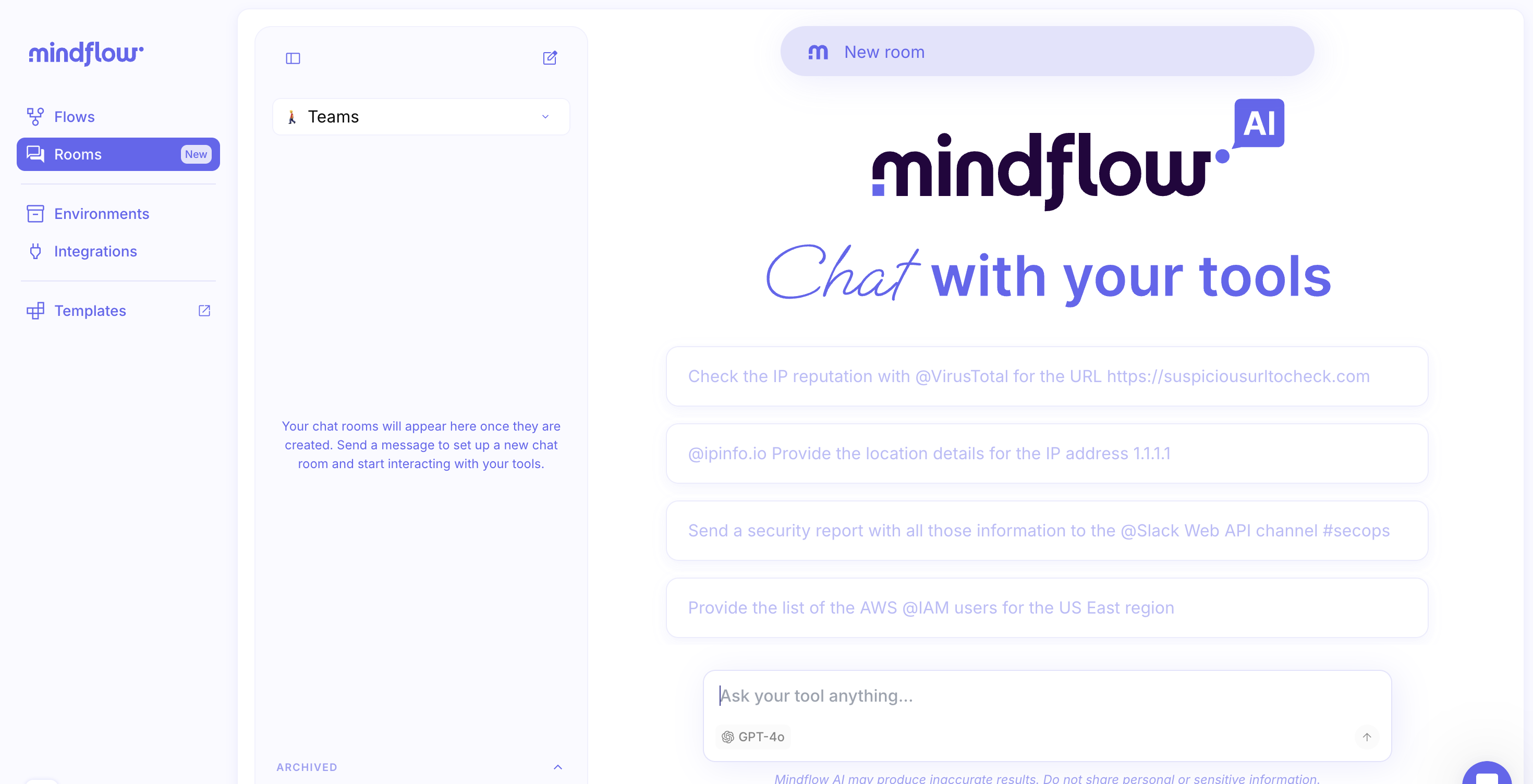
Mention services and ask in natural language
Section titled “Mention services and ask in natural language”Use @ to mention a connected service, then describe what you want. Studio searches service titles and descriptions.
You can also mention flows that are callable from rooms (for example with a Chathook).
Type
@and pick a service. Choose the integration, then complete the request in plain language.
Review the reply. The agent returns the operations it used and the response body so you can verify the result.
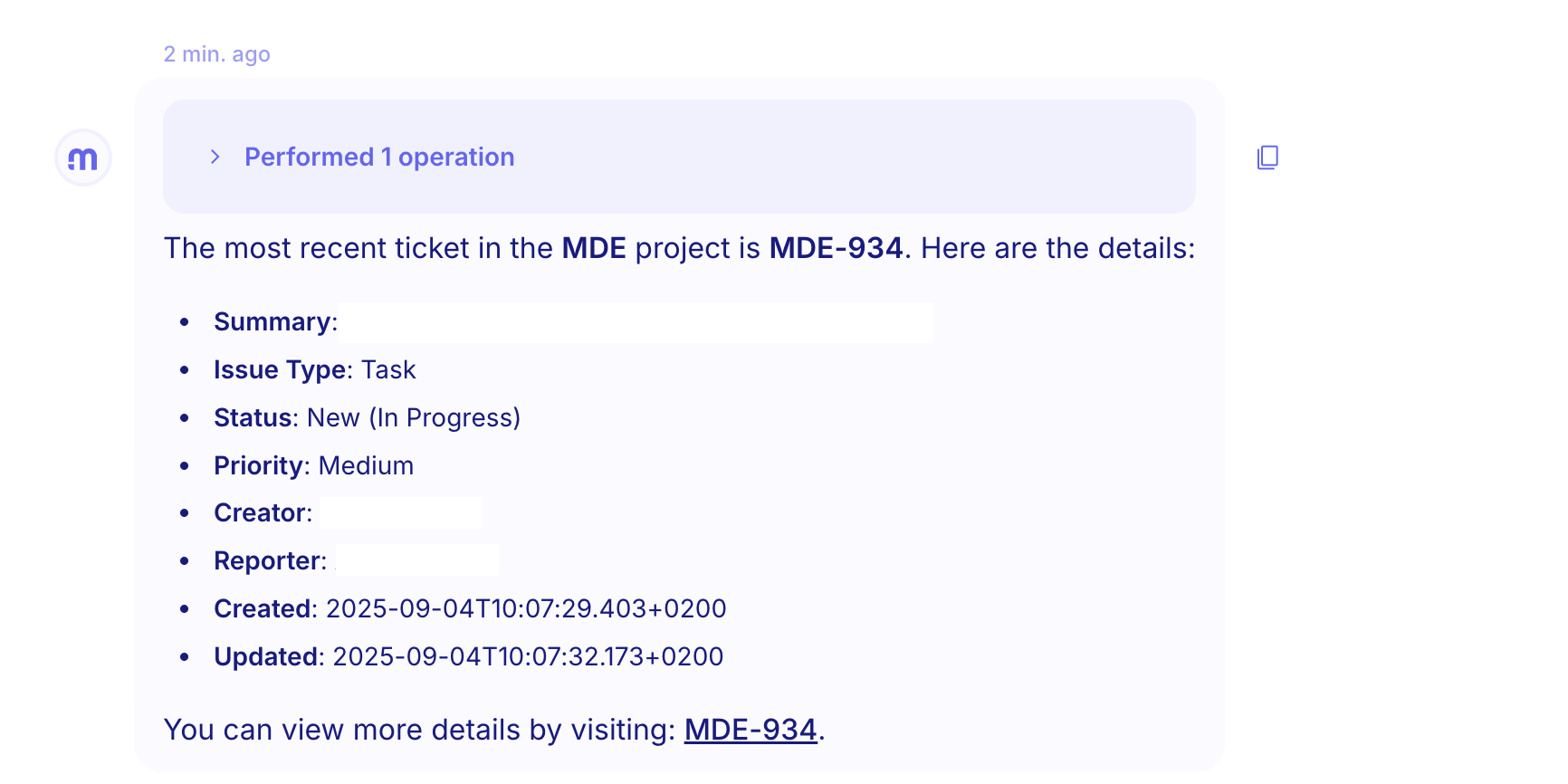
Use suggested follow-ups. When the agent offers a button (for example to add a comment), it can fill a follow-up prompt for you to send.


Approve or deny actions
Section titled “Approve or deny actions”When the agent needs to change something in a connected system, it asks for your approval before it continues. You Approve or Deny (or approve/deny all when several actions are pending).
Review the proposed action. Read what will run, then choose Approve or Deny.
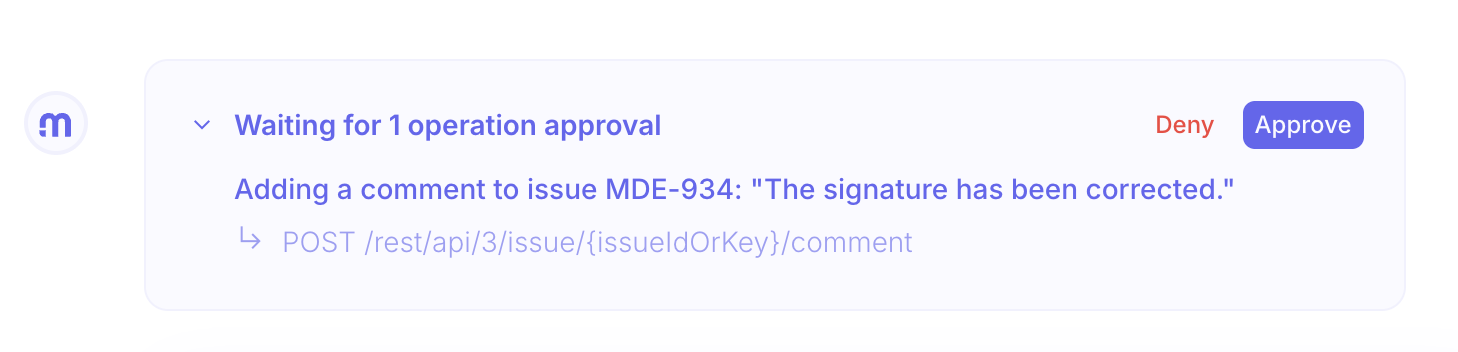
Example
Section titled “Example”An analyst opens Rooms in the Prod environment and starts a room to triage a suspicious URL. They mention
@VirusTotal, check reputation, then follow a suggested prompt to post a short summary to Slack. When the agent
proposes a write action, they approve it only after checking the target channel. For a repeatable IP look-up that should
always run the same flow from chat, they use a Chathook instead (see Related).
Keep in mind
Section titled “Keep in mind”- Mentions resolve against the selected environment—credentials and flows must exist there.
- Treat agent output as assistance; verify important results in the source system when the stakes are high.
- Do not paste secrets or personal data into the room that you would not store in other Studio fields.