

Manage permissions (RBAC)
Mindflow uses role-based access control (RBAC). Each person (or team) gets a role on an organization, a flow, or an environment. The role decides what they can view, edit, run, or manage. This page explains the roles and how to grant them on flows and environments. Organization membership is covered in Manage users; grouping people for shared grants is covered in Manage teams.
When to use
Section titled “When to use”- You need to know what Org Admin, Org Member, flow roles, or environment roles allow.
- You want to grant a person (or team) access to a specific flow or environment.
- Prefer Manage users when you only need to add someone to the organization or change Org Admin versus Org Member.
- Prefer Manage teams when several people should share the same grants.
Before you begin, you need permission to manage the resource you are sharing (for example Flow Owner or Environment Owner), or Org Admin rights for organization-wide changes.
Organization roles
Section titled “Organization roles”Every user in the organization has one organization role. Org Admin can manage the whole organization. Org Member works on resources only where they have an explicit flow, environment, or team grant.
Assign organization roles on Organization → Members. See Manage users.
Flow roles
Section titled “Flow roles”Flow roles control who can open, edit, delete, and share a flow. Assign them on the flow’s Flow permissions dialog (users or teams).
Deploying or running a flow also requires an environment role that allows deploy or run (Environment Owner or Environment Operator), plus any of the three flow roles on that flow.
Environment roles
Section titled “Environment roles”Environment roles control the environment itself, its credentials, deployments, run logs, and AI··Rooms in that space.
Credential secret values are never revealed after creation, even when a role can edit a credential.
Grant access to a flow
Section titled “Grant access to a flow”Use Edit permissions… on a flow when one person or team needs Owner, Editor, or Viewer on that flow. From the designer, you can also open the same permissions controls in the page header without leaving the canvas.
-
Open Flows. In Studio, go to Flows.
-
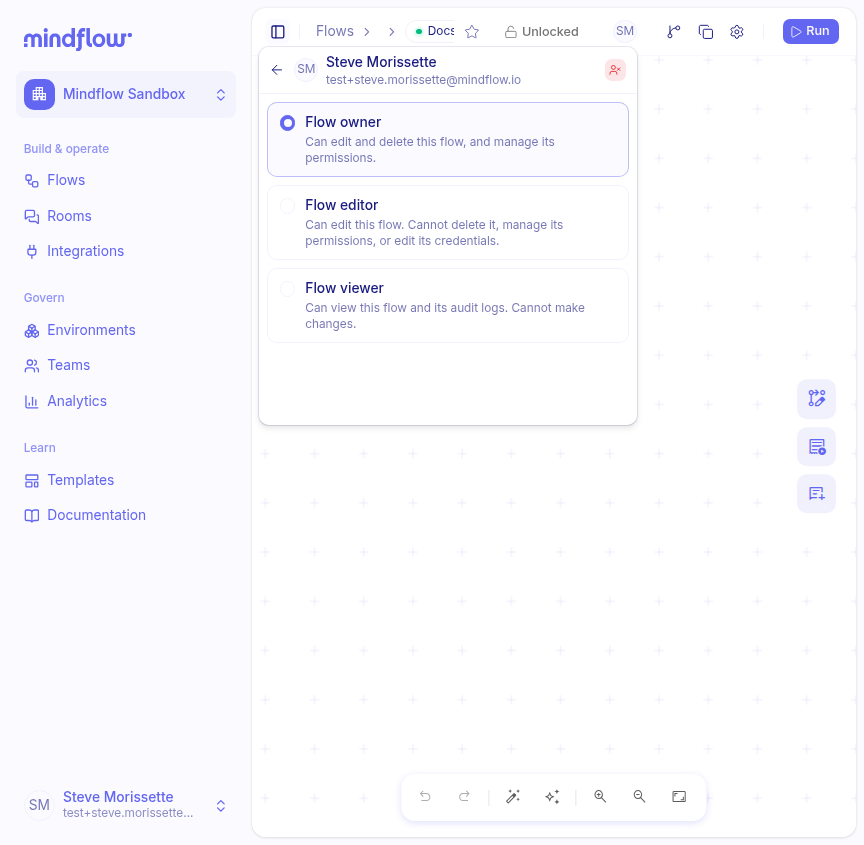
Open Flow permissions. On the flow card menu, choose Edit permissions…. Or open the flow in the designer and use the permissions control in the page header.
-
Add a person or team. Search for the user or team, choose Flow Owner, Flow Editor, or Flow Viewer, then choose Add.
-
Adjust or remove. Change the role on an existing row, or remove access when it is no longer needed.
Grant access to an environment
Section titled “Grant access to an environment”Use Members on an environment when someone needs Owner, Operator, or Auditor in that space.
- Open the environment. Go to Environments and open the environment.
- Add a member. In Members, choose Add member.
- Assign the role. Select a user or team, choose Environment Owner, Environment Operator, or Environment Auditor, then confirm.
- Adjust or remove. Change the role on an existing row, or remove the member when access should end.
Example
Section titled “Example”A builder needs to edit a phishing flow and run it in production, without becoming an Org Admin.
- Keep Org Member. Leave the builder as Org Member on Organization → Members.
- Grant the flow. On Phishing triage, add the builder as Flow Editor.
- Grant the environment. On Production, add the builder as Environment Operator.
They can edit the flow and deploy or run it in Production. They cannot manage organization settings or other people’s permissions on those resources.
Keep in mind
Section titled “Keep in mind”- Grant only the access someone needs for the job (least privilege). Prefer Org Member plus specific flow and environment roles over making everyone an Org Admin.
- Review membership and roles when people change jobs or leave. Remove unused grants.
- Do not use the only Org Admin, Flow Owner, or Environment Owner account for everyday building—keep at least one owner, and use a separate Org Member for routine work when you can.
- Teams inherit the same flow and environment role meanings as individual users. See Manage teams.