

Create a loop
For each and Loop are Flow steps that repeat nested steps. For each walks every item in an array (with optional concurrency). Loop repeats a fixed number of times, or while / do-while a condition stays true. Screenshots on this page use a sample contact list so you can see Source, Iteration output, and nested Slack steps filled in.
When to use
Section titled “When to use”- You have an array (contacts, tickets, hosts) and the same steps should run for each item → For each.
- You need a fixed count, a condition-driven repeat, or pagination-style “continue until done” → Loop.
- Prefer Handle API pagination when the main job is paging a vendor API with Loop and variables.
- Prefer Branch with a Condition for a one-time branch, not a repeating block.
Before you begin, open the flow in the designer with permission to edit it. Have the array (or a previous step that returns one) ready before you configure For each.
Add For each
Section titled “Add For each”For each runs the nested path once per item in Source. Nested steps can read the current item under the ForEach Iterator data source.
Add For each. Open Add a step, choose Flow, then For each. Rename the step for the list you iterate (for example contacts).
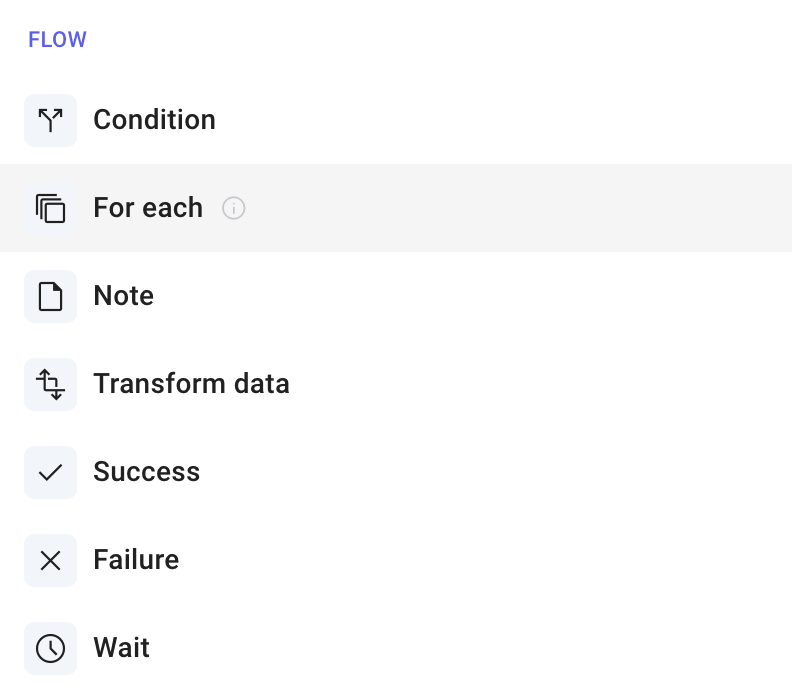
Set Source. Open the Input tab. In Source, pick an array from an earlier step, or provide a sample array while you design.
Set Iteration output. Define the object collected on each pass (for example a
nameproperty). Studio gathers those objects into an array you can use after the loop.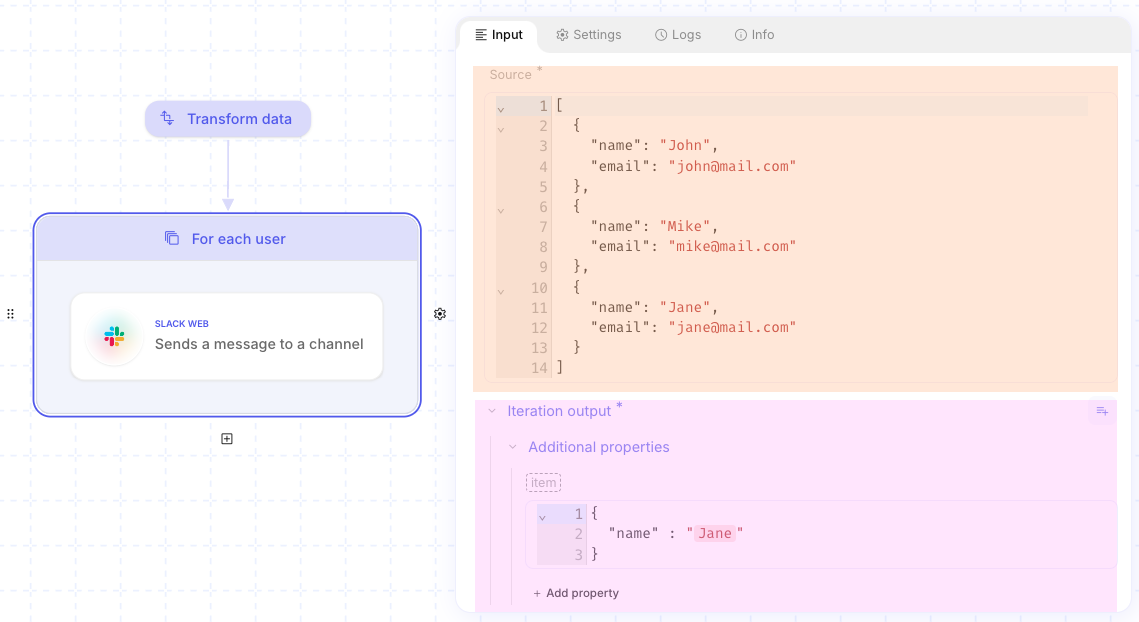
Add nested steps. Inside the For each block, add the steps that should run per item (for example send a message).
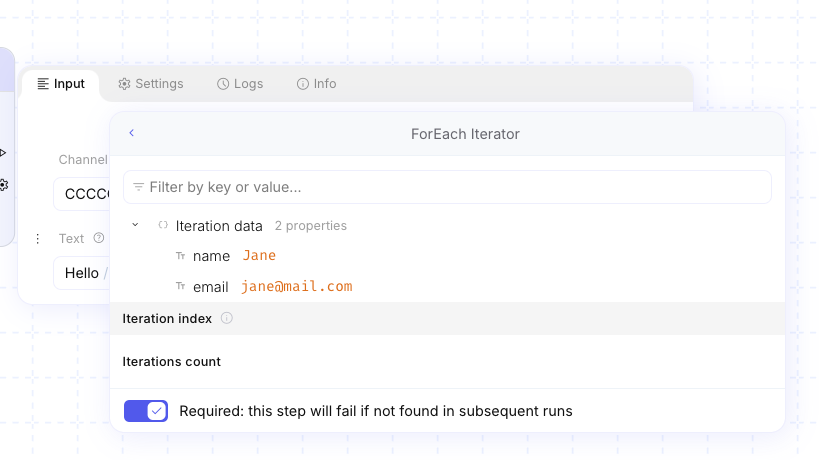
Pick iteration data. In a nested step field, open the data picker → Flow → your For each step → ForEach Iterator. Use Iteration data (current item), Iteration index, and Iterations count.
Configure For each Settings
Section titled “Configure For each Settings”Settings controls how many iterations run at once and whether large inputs are allowed.
Open Settings. Select the For each step, then open the Settings tab.
Set Maximum concurrency. Default is 1 (sequential). Raise it when iterations are independent and you want parallel runs. The value is a fixed number (not a formula).
Enable large dataset when needed. Turn on Enable large dataset if the source is large (UI guidance: above about 250KB) or you need more than about 40 concurrent iterations. Leave it off for small lists.
Add a Loop
Section titled “Add a Loop”Loop repeats nested steps under one of three Input modes (tabs): For x iterations, While condition, or Do while condition. Use Settings → Maximum iterations (default 100, max 10000) as a safety cap.
Runs a fixed number of times. Number of iterations can be a literal or a formula from earlier steps.
Add Loop. Open Add a step, choose Flow, then Loop. Rename the step.
Open For x iterations. On the Input tab, select For x iterations (one of the three Input mode tabs).
Set Number of iterations. Enter the count, or pick a number from an earlier step (for example the length of an array).
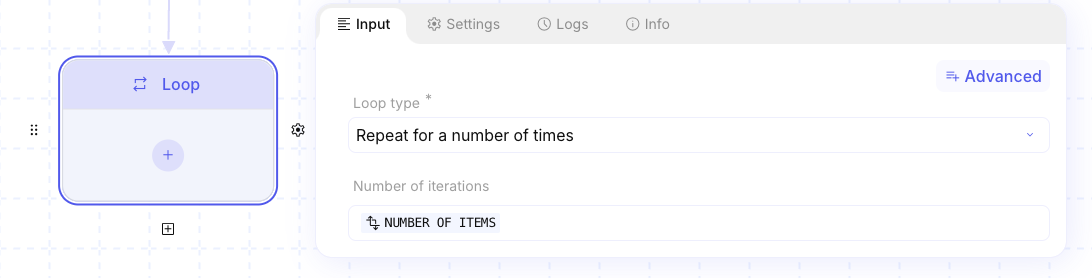
Add nested steps. Inside the Loop block, add the steps for each pass. From nested steps, pick Loop Iterator → Iteration index (and Number of iterations when available).
Continues while the While condition Compare rule is true. The condition is checked before each iteration. Cap runaway repeats with Maximum iterations.
Add Loop and open Input → While condition.
Edit While condition. Build a Compare rule (same operators as Condition). Nested steps can read While condition value from Loop Iterator when you need the last evaluation.
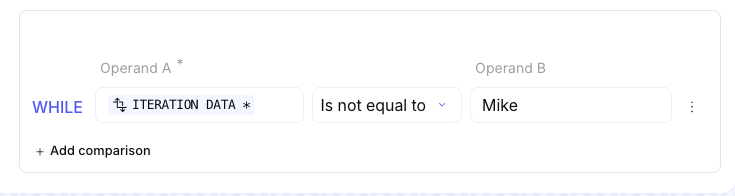
Add nested steps that advance the state the condition depends on (for example bump an index or call the next page).
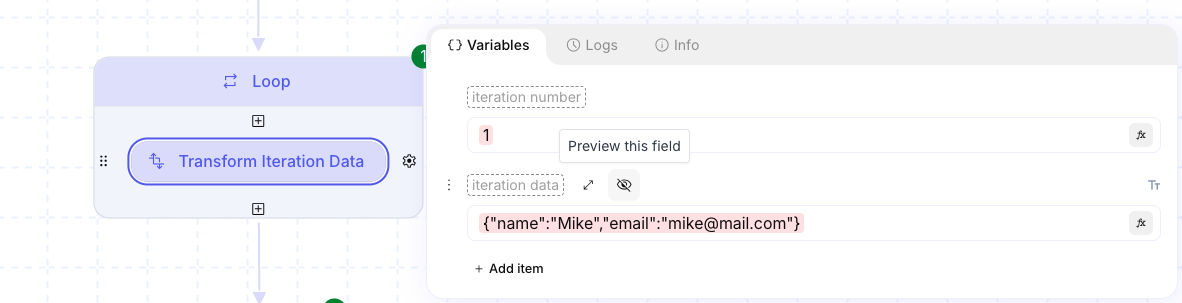
Set Maximum iterations on Settings so the loop cannot run forever if the condition never becomes false.
Same idea as While condition, but the condition runs after each iteration—so the body always runs at least once. Useful when the first pass must fetch data before you know whether to continue (for example pagination).
Add Loop and open Input → Do while condition.
Edit Do while condition with Compare, then add nested steps that update the values the rule uses.
Set Maximum iterations on Settings.
Example
Section titled “Example”A flow named Notify contacts builds a short contact array, then uses For each so each contact gets a Slack message that includes that contact’s name.
- Provide Source as an array of objects with
nameandemail(or pick it from a previous list step). - Map Iteration output so each pass contributes at least the contact
name. - Inside For each, add the Slack (or other) step and insert Iteration data →
nameinto the message text. - Leave Maximum concurrency at 1 while you test; raise it only when messages can safely send in parallel.
- Run once and check the run log for each iteration’s Iteration data and collected Iteration output.
Keep in mind
Section titled “Keep in mind”- For each is the usual choice for “do this for every item.” Use Loop when you need a count or a condition-driven exit.
- Maximum concurrency and Enable large dataset apply only to For each.
- Maximum iterations on Loop is a hard stop even if the while / do-while rule is still true.
- If you see an input-array-too-large error on For each, turn on Enable large dataset in Settings.
Related: Handle API pagination, Branch with a Condition, Scripts, errors, and run control.