

Run a flow from an AI··Room
A Chathook trigger starts a flow when someone mentions that flow in an AI··Room in the same environment. The room message, conversation id, and sender details become data you can use in later steps. On AI··Task steps under a Chathook, you can turn on Reply in chat to stream the model output back into the room. Screenshots on this page use a sample IP look-up job so you can see filled names and settings.
When to use
Section titled “When to use”- Analysts or operators should start a flow from a conversation instead of opening the designer or calling a webhook URL.
- You want the chat message (and optional conversation memory) available to an AI··Task or other steps.
- Prefer Run flow through webhook when an external system must start the flow over HTTPS.
- Prefer Call a flow when one Mindflow flow should start another without leaving Studio.
Before you begin, you need permission to create and deploy flows in the environment, and access to Rooms in that environment. Create or open a room in the same environment where you will deploy the flow.
Add a Chathook trigger
Section titled “Add a Chathook trigger”A Chathook is the trigger that makes a flow callable from an AI··Room. After you add it and deploy the flow, anyone with room access in that environment can mention the flow by name.
Create or open the flow. Name it for the job it performs, then open it in the designer.
Add Chathook. Open Add a step, choose Triggers, then Chathook. Rename the step and fill a description.
Open Settings. On the Chathook step, open the Settings tab. Studio shows how to mention the flow in a room (
@plus the flow name) and which variables the trigger exposes.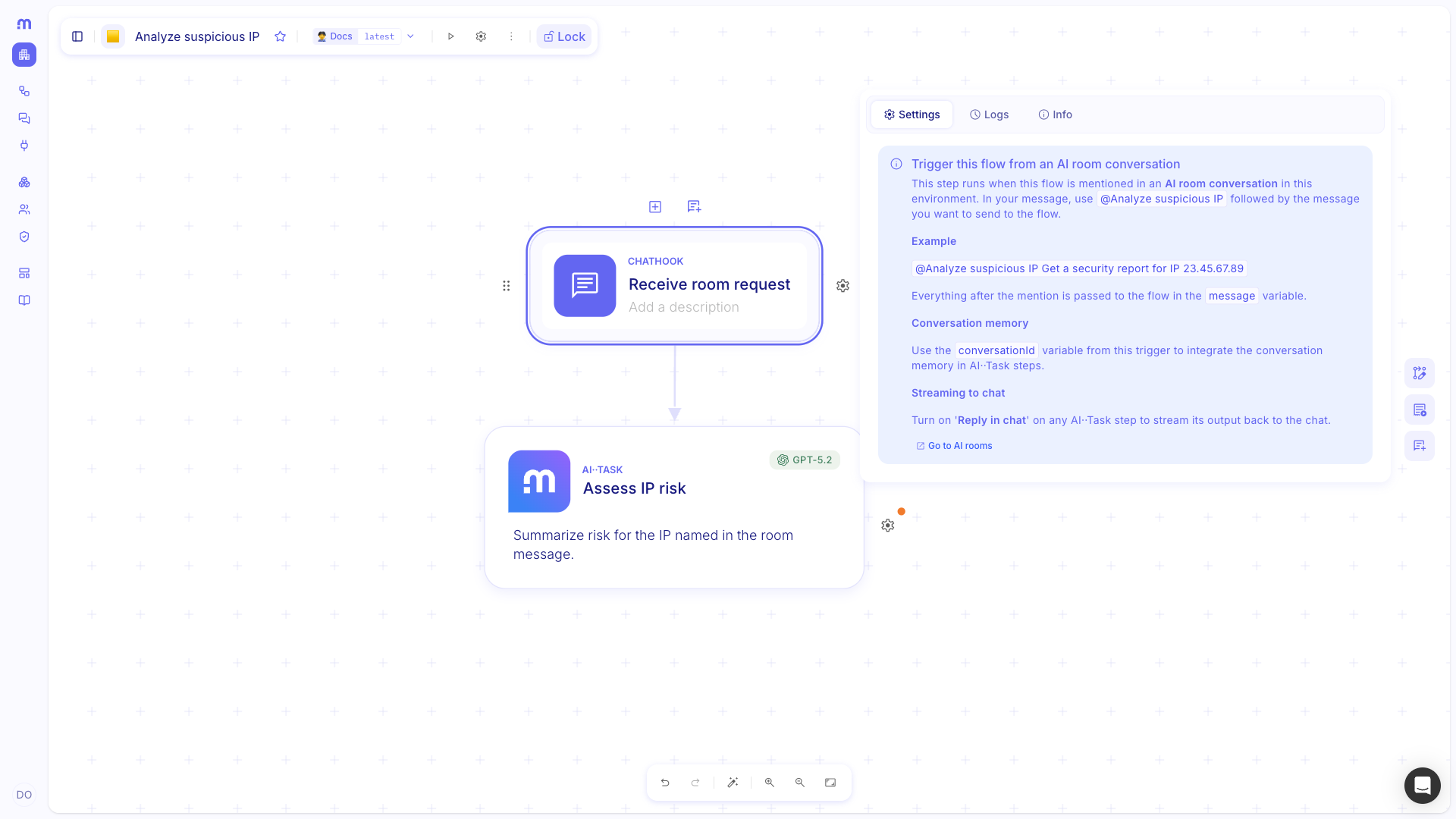
Use Chathook data in later steps
Section titled “Use Chathook data in later steps”When the room message runs the flow, Chathook provides the text after the mention as message, the room conversation id as conversationId, and sender details. Later steps pick those values from the data picker.
Add the next step. Add the step that should use the room text (for example AI··Task or Transform data).
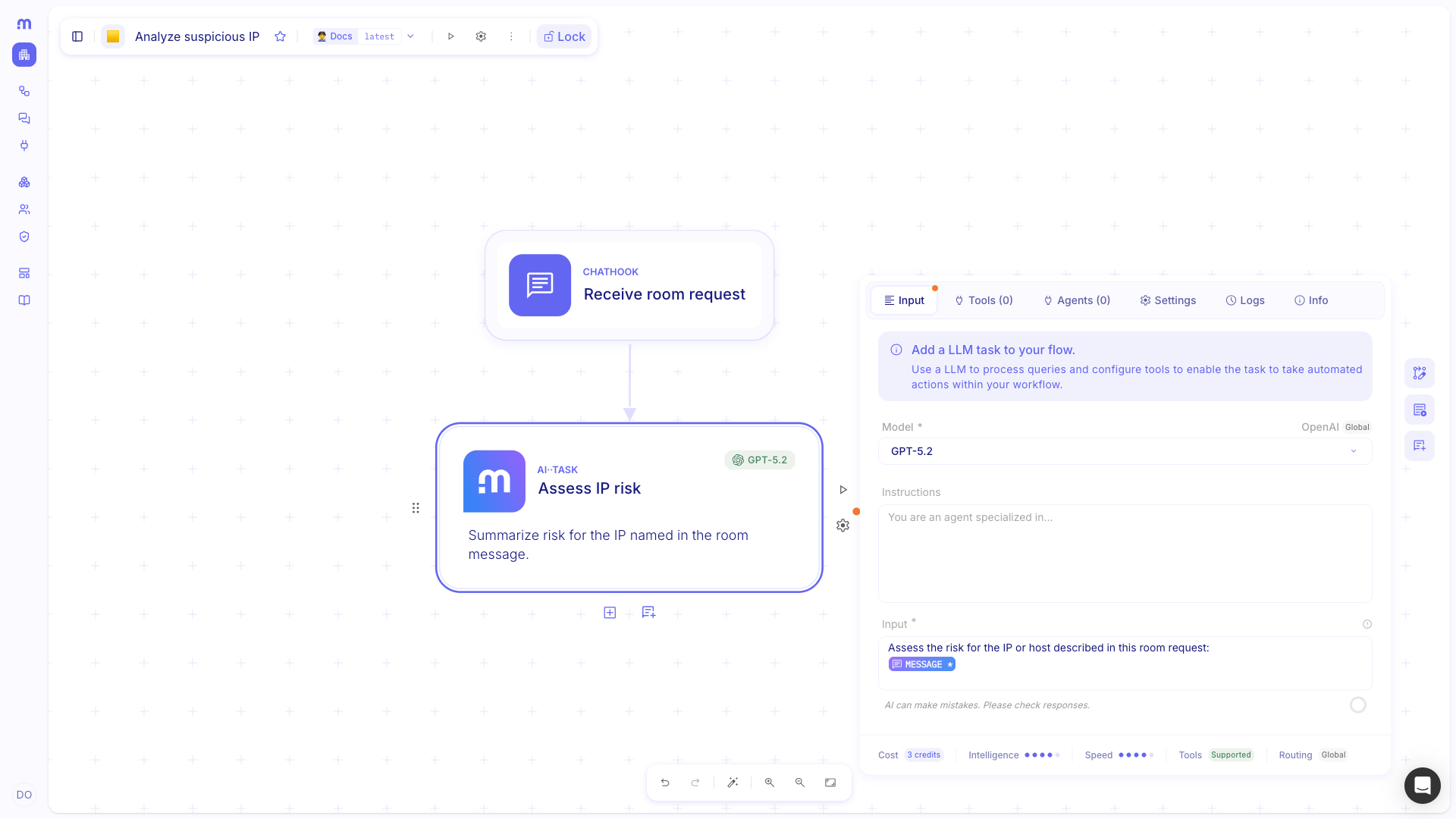
Pick from Chathook. In a formula field, open the data picker, choose the Chathook step, then select message (or conversationId when you need the room conversation id).
Configure AI··Task for chat replies
Section titled “Configure AI··Task for chat replies”When the flow includes a Chathook, each AI··Task shows a Conversation section. Reply in chat streams that step’s output into the room that started the run. Previous Step Memory after a Chathook uses the room’s conversation memory so follow-up mentions keep context.
Add AI··Task. After the Chathook, open Add a step and choose AI··Task. Rename the step and fill a description.
Write the prompt. On Input, write the user prompt and insert the Chathook message (and any other fields you need) from the data picker.
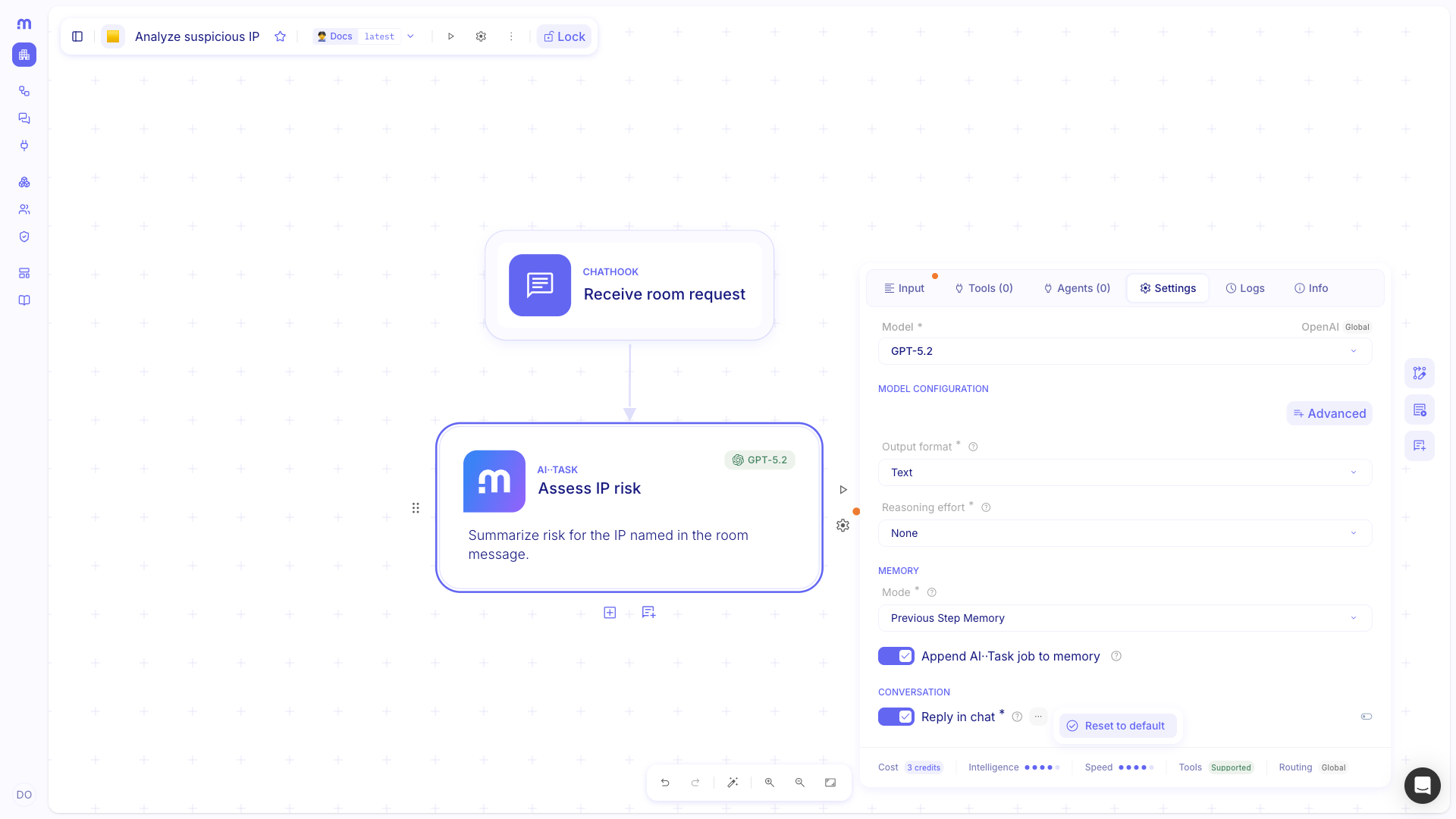
Open Settings. On the AI··Task step, open the Settings tab.
Set Memory. Under Memory, choose Previous Step Memory when the model should reuse the room conversation. Leave None when each mention should be stateless.
Turn on Reply in chat. Under Conversation, leave Reply in chat on (the default under a Chathook) so the step streams into the room. Turn it off only when the step must not post back to chat.
Deploy and mention the flow in an AI··Room
Section titled “Deploy and mention the flow in an AI··Room”The flow is callable from rooms only after it is deployed in that environment. Mention uses the flow name, not the Chathook step name.
Deploy the flow. Deploy it to the environment that owns the room. See Manage version and deployments.
Open Rooms. In Studio, open Rooms and select (or create) a room in that environment.
Mention the flow. In the composer, type
@, choose the flow, then add the rest of the message. Everything after the mention becomes the Chathook message.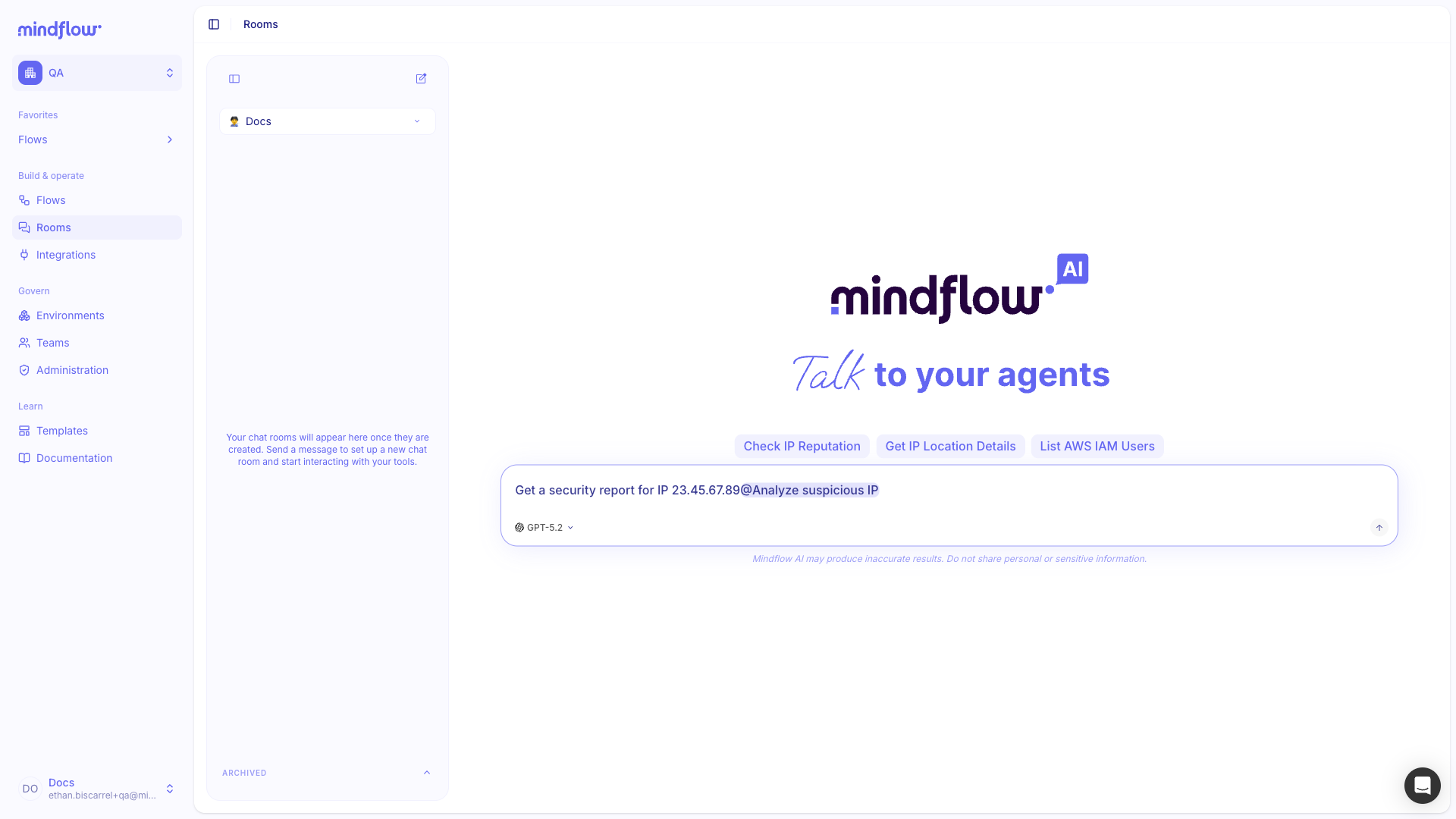
Send the message. Studio starts the deployed flow. With Reply in chat on, the AI··Task output streams into the same room.
Example
Section titled “Example”A SOC analyst wants a quick IP check without leaving chat. The flow Analyze suspicious IP starts with Chathook Receive room request (“Starts when someone mentions this flow in an AI··Room”). An AI··Task named Assess IP risk uses the Chathook message in its prompt, Previous Step Memory, and Reply in chat.
In an AI··Room in the same environment, the analyst sends:
@Analyze suspicious IP Get a security report for IP 23.45.67.89
The flow runs with message set to Get a security report for IP 23.45.67.89. The AI··Task streams its
assessment back into the room. A follow-up mention in the same room can reuse conversation memory when Previous Step
Memory stays on.
Keep in mind
Section titled “Keep in mind”- The flow must be deployed in the room’s environment before
@can start it. - Mention the flow name. Renaming the Chathook step does not change the mention.
- Text after the mention is the Chathook message. The mention token itself is not part of that value.
- Reply in chat appears on AI··Task only when the flow has a Chathook. Without it, the step cannot stream to the room.
- Prefer AI··Rooms for general room usage; this page covers starting a flow from chat.
Related
Section titled “Related”Trigger your flow · Run flow through webhook · AI··Rooms · Manage version and deployments