

Mock a service response
Mock lets you return a simulated HTTP status, headers, and body from a service step instead of calling the live API. Use it to design downstream handling, try error paths, and dry-run or run a flow when credentials or the vendor are unavailable. Screenshots on this page use a sample IP reputation check so you can see filled names and values.
When to use
Section titled “When to use”- You are building or testing a flow and do not want each run to hit the live service.
- You need a fixed success or error payload so a Condition or later step can be validated reliably.
- Credentials for the service are not ready yet, but the rest of the flow should keep moving.
- Prefer the live credential and real call when you are validating the vendor contract or a production path.
Before you begin, open the flow in the designer and unlock it if needed. Add a service step you can mock—an HTTP Request or a native OpenAPI integration. Email, SMTP, and Script steps do not expose Mock.
Configure a mock response
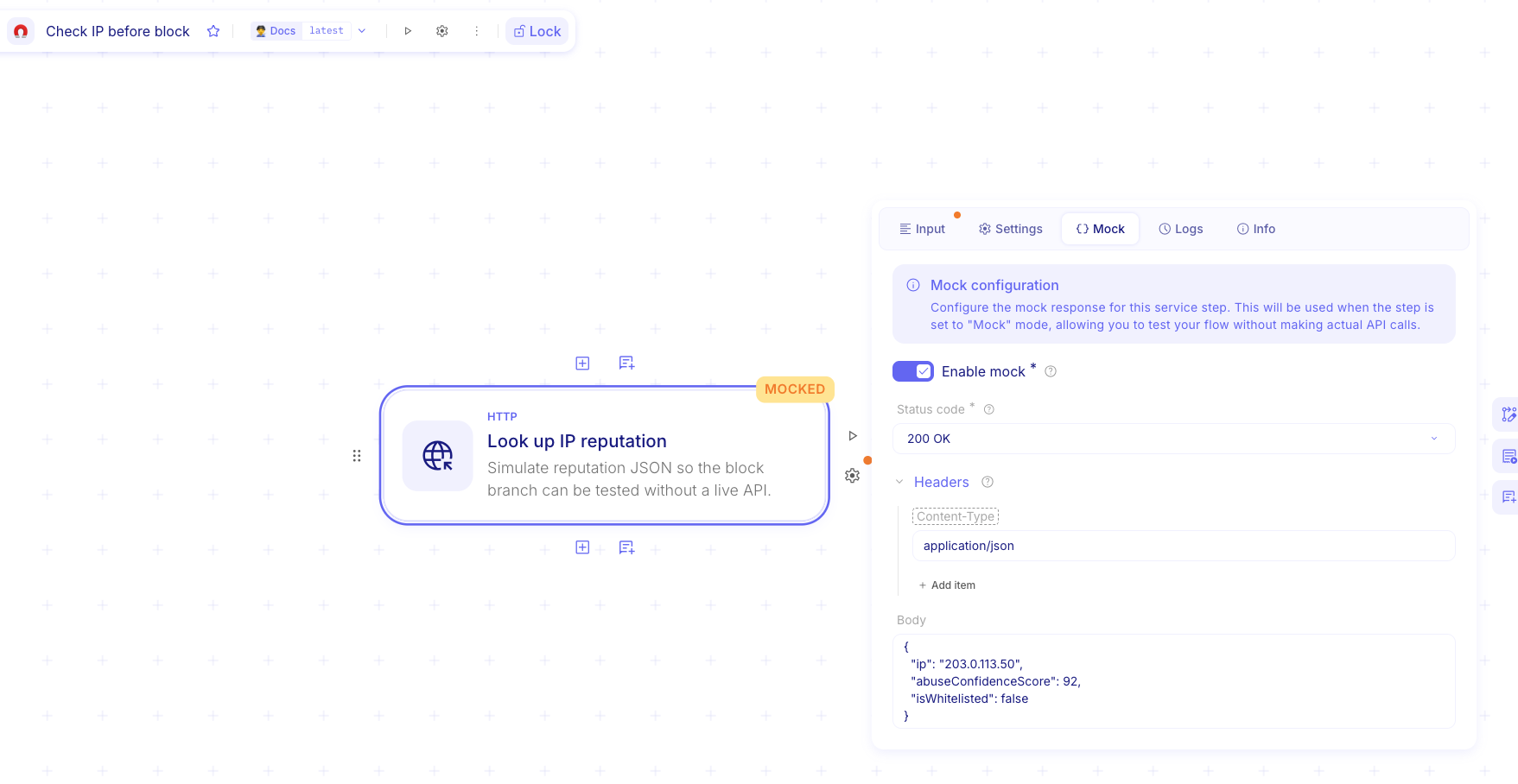
Section titled “Configure a mock response”On a mockable service step, the Mock tab defines the simulated response. Turn Enable mock on, choose a Status code, then set optional Headers and a Body. When the step runs with mock on, Mindflow uses that response and does not call the live API.
Open the Mock tab. Select the service step, open step settings, then choose Mock.
Turn Enable mock on. The step is now in mock mode. A MOCKED badge appears on the canvas.
Set Status code. Pick the HTTP status the simulated response should return (for example 200 OK or 404 Not Found).
Add Headers (optional). Use Add item for each header. Set Name and Value (for example
Content-Typeandapplication/json).Set Body. Enter a JSON string that matches what downstream steps expect from a live call.
Spot mocked steps on the canvas
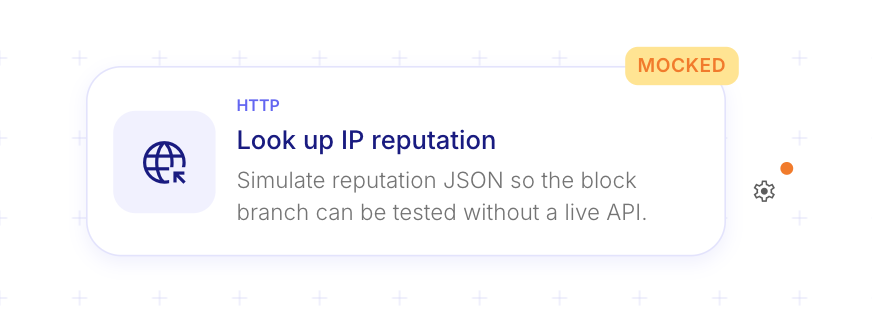
Section titled “Spot mocked steps on the canvas”When Enable mock is on, the step shows a yellow MOCKED badge. Use it to see which steps still return simulated data before you switch back to live calls.
Find the MOCKED badge. On the canvas, look for MOCKED next to the service step. Click the badge to open the step and jump to Mock settings when you need to change the response.
Turn mock off
Section titled “Turn mock off”Turn mock off when the step should call the live service again. The mock fields stay saved so you can re-enable them later.
- Open Mock. Select the service step and open the Mock tab.
- Turn Enable mock off. The MOCKED badge disappears. The next run uses the step credential and live API.
Example
Section titled “Example”A SOC analyst builds Check IP before block. The HTTP step Look up IP reputation would call a reputation API in
production. During design, Mock is enabled with Status code 200 OK, a Content-Type header of
application/json, and this body so a later Condition can branch on a high abuse score without calling the vendor:
{ "ip": "203.0.113.50", "abuseConfidenceScore": 92, "isWhitelisted": false}When the flow is ready for a live check, the analyst turns Enable mock off and selects a credential on Settings.
Keep in mind
Section titled “Keep in mind”- Mock is available on HTTP and OpenAPI service steps. It is not available on Email, SMTP, or Script steps.
- With mock on, the run uses the simulated response and does not need a working credential for that step.
- Leave Enable mock off on paths that must call the real service in production.
- A non-2xx Status code still returns as the step’s HTTP response so you can test On failure and Condition branches on error statuses.
Related
Section titled “Related”Call native integrations · Send raw HTTP requests · Handle step errors