

Transform data and reassign variables
A variable holds a named value that later steps in the same flow can read. You declare starting values under flow
Variables, then use Transform data steps to create new variables or reassign an existing name as the run
progresses. Screenshots on this page build a Google search URL by appending host and path onto a shared url
variable.
When to use
Section titled “When to use”- You need a named value that several steps read, or that you update as the flow runs (for example a growing URL, counter, or filtered list).
- You reshape or calculate data between steps without calling an external system.
- Prefer Platform Artifacts when the payload must persist across runs or be shared by other flows in the same environment.
- Prefer a transform function reference page when you already know which formula to apply and only need syntax and examples.
Before you begin, open a flow in the designer with permission to edit it.
Declare global variables
Section titled “Declare global variables”Flow Variables are the starting values for the run. Studio labels this panel Global variables. Any variable you declare here is available to later steps, and a Transform data step can reassign the same name.
Open flow settings. In the designer toolbar, choose the settings (gear) control.
Open Variables. Select the Variables tab.
Add a variable. Choose Add item, set the name (for example
url), then set the initial value (plain text, JSON, a/data pick, or a formula).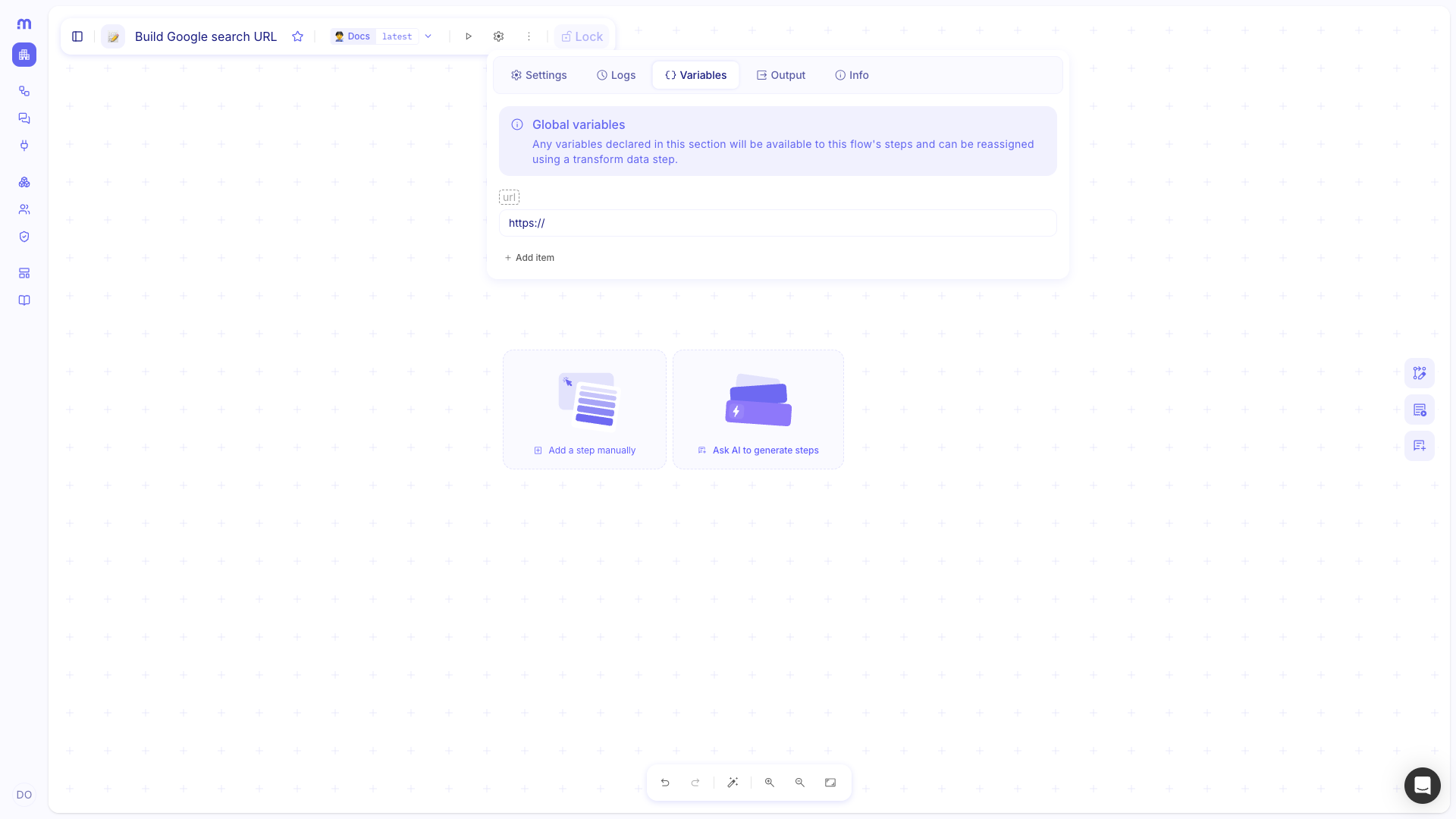
Add a Transform data step
Section titled “Add a Transform data step”Transform data is a built-in flow step. Use it to create variables, reassign existing names, and apply formula functions between other steps.
- Open Add a step. On the canvas, choose + where the transform should run.
- Choose Transform data. Under Flow, select Transform data. Studio places a purple Transform data node on the canvas.
Assign and reassign variables
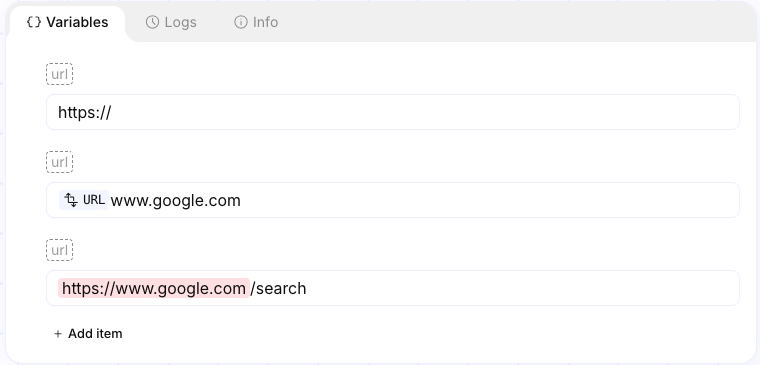
Section titled “Assign and reassign variables”On a Transform data step, the Variables tab lists name and value rows—the same key/value form as global variables. To create a variable, add a row with a new name. To reassign, add a row whose name matches an existing global or upstream variable; the new value replaces the previous one for later steps.
You can chain several assignments in one step. Later rows may reference earlier ones in the same step (for example append text onto the value you just set).
Open Variables on the step. Select the Transform data step, then open the Variables tab.
Add or edit a row. Choose Add item. Set the variable name. For a reassignment, use the same name as the global or earlier variable (for example
url).Set the value. Type a literal, combine text with a reference, or map data from earlier in the flow. Chain rows in order when each assignment builds on the previous value of the same name.
Pick an existing variable with /. In a value field, type
/to open the data picker, then choose Variables and select the variable whose current value you want to insert as a pill. That inserts a reference into the value; it does not change the row name.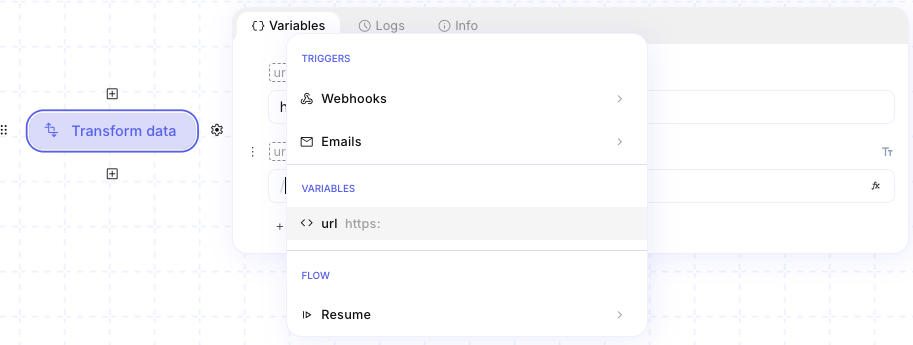
Apply transform functions
Section titled “Apply transform functions”Each variable value can use formula functions (the fx control on the field). Chain functions with Add a new function when you need hashes, formatting, array helpers, or other transforms. For parameter lists and examples, see Transform functions.
Example
Section titled “Example”An operator builds a Google search URL in one Transform data step by reassigning url three times:
- Start the base. Set
urltohttps://. - Append the host. Reassign
urlto the previous value pluswww.google.com(via a/pick or typed text). - Append the path. Reassign
urlagain to the previous value plus/search, so later steps receivehttps://www.google.com/search.
Keep in mind
Section titled “Keep in mind”- Reassignment is by name match only. There is no separate Reassign control—use the same variable name on a later Transform data row or step.
- Variables are scoped to the current flow run. They are not shared across environments or stored like Platform Artifacts.
- After a run, open the step Logs tab to inspect computed variable values when debugging.
Related
Section titled “Related”Work with data · Transform functions · Store data with Platform Artifacts