

Manage Active Directory users and groups with LDAP
LDAP (Beta) runs directory operations from a Mindflow flow.
- What you can do: Look up users and groups, update profiles, create accounts and groups, enable or disable login, unlock and set passwords, and manage group membership.
- Directories: Named Active Directory operations target Microsoft AD. Eight generic LDAP operations work with Active Directory, OpenLDAP, and other LDAP-compatible directories when you need raw search, modify, rename, or delete.
- Active Directory vs LDAP: Use Active Directory for identity lifecycle operations such as provisioning, updating, and offboarding (joiner, mover, and leaver workflows). Use LDAP for filters or attributes those named actions do not cover.
- Authentication: Every step uses an LDAP Simple Authentication credential. The directory host, protocol, and port always come from that credential’s Address URL—not from the step body.
When to use
Section titled “When to use”- Provision or offboard Active Directory users.
- Modify allow-listed user profile attributes.
- Enable, disable, or unlock accounts.
- Manage group membership (add, remove, list, or check).
- Query OpenLDAP or unsupported AD attributes with generic LDAP operations.
Before you begin
Section titled “Before you begin”You need:
- An LDAP or Active Directory server Mindflow can reach.
- Firewall or security-group access for Mindflow’s platform static egress IP (ask your Mindflow administrator).
- Permission to create a credential in the environment. See Credentials.
- A bind account with least privilege for the operations your flow runs (read/search for lookups; delegated create, update, disable, password, or group rights as needed). Prefer a dedicated service account—not Domain Admin.
Ports and schemes: ldaps:// on TCP 636, or ldap:// on TCP 389 (optionally with StartTLS).
Enable and add LDAP
Section titled “Enable and add LDAP”Activate LDAP (Beta) for the environment, then add its operations from a flow.
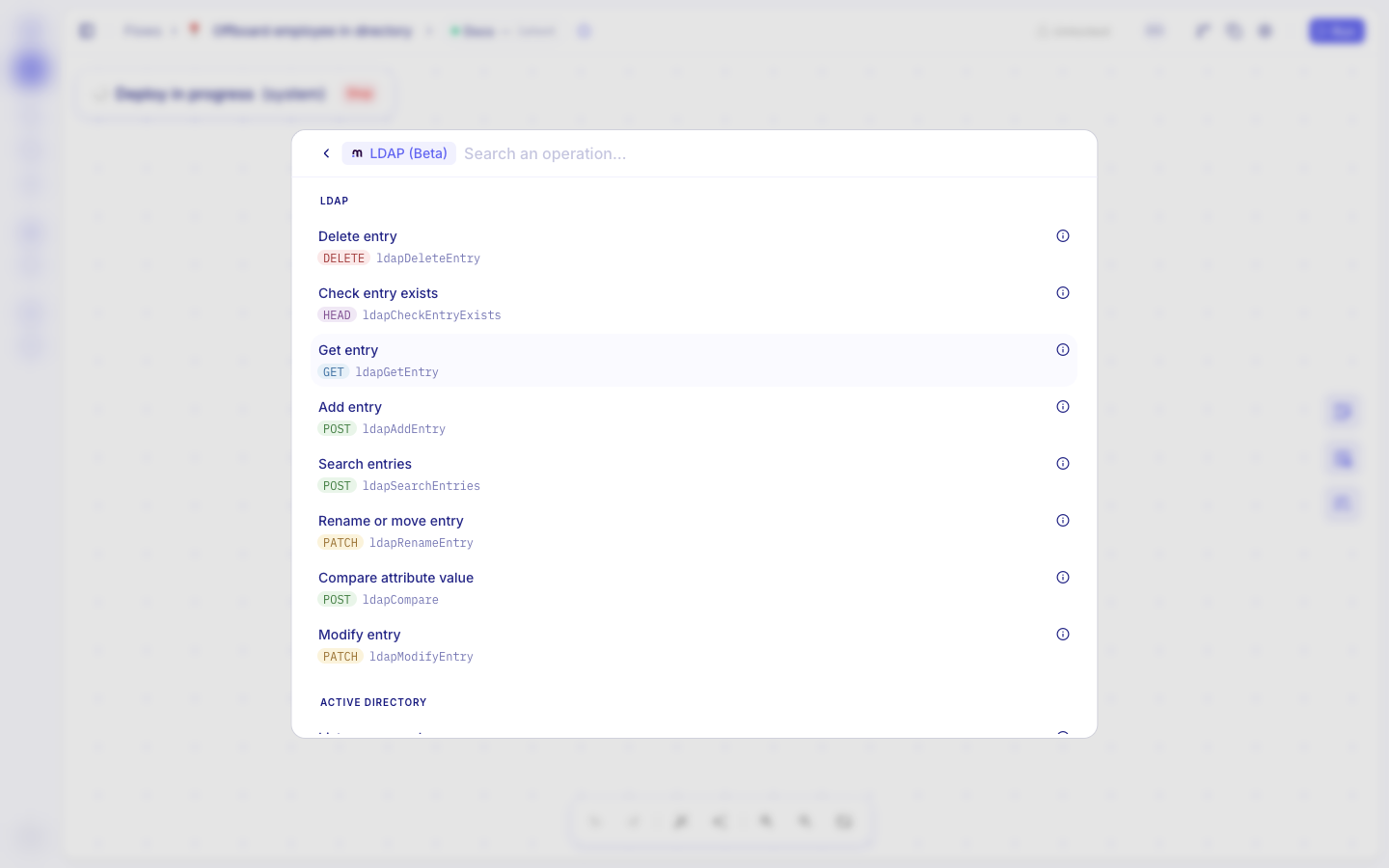
LDAP (Beta) groups its operations into Active Directory and LDAP sections.
Open Integrations. In Studio, go to Integrations.
Activate LDAP (Beta). Open the Mindflow vendor group, search for
ldap, then turn on LDAP (Beta) if it is not already activated. Activating (favoriting) the service makes it available under Add a step → Integrations. Services that already have an environment credential can also appear there.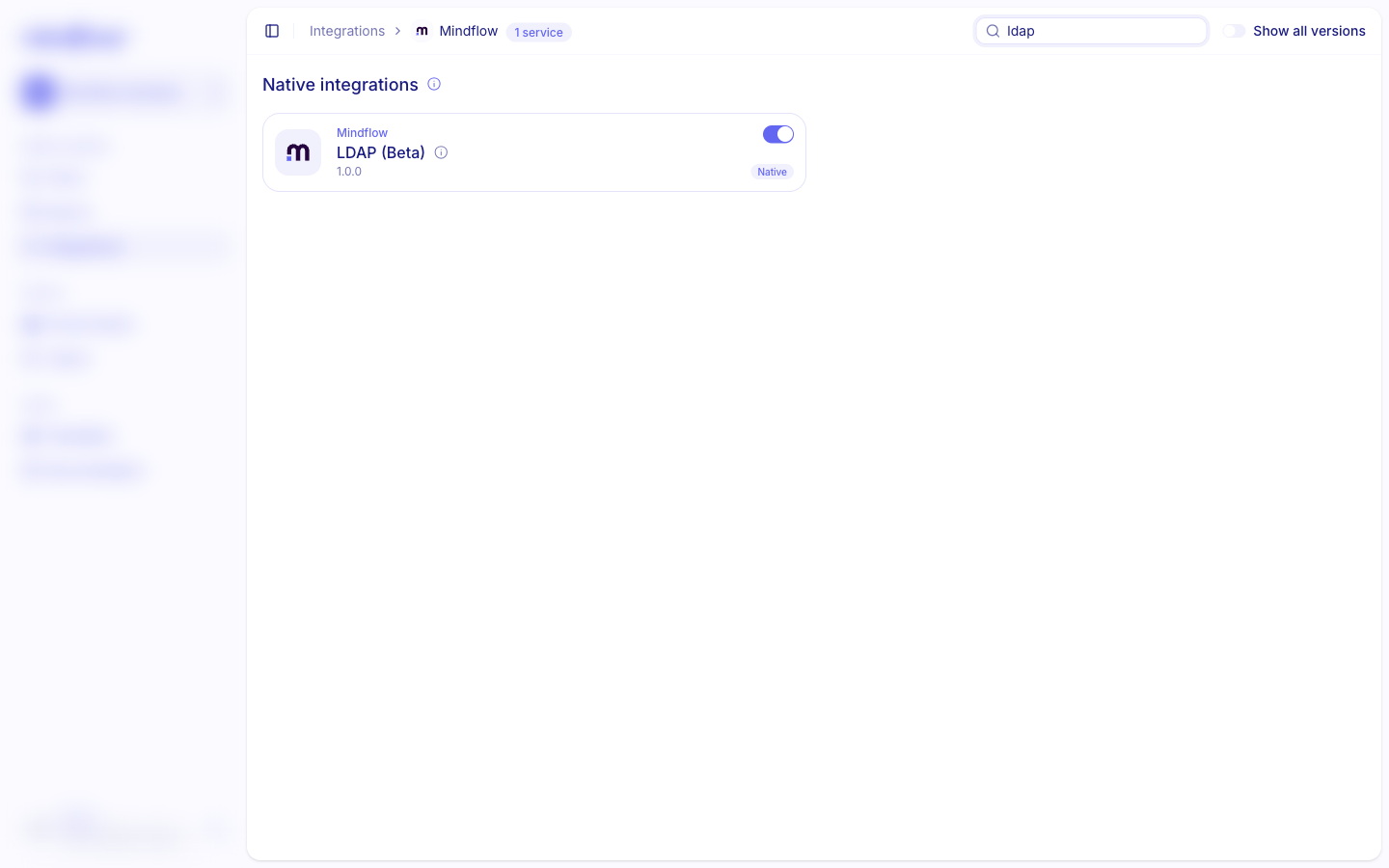
Add a step. In a flow, open Add a step, choose Integrations, then LDAP (Beta). Pick an Active Directory action for named user and group work, or an LDAP operation for a raw directory call.
Create an LDAP credential
Section titled “Create an LDAP credential”Every LDAP step authenticates with an LDAP Simple Authentication credential. The Address controls the server, protocol, and port for every operation that uses that credential.
Open Environments. Open the environment that will run the flow, then choose Add credential.
Choose LDAP (Beta). Set Service to LDAP (Beta). Set Credential name, and keep URL as Custom.
Fill Address and bind fields. Prefer
ldaps://directory.example.com:636for production. Fill Bind DN (for exampleCN=mindflow-svc,OU=Service Accounts,DC=example,DC=com) and Bind Password.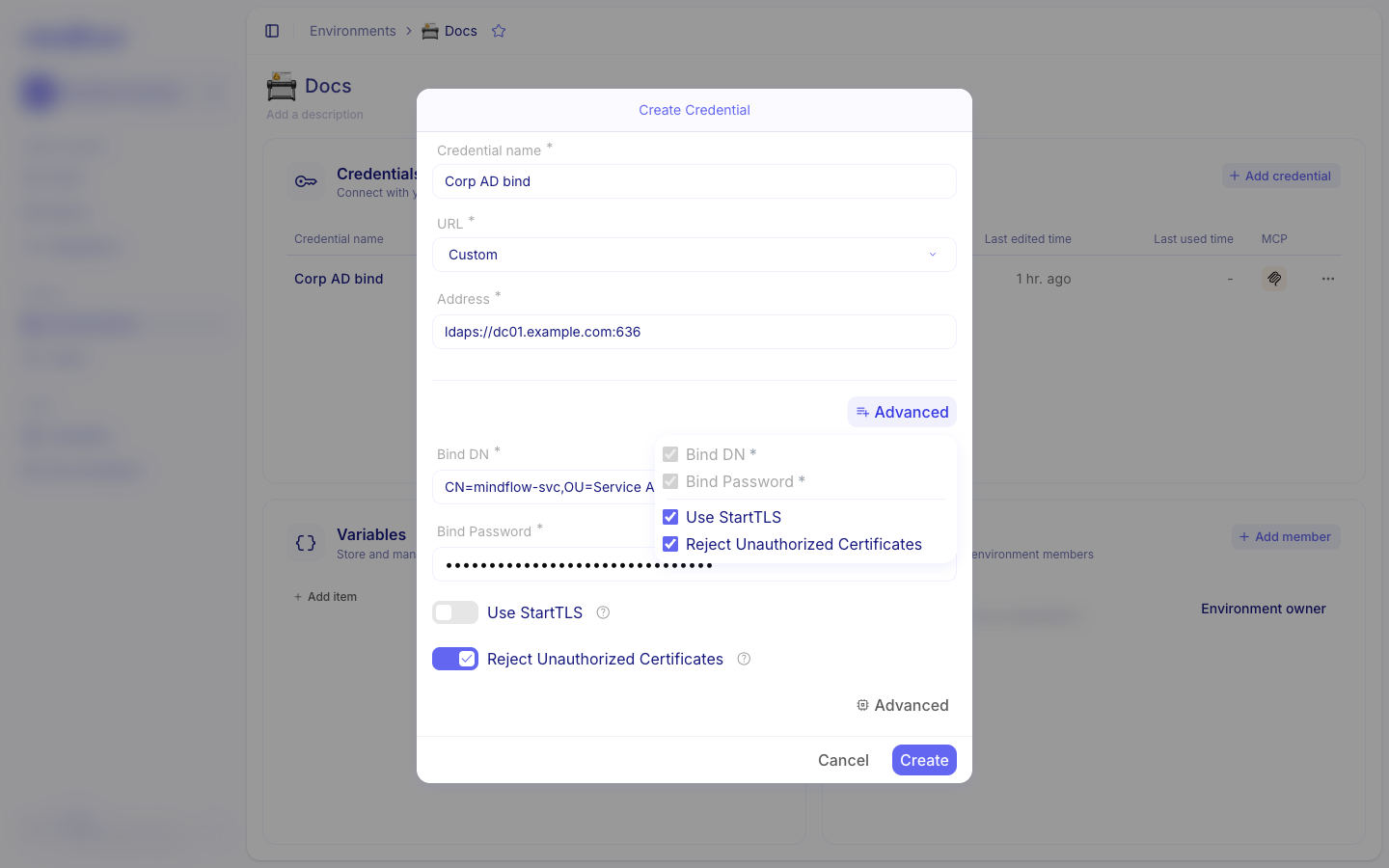
Optional: set TLS options. For
ldap://, turn on Use StartTLS when the directory requires TLS before bind, or when you will set passwords. Keep Reject Unauthorized Certificates on so Mindflow validates the server certificate in production.When certificate validation is on, the server certificate must be trusted and valid for the hostname in Address.
Identify a user or group
Section titled “Identify a user or group”Most Active Directory actions identify an object either by distinguished name (DN) or by a lookup attribute such as
sAMAccountName. Prefer DN or sAMAccountName. Lookups by mail or userPrincipalName can be ambiguous if
multiple entries match.
- By DN — send only the distinguished name.
- By lookup — send Type and Value, with optional Search base.
Search base: omit it to search the domain default naming context; set it to restrict the search to that subtree.
After Find user or Find group, store the returned DN and reuse it in later steps.
Type: sAMAccountName
Value: arivera
DN: CN=Alex Rivera,OU=Users,DC=example,DC=com
Active Directory operations
Section titled “Active Directory operations”Find a user
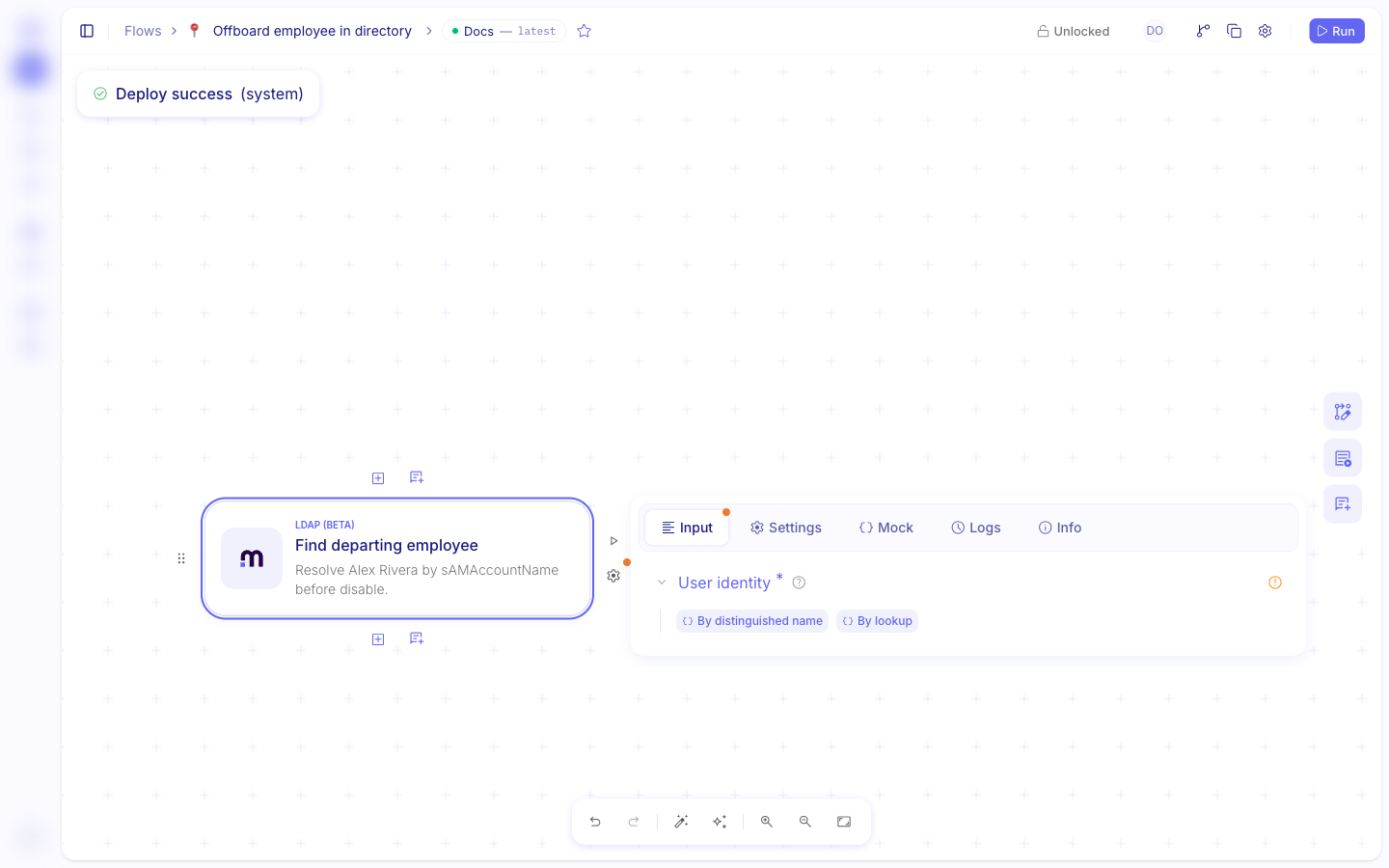
Section titled “Find a user”Find user finds one Active Directory user by DN or by lookup (sAMAccountName, mail, or userPrincipalName).
Prefer sAMAccountName or DN. Lookups by mail or UPN can be ambiguous if multiple entries match.
The step returns the user record, including the DN to map into later steps.
Add Find user. Select the LDAP credential.
Set the user identity. Use DN or sAMAccountName as in Identify a user or group. Omit Search base unless you need to limit the subtree.
Find a group
Section titled “Find a group”Find group finds one Active Directory group by DN or by lookup. Prefer sAMAccountName or DN. Returns the group record, including the DN.
Add Find group. Select the LDAP credential.
Set the group identity. Example:
Type:
sAMAccountNameValue:
Security Analysts
Update a user profile
Section titled “Update a user profile”Update user profile updates allow-listed attributes on one user in a single modify: givenName, sn,
displayName, mail, department, title, and telephoneNumber. Omit a property to leave it unchanged; send null
to clear it. Empty strings and an empty profile are rejected.
Use Set password, Disable account, or Rename or move entry for passwords, enablement, and moves.
Add Update user profile. Select the LDAP credential.
Set the user identity. Prefer the DN from Find user.
Set the profile. Example:
givenName:
Alexmail:
alex.rivera@example.comdepartment:
null(clears the attribute)
Disable or enable an account
Section titled “Disable or enable an account”Disable account and Enable account flip only the disabled flag on userAccountControl. Other bits stay
unchanged. Already disabled or already enabled still succeeds. The resolved entry must be a user.
Add Disable account or Enable account. Select the LDAP credential.
Set the user identity. Prefer the DN from Find user.
Unlock an account
Section titled “Unlock an account”Unlock account clears lockout on a user. Already unlocked still succeeds.
Add Unlock account. Select the LDAP credential.
Set the user identity. Prefer the DN from Find user, or sAMAccountName
arivera.
Set a password
Section titled “Set a password”Set password writes the directory password (unicodePwd). Requires LDAPS or StartTLS. Plain ldap://
without StartTLS is rejected.
Optional Must change password requires a password change at next logon (sets pwdLastSet to 0).
Add Set password. Select a credential whose Address is
ldaps://orldap://with Use StartTLS.Set the user and password. Prefer DN or sAMAccountName, then set Password. Optionally turn on Must change password.
List a user’s groups
Section titled “List a user’s groups”List user groups returns groups for one user:
- Always includes direct
memberOfmemberships. - Always includes the user’s primary group. Active Directory’s
memberOfattribute does not contain the primary group; the connector adds it. - When nested is on, also includes ancestor groups of those memberships (in-chain search). Groups are deduplicated by DN.
Search runs under the identity Search base when set, otherwise under the domain default naming context. Referrals are not followed, so groups in other domains or forests are out of scope for this request. More than 10 000 groups is rejected by the connector (400) without silent truncation.
The step returns the list of group records.
Add List user groups. Select the LDAP credential.
Set the user identity. Prefer DN or sAMAccountName
arivera. Turn nested on when you need ancestor groups.
Manage group membership
Section titled “Manage group membership”Add group member and Remove group member modify the group member attribute. Each step takes a group
identity and a member identity (user or nested group). Already a member or already absent still succeeds.
List group members returns member DNs. Direct membership reads member (with range retrieval when needed). When
nested is on, an in-chain search includes nested members.
Check group membership returns { matched: true | false } without loading the full member list. Default is direct
membership only (Compare on member). Turn nested on for transitive (indirect) membership.
Add Add group member or Remove group member. Select the LDAP credential.
Set group and member. Prefer sAMAccountName or DN for both:
Group type:
sAMAccountNameGroup value:
Security AnalystsMember type:
sAMAccountNameMember value:
arivera
Create a user
Section titled “Create a user”Create user creates a user under parentOu with cn and sAMAccountName (maximum 20 characters). The DN is
CN=<cn>,<parentOu>. Do not send an existing-entry identity. Optional profile fields: givenName, sn,
displayName, mail, userPrincipalName.
The connector runs these stages in order on one bind:
- Create the account disabled.
- Set the password when Password is supplied (requires LDAPS or StartTLS).
- Enable the account when Enabled is on.
Enabled without a Password still enables the disabled account after create; set a password separately if the account must log on. Must change password applies only when a password is set.
The step returns the created user record, including the DN.
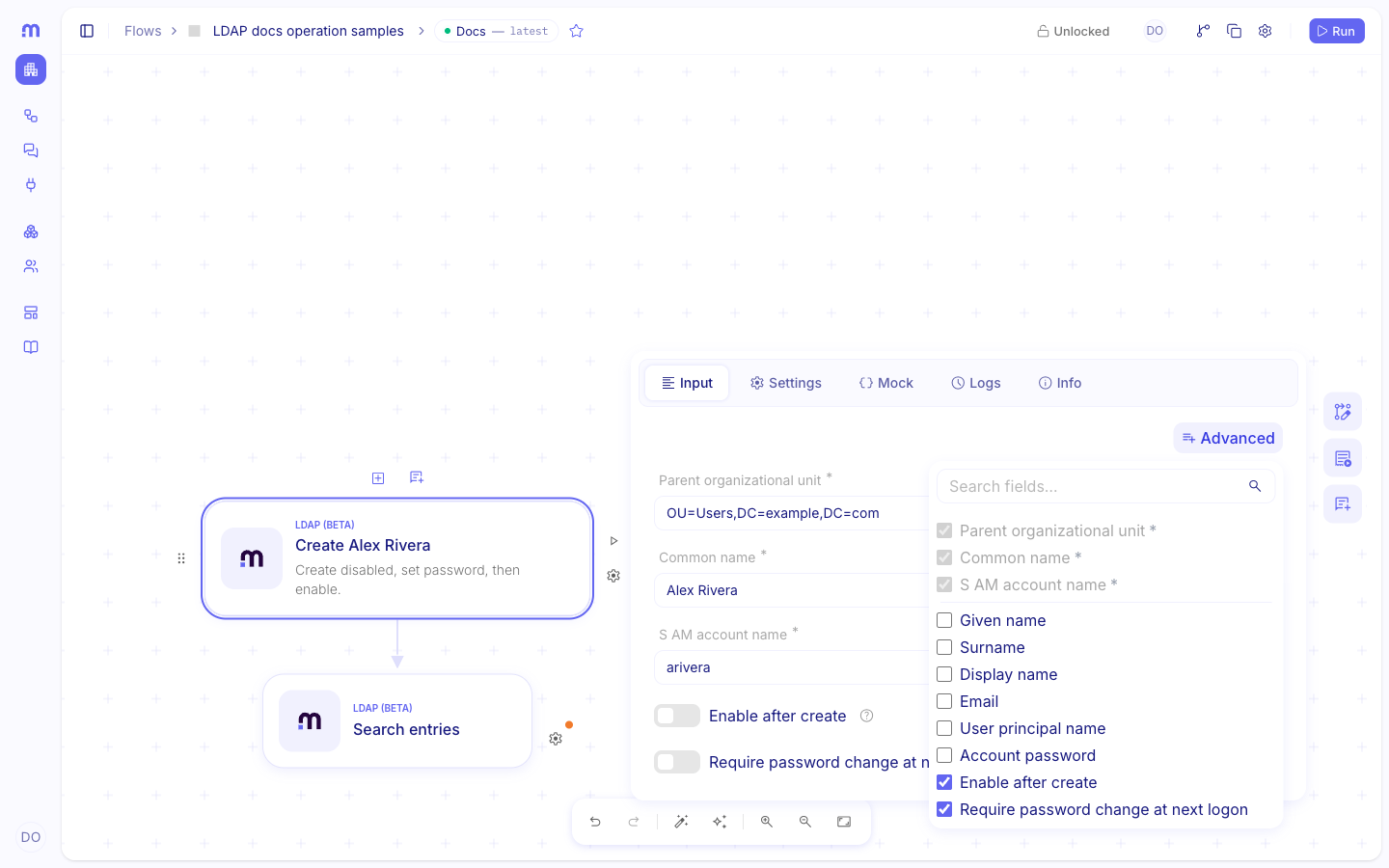
Add Create user. Select the LDAP credential. Set:
Parent OU:
OU=Users,DC=example,DC=comCN:
Alex RiverasAMAccountName:
ariveraOptional: set password and enable. Send a password only on LDAPS or StartTLS. Turn Enabled on when the account should be usable immediately (after the password write when a password is set).
Create a group
Section titled “Create a group”Create group creates a group under parentOu with cn, sAMAccountName (maximum 20 characters),
groupScope (global, domainLocal, or universal), and groupCategory (security or distribution). Optional
description. Do not send an existing-entry identity. Returns the created group record, including the DN.
Add Create group. Select the LDAP credential. Set:
Parent OU:
OU=Groups,DC=example,DC=comCN:
Playbook OperatorssAMAccountName:
PlaybookOpsSet scope and category.
groupScope:
globalgroupCategory:
securityThen use Add group member when the flow should place users in the new group.
Use generic LDAP operations
Section titled “Use generic LDAP operations”The LDAP section is the lower-level alternative to named Active Directory actions. Use it for OpenLDAP, unusual attributes, or filters those AD operations do not cover.
Search entries takes Base DN, Filter, optional Scope, optional attributes (omit to return all user attributes; name operational attributes explicitly), and optional size limit. Results are one snapshot—not internally paged beyond the connector’s 10 000-entry cap.
Add Search entries when you need a raw filter. Set the base DN and filter. Example by sAMAccountName:
Filter (sAMAccountName=arivera)Add Rename or move entry to change OU. Set the current DN, the new relative DN, and the optional new superior.
Example
Section titled “Example”Create an LDAP Simple Authentication credential named Corp AD bind for ldaps://dc01.example.com:636 as
CN=mindflow-svc,OU=Service Accounts,DC=example,DC=com.
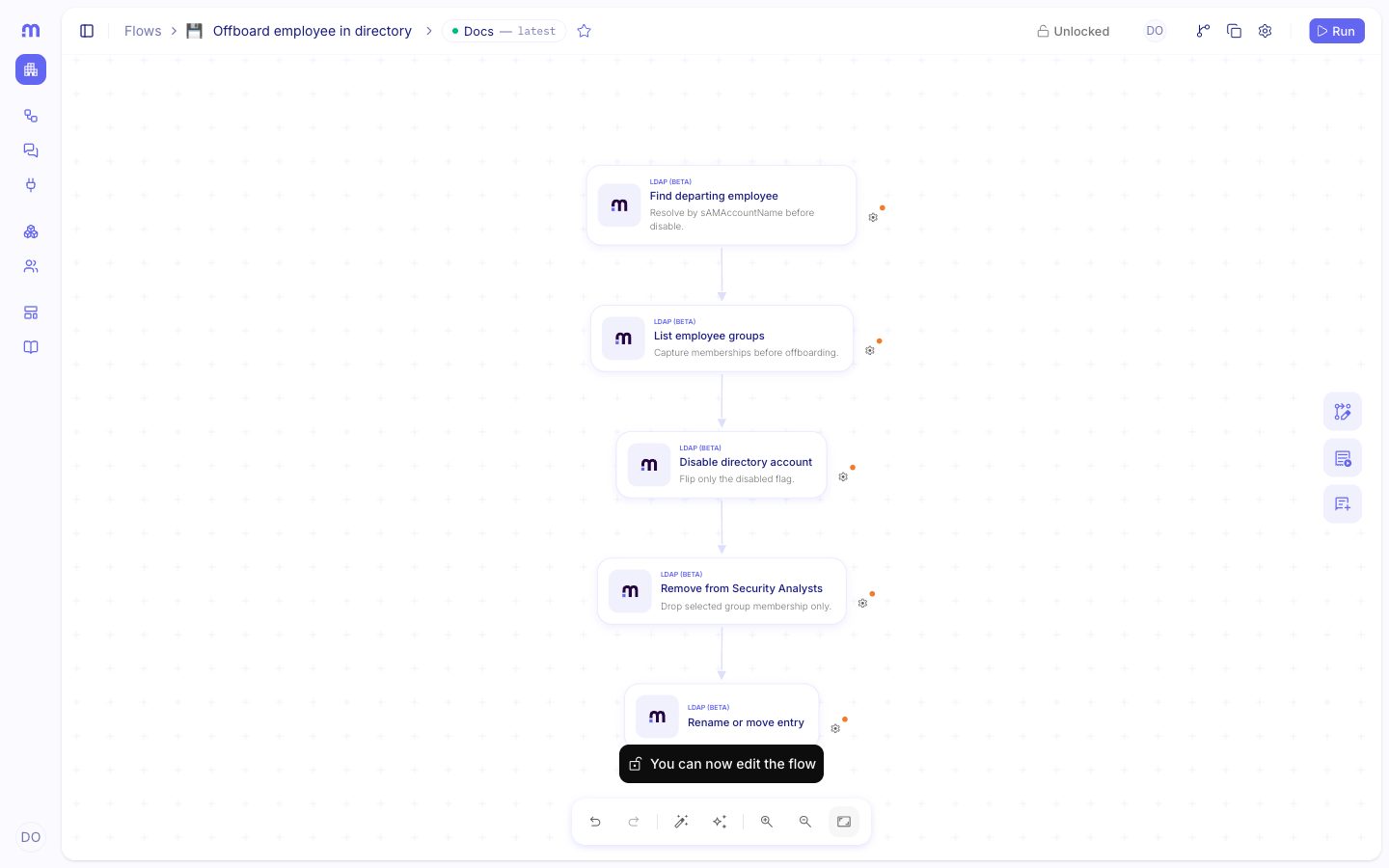
In a flow titled Offboard employee in directory:
- Find user with sAMAccountName
arivera. - Map the returned DN into the next steps (reuse that DN; do not look the user up again by mail).
- List user groups if the flow needs memberships for logging or decisions.
- Disable account with that DN.
- Remove group member for selected groups (for example
Security Analystsonly—removal is only what you configure, not every group automatically). - Optionally Rename or move entry into
OU=Disabled,DC=example,DC=com.
Security and TLS
Section titled “Security and TLS”- Prefer
ldaps://or StartTLS for production. Plainldap://without StartTLS can expose the bind password. - Keep Reject Unauthorized Certificates on in production. Ask Mindflow support to install a private or enterprise CA chain when needed.
- Set password and Create user with a password require encrypted LDAP.
- Use a least-privilege bind account for the operations your flow performs.
Troubleshooting
Section titled “Troubleshooting”The connector connects from the platform static egress IP on TCP 389 or TCP 636 (or 3268 / 3269 for Global Catalog).
Limits
Section titled “Limits”These caps are enforced by the Mindflow connector (not every LDAP server):
A directory time, size, or administrative limit can also fail the step as 400.
Unsupported
Section titled “Unsupported”- SASL binds other than simple authentication
- Arbitrary BER controls
- Server-side sort
- Subtree delete
- Following LDAP referrals — searches that need another naming context or server do not continue there automatically
Related: Reach out to services · Call native integrations · Credentials · Run remote commands with SSH