

Create and manage credentials
A credential stores secrets and auth parameters for an external tool—API keys, OAuth clients, passwords, tokens, and similar. You create credentials inside an environment, then select them on integration and HTTP steps when you design or deploy a flow.
When to use
Section titled “When to use”- You need to connect Mindflow to a vendor API and the step asks for a credential.
- You are preparing an environment before deploying a flow that calls external services.
- You must move or rotate a secret without rebuilding the flow logic.
- Prefer Integrations first when the vendor connector is not activated yet.
- Prefer Environments when you need a new execution context before adding secrets.
Before you begin, confirm you are an Owner on the target environment (Owners create and edit credentials; Operators and Auditors can view metadata but never see secret values). Activate the integration for the vendor you need—see Integrations.
Create a credential in an environment
Section titled “Create a credential in an environment”Credentials belong to one environment. Open that environment from Environments, then start the create flow from the credential list.
-
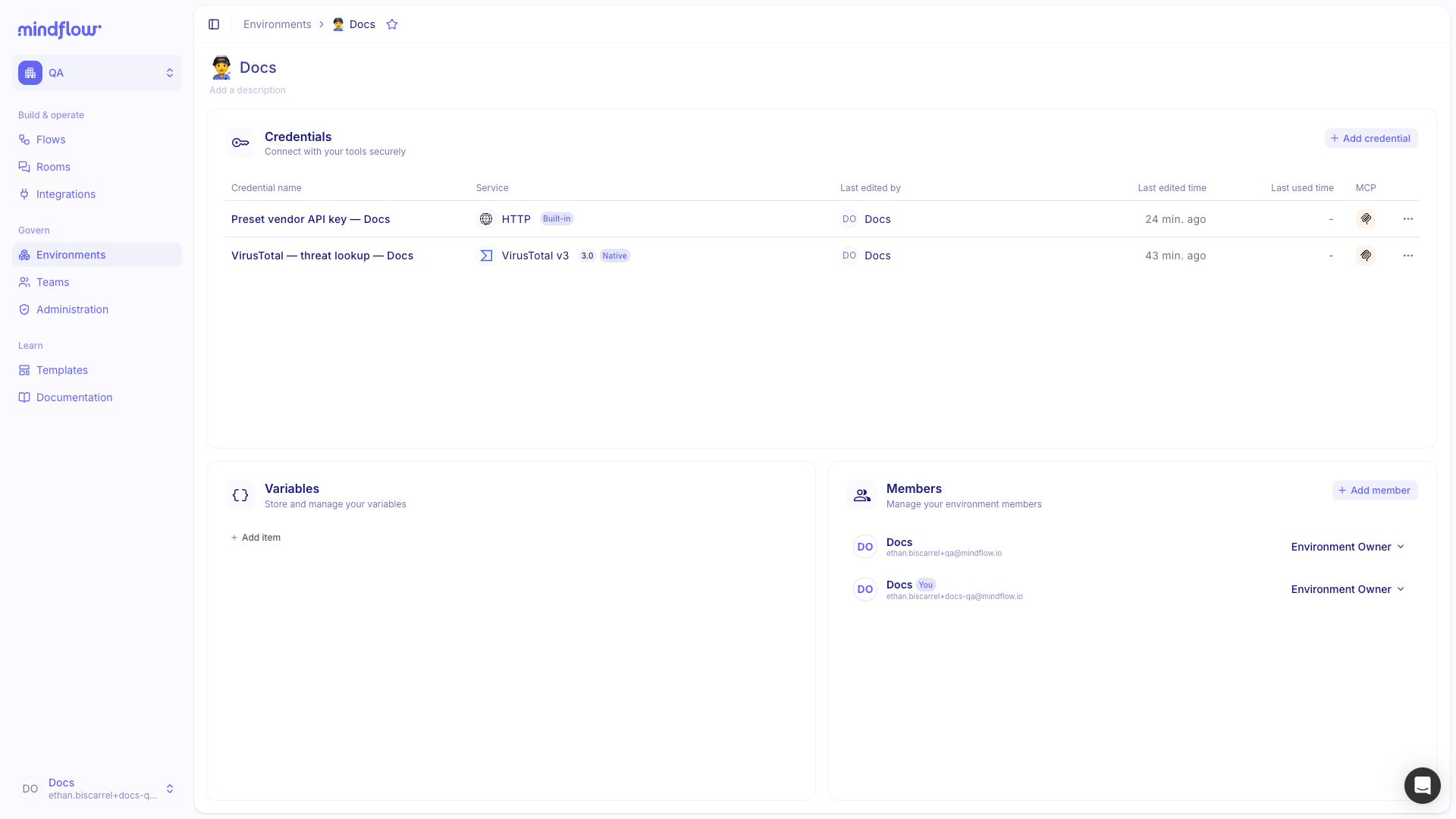
Open Environments. In the Studio sidebar, choose Environments.
-
Open the target environment. Select the environment where the flow will run—for example Docs for development work.
-
Start Create credential. Click Add credential (or Create credential when the list is empty).
Choose the service and credential type
Section titled “Choose the service and credential type”Pick the vendor that issued the secret. Mindflow pre-fills most fields for native integrations; HTTP preset services use the HTTP Request service until a native connector exists.
-
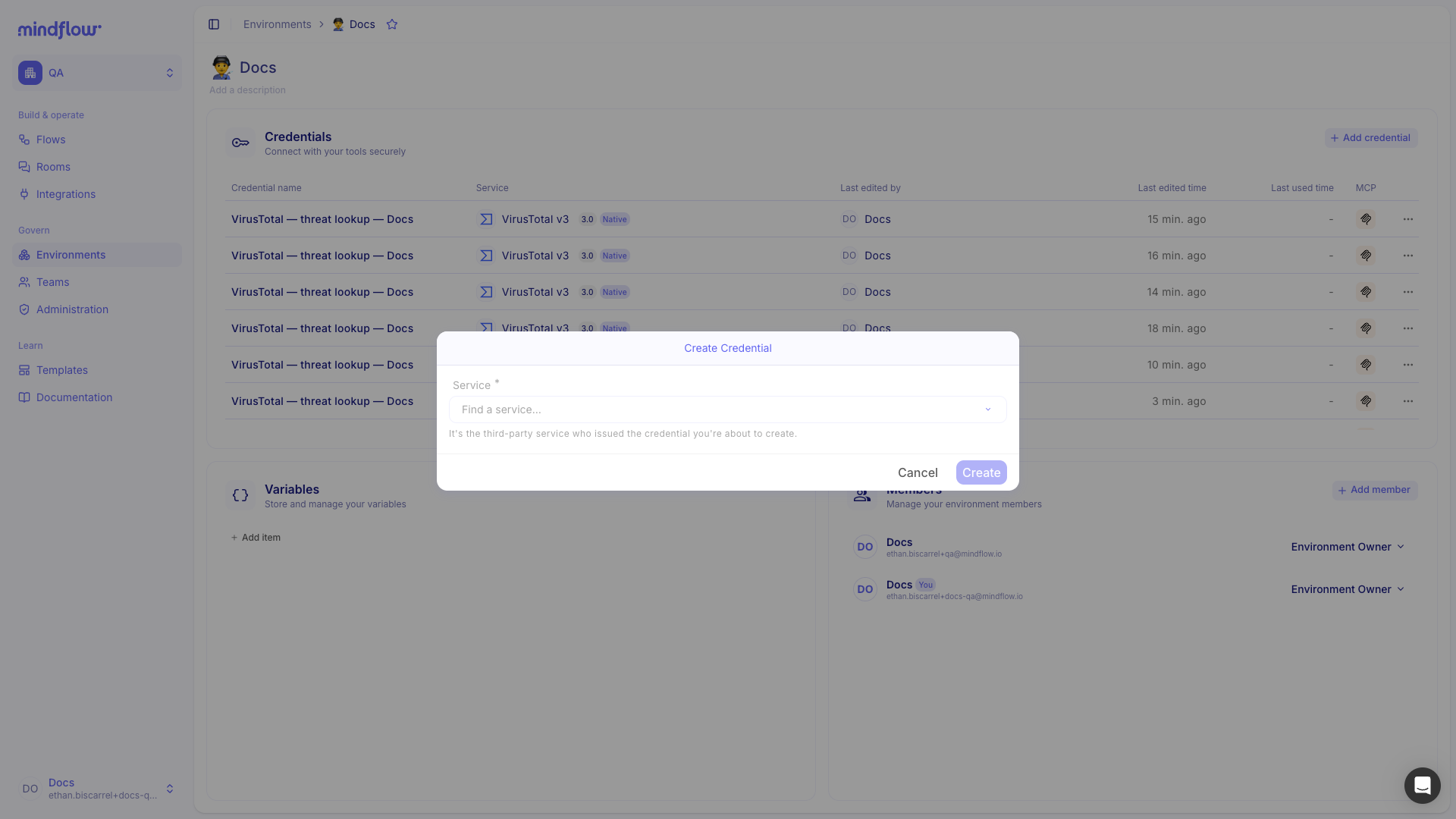
Choose the service. In Service, search for the vendor—for example VirusTotal v3—and select it from the list.
-
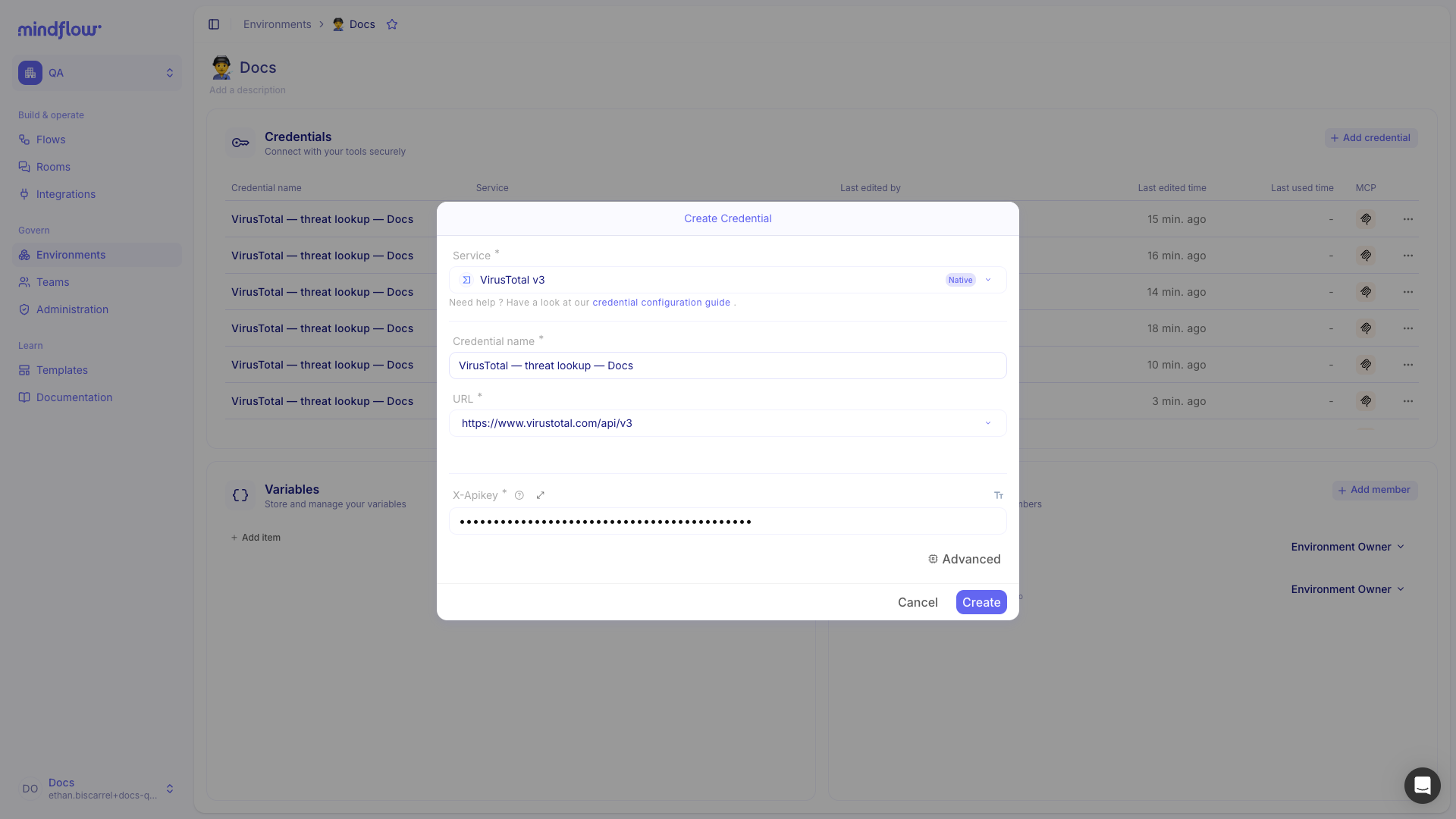
Name the credential. Enter a name that states the tool, account, and environment—for example
VirusTotal — threat lookup — Docs. -
Fill required fields. Complete secrets, URLs, scopes, and headers the form shows. For VirusTotal v3, paste your API key into X-Apikey; the URL is preconfigured.
-
Save the credential. Click Create.
Select a credential on a step
Section titled “Select a credential on a step”When a step calls an external service, bind the environment credential on the step Settings tab. At run time, Mindflow injects the auth details into the outgoing request.
-
Open the flow. In Flows, open the flow that calls the service—for example Threat intel lookup.
-
Open step Settings. Select the integration step—for example Look up file hash—then open Settings.
-
Choose the credential. In Credential, select the credential that matches the step—for example
VirusTotal — threat lookup — Docson a VirusTotal v3 step, orPreset vendor API key — Docson an HTTP Request step.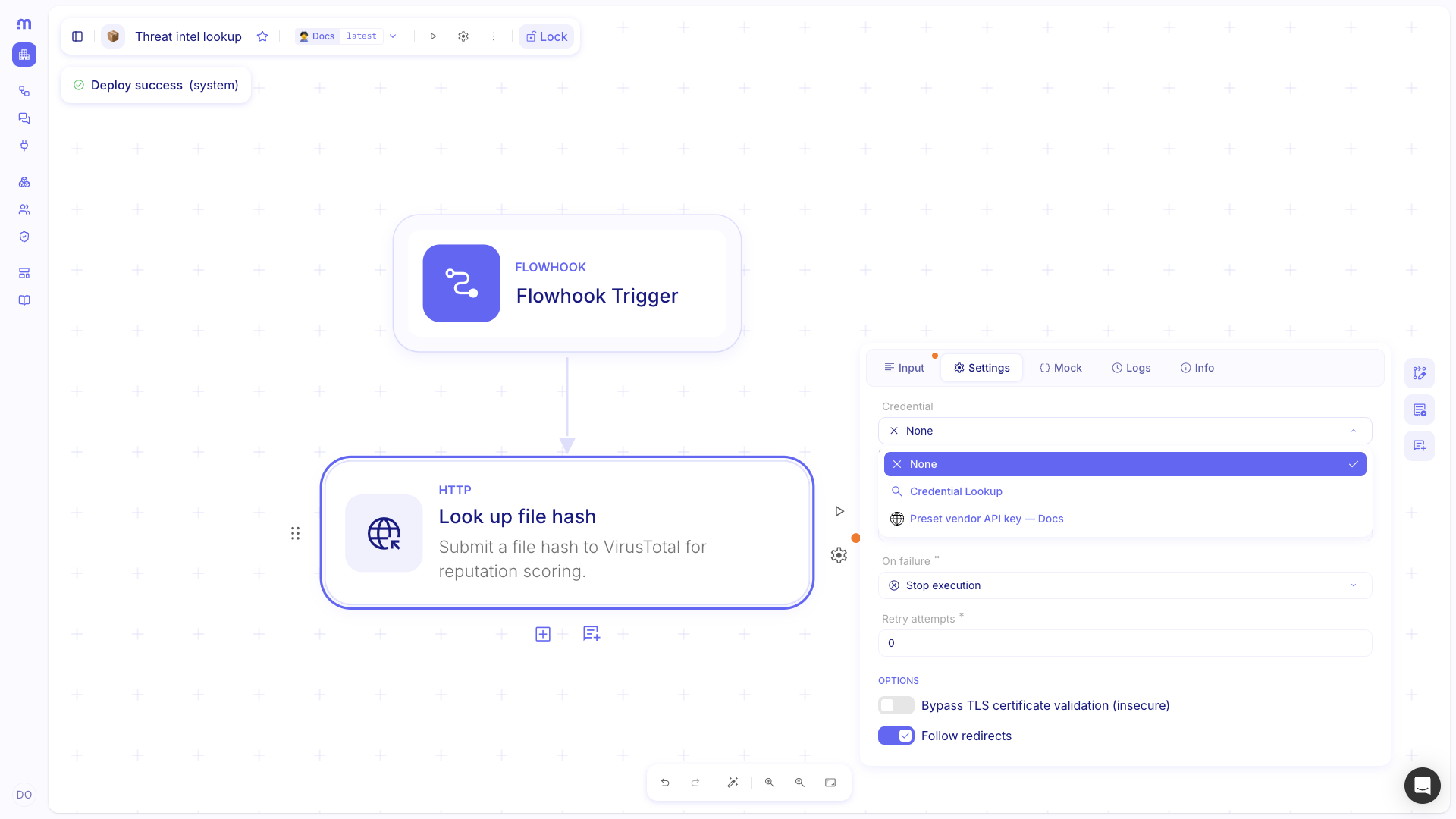
Move a credential between environments
Section titled “Move a credential between environments”When an environment graduates or you reuse a secret elsewhere, move the credential instead of retyping values.
-
Open Environments. Select the environment that currently holds the credential.
-
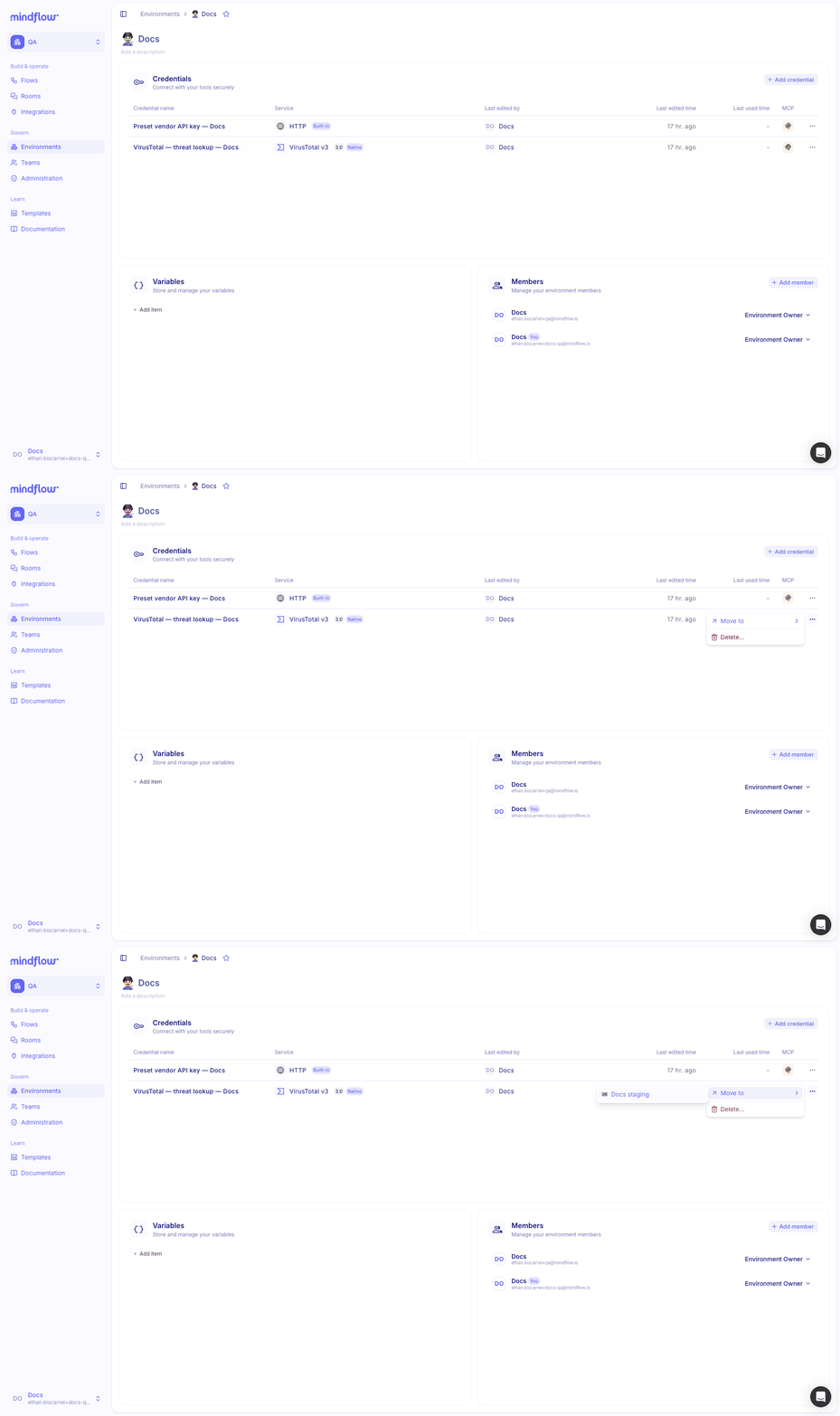
Open the credential menu. In the credential row, click the three-dot menu.
-
Move to another environment. Choose Move to, then pick the destination environment.
Example
Section titled “Example”This walkthrough stores a VirusTotal v3 API key in Docs, then binds an HTTP preset credential on an HTTP Request step in Threat intel lookup.
- Activate VirusTotal v3. On Integrations, search for VirusTotal and turn the service on.
- Create the VirusTotal credential. In Docs, add a credential named
VirusTotal — threat lookup — Docsand paste your API key into X-Apikey. - Create the HTTP preset credential. Add another credential named
Preset vendor API key — Docswith Service HTTP, URL Any, and Credential type HTTP API Key. - Attach the HTTP credential on the step. On Look up file hash in Threat intel lookup, set Credential to
Preset vendor API key — Docs. - Deploy in Docs. When you deploy the flow to Docs, the deployment uses that environment’s credentials automatically.
Keep in mind
Section titled “Keep in mind”- Environment RBAC: Owners create, edit, and delete credentials; Operators and Auditors see names and metadata but never secret values.
- Usage restrictions: Where supported, limit a credential to a specific integration or URL to reduce misuse.
- Naming: Include tool, account, and environment—for example
ServiceNow — ClientA — Prod. - Trust boundaries: Keep production secrets in production environments; use separate environments per client when you operate multi-tenant flows.
- Rotation: Update the credential in place during a change window; deployments in that environment pick up the new secret on the next run.
- Deployments: Credentials are environment-scoped. Each deployment in an environment references credentials stored there—not global secrets shared across every environment by default.
Related
Section titled “Related”- Environments — execution context for credentials, configuration, and access.
- Integrations — activate vendor connectors before you create credentials.
- Plan before you build — gather credentials while you outline the scenario.