

Create and manage environments
An environment is the execution context for flows: it holds credentials, configuration variables, and who can access them. You create environments to separate development from production, give teams their own secrets, and run the same flow with different credentials. Open an environment to manage credentials, variables, and members in one place.
When to use
Section titled “When to use”- You need a dedicated place for credentials and access before you build or deploy a flow.
- You separate Dev / Staging / Prod (or per team or client) so secrets and permissions stay isolated.
- Prefer Create and manage credentials when the environment already exists and you only need to store or attach secrets.
- Prefer Manage versions and deployments when you are ready to deploy a flow version into an environment.
Before you begin, confirm your organization allows you to create environments (or ask an administrator). To edit an environment’s credentials, variables, or members, you need an Owner role on that environment.
Create an environment
Section titled “Create an environment”An environment groups credentials, variables, and members. Create one for each execution context you need—for example development versus production.
-
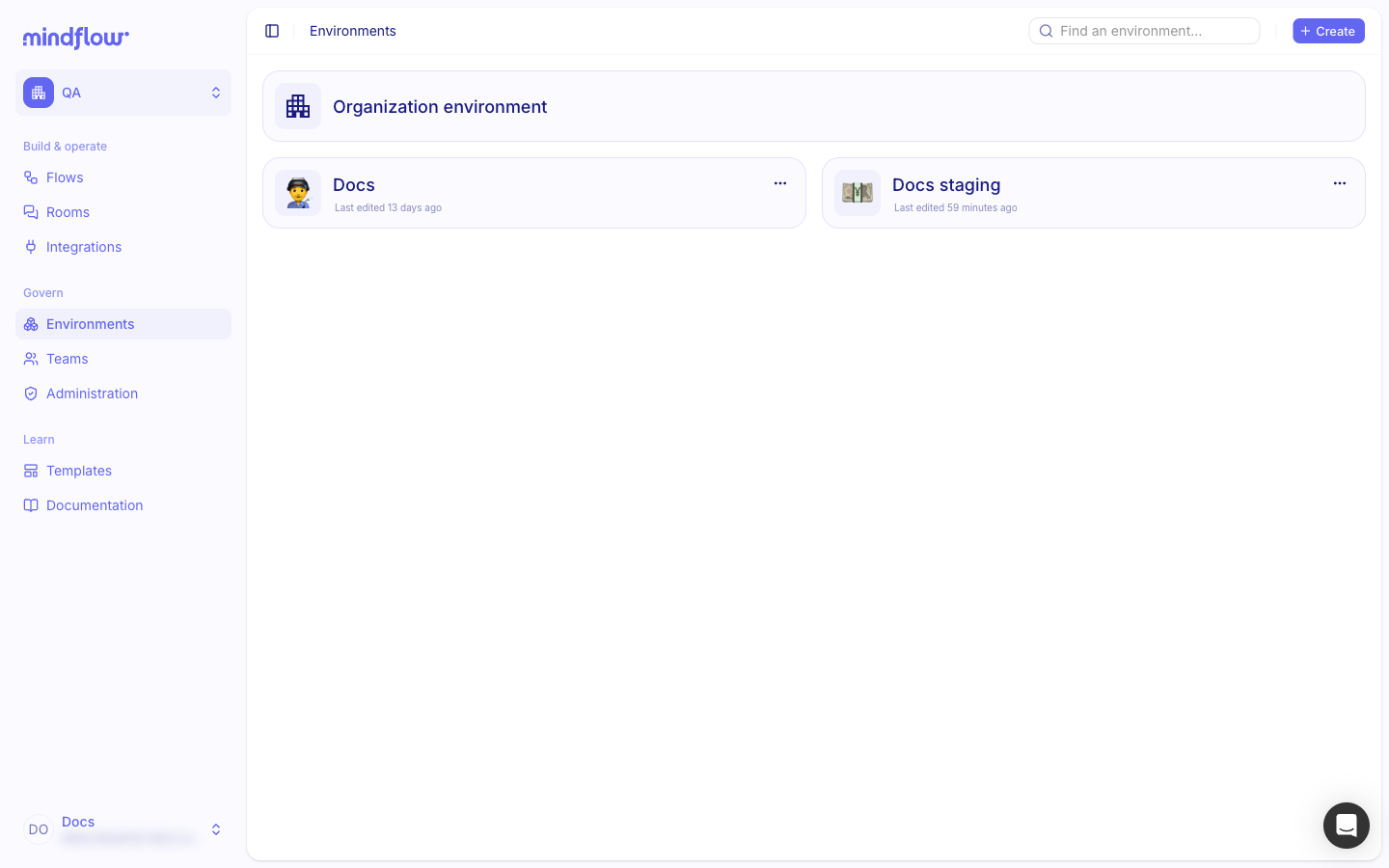
Open Environments. In the Studio sidebar, choose Environments.
-
Start Create. In the page header, click Create.
-
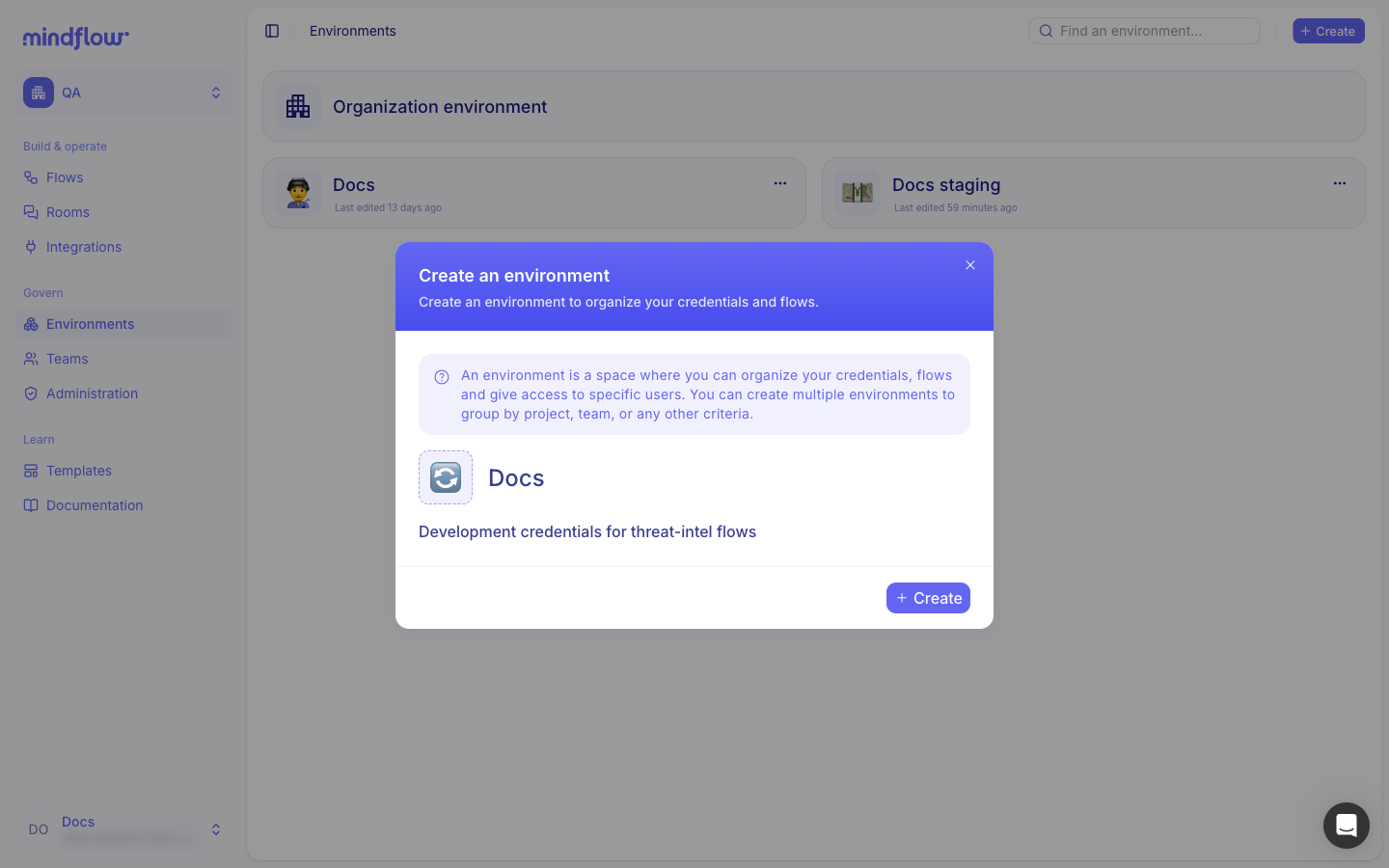
Name the environment. Choose an icon, enter a name, and optionally a description, then click Create.
Open an environment
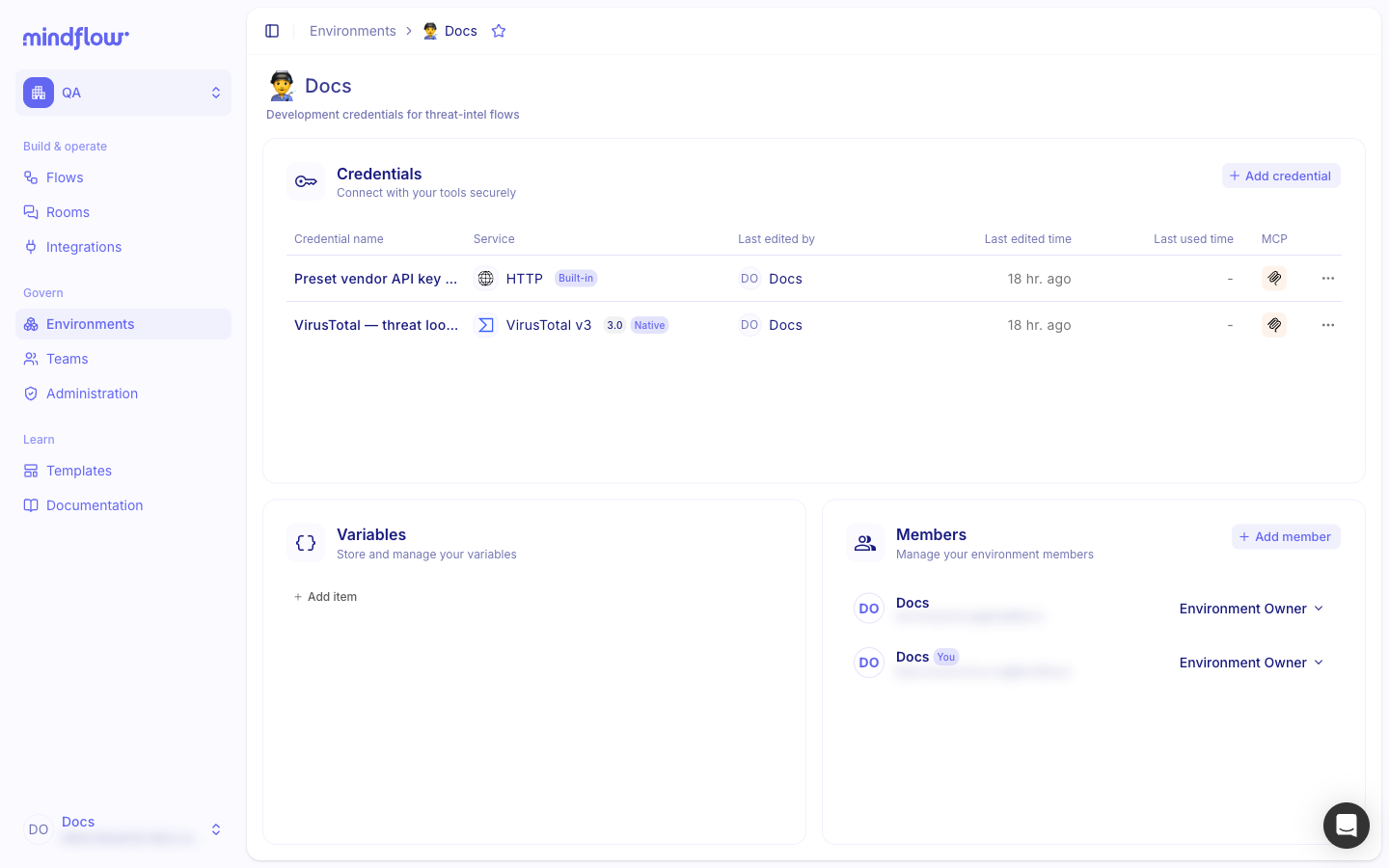
Section titled “Open an environment”Opening an environment shows its credentials, variables (when enabled), and members. Use this page to prepare secrets and access before you design or deploy flows.
-
Open Environments. In the Studio sidebar, choose Environments.
-
Select the environment. Click the environment card—for example Docs.
-
Work in each section. Use Credentials to store secrets (see Create and manage credentials), Variables for shared configuration values, and Members to control who can access the environment.
Use the organization environment
Section titled “Use the organization environment”The Organization environment (listed at the top of Environments) holds credentials and variables that can be shared across environments. It has no members section—access follows organization roles.
- Open Environments. In the Studio sidebar, choose Environments.
- Open Organization environment. Click the Organization environment card at the top of the list.
- Add shared credentials or variables. Store secrets or values that several environments should reuse. Prefer environment-specific credentials when the secret must stay isolated (for example production API keys).
Manage members
Section titled “Manage members”Members control who can use an environment. Owners manage credentials and access; Operators and Auditors have more limited roles.
- Open the environment. Select the environment whose access you want to change.
- Add a member. In Members, click Add member, choose a user or team, assign a role (Owner, Operator, or Auditor), then confirm.
- Update or remove access. Change a member’s role, or remove them when they no longer need the environment.
Set environment variables
Section titled “Set environment variables”When Variables is available on the environment page, store shared configuration values (API base URLs, feature toggles, and similar) that steps can read at run time. Prefer credentials for secrets.
- Open the environment. Select the environment that should hold the values.
- Add a variable. In Variables, click Add item, enter the key and value, then save.
Edit or delete an environment
Section titled “Edit or delete an environment”Rename, re-describe, or remove an environment when your lifecycle or ownership changes.
- Edit details. Open the environment and update the icon, name, or description in the header—or use Edit details from the environment card menu on the list page.
- Delete when unused. From the environment card menu, choose Delete…, then confirm. Delete only after you have moved or removed credentials and deployments that still depend on that environment.
Example
Section titled “Example”A SOC team creates a Docs environment for development work on threat-intel flows. They add VirusTotal and related credentials there, keep production secrets in a separate Prod — SOC environment, and deploy the same flow to both so each run uses the credentials of that environment.
- Create Docs. On Environments, click Create, name the environment
Docs, add a short description such asDevelopment credentials for threat-intel flows, and save. - Add credentials in Docs. Open Docs, create the vendor credentials the flow needs, then attach them on steps when designing the flow.
- Add members. Invite builders as Owner or Operator on Docs; keep production Owners on Prod — SOC only.
- Deploy per environment. Deploy the flow to Docs for testing, then to Prod — SOC for production runs—each deployment uses only that environment’s credentials.
Keep in mind
Section titled “Keep in mind”- Naming: Use explicit names (for example
Docs,STG — Cloud,PROD — SOC) so operators pick the right context. - Isolation: Keep production secrets in production environments; use separate environments per client when accounts must not mix.
- Deployments: A deployment is a flow version running in one environment, with its own triggers and that environment’s credentials. The same flow can run in several environments in parallel.
- Organization environment: Prefer it for truly shared non-sensitive configuration; do not put production-only secrets there if other environments should not use them.
Related
Section titled “Related”- Create and manage credentials — store secrets in an environment and attach them on steps.
- Activate an integration — turn on a vendor before you create its credential.
- Manage versions and deployments — deploy a flow version into an environment.