

Manage versions and deployments
A version is an immutable snapshot of a flow (steps, links, settings, and triggers at that moment). You create snapshots before risky edits, browse history, and restore a past version into the designer. A deployment is the runnable instance of a flow in an environment, pinned to latest (always follows new changes) or to a named version. Screenshots on this page show creating a version, the versions list, restore confirmation, and the deploy dialog.
When to use
Section titled “When to use”- You are about to change a production-critical flow and want a restore point.
- You need to see which snapshot an environment runs, or move a tested named version into production.
- Prefer keeping latest on development environments and named versions on production when stability matters more than continuous updates.
Before you begin, you need permission to edit the flow and to deploy it to the target environment. Creating the first version usually happens when you deploy; you can also create named versions from the designer.
Browse versions and create a snapshot
Section titled “Browse versions and create a snapshot”Browse versions opens the versions explorer: a chronological list of snapshots (who created them and when). From there you can Create a new version (modal title Create a version) to save the current flow configuration. After you create a snapshot, you can change only its name and description—not the technical configuration.
Browse versions. In the designer, open the overflow menu (⋯) and choose Browse versions.
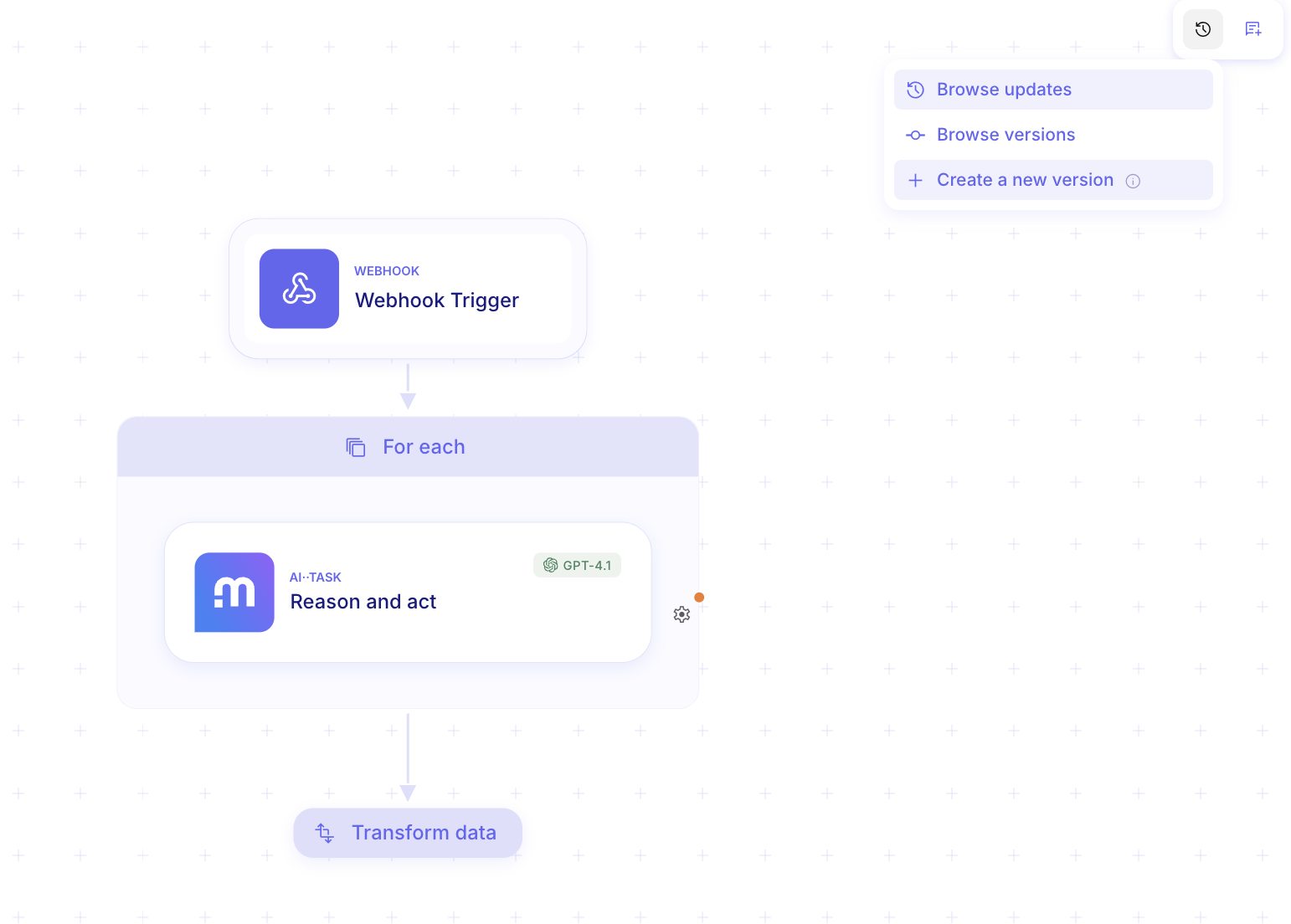
Create a new version. In the versions explorer, choose Create a new version, enter a name and optional description, then confirm.
Restore a version
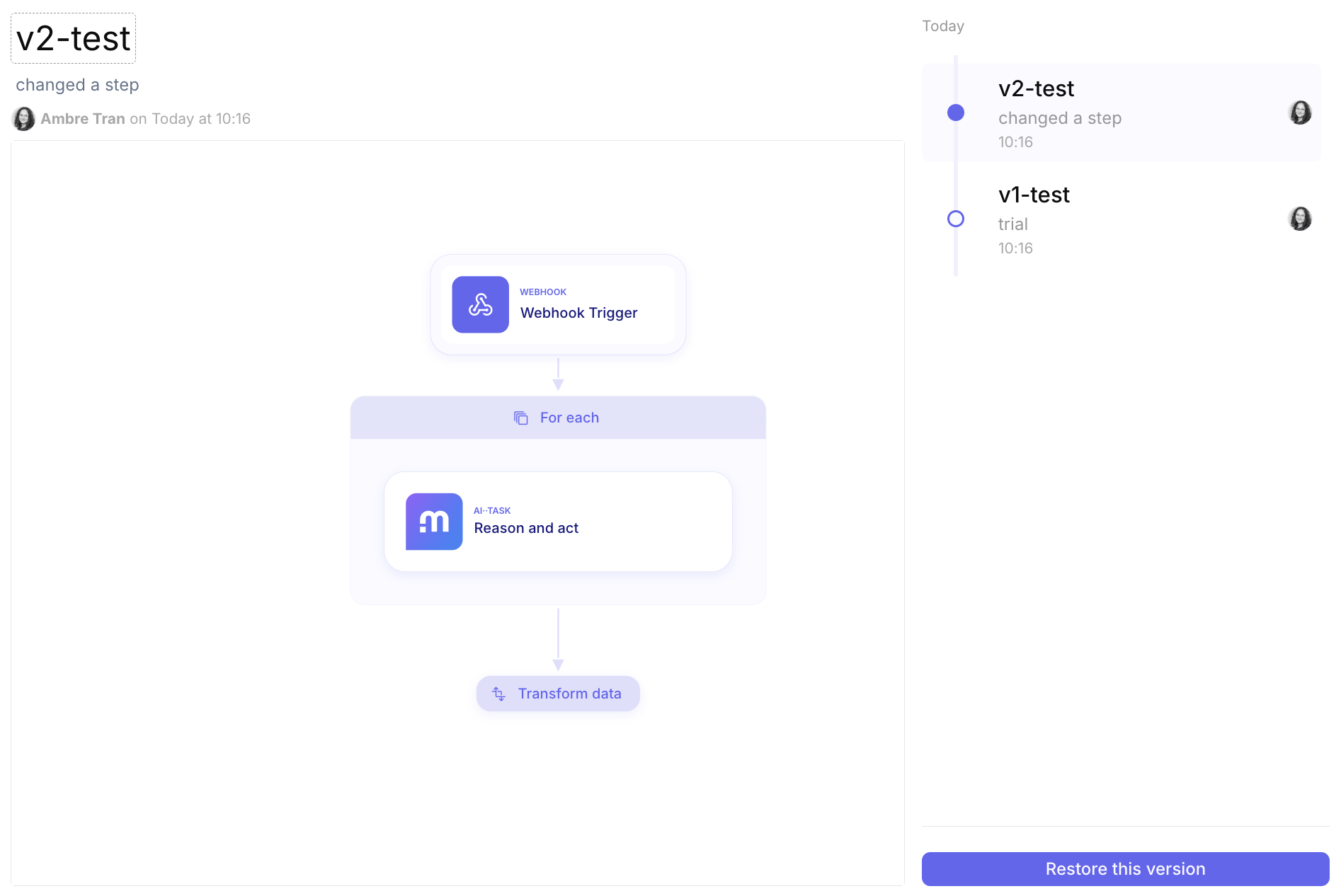
Section titled “Restore a version”Restore this version replaces the current designer configuration with the selected snapshot.
Select a version. In Browse versions, pick the snapshot you want.
Restore this version. Choose Restore this version. Confirm only after you accept that unsaved designer changes will be overwritten.

Deploy a flow to an environment
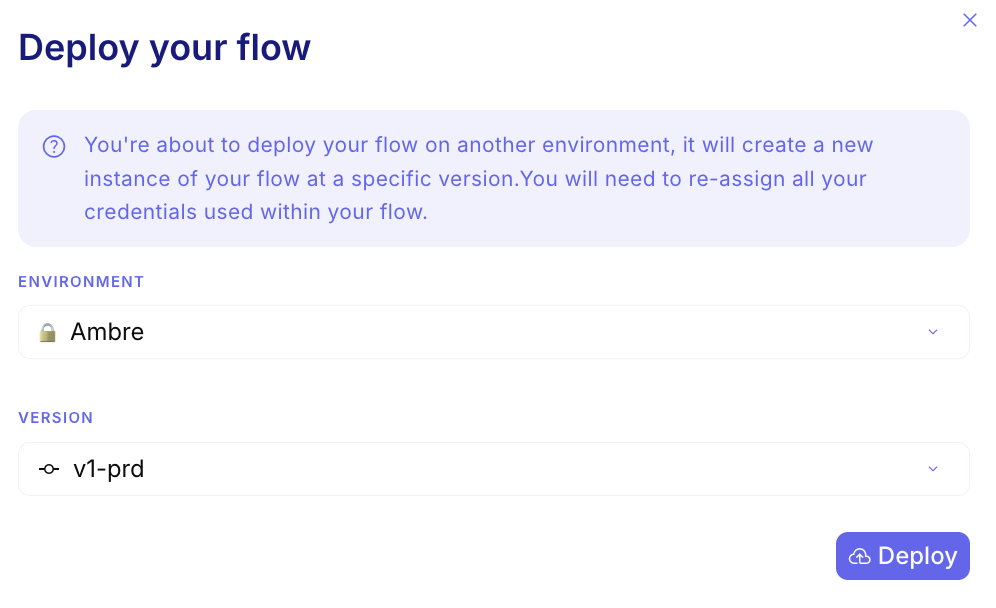
Section titled “Deploy a flow to an environment”From Flows, Deploy flow… opens Deploy your flow. You pick the Environment and Version. Choosing latest means each run uses the newest changes. Choosing a named version freezes that environment on that snapshot until you deploy again.
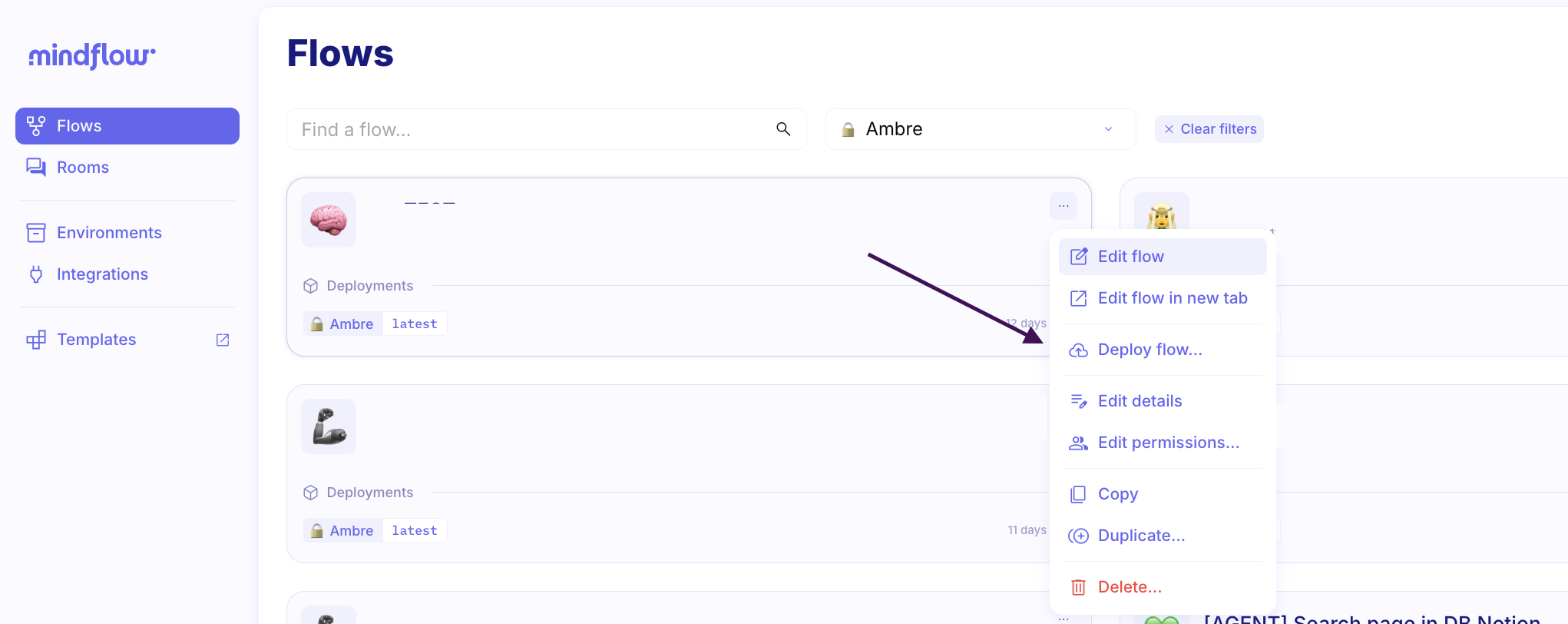
Open Deploy flow. On Flows, open the flow card menu (⋯) and choose Deploy flow….
Choose environment and version. In Deploy your flow, select the Environment and Version (latest or a named snapshot such as a release label), then Deploy. When you deploy to a new environment, re-assign credentials used in the flow.
Example
Section titled “Example”A builder opens Browse versions on Enrich phishing URL, creates v1-prd, then keeps development on latest. After staging validation, they open Deploy flow…, select Prod, choose v1-prd, and deploy. If a later edit misbehaves in the designer, they Browse versions again and Restore this version for v1-prd instead of reconstructing the graph by hand.
Keep in mind
Section titled “Keep in mind”- Restoring a version overwrites unsaved changes in the current designer session.
- latest is best when environments should follow continuous updates; named versions are better for production stability and auditability.
- If you cannot see versions or restore, check your permissions and that the flow has been deployed at least once.