

Start a flow from a template
A template is a ready-made flow from the Mindflow use case library. You copy it with Import, then use Paste flow… on the Flows page to create a flow in an environment. After paste, open the designer to connect credentials and adapt steps. Screenshots on this page use a Teams user remediation template so you can see the Import and paste path end to end.
When to use
Section titled “When to use”- You want a working starting point for a known use case instead of building every step from scratch.
- Prefer Create → Flow when you are designing a new automation with no matching template.
- Prefer AI··Build when you want Studio to propose steps from a prompt inside an empty or partial flow.
Before you begin, you need permission to create flows in at least one environment, and your browser must allow clipboard access so Studio can read the copied template.
Browse the template library
Section titled “Browse the template library”The public use case library lists templates you can import. In Studio, Templates in the sidebar opens that library in a new tab. You can also go directly to mindflow.io/use-cases.
- Open Templates. In Studio, choose Templates in the sidebar, or open mindflow.io/use-cases in your browser.
- Choose a use case. Open the template that matches the job you need. Each page describes the scenario and shows a preview of the flow.
Copy a template
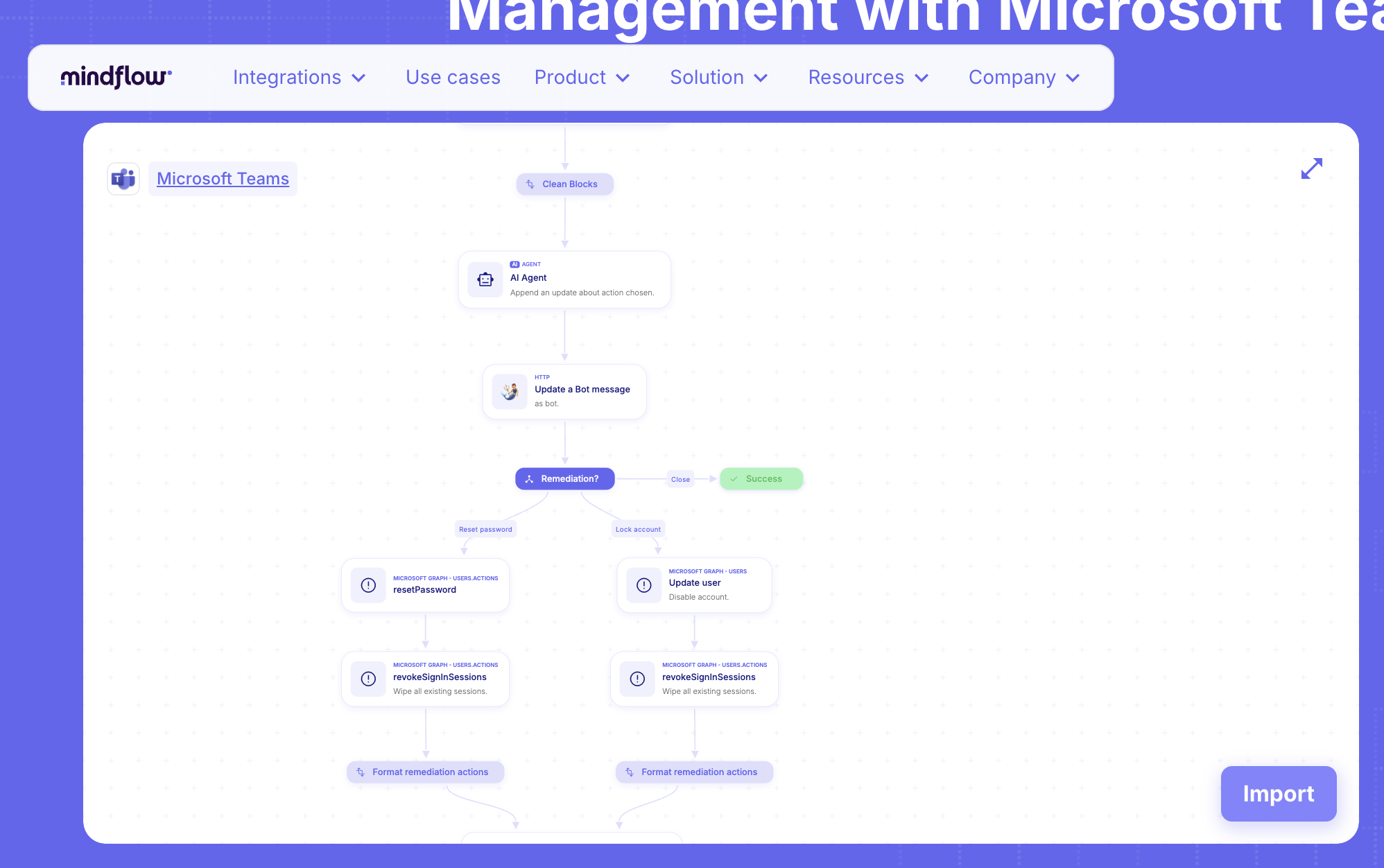
Section titled “Copy a template”On the use case page, Import copies the template JSON to your clipboard. You do not download a file.
Open the use case page. Confirm the preview matches the automation you want.
Click Import. Use the Import button on the page (usually bottom right of the preview). The template is now on your clipboard.
Paste the flow in Studio
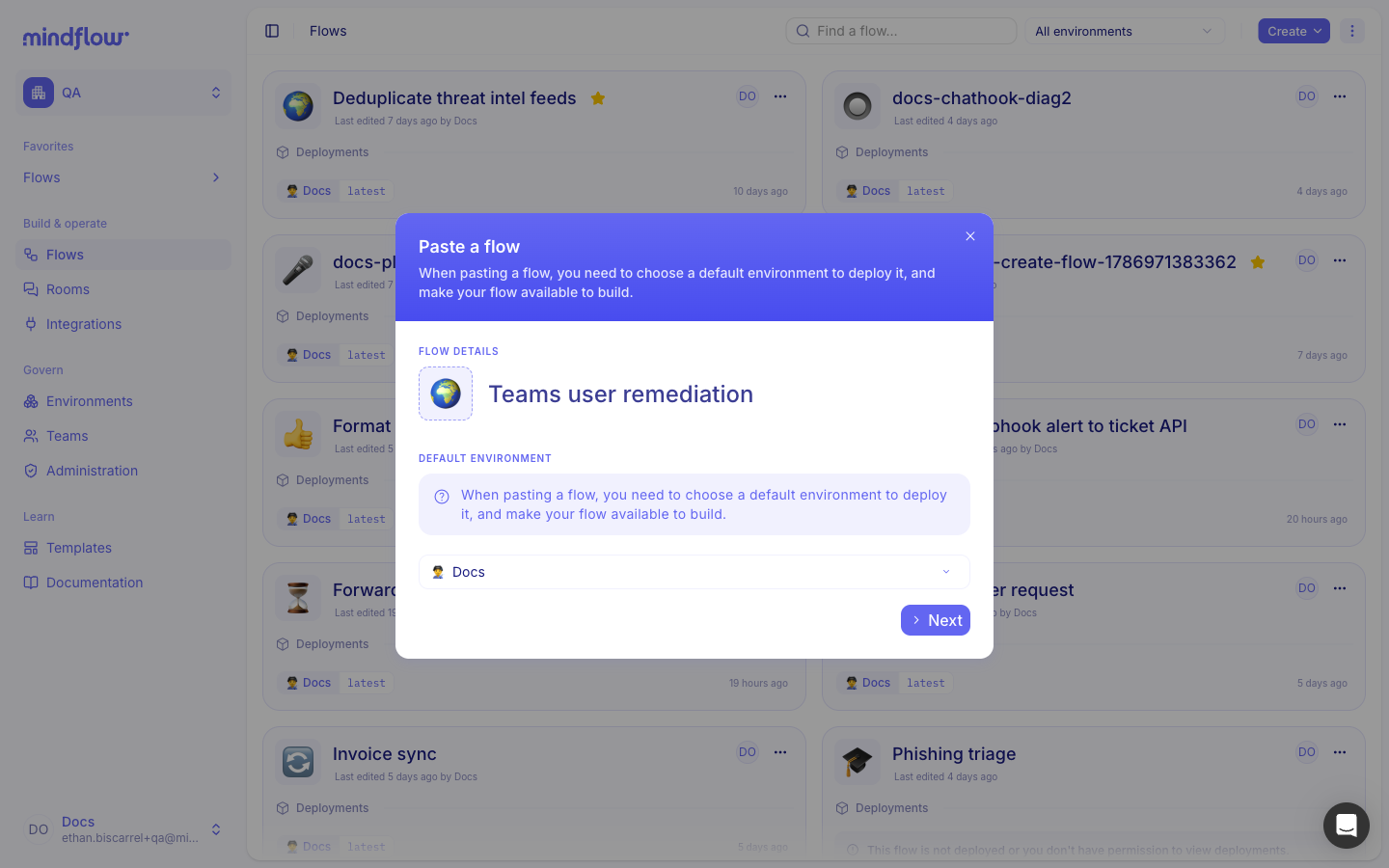
Section titled “Paste the flow in Studio”Paste flow… reads the clipboard and opens a Paste a flow modal. You set the flow name and default environment, optionally share access, then paste. Studio creates the flow and opens it in the designer.
Open Flows. In Studio, go to Flows for your organization.
Open Paste flow… Next to Create, open the more actions menu (⋮), then choose Paste flow….
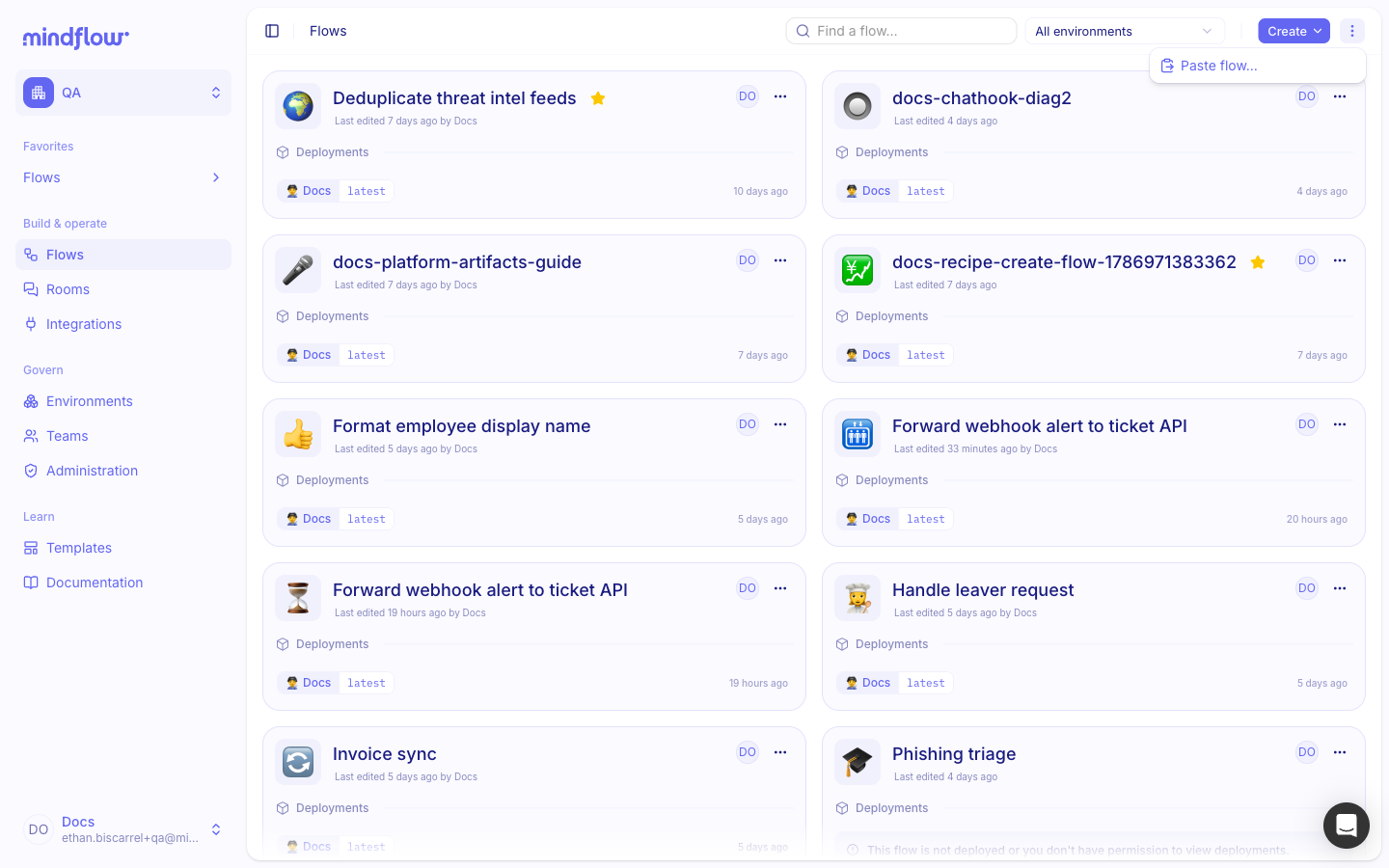
Confirm name and environment. In the Paste a flow modal, keep or edit the flow title, choose the Environment where the flow should live, then choose Next. If the Flows page filter has exactly one environment selected, that environment is preselected.
Share if needed, then paste. On the next step, add people or teams when others need access. Choose Paste. Studio creates the flow and opens the designer.
Adapt the flow. Connect credentials, update inputs, and rename or remove steps so the automation matches your process.
Example
Section titled “Example”A security team wants a Teams-based remediation starter instead of drawing the branching logic by hand. They open Automated Cloud Security and User Account Management with Microsoft Teams on the use case library, choose Import, then in Studio open Paste flow…. The Paste a flow modal shows Teams user remediation; they choose their environment and paste.
The designer opens with the template steps (cleanup, AI update, bot message, remediation branches such as reset password or lock account). They attach Microsoft Graph and Teams credentials, point variables at their tenant, and deploy when ready.
Keep in mind
Section titled “Keep in mind”- Templates do not include credentials. Connect the required accounts before you run the flow.
- Treat the pasted flow as a starting point: review triggers, conditions, and data fields for your environment.
- If Paste flow… fails with a clipboard message, allow clipboard access for Studio in the browser, copy the template again with Import, then retry.
- Pasting creates a new flow. It does not overwrite an existing one.
Related
Section titled “Related”Design your flow · AI··Build: Faster flow creation · No-Code best practices