

Monitor quotas
Quotas are plan limits for your organization—AI··Credits, flow runs, environments, users, and artifact usage. Org Admins open Organization → Quotas to see current consumption and add emails under Quota notifications. Some quotas block further use when the limit is reached; others only notify.
When to use
Section titled “When to use”- You need to see how close the organization is to AI··Credits, flow runs, environments, users, or artifact limits.
- You want email alerts when usage crosses notification thresholds.
- Prefer your Mindflow Customer Success contact when you need a plan change or a higher limit.
Before you begin, you need Org Admin rights. Quotas appear on Organization only when quotas are enabled for your tenant.
Review organization quotas
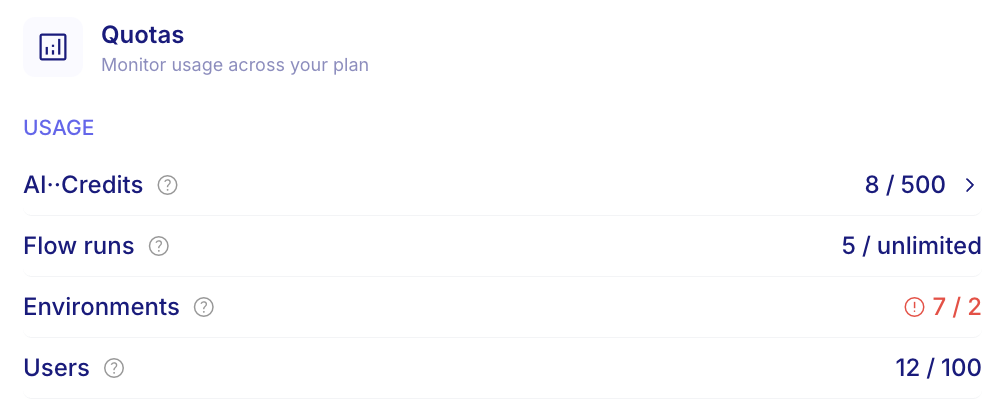
Section titled “Review organization quotas”The Quotas section lists each organization-scoped limit and current usage. Over-limit rows highlight in the UI.
Typical quotas include:
Exact limits and which quotas appear depend on your plan.
Open Organization. In Studio, open your profile menu, then choose Organization.
Open Quotas. Scroll to Quotas and review usage against each limit.
Configure quota notifications
Section titled “Configure quota notifications”Quota notifications sends email when usage approaches or reaches a limit. Thresholds are set on the plan (often around 50%, 80%, and 95% for monthly quotas). Studio saves recipient emails as you edit them.
Open Quota notifications. On the Organization page, under Quotas, find Quota notifications.
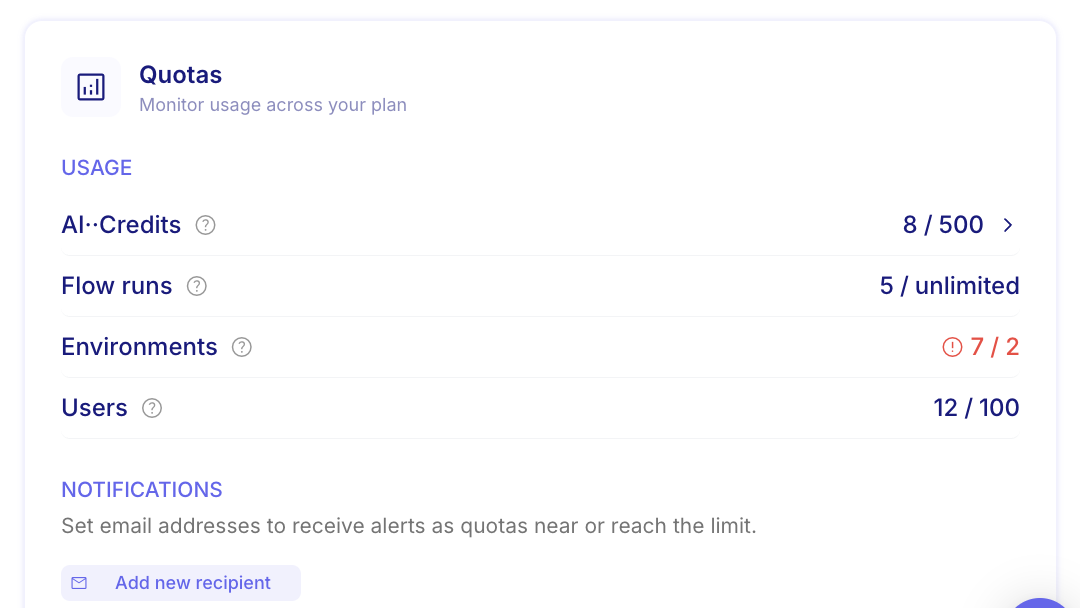
Add a recipient. Choose Add recipient, then enter an email address. Add more rows for additional people.
Confirm delivery. Leave valid addresses in the list. Invalid emails are not saved. When a threshold is crossed, Mindflow emails those addresses.
Example
Section titled “Example”An Org Admin watches AI··Credits during a busy month. Usage is near the plan limit, so they add
security-ops@example.com under Quota notifications. When credits hit a warning threshold, that mailbox gets the
alert; if the quota is blocking, further AI credit consumption stops until the period resets or the plan is updated.
Keep in mind
Section titled “Keep in mind”- Blocking quotas stop further consumption for that quota when the limit is reached. Non-blocking quotas keep the service running and rely on email.
- Your plan can override defaults (including which quotas block).
- Unexpected spikes: contact your Customer Success engineer.
Related: Manage users, Bring your own LLM.