

Store data with Platform Artifacts
Platform Artifacts is a Mindflow integration that stores named payloads in the current environment. You can create or overwrite an artifact, read content or metadata, list keys, and delete artifacts from later steps or runs. Artifacts are shared by flows in the same environment; they are not visible in other environments. Screenshots on this page use a sample threat-intel job so you can see filled keys and payloads.
When to use
Section titled “When to use”- You keep intermediate results across later steps or later runs without threading a large body through every step.
- You prefer a stable key so other flows in the same environment can reload the same payload.
- Prefer transform data when you only reshape data inside a single run and do not need environment storage.
Before you begin, open the environment where the artifacts should live. Artifact steps use that environment’s store automatically when you leave the environment field empty.
Find Platform Artifacts
Section titled “Find Platform Artifacts”Enable Platform Artifacts (Beta) in the current environment, then add its operations from the step menu.
Open Integrations. In Studio, go to Integrations, then open the Mindflow vendor group.
Locate the service. Search for
artifact, then enable Platform Artifacts (Beta) if it is not already on.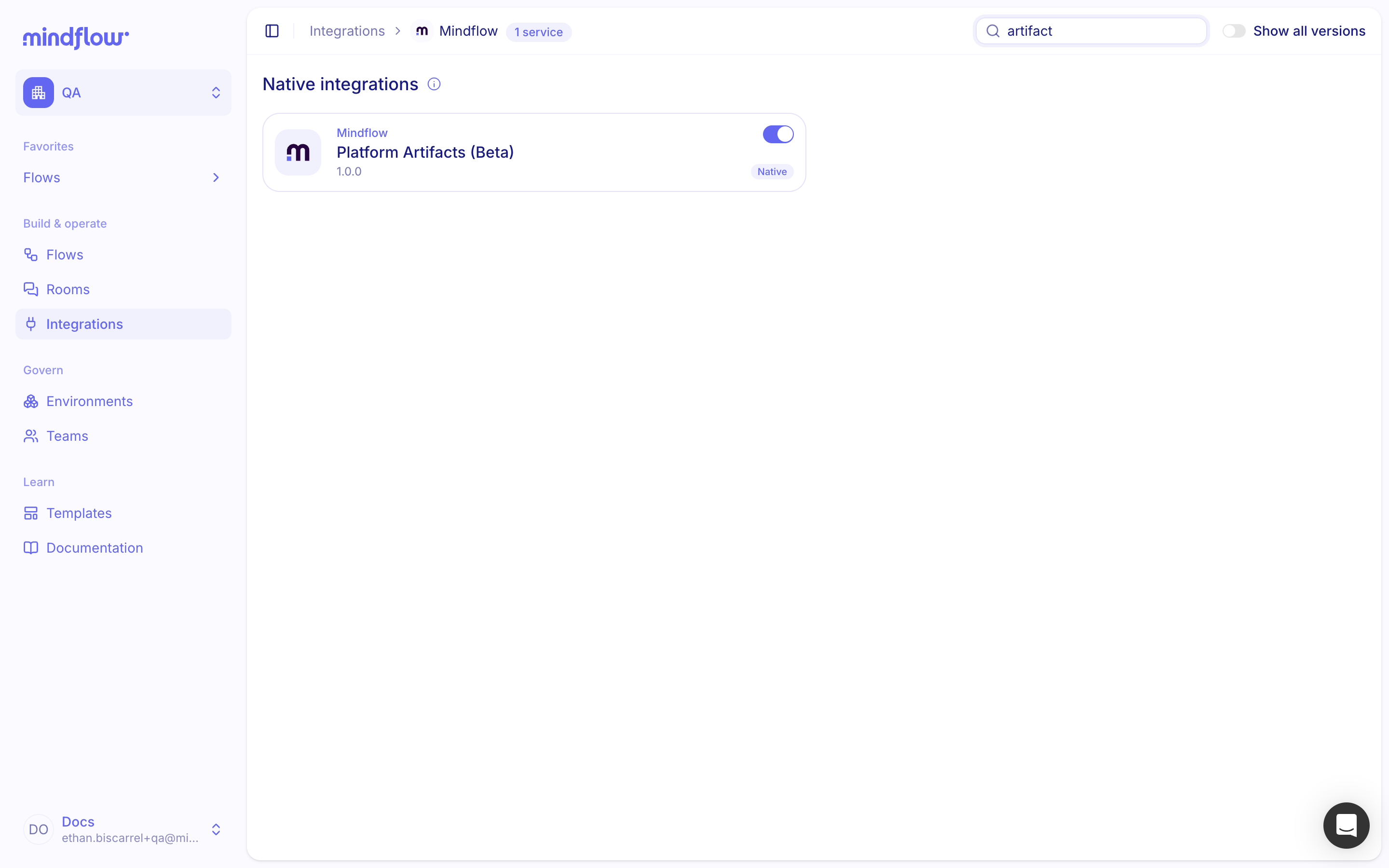
Review the operations. In a flow, open Add a step, choose Integrations, then Platform Artifacts (Beta). Confirm you see Create or overwrite an artifact, Get artifact content, Get artifact metadata, List artifacts, and Delete an artifact.
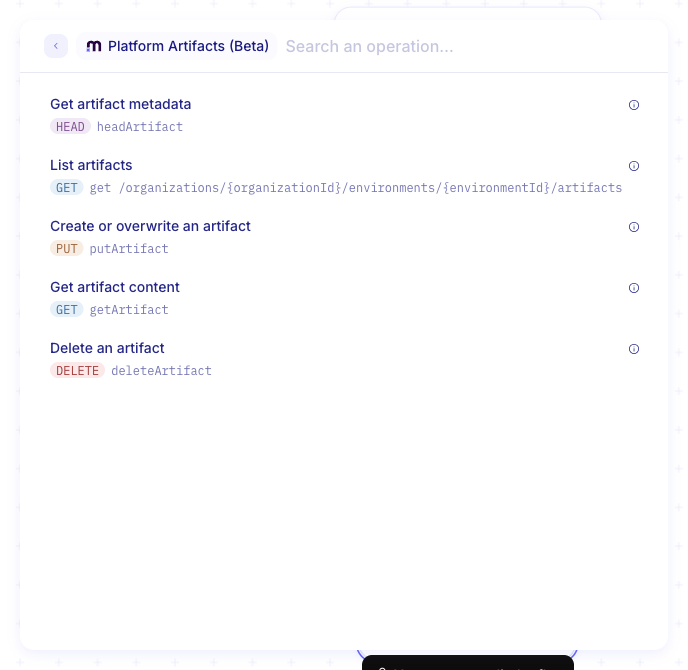
Add Create or overwrite an artifact, then continue with that heading.
Store an artifact
Section titled “Store an artifact”Create or overwrite a named payload in the current environment. Later steps and other flows in that environment load the same key.
Open Input on the store step. Set the key, body, write mode, and retention.
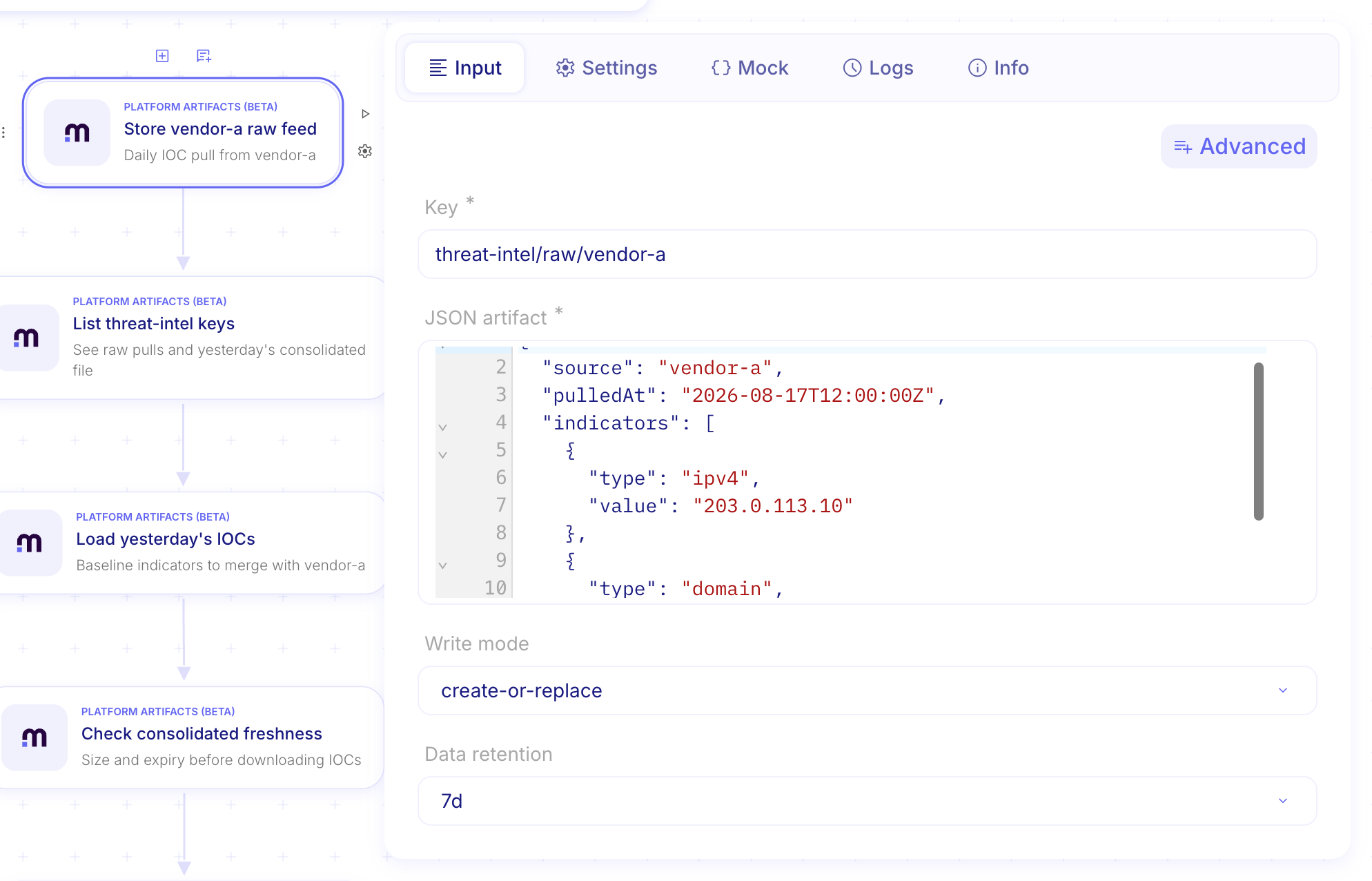
Set the key. Letters, digits, hyphens, underscores, dots, and slashes are allowed. Do not end the key with
/, and do not use..or//.Set the body Content-Type. Use
application/jsonfor JSON. Supported types are JSON,text/*(for exampletext/plainortext/csv), or XML. Binary types (images, PDFs,application/octet-stream) are not supported. Maximum size is 6 MB.Paste or map the body. Map JSON from a previous step into JSON artifact, or paste a small test payload such as:
JSON artifact {"source": "vendor-a","pulledAt": "2026-08-17T12:00:00Z","indicators": [{ "type": "ipv4", "value": "203.0.113.10" },{ "type": "domain", "value": "malicious.example" }]}Optional: set write mode. Choose Create or replace (default) to overwrite the same key on each run, Create only if the key must be new, or Replace only if the key must already exist.
Optional: set data retention. Retention defaults to 1 day when omitted. Pick another period such as 1 week in the menu (the field shows
7d), or No expiration. Open Advanced if you also want an artifact description.
Get artifact content
Section titled “Get artifact content”Read a stored payload by key so later steps can transform it or send it outbound.
Add Get artifact content. Set the key of the artifact you want to read (or map it from a previous step).

Use the body downstream. Map the step output into transforms, later stores, or outbound calls. Get returns the stored Content-Type with the body.
List artifacts
Section titled “List artifacts”List keys in the environment store, optionally filtered by prefix, so you can discover related artifacts or paginate a large set.
Add List artifacts after the store step. Set limit (required; default 100, maximum 1000) and Prefix to group related keys (a trailing slash is optional).
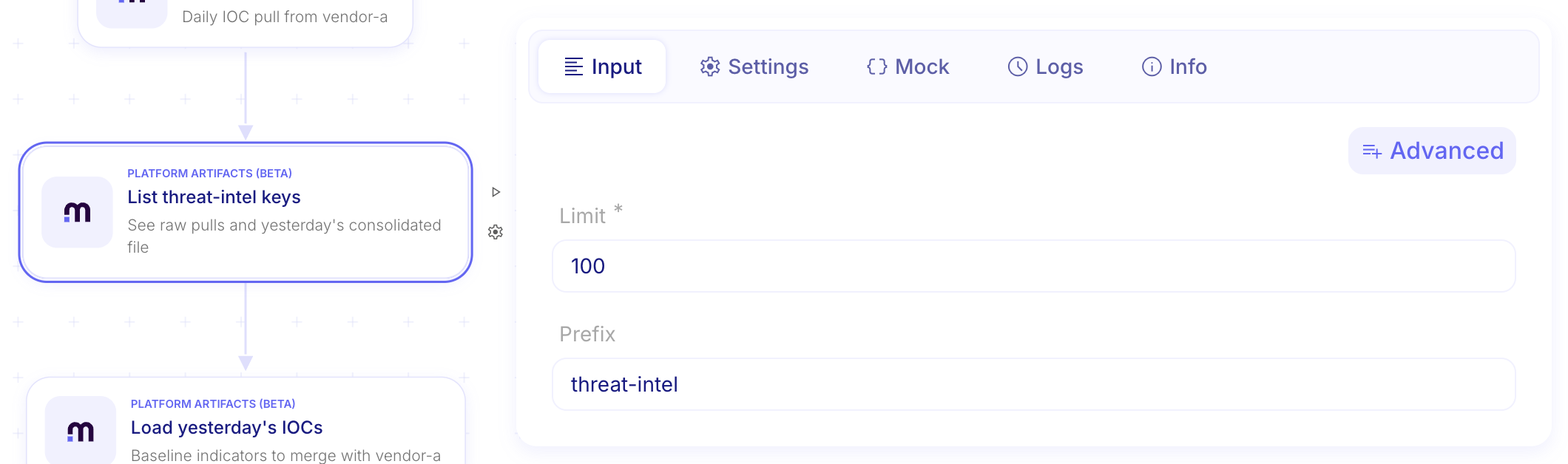
Paginate when the list has more than one page. If the response includes a next cursor, pass it as cursor on the next List step until no cursor remains.
Get artifact metadata
Section titled “Get artifact metadata”Inspect size, expiry, and other metadata for a key without downloading the body. Use this to skip a later get when the artifact is missing or stale.
Add Get artifact metadata. Set the key of the artifact you want to inspect.

Branch on the result. Skip a later get when the artifact is missing, or continue when size and expiry look current.
Delete an artifact
Section titled “Delete an artifact”Remove a key from the environment store when the payload is no longer needed. Deletion is permanent for that key.
Add Delete an artifact. Set the key of the artifact to remove.

Treat the key as gone. Downstream steps must not depend on the artifact afterward. Running delete again on a missing key is safe (idempotent).
Example
Section titled “Example”The screenshots on this page use Deduplicate threat intel feeds. Store today’s vendor-a pull at
threat-intel/raw/vendor-a (description Daily IOC pull from vendor-a, retention 1 week). List keys under prefix
threat-intel. Get metadata, then get content, for yesterday’s consolidated file at
threat-intel/consolidated/latest. After you merge vendor-a with that baseline, store today’s consolidated set on the
same consolidated key (description Deduplicated IOC set for daily intel). Delete the raw pull when it is no longer
needed. A later tuning flow can get content from that consolidated key.
Keep in mind
Section titled “Keep in mind”- Beta: Platform Artifacts (Beta) may change; confirm operation labels in Studio if a release renames them.
- Environment scope: Artifacts belong to one environment. Deploying the same flow to another environment uses a separate store.
- Size and types: Maximum 6 MB per artifact. Only JSON,
text/*, and XML content types are accepted. - Quotas: Plans include fair-use limits (commonly up to 1 GB storage and 10 GB downloads per month when configured).
- Defaults: Write mode defaults to Create or replace. Data retention defaults to 1 day unless you set another value or No expiration.
Related: Work with data · Call native integrations