

Call native integrations
Integrations are Mindflow connectors to vendor APIs. You activate the services you need, then add their operations as steps in a flow. Native integrations use a tailored Studio form. HTTP presets are prefilled HTTP Request steps for vendors that do not yet have a native connector.
When to use
Section titled “When to use”- You want a guided form for a vendor API instead of building every field yourself.
- You need an HTTP preset as a temporary path until a native integration is available.
- Prefer Send raw HTTP requests when you call a private or custom endpoint that is not in the catalog.
- Prefer Send emails or Sending emails over SMTP for mail instead of a vendor mail API when those built-in steps fit.
Before you begin, open Studio with permission to edit flows and to activate integrations for your organization.
Open Integrations
Section titled “Open Integrations”Activate services from the Integrations page, or open that page from Add a step when you are already in the designer.
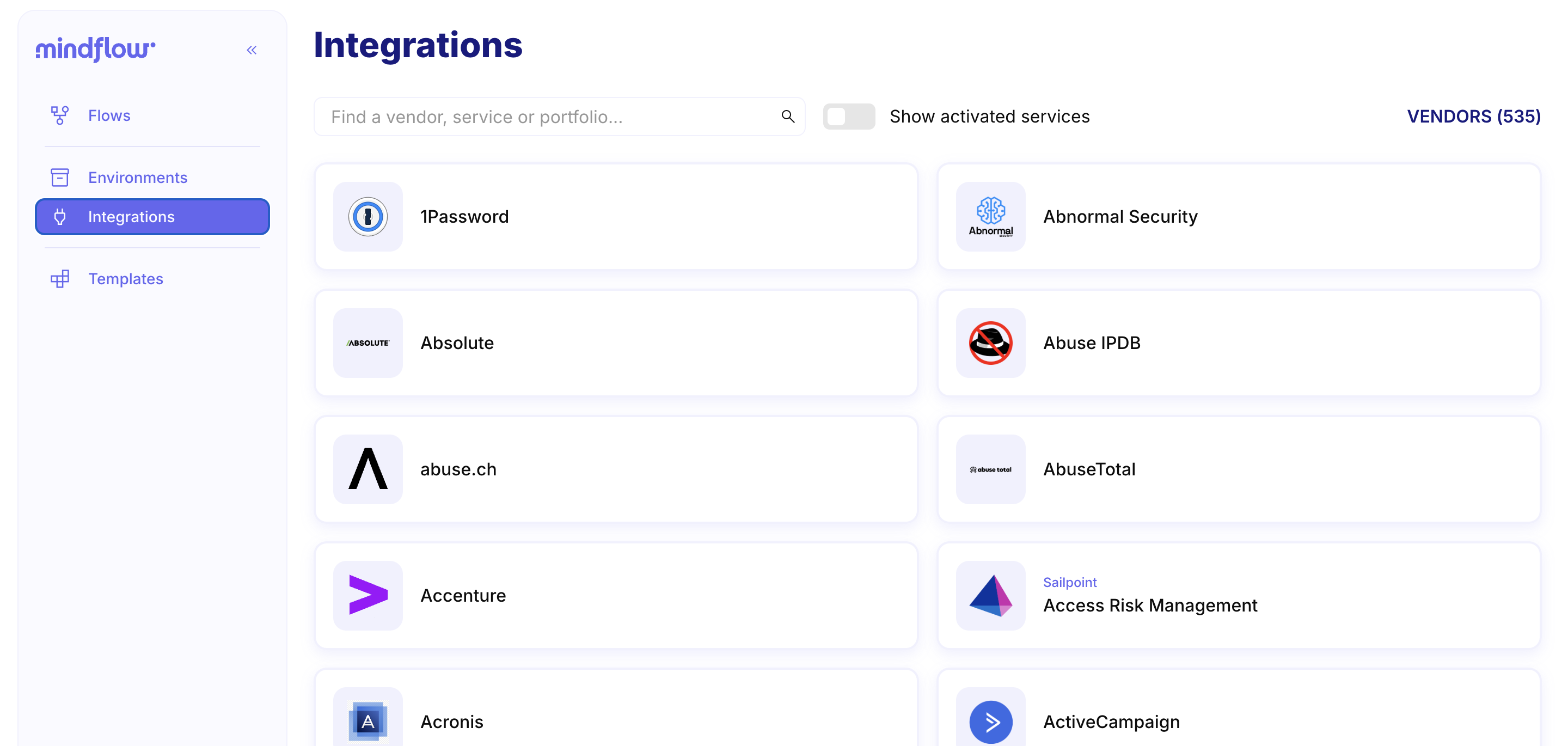
Open Integrations from the sidebar. In Studio, choose Integrations. Search with Find a vendor, service or portfolio…, or turn on Show activated services to list only services you already enabled.
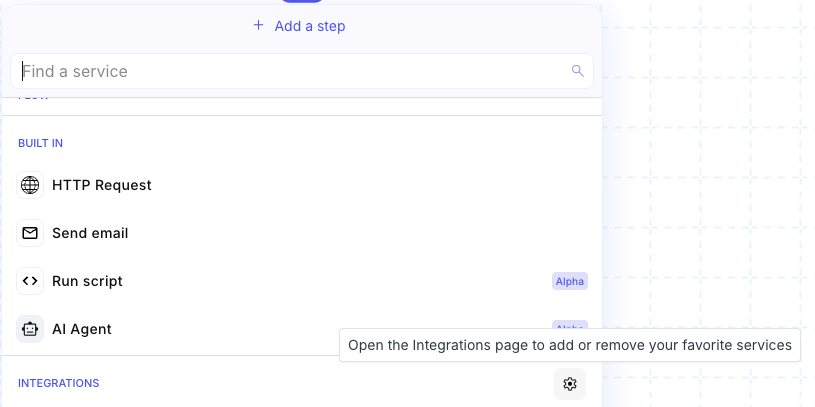
Or open Integrations from Add a step. In the designer, open Add a step, go to the Integrations section, then use the control next to that heading to open the Integrations page (tooltip: open Integrations to add or remove favorite services).
Activate a service
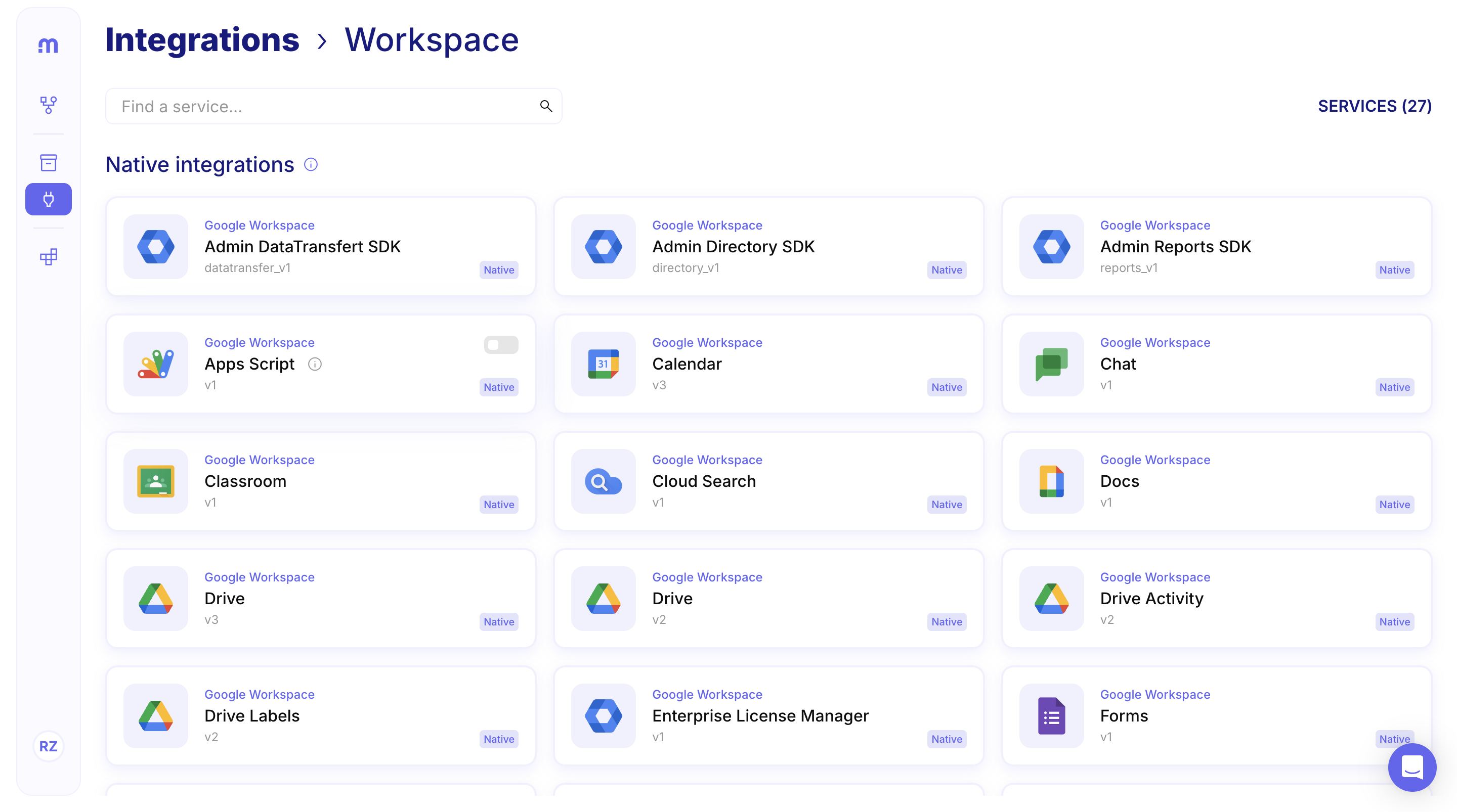
Section titled “Activate a service”On the Integrations page, services are grouped by vendor. Native integrations show a Native badge. HTTP presets live under HTTP presets on the vendor page and appear with a dashed tile border in Add a step.
Find the vendor and service. Search or open a vendor group. On the vendor page, review Native integrations (and HTTP presets when present).
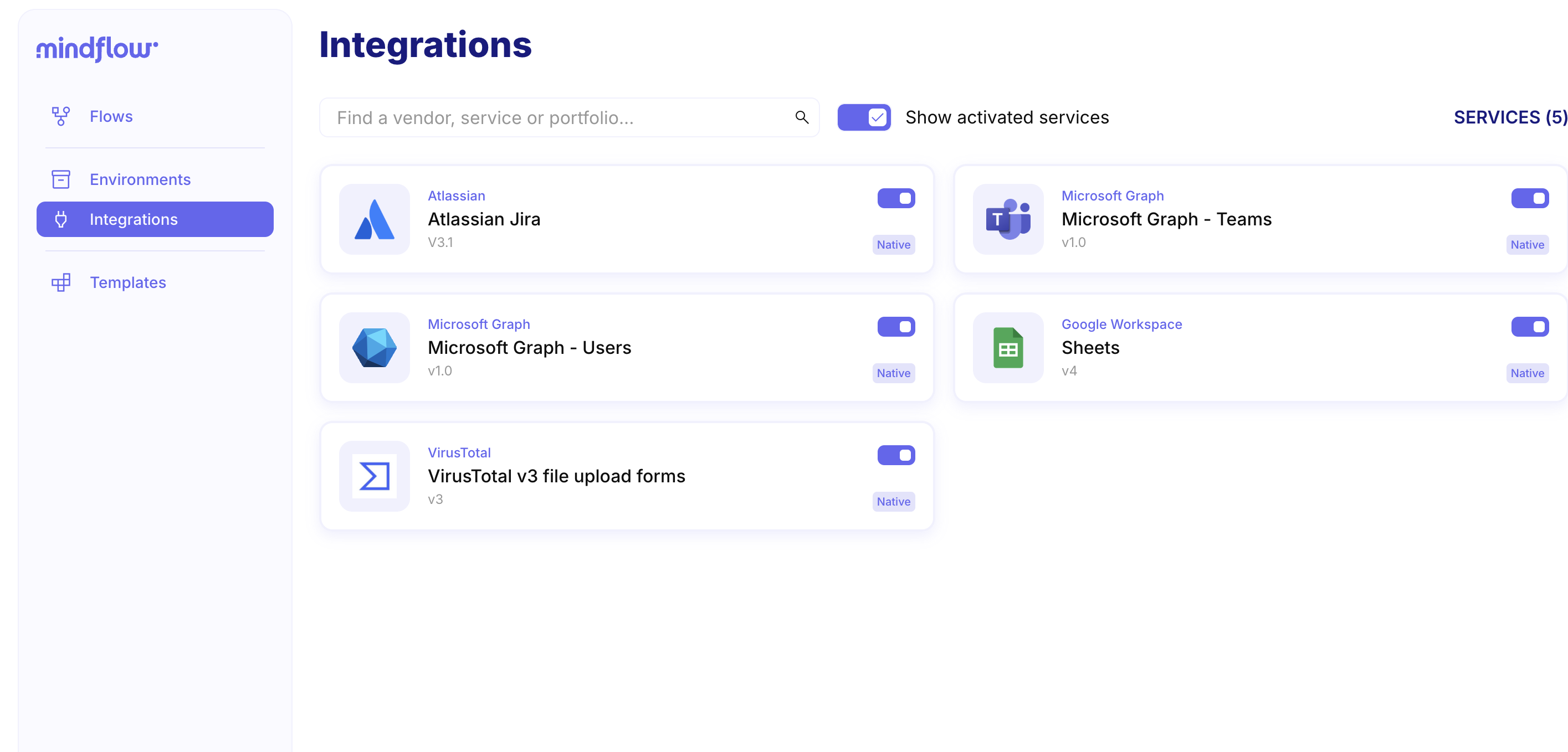
Turn the service on. Use the switch on the service card to activate it. Activated services appear when Show activated services is on.
Add an integration step
Section titled “Add an integration step”Activated services (and services that already have a credential in the environment) appear under Integrations in Add a step. Pick a service, then an operation, to create the step.
Open Add a step. In the designer, choose Add a step, then open Integrations.
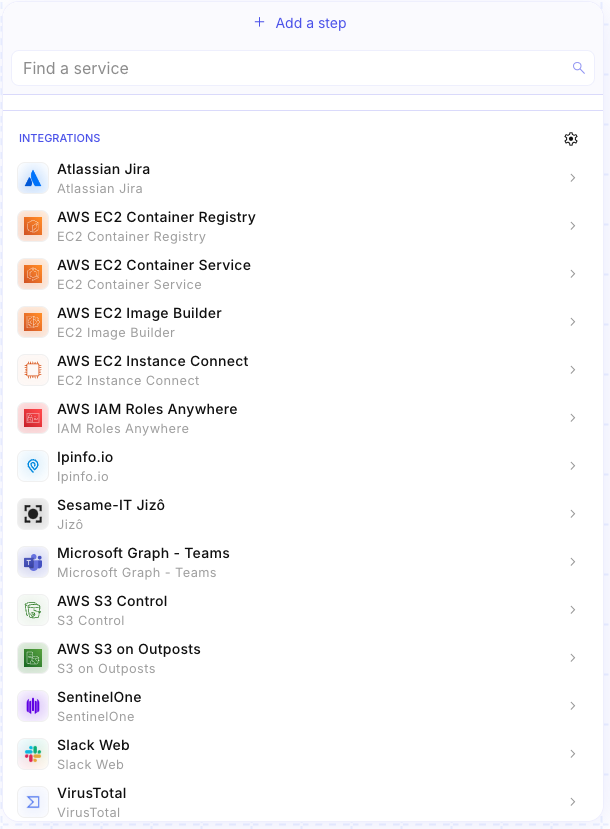
Choose the service and operation. Select the service, then the operation you need. Studio adds the step to the canvas. Open Input and Settings to fill parameters and choose a credential.
Example
Section titled “Example”A SOC analyst activates VirusTotal on Integrations, then in a flow opens Add a step → Integrations → VirusTotal and picks a file-scan operation. They attach a credential on Settings and map the file from an upstream step on Input.
Keep in mind
Section titled “Keep in mind”- Only activated favorites (or services that already have an environment credential) appear under Integrations in Add a step. Use the Integrations page to activate more.
- Native integrations use a tailored form. HTTP presets reuse the HTTP Request shape with vendor defaults.
- Built-in steps such as HTTP Request, Send email, and Send email over SMTP live under Built in, not under vendor Integrations.
Related
Section titled “Related”Send raw HTTP requests · Look up service credentials by name at runtime · Reach out to services