

Bring your own LLM
Bring your own LLM lets Org Admins connect Mindflow to LLM infrastructure you already run—OpenAI, Anthropic, Azure AI Foundry, LiteLLM, Google Gemini, Mistral, and similar providers—and choose which providers are available in the organization. You create a credential for the provider, enable it under Allowed AI providers, then pick those models in an AI··Task. OpenAI and Amazon Bedrock can also stay on credentials provided by Mindflow.
When to use
Section titled “When to use”- Your security or compliance policy requires LLM calls to go through your own OpenAI, Anthropic, Azure AI Foundry, LiteLLM, Gemini, or Mistral account.
- You want Org Admins to turn providers on or off for AI··Task, Agents, and AI··Rooms.
- Prefer Mindflow-hosted models when you do not need a customer credential—leave the provider on Provided by Mindflow for OpenAI or Amazon Bedrock.
Before you begin, you need Org Admin rights. For Anthropic, Azure AI Foundry, LiteLLM, Gemini, or Mistral, have the provider endpoint and API key (or headers) ready. LiteLLM may be off for your tenant until Mindflow enables it.
Create a provider credential
Section titled “Create a provider credential”Credentials for customer-hosted vendors live in the Organization environment so the organization can link them under Allowed AI providers. Create one credential per provider you plan to enable with your own key.
Create an OpenAI credential (HTTP API key style) with the API base URL and an Authorization header.
Open Environments. Open the Organization environment, then create a credential for OpenAI.
Set the URL. Choose the OpenAI API base (for example
https://api.openai.com/v1) or your compatible endpoint.Add the Authorization header. Under Headers, set Name to
Authorizationand Value toBearerplus your API key (include the wordBearer).Create the credential. Confirm so it appears for OpenAI under Allowed AI providers.
Create an Anthropic credential for api.anthropic.com. Studio
uses an HTTP API Key with an x-api-key header. Models come from the Anthropic catalog after you enable the
provider—you do not list deployments on this credential.
Open Environments. Open the Organization environment, then create a credential for Anthropic.
Keep the Anthropic URL. Leave the default
https://api.anthropic.comunless you use a compatible proxy.Add the x-api-key header. Expand Headers, add an item, set Key to
x-api-key, and paste your Anthropic API key into Value (raw key only—noBearerprefix).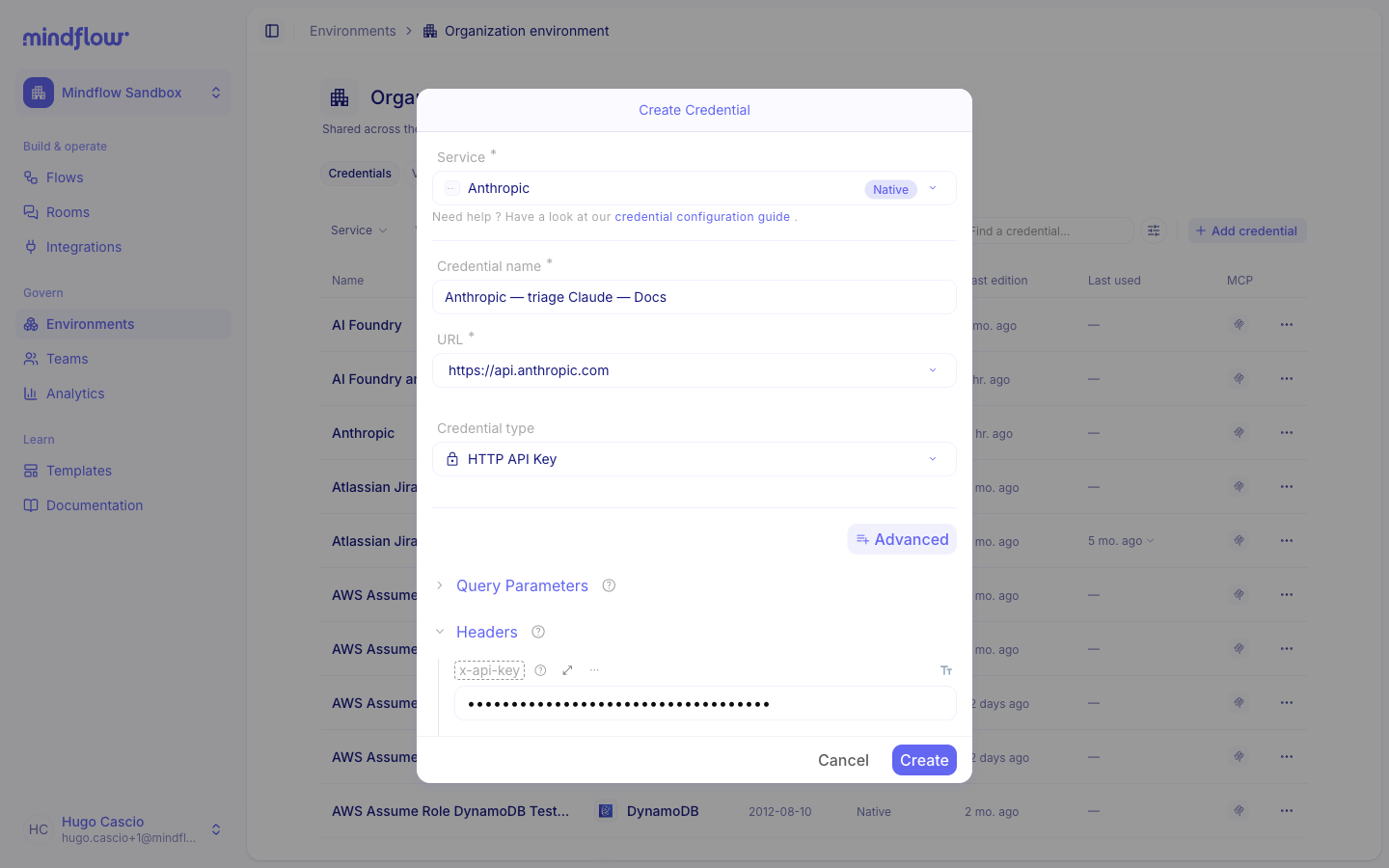
Create the credential. Confirm so it appears for Anthropic under Allowed AI providers.
Create an Azure AI Foundry API key credential (credential type Azure AI Foundry). The URL comes from the credential target server; models come from Model Deployments on the credential.
Open Environments. Open the Organization environment, then create a credential for AI Foundry (Azure AI Foundry).
Set the endpoint URL. In Studio, fill Endpoint with the Foundry resource origin from Azure AI Foundry—for example
https://<resource>.services.ai.azure.com(the URL field may showhttps://{endpoint}). A project URL that includes/api/projects/…is fine; Mindflow normalizes it to the resource origin.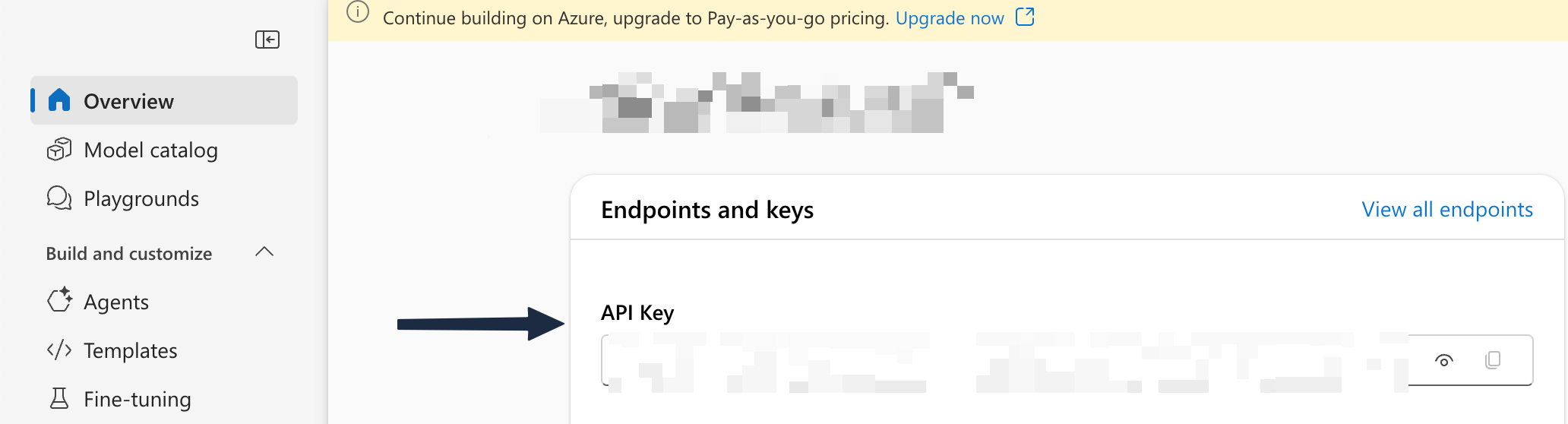
List model deployments. For each deployment, set Deployment Name (Name in Azure) and Deployment ID (model name in Azure). Match the rows under Models + endpoints in Azure AI Foundry—for example Deployment Name
gpt-4owith Deployment IDgpt-4o.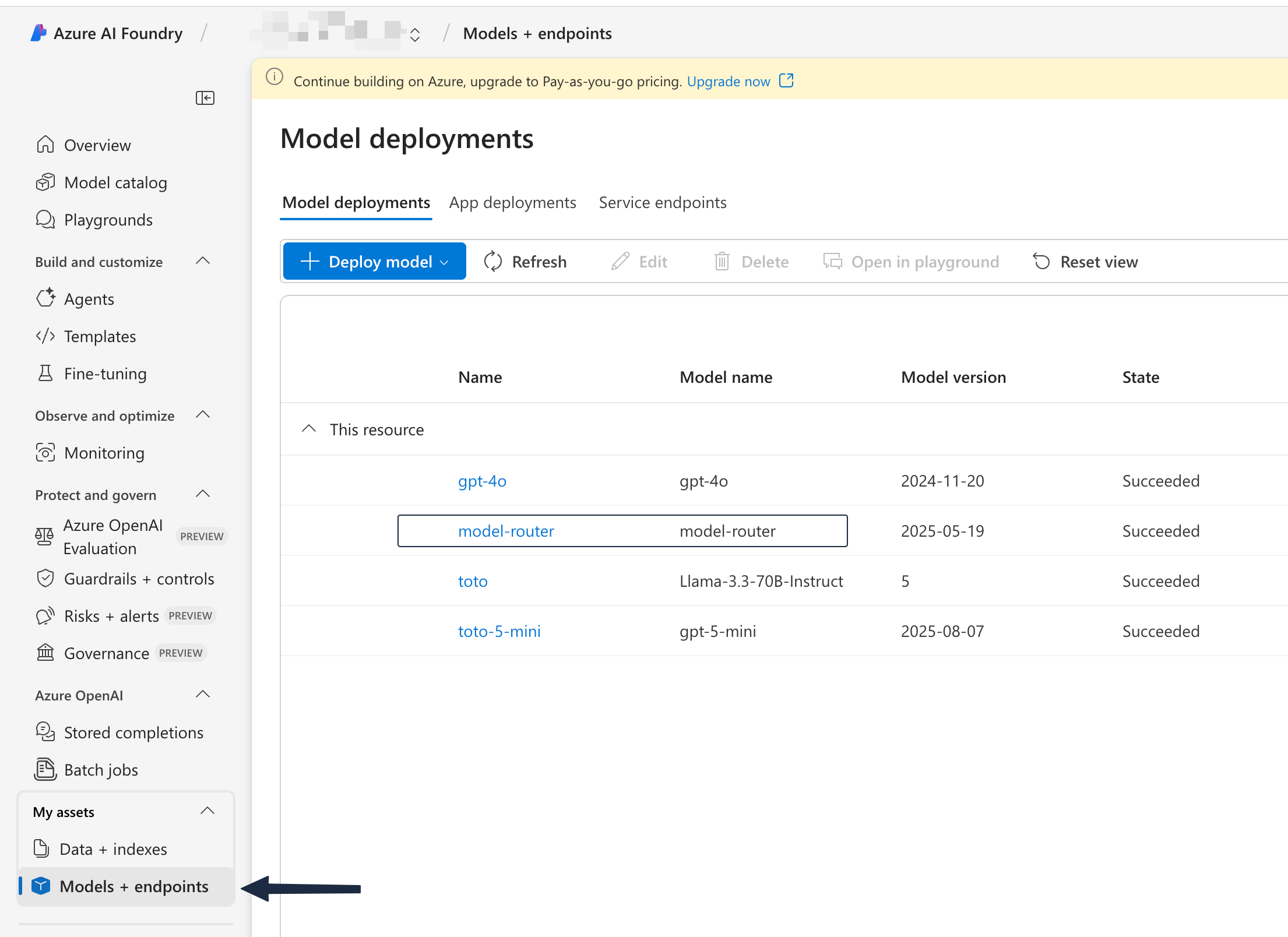
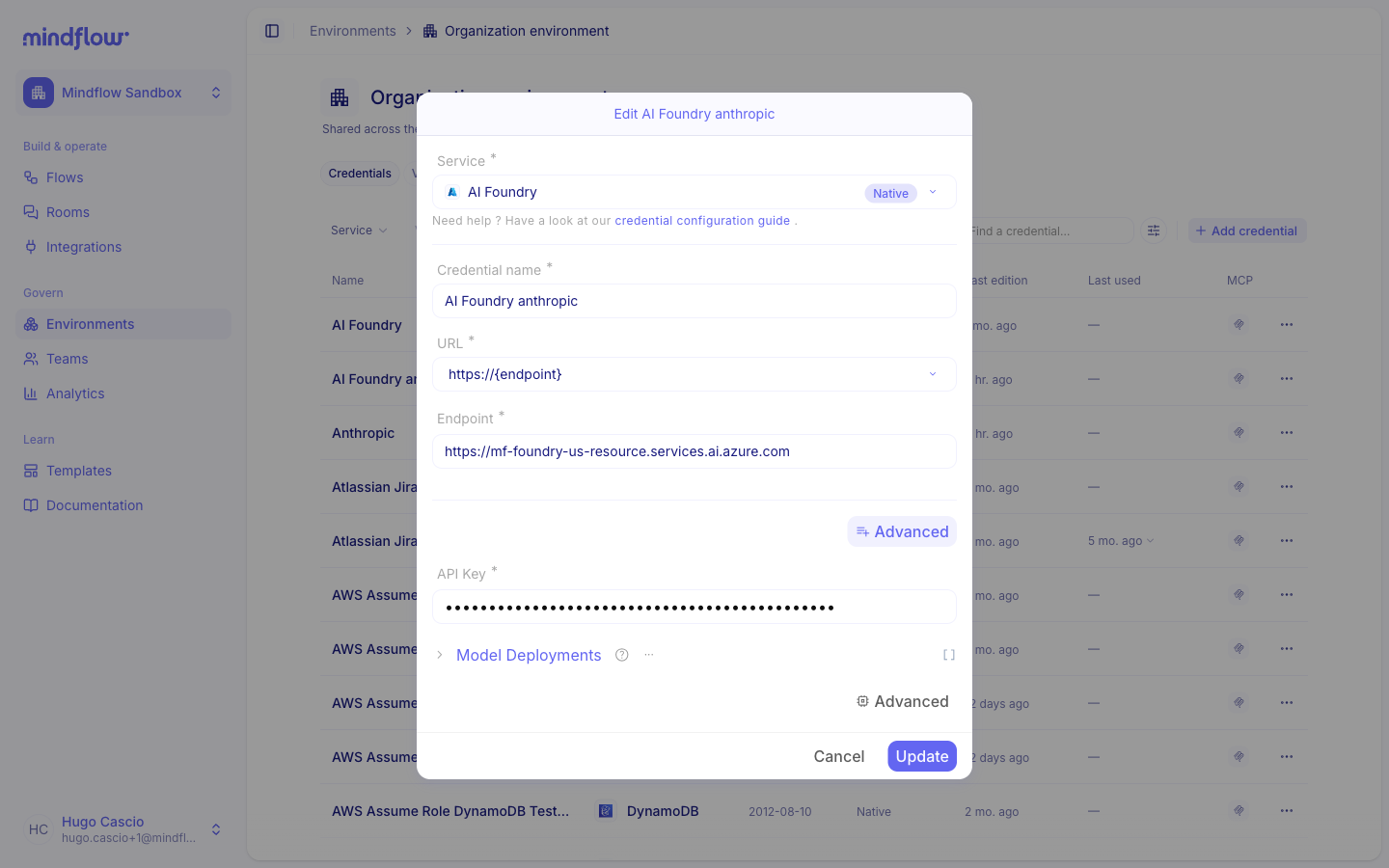
Add the API key. Paste the raw API key into API Key (no
Bearerprefix). Expand Model Deployments, add each row, then create the credential.
Create a LiteLLM API key credential. Keep the credential type as LiteLLM. Fill Models with the same pairs your proxy exposes, then add auth headers.
Open Environments. Open the Organization environment, then create a credential for LiteLLM.
Set the proxy URL. Point the credential URL at your LiteLLM OpenAI-compatible base (for example
https://endpoint.example.com/openai).Fill Models. For each entry, set Model Name (friendly name used in Mindflow) and Model ID (provider model id from the proxy). Match your LiteLLM
model_list(for examplemodel_name: gpt-4owithmodel: gpt-4o-2024-08-06).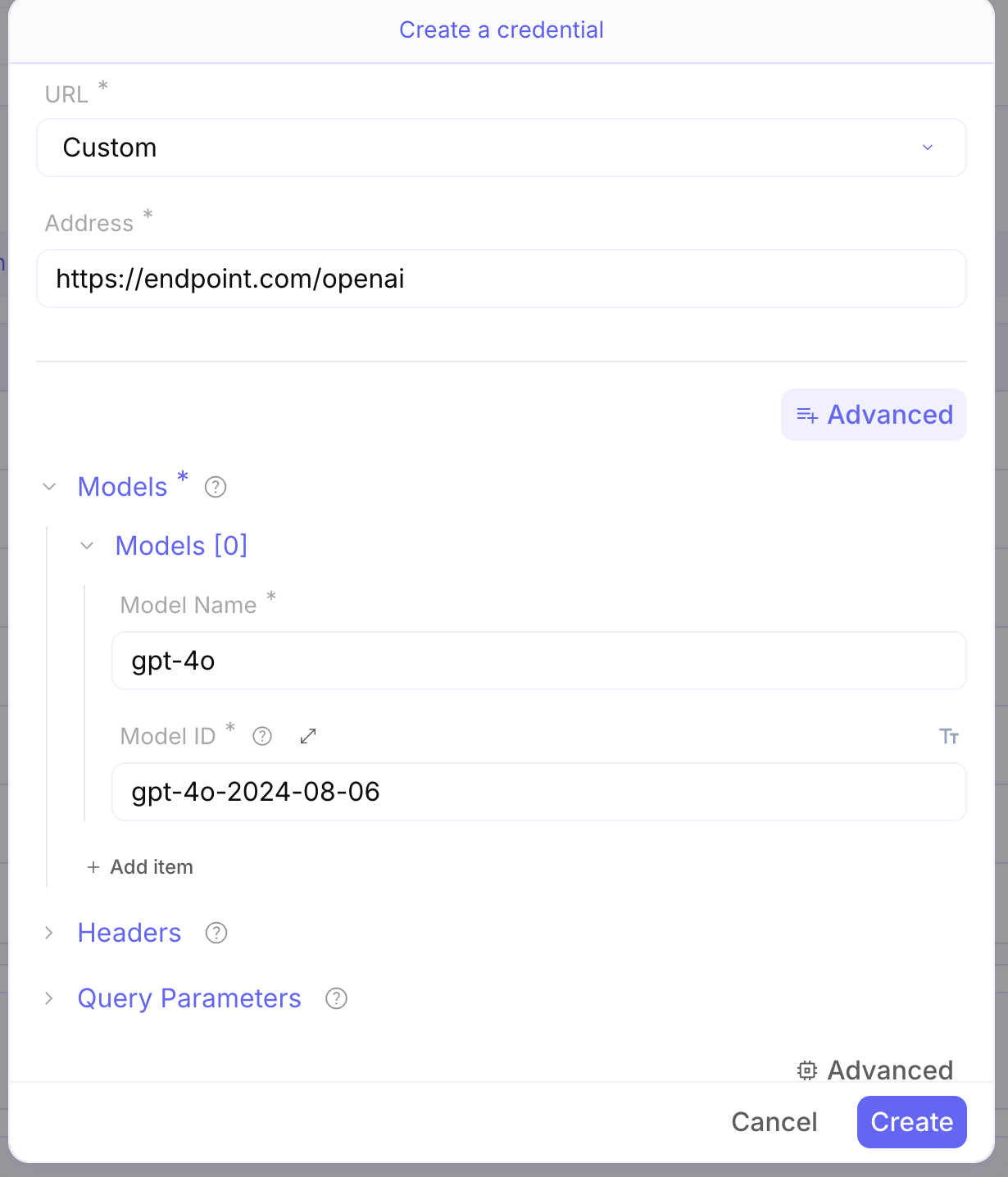
Add Headers. Add the headers your proxy expects (for example
Authorization: Bearer …orX-Litellm-Key). See LiteLLM virtual keys. Create the credential.
Create a Google Gemini credential (HTTP API key style) with an X-goog-api-key header. Models come from the Gemini
catalog after you enable the provider—you do not list deployments on this credential.
Open Environments. Open the Organization environment, then create a credential for Gemini.
Choose HTTP API Key. Use credential type HTTP API Key.
Add the X-goog-api-key header. Under Headers, set Key to
X-goog-api-keyand Value to your Gemini API key (raw key only—noBearerprefix). Create the key in Google AI Studio.Create the credential. Confirm so it appears for Gemini under Allowed AI providers.
Create a Mistral credential (HTTP API key style) with an Authorization header. Models come from the Mistral catalog after you enable the provider—you do not list deployments on this credential.
Open Environments. Open the Organization environment, then create a credential for Mistral.
Keep the Mistral URL. Leave the default Mistral API base (for example
https://api.mistral.ai/v1) unless you use a compatible proxy.Add the Authorization header. Under Headers, set Key to
Authorizationand Value toBearerplus your API key (include the wordBearer). Create the key in the Mistral console.Create the credential. Confirm so it appears for Mistral under Allowed AI providers.
Enable providers in Organization
Section titled “Enable providers in Organization”Allowed AI providers on the Organization page controls which vendors appear in AI··Task, Agents, and AI··Rooms. Enable a provider, then choose Provided by Mindflow (OpenAI or Amazon Bedrock) or a credential you created. Changes save automatically—there is no separate Save control.
Open Organization. In Studio, open your profile menu, then choose Organization.
Open Allowed AI providers. Scroll to Allowed AI providers.
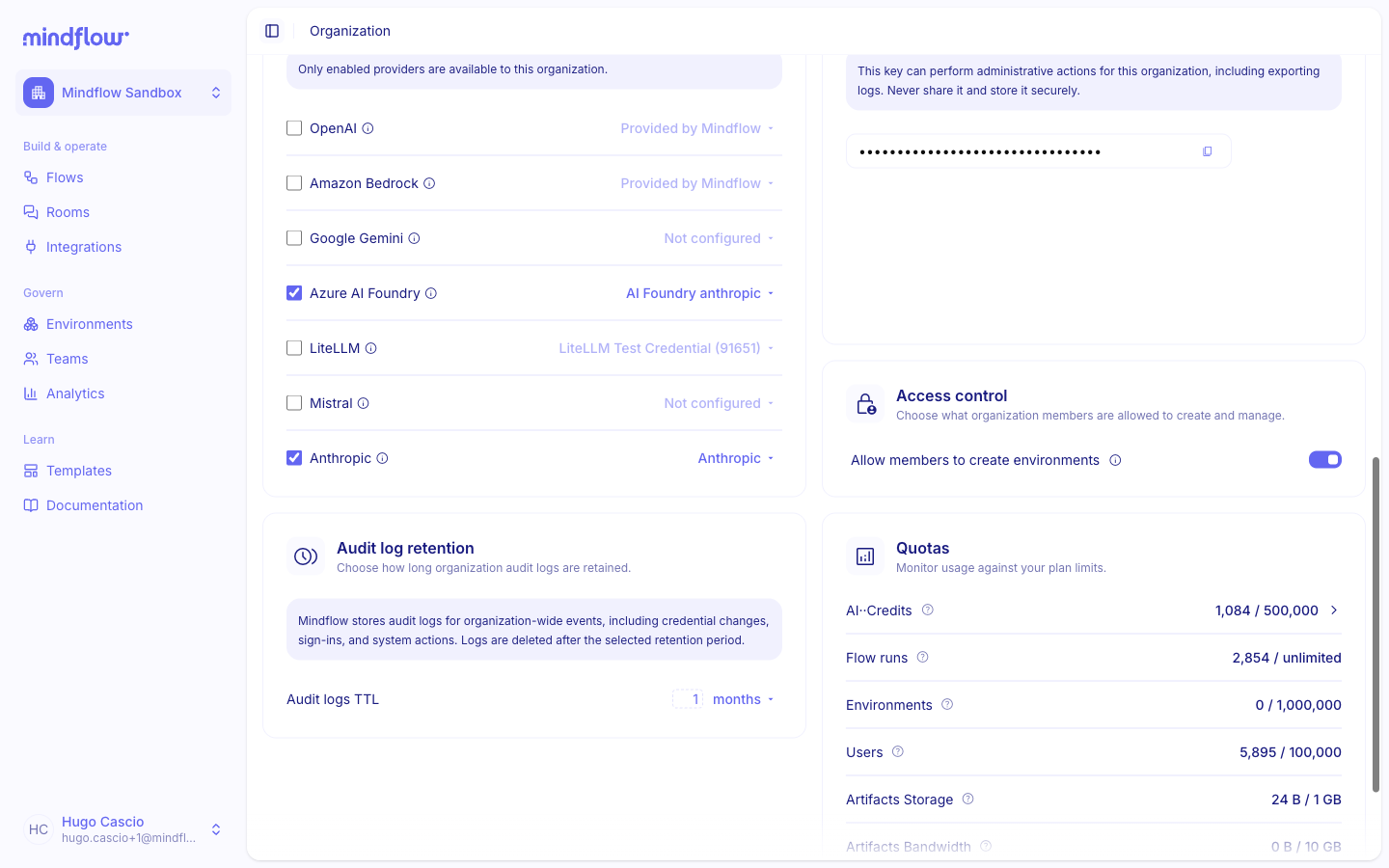
Enable the provider. Check the vendor you need. Only enabled providers are available to the organization.
Link the credential. For Anthropic, Azure AI Foundry, LiteLLM, Gemini, or Mistral, choose the credential you created. For OpenAI or Amazon Bedrock, leave Provided by Mindflow or select your own OpenAI credential when you use one.
Use models in an AI··Task
Section titled “Use models in an AI··Task”After a provider is enabled, its models appear in the AI··Task model picker (catalog models for Mindflow-hosted vendors, Anthropic, Gemini, and Mistral; credential model lists for Azure AI Foundry and LiteLLM).
Add an AI··Task. In a flow, add an AI··Task step and open Input.
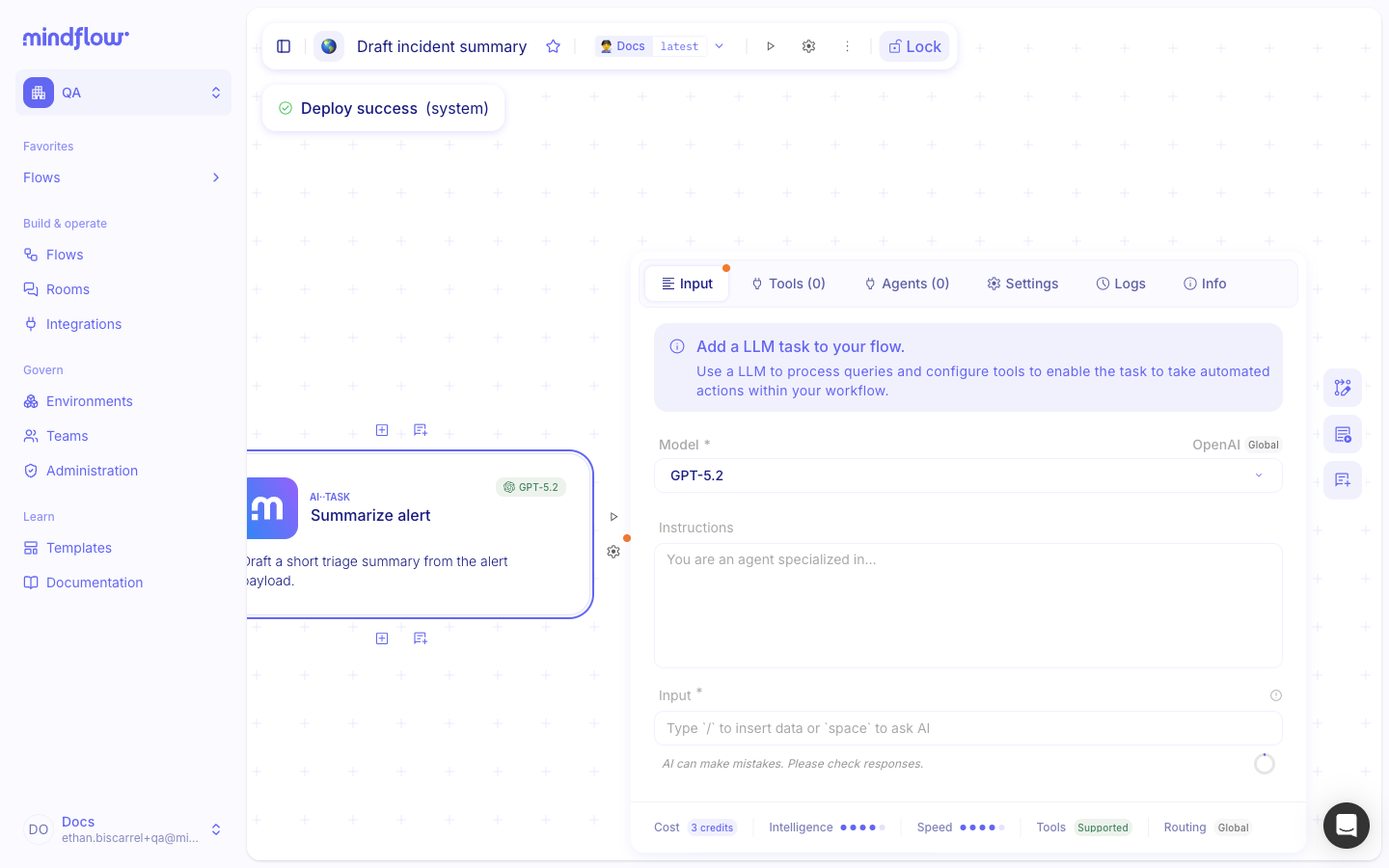
Choose the model. Pick a model from an enabled provider. If the same model name exists on two providers, choose the provider you intend.
Run a test. Fill the required prompt fields and run the step to confirm the credential and model respond.
Example
Section titled “Example”A security team routes triage prompts through Anthropic and enrichment through Google Gemini. An Org Admin
creates an Anthropic credential (x-api-key), enables Anthropic under Allowed AI providers, and picks a Claude
model on AI··Task. For Gemini, they create a Gemini credential (X-goog-api-key from Google AI Studio), enable
Gemini, then select a Gemini model on another AI··Task.
- Create the Anthropic credential. Organization environment → Anthropic → Headers →
x-api-key→ Create. - Enable Anthropic. Organization → Allowed AI providers → check Anthropic → select the credential.
- (Optional) Create the Gemini credential. Organization environment → Gemini → Headers →
X-goog-api-key→ enable Gemini and pick a catalog model on AI··Task.
Keep in mind
Section titled “Keep in mind”- Grant access only to the models you need (least privilege on the provider side).
- Amazon Bedrock stays Mindflow-hosted; you cannot attach a customer Bedrock credential in Allowed AI providers.
- Provider availability depends on organization feature flags (LiteLLM is often off until Mindflow enables it).
- Gemini and Mistral use catalog models after you link the credential—same pattern as Anthropic (no deployment list on the credential).
Related: Use AI in flows, Manage permissions (RBAC).