

Manage teams
A team is a group of users you manage once and reuse when sharing access. You add people to the team, then grant the team a role on a flow or an environment. Every member inherits that access. Use this when several people need the same permissions and you do not want to update each person one by one. Screenshots on this page use a sample SOC analysts team so you can see filled names and roles.
When to use
Section titled “When to use”- A group of colleagues (for example analysts or builders) should share the same flow or environment access.
- You want onboarding and offboarding to mean adding or removing someone from a team, not editing every resource.
- Prefer Manage permissions (RBAC) when you need the full role matrix for organizations, flows, and environments without walking through team setup.
- Prefer Manage users when you only need to invite people or change organization Admin versus Member.
Before you begin, you need organization Admin rights to create teams and manage membership. To grant a team access to a flow or environment, you also need permission to manage that resource (for example Flow Owner or Environment Owner).
Create a team
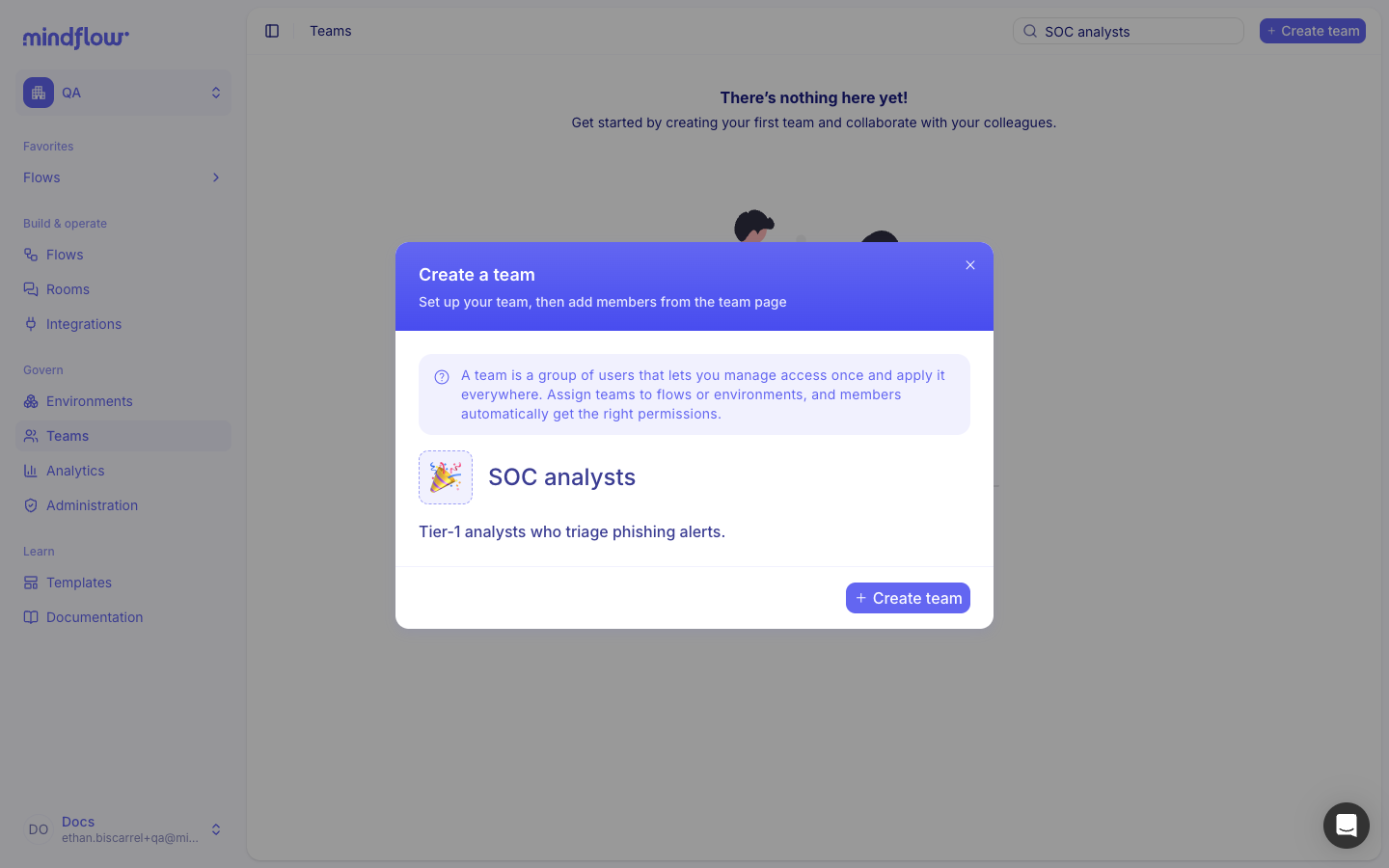
Section titled “Create a team”A team is an empty group until you add members. Create it with a clear name so it is easy to pick later on flow and environment permission screens.
Open Teams. In Studio, open Teams from the organization navigation.
Create team. Choose Create team. Enter a Team name and optional Team description. Pick an icon if you want one. Confirm with Create team. Studio opens the new team page.
Add team members
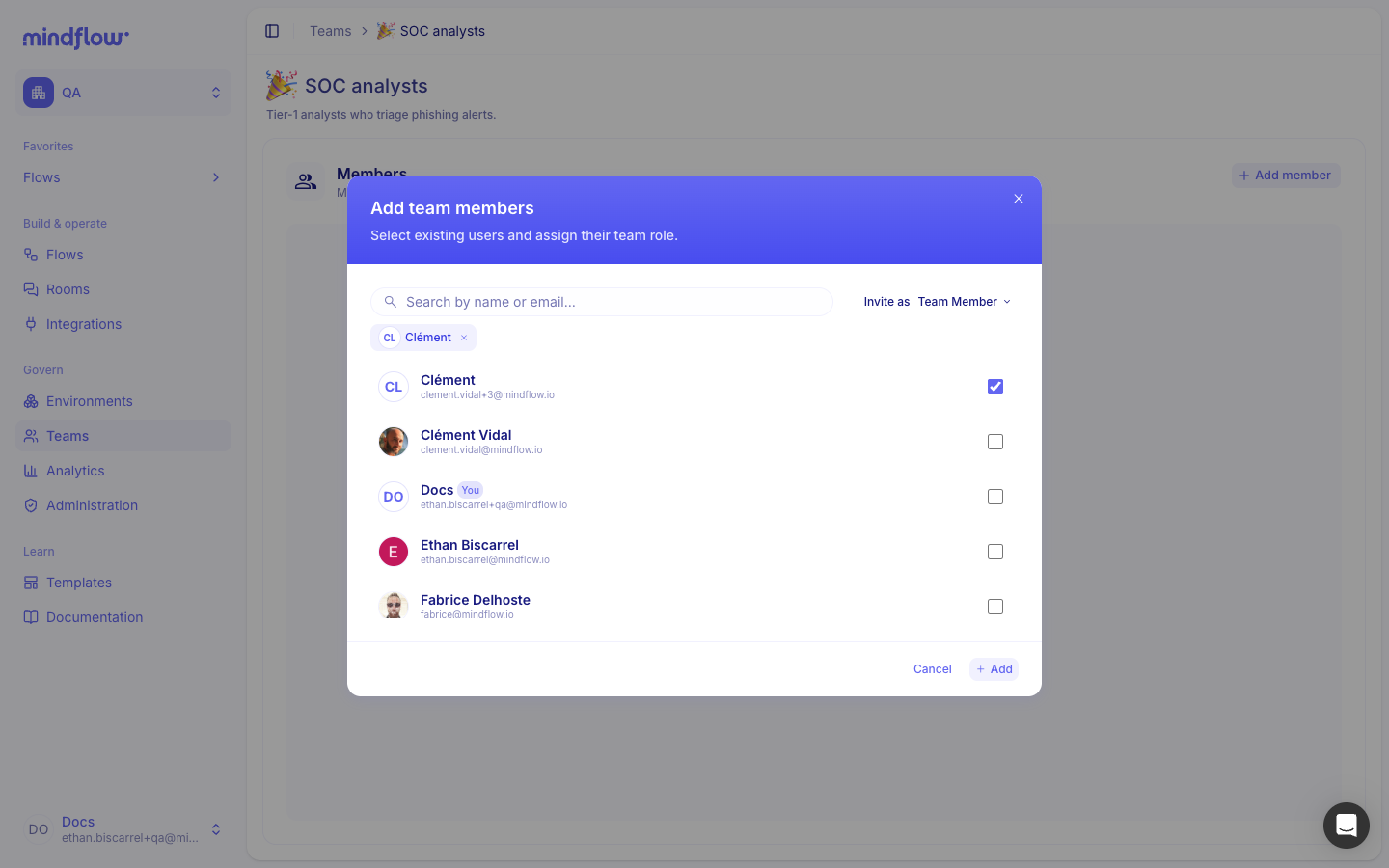
Section titled “Add team members”Membership puts a user on the team. It does not grant flow or environment access by itself—you still assign the team on those resources. Each member has a team role:
- Team Member — Belongs to the team and inherits access wherever the team is granted a role.
- Team Admin — Can manage the team’s details and membership, in addition to inheriting the same access as members.
Open the team. From Teams, open the team card (or stay on the team page after create).
Add member. In Members, choose Add member. Select one or more existing organization users. Set each person’s team role (Team Member or Team Admin). Confirm to add them.
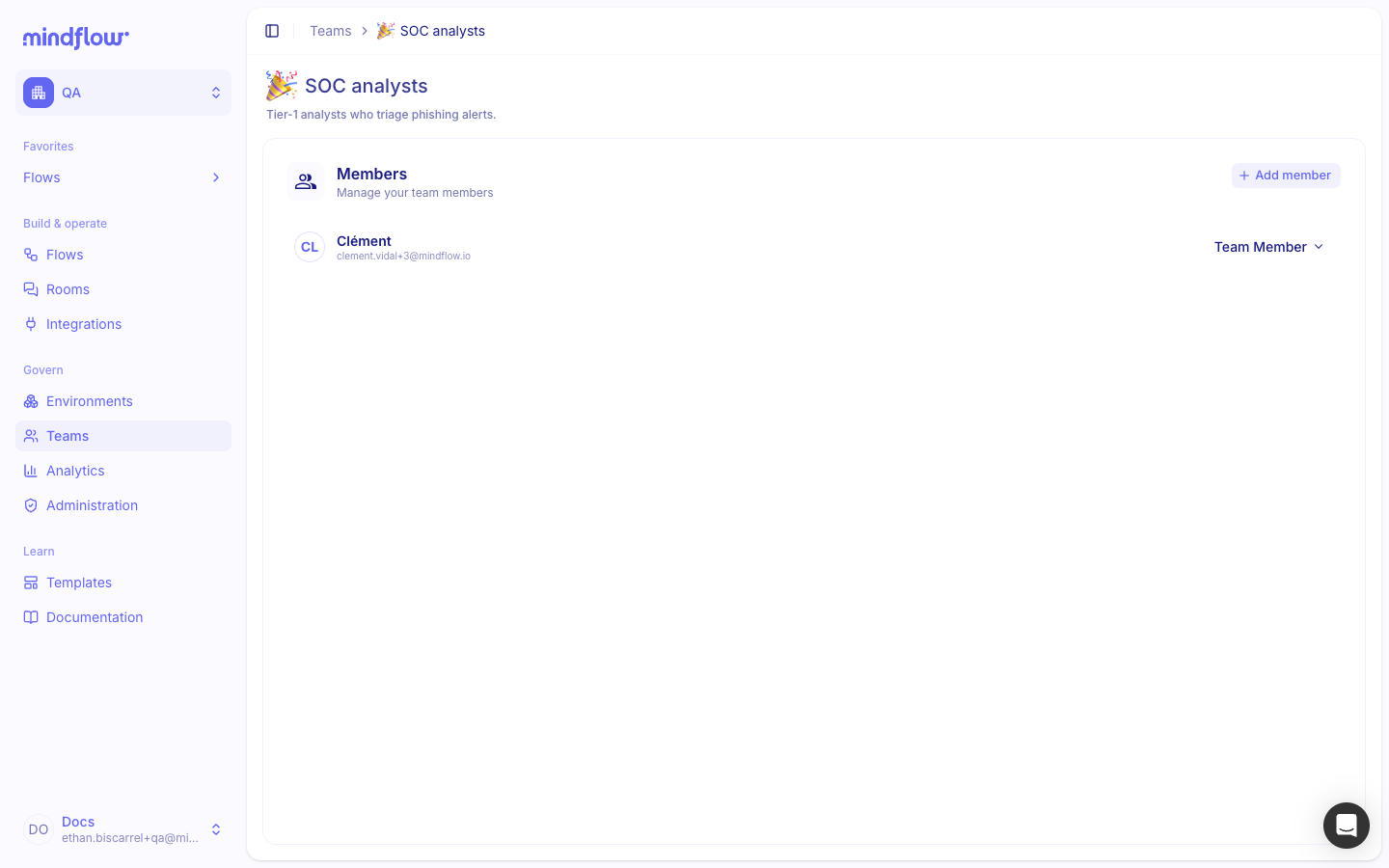
Change or remove a member. On the members list, use the role control to switch between Team Member and Team Admin, or remove the person from the team.
Grant a team access to a flow
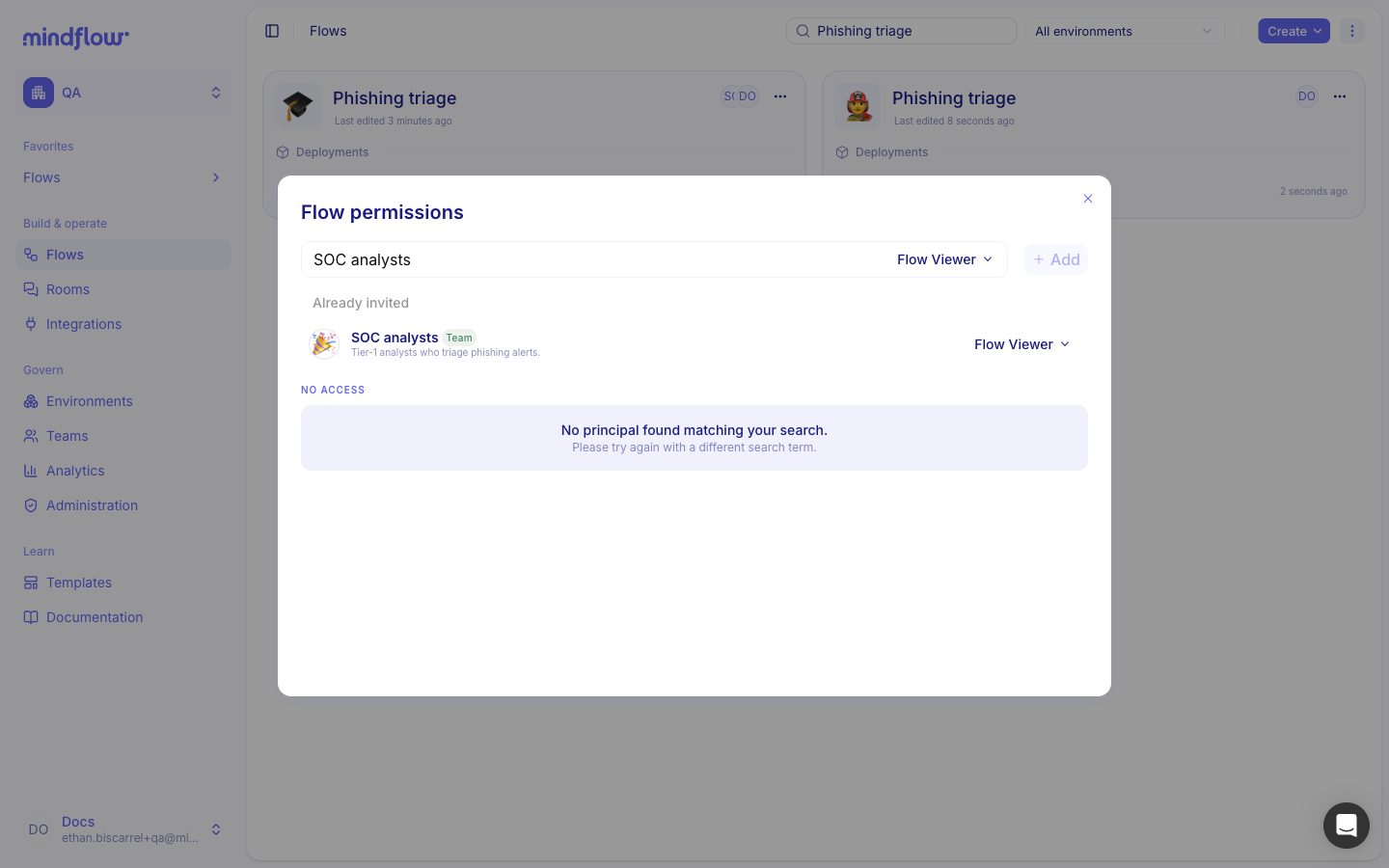
Section titled “Grant a team access to a flow”When you add a team on a flow, every team member inherits that flow role (Flow Owner, Flow Editor, or Flow Viewer). You do not need to list each person on the flow.
Open flow permissions. On the Flows page, open Edit permissions on the flow card (or choose Edit permissions… from the card menu).
Add the team. In the Flow permissions dialog, search for the team, select it, choose a flow role (Flow Owner, Flow Editor, or Flow Viewer), then choose Add.
Grant a team access to an environment
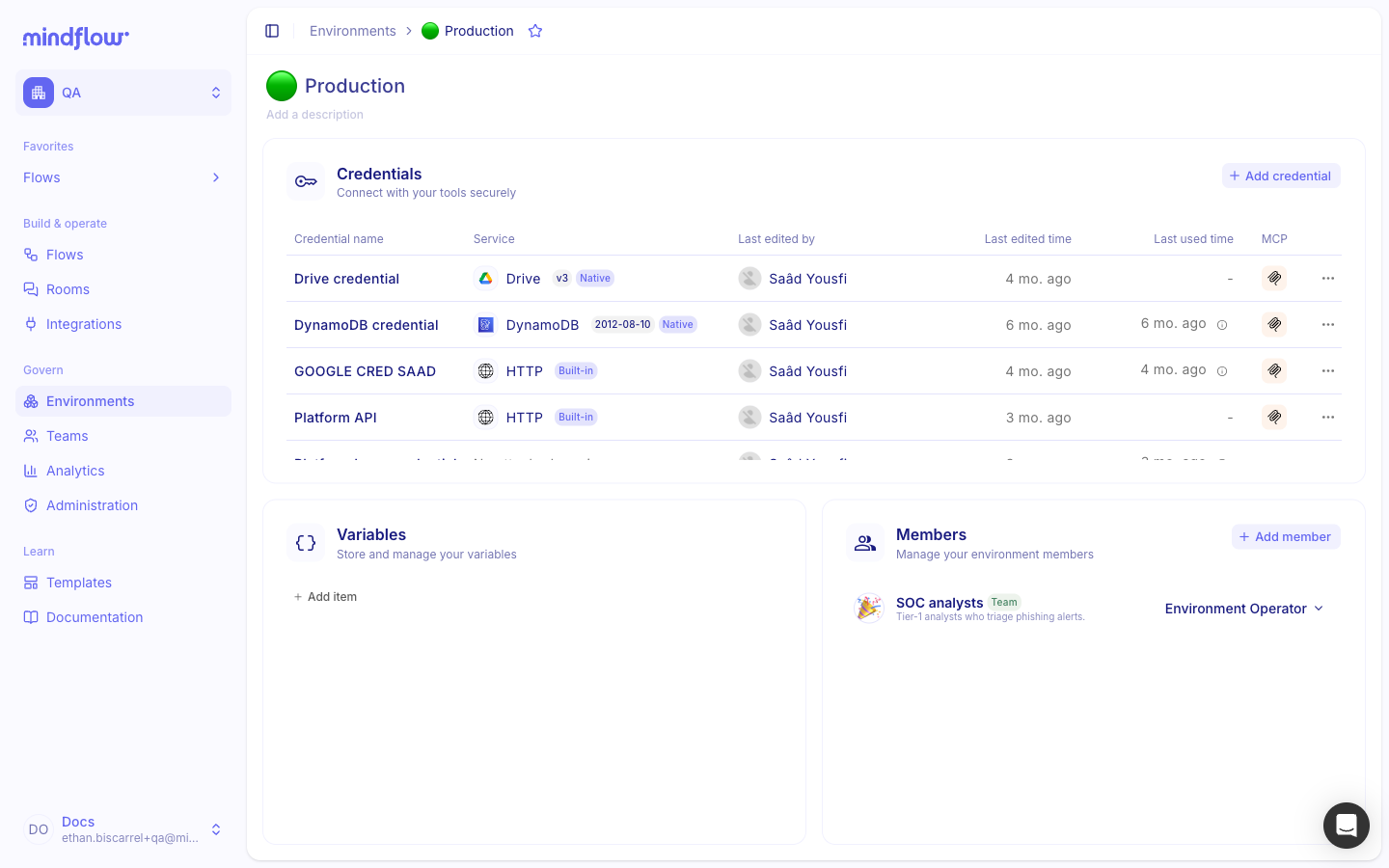
Section titled “Grant a team access to an environment”Environment membership controls who can see deployments, credentials (per role), and run activity in that space. Grant the team Environment Owner, Environment Operator, or Environment Auditor the same way you grant a user.
Open the environment. Go to Environments and open the environment.
Add the team. In Members, choose Add member. Select the team, assign an environment role, and confirm.
Edit or delete a team
Section titled “Edit or delete a team”Update the team’s name, icon, or description when the group’s purpose changes. Delete a team only when nothing should use it anymore.
- Edit details. On Teams, open the team card menu and choose Edit details, or edit the header on the team page. Change the name, icon, or description, then save.
- Delete the team. From the team card menu, choose Delete… and confirm. Deleting removes the team and its membership. Flow and environment permissions that referenced the team are cleared with it; flows and users are not deleted.
Example
Section titled “Example”A security operations lead needs every analyst to view the same phishing flow and operate in production without assigning each person twice.
- Create the team. Name it SOC analysts. Description: Tier-1 analysts who triage phishing alerts.
- Add members. Add each analyst as Team Member. Promote one lead to Team Admin so they can update membership when people join or leave.
- Share the flow. On Phishing triage, grant SOC analysts the Flow Viewer role.
- Share the environment. On Production, grant SOC analysts the Environment Operator role.
New analysts inherit both grants as soon as they are added to SOC analysts. Removing someone from the team removes that inherited access.
Keep in mind
Section titled “Keep in mind”- Creating a team or adding members does not grant flow or environment access until you assign the team on that resource.
- Only organization Admins can create teams. Team Admins can manage membership and team details for their team.
- Role meanings for flows and environments are the same whether the principal is a user or a team. See Manage permissions (RBAC).
- Prefer teams for stable groups. Prefer a direct user grant for one-off or temporary access.