

Exchange files with SFTP
SFTP (SSH File Transfer Protocol) is a Mindflow integration that moves files and folders on a remote SFTP server over SSH. You can upload and download files, list directories, create or remove folders, rename or move paths, and inspect path metadata. Screenshots on this page use a sample nightly ERP export so you can see filled paths and a sample CSV.
When to use
Section titled “When to use”- A partner or legacy ERP only accepts files from an SFTP folder (for example a nightly CSV drop).
- You pull reports, configs, or error files from a vendor SFTP inbox into a flow.
- You archive or rename files on the server after a successful run.
- Prefer Platform Artifacts when the payload should stay in the current Mindflow environment instead of a remote server.
- Prefer a native cloud-storage integration (for example Amazon S3 or SharePoint) when that is the real destination.
- Prefer Run remote commands with SSH when the job is a remote CLI or script, not file transfer.
Before you begin, you need an SFTP server you can reach on TCP port 22 and permission to create a credential in the environment. Ask your Mindflow administrator for the platform static egress IP, then allow that address inbound on the server firewall or security group. See Credentials.
Find SFTP
Section titled “Find SFTP”Enable SFTP (Beta) in the current environment, then add its operations from the step menu.
Open Integrations. In Studio, go to Integrations.
Open the Mindflow vendor group. Search for
sftp, then enable SFTP (Beta) if it is not already on.
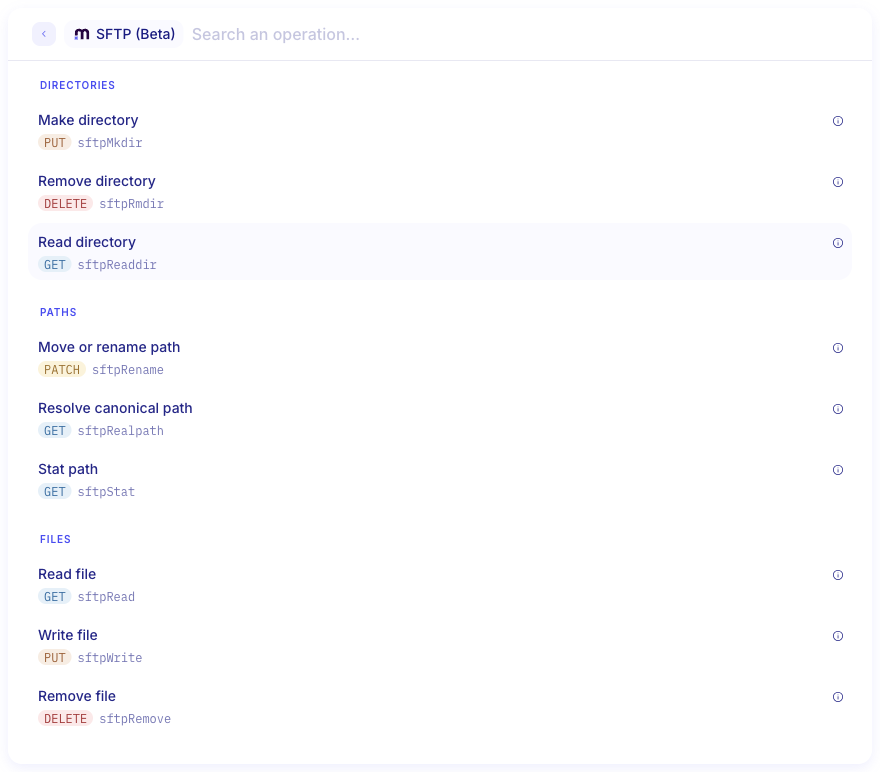
Review the operations. In a flow, open Add a step, choose Integrations, then SFTP (Beta). Confirm you see Write file, Read file, Read directory, Make directory, Move or rename path, Stat path, Resolve canonical path, Remove file, and Remove directory.
Create an SSH credential
Section titled “Create an SSH credential”Every SFTP step authenticates with an SSH Password or SSH Private Key credential in the environment. Host and port come from the credential Address URL, not from the username fields.
Open Environments. Open the environment that will run the flow, then choose Add credential.
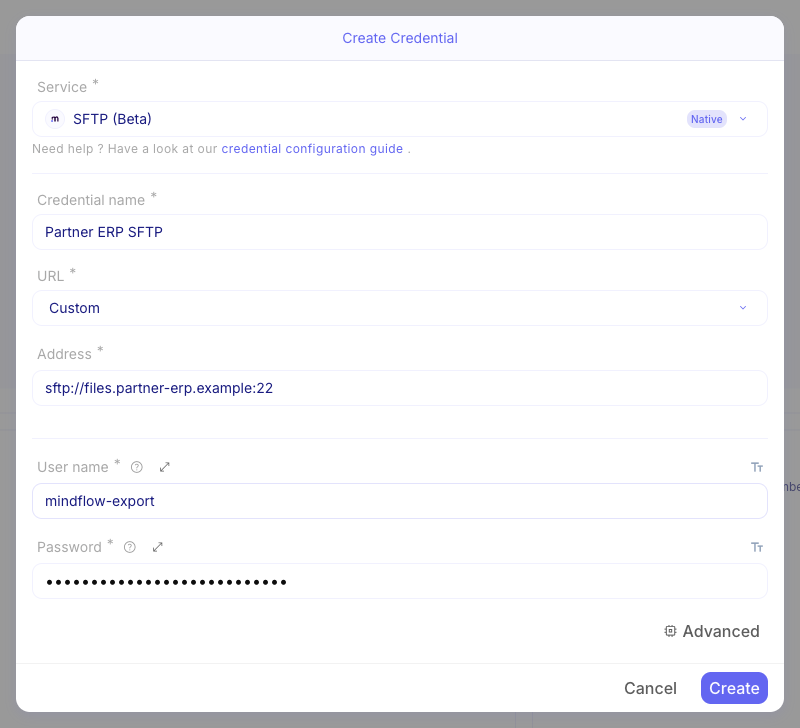
Choose SFTP (Beta). Set Service to SFTP (Beta). Set Credential name, and keep URL as Custom.
Then choose the authentication flavor:
Use SSH Password when the server authenticates with a username and password. Fill Address, User name, and Password.
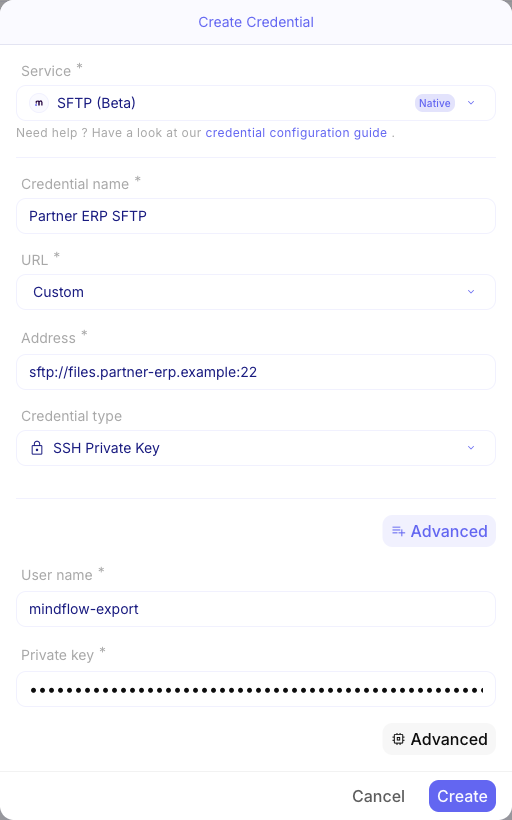
Open Advanced, set Credential type to SSH Private Key, then fill Address and User name. Paste the
full PEM (including BEGIN and END lines) into Private key. Fill Passphrase only when the key is encrypted.
Write a file
Section titled “Write a file”Upload file bytes to a remote path. Use this to drop a file into a partner inbox.
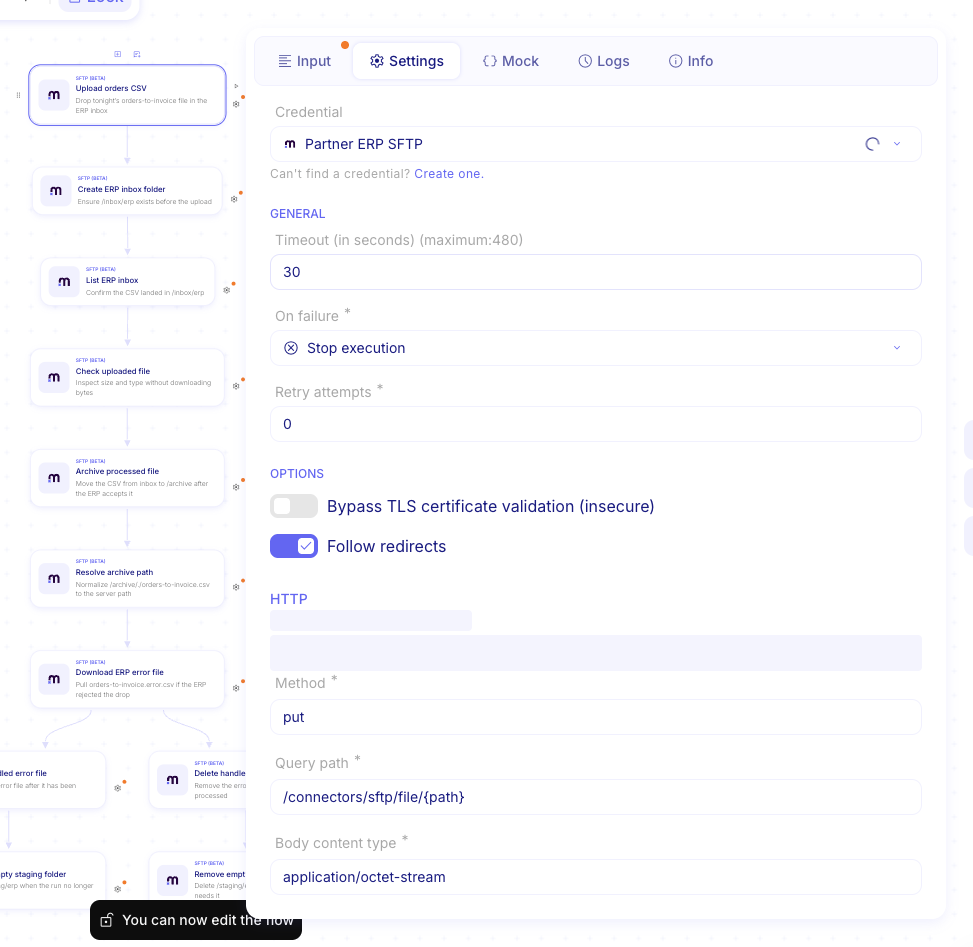
Open Settings on the write step. Select the SSH credential.
Open Input on the write step. Set the remote path, body, and overwrite option.
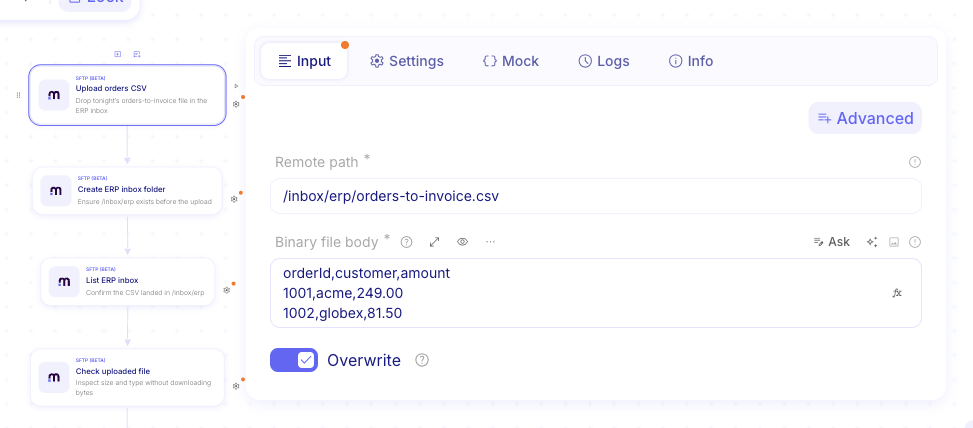
Set the remote path. Absolute POSIX paths with a leading
/are accepted. Maximum length is 2048 characters. Do not use?or#in the path. The path must be a regular file, not a directory or/.Paste or map the body. Maximum decoded size is 6 MB. Map bytes from a previous step, or paste a small test file such as:
Binary file body orderId,customer,amount1001,acme,249.001002,globex,81.50Optional: set Overwrite. Leave it on (default) to create or replace the file. Turn it off when the path must be new; an existing file then fails.
Read a file
Section titled “Read a file”Download a remote file’s bytes into the flow. Use this to pull a report, config, or error file from a vendor inbox.
Add Read file. Select the same SSH credential, then set the remote path of a regular file.
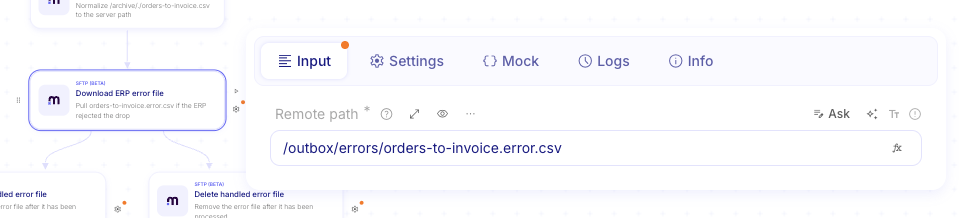
Use the body downstream. Read returns file bytes. Content type is inferred from the file name when the step does not declare one. A directory path or
/fails; use Read directory to list a folder.
List a directory
Section titled “List a directory”List entries in a remote directory, with pagination, so you can see what a drop folder contains before you read or archive files.
Add Read directory. Set the remote path of an existing directory. Limit defaults to 100 (maximum 1000 per page).
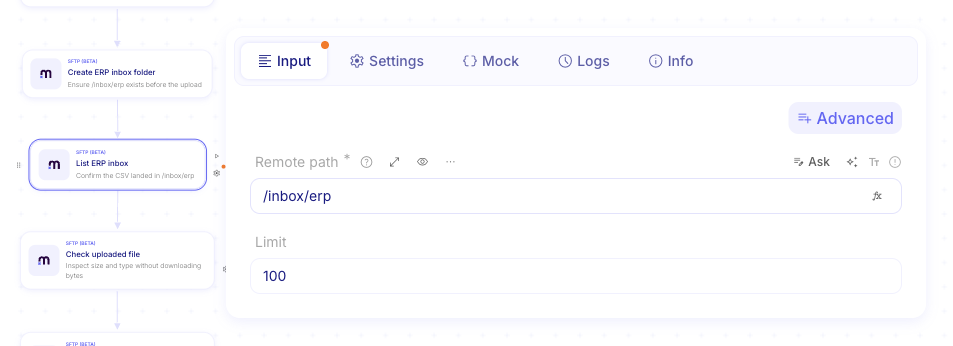
Paginate when the directory has more than one page. If the response includes a next cursor, pass it as cursor on the next Read directory step until no cursor remains. Directories with more than 10,000 immediate children fail before any page is returned. See Handle API pagination.
Make a directory
Section titled “Make a directory”Create a remote folder before you write files into it.
Add Make directory. Set the remote path of the folder to create.
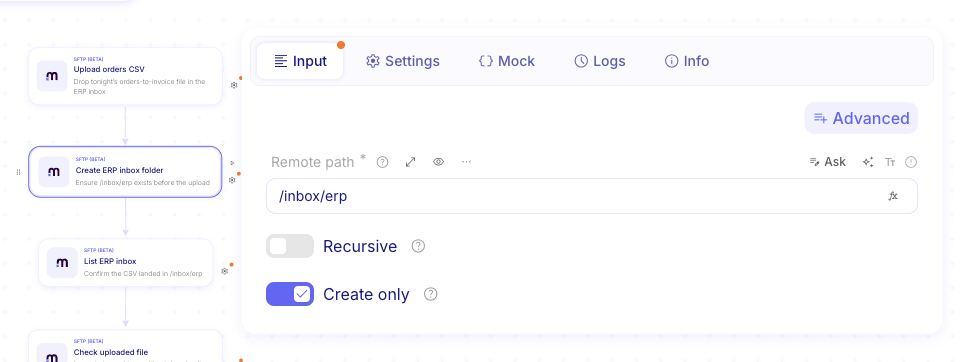
Optional: set Recursive. Leave it off (default) when every parent already exists. Turn it on to create missing parents.
Optional: set Create only. Leave it on (default) so an existing path fails. Turn it off when it is acceptable that the directory already exists.
Move or rename a path
Section titled “Move or rename a path”Rename or move a path after a successful drop (for example from an inbox into an archive).
Add Move or rename path. Set the first Remote path (source) and the second Remote path (destination).
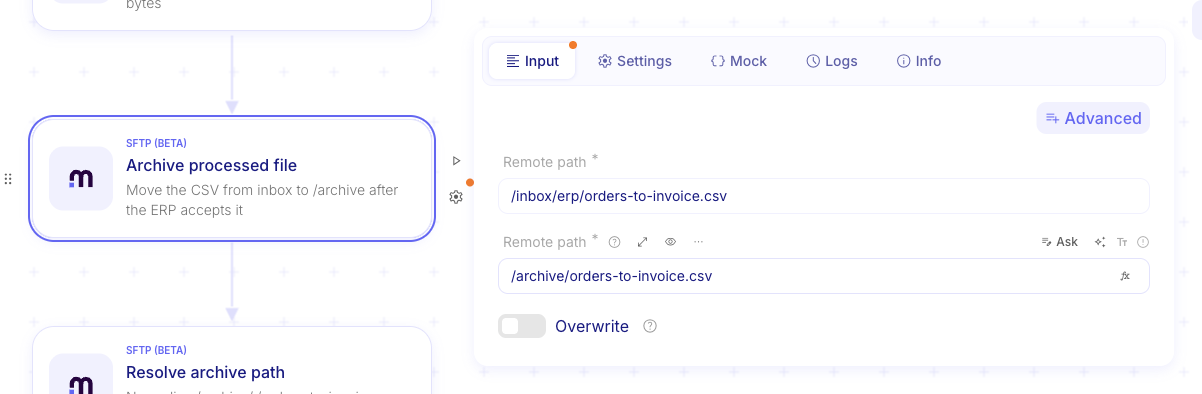
Optional: set Overwrite. Leave it off (default) so an existing destination fails. Turn it on to replace an existing regular file at the destination. Overwrite cannot replace a directory.
Stat a path
Section titled “Stat a path”Inspect type, size, and modified time without downloading file bytes.
Add Stat path. Set the remote path to inspect.
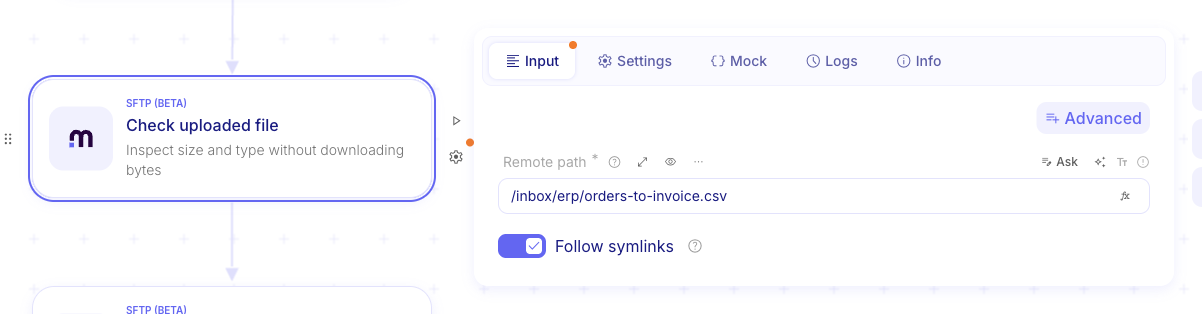
Branch on the result. Use type, size, and modified time when the server reports them. Follow symlinks is on by default (metadata describes the target). Turn it off to describe the link itself.
Resolve a canonical path
Section titled “Resolve a canonical path”Turn a path that includes ., .., or a symlink into the server’s absolute path. Use this when you need the canonical
location before a later write, move, or delete.
Add Resolve canonical path. Set a path that may include
.,.., or a symlink.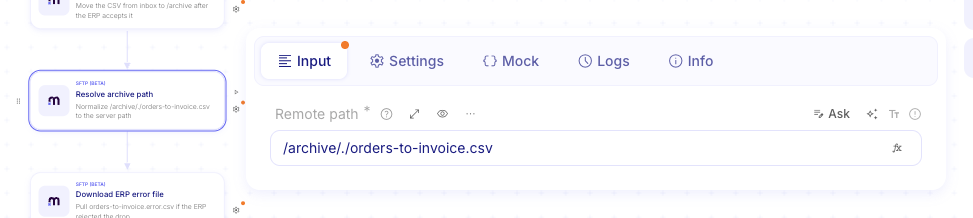
Use the canonical path downstream. The step returns the server’s absolute path after resolving
.,.., and symlinks. On a chrooted server, resolve/(or a relative path) to see how paths map inside the jail. This step does not return type, size, or timestamps — use Stat path for metadata.
Remove a file
Section titled “Remove a file”Delete a remote file when the drop is complete or an error file is no longer needed.
Add Remove file. Set the remote path of a regular file.
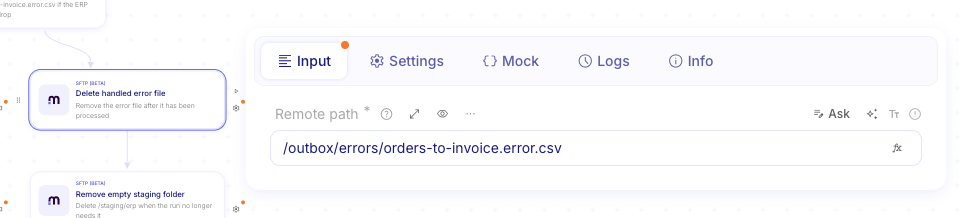
Treat the file as gone. Running remove again on a missing file is safe. A directory path fails; use Remove directory for folders.
Remove a directory
Section titled “Remove a directory”Delete a remote folder when you no longer need it. Optionally delete descendants first.
Add Remove directory. Set the remote path of the folder to delete.
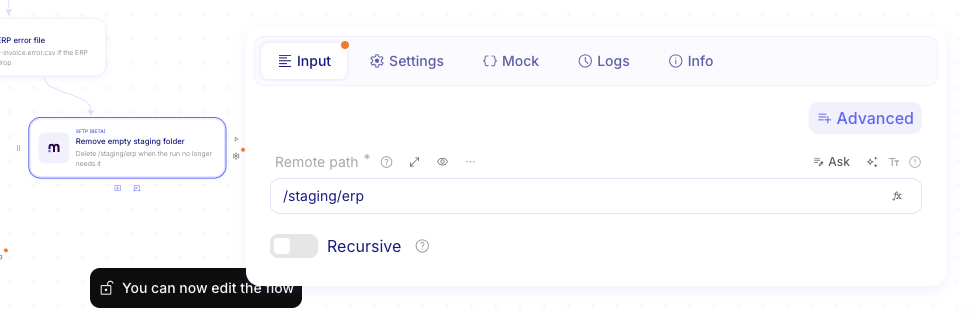
Optional: set Recursive. Leave it off (default) so the directory must be empty. Turn it on to delete descendants first (a sequential walk; not guaranteed atomic on the server). Running remove again on a missing directory is safe.
Example
Section titled “Example”The screenshots on this page use Export nightly orders to ERP. Create an SSH Password or SSH Private Key
credential named Partner ERP SFTP for sftp://files.partner-erp.example:22 as mindflow-export. Make /inbox/erp
if it does not exist, then write today’s orders-to-invoice.csv there. List /inbox/erp and stat the uploaded file.
After the ERP accepts the drop, move the file to /archive/orders-to-invoice.csv (resolve
/archive/./orders-to-invoice.csv when you need the canonical path). If the ERP writes
/outbox/errors/orders-to-invoice.error.csv, read that file, then remove it. Remove an empty /staging/erp folder when
you no longer need it.
Keep in mind
Section titled “Keep in mind”- Beta: SFTP (Beta) may change; confirm operation labels in Studio if a release renames them. File transfers are limited to 6 MB decoded.
- Network: The connector connects from the platform static egress IP on TCP port 22. A connect or transfer timeout fails the step as a gateway timeout (HTTP 504) and usually means the firewall or security group does not allow that IP, or the step Timeout is too short for the transfer.
- Private keys: Paste the full PEM, including line breaks. A key that cannot be parsed often lost those breaks in the form.
- Size and listing: Maximum path length is 2048 characters. Directory listing is capped at 10,000 immediate children and 1000 entries per page.
- Defaults: Overwrite defaults to on for write and off for rename. Create only defaults to on for make directory. Recursive defaults to off for make directory and for remove directory. Follow symlinks defaults to on for stat.
- Not in this connector: Append or resume, server-side copy, chmod, glob search, or creating symlinks. Copy a file with Read file then Write file.
Related: Reach out to services · Call native integrations · Credentials · Store data with Platform Artifacts