

AI··Build: Faster flow creation
Introducing AI··Build: Faster flow creation ✨
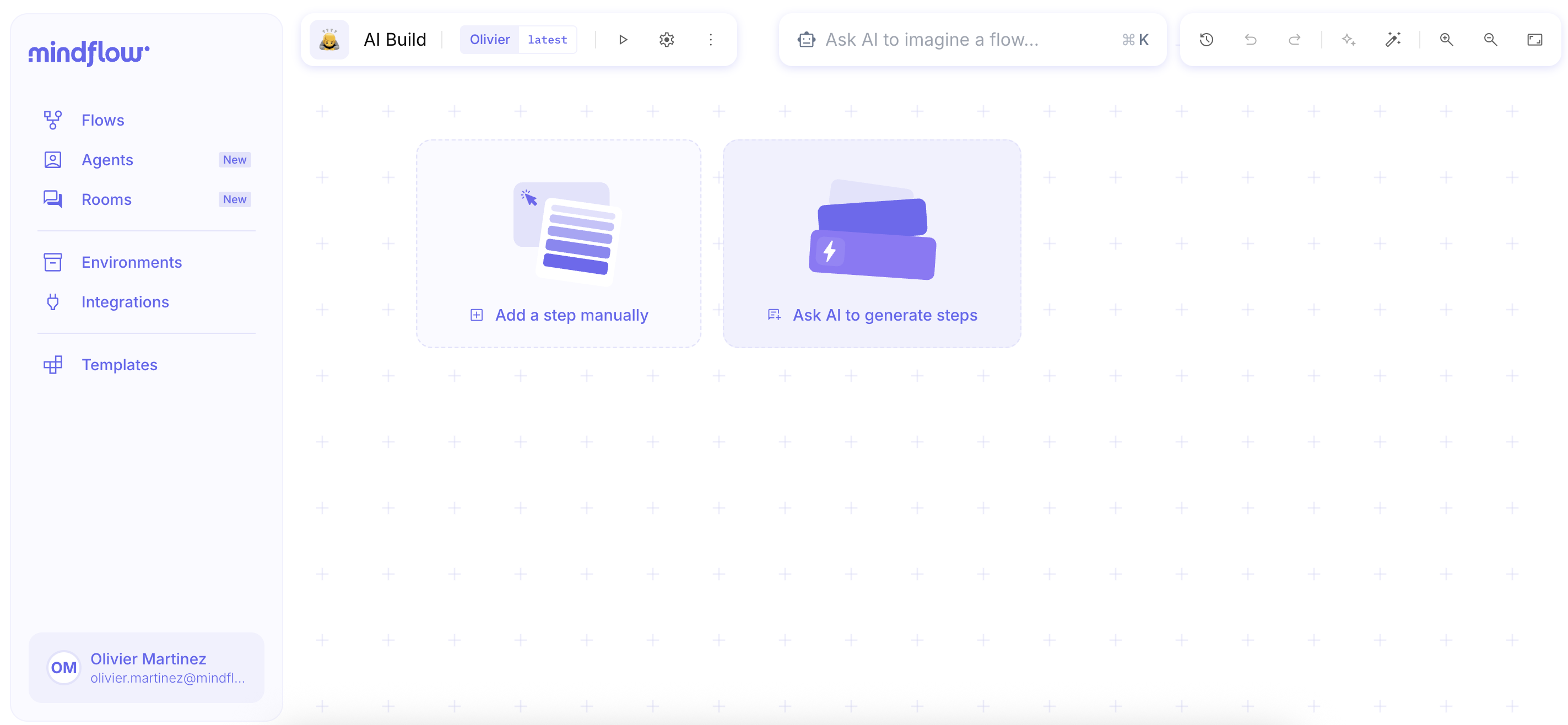
Section titled “Introducing AI··Build: Faster flow creation ✨”We are delighted to introduce a new feature designed to help you build your flows more quickly and efficiently than ever before. When you create a new flow, you will now be greeted by a set of buttons.
By clicking on the Ask AI to generate Steps directly in the designer :
On the left-hand side of the screen, a chat window will conveniently appear on the side of your screen :
This chat feature allows you to add steps to your flow with ease. Simply use the @symbol to invoke one of your preferred services and describe the action you need in natural language. The AI will identify the appropriate operation within the service and add the corresponding step to your flow.
Additionally, you can use this chat feature to make inquiries about specific services, helping you better understand their functions and capabilities. In Short, AI will read the documentation and select the operation that better fits the need you have expressed !
Let’s try it out
Section titled “Let’s try it out”Create a new flow and click on Ask AI to generate steps
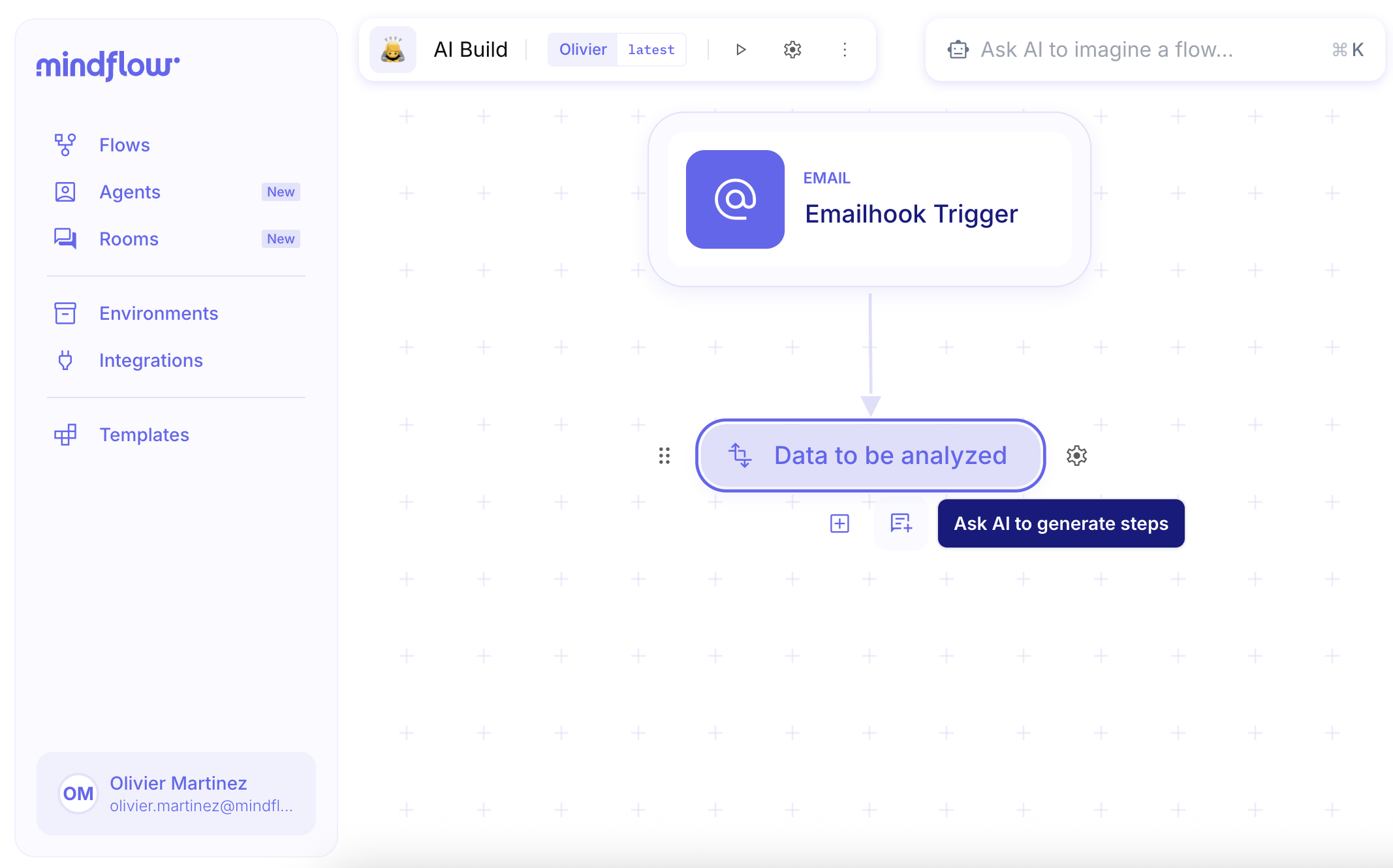
In our case let’s ask AI to generate steps after a couple of existing one as follows, where in the transform data step “data to be analyzed” you can find a URL to analyzed by our tool VirusTotal.
By clicking in the right place on your playbook, you enable the AI to add the right step. In our exemple, by clicking on the button, Ask AI to generate Steps under Data to be analyzed let the AI add the next step for us and find the best endpoint for our need !
By using the @ we can select the service we want to use. Let’s prompt the AI : Using @VirusTotal analyze the URL from the previous step **** like so :
Don’t forget to add in the setting the API key and replace the placeholder with the relevant data !
AI··Note: Automatically document your flow
Section titled “AI··Note: Automatically document your flow”AI··Note helps you keep clear and up-to-date documentation directly inside your flow. Use Document workflow on the designer toolbar (or add an AI··Note step) so Mindflow generates a readable description next to the workflow. The result is a Note you can edit in the same rich text editor as a hand-written Note — headings, lists, tables, and links included.
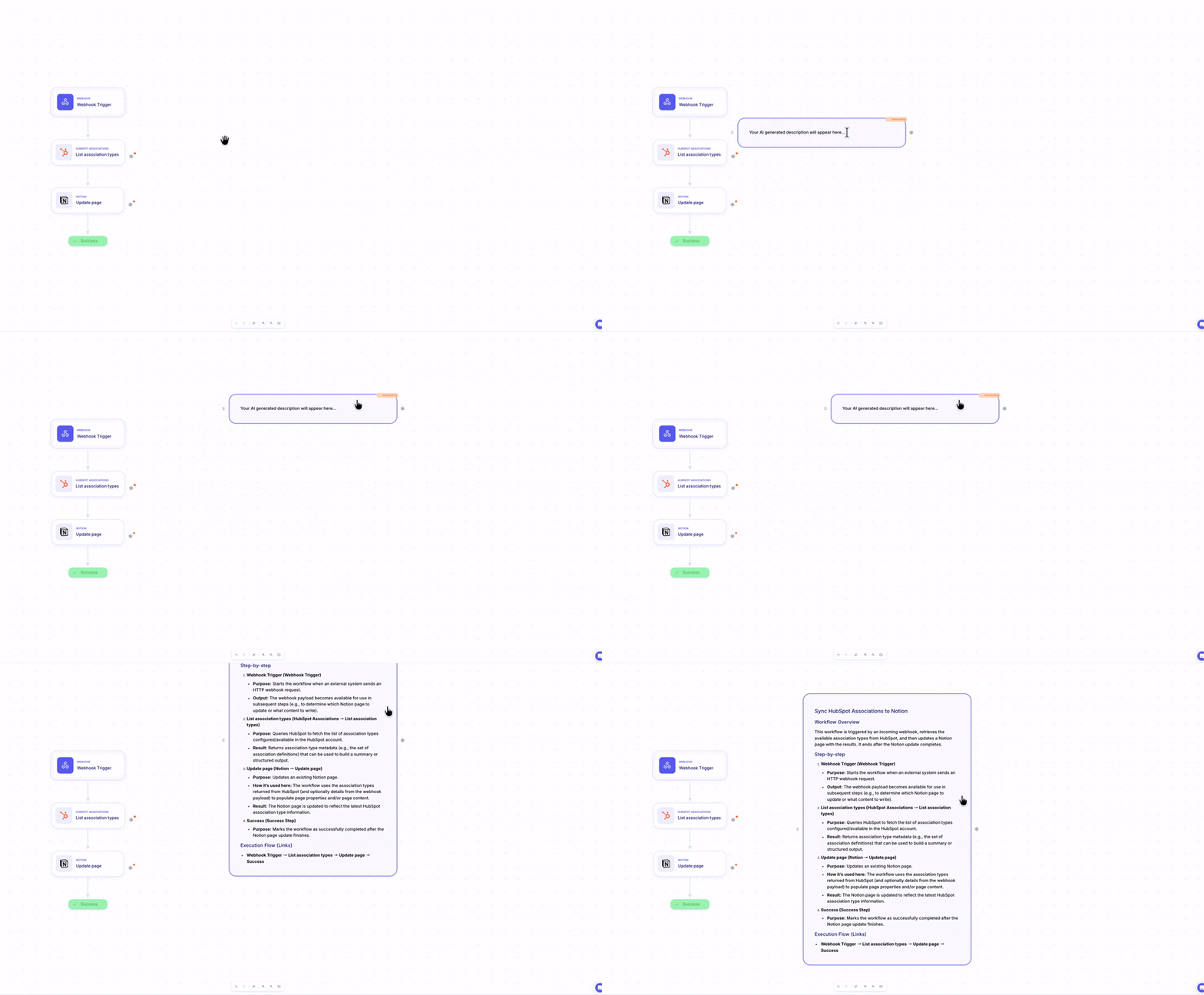
With AI··Note, you can:
- Understand the purpose of a flow at a glance.
- Make complex automations easier to review and share.
- Speed up onboarding for SecOps, CloudOps, ITOps, and other teams.
- Keep workflow documentation closer to the automation itself.
- Reduce the risk of outdated or missing documentation.
- Refine generated documentation with rich text formatting after generation.
For canvas Note editing, see Handy tools.