

Run a flow through email
An Emailhook trigger starts a flow when a message arrives at a unique address Studio assigns to that trigger. The message body, subject, senders, recipients, attachments, and related metadata are available in the data picker for later steps.
When to use
Section titled “When to use”- A mailbox, ticket system, or vendor notification should start a flow by sending email.
- Prefer Run a flow through a webhook when the source can call HTTPS with a structured payload.
- Prefer Run a flow from an AI··Room when operators should start the flow from chat.
Before you begin, you need permission to create and deploy flows in the environment. Deploy the flow before you rely on the email address in production. Your organization may also restrict which senders can trigger emailhooks — ask an admin if inbound mail does not start the run.
Add an Emailhook trigger
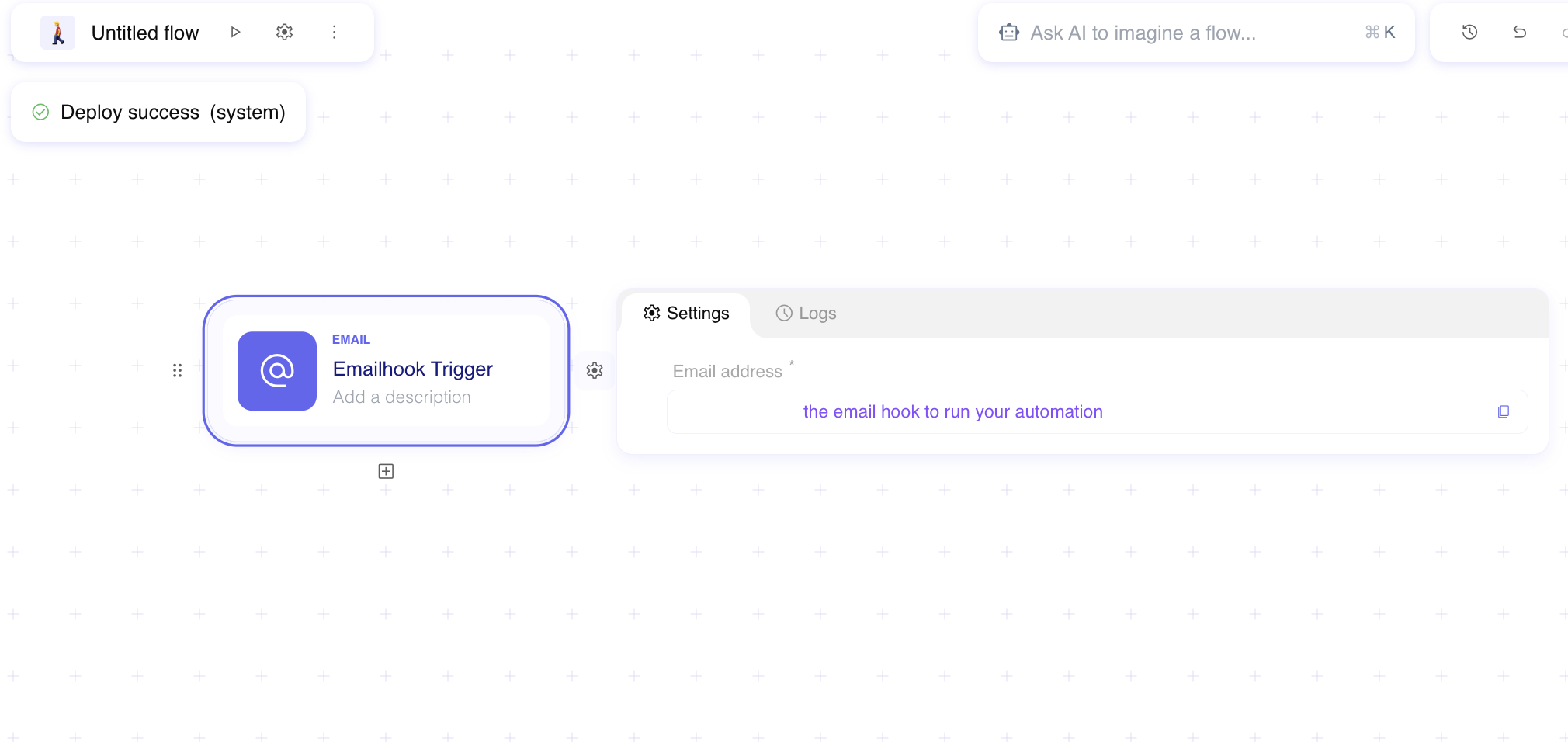
Section titled “Add an Emailhook trigger”An Emailhook exposes a copyable address. Sending mail to that address starts the deployed flow.
Open the flow. Create or open the flow in the designer. On an empty canvas, choose Add a step manually.
Choose Emailhook. In the step catalog, open Triggers, then choose Emailhook.
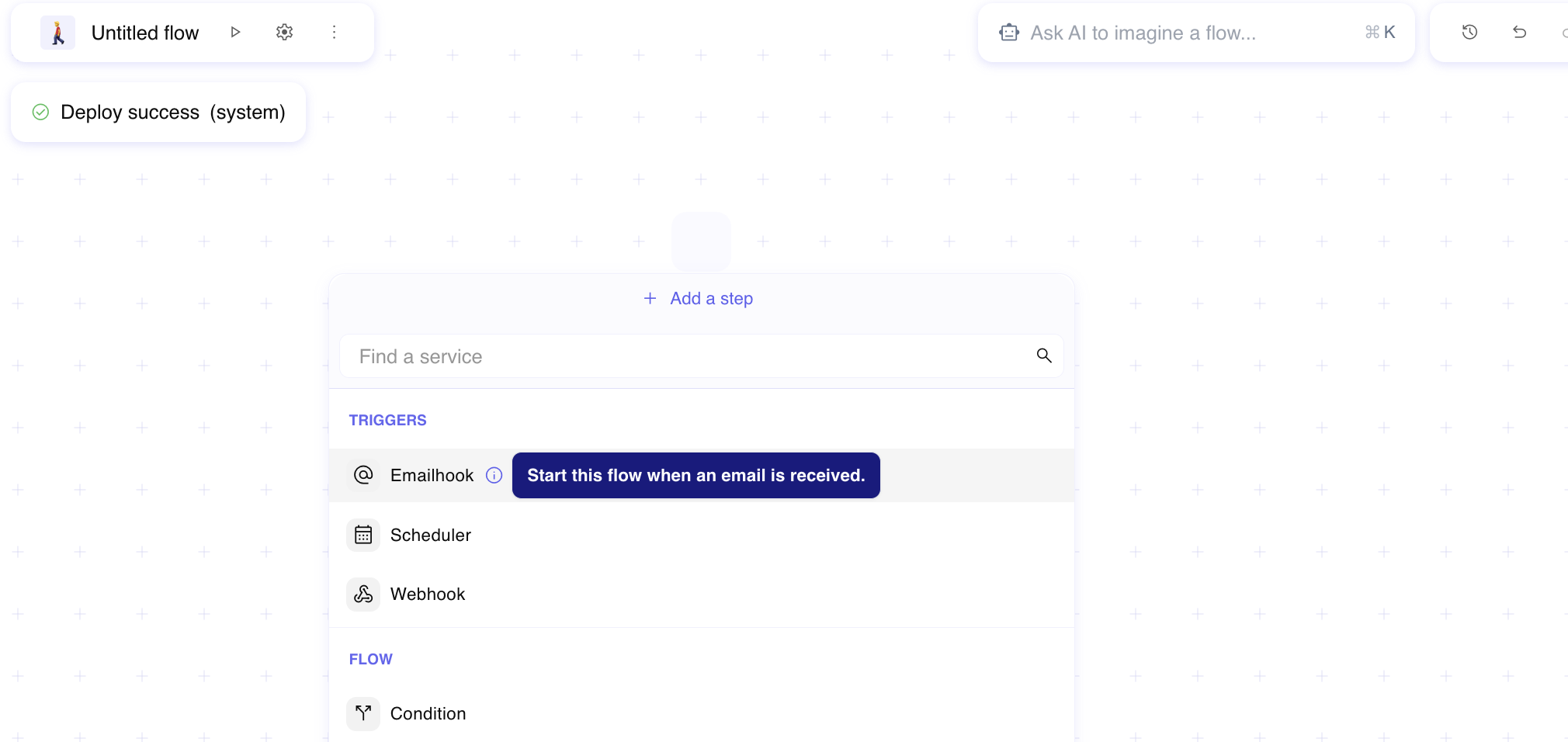
Rename and describe the step. Rename the Emailhook step and fill a description.
Copy the email address. On the Emailhook step, open Settings. Copy Email address and use it as the destination for messages that should start the flow.
Restrict senders (optional)
Section titled “Restrict senders (optional)”On the Emailhook step, open Advanced and add Allowed emails when only specific addresses or domains should start this flow. Entries must also pass the organization-level email allowlist when one is configured. An empty organization list means no senders can trigger emailhooks until an admin adds patterns under Organization.
Use email data in later steps
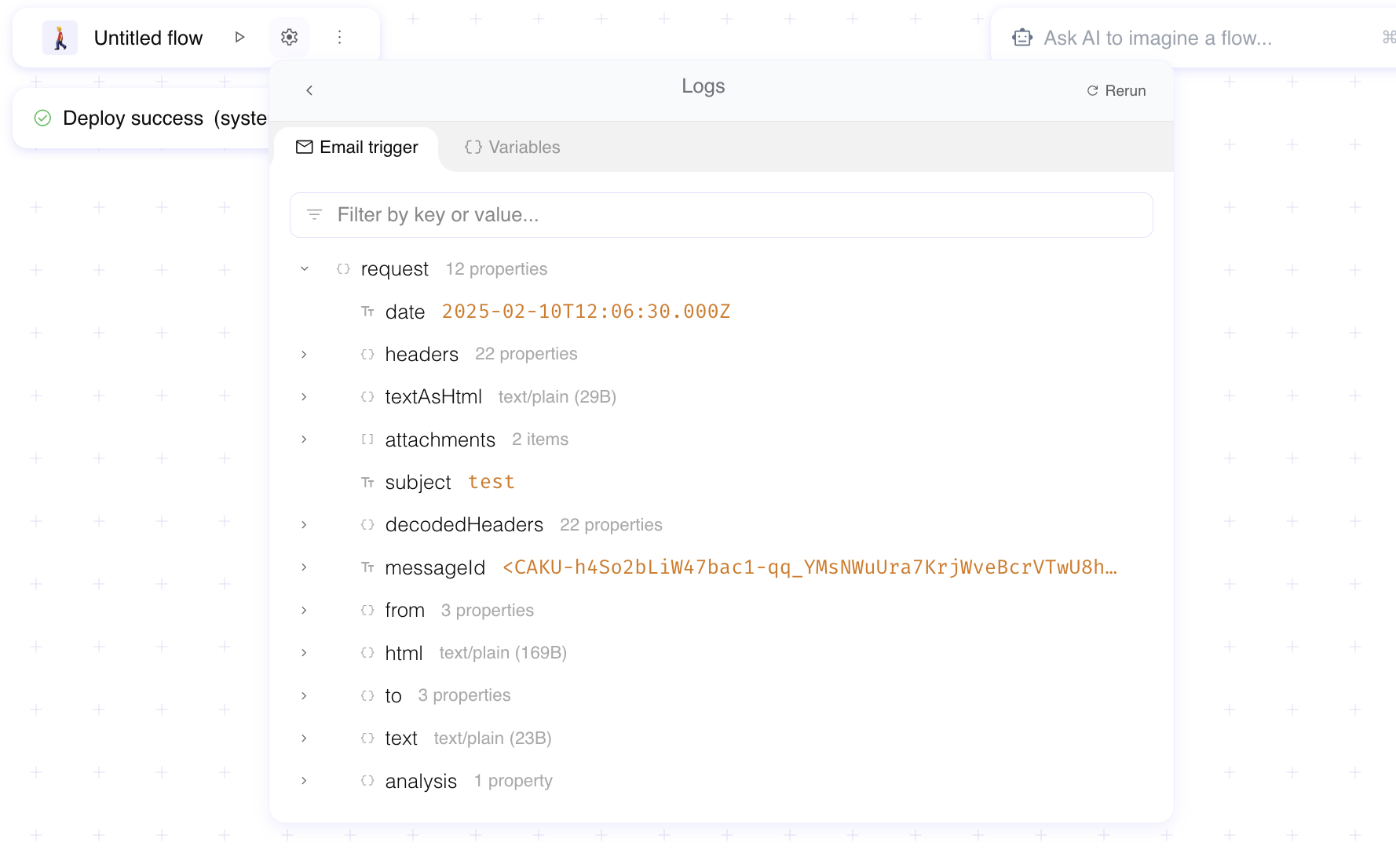
Section titled “Use email data in later steps”When a message arrives, Emailhook exposes fields such as from, to, subject, text, html, attachments, and analysis verdicts. Later steps pick those values from the data picker.
Inspect a run. After a test email, open the flow Logs (or the step Logs tab) and open the matching execution.
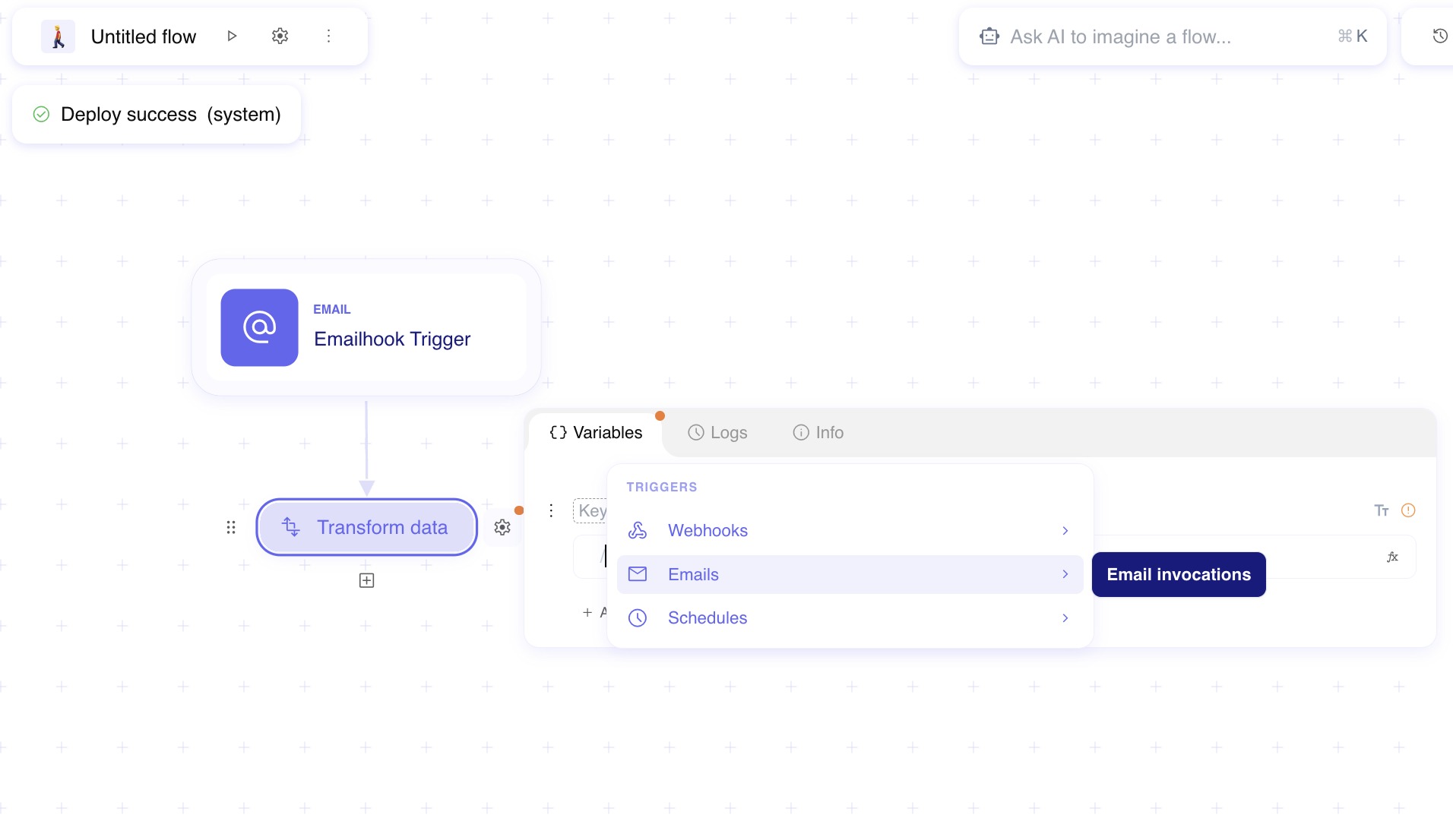
Pick email fields. In a later step formula field, open the data picker, choose the Emailhook step (or email invocation data), then select the fields you need.
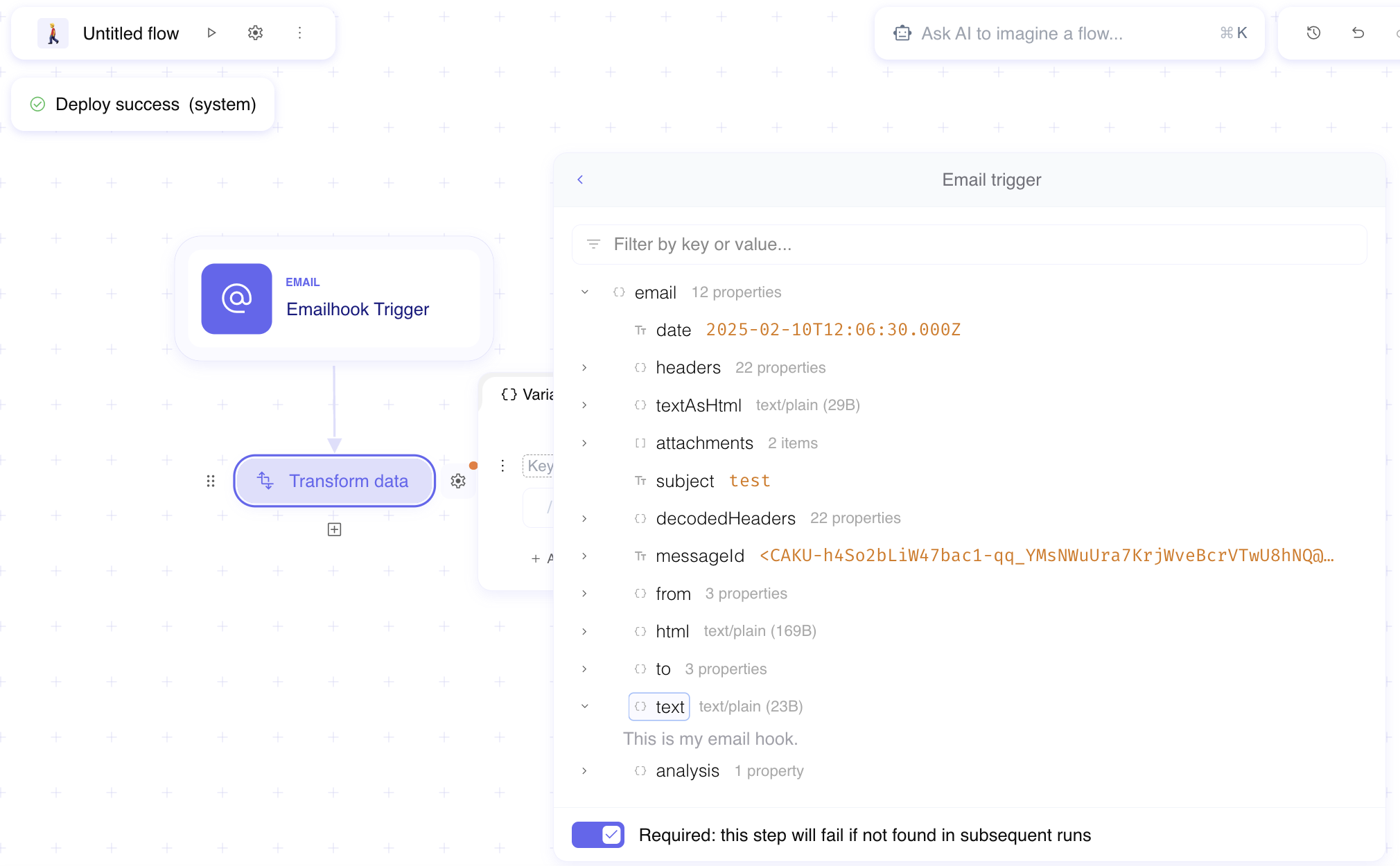
Example
Section titled “Example”A security mailbox forwards vendor alerts to Mindflow. The flow Triage vendor alert email starts with Emailhook Receive vendor alert. An analyst copies the Email address from Settings into the mailbox forward rule. A later Transform data or AI··Task step reads subject and text from the Emailhook data picker to classify the alert.
Keep in mind
Section titled “Keep in mind”- Deploy the flow before production senders use the address.
- Organization email allowlists can block senders even when the Emailhook Allowed emails list looks correct.
- Prefer Run a flow through a webhook when you need a structured JSON body and HTTP status control.
Related
Section titled “Related”Trigger your flow · Run a flow through a webhook · Manage version and deployments