

AI··Task: A simple guide
An AI··Task is a built-in flow step that sends a prompt to a large language model (LLM) and returns text or structured output for later steps. You can attach integration tools so the model calls APIs during the run, and you can share conversation memory across AI··Tasks in the same flow. Screenshots on this page use an IT incident report job so you can see a filled prompt, model choice, tools, and memory settings.
When to use
Section titled “When to use”- You need the model to draft, classify, summarize, or structure data in the middle of a flow.
- You want the model to choose and call integration operations (for example VirusTotal or Google Workspace) from a curated tool list.
- Prefer AI··Task: Prompt guidelines when you already know how to add the step and need prompt structure only.
- Prefer Use AI··Agent when another Flowhook-based flow should be callable as an agent tool.
- Prefer AI··Swarms when several specialized AI··Agents must collaborate under one orchestrator.
Before you begin, open a flow in the designer where you can edit steps. AI features must be available for your organization. For tool use, enable the target integrations and create credentials in the environment.
Add an AI··Task
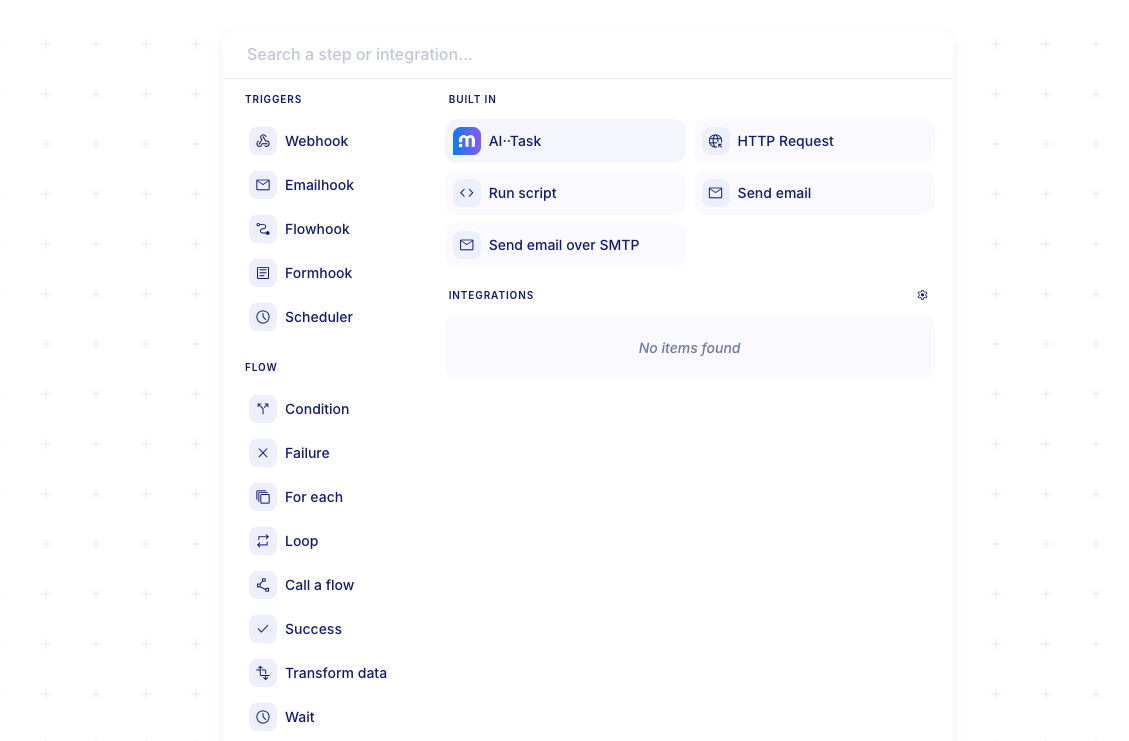
Section titled “Add an AI··Task”AI··Task lives under Built in in the Add a step menu. After you add it, rename the step so later steps and logs are easy to read.
Open Add a step. In the designer, choose Add a step (or the + on the canvas).
Choose AI··Task. Under Built in, select AI··Task.
Rename the step. Open the step card and set a clear title for the job (for example Reason and act or Draft incident report).
Write the prompt
Section titled “Write the prompt”On the Input tab, the optional Input field is the task and the data the model works on. Optional Instructions (when shown for your organization) set standing role and behavior rules; those instructions are not stored in memory. Both fields use Studio’s rich text editor: headings, lists, and emphasis render while you type, and the stored value stays markdown for the model.
Open Input. Select the AI··Task, then open the Input tab.
Write the prompt. Describe the role, what to do, which data to use (pick variables with
/in Input), and the result shape. Use headings (type#then Space), lists, and bold so the structure is easy to scan. For structure patterns, see AI··Task: Prompt guidelines.Input # RoleYou are an IT incident management specialist.# Instructions- Generate a formal IT incident report based **only** on the data provided.- Keep a neutral, professional tone.# Resourcesincident: /incident# ResultA well structured markdown report.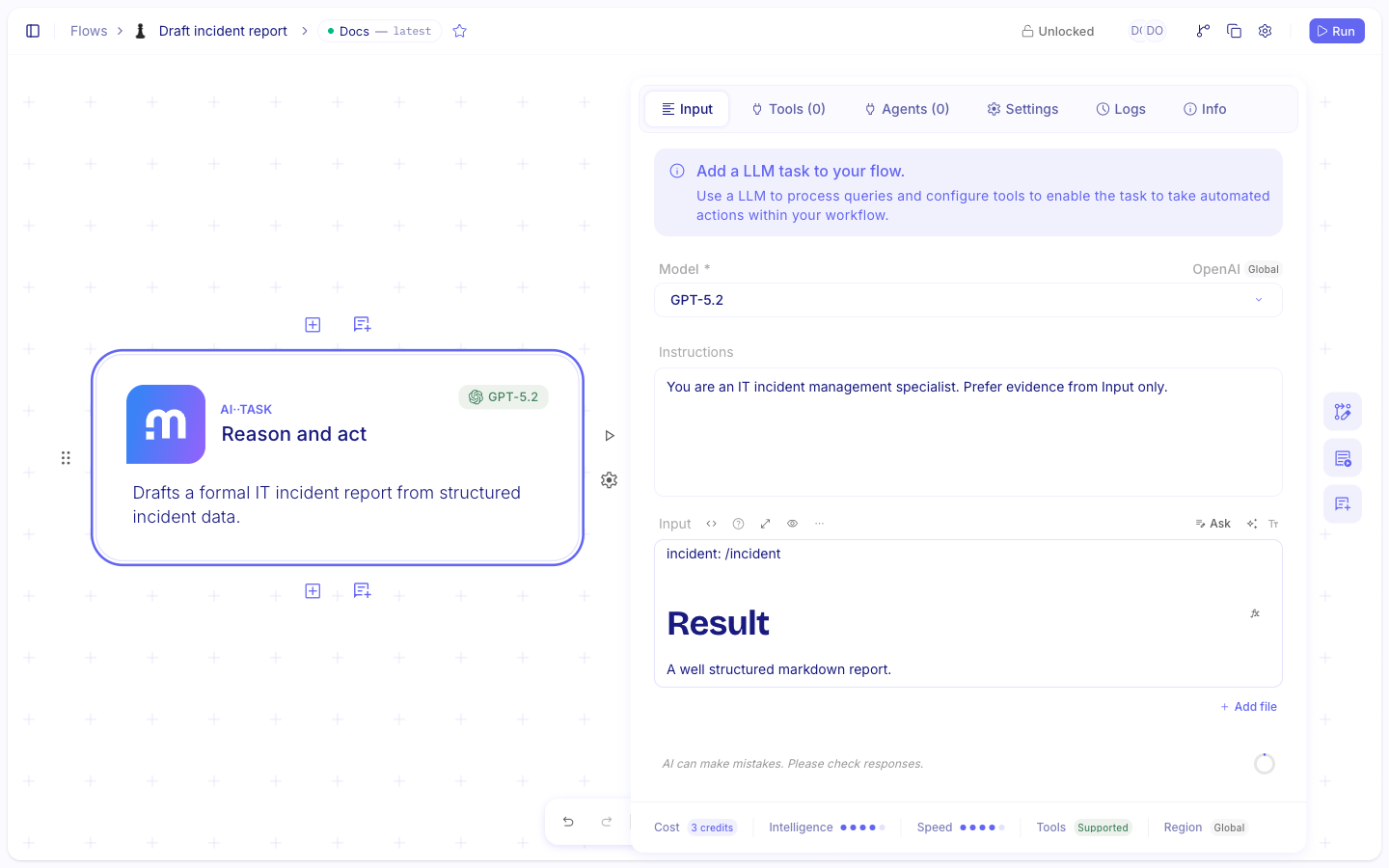
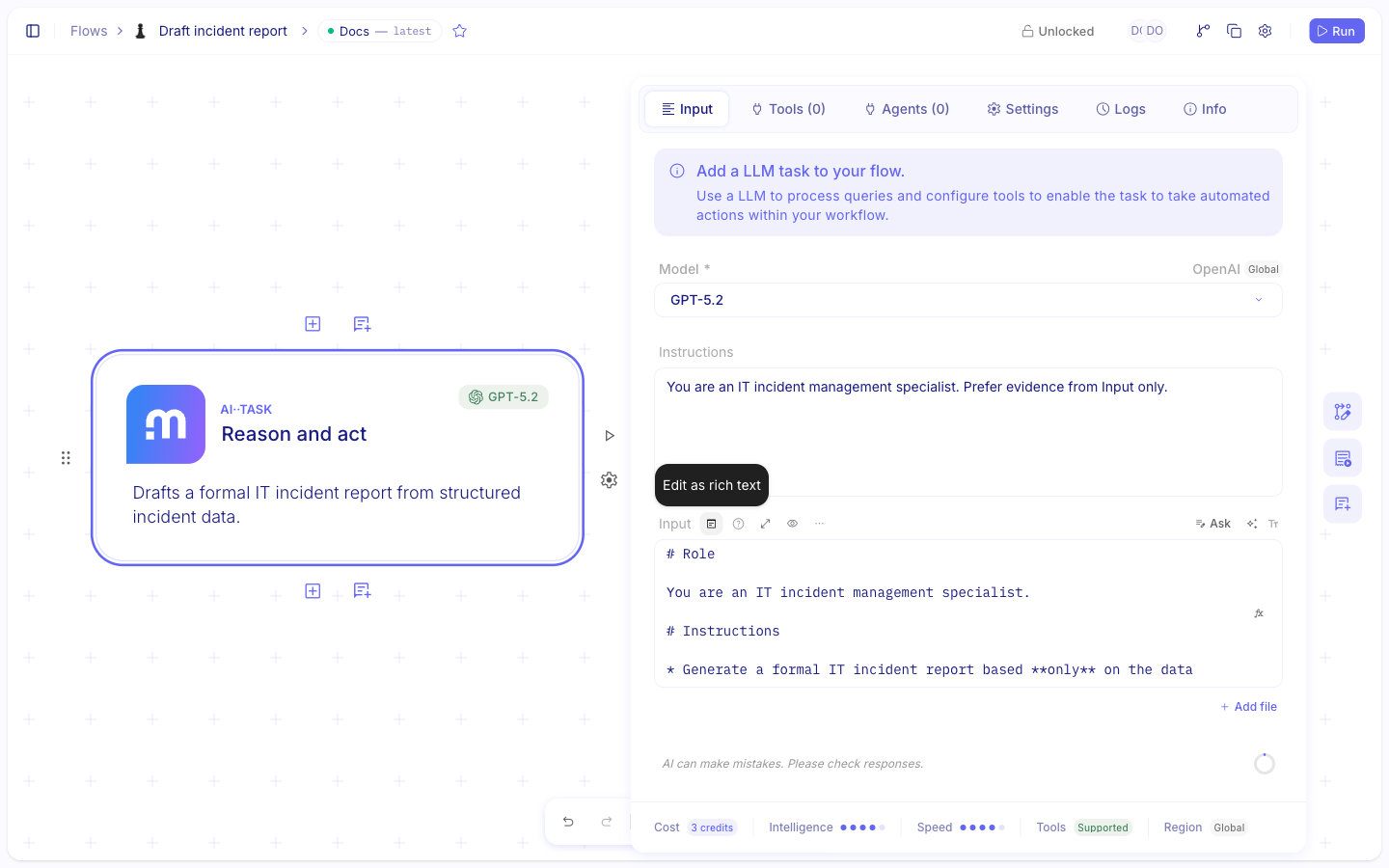
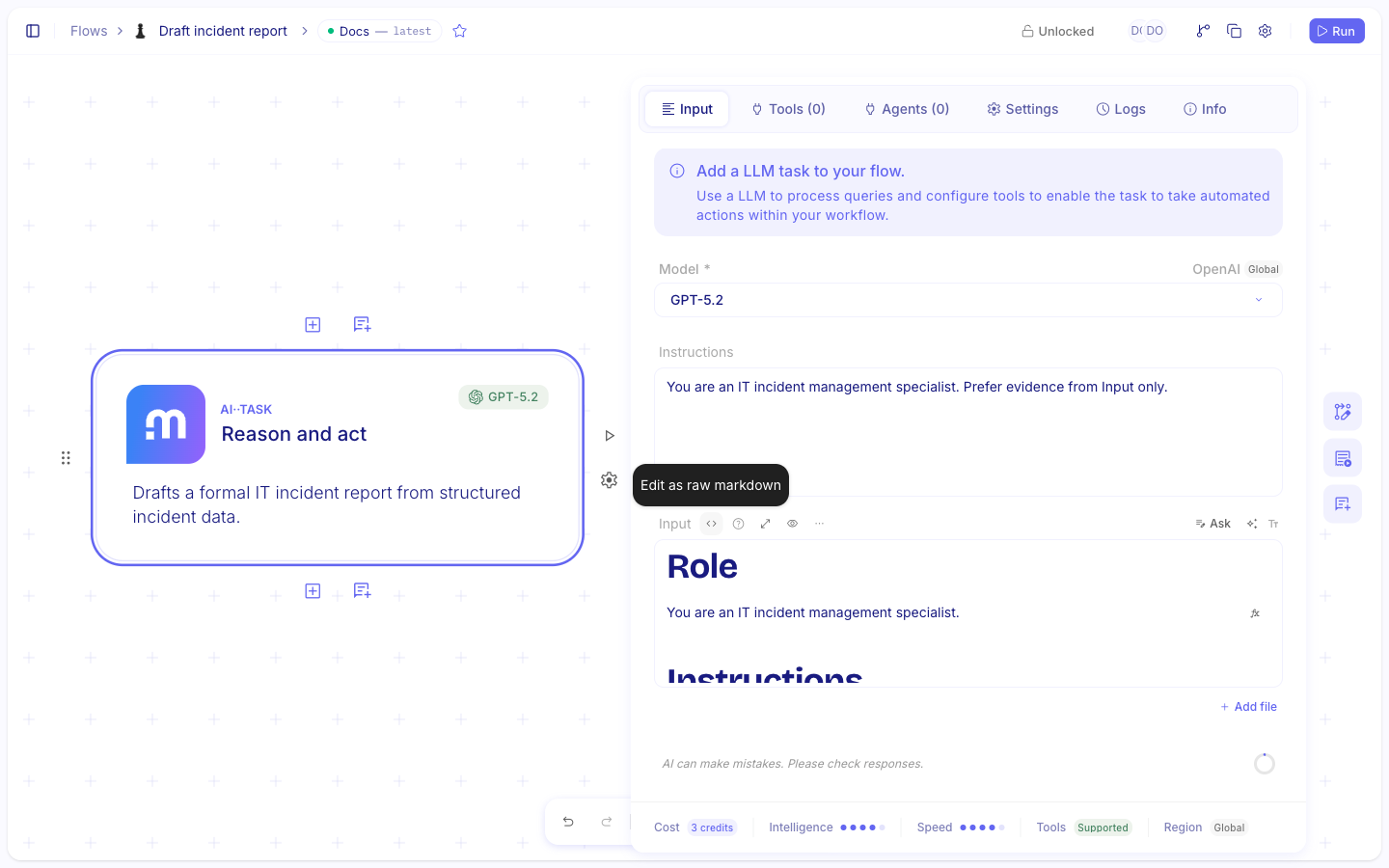
Switch editor mode when needed. On the field header, use Edit as raw markdown to edit the stored markdown source, or Edit as rich text to return to the formatted view. Use the expand control when the prompt is larger than the inspector allows.
Check the token estimate. Use the token counter on the Input tab when you need a rough size for model choice or prompt length.
Choose a model
Section titled “Choose a model”Pick the model that powers the AI··Task from Input or Settings. Models that support tool calling show a Tools tag in the model list. Parameters such as temperature, top-p, and output format depend on the selected model.
Open the model picker. On Input or Settings, open the Model field.
Select a model. Prefer a tools-capable model when the step will use the Tools or Agents tab.
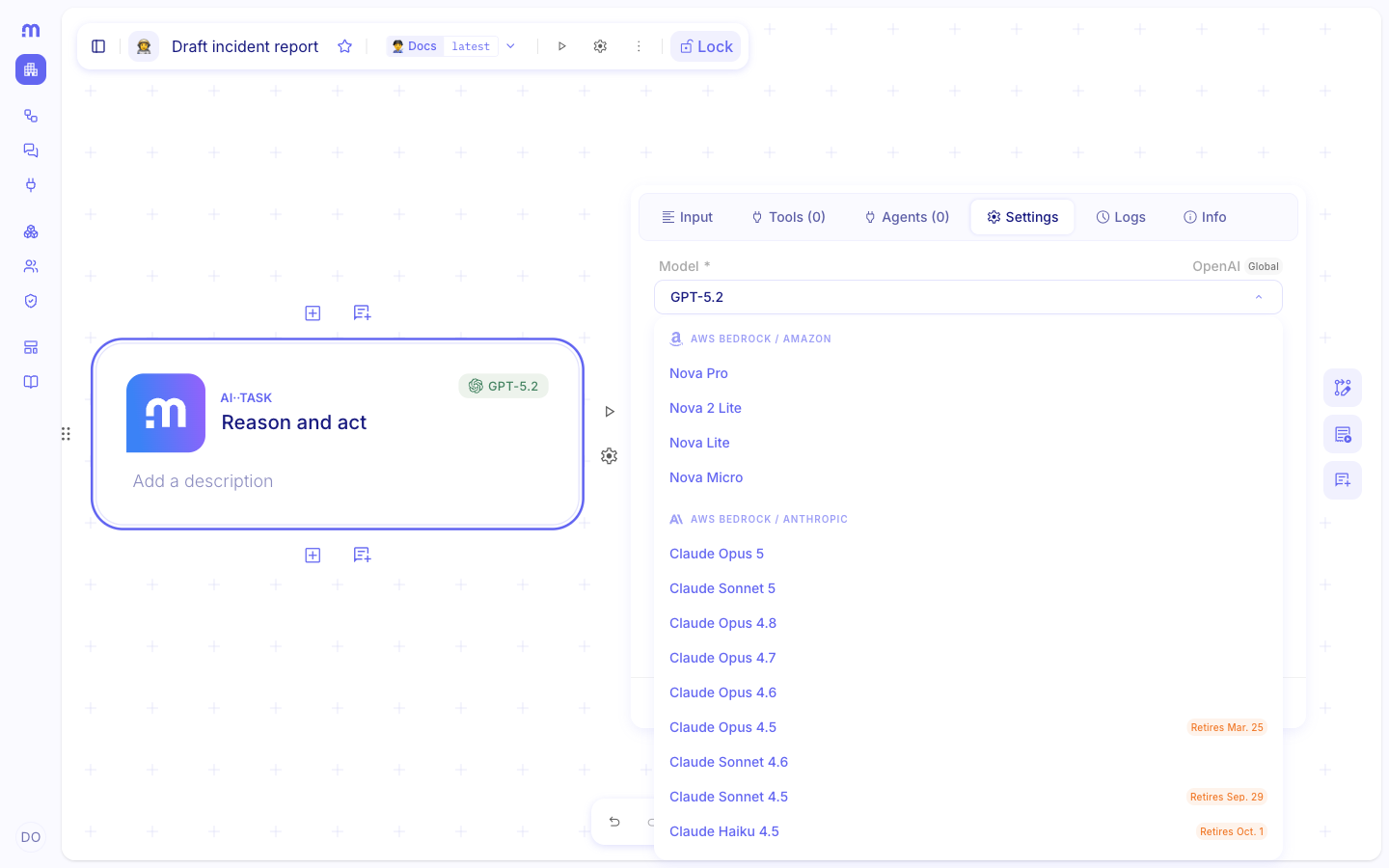
Tune parameters when needed. Adjust temperature, top-p, penalties, or Output format for the job. Lower temperature usually means more deterministic answers; higher values allow more variation. Set Output format to JSON when a later step must parse fields from the result — see AI··Task: Prompt guidelines.
Add integration tools
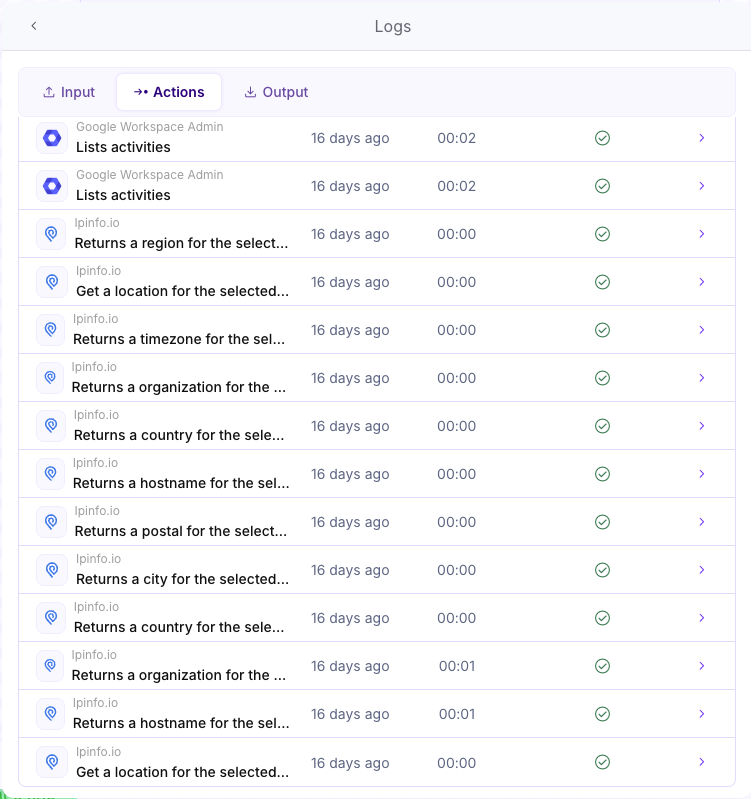
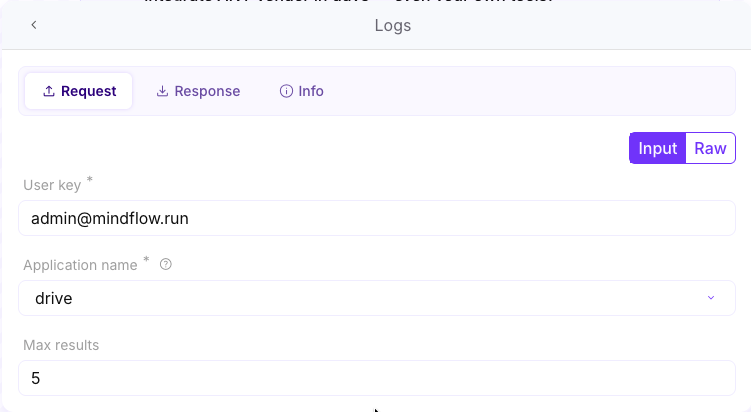
Section titled “Add integration tools”On the Tools tab, attach services from Mindflow’s catalog, bind a credential, and allow only the operations the model may call. The model decides when to call a tool, fills parameters, then continues from the tool response. Run Logs show each tool request and response.
Open Tools. Select the AI··Task, then open the Tools tab.
Add a service. Choose the integration, pick a credential in the environment, then allow the operations the model may use.
Run and inspect Logs. After a run, open Logs on the AI··Task to see tool calls, generated requests, and API responses.
Configure memory
Section titled “Configure memory”Memory lets several AI··Tasks share one conversation thread in a flow run (and, with a stable memory ID, across runs inside the retention window). Configure it on Settings.
For Previous Step Memory and Advanced, Append AI··Task job to memory controls whether this step writes into the same thread or forks a new one.
Open Settings. Select the AI··Task, then open Settings.
Choose a Mode. Pick None, New Memory, Previous Step Memory, or Advanced.
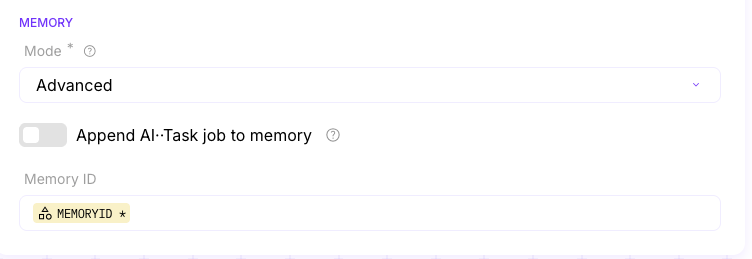
Set Advanced fields when needed. For Advanced, enter the Memory ID. Turn Append AI··Task job to memory on to write into that thread, or off to read without appending (fork behavior on Previous Step Memory).
Example
Section titled “Example”An IT team drafts a formal incident report from structured incident data, then later chains investigation steps that share memory.
- Add AI··Task. Create a flow, add AI··Task, and rename it for the report job.
- Paste the incident prompt. Use the
#Role/#Instructions/#Resources/#Resultprompt above, and pick the incident variable under#Resources. - Pick a model. Choose a tools-capable model if the same flow later adds VirusTotal or Workspace tools.
- Chain memory when needed. On a follow-up AI··Task, set Previous Step Memory with append on so the second step sees the first report thread.
Memory chain across three AI··Tasks
In one flow:
Step 1 uses New Memory and writes into
memory1.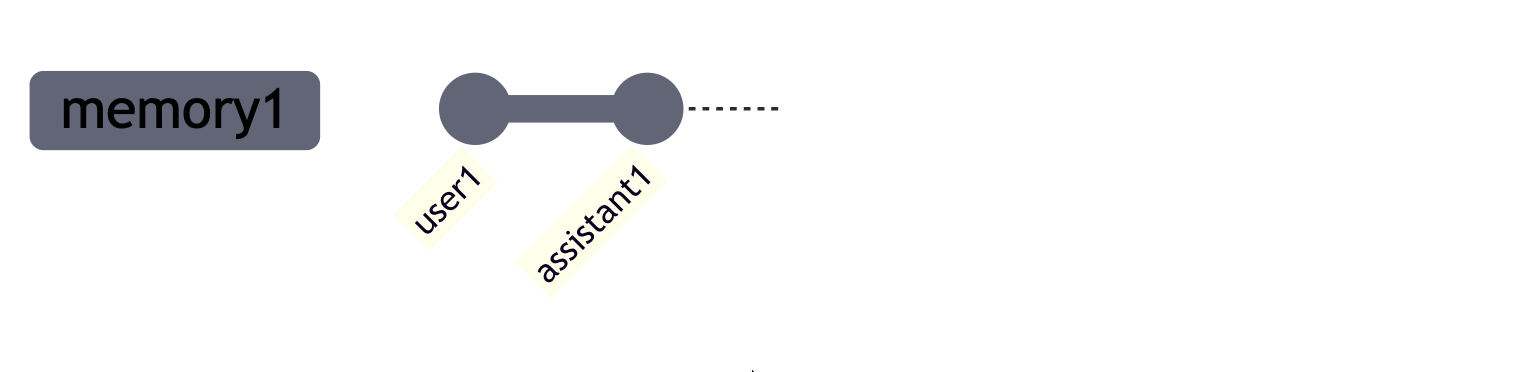
Step 2 uses Previous Step Memory with append off, so it reads
memory1and writes into a forkedmemory2.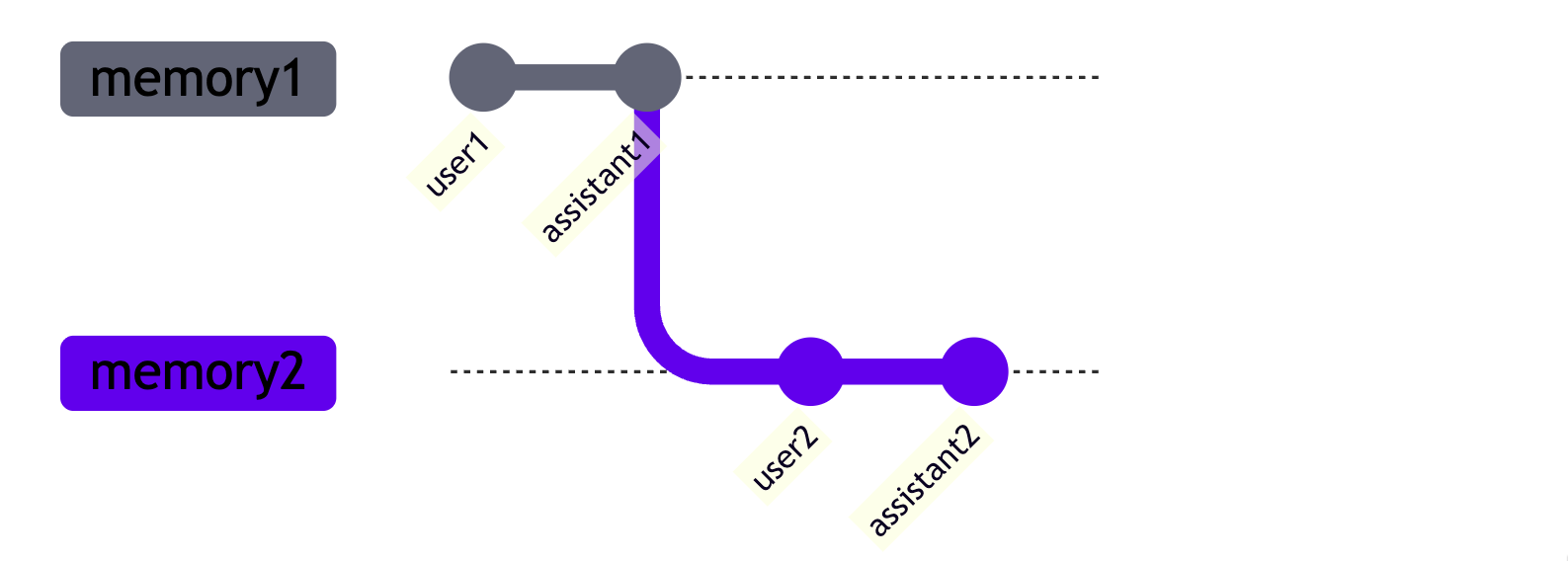
Step 3 uses Advanced with memory ID
memory1and append on, so it continuesmemory1and does not seememory2.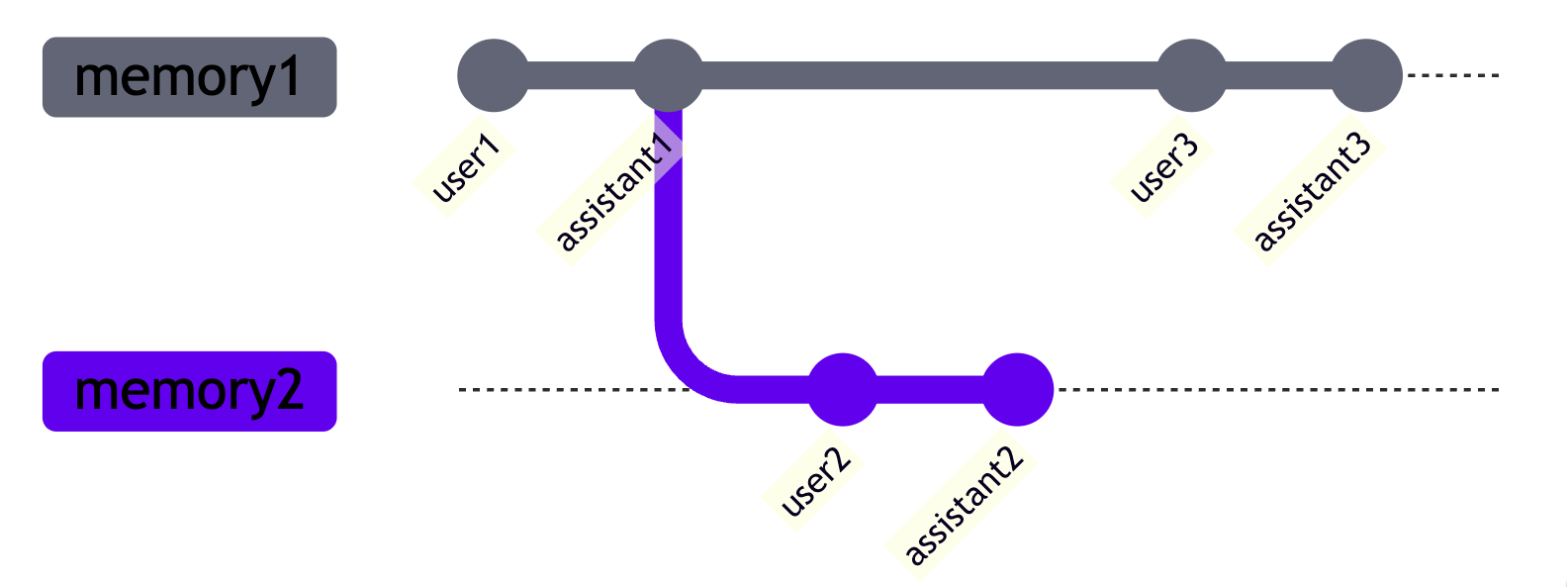
Keep in mind
Section titled “Keep in mind”- Memories are environment-scoped. The same memory ID in another environment is a different thread.
- Retention follows the flow’s audit / data retention settings.
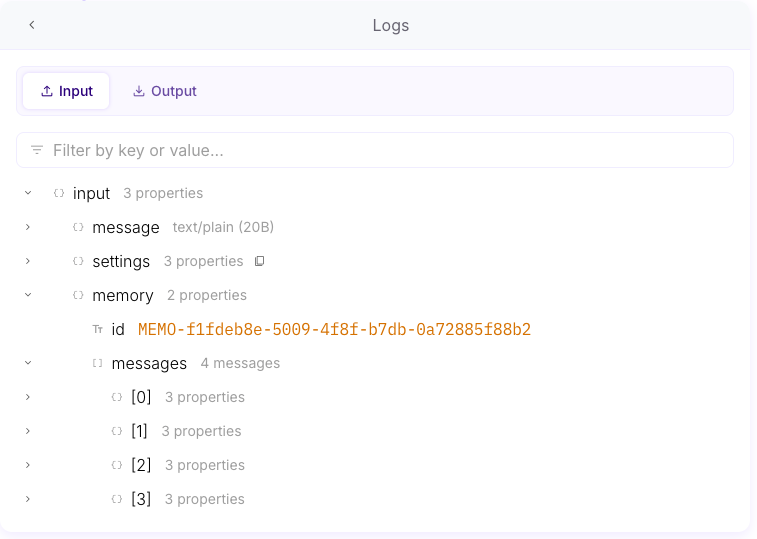
- If input memory exceeds the model context window, older messages may be truncated; Logs show what the step actually considered.
- In a For each with concurrency, appending several jobs to one memory can reorder messages by completion time.