

Branch with a Condition
A Condition step chooses one outgoing path among several. You define IF / ELSE IF rules (and an Else fallback); Studio evaluates them in order and follows the first branch whose rule is true. Screenshots on this page use a sample severity check so you can see branch names and Compare rules filled in.
When to use
Section titled “When to use”- A previous step returns a value (status, severity, flag) and later steps should differ based on that value.
- You want one flow that covers several cases instead of separate flows per case.
- Prefer Handle step errors when the branch is about a failed service step (On failure → Continue execution) rather than a business rule on a successful payload.
- Prefer End a flow with Success or Failure when a path should stop the run as successful or failed.
Before you begin, open the flow in the designer with permission to edit it. Place the Condition after the step that produces the value you will compare.
Add a Condition
Section titled “Add a Condition”Condition lives under Flow. It can have several outgoing branches; most other steps allow only one.
Add Condition. Open Add a step, choose Flow, then Condition. Place it after the step that produces the value to test. Rename the step for the rule.
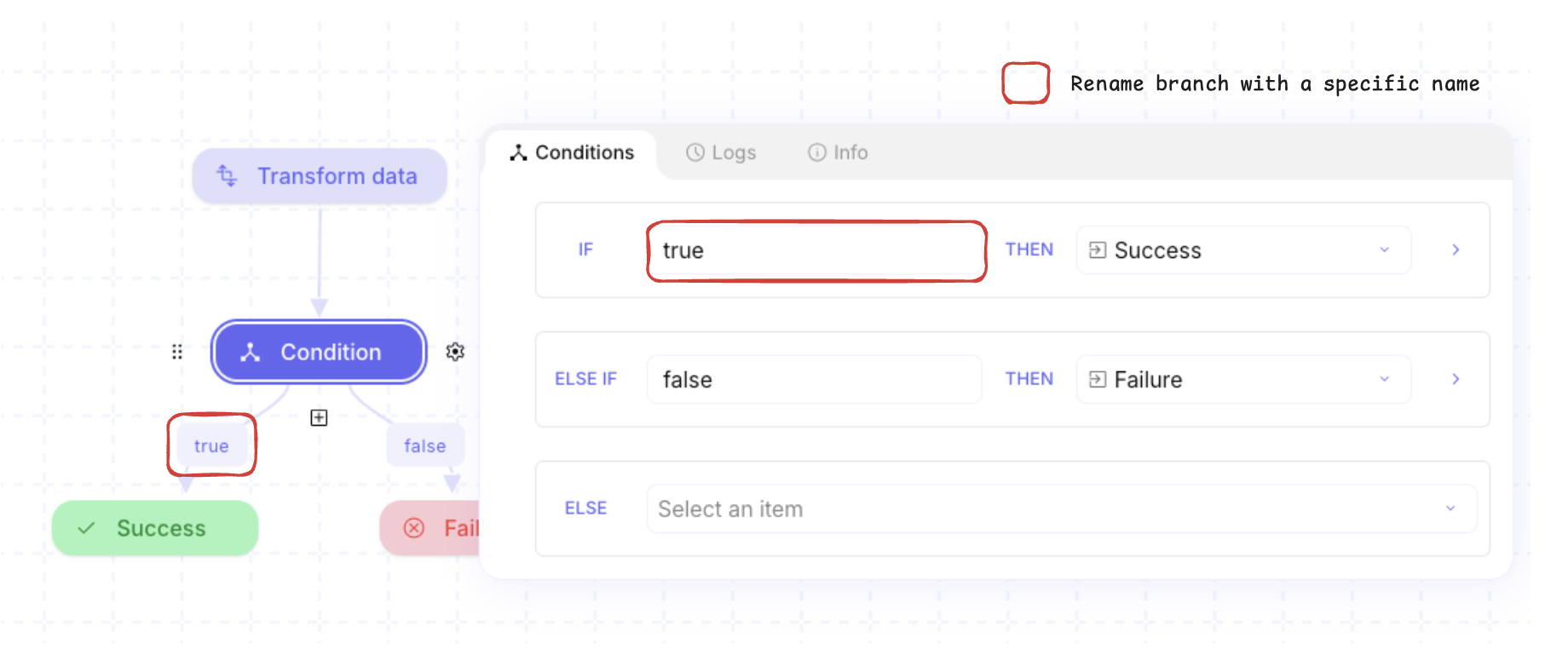
Open Conditions. Select the Condition step and open the Conditions tab. Each row is an IF or ELSE IF with a branch name, THEN (target step), and an Edit control for the Compare rule. The last row is Else.
Name branches and set targets
Section titled “Name branches and set targets”Branch names appear on the canvas links. THEN picks which step runs when that rule matches. Else runs when no rule matches.
Name each branch. In the name field (placeholder like
#1: Condition name), type a short label. That label shows on the canvas link.Choose THEN. In the THEN select, pick the next step for that branch. Connect new steps from the Condition if the target is not listed yet.
Set Else. On the Else row, choose the fallback step (or leave it empty only while you still build the path).
Edit the Compare rule
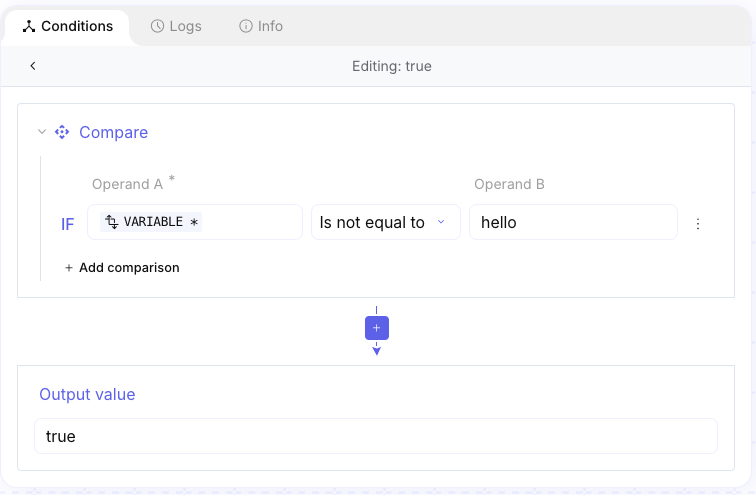
Section titled “Edit the Compare rule”Edit opens the formula editor for that branch. Use Compare with Operand A, Operator, and (when needed) Operand B. Studio evaluates branches top to bottom; the first true rule wins.
Open Edit. On the branch row, choose Edit. The editor title shows the branch name (or a default such as Condition #1).
Build the comparison. Set Operand A from an earlier step (data picker). Choose an Operator. Fill Operand B when the operator needs a second value (for example Is equal to). Unary operators such as Is true, Is false, Is empty, and Is not empty do not use Operand B.
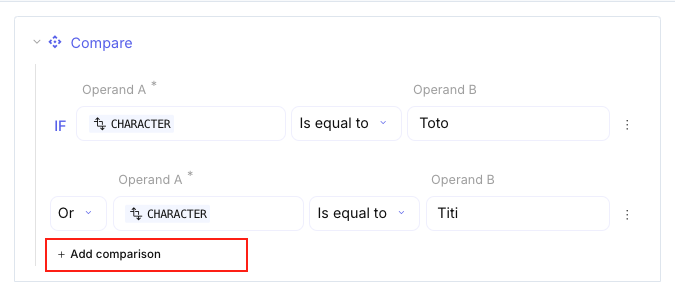
Chain rules when needed. Choose + Add comparison, then set Chaining Operator to And or Or so several comparisons must all match or any one can match.
Reorder branches and use Else
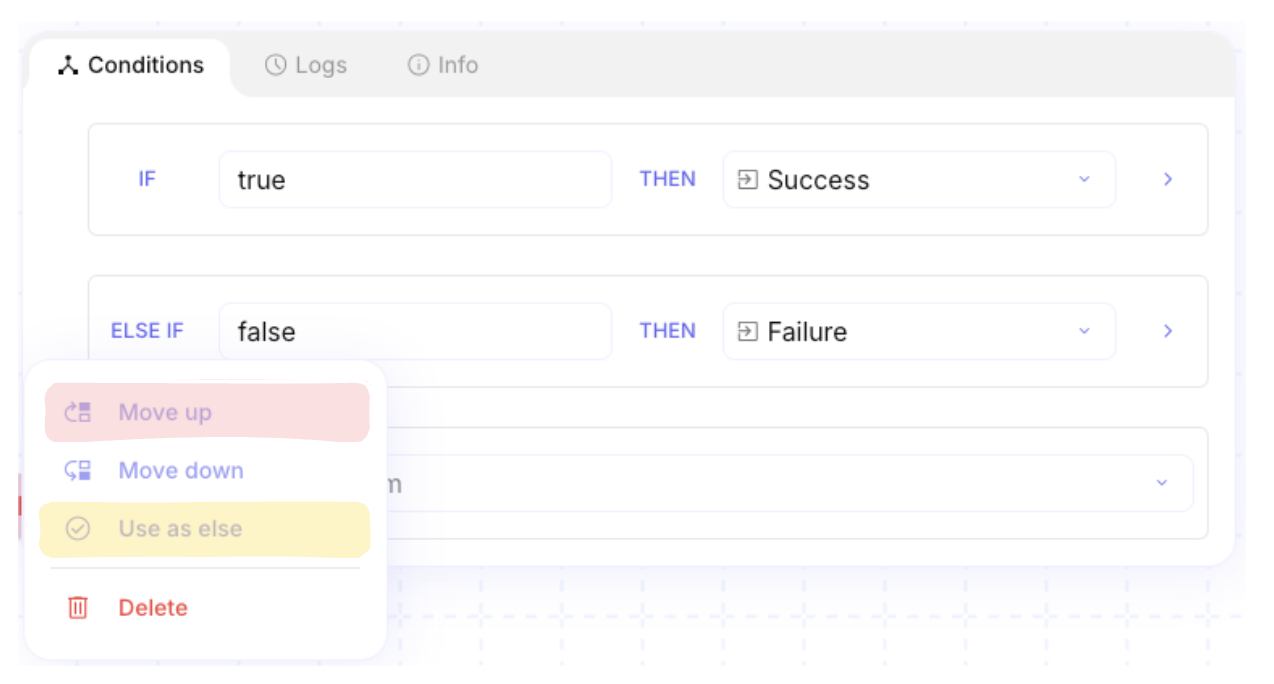
Section titled “Reorder branches and use Else”Order matters: earlier rules run first. You can move a branch, promote a path to Else, or delete a branch from the row menu.
Open the branch menu. On a condition row, open the overflow menu.
Reorder or promote. Choose Move up or Move down so the most specific rule is first. Choose Use as else to make that path the fallback, or Delete to remove the branch.
Available operators
Section titled “Available operators”These are the Operator values on Compare:
Example
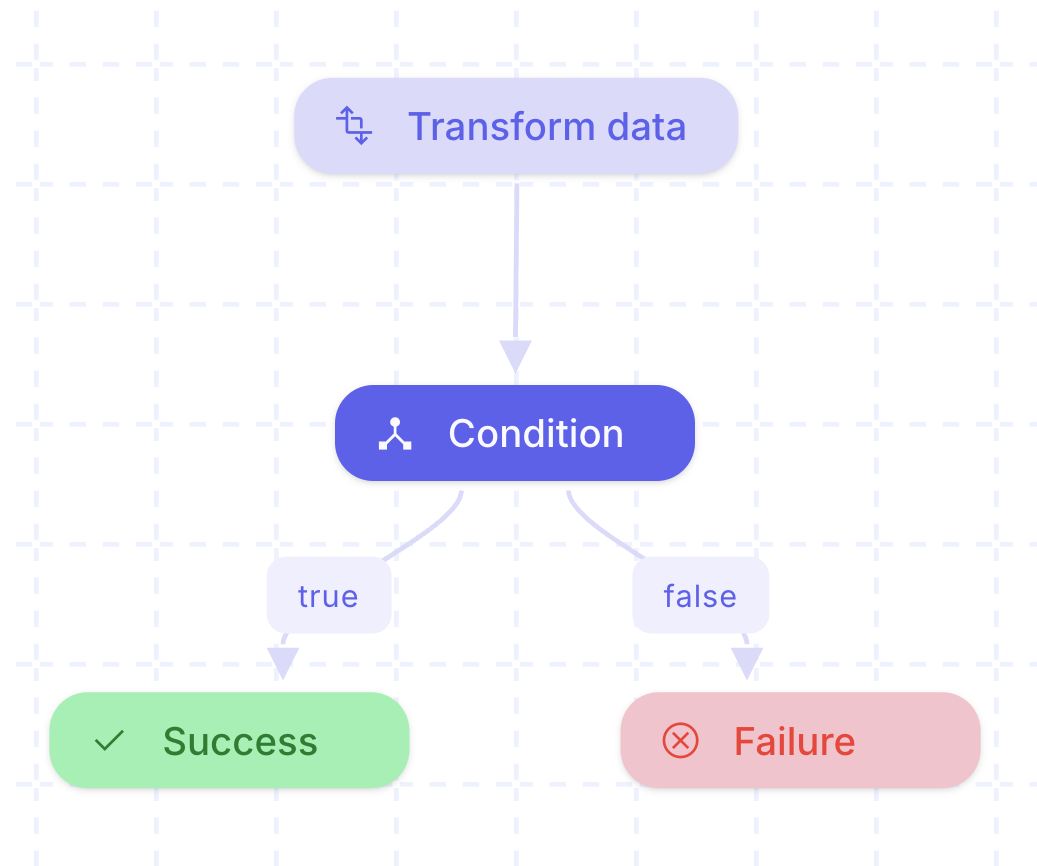
Section titled “Example”A flow named Route severity check transforms an alert, then uses Condition so critical alerts end on Success and others on Failure.
- Add Transform data ahead of the Condition so the severity (or other field) is easy to pick.
- Add Condition with an IF branch named for the pass case (THEN → Success) and Else (or a second branch) → Failure.
- Edit the pass branch: Operand A = severity from Transform data, Operator = Is equal to, Operand B = the critical value your tool returns.
- Run the flow once with sample data and confirm the canvas follows the expected branch.
Read evaluation in the run log
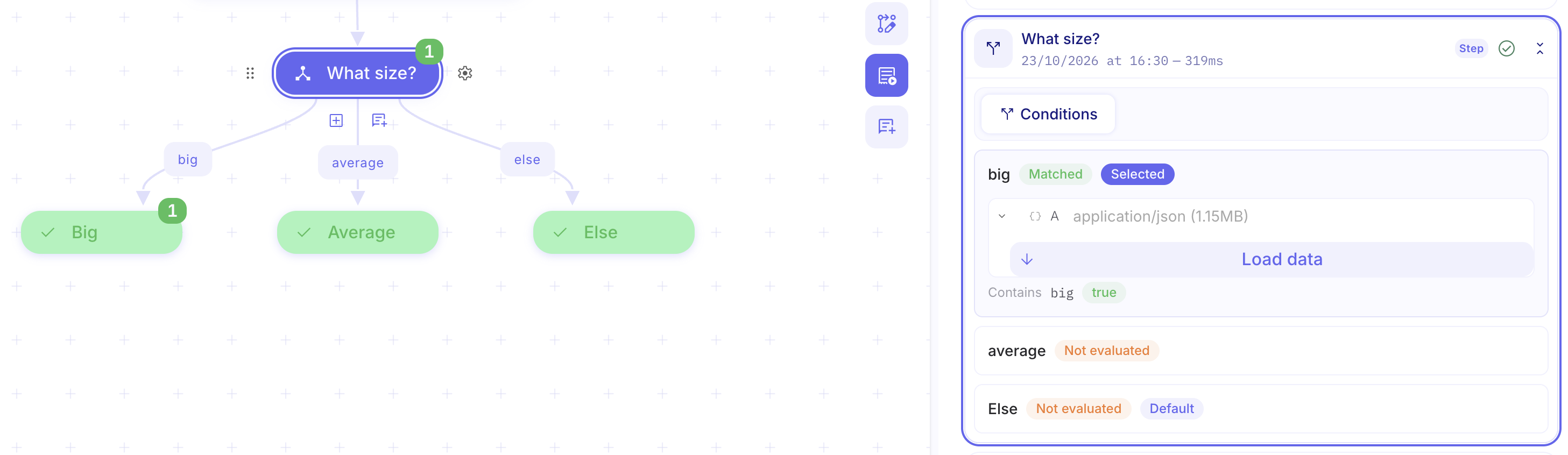
Section titled “Read evaluation in the run log”After a run, open the Condition step in Logs. The Conditions view shows each compared value and which branch matched, so you can see why the run took that path.
Keep in mind
Section titled “Keep in mind”- Branches are evaluated in list order; only the first matching branch runs.
- Else is the path when no IF / ELSE IF rule matches—not a second “false” Compare you must maintain.
- Comparators are case-sensitive for string equality unless you normalize the value first (for example with a transform function).
Related: Handle step errors, End a flow with Success or Failure, Scripts, errors, and run control.