

Use Mindflow built-in variables
Mindflow exposes a reserved Mindflow variable with run context your flow can read in formulas and data picks:
environment and flow names, run IDs, who started the run, and related timestamps. You do not declare this variable under
flow Variables — Studio injects it automatically.
When to use
Section titled “When to use”- You need the current environment name, flow name, or who started the run inside a step without hard-coding values.
- You want the flow run ID in HTTP requests, transforms, or notifications.
- Prefer global flow variables when you control the name and initial value yourself. Prefer Platform Artifacts when data must persist across runs.
Before you begin, open a flow in the designer with permission to edit it.
Open built-in variables in the data picker
Section titled “Open built-in variables in the data picker”Built-in variables live under Built-in variables → Mindflow in the data picker, grouped by Environment, Flow, Step,
and more. Each field inserts a path such as Mindflow.environmentName.
-
Open a step inspector. Select a step that accepts formulas or data picks (for example Transform data or an HTTP step field).
-
Open the data picker. Choose / or the data-pick control on the field you want to fill.
-
Choose a built-in field. Open Built-in variables → Mindflow, then a group (for example Environment), and select the label you need (for example Environment name). Studio inserts a pill such as
Mindflow.environmentName.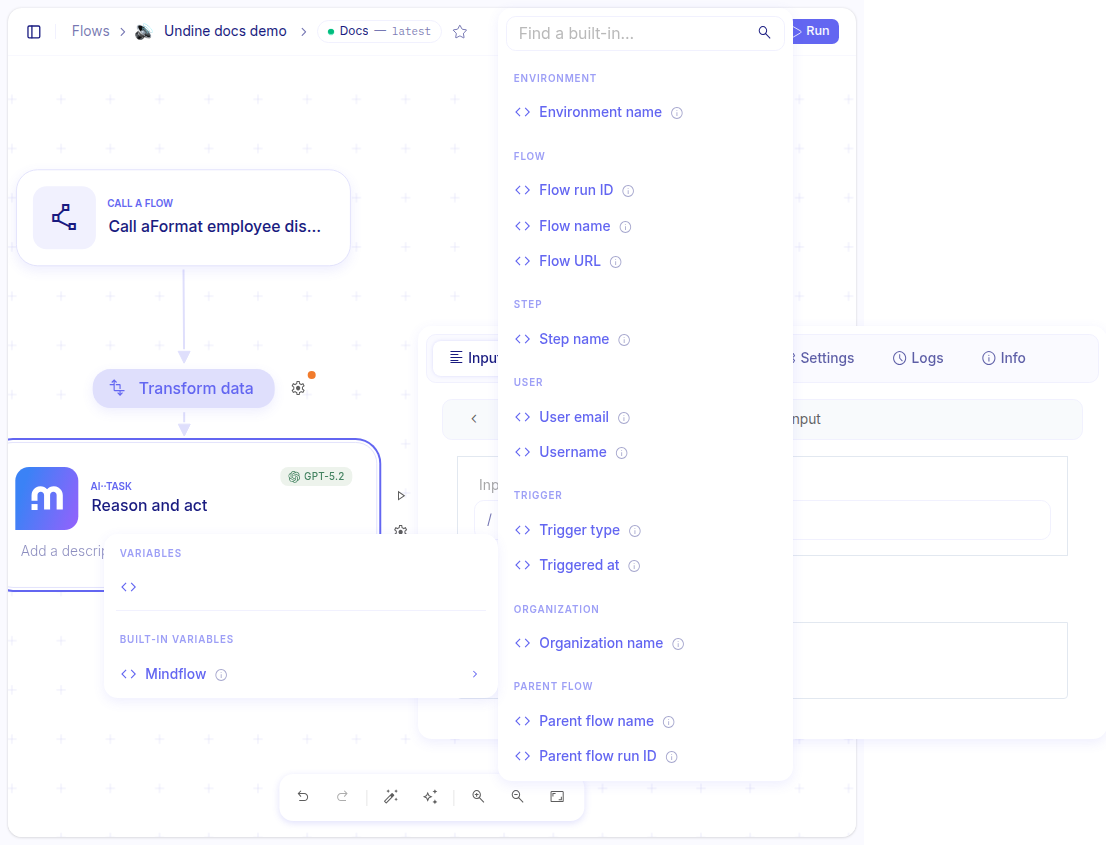
Understand designer previews versus runtime values
Section titled “Understand designer previews versus runtime values”In the designer, stable fields such as Environment name and Flow name preview from your current organization,
environment, and flow. Fields that only exist during a real run or dry-run show [runtime-only] instead of an
empty value — for example Flow run ID. That placeholder means the value appears when you dry-run a step or run the
full flow.
- Preview a stable field. On a Transform data step, add a variable bound to Environment name. The preview shows your environment’s display name.
- Preview a run-scoped field. Add another variable bound to Flow run ID. The preview shows
[runtime-only]. - Dry-run or run the flow. Dry-run the step or run the flow; the same pills resolve to real values.
Reference: built-in fields
Section titled “Reference: built-in fields”Use path syntax Mindflow.<field> in formulas. Studio exposes names, timestamps, and run IDs — not internal entity
IDs.
Environment
Section titled “Environment”Trigger
Section titled “Trigger”Organization
Section titled “Organization”Parent flow
Section titled “Parent flow”Example
Section titled “Example”This example tags an HTTP request with the environment name and shows how run-scoped fields behave.
- Create a flow with a Transform data step and an HTTP step that sends a test request.
- Bind environment name. On Transform data, add variable
environmentNamefrom Built-in variables → Mindflow → Environment name. Confirm the preview matches your environment. - Bind flow run ID. Add variable
runIdfrom Built-in variables → Mindflow → Flow run ID. Confirm the preview is[runtime-only]. - Dry-run the HTTP step with
Mindflow.environmentNamein a query parameter. The inspect result shows your environment name. - Run the flow. After the run completes, the same parameter resolves to the live environment name;
runIdshows the actual flow run ID if you mapped it on the HTTP step.
Keep in mind
Section titled “Keep in mind”- You cannot rename or delete the
Mindflowvariable. User-defined variables cannot use that name. [runtime-only]is a designer preview only — it is not sent to external systems at runtime.- User fields depend on the principal that started the run; automated triggers may leave them empty.
- Parent flow fields are filled only when the run is started as a nested flow.