

End a flow with Success or Failure
Success and Failure are terminal steps under Flow. Success ends the run as successful and can return the properties you defined on the flow Output tab. Failure ends the run as failed with a message (and optional data) when a business rule is not met. Screenshots on this page use a sample visitor badge check so you can see filled names and values.
When to use
Section titled “When to use”- A parent flow, agent tool, or operator needs structured results when the run completes successfully.
- You want the run to fail for a clear business reason (for example an inactive employee), not only when an API errors.
- Prefer Handle step errors when a step fails unexpectedly and you need On failure → Continue execution plus a condition on the status code.
- Prefer Call a flow for the parent step that starts another flow; this page covers ending the called flow (and any flow) with Success or Failure.
- Prefer Report executions by email to alert operators on run outcome; that setting lives on the flow, not on the Success or Failure step.
Before you begin, open the flow in the designer and unlock it if needed. You need permission to edit flows in the environment.
Define the flow output
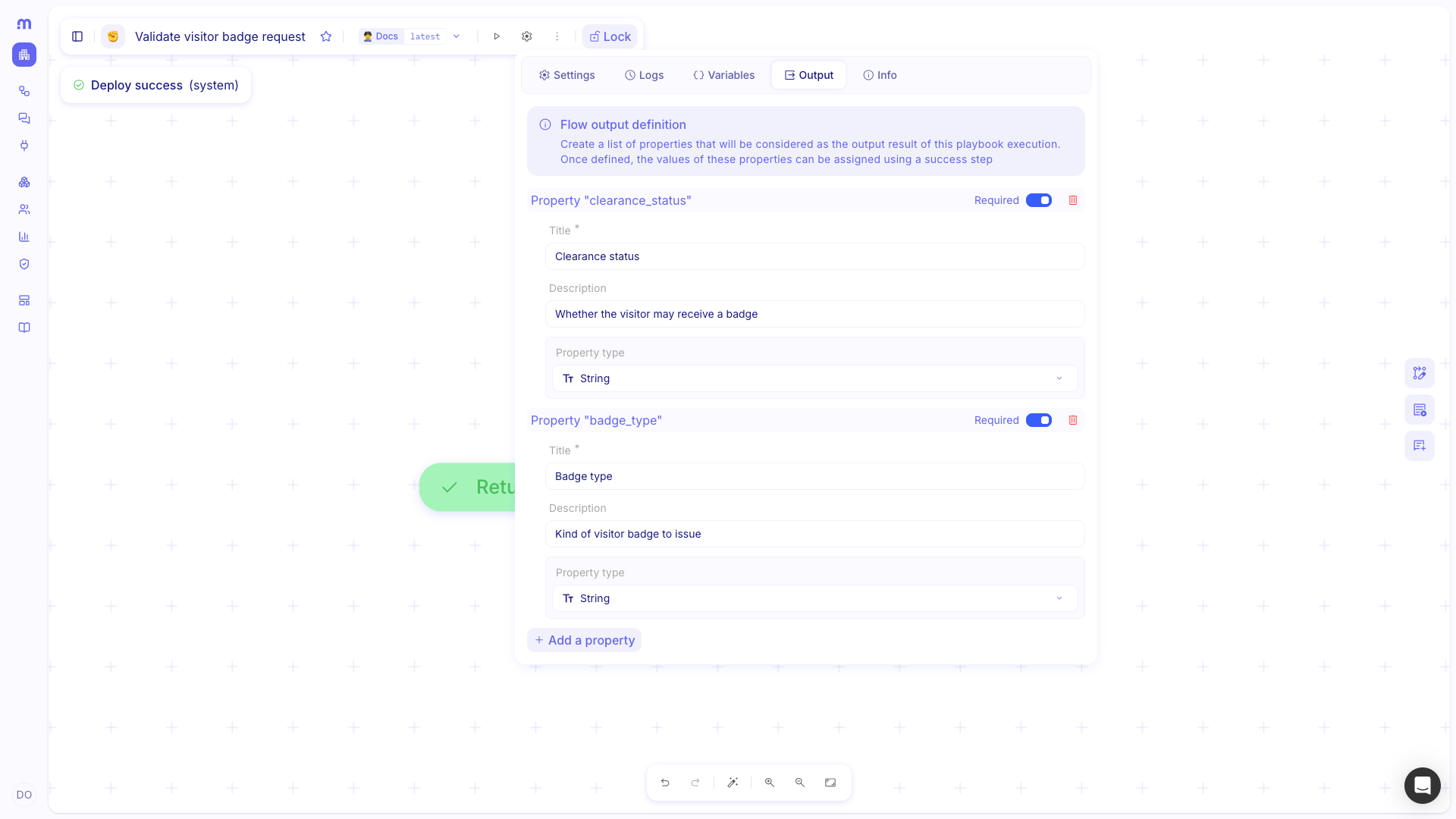
Section titled “Define the flow output”The flow Output tab lists the properties a Success step can return. Define them before you map values on Success, or the Success form has nothing to fill. Callers such as Call a flow and agent tools read these property titles after a successful run.
Open the flow inspector. In the designer toolbar, open the settings control, then choose Output.
Add returned properties. Use Add a property for each value the run should return. Set Title, Description, and Property type. Turn Required on for fields callers must always receive.
End with Success
Section titled “End with Success”A Success step ends the run as successful and assigns the output properties you defined. Nothing runs after Success on that path.
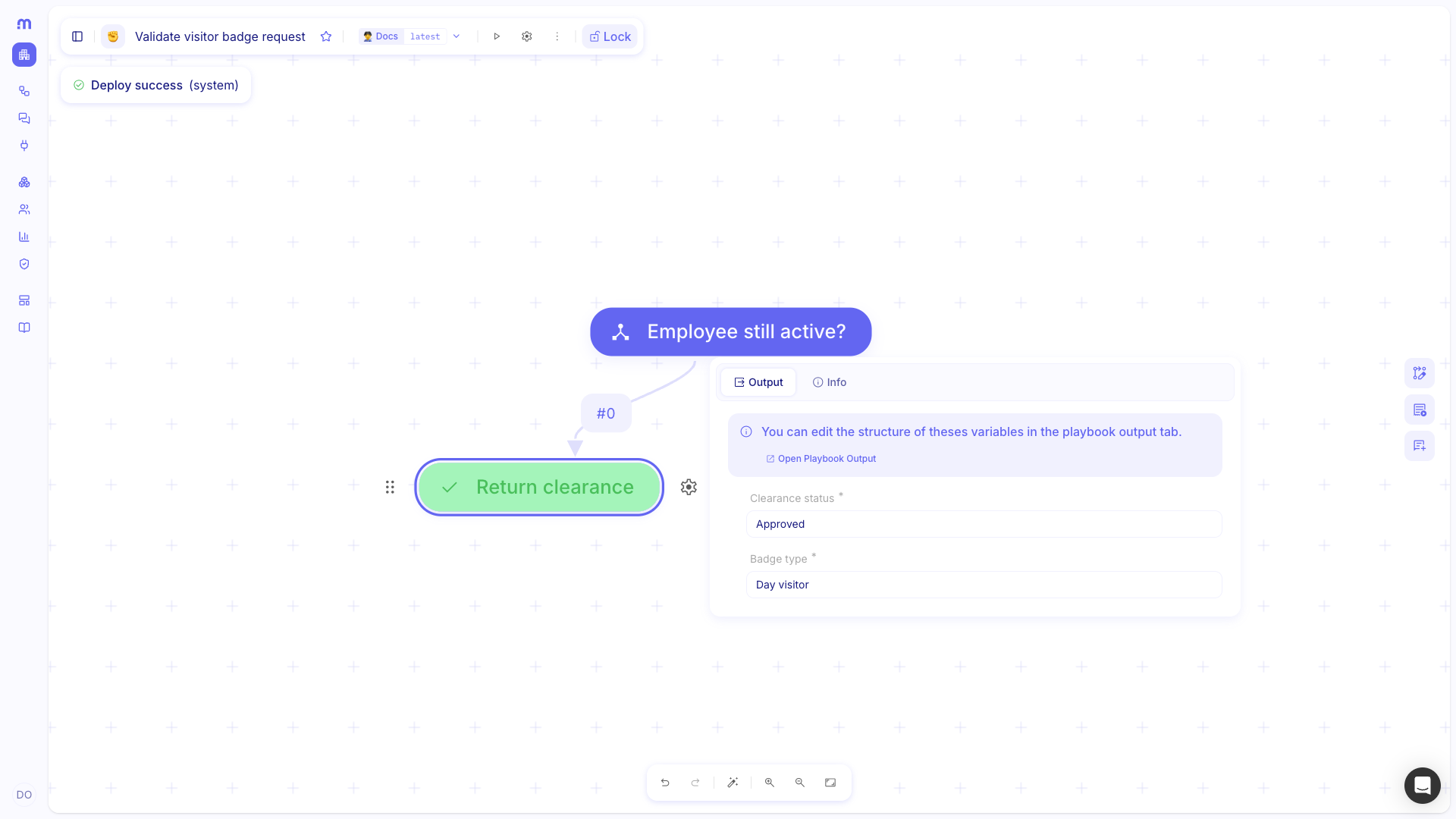
Add Success. Open Add a step, choose Flow, then Success. Place it after the last working step on the success path. Rename the step.
Open Output. On the Success step, open the Output tab. Each property from the flow output can be assigned here. If a property is missing, open Advanced and turn it on. Use Open Playbook Output when you need to change the schema.
Map each property. Fill the fields from earlier steps using the data picker, or type a sample value.
End with Failure
Section titled “End with Failure”A Failure step ends the run as failed on purpose. Use it when a business rule is not met so operators, email alerts, and parent flows see a controlled message instead of an unexpected error.
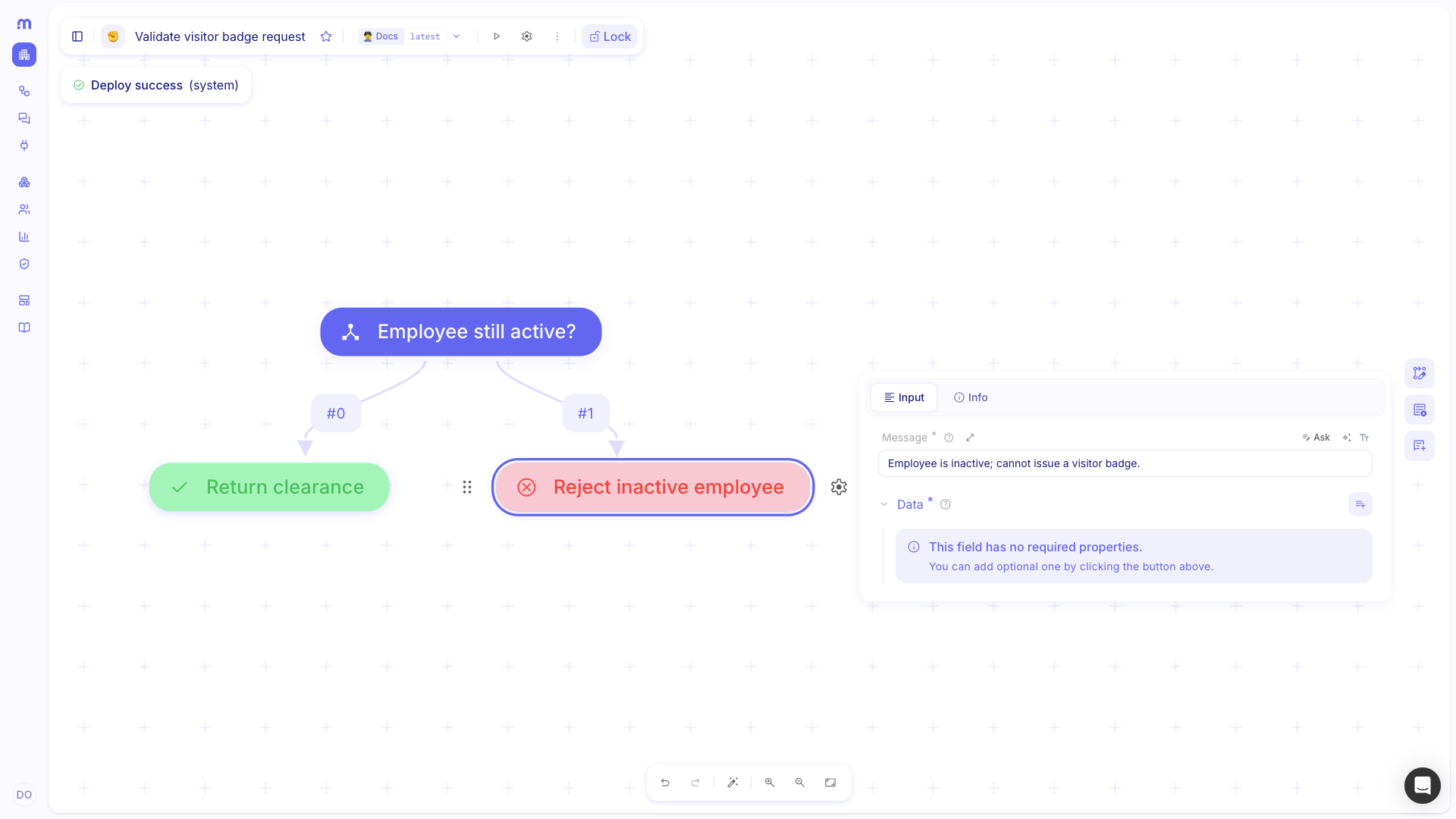
Add Failure. Open Add a step, choose Flow, then Failure. Place it on the path that should stop as failed. Rename the step.
Open Input. On the Failure step, open the Input tab.
Set Message. Enter a short reason operators will recognize in logs and failure emails.
Add Data (optional). Use Data for extra context (for example an employee id). Values can use formulas and the data picker.
Branch after a Condition
Section titled “Branch after a Condition”A Condition step chooses which path runs. Put Success on the path that meets your rule and Failure on the path that does not. You cannot add Success or Failure inside a For each or Loop.
Add Condition. Open Add a step, choose Flow, then Condition. Rename it and set the rule that decides the outcome.
Add Success on the pass path. From the branch that means the rule passed, add Success and map the flow output.
Add Failure on the fail path. From the branch that means the rule failed, add Failure and set Message.
Example
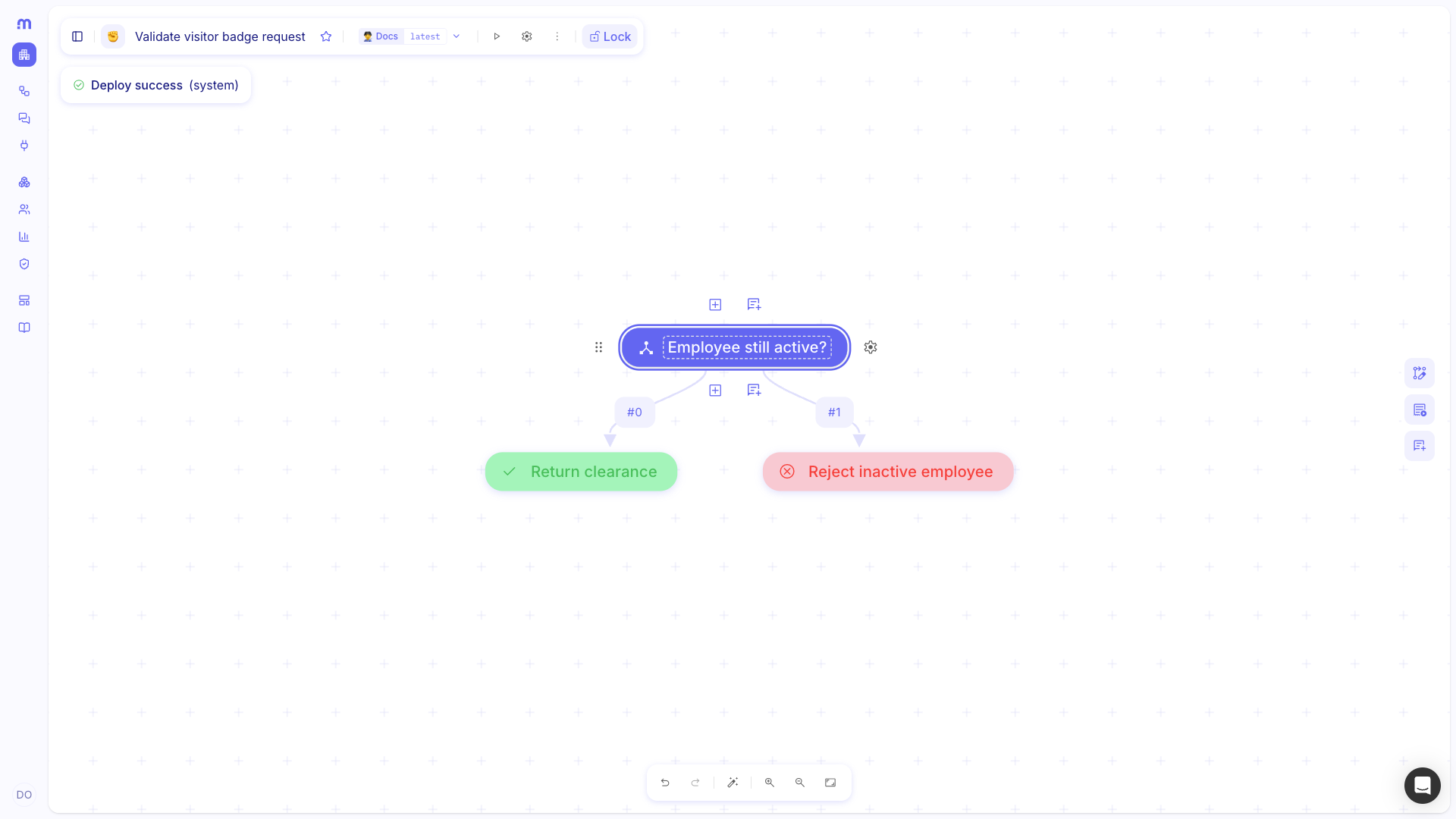
Section titled “Example”A reception operator automates visitor badge checks. The flow Validate visitor badge request decides whether an employee can sponsor a visitor.
Flow output defines Clearance status and Badge type. The Condition Employee still active? sends active
employees to Success Return clearance, which returns Clearance status Approved and Badge type Day visitor. Inactive employees go to Failure Reject inactive employee, with Message Employee is inactive; cannot issue a visitor badge.
In production, the Condition would usually read an identity lookup. This example keeps the branch and the terminal steps.
Keep in mind
Section titled “Keep in mind”- Success and Failure are terminal: you cannot add a next step after them on that path.
- You cannot place Success or Failure inside a For each or Loop.
- Ending on Success or Failure sets the run status and optional output. It does not send an HTTP response body—use Webhook response when a synchronous webhook caller needs a custom body.
- Flow Settings → Email notifications is separate from these steps. A Failure Message is what operators see when failure emails are enabled.
- If a parent uses Call a flow, that parent’s On failure setting controls whether the parent stops or continues when this flow ends on Failure.
Related
Section titled “Related”Call a flow · Handle step errors · Report executions by email