

Pause with Wait
Wait is a Flow step that pauses the run for a fixed number of Seconds, then continues. Use it when a later step should start only after a known delay—for example an external job that needs time to finish and cannot notify you. Screenshots on this page use a six-minute pause so you can see Seconds filled in.
When to use
Section titled “When to use”- An external system needs a fixed cool-down or processing window before your next call.
- Prefer Wait and resume a flow when a person or system should decide when to continue (approval link, button, or HTTP resume)—not a blind timer.
- Prefer polling with Create a loop (While / Do while) when you can check status until ready instead of guessing a delay.
Before you begin, open the flow in the designer with permission to edit it.
Add Wait
Section titled “Add Wait”Wait has no Input tab—only Settings → Seconds.
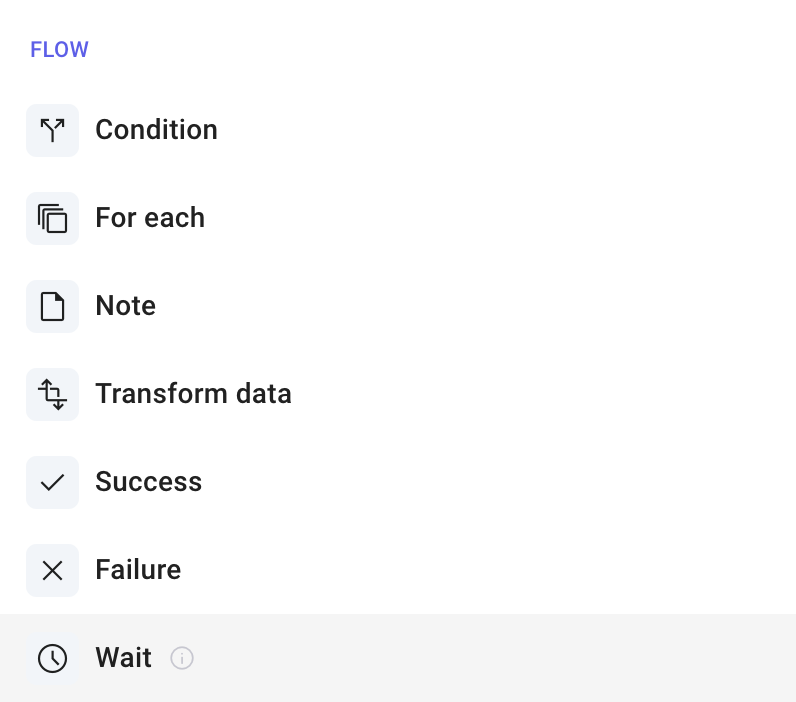
Add Wait. Open Add a step, choose Flow, then Wait. Place it where the run should pause. Rename the step if the delay is part of a larger job.
Open Settings. Select the Wait step and open the Settings tab.
Set Seconds. Enter how long to pause (minimum 0). The value is a fixed number—you cannot bind it to a formula or earlier-step output. New Wait steps default to 10 seconds.

Example
Section titled “Example”A flow named Poll after batch job calls an API that starts a batch, then waits six minutes before listing results.
- Add Wait after the start-batch step.
- Set Seconds to
360(6 × 60). - Add the list-results step after Wait.
- Run once and confirm the run log shows the Wait duration before the list step starts.
Keep in mind
Section titled “Keep in mind”- Seconds cannot be set dynamically from a variable or formula.
- Wait is not the same as wait-and-resume: it always continues after the timer; it does not listen for an HTTP resume.
Related: Wait and resume a flow, Create a loop, Scripts, errors, and run control.