

Manage users
Organization Members control who belongs to your Mindflow organization and whether they are an Org Admin or an Org Member. From the Organization page you add existing platform users, change their organization role, and remove them when they no longer need access. Organization roles are separate from flow and environment roles—those grants live on each resource (or on a team).
When to use
Section titled “When to use”- Someone already on the Mindflow platform needs access to your organization.
- You need to promote or demote between Org Admin and Org Member.
- Prefer Manage teams when a group should share the same flow or environment access.
- Prefer Manage permissions (RBAC) when you need the full role matrix for organizations, flows, and environments.
Before you begin, you need Org Admin rights. New platform accounts are provisioned outside Studio (for example by your Mindflow administrator). Add member only grants organization membership to people who already exist on the platform.
Open Organization members
Section titled “Open Organization members”The Members section on the Organization page lists everyone in the organization and their organization role.
Open your profile menu. In Studio, select your avatar in the sidebar.
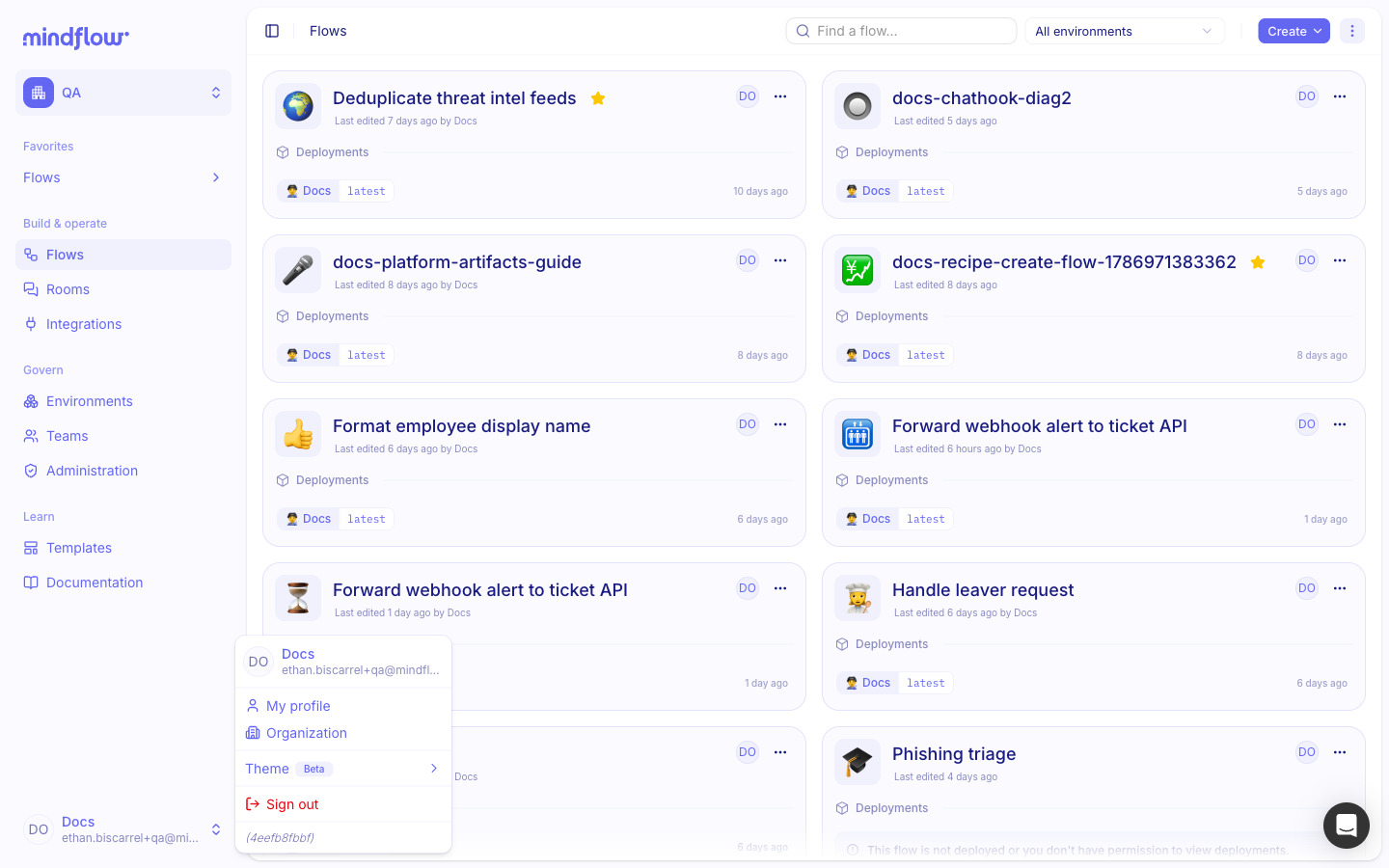
Open Organization. Choose Organization. The page opens on Members.
Add organization members
Section titled “Add organization members”Add member opens Add organization members. You select existing platform users, assign Org Admin or Org Member, then confirm. Default role is Org Member.
Choose Add member. In Members, choose Add member.
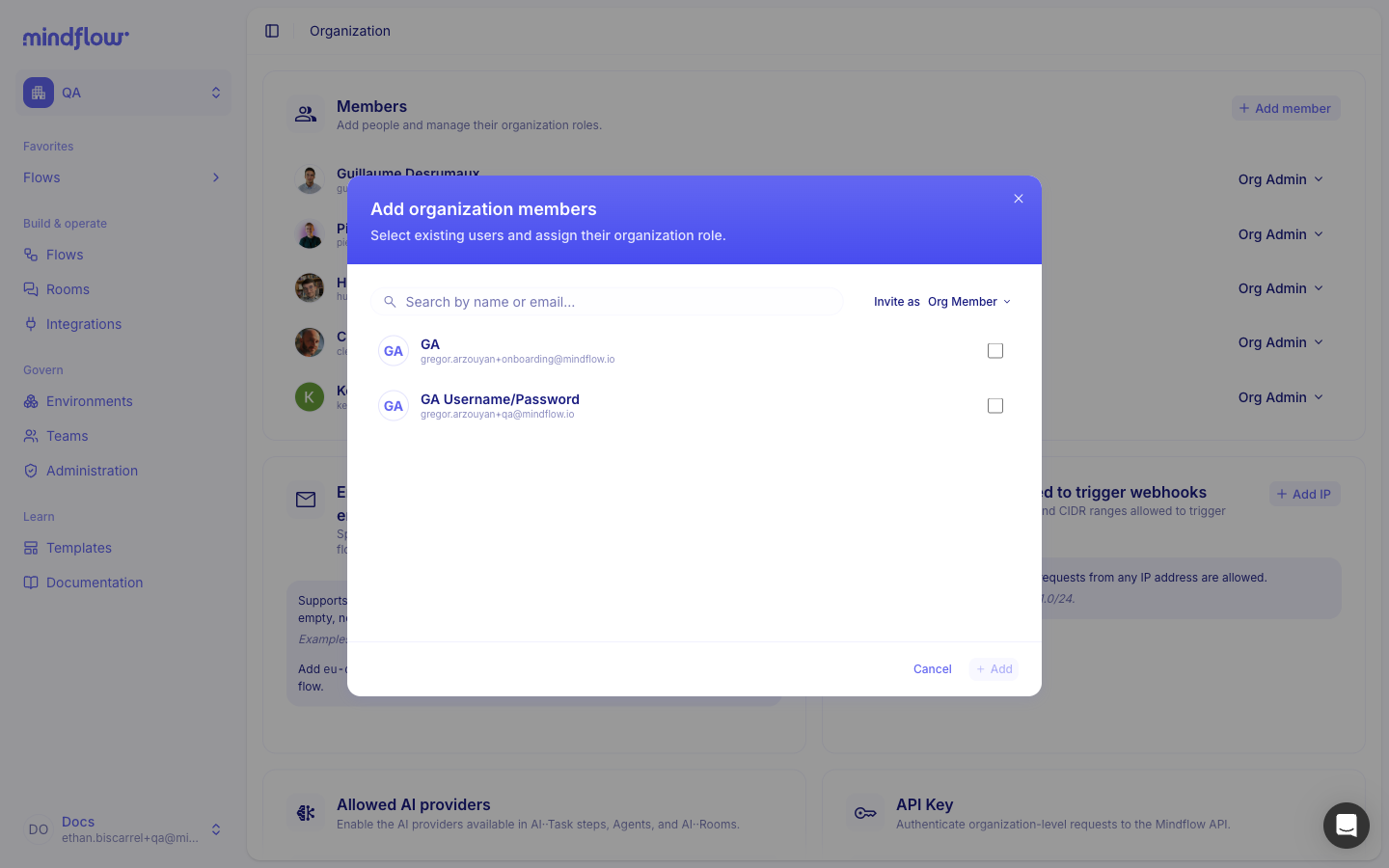
Select people and roles. Search for users who are not already members. Set each person’s organization role (Org Member or Org Admin) with Invite as.
Confirm. Choose Add. The people appear in the Members list with the roles you assigned.
Change an organization role
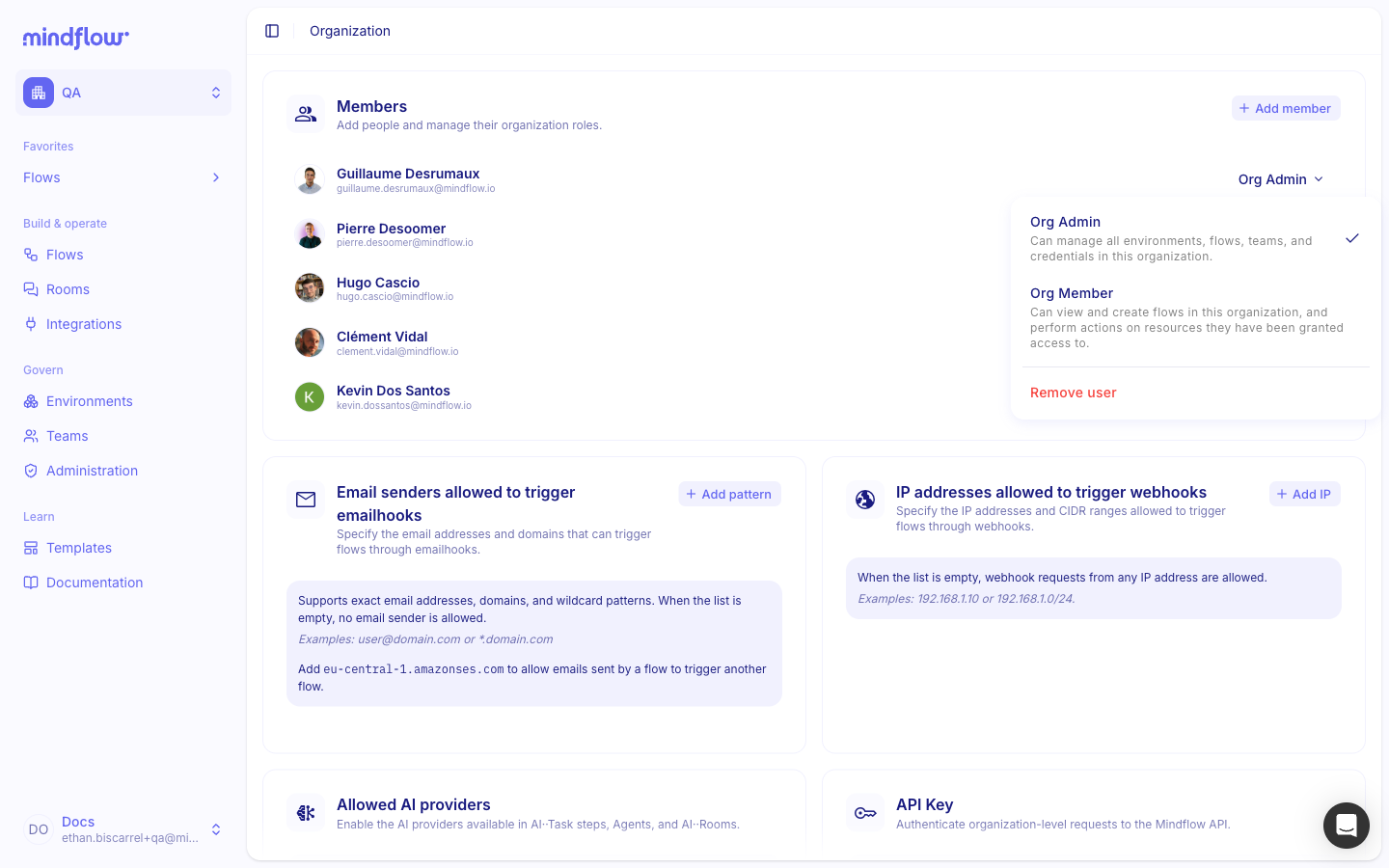
Section titled “Change an organization role”Each member has one organization role. Use the role control on that person’s row to switch between Org Admin and Org Member.
Find the member. In Members, locate the person.
Change the role. Open the role control and choose Org Admin or Org Member. Studio saves the change.
Remove or delete a member
Section titled “Remove or delete a member”How you take access away depends on your workspace:
- Remove user — Removes the person from this organization only. They may still sign in to Mindflow elsewhere.
- Delete user — Disables their platform access. Contact Mindflow support if you need them re-enabled later.
You cannot remove or demote the last Org Admin.
- Open the member’s actions. On the member’s row, open the role control and choose Remove user or Delete user (whichever your workspace shows).
- Confirm. Review the confirmation message, then confirm. The person loses organization membership (and, for Delete user, platform access).
Example
Section titled “Example”A security lead adds two analysts who already have Mindflow accounts and keeps day-to-day admin limited.
- Open Organization. From the avatar menu, open Organization.
- Add the analysts. Choose Add member, select both users, leave Org Member selected, then Add.
- Keep one Org Admin. Leave the security lead as Org Admin. Do not promote every builder to Org Admin.
Flow and environment access for those analysts still needs a direct grant or a team.
Keep in mind
Section titled “Keep in mind”- Org Admin and Org Member are organization roles only. They do not replace Flow Owner / Flow Viewer or Environment Owner / Operator / Auditor on individual resources.
- Prefer Org Member for everyday work. Reserve Org Admin for people who must manage the whole organization.
- Org Admins can turn on Allow members to create environments under Access control on the same Organization page (when that setting is available).
- For the full permission matrix, see Manage permissions (RBAC).