

Look up service credentials by name at runtime
On a services step or an AI Task service tool, you can bind credentials in two ways: pick a single stored credential (static), or choose Credential Lookup so Mindflow resolves the right credential by name at run time. Use credential lookup by name when one flow deployment needs to talk to different customer accounts or tenants across runs, without editing step settings each time. Mindflow resolves the lookup against credentials in the current environment and Global scope, and it fails the step when the credential name does not match exactly one credential. For AI Task tools, Mindflow resolves the name when the AI Task starts. Screenshots on this page use a sample Invoice sync flow.
When to use
Section titled “When to use”- You run one flow deployment for multiple customers, and each customer has a credential with a different name.
- You need one stable step configuration, but the credential selection should vary based on run data (for example, a member or request field upstream).
- Prefer environments per customer when you can isolate secrets by construction; use runtime lookup as a practical complement for shared-flow cases.
- Prefer a static credential when one step always uses the same stored secret.
Before you begin, confirm you can create and manage the credentials that your flow will look up by name. See Credentials.
Enable credential lookup by name (feature gate)
Section titled “Enable credential lookup by name (feature gate)”Credential Lookup appears in the Credential picker on service steps and AI Task service tools when the feature is enabled for your organization.
Open the credential picker. For a services step, open Settings. For an AI Task, open Tools, then open the service tool.
Check the Credential picker. Open the Credential dropdown and confirm Credential Lookup appears in the list.
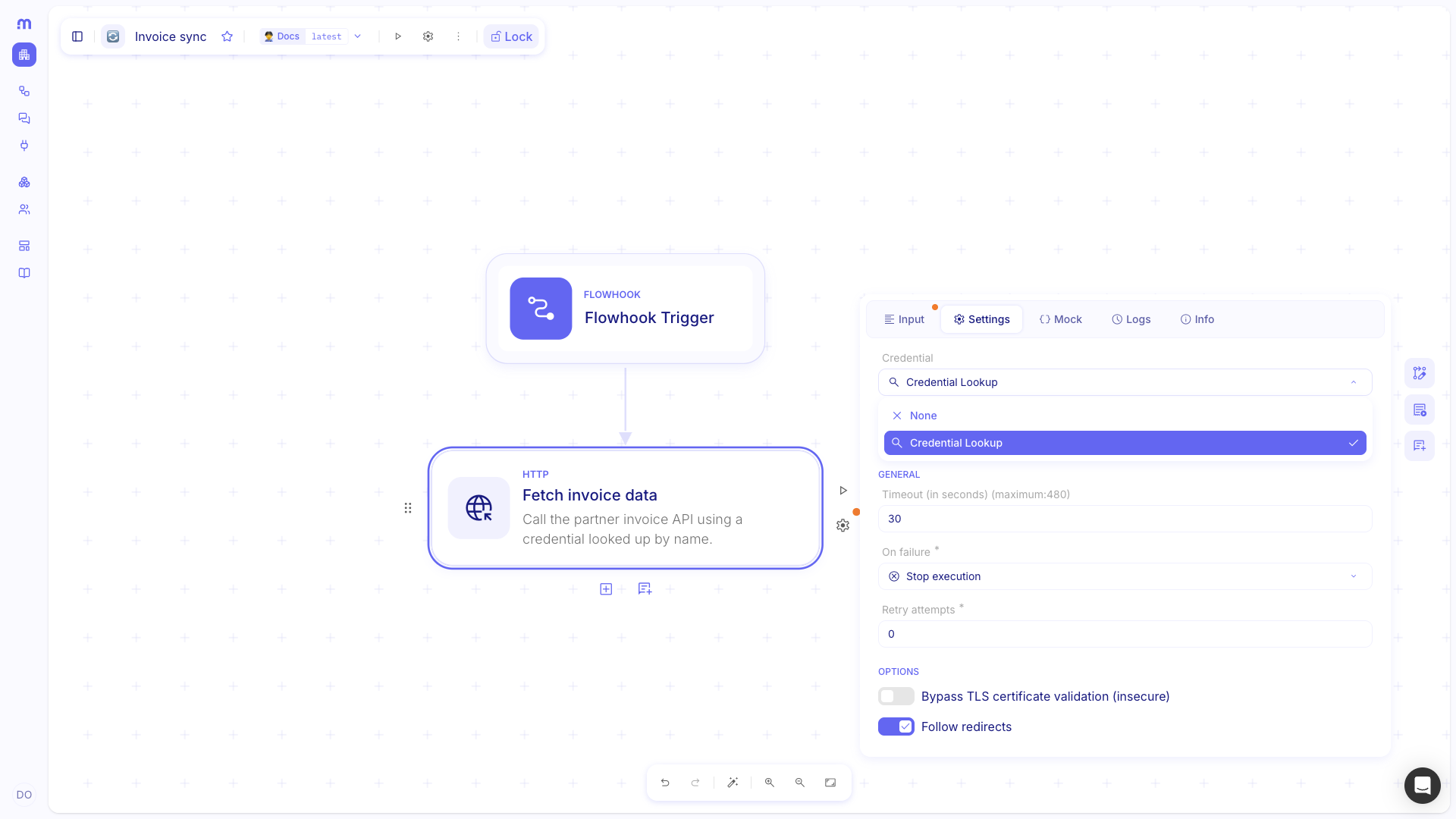
Ask your administrator when it is missing. If you do not see Credential Lookup, ask your Mindflow administrator to enable the
credentialLookupfeature flag (it is typically off for production customers by default).
Create credentials with stable names
Section titled “Create credentials with stable names”Runtime lookup resolves an existing credential by name for the same service. Create one credential per account or tenant before you bind the step.
- Create one credential per account (or tenant). In Environments, add credentials for the same service your step will call.
- Set a credential name you can compute. Name each credential so you can derive it at run time (for example,
Acme-Invoice-APIandGlobex-Invoice-API). - Keep names unique. Keep names unique per service in the environment scope you use and in Global (name matching is case-insensitive).
Bind a service step to credential lookup by name
Section titled “Bind a service step to credential lookup by name”Pick Credential Lookup on the step, then set Credential name to a constant or a formula that returns the name for the current run.
Select the service step. On the canvas, select the service step you want to call (for example, an integration step or an HTTP Request step that uses a credential).
Open Settings and pick the lookup mode. In the step inspector Settings, open the Credential picker, then choose Credential Lookup.
Set Credential name. Fill in Credential name with a constant string (the exact credential name) or a formula that returns the credential name for the current run (for example, from an upstream step output).
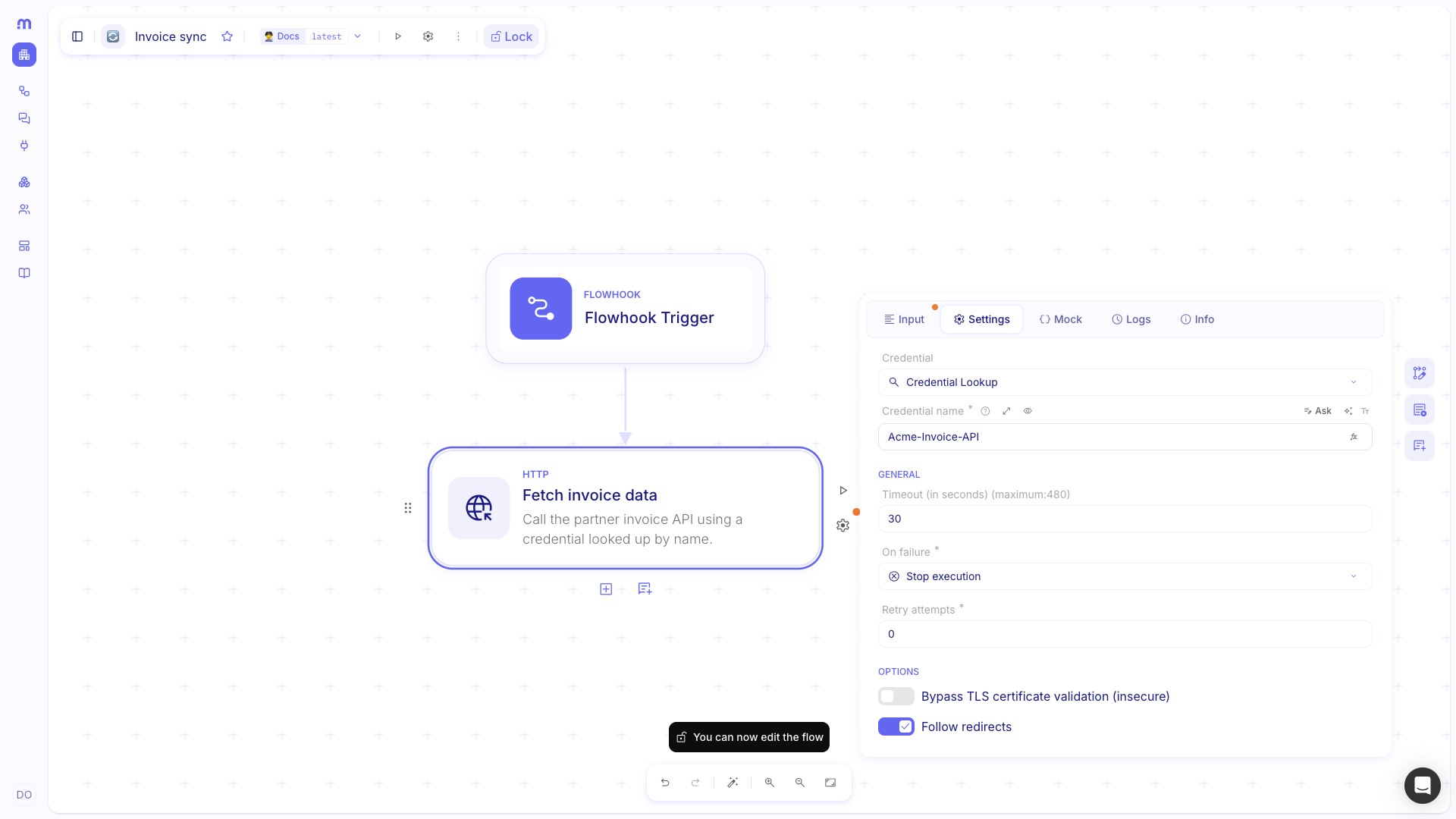
Save the changes. Save the flow when Studio prompts you to persist step settings.
Bind an AI Task service tool to credential lookup by name
Section titled “Bind an AI Task service tool to credential lookup by name”The same Credential Lookup option is available when you configure a service tool on an AI Task. Mindflow resolves the credential name when the AI Task starts, then uses the resolved credential for tool calls in that turn.
Open the AI Task Tools inspector. Select the AI Task on the canvas, open Tools, then open the service tool.
Pick Credential Lookup. In the tool Credential picker, choose Credential Lookup.
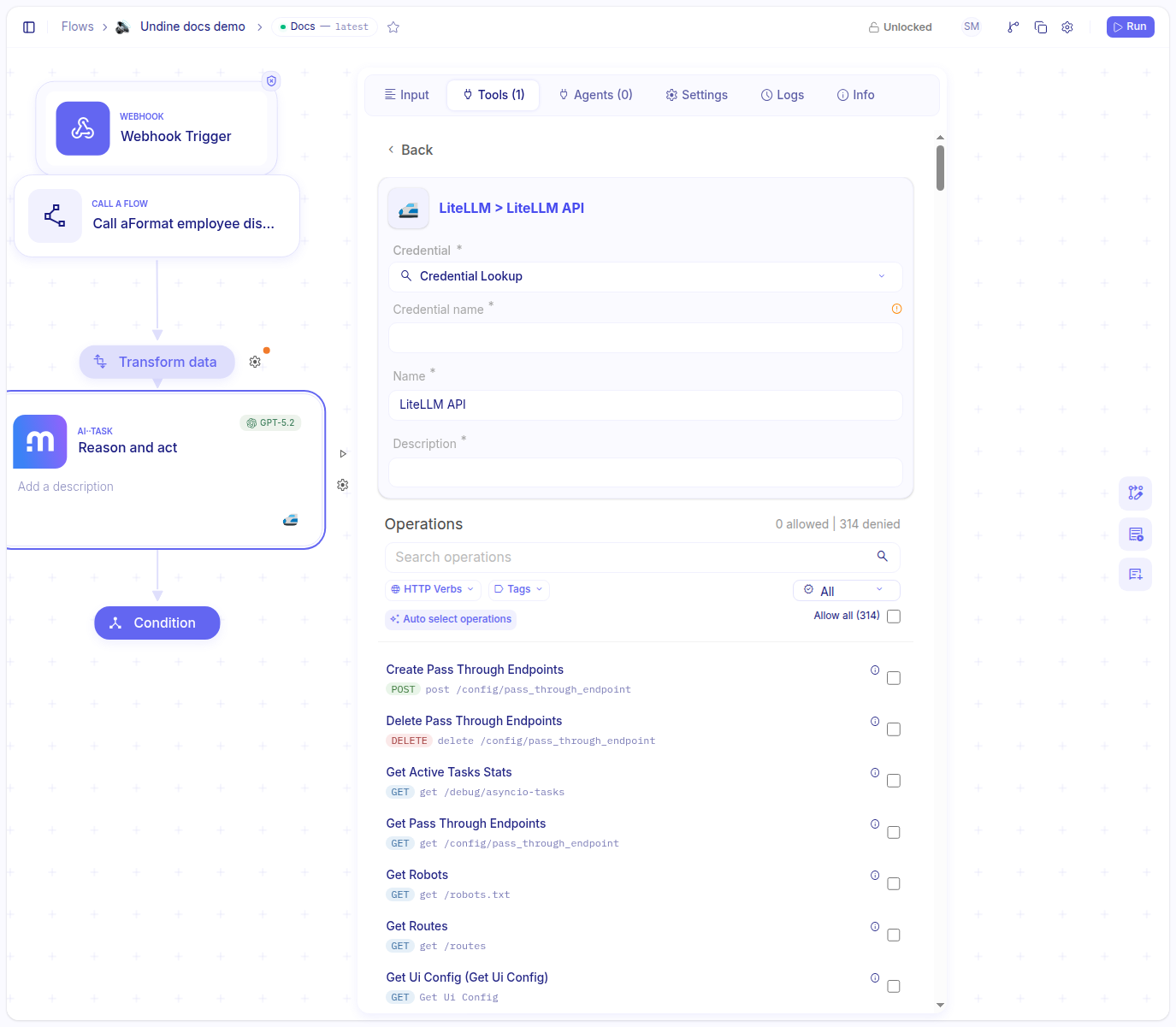
Set Credential name. Fill in Credential name with a constant string or a formula that returns the credential name for the current run.
Verify the lookup during execution
Section titled “Verify the lookup during execution”- Run with representative input. Run the flow with input that produces the credential name you expect.
- Inspect the step Logs. Open the step Logs tab to confirm the step succeeded and used the credential you intended.
- Fix lookup failures. If the step fails, re-check that the resolved credential name matches exactly one credential in the current environment or Global.
Example
Section titled “Example”An operations team runs the same Invoice sync flow for two customers. Each customer has a different stored credential name in the environment: Acme-Invoice-API and Globex-Invoice-API. The flow’s Flowhook payload includes a customer key, and the HTTP step looks up the correct credential name automatically.
Include the customer key in the trigger payload.
Webhook payload {"customerKey": "Acme"}Create two credentials for the same service. In the environment, add credentials for the same integration with different names:
- Credential name:
Acme-Invoice-API - Credential name:
Globex-Invoice-API
- Credential name:
Set Credential name from run data. On Fetch invoice data, choose Credential Lookup and set Credential name to a formula that returns
Acme-Invoice-APIorGlobex-Invoice-APIfor the current run (for example, by combiningcustomerKeywith a fixed suffix like-Invoice-API).
Keep in mind
Section titled “Keep in mind”- Fail-closed: if the lookup name resolves to zero or multiple credentials, Mindflow fails the step (or the AI Task start for tool lookups).
- Uniqueness rules: credential names must stay unique per service in env + Global (case-insensitive).
- Scope: lookup searches within the current environment and Global; it does not automatically search other environments.
- AI Task timing: tool credential lookup runs once when the AI Task starts, not on every tool call.
- Naming strategy: include the service and account label in the credential name so your run-time formula stays simple and typo-resistant.