

Call a flow
Call a flow is a Studio step that runs another flow in your organization. You pass parameters into that flow’s Flowhook trigger. By default (Wait for completion), the parent waits until the called flow finishes and you can use the values it returns from Success. Choose Run in background when you only need to start the called flow and continue the parent right away, without using its output.
When to use
Section titled “When to use”- Several parent flows need the same reusable sequence, such as formatting an employee record or looking up a user.
- You want a typed contract between flows (required fields, returned properties) without exposing an HTTP URL.
- You need to start a long called flow (for example an approval) and continue without waiting for it to finish — use Run in background.
- Prefer Run flow through webhook when an external system must start the flow over HTTPS.
- Prefer Use AI··Agent when an AI··Task should decide whether to call the other flow.
Before you begin, you need permission to create and deploy flows in the environment. Build the called flow first, then open the parent flow in the same environment.
Add a Flowhook trigger
Section titled “Add a Flowhook trigger”A Flowhook trigger is the contract that makes a flow callable. Other flows can pass only the properties you define here. A flow with only a webhook, emailhook, or scheduler trigger does not appear in the Call a flow picker.
Create the called flow. Name it for the job it performs, then open it in the designer.
Add Flowhook. Open Add a step, choose Triggers, then Flowhook. Rename the step and fill a description.
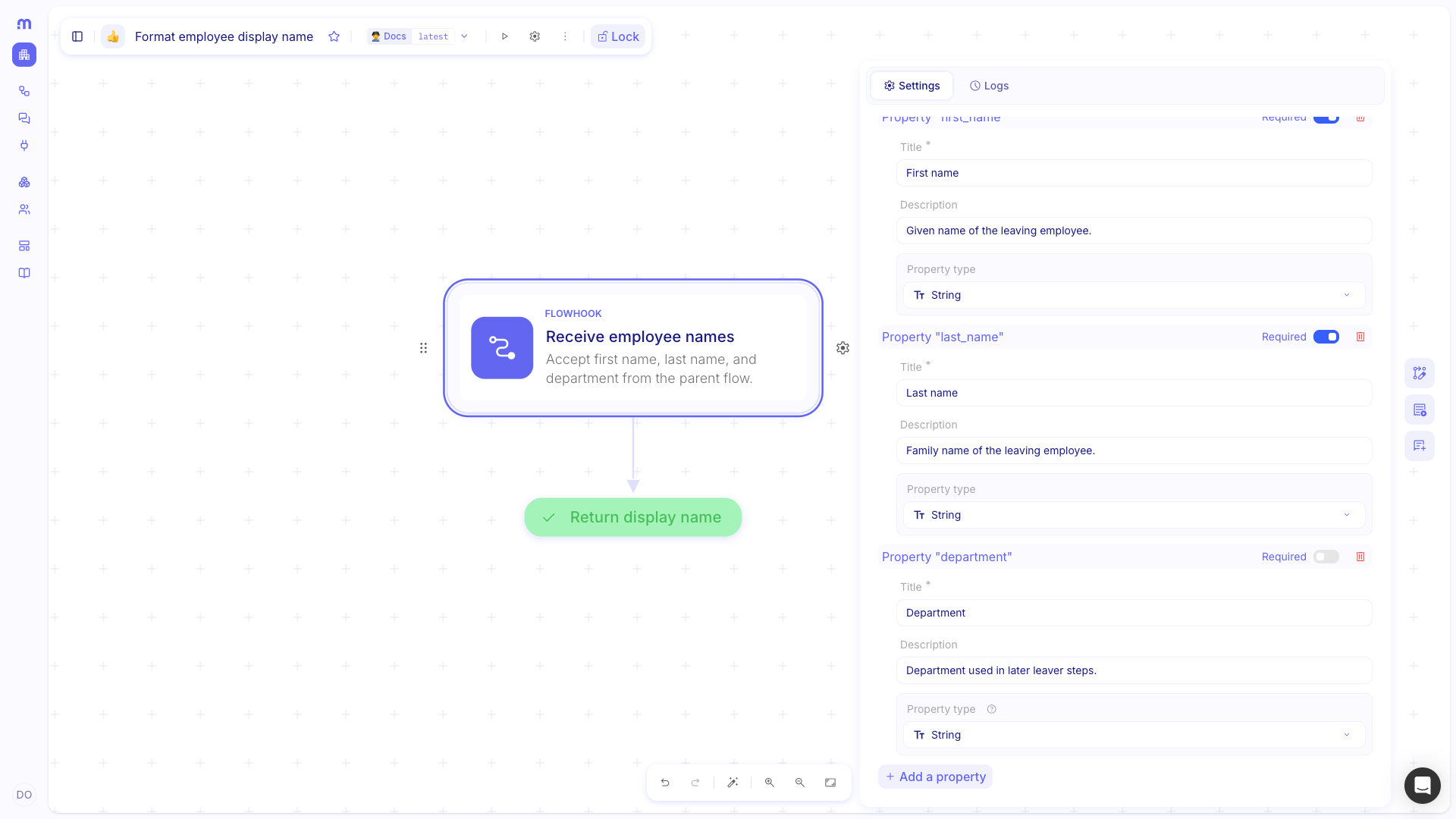
Open Settings. On the Flowhook step, open the Settings tab. The schema root is an Object. Use Add a property for each value the parent must send.
Define each property. Set Title, Description, and Property type (String, Number, Boolean, Object, or Array). Turn Required on for fields the parent must always send.
Define the flow output
Section titled “Define the flow output”The flow Output tab lists the properties a Success step can return to the parent. Define this before you map values on Success, or the Success form has nothing to fill.
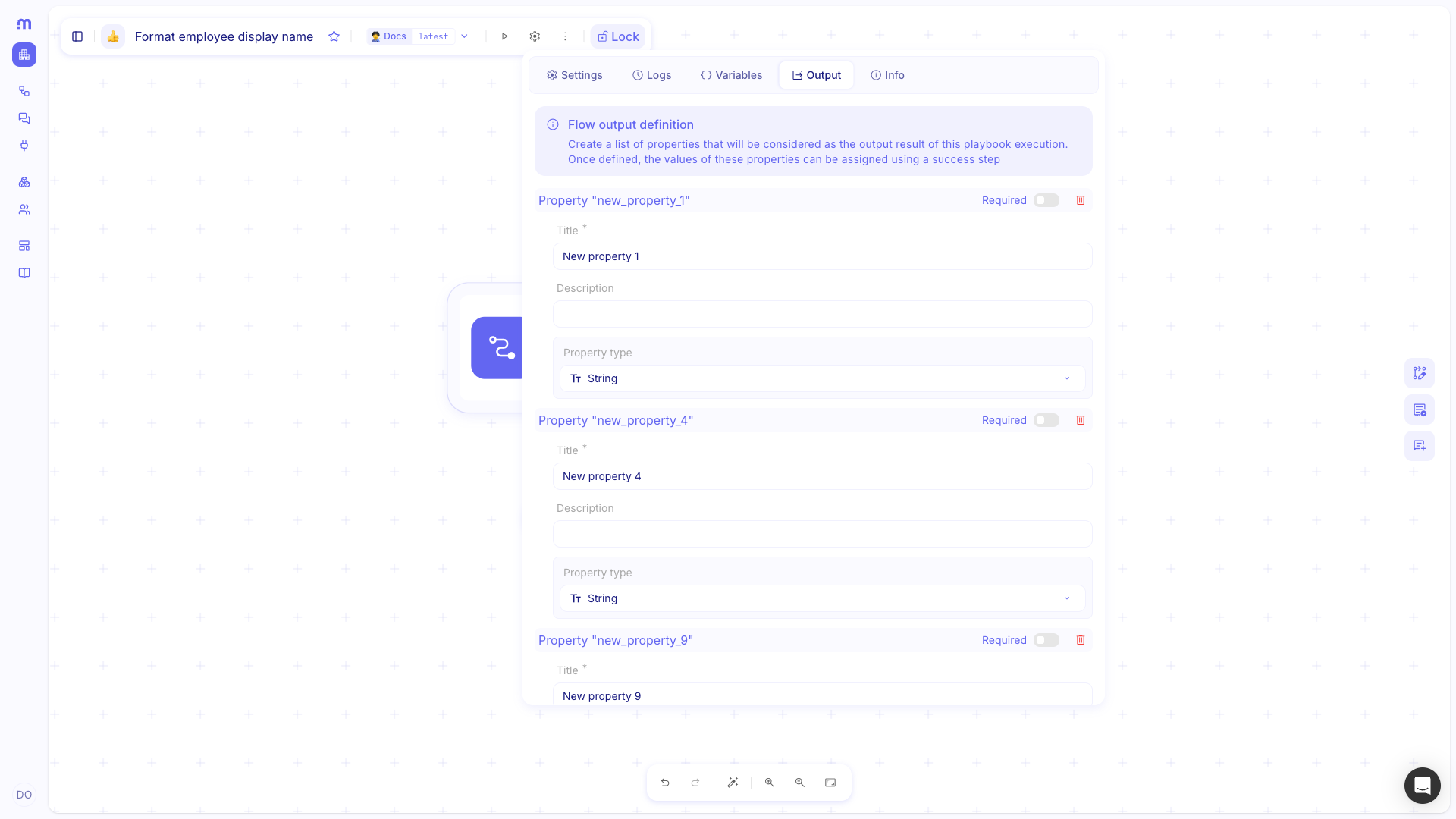
Open the flow inspector. In the designer toolbar, open the settings control, then choose Output.
Add returned properties. Use Add a property for each value the parent should read. Set Title, Description, and Property type.
Return results with Success
Section titled “Return results with Success”A Success step ends the called flow as successful and assigns the output properties you defined. The parent reads those values after Call a flow finishes.
Add Success. After the last working step (or directly after the Flowhook if the flow only shapes the payload), add Success from the Flow category. Rename the step.
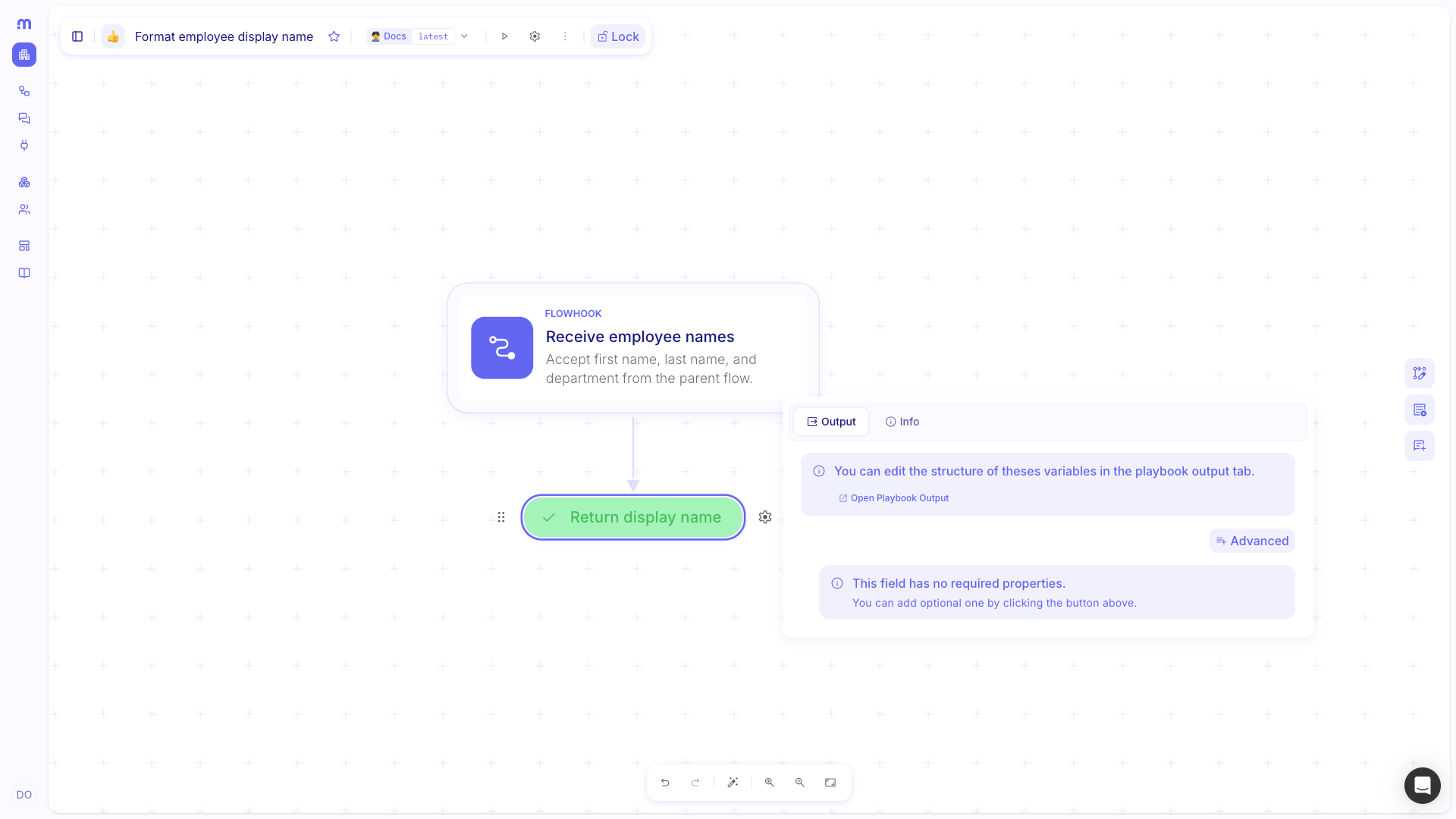
Open Output. On the Success step, open the Output tab. Each property from the flow output can be assigned here. If a property is missing, open Advanced and turn it on.
Map each property. Fill the fields from earlier steps (for example the Flowhook parameters) using the data picker, or type a sample value.
Deploy the called flow. Deploy it to the environment where the parent will run. Call a flow lists flows that are deployed in the current environment by default. See Manage version and deployments.
Call a flow
Section titled “Call a flow”Call a flow selects a deployed, Flowhook-enabled flow, a version, and the parameters to send.
Add Call a flow. In the parent flow, open Add a step, choose Flow, then Call a flow.
Select a flow. Open Input. Choose Select a flow. The list defaults to Deployed in this environment. Switch to Deployed in all environments only when you need a flow that is not deployed in the current environment. Search, then pick the called flow.
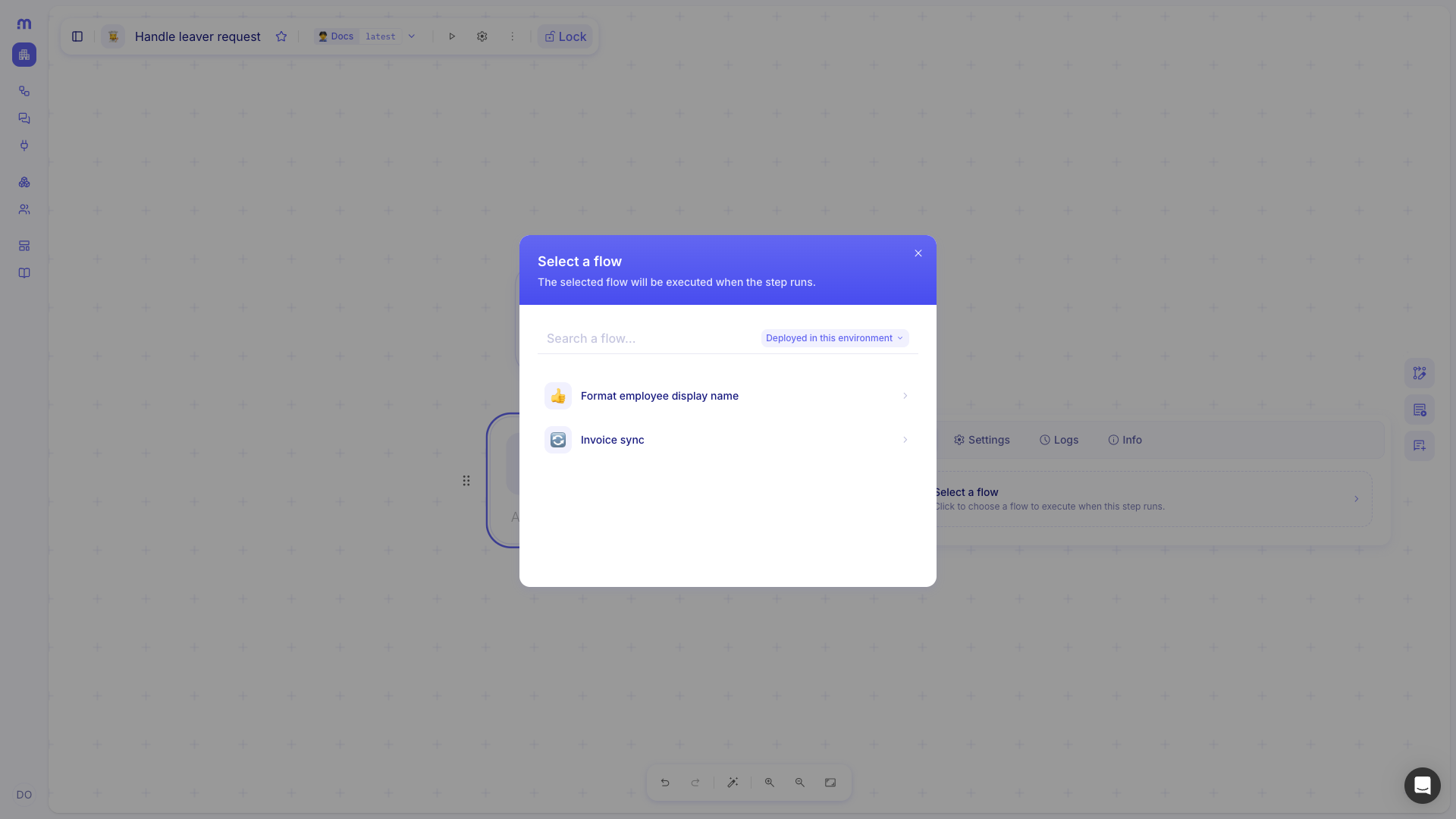
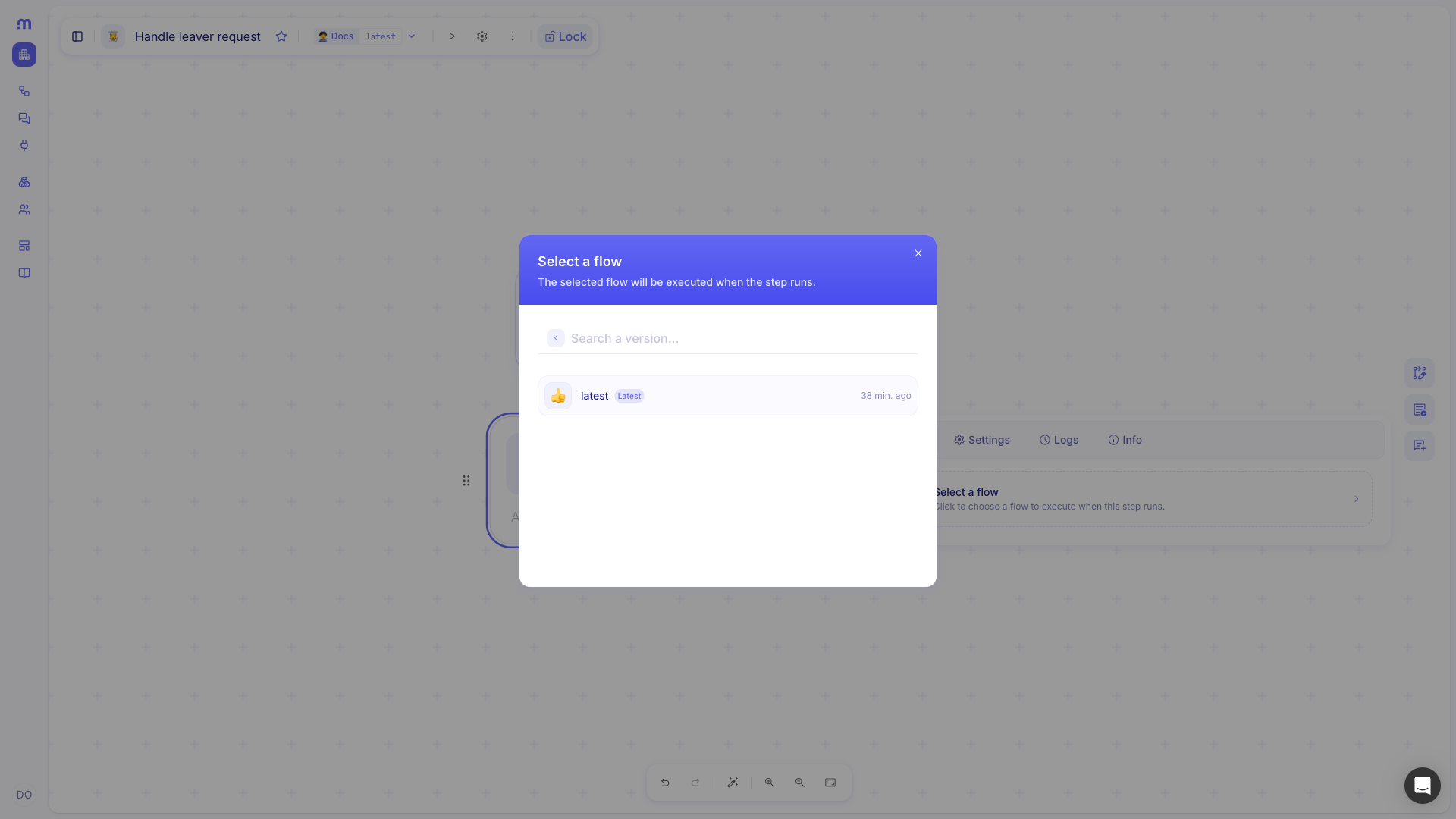
Pick a version. Choose a version of that flow. The Latest badge marks the most recent version. Prefer Latest while you iterate; pick a named version when the parent must stay on a frozen snapshot.
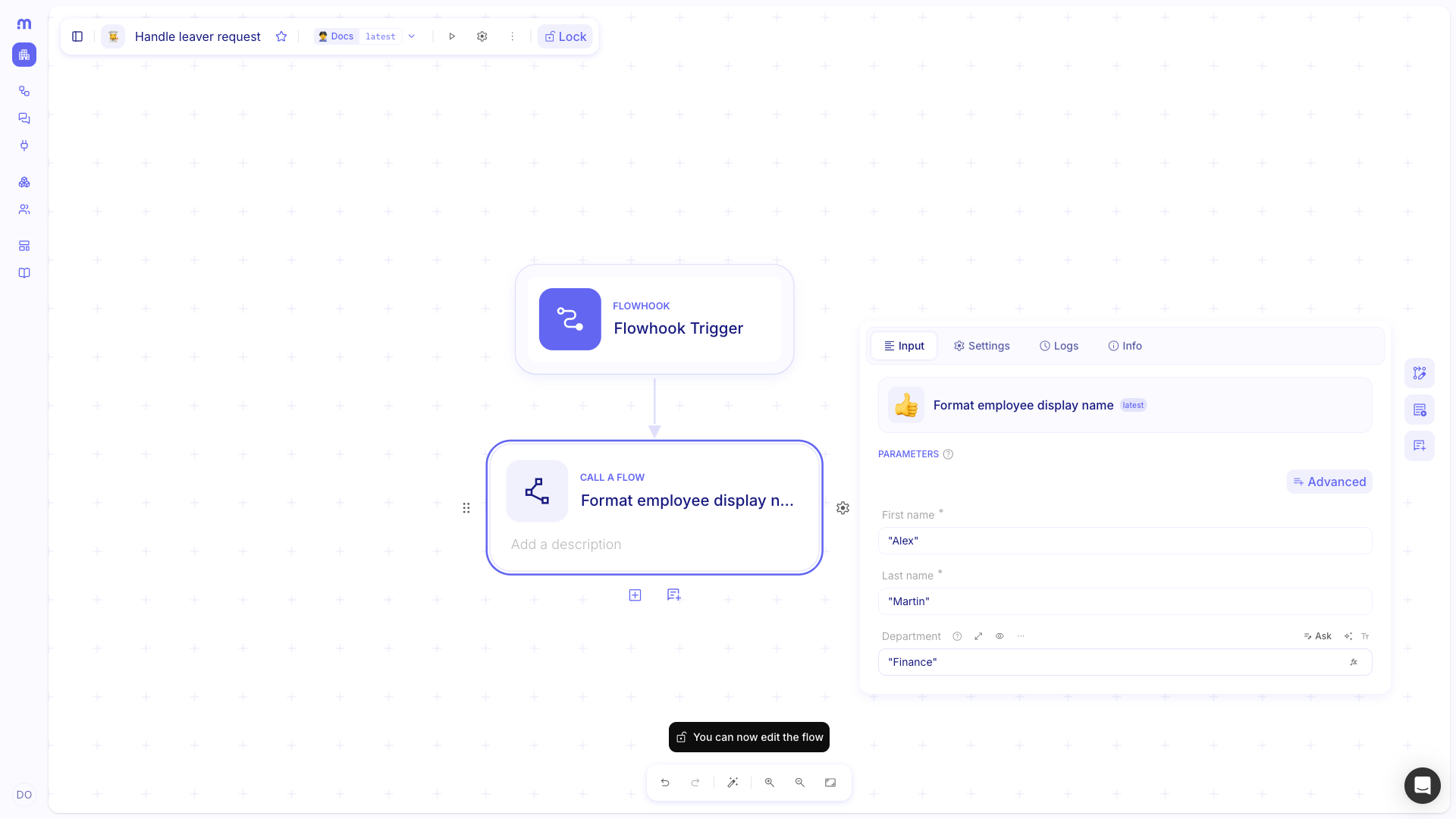
Fill Parameters. After you pick a version, Studio copies the flow name and description onto the step and shows the Flowhook properties as Parameters. Fill every required field. Map values from earlier parent steps, or type sample values. If an optional property is missing, open Advanced and turn it on.
If the selected version has no Flowhook step, Studio shows that the flow version is not callable. Add a Flowhook on that flow, deploy it, then pick the version again.
Choose Wait for completion or Run in background
Section titled “Choose Wait for completion or Run in background”Execution mode on the Call a flow Settings tab controls whether the parent waits for the called flow.
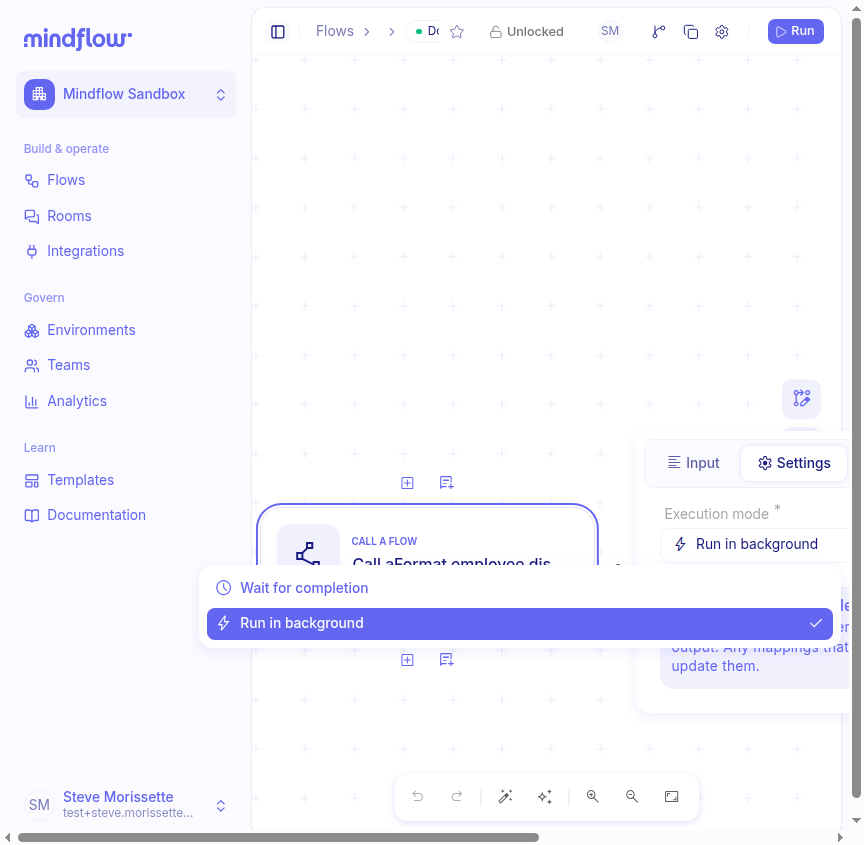
Open Settings. On the Call a flow step, open the Settings tab. Execution mode defaults to Wait for completion.
Choose Run in background when the parent should not wait. Set Execution mode to Run in background.
Choose what happens when the called flow fails
Section titled “Choose what happens when the called flow fails”On failure controls whether the parent stops or continues when the called flow fails. If the called flow cannot be started, the Call a flow step fails in both modes.
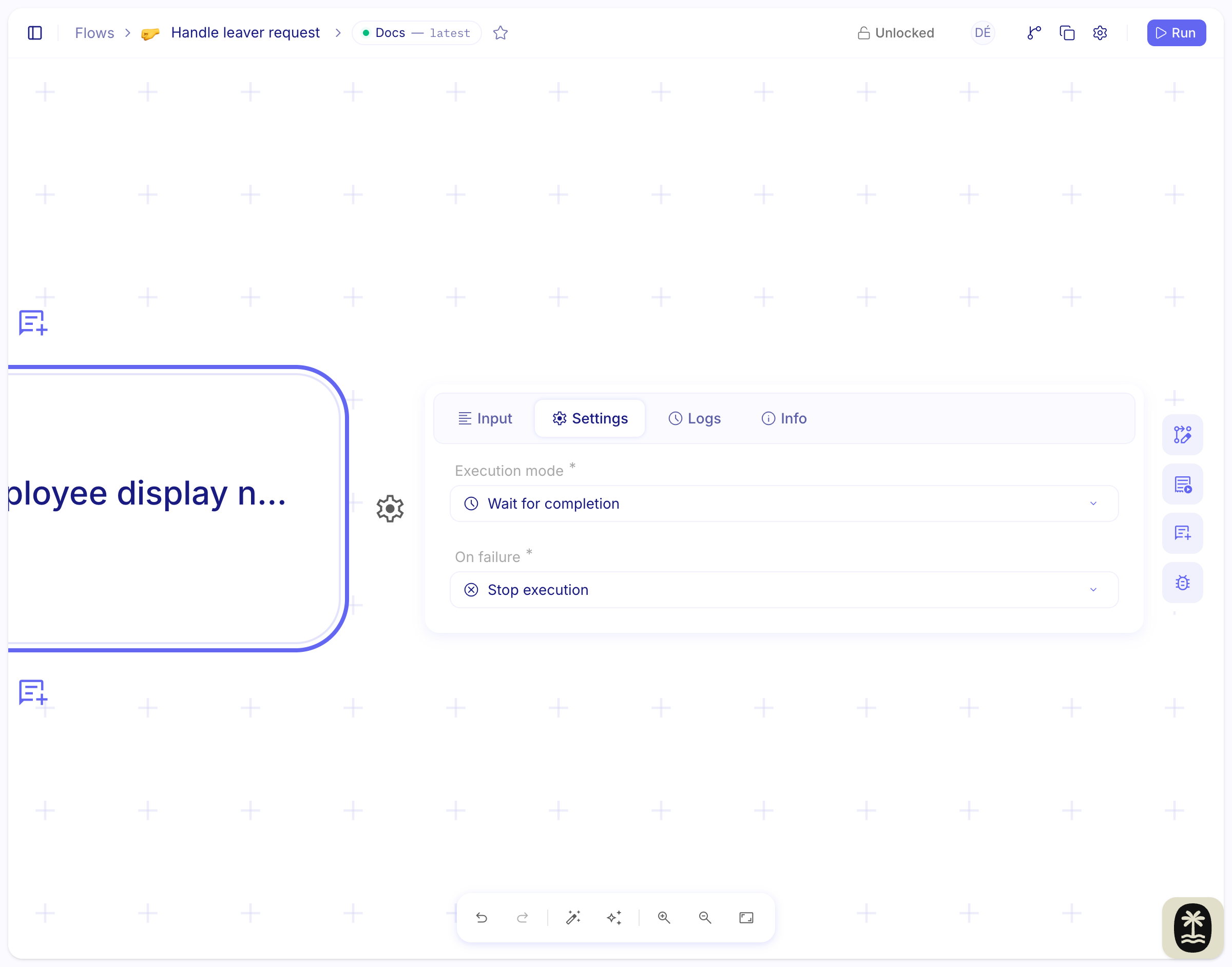
Open Settings. On the Call a flow step, open the Settings tab.
Set On failure. Stop execution (the default) fails the parent when the called flow fails. Continue execution lets later parent steps run so you can branch on the error.
Use the called flow’s result
Section titled “Use the called flow’s result”After a successful Wait for completion call, later parent steps can pick properties from the Call a flow step in the data picker. Those properties match the called flow’s output.
- Add the next parent step. Add the step that should consume the result (for example Transform data or an integration).
- Pick from Call a flow. In a formula field, open the data picker, choose the Call a flow step, then select the output property you need.
- Inspect a run. After you run the parent, open Logs on the Call a flow step. Request shows the parameters that were sent. Response shows the output or the error.
Example
Section titled “Example”An IT operator automates offboarding. The parent flow Handle leaver request calls Format employee display name so every leaver flow builds the same display name.
On Format employee display name, the Flowhook Receive employee names requires First name and Last name,
and accepts Department. Flow output defines Full name and Department. The Success step Return display
name returns Full name Alex Martin and Department Finance.
On Handle leaver request, Call a flow targets Format employee display name at Latest, with First name
Alex, Last name Martin, and Department Finance. On failure is Stop execution. Later parent steps
read Full name and Department from the Call a flow step. After a run, Response shows those
same values.
In production, the called flow would usually query your identity directory using the same Flowhook contract. This example keeps the contract and the call, without that extra integration.
Keep in mind
Section titled “Keep in mind”- Only flows that start with a Flowhook trigger appear in the picker. A webhook URL is for external callers, not for flow-to-flow calls.
- The picker hides the flow you are editing, so a flow cannot call itself.
- Default scope is Deployed in this environment. If the called flow is missing from the list, deploy it or switch the scope.
- If you change the Flowhook schema or the flow output, deploy the called flow again and re-check the parent’s Parameters and data picks.
Related
Section titled “Related”End a flow with Success or Failure · Trigger your flow · Run flow through webhook · Manage version and deployments