

Restrict webhook callers with an IP allowlist
An IP allowlist limits which source addresses can start flows through webhooks. Organization admins set a global list under Organization. On a Webhook step, Allowed IPs under Advanced can further restrict that endpoint. Both levels must allow the caller when both are set.
When to use
Section titled “When to use”- You want a network-level guard in addition to a webhook API key.
- A webhook URL might leak, and you need calls from unexpected networks blocked.
- Prefer Run a flow through a webhook for adding the trigger, API key, and URLs — this page covers IP allowlists only.
Before you begin, you need organization admin permission (editOrganization) to change the organization list.
Anyone who can edit the flow can set Allowed IPs on a Webhook step. Supported values are a single IPv4 address
(for example 203.0.113.10) or a CIDR range (for example 203.0.113.0/24).
Configure the organization allowlist
Section titled “Configure the organization allowlist”The organization card IP addresses allowed to trigger webhooks is the global guardrail. An empty list means any IP is allowed at the organization level (Webhook step lists can still restrict further).
- Open Organization. In Studio, open the user menu, then choose Organization.
- Find the IP card. Open IP addresses allowed to trigger webhooks.
- Add IP. Choose Add IP, enter an address or CIDR (placeholder examples include
192.168.1.10or10.0.0.0/24), then save. Studio rejects invalid values with Invalid IP or CIDR. - Remove entries you no longer need. Delete outdated addresses so callers are not blocked by stale ranges.
Configure Allowed IPs on a Webhook step
Section titled “Configure Allowed IPs on a Webhook step”Per-webhook Allowed IPs must also pass the organization list. An empty step list means any IP allowed at the organization level can call that webhook.
Open the Webhook step. In the designer, select the Webhook trigger.
Open Advanced. Choose Advanced, then add Allowed IPs if the field is not already visible.
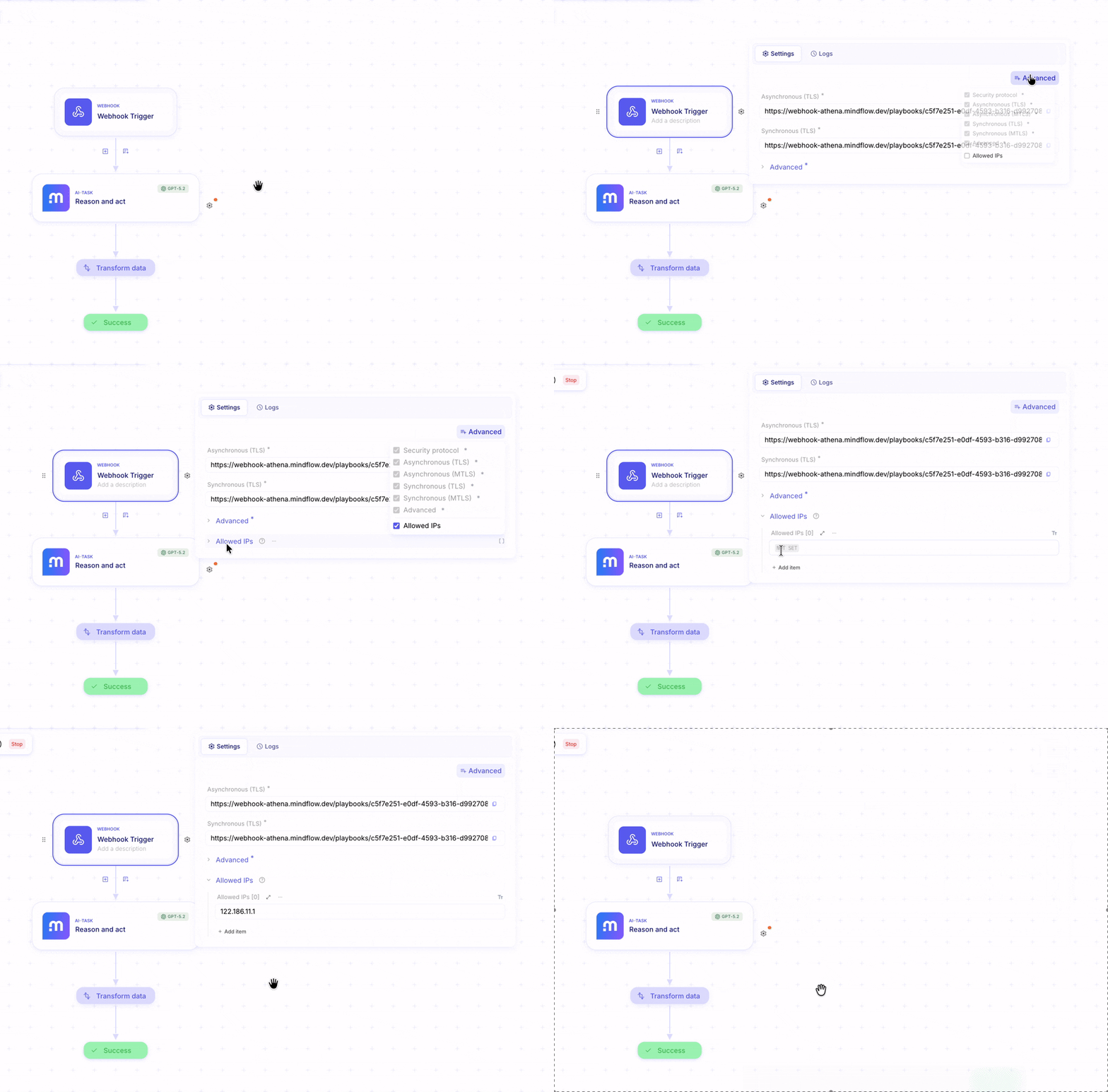
Add addresses. Enter the IPs or CIDR ranges that should call this webhook, then save the flow and deploy when callers should use the new list.
Example
Section titled “Example”A partner SIEM always egresses from 203.0.113.0/24. An admin adds that CIDR under Organization → IP addresses
allowed to trigger webhooks. On the flow Ingest SIEM alert, the Webhook step Receive SIEM alert also lists
203.0.113.0/24 under Allowed IPs so only that range can hit this endpoint even if other org-approved networks
exist.
Keep in mind
Section titled “Keep in mind”- Prefer stable CIDR ranges when source addresses can change within a known network.
- Document why each entry exists so the next admin can remove stale ranges safely.
- Source IPs can change with NAT, VPN, or cloud egress — validate the address your caller actually presents.
- Organization and step lists are combined: the caller must be allowed at both levels when both are set.