

AI··QuickEdit: inline AI assistance
AI··QuickEdit adds an Ask control on step input fields in the designer. You describe what you need; Mindflow fills or rewrites the field inline. You can also use the sparkles control to let AI propose a valid value without a typed prompt. Screenshots on this page use a re-engagement email draft and a small Python script so you can see filled prompts and results.
When to use
Section titled “When to use”- You need draft copy, a script body, JSON shape, or a formula-friendly value inside a step field.
- Prefer AI··Build when you want AI to add or rearrange steps on the canvas, not fill one field.
- Prefer writing the field yourself when the value is a short known constant (an ID, a fixed path, or a credential reference).
Before you begin, open a flow in the designer where you can edit steps. AI··QuickEdit appears on supported fields when AI features are available for your organization.
Open Ask on a field
Section titled “Open Ask on a field”AI··QuickEdit lives on the field toolbar, not in the Add a step menu. Focus the field first so Ask and the sparkles control appear.
Open the step. Select the step that holds the field you want to fill (for example a Transform data variable, an email body, or a Script step source field).
Focus the field. Click into the text, formula, or code input.
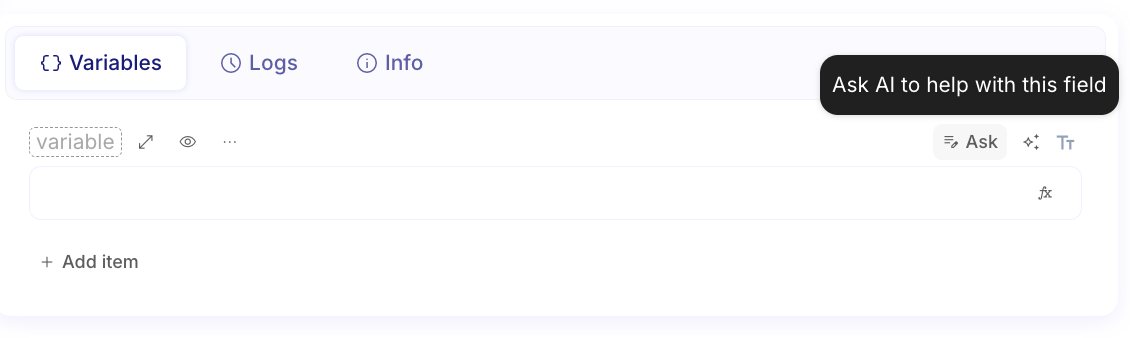
Click Ask. Use Ask (tooltip: Ask AI to help with this field) to open the prompt bar. Optionally use the sparkles control to auto-fill without typing a prompt.
Describe what you need
Section titled “Describe what you need”The prompt bar accepts a short instruction. Pick a model if more than one is offered. Generation streams into the field as it runs—there is no separate Apply step.
Write the prompt. Describe the outcome (tone, format, language, or constraints). Example: a polite follow-up email, or a Python snippet that returns random numbers.
Choose a model. Use the model menu under the prompt when you need a specific vendor model.
Submit. Send the prompt. Wait until generation finishes. Edit the field by hand if you need small changes, or update the prompt and submit again to regenerate.
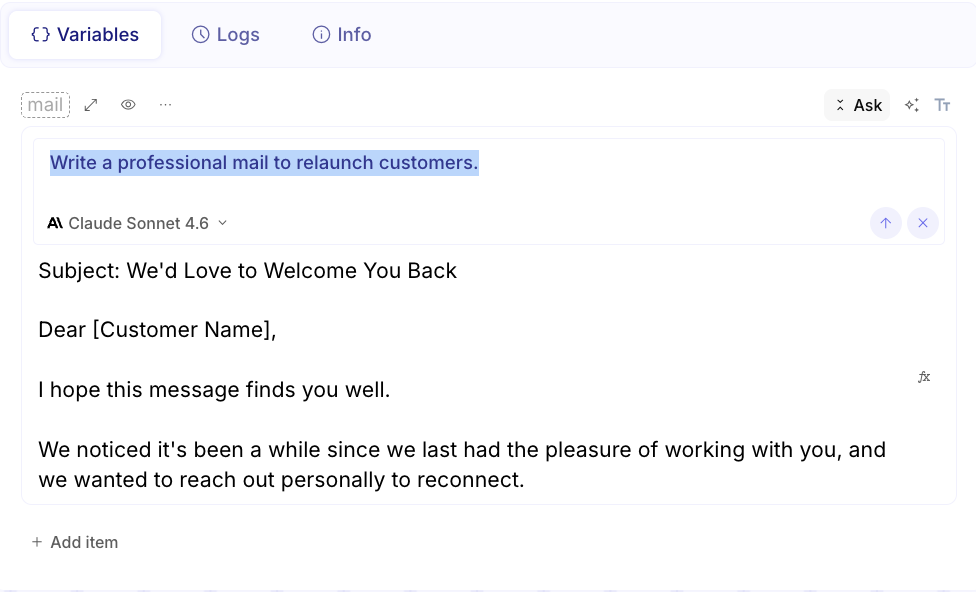
Close the prompt bar. Use the close control when you are done. The field keeps the last generated (or edited) value.
Use QuickEdit on scripts and structured fields
Section titled “Use QuickEdit on scripts and structured fields”The same Ask path works on script source and other structured inputs. State the language and what the script should return so the result matches the step.
Open the Script (or similar) step. Focus Source code (or the target structured field).
Ask for the snippet. Prompt with language and behavior (for example Python that returns random integers).
Review the code. Confirm imports, return shape, and any
mindflow_datausage match how the step runs. Adjust by hand or regenerate.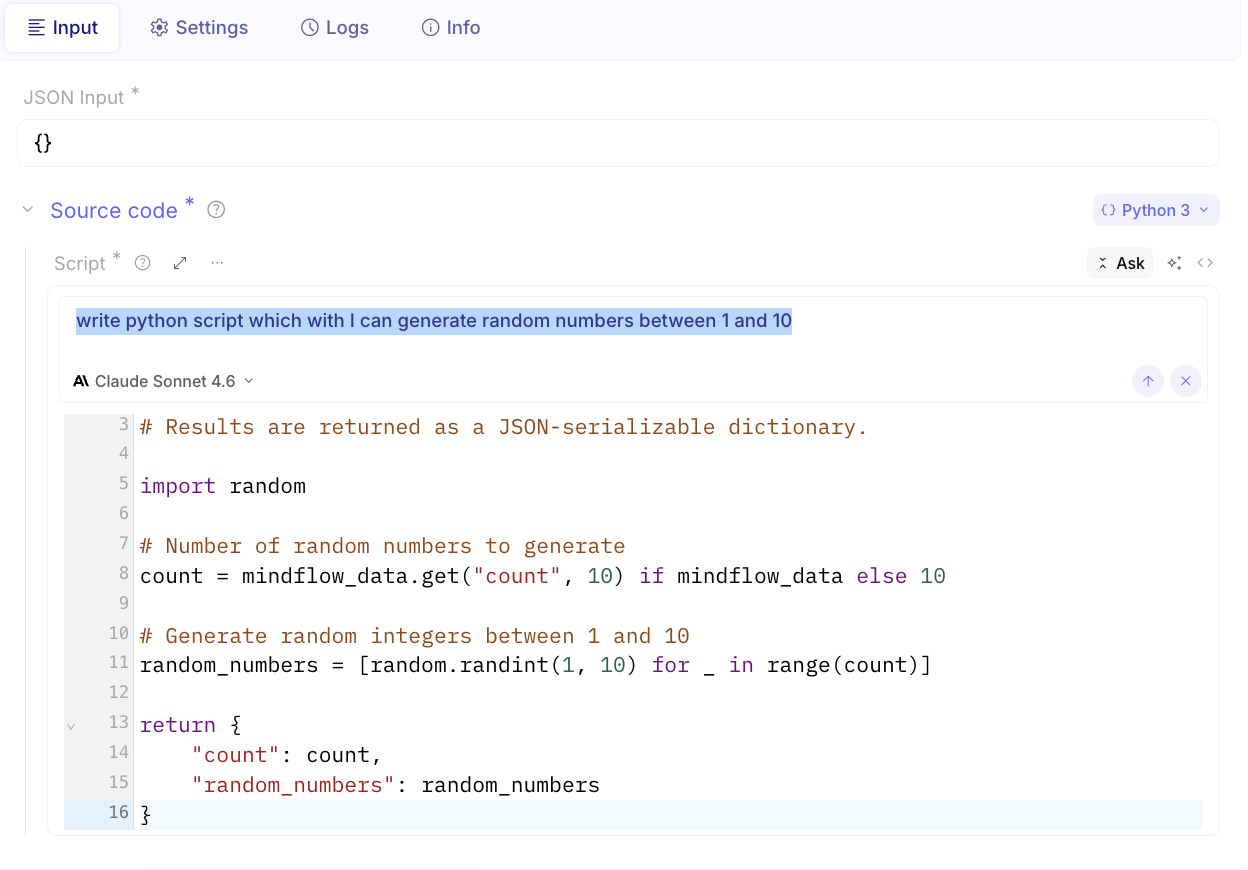
Example
Section titled “Example”An operator builds a light re-engagement path. On a Transform data (or mail) field they open Ask and prompt:
Write a professional mail to relaunch customers. AI··QuickEdit fills a subject and body they can edit. On a Script
step they prompt for Python that returns random integers between 1 and 10, review the generated source, then keep the
field and continue the flow.
Keep in mind
Section titled “Keep in mind”- Generation writes directly into the field. Review before you run or deploy.
- You can regenerate as often as you need; each submit replaces the previous AI draft in that field.
- Sparkles auto-fill proposes a valid value without a custom prompt—still review the result.
- AI··QuickEdit does not add steps or change the canvas layout; use AI··Build for that.
Related
Section titled “Related”Design your flow · AI··Build: Faster flow creation · Run a script · No-Code best practices