

MCP Client
Model Context Protocol (MCP) lets a flow talk to an external MCP server over Streamable HTTP. In Studio, the primary path is the MCP (Beta) integration: one step lists tools, another calls a named tool with JSON arguments. You can also build an AI··Task-based MCP expert that drafts JSON-RPC and posts it over HTTP when the model must discover and choose tools dynamically. Screenshots on this page illustrate the AI··Task swarm pattern for GitHub-style MCP servers.
When to use
Section titled “When to use”- You need to call tools on a remote MCP server (for example GitHub MCP) from a flow.
- Prefer List tools / Call a tool under MCP (Beta) when you already know the tool name or want a fixed step graph.
- Prefer the AI··Task MCP expert pattern when the model must discover capabilities and build JSON-RPC itself.
- Prefer Call native integrations for vendors that already have a Mindflow native connector instead of going through MCP.
- This page is outbound MCP (Mindflow calls an external server). Inbound Platform MCP (external clients call your credentials) is configured from the credential’s MCP connection panel—not covered here.
Before you begin, enable MCP (Beta) under Integrations · Mindflow, and create a Connection credential whose Custom URL is the upstream MCP Streamable HTTP endpoint. Configure auth on that credential the way the MCP server requires (often an HTTP bearer token).
Create the MCP Connection credential
Section titled “Create the MCP Connection credential”Outbound MCP steps authenticate with a Connection credential that points at the remote server URL.
- Open Environments. Open the environment that will run the flow, then choose Add credential.
- Choose Connection. Set the credential type to Connection, name it (for example
GitHub MCP), and set the target URL to Custom with your MCP server Streamable HTTP endpoint. - Add auth. Configure the credential’s HTTP authentication (for example bearer token) using values from the MCP server provider.
List MCP tools
Section titled “List MCP tools”List tools runs tools/list on the upstream server and returns tool names and schemas. Use it in setup flows, before
a dynamic Call a tool, or when you need to branch on available tools.
- Enable MCP (Beta). On Integrations, open the Mindflow vendor group and enable MCP (Beta) if it is not already on. See Call native integrations.
- Add List tools. In the designer, open Add a step, choose Integrations, then MCP (Beta) → List tools.
- Bind the credential. Select the Connection credential that points at your MCP server.
- Run and read the result. Use the returned tool list in later steps or to confirm the server exposes the tool you need.
Call an MCP tool
Section titled “Call an MCP tool”Call a tool runs tools/call for one tool name with a JSON arguments body. Timeout and upstream auth follow the
Connection credential (default upstream HTTP timeout is 30 seconds).
- Add Call a tool. Under MCP (Beta), add Call a tool.
- Set the tool name. Enter the exact tool name from List tools (or a known name from the server docs).
- Pass arguments. Provide the JSON object the tool expects, or
{}when it takes no arguments. - Bind the same credential. Use the Connection credential for that MCP server, then run and map the result into downstream steps.
Build an AI··Task MCP expert (optional)
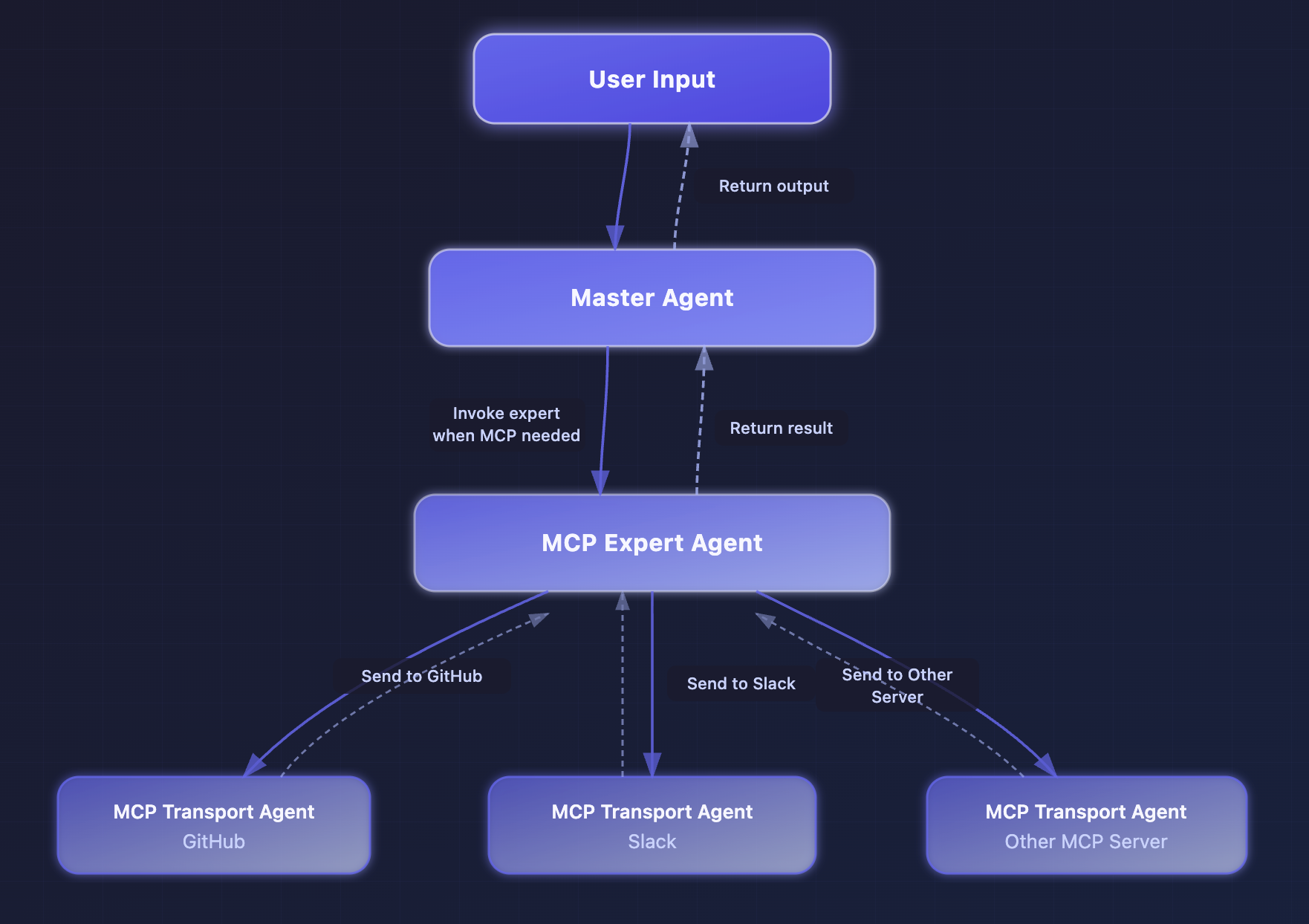
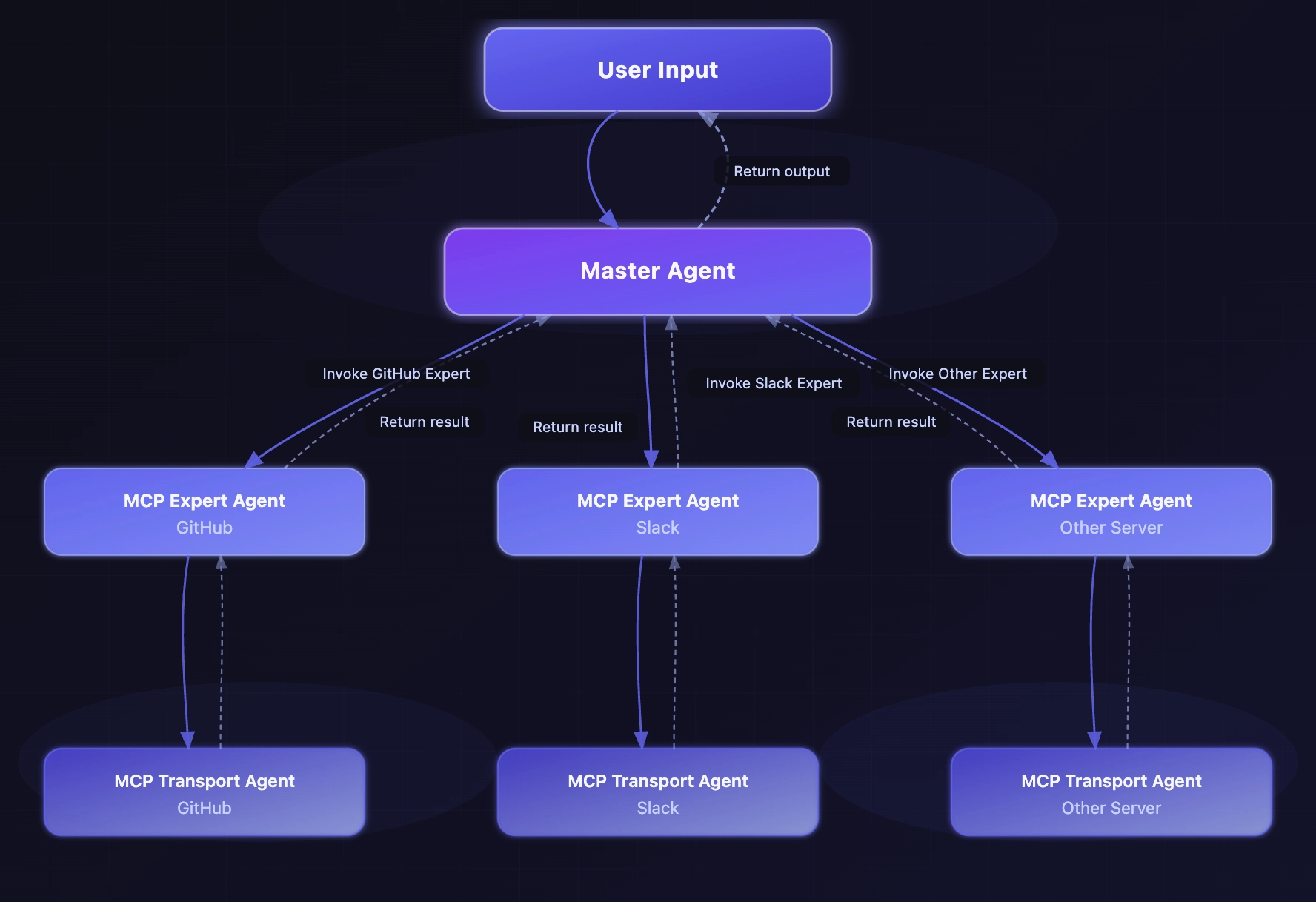
Section titled “Build an AI··Task MCP expert (optional)”When the model must translate a natural-language action into JSON-RPC and pick a transport, use a small swarm: a master AI··Task, an MCP expert agent, and one MCP transport agent per server. Templates are available in the use case library (MCP expert, MCP transport).
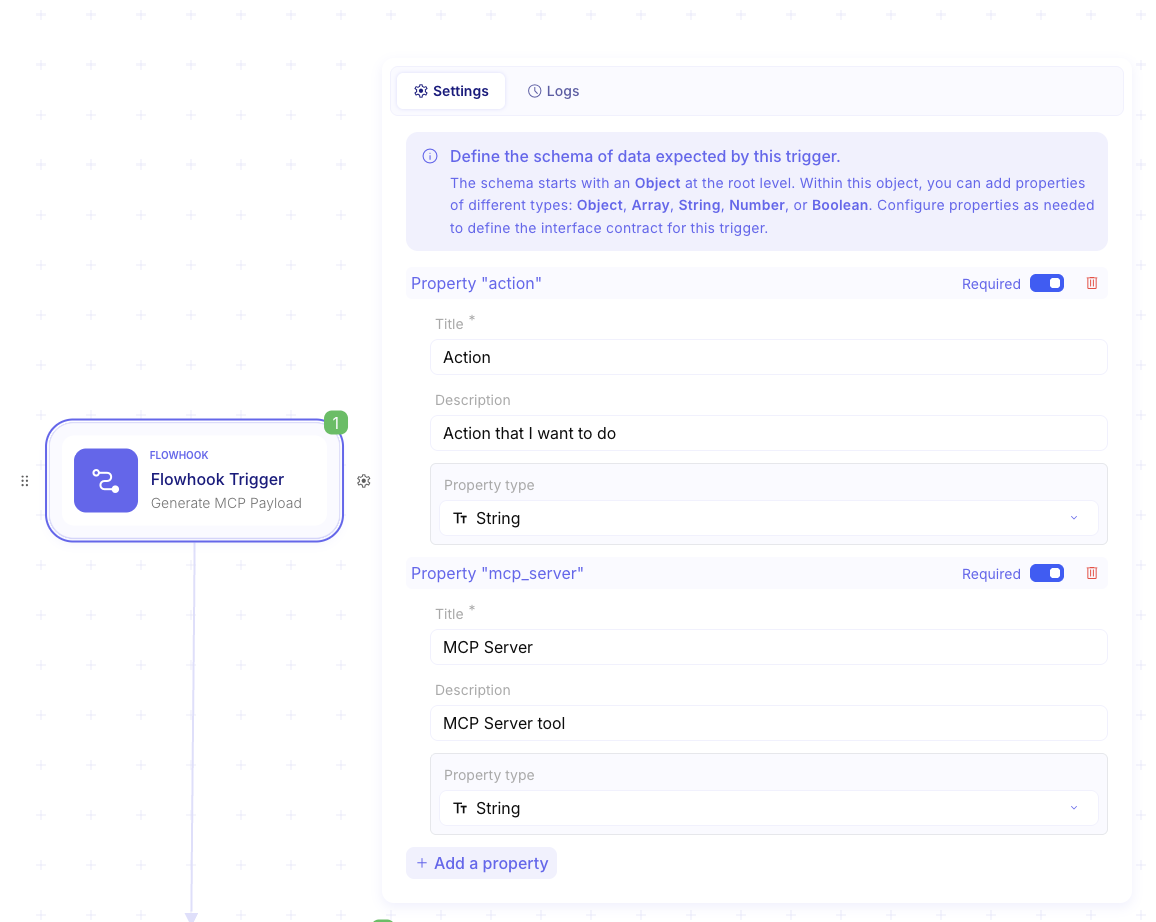
Create the MCP expert flow. Add a Flowhook with fields for the action and target MCP server.
Add an AI··Task with an MCP protocol prompt. Instruct the model to discover tools, select one, and return only a JSON-RPC payload (no markdown).
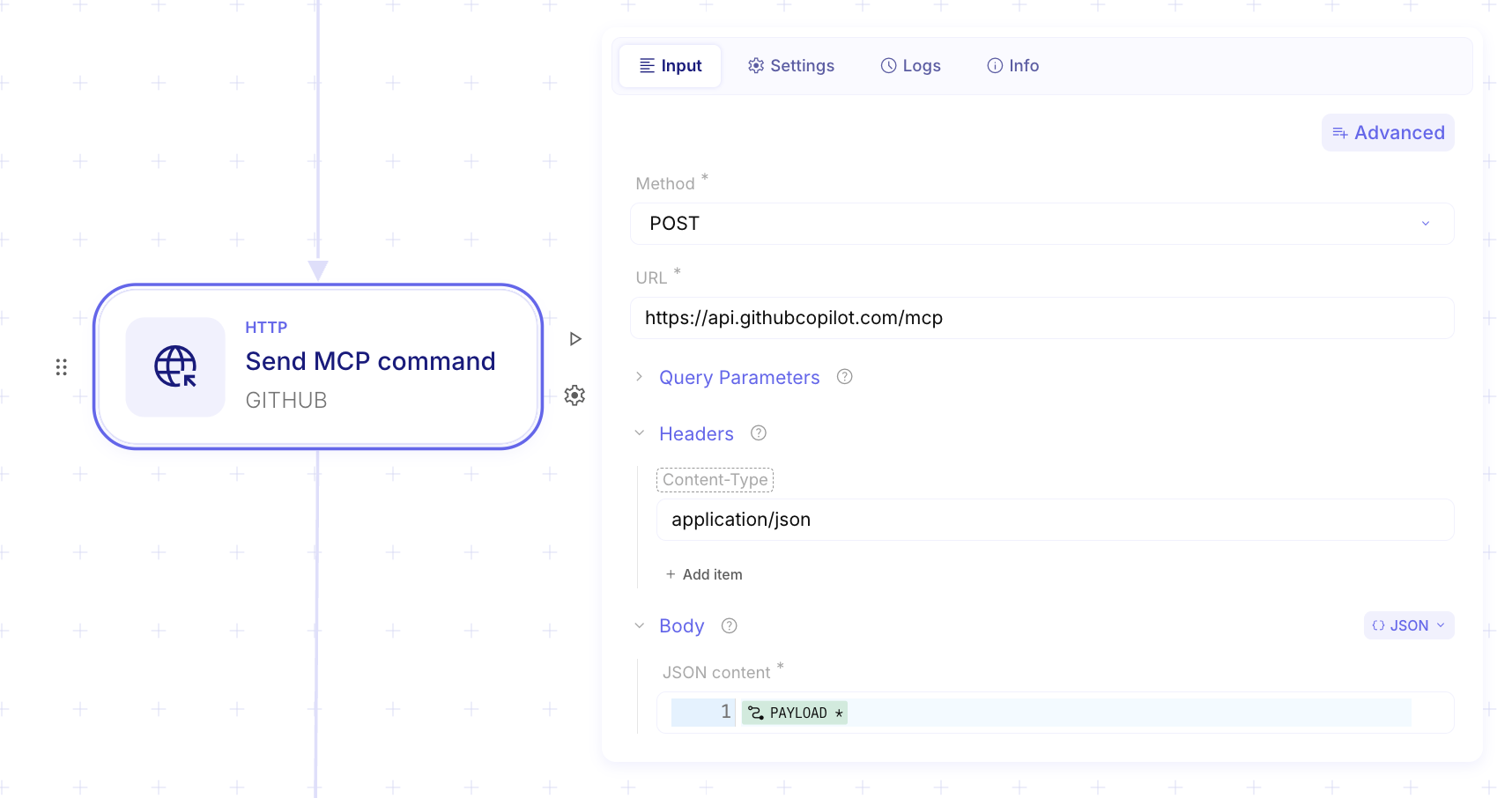
Input #RoleYou are an MCP-orchestrating agent. Process user prompts, determine required actions, select the correct MCP server,and execute the appropriate tools.#Step 1: Parse the user promptExtract: Required Action, Required Data, and Target MCP Server.#Step 2: Validate server availabilityIf no server is found, return: {"error": {"code": "MCP_SERVER_NOT_FOUND"}}.#Step 3: MCP Protocol lifecycle1. Discover capabilities: list mandatory tools.2. Select the correct tool: validate inputs against the discovered schema.3. Call the tool: generate the correct JSON-RPC payload.#OutputReturn ONLY a JSON object with the result. No markdown, no prose.Create the MCP transport flow. Flowhook accepts the payload. Add an HTTP Request (
POSTto the MCP endpoint, body = payload), bind an HTTP credential, and end with Success returning the HTTP response body.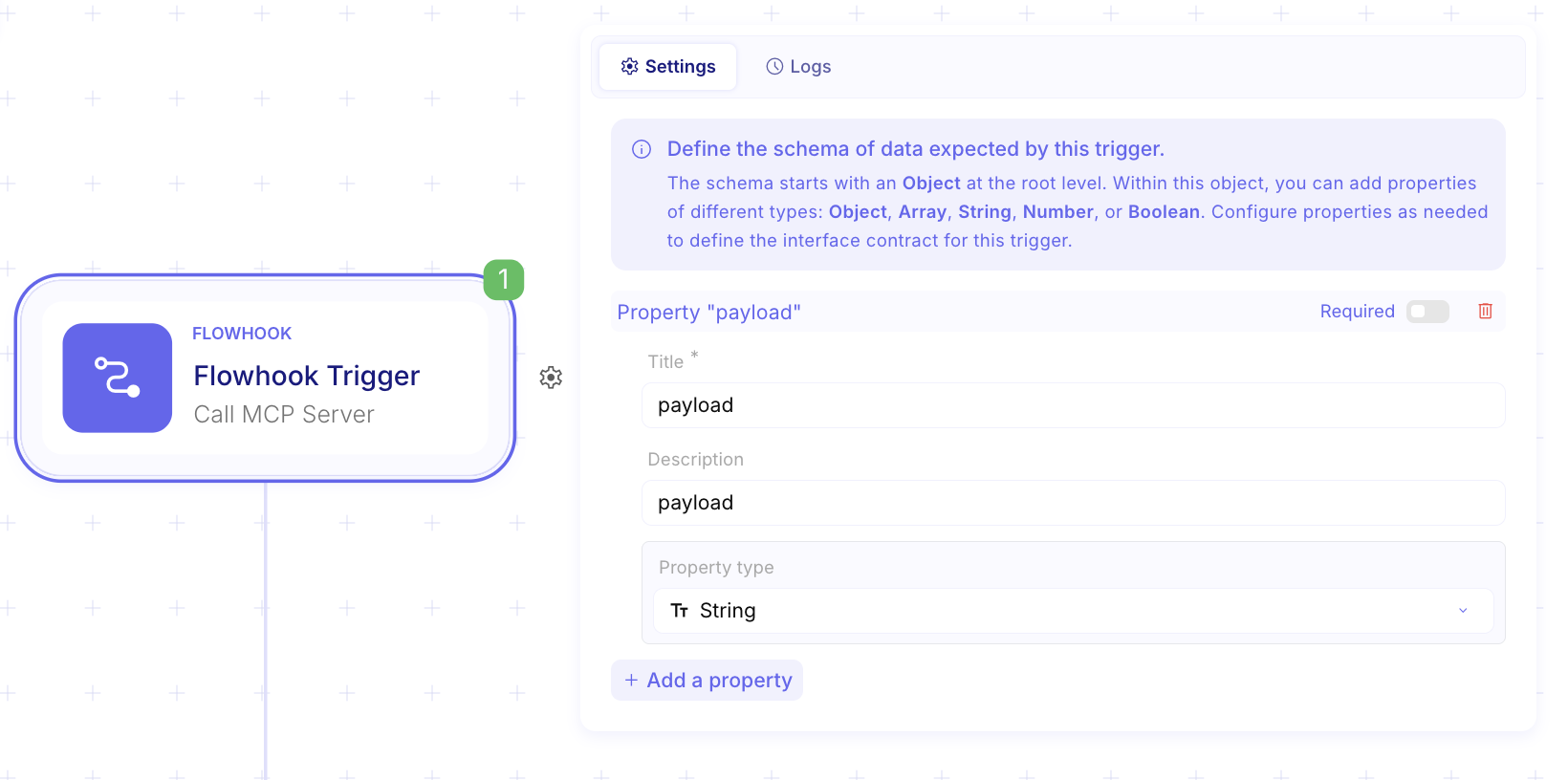
Wire the master AI··Task. Attach the expert (and transports) on Agents, and point
#RESOURCESat the user action and target server. See AI··Task: Prompt guidelines and Use AI··Agent.
Example
Section titled “Example”Fixed Call a tool
Section titled “Fixed Call a tool”You already know the GitHub MCP tool name. Create a Connection credential for the GitHub MCP URL, add Call a tool, set the tool name and arguments (for example repository and issue filters), run once, then map fields into an AI··Task that drafts a triage summary.
Multi-server swarm
Section titled “Multi-server swarm”For several MCP servers, keep one transport agent per server and let the master AI··Task choose among specialized expert bundles so each expert only sees one server’s schema.
Keep in mind
Section titled “Keep in mind”- Each MCP (Beta) step performs one MCP JSON-RPC action (
tools/listortools/call). - Upstream timeout defaults to 30 seconds per request; plan retries in the flow when servers are slow.
- Parallel branches that share one Connection credential may open concurrent upstream sessions—respect the MCP server’s rate limits.
- Training Stage 4 walks a GitHub triage lab that uses the AI··Task MCP agent pattern: Stage 4 - MCP Client.