

Activate an integration
An integration is the connector between Mindflow and a third-party service. On the Integrations page you find a vendor, open its services, and turn on the ones your flows need so steps and triggers can call that tool.
When to use
Section titled “When to use”- You need a step or trigger that calls an external vendor and the service is not activated yet.
- Prefer Create and manage credentials when the connector is already on and you only need to store secrets in an environment.
- Prefer Call native integrations when you are ready to add an activated service as a flow step.
- Prefer Send raw HTTP requests for a private or custom endpoint that is not in the catalog.
Before you begin, confirm you can open Studio and activate integrations for your organization. Know the vendor and service you need (for example Amazon AWS and DynamoDB).
Open Integrations and find a vendor
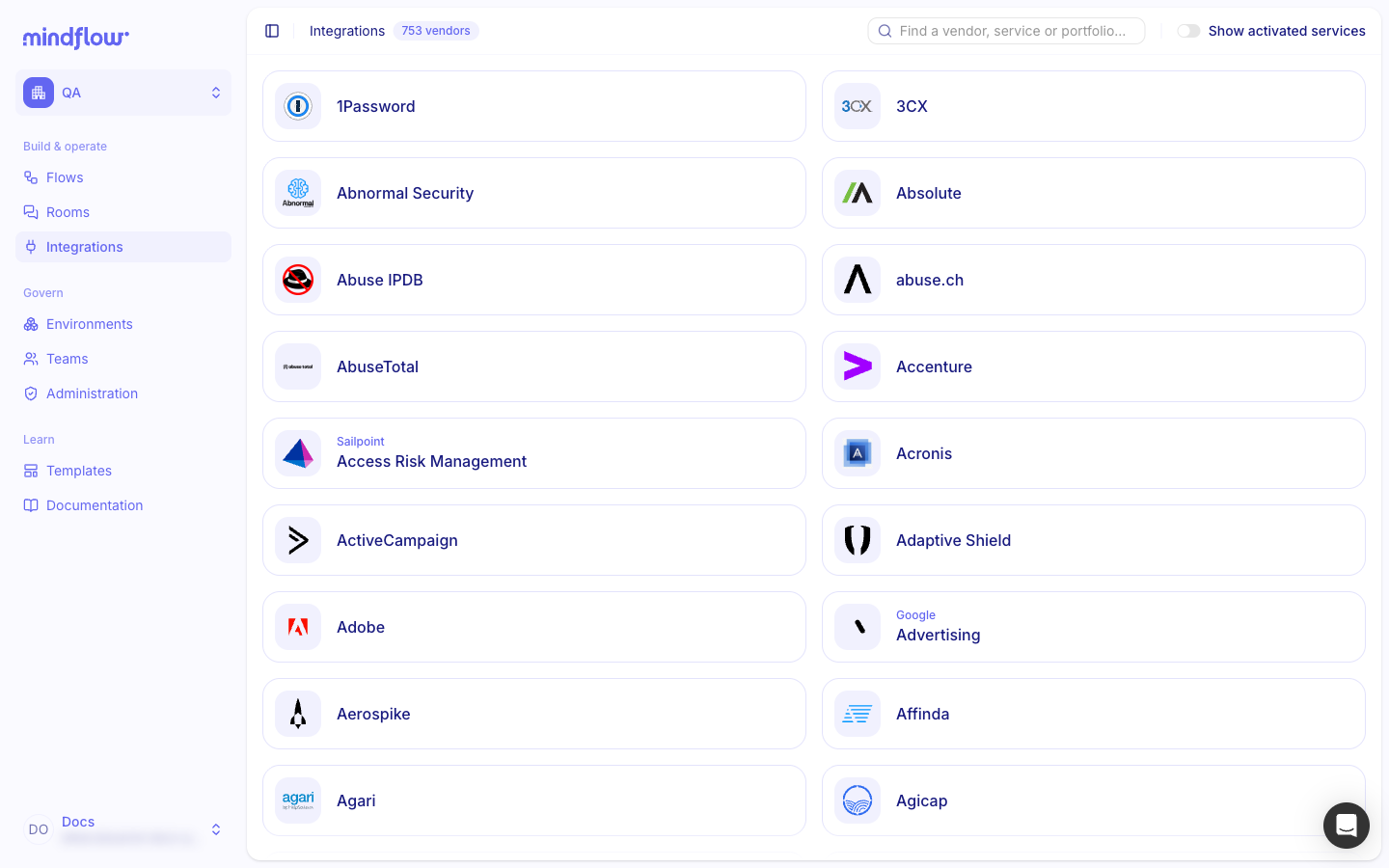
Section titled “Open Integrations and find a vendor”The Integrations page lists vendors in the catalog. Search narrows the list so you can open the vendor that owns the service you want.
-
Open Integrations. In the Studio sidebar, choose Integrations.
-
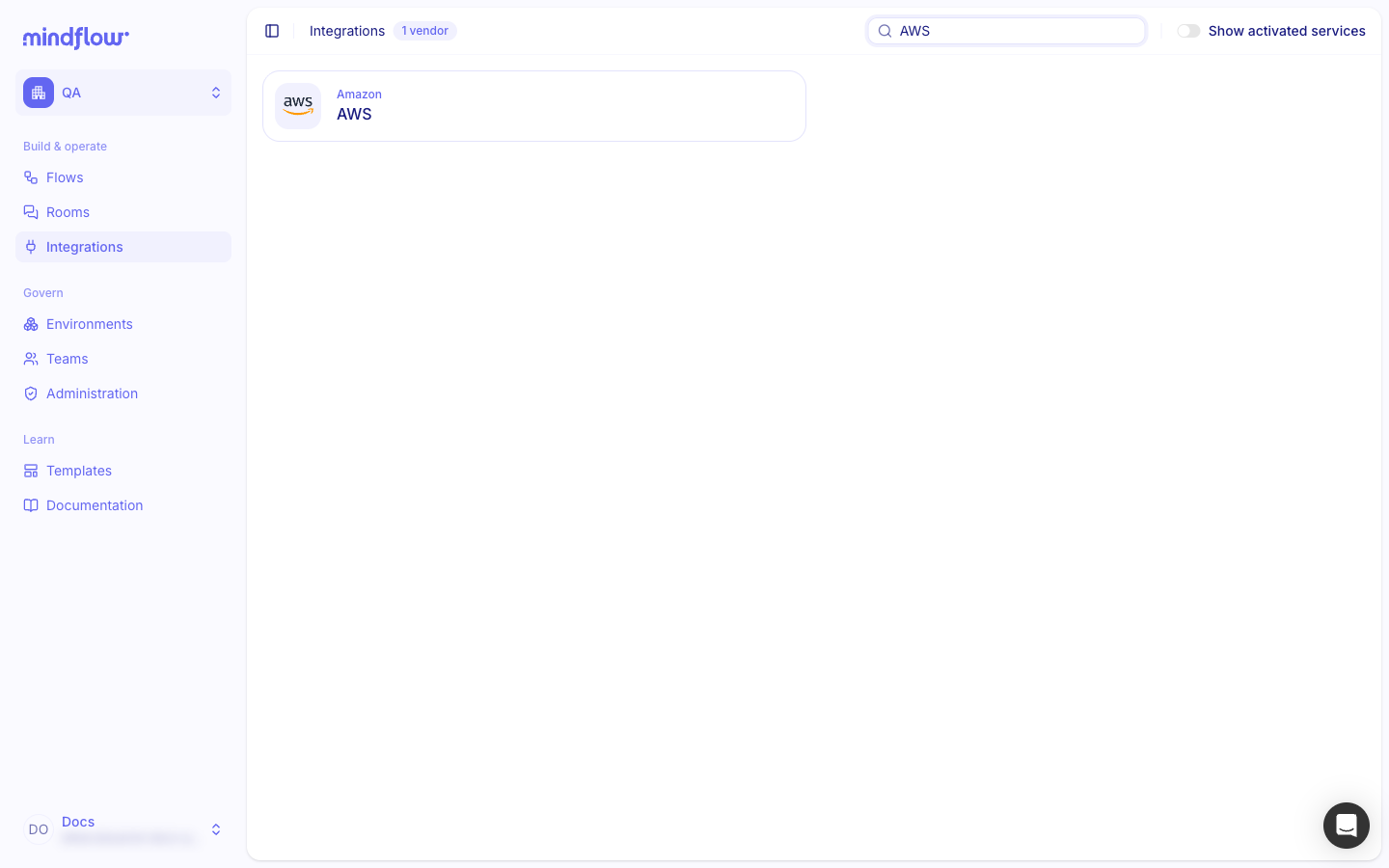
Search for the vendor. In Find a vendor, service or portfolio…, type the vendor name—for example AWS—then open the matching card (for example Amazon AWS).
Activate a service
Section titled “Activate a service”Each vendor page lists Native integrations (and HTTP presets when Mindflow does not yet ship a native connector). Turning a service on makes it available for credentials and for Add a step.
-
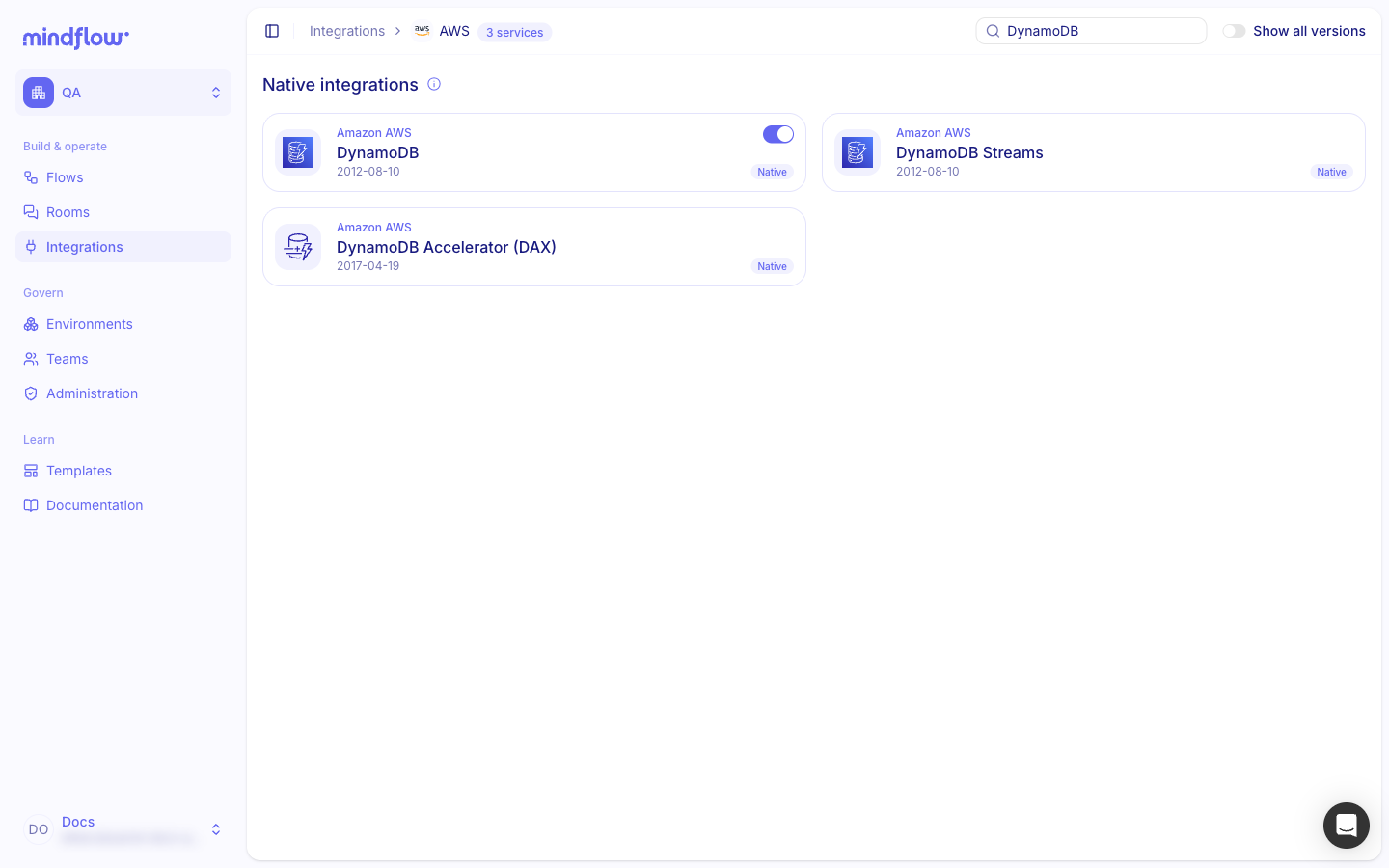
Find the service. On the vendor page, search or scroll to the service—for example DynamoDB under Amazon AWS. Use Show all versions when you need an older API version instead of the default.
-
Turn the service on. Use the switch on the service card. Prefer a Native service when one exists for the same job.
-
Create the credential next. In an environment, add a credential for that service, then select it on the step. See Create and manage credentials.
Example
Section titled “Example”A builder enables DynamoDB under Amazon AWS so a later flow can read inventory rows from DynamoDB.
- Open Integrations and search AWS. Choose Integrations, type AWS, and open Amazon AWS.
- Activate DynamoDB. On the vendor page, find DynamoDB under Native integrations and turn the switch on.
- Add the credential in Docs. In the Docs environment, create an AWS credential for that service, then attach it on the DynamoDB step when you design the flow.
Keep in mind
Section titled “Keep in mind”- Environments: Credentials live at the environment level. Two environments can use the same vendor with different accounts or permissions. Access to credentials follows who can access that environment.
- Catalog search: If you cannot find a vendor, check spelling and confirm the connector exists in the catalog.
- Steps still fail after activation: Confirm the credential exists in the same environment as the deployment, and that the external account has the required permissions (API scopes, IAM rights, and similar).
- Authentication errors: Rotate or recreate the credential, and confirm the vendor has not blocked the app or token.
Related
Section titled “Related”- Create and manage credentials — store secrets in an environment after you activate a service.
- Call native integrations — add an activated service as a flow step.
- Environments — execution context for credentials and deployments.
- Plan before you build — list the tools to activate before you design.