

Lesson #4: Triage issues with MCP
After linear flows, loops with tool calls, and modular subflows, unlock agentic automation with the MCP Client.
In this lesson, you will learn what the Model Context Protocol (MCP) is, how Mindflow implements it, and how to build a workflow that interacts with GitHub’s MCP server to automatically fetch, analyze, and triage open issues.
The Use Case: Automated GitHub Issue Triage
Section titled “The Use Case: Automated GitHub Issue Triage”The Scenario: Every morning, your flow will connect to the GitHub MCP server to list the latest open issues from the SigNoz/signoz repository — a popular open-source observability project with hundreds of active issues. For each issue, an AI··Task will analyze the content and produce a structured triage summary (suggested priority, category, and recommended next action). The result will then be posted as a comment on a test repository you own, simulating what a real triage bot would do on your team’s repo.
By the end of this lesson, you will have built a fully agentic MCP-powered workflow that reads from a public GitHub repo and writes to your own.
What is MCP?
Section titled “What is MCP?”MCP stands for Model Context Protocol. It is an open standard that allows AI models to interact with external tools and services in a structured, reliable way — using a protocol called JSON-RPC 2.0.
Instead of hardcoding API calls manually, MCP lets an AI··Agent discover what tools a server exposes, select the right one for the job, and call it with the correct parameters — all dynamically.
In Mindflow, acting as an MCP Client requires two components:
- The MCP Agent — an AI··Task that translates a plain-language instruction into a valid JSON-RPC 2.0 payload, then sends it to the MCP server via an HTTP Request and returns the response.
- The Main Flow — the orchestrator that calls the MCP Agent, processes the results, and triggers follow-up actions.
This two-flow design is clean, maintainable, and perfectly suited for workflows targeting a single MCP server. If you ever need to interact with multiple MCP servers (GitHub + Notion + Slack), you can extend it by creating one MCP Agent per server and adding a Master Agent to orchestrate them — as described in the Mindflow MCP documentation.
Prerequisites
Section titled “Prerequisites”- Completion of Lesson #1, Lesson #2, and Lesson #3.
- A GitHub account (free).
- A GitHub Personal Access Token (classic) with the
reposcope. You can generate one at github.com/settings/tokens. - A test repository on your GitHub account (can be empty) where the flow will create issues and post triage comments.
Step 0: Setting Up Your GitHub Credentials in Mindflow
Section titled “Step 0: Setting Up Your GitHub Credentials in Mindflow”Before building the flow, you need to store your GitHub token securely in Mindflow. You will create two credentials using the same Personal Access Token, but configured differently — one for the MCP server, one for the GitHub REST API.
Navigate to Environments in Mindflow, open your Environment, and create the following two credentials:
Credential 1 — For the MCP Agent
Section titled “Credential 1 — For the MCP Agent”- Service: HTTP
- Credential name:
GitHub MCP - URL: Leave on
Any - Credential type: HTTP Bearer Token
- Token: Paste your GitHub Personal Access Token
Credential 2 — For direct GitHub REST API calls
Section titled “Credential 2 — For direct GitHub REST API calls”- Service: GitHub
- Credential name:
GitHub API - Token: Paste the same GitHub Personal Access Token
Step 1: Create the MCP Agent
Section titled “Step 1: Create the MCP Agent”The MCP Agent is the reusable core of this architecture. It takes a plain-language instruction, translates it into a valid JSON-RPC 2.0 payload using an AI··Task, sends it to the GitHub MCP server via an HTTP Request, and returns the response.
Create a new Flow named “MCP Agent - GitHub”.
Flowhook Trigger
Section titled “Flowhook Trigger”Add a Flowhook Trigger and define two input properties:
-
action— a plain-language description of what needs to be done (e.g., “List the 10 latest open issues from SigNoz/signoz”). -
mcp_server— the target MCP server URL (in our case:https://api.githubcopilot.com/mcp/).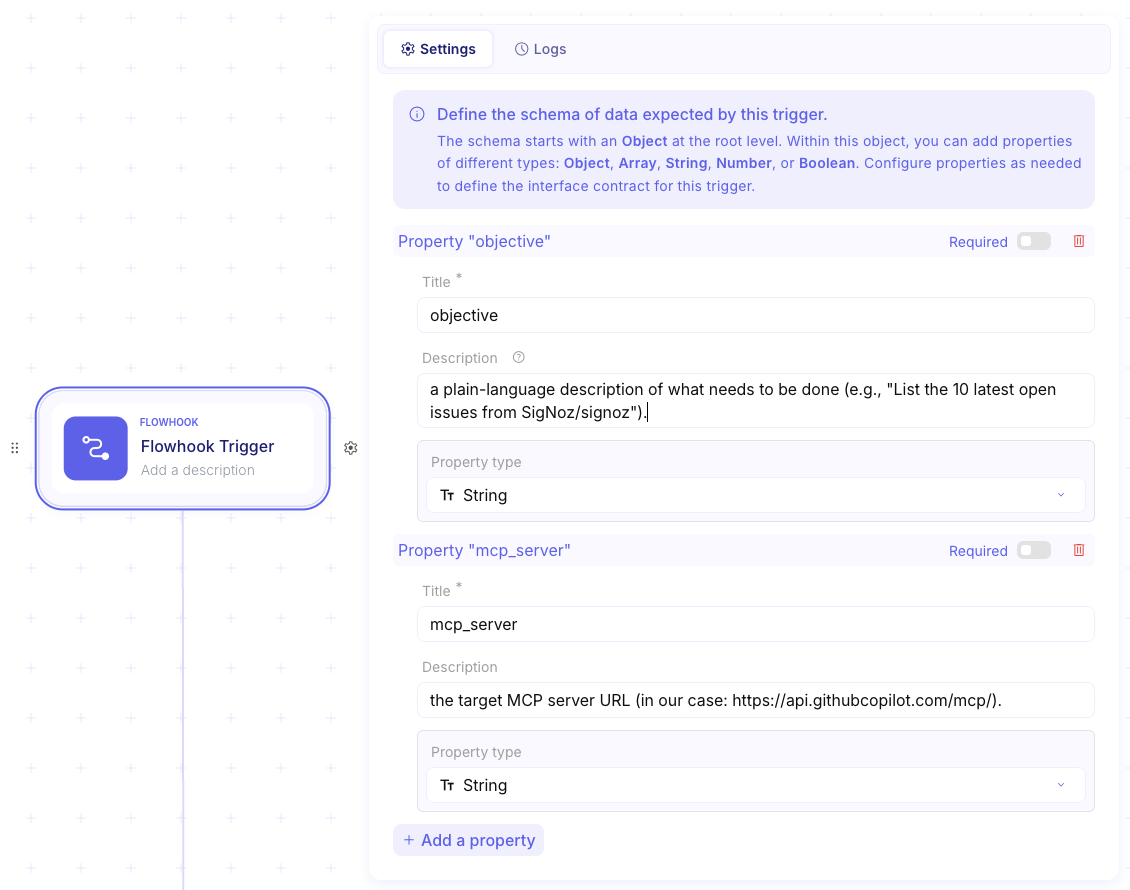
AI··Task — Generate the JSON-RPC payload
Section titled “AI··Task — Generate the JSON-RPC payload”Add an AI··Task and paste the following User Prompt:
## Role
You are an MCP Protocol Agent. Your sole responsibility is to translate a plain-language action into a valid JSON-RPC 2.0 payload that can be sent to a GitHub MCP server.
## Rules
- The `method` field must always be `"tools/call"`. Never use HTTP verbs (GET, POST, etc.) as method names.- For `add_issue_comment`, the `body` argument must be a plain string (the comment text). Never pass a JSON object or a serialized JSON string.
## Available tools on the GitHub MCP server (toolset: issues)
- `list_issues` — List and filter repository issues. Params: `owner` (required), `repo` (required), `state` (open/closed/all, optional), `per_page` (optional).- `issue_read` — Get details about a specific issue. Params: `owner` (required), `repo` (required), `issue_number` (required), `method` ("get" | "get_comments" | "get_labels", required).- `issue_write` — Create or update an issue. Params: `owner` (required), `repo` (required), `method` ("create" | "update", required), `title` (required for create), `body` (optional), `issue_number` (required for update).- `add_issue_comment` — Add a comment to an issue. Params: `owner` (required), `repo` (required), `issue_number` (required), `body` (plain string, required).
## Examples
## list_issues
{"jsonrpc": "2.0","method": "tools/call","params": {"name": "list_issues","arguments": {"owner": "SigNoz","repo": "signoz","state": "open","per_page": 10}},"id": "1"}
## issue_write (create)
{"jsonrpc": "2.0","method": "tools/call","params": {"name": "issue_write","arguments": {"owner": "jb-mindflow","repo": "Training---Stage-4","method": "create","title": "Issue title here","body": "Issue body here"}},"id": "2"}
## add_issue_comment
{"jsonrpc": "2.0","method": "tools/call","params": {"name": "add_issue_comment","arguments": {"owner": "jb-mindflow","repo": "Training---Stage-4","issue_number": 1,"body": "This is the comment text as a plain string."}},"id": "3"}
In the Settings tab of the AI··Task, set Output format to JSON. This ensures the agent always returns a valid JSON object without prose or markdown wrapping.
At the end of your User prompt, pass both Flowhook inputs using the Data Picker:
Action: {action}MCP Server: {mcp_server}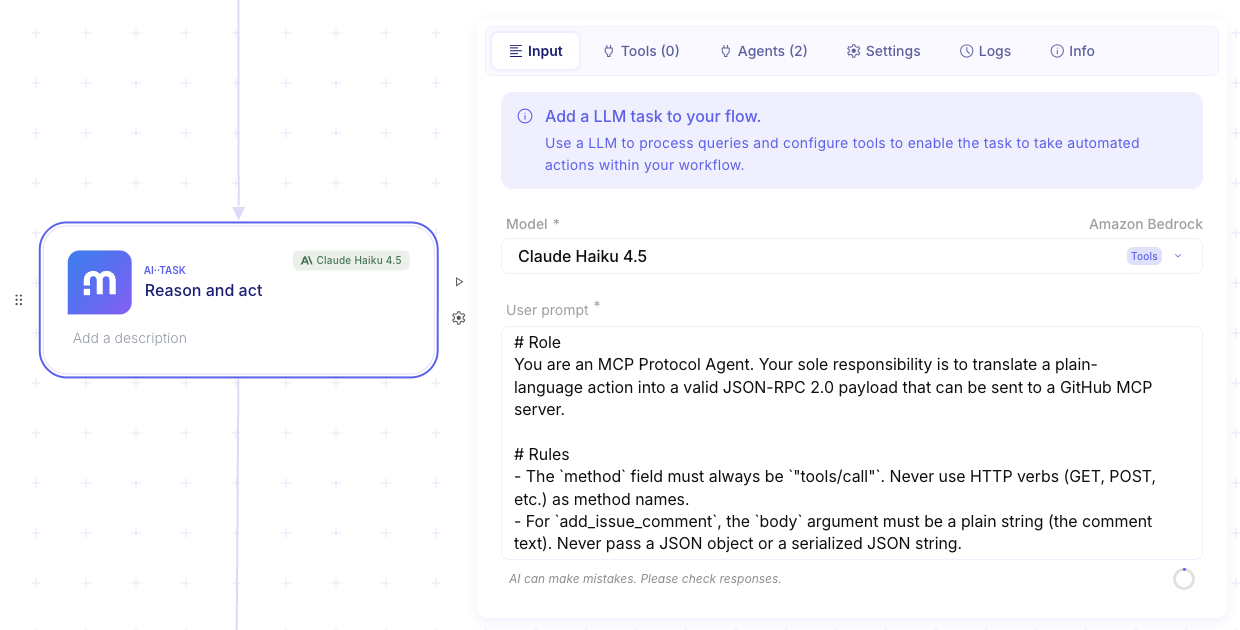
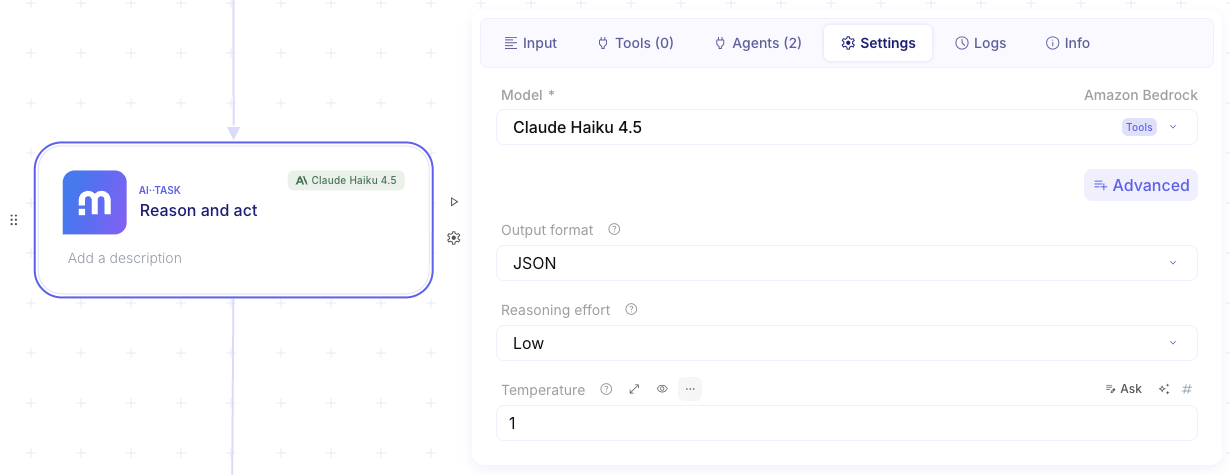
HTTP Request — Send the payload to the MCP server
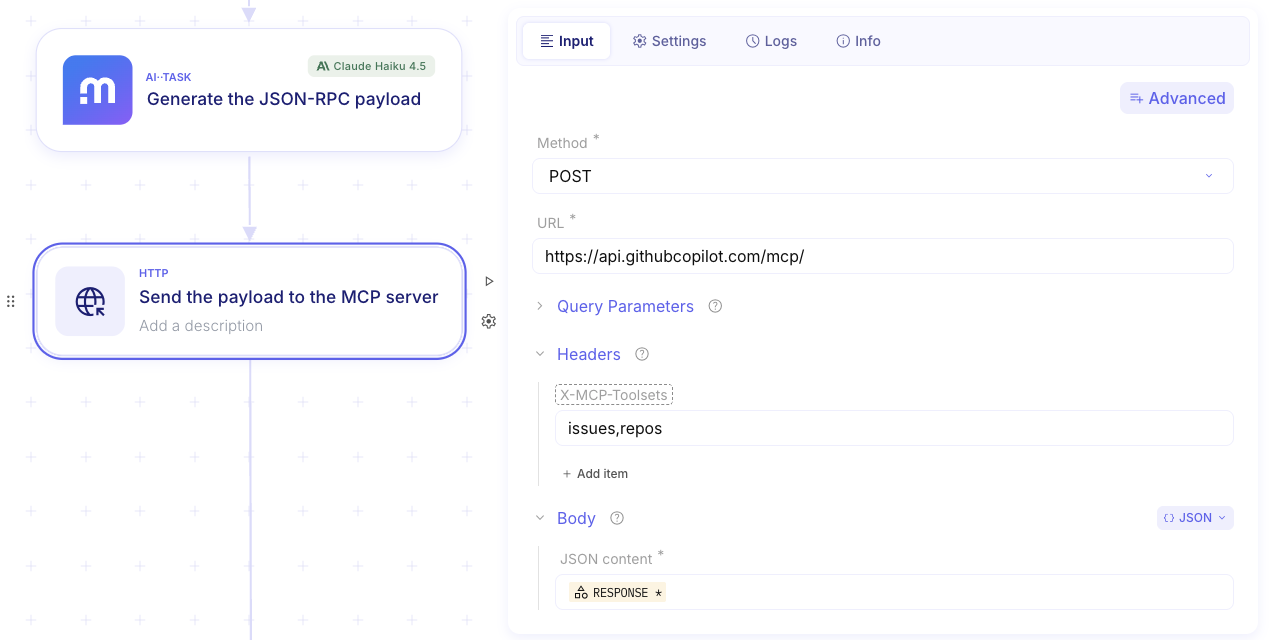
Section titled “HTTP Request — Send the payload to the MCP server”Add an HTTP Request step between the AI··Task and the Success step, and configure it as follows:
- Method: POST
- URL:
https://api.githubcopilot.com/mcp/ - Headers: Add the following header:
- Key:
X-MCP-Toolsets— Value:issues,repos
- Key:
- Body: Use the Data Picker to pass the
responseoutput of the AI··Task. - Credential: Select
GitHub MCP.
Success step
Section titled “Success step”Add a Success step at the end of the flow — but do not configure it yet.
First, execute a Dry-run of the HTTP Request step to generate a real JSON-RPC payload. Once the dry-run completes and a green pill appears, open the execution log to inspect the response from the GitHub MCP server.
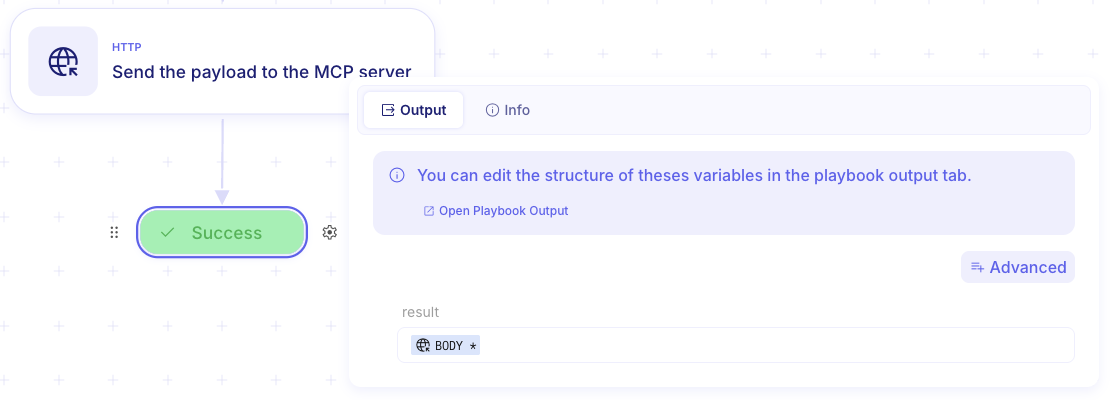
Now, configure the Success step: use the Data Picker to select the HTTP Request step, its last execution, and map the full response body. This ensures the MCP Agent returns the MCP server’s actual response to the main flow.
Step 2: Build the Main Triage Flow
Section titled “Step 2: Build the Main Triage Flow”Now that your MCP Agent is ready, it is time to build the main workflow that orchestrates everything end-to-end.
Create a new Flow named “GitHub Issue Triage”.
Trigger: Scheduler
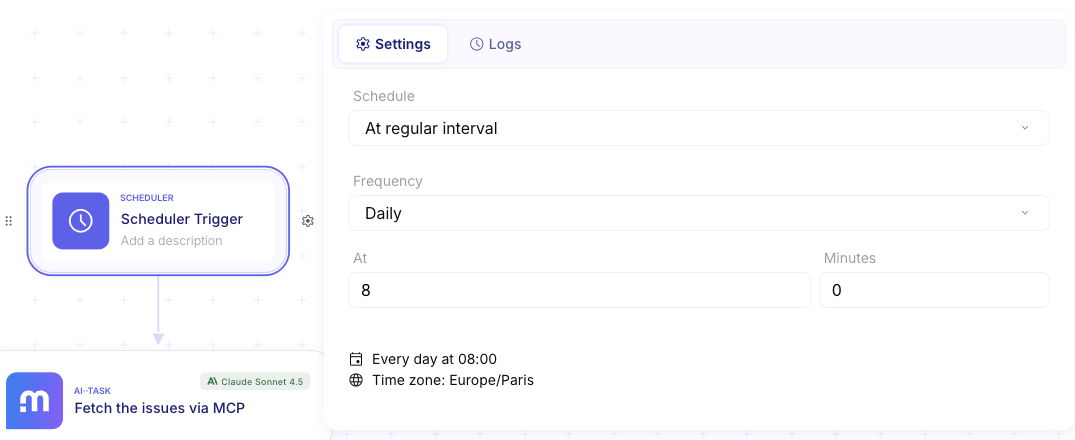
Section titled “Trigger: Scheduler”Add a Scheduler Trigger and set it to run every weekday (Monday to Friday) at 8:00 AM. Your team will start every morning with a fresh triage digest.
Fetch the issues via MCP
Section titled “Fetch the issues via MCP”Add an AI··Task step. Its role is to call the MCP Agent to retrieve the list of open issues from SigNoz/signoz.
User Prompt:
You are an orchestrator agent. Your only job is to call the MCP Agent - GitHub sub-agent with a precise action, then return its response as-is.
Always follow this exact process:
1. Call the sub-agent MCP Agent - GitHub.2. Pass it the action to perform and the target MCP server URL.3. Return the raw response from the sub-agent without any modification.
## Call the sub-agent MCP Agent - GitHub with the following inputs:
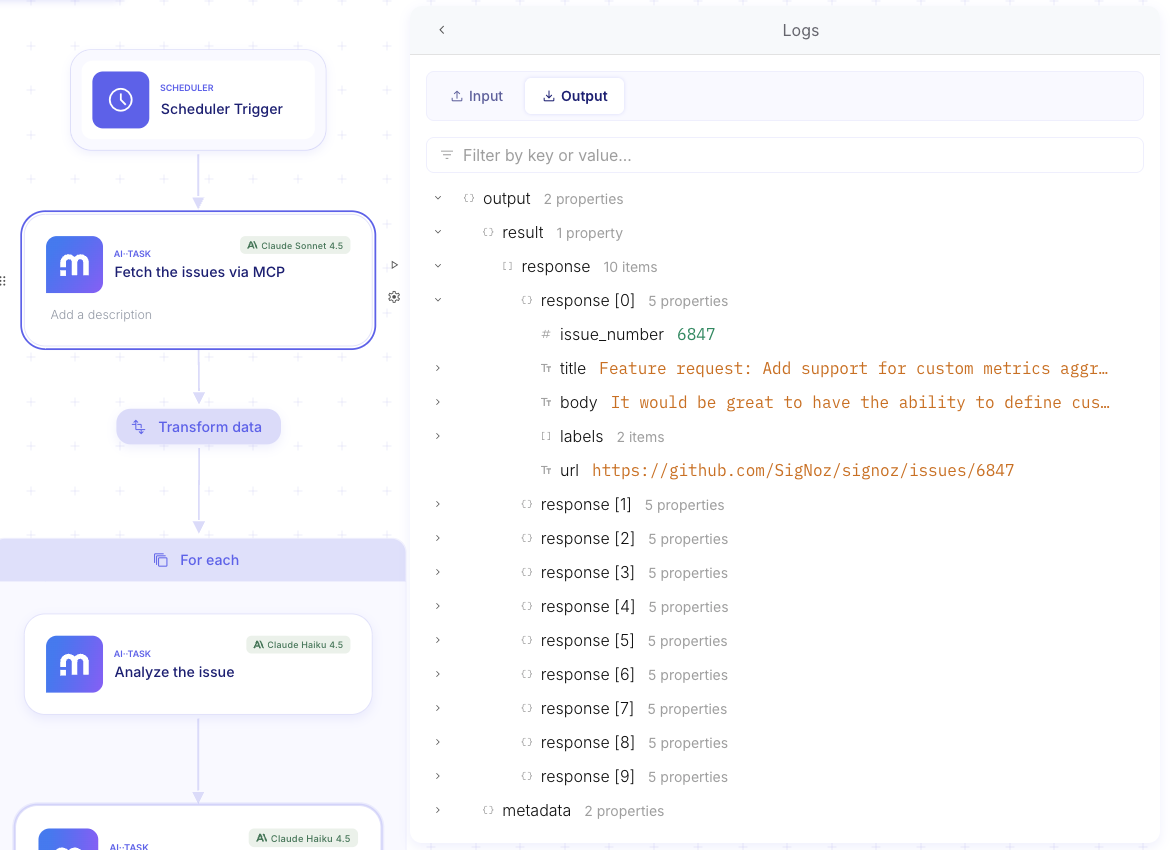
Action: List the 10 most recently opened issues from the GitHub repository SigNoz/signoz. For each issue, return: issue_number, title, body (truncated to 300 characters), labels, and url.MCP server: https://api.githubcopilot.com/mcp/
In the Agents tab, add MCP Agent - GitHub as a capability.
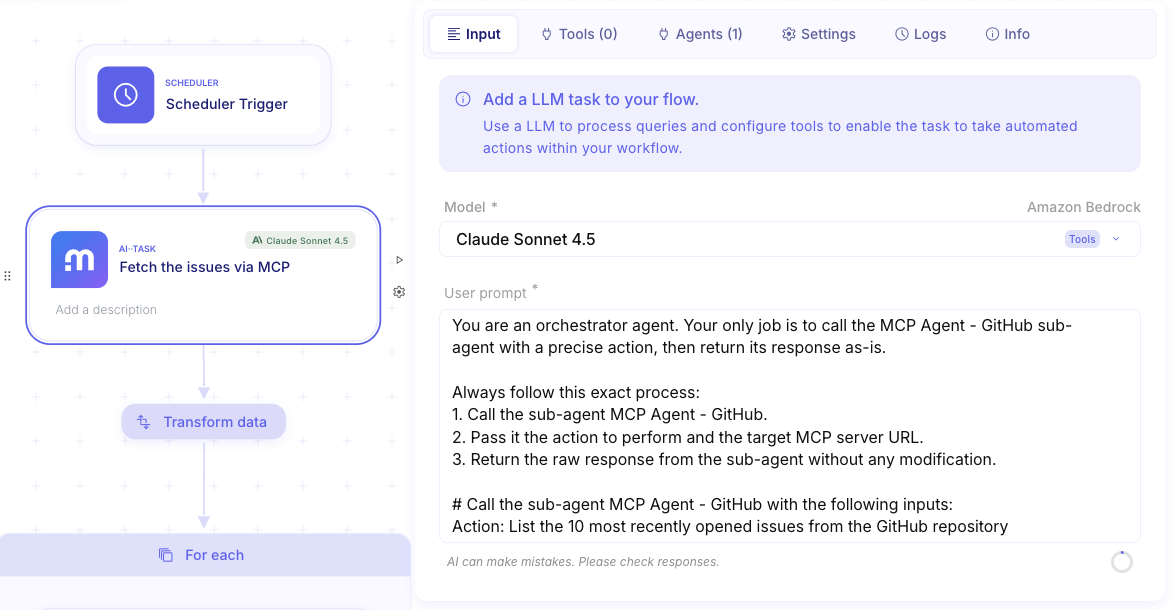
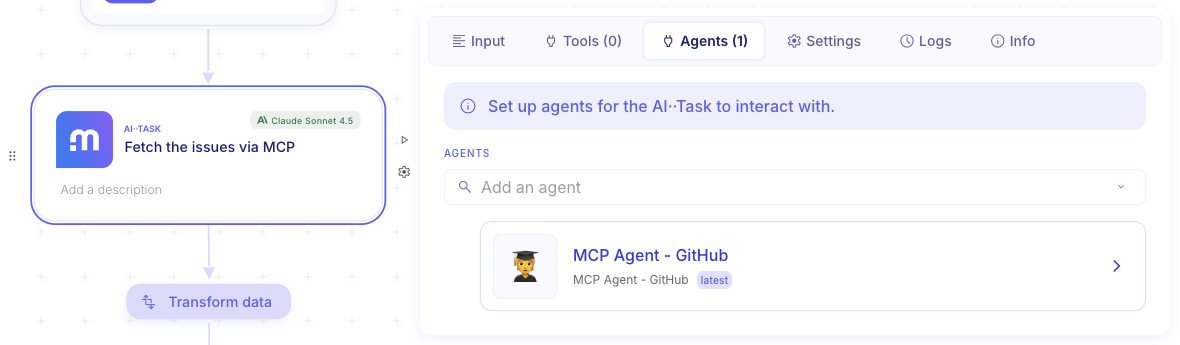
Dry-run this step. You should receive a JSON array of the 10 latest open issues from SigNoz/signoz.
Parse the issues
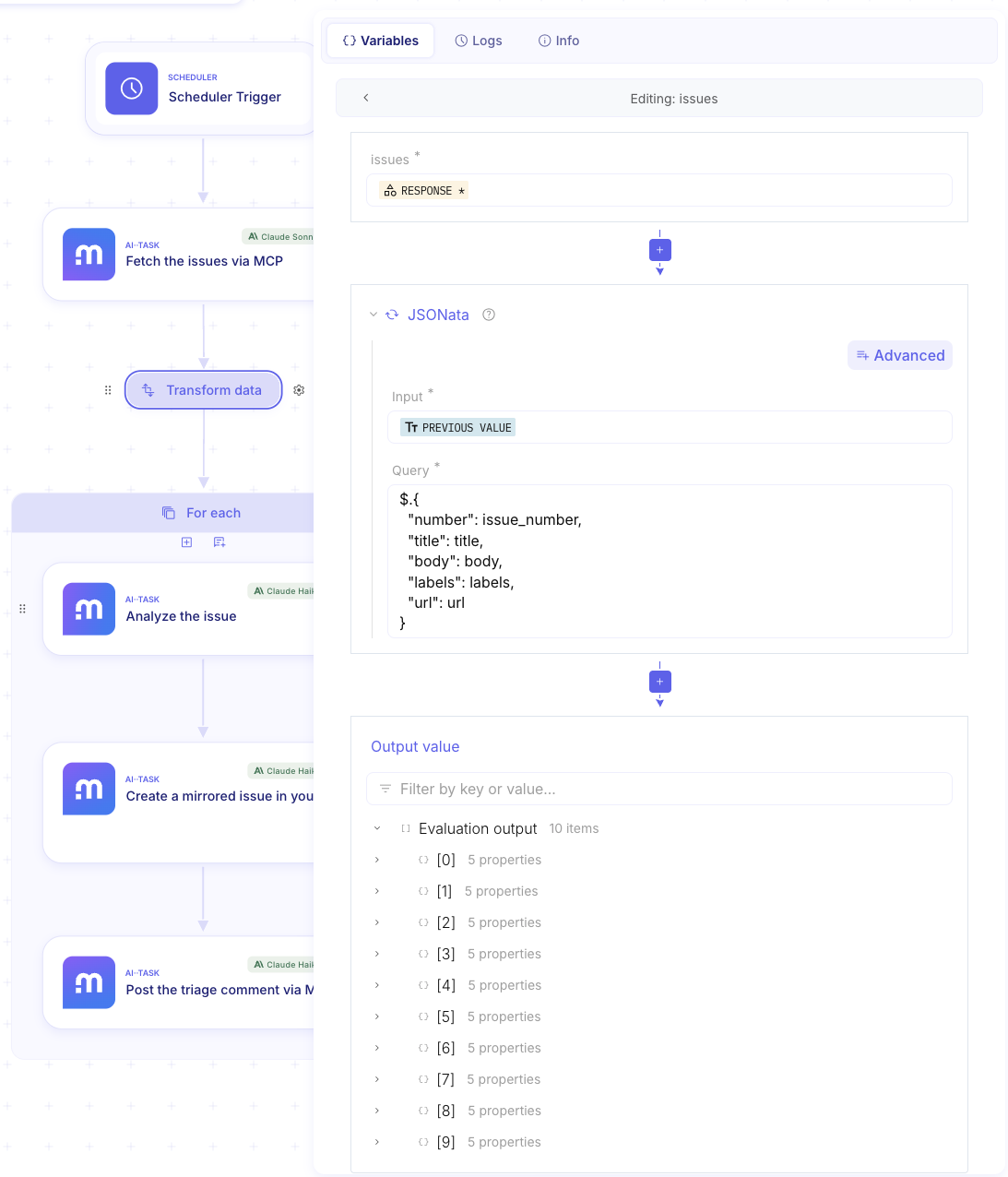
Section titled “Parse the issues”Add a Transform Data step. Create a variable named issues and use a JSONata expression to normalize the array returned by the previous AI··Task:
$.{ "number": issue_number, "title": title, "body": body, "labels": labels, "url": url}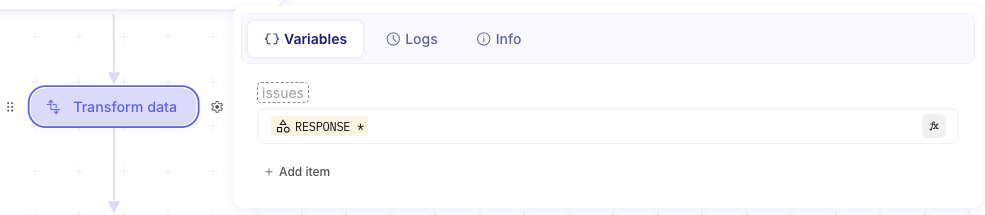
Process each issue: For Each loop
Section titled “Process each issue: For Each loop”Add a For Each step and map its input to the issues array from the Transform Data step. Mindflow will now execute all steps inside this block once per issue.
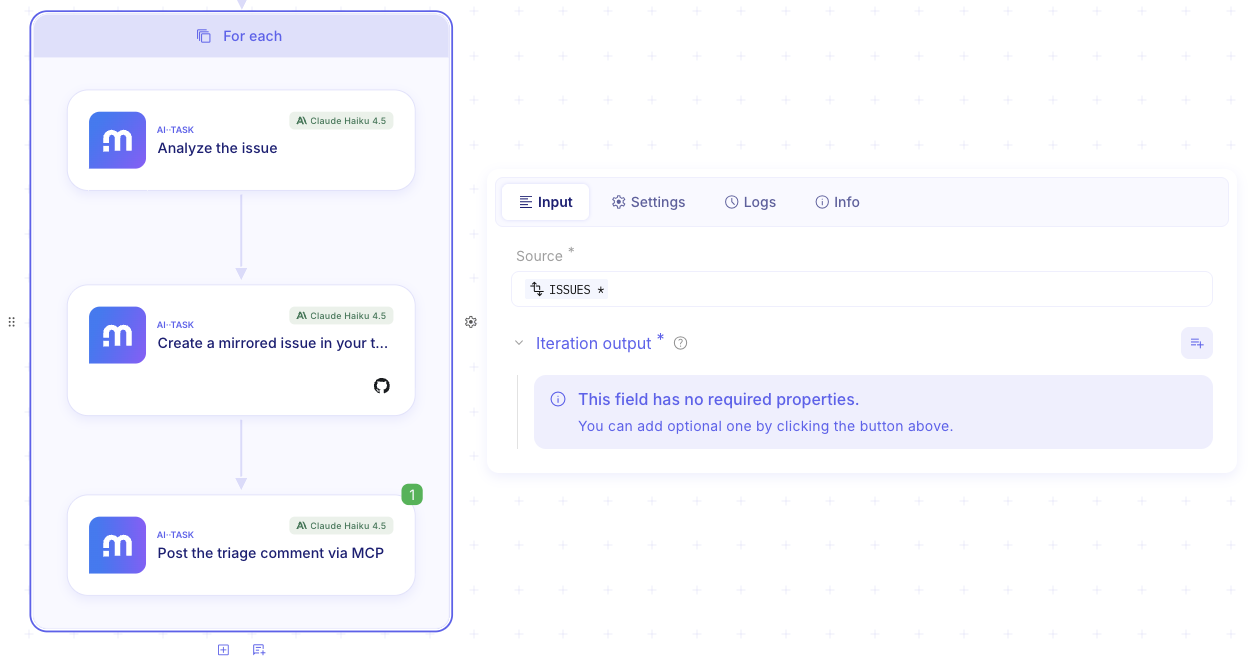
Inside the For Each loop
Section titled “Inside the For Each loop”Analyze the issue with an AI··Task
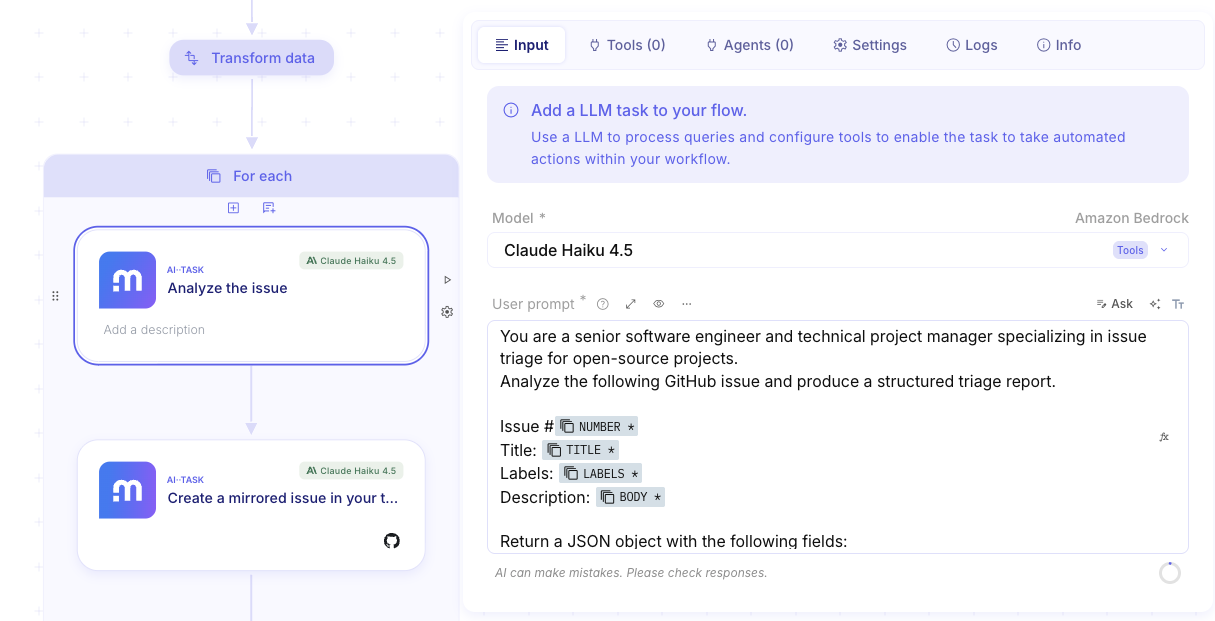
Section titled “Analyze the issue with an AI··Task”Add an AI··Task inside the loop. This agent will analyze each individual issue and produce a structured triage report.
User Prompt:
You are a senior software engineer and technical project manager specializing in issue triage for open-source projects.Analyze the following GitHub issue and produce a structured triage report.
Issue #{number}Title: {title}Labels: {labels}Description: {body}
Return a JSON object with the following fields:
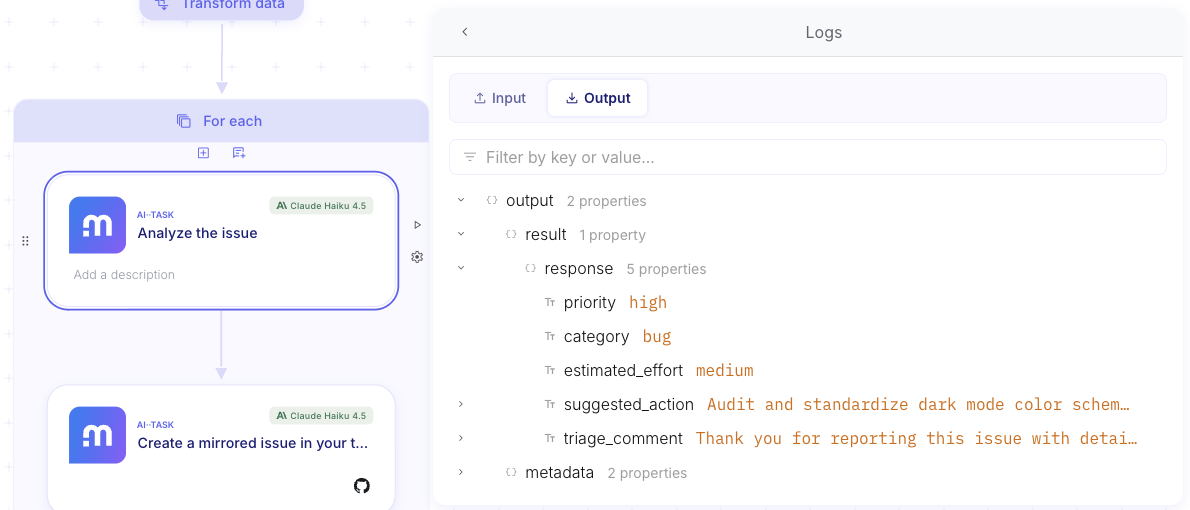
- priority: "critical" | "high" | "medium" | "low"- category: "bug" | "enhancement" | "question" | "documentation" | "infrastructure"- estimated_effort: "small" | "medium" | "large"- suggested_action: a one-sentence recommendation for the team- triage_comment: a short, professional GitHub comment (2-3 sentences) summarizing the triage, suitable to be posted directly on the issue.
Use the Data Picker to inject {number}, {title}, {labels}, and {body} from the current For Each iteration.
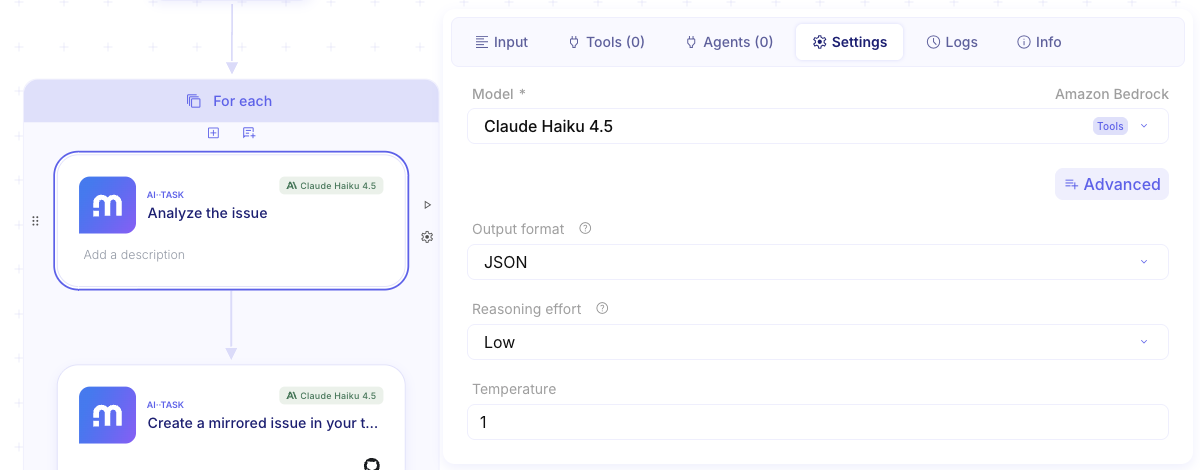
In the Settings tab of this AI··Task, set Output format to JSON.
Dry-run on a single iteration to verify the AI produces clean, structured JSON.
Create a mirrored issue in your test repo
Section titled “Create a mirrored issue in your test repo”Before posting the triage comment, you need to create the corresponding issue in your test repository — since it is empty, there is no issue to comment on yet.
Add a second AI··Task inside the loop. Configure it as follows:
User Prompt:
Create an issue in the GitHub repository YOUR_USERNAME/YOUR_TEST_REPO with the following content:
Title: {title}Body: {body}
Return the number of the newly created issue.
Replace YOUR_USERNAME/YOUR_TEST_REPO with your actual GitHub username and test repository name. Use the Data Picker to inject {title} and {body} from the current For Each iteration.
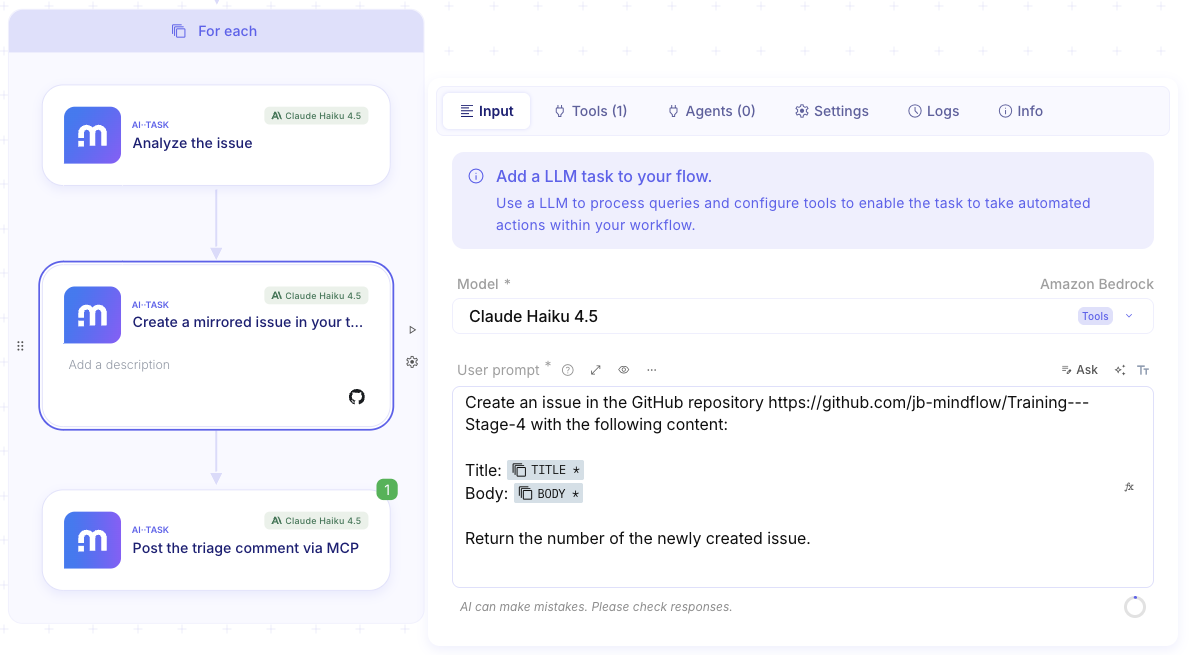
In the Tools tab of the AI··Task, add the GitHub API and enable only the Create an issue endpoint. Assign the GitHub API credential.
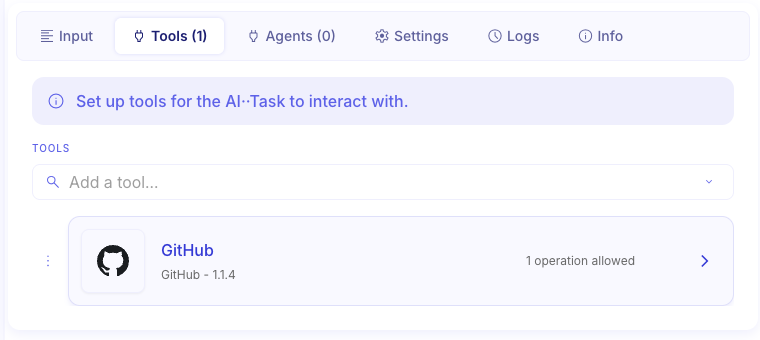
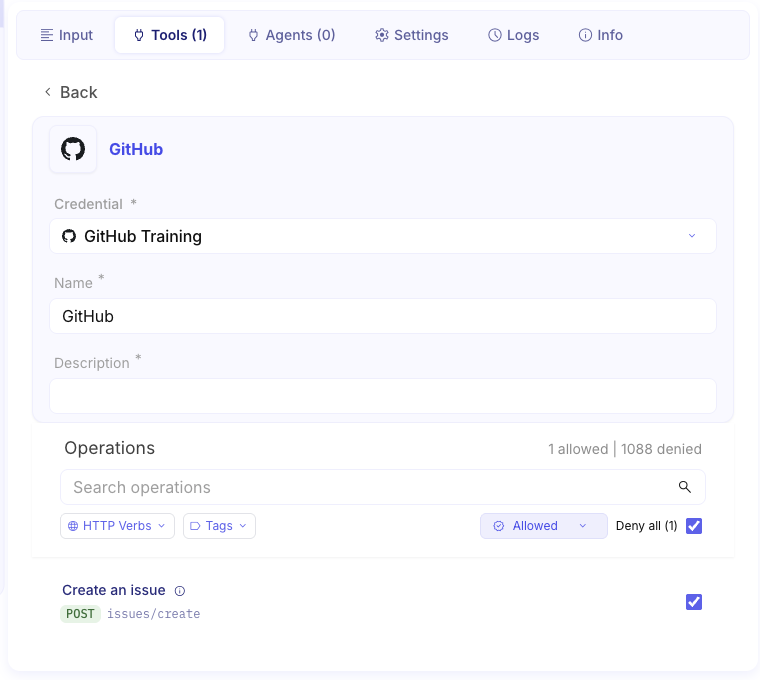
Dry-run this step on a single iteration. You should see a green pill and, in the execution log, the number of the newly created issue — you will need it in the next step.
Post the triage comment via MCP
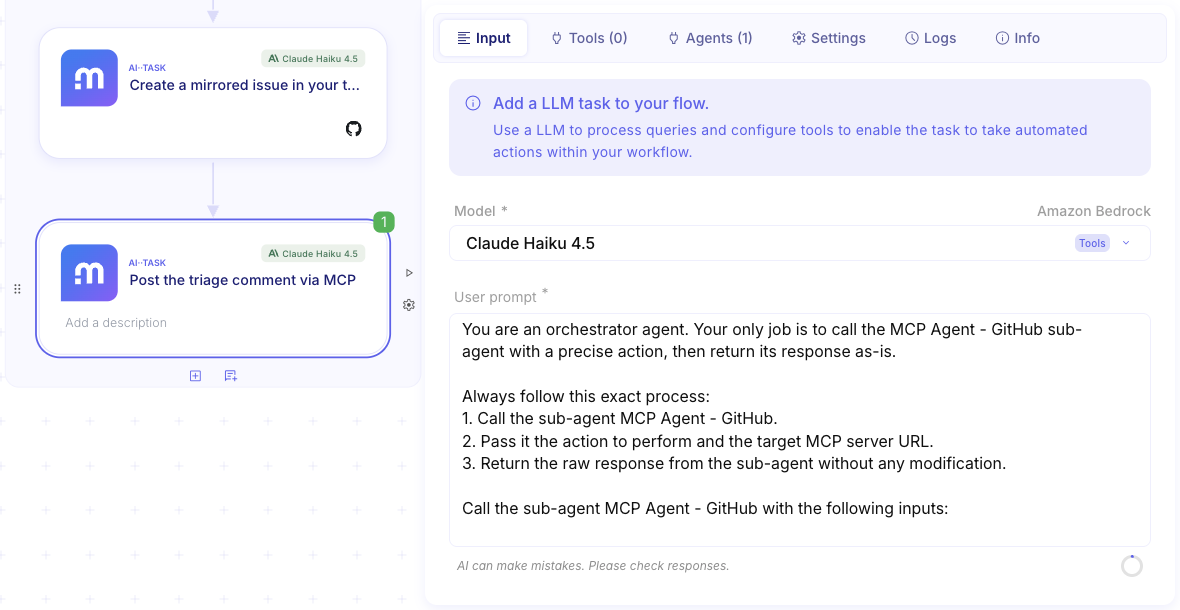
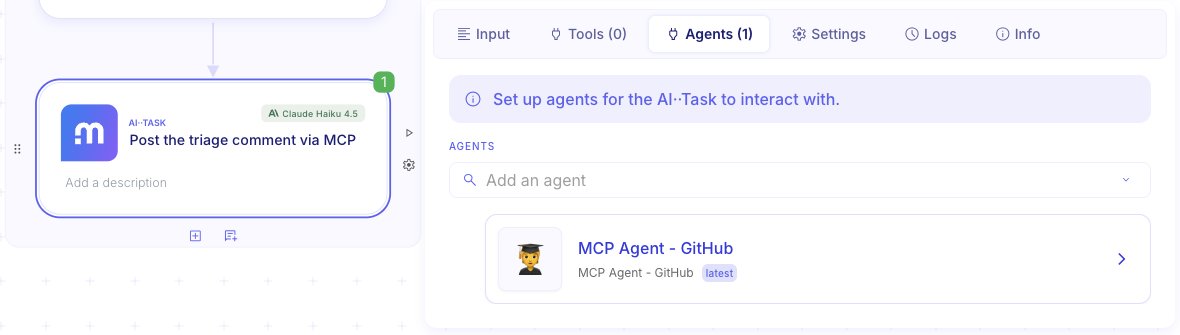
Section titled “Post the triage comment via MCP”Add a third AI··Task inside the loop. This one will use the MCP Agent to post the triage comment on the issue you just created.
User Prompt:
You are an orchestrator agent. Your only job is to call the MCP Agent - GitHub sub-agent with a precise action, then return its response as-is.
Always follow this exact process:
1. Call the sub-agent MCP Agent - GitHub.2. Pass it the action to perform and the target MCP server URL.3. Return the raw response from the sub-agent without any modification.
Call the sub-agent MCP Agent - GitHub with the following inputs:
Action: Post the following comment on issue of the GitHub repository YOUR_USERNAME/YOUR_TEST_REPO
MCP server: https://api.githubcopilot.com/mcp/
## RESOURCES
- Issue: {number}- Comment: {triage_comment}
Replace YOUR_USERNAME/YOUR_TEST_REPO with your actual GitHub username and test repository name. Pour injecter les deux valeurs dynamiques via le Data Picker :
{number}— ouvre le Data Picker (tape/), sélectionne l’AI··Task “Create a mirrored issue”, puis sa dernière exécution, et clique sur la clénumberdans le JSON Viewer.{triage_comment}— ouvre le Data Picker (tape/), sélectionne l’AI··Task “Analyze the issue”, puis sa dernière exécution, et clique sur la clétriage_commentdans le JSON Viewer.
In the Agents tab, add MCP Agent - GitHub as a capability.
Step 3: Test Your Workflow
Section titled “Step 3: Test Your Workflow”Everything is connected. Let’s run the full flow end-to-end.
Click the Play icon in the top left corner of the canvas, or press cmd + P (or ctrl + P on Windows).
Watch Mindflow:
- Trigger the Scheduler
- Call the GitHub MCP server via the MCP Agent to fetch 10 open issues from SigNoz/signoz
- Parse and normalize the issue data
- Loop through each issue:
- Analyze it with an AI··Task and generate a triage report
- Create a mirrored issue in your test repository via the GitHub REST API
- Post the structured triage comment on the newly created issue via the MCP Agent
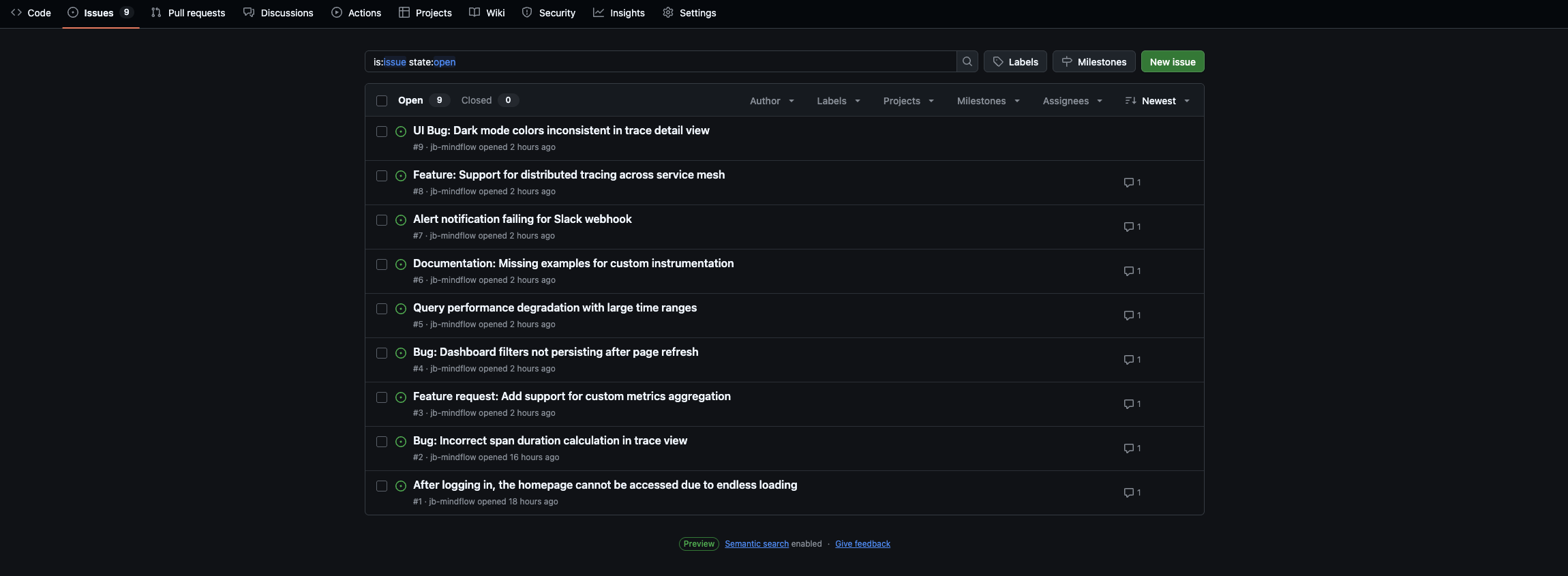
Navigate to your test repository on GitHub and verify that the issues and triage comments have been created correctly!
Congratulations
Section titled “Congratulations”You have completed Lesson #4. You now know how to:
- Understand the Model Context Protocol (MCP) and the JSON-RPC 2.0 standard.
- Build a reusable MCP Agent (AI··Task + HTTP Request) to act as a reliable MCP Client in just one flow.
- Use Mindflow to read from and write to an external service (GitHub) through an MCP server — without writing a single line of integration code.
- Combine For Each loops, AI··Tasks, MCP calls, and native Tool Calls into a production-grade agentic workflow.
You are now ready to apply this pattern to any MCP-compatible service — Notion, Linear, Slack, and beyond.
A Note on MCP vs. Native Tool Calls
Section titled “A Note on MCP vs. Native Tool Calls”You may have noticed that this flow uses two different approaches to interact with GitHub:
- MCP Agent — to list issues from SigNoz/signoz and post triage comments.
- Native GitHub Tool Call — to create issues in your test repository.
This is intentional, and it reflects a real-world lesson: MCP servers are not always feature-complete. The remote GitHub MCP server (api.githubcopilot.com/mcp/) exposes a curated subset of GitHub’s capabilities. Some operations — like creating issues — may not be available, may behave differently, or may be added in future versions of the server.
When you hit this kind of limitation, Mindflow’s native connectors (Tool Calls via the Tools tab of an AI··Task) are your fallback. They give you direct, stable access to a service’s full API.
The practical rule of thumb:
- Use MCP when you want a generic, protocol-driven approach that works across multiple services with a single agent architecture.
- Use native Tool Calls when you need reliability, full API coverage, or when the MCP server doesn’t support the operation you need.
Both approaches are complementary — and knowing when to use each one is a mark of a mature Mindflow workflow builder.