Lesson #2: Process lists with AI
In Lesson #1, you built a linear flow. Real-world operations are rarely linear — they involve lists of data, complex parsing, and smart decisions.
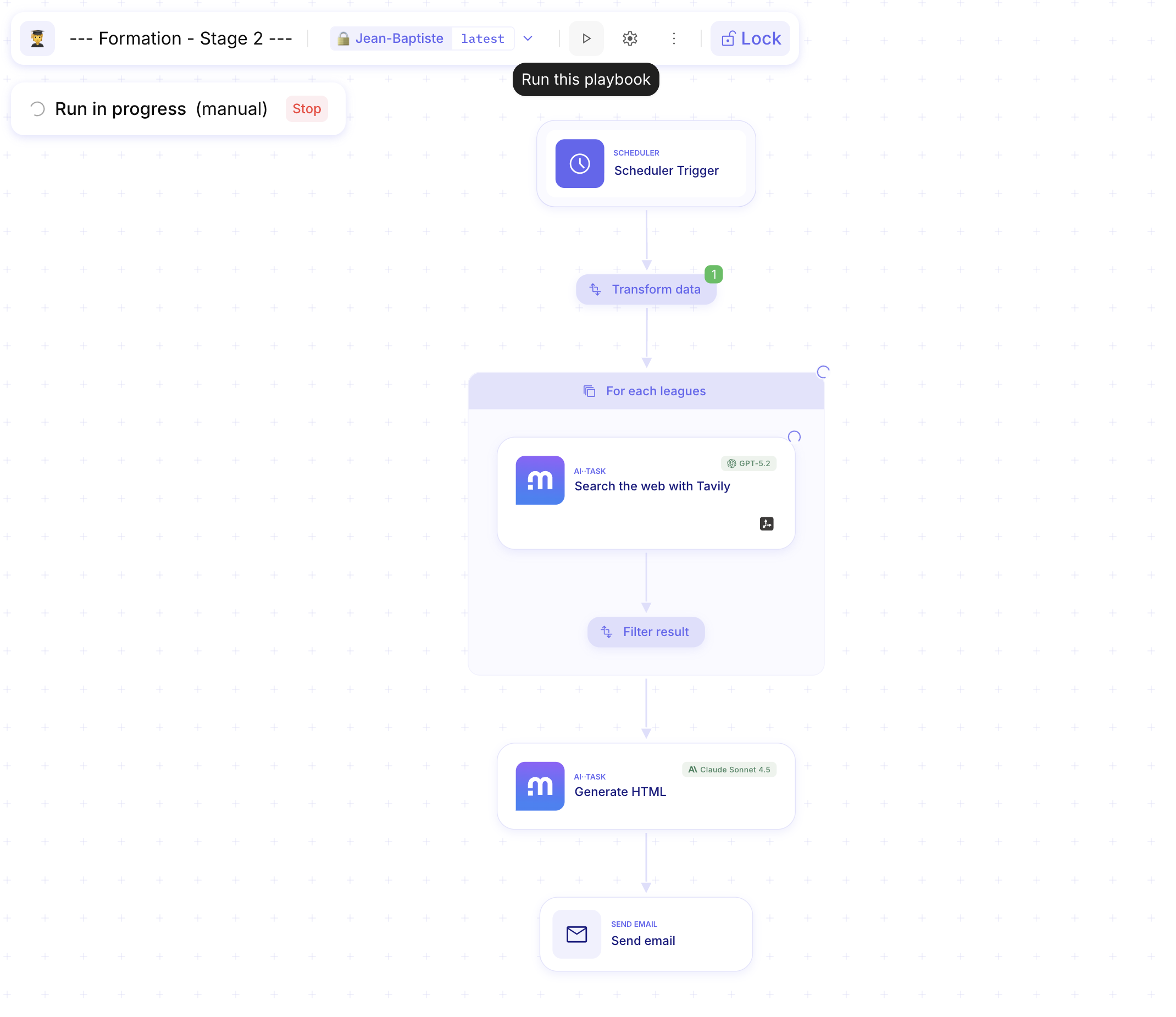
In this lesson, you will build a Football News Researcher. This flow takes a list of football leagues, uses an AI··Task to search the web via Tavily, and emails you a refined summary of the findings.
Prerequisites
Section titled “Prerequisites”- Completion of Lesson #1: Build your first flow.
- A Tavily API key (integrated into Mindflow).
Step 1: Schedule your flow
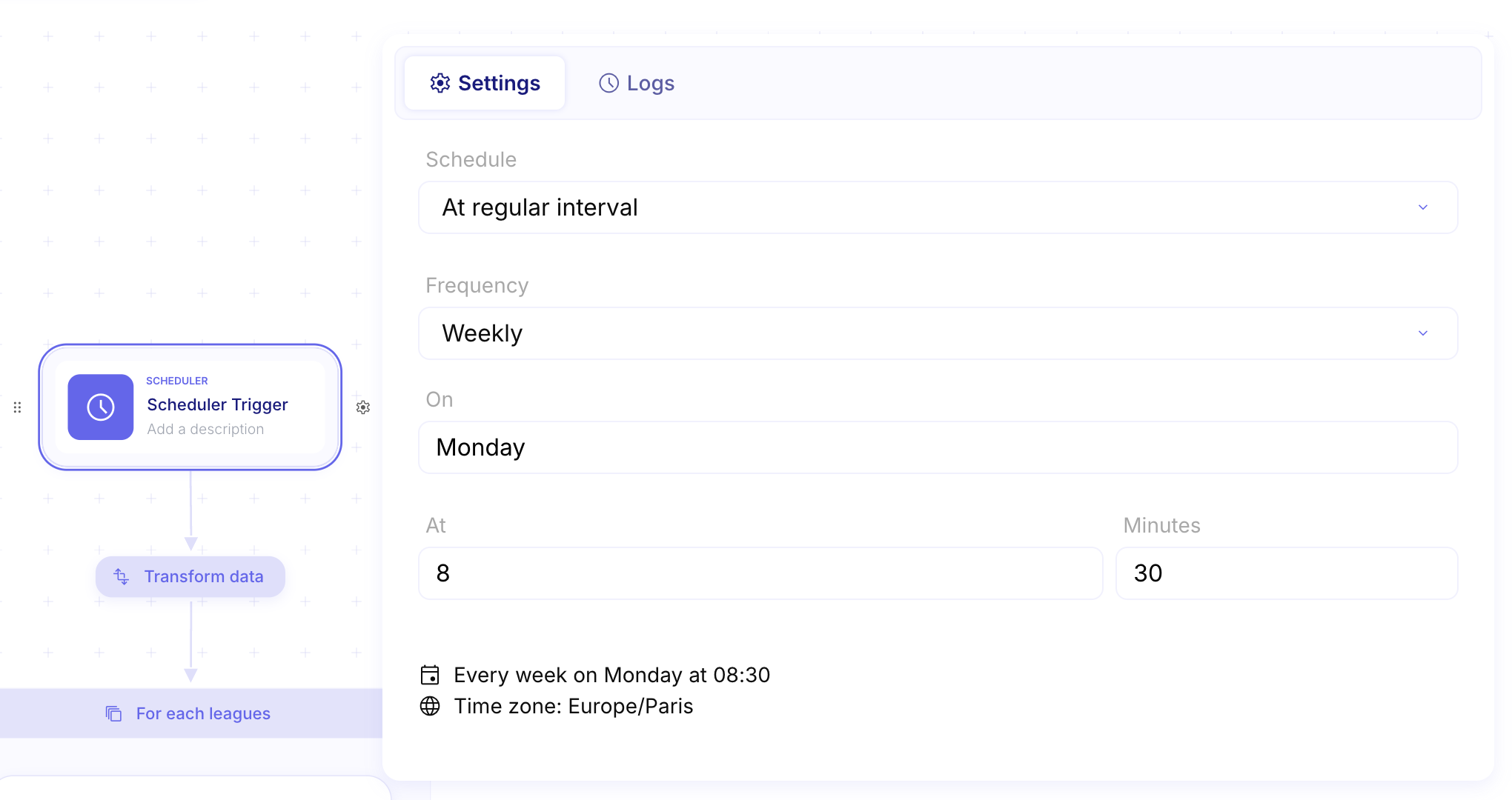
Section titled “Step 1: Schedule your flow”Add a Scheduler Trigger and set it to run weekly every Monday at 8:30 AM
Step 2: Handling Multiple Inputs with “For Each”
Section titled “Step 2: Handling Multiple Inputs with “For Each””Automation often starts with a list. Instead of running a flow five times for five different topics, we use a For Each loop to process them all in one go.
-
Add a variable: Create an array (list) of topics you want to research (e.g.,
["Premier League", "LaLiga", "Ligue 1"]).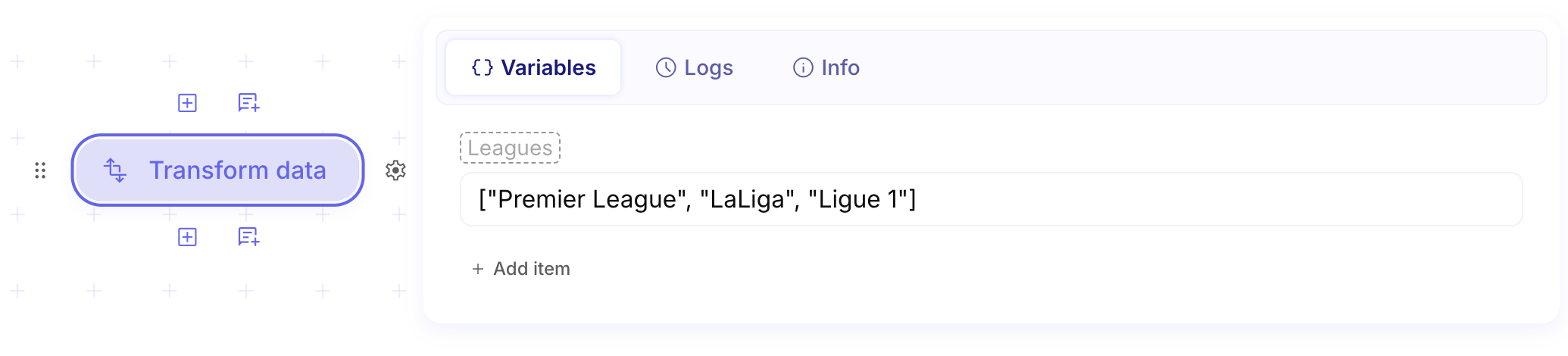
-
Add the “For Each” step onto your canvas.
-
Map the Input: Select your list of
Leaguesas the source. Mindflow will now execute every step inside this block for each item in your list.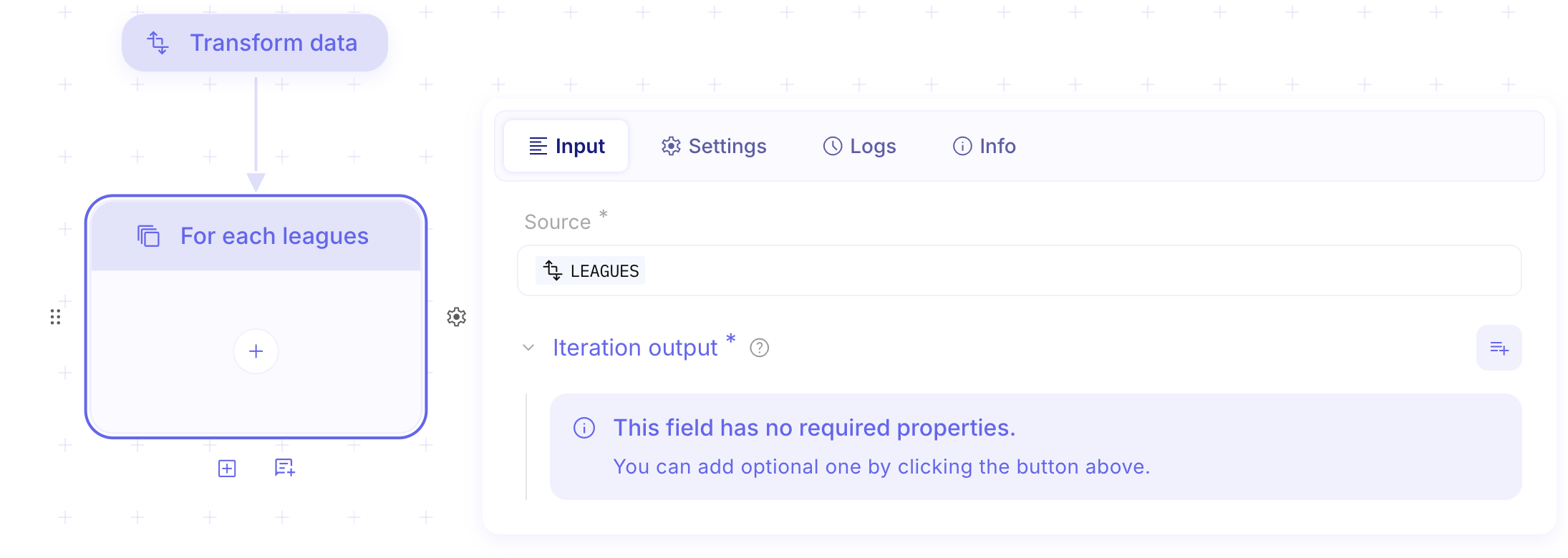
Step 3: Empowering AI with Tool Calls (Tavily)
Section titled “Step 3: Empowering AI with Tool Calls (Tavily)”An AI··Task is powerful, but an AI··Task with Tools is a game-changer. Here, we give the AI the ability to “search the web.”
-
Add an AI··Task step inside your loop.
-
Select the Model: Choose a model that supports Tool Calling (e.g., GPT-5.2 or Claude 4.5).
-
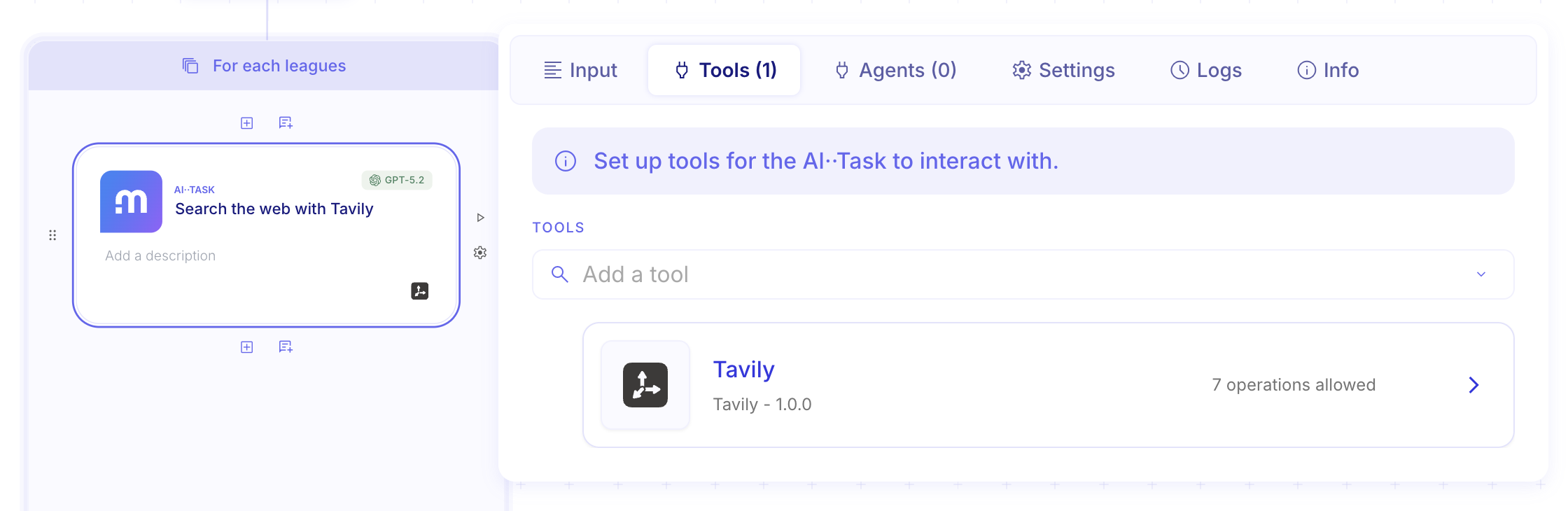
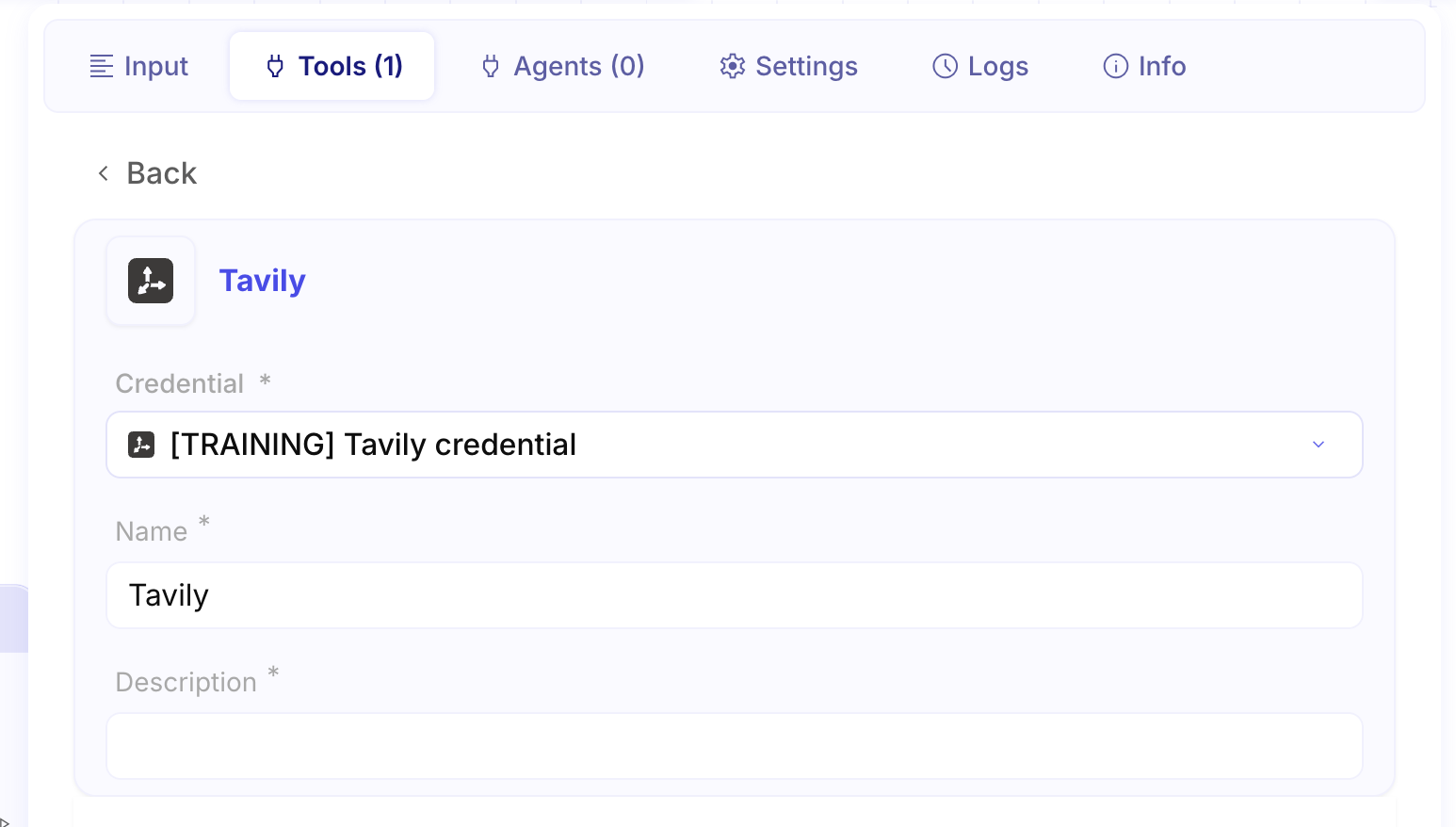
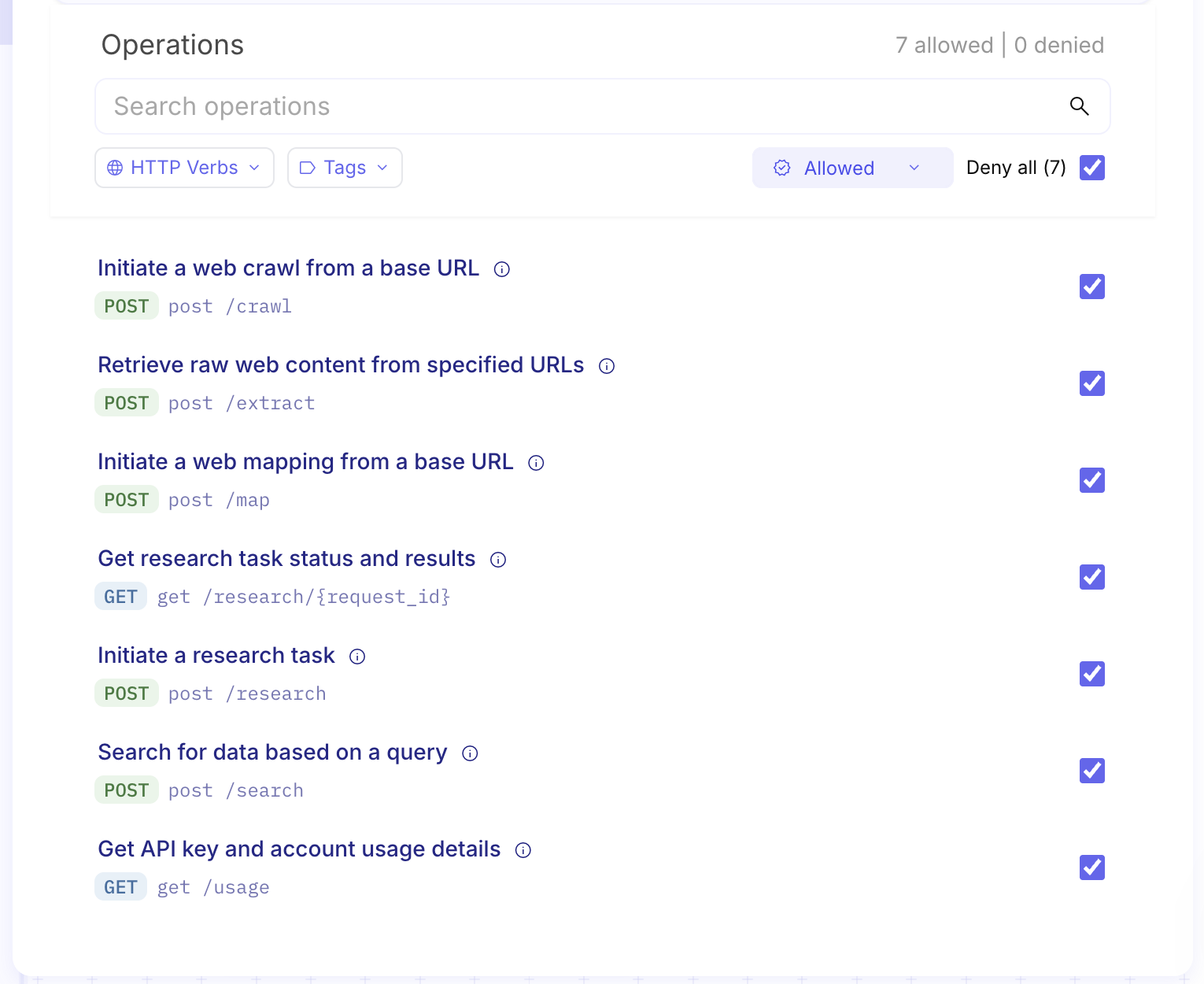
Assign the Tool: In the “Tools” section of the step, select the Tavily Search tool. Assign the Tavily credential you added as a requierements and select allowed operations.
-
The Prompt: Instruct the AI:
You are a research assistant. Use the Tavily tool to find the 3 most recent news articles about the following topic: {{item}}.Here the expected json schema:{ "$schema": "http://json-schema.org/draft-07/schema#", "type": "object", "properties": { "topic": { "type": "string", "description": "The main research topic." }, "search_parameters": { "type": "object", "properties": { "source": { "type": "string" }, "query": { "type": "string" }, "time_range": { "type": "string" }, "max_results": { "type": "integer" }, "search_depth": { "type": "string" }, "retrieved_at_utc": { "type": "string", "format": "date-time" } }, "required": ["source", "query", "max_results"] }, "most_recent_articles": { "type": "array", "items": { "type": "object", "properties": { "published_date_utc": { "type": "string", "format": "date-time" }, "title": { "type": "string" }, "publisher": { "type": "string" }, "url": { "type": "string", "format": "uri" }, "summary": { "type": "string", "description": "A concise paragraph summarizing the article's main findings." } }, "required": ["title", "publisher", "url", "summary"] } } }, "required": ["topic", "most_recent_articles"]}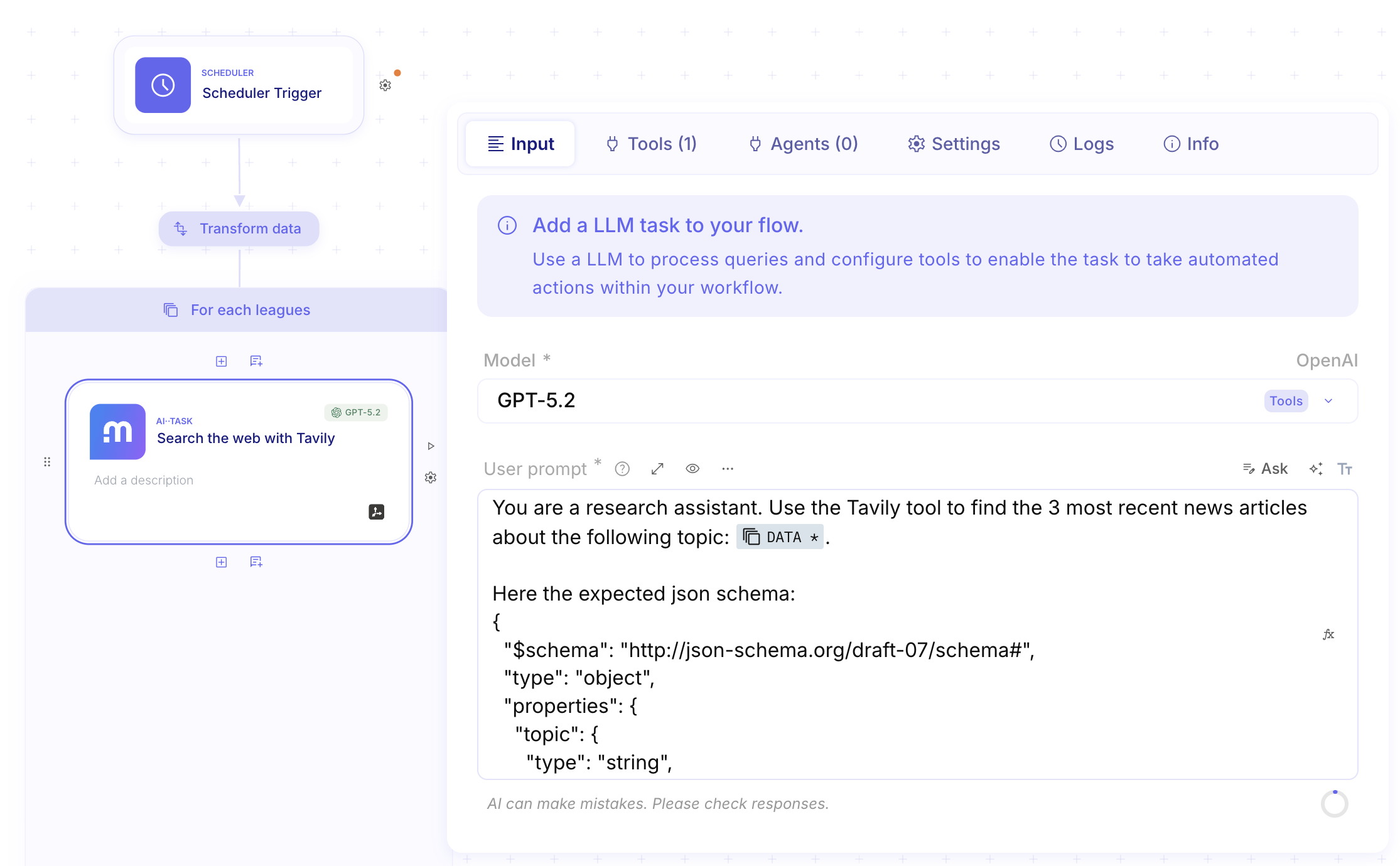
Step 4: Parsing Data with JSONata
Section titled “Step 4: Parsing Data with JSONata”The output from an AI··Task or an API can be messy. To extract just the specific “Summary” and “URL” you need for your email, we use JSONata function.
-
Add a Transform data step onto the canva and create a variable
Filtered-Result. The value of this variable is the answer of the previous AI··Task -
Use a JSONata function to pinpoint the data.
- Example:
most_recent_articles.{"url": url,"summary": summary}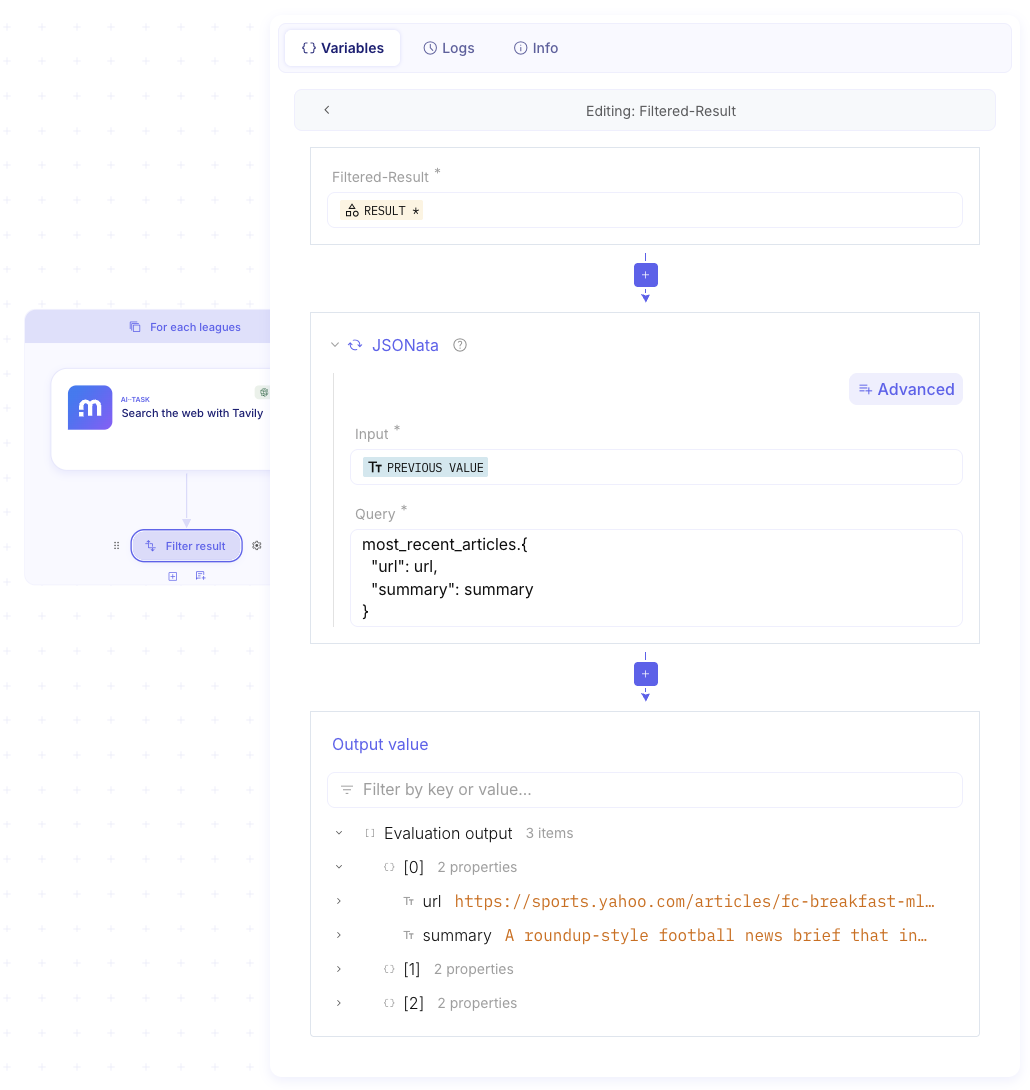
Why use this? It ensures your final email doesn’t contain technical “garbage” or metadata, just the clean information your recipient needs.
-
Configure ForEach iteration output: To preserve each iteration’s result for use after the loop completes, configure an iteration output in your ForEach step. Create a new variable and map it to the
Filtered-Resultvariable from the current iteration.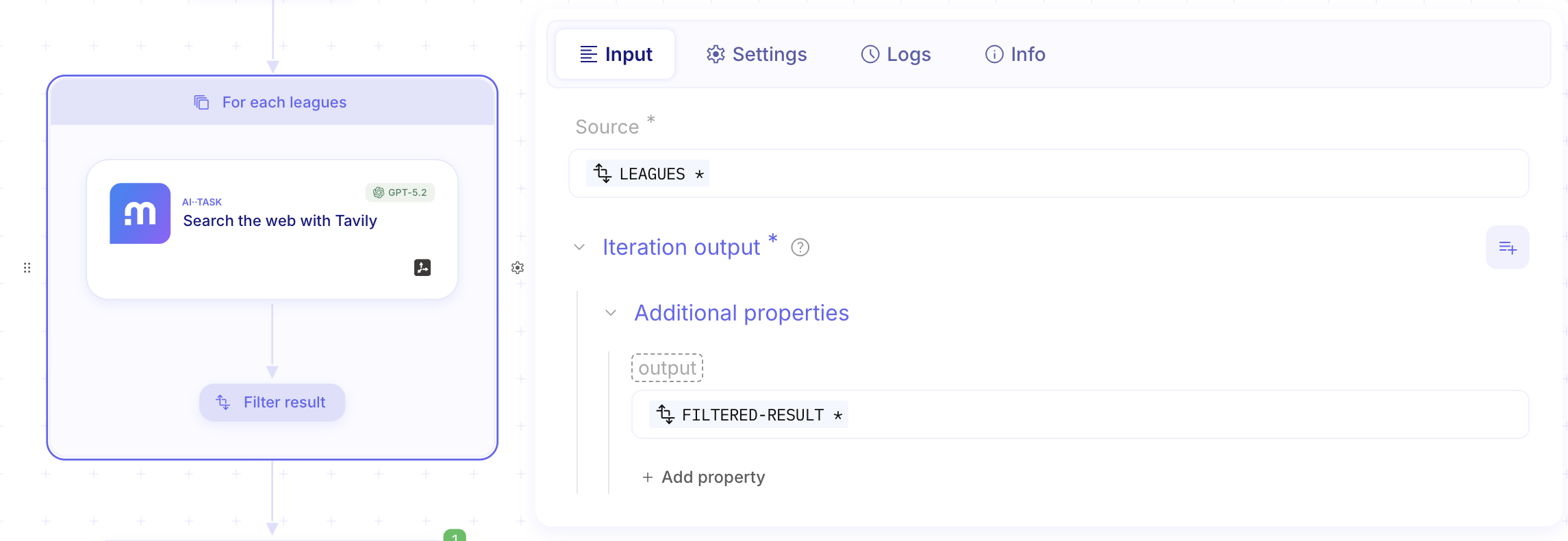
Step 5: Sending the Resulting Intelligence
Section titled “Step 5: Sending the Resulting Intelligence”The final step is to communicate the findings.
-
Add an AI··Task step: This step has one mission, transform the retrieved content into clean, structured HTML.
Instruct the AI with this prompt:
Provide a detailed sum of the following articles about {{Leagues}}.Answer, as a newsletter, with a nicely crafted HTML content.Include embedded URLs of selected articles.Only reply with the html, no backticks encapsulation.News: {{ForEach.Output}}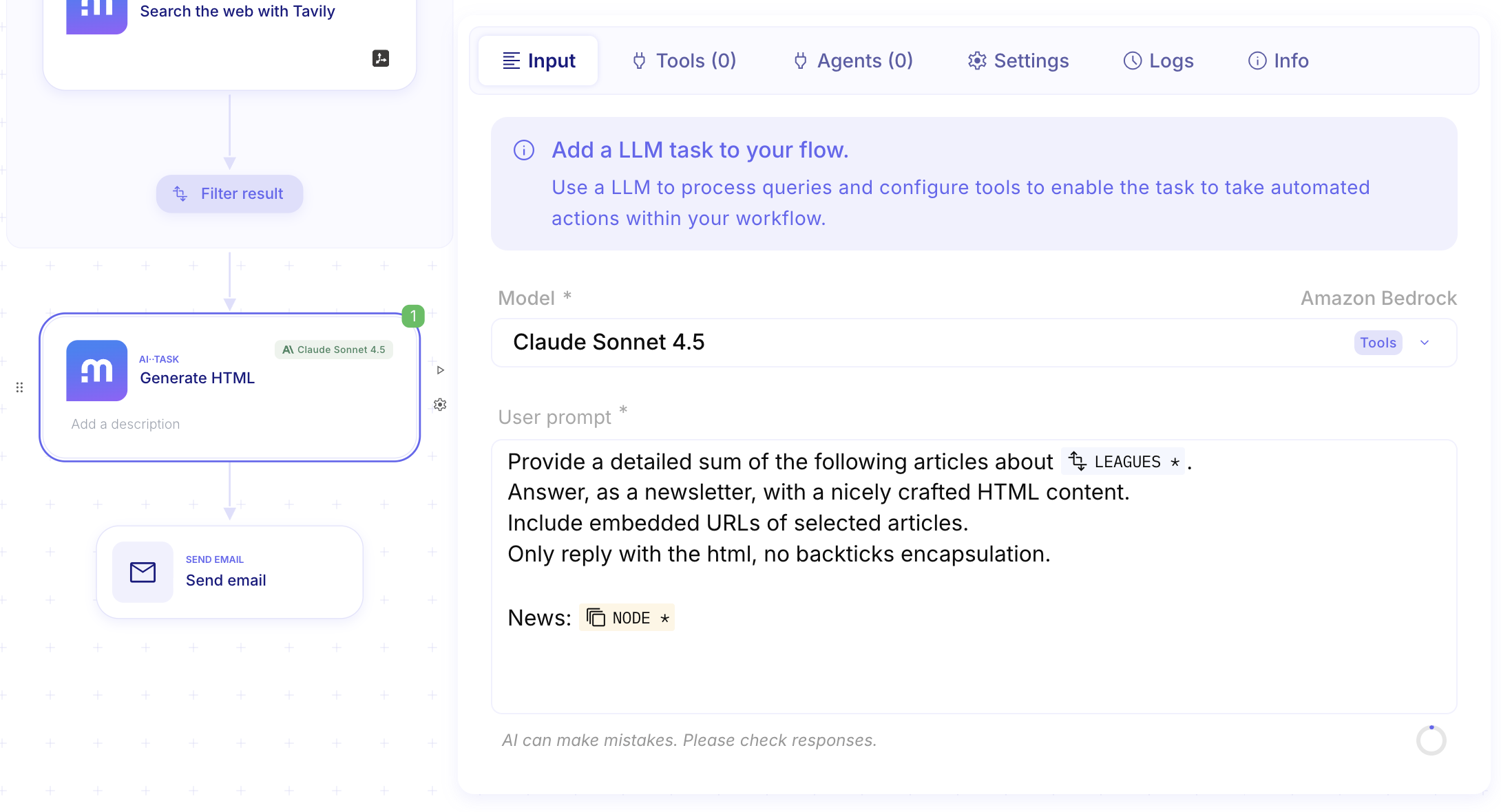
-
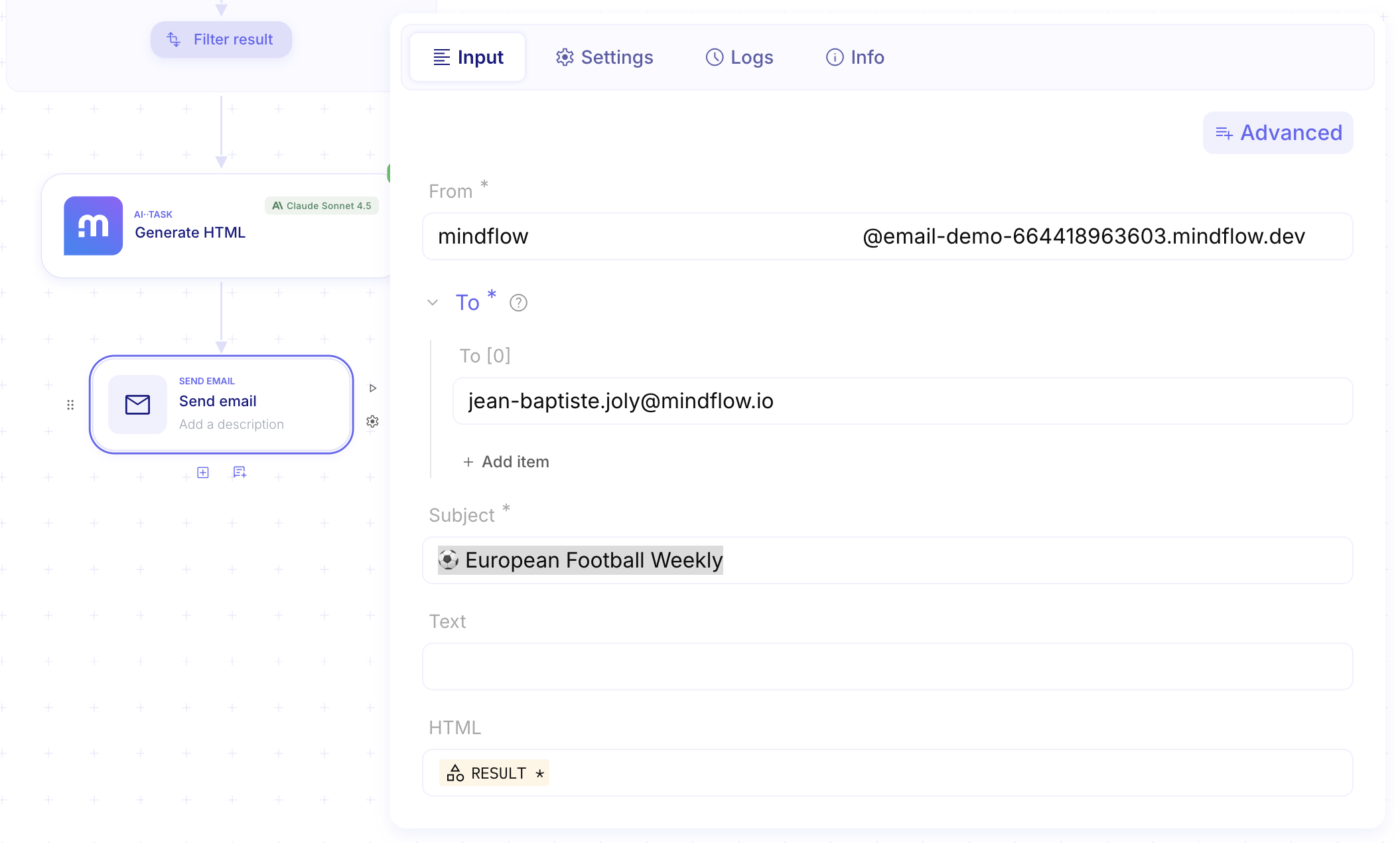
Add the “Send Email” step.
-
Configure the Recipient: Set your email address.
-
Configure the Subject:
⚽ European Football Weekly -
Body: Map the transformed output from your AI··Task into the email body.
-
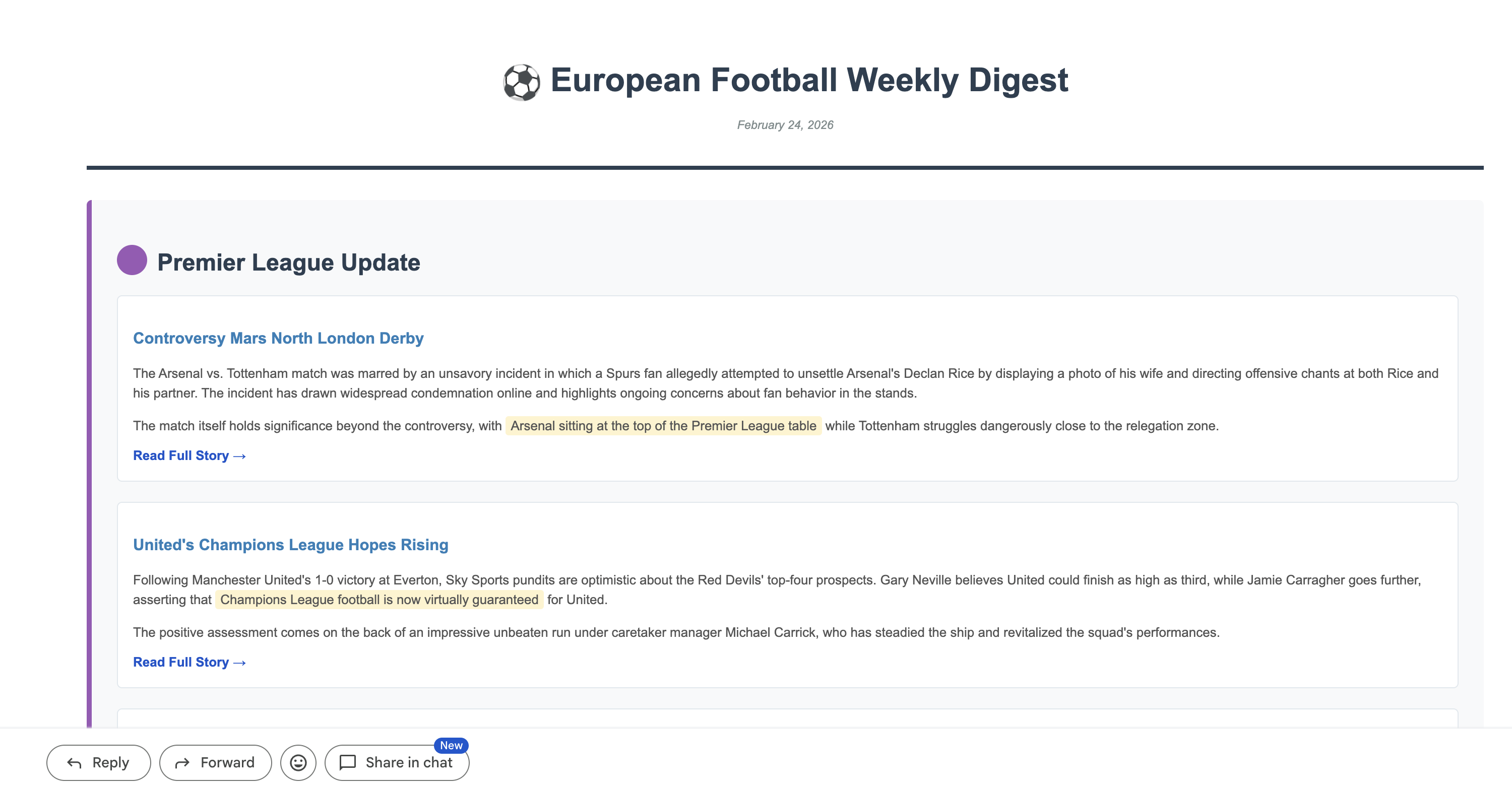
Your Send Email step is configured. You can Dry run it to send the email. Stay close to your inbox and you should receive an email that is the HTML anwer from the AI··Task!
Second Flow created, configured, and Scheduled
Section titled “Second Flow created, configured, and Scheduled”-
Congratulations! You’ve just built your second automated flow on Mindflow.
-
This flow will trigger itself every Monday morning, search for the latest news about European football leagues, intelligently select the most relevant articles, and deliver a beautifully formatted HTML newsletter straight to your inbox.
-
Ready to see it in action? Let’s run it end-to-end together. Simply click the Play icon in the top left corner of the canvas, or press
cmd + P(ctrl + Pon Windows).