

Undine
In European folklore, an undine is a water spirit that moves with rivers and tides and is said to gain a soul through human love.
This release lets you call a flow in the background, adds Mindflow built-in variables, table views for flows, environments, and teams, and brings new models to the model picker.
Call a flow in the background
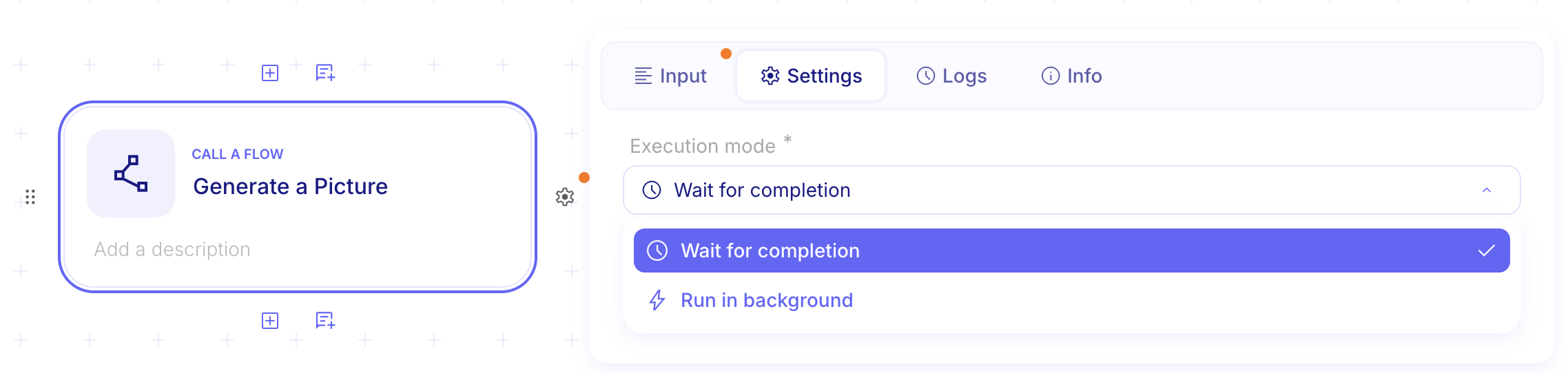
Section titled “Call a flow in the background”Call a flow now offers an Execution mode. Keep Wait for completion when you need the called flow’s output, or choose Run in background to start the called flow and continue the parent without waiting.
For more details, see Call a flow.
Mindflow built-in variables
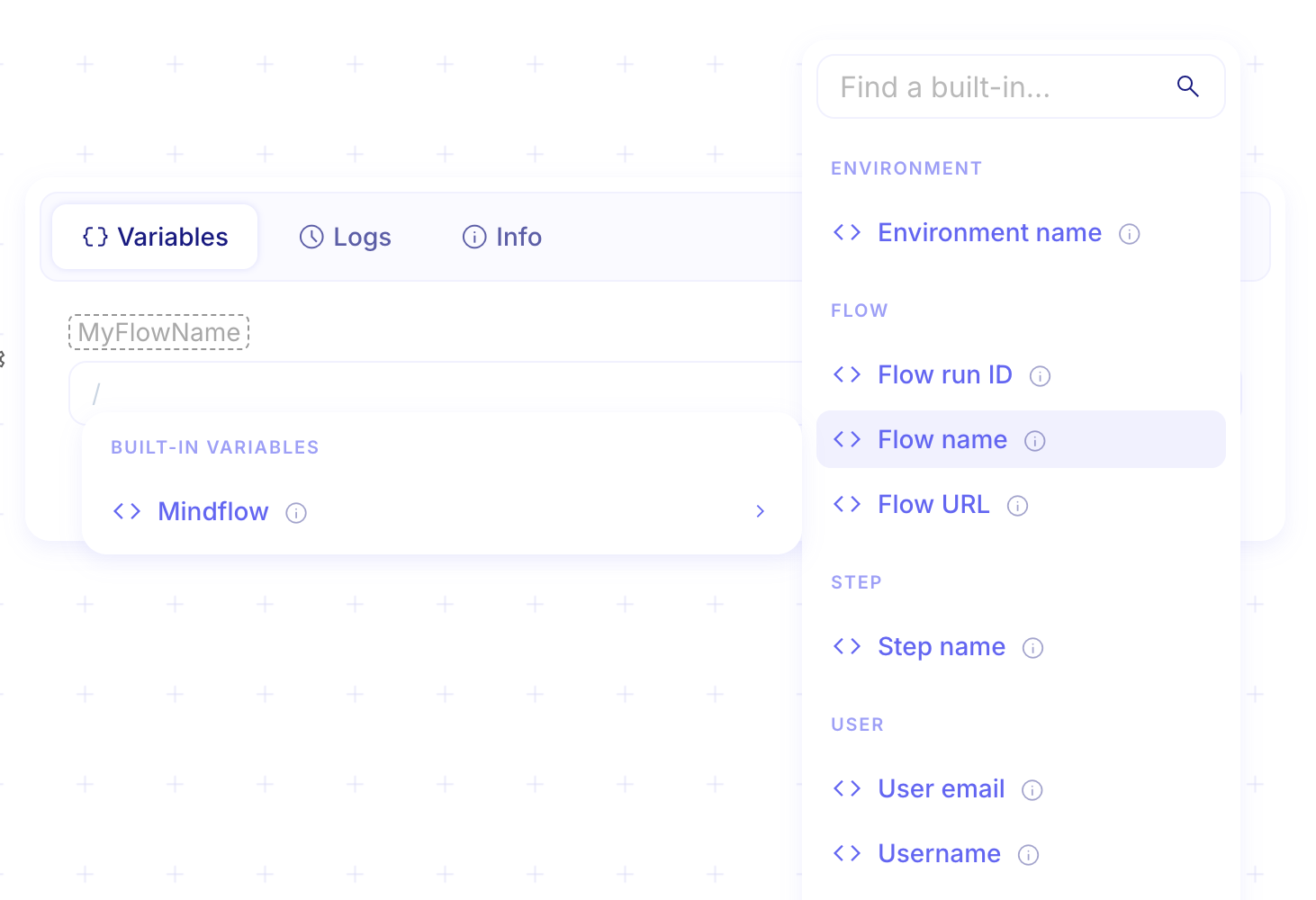
Section titled “Mindflow built-in variables”You can now read run context from a reserved Mindflow variable in formulas and data picks: environment and flow names, run IDs, who started the run, and related timestamps. Studio injects these fields automatically under Built-in variables.
For more details, see Use Mindflow built-in variables.
Table views for flows, environments, and teams
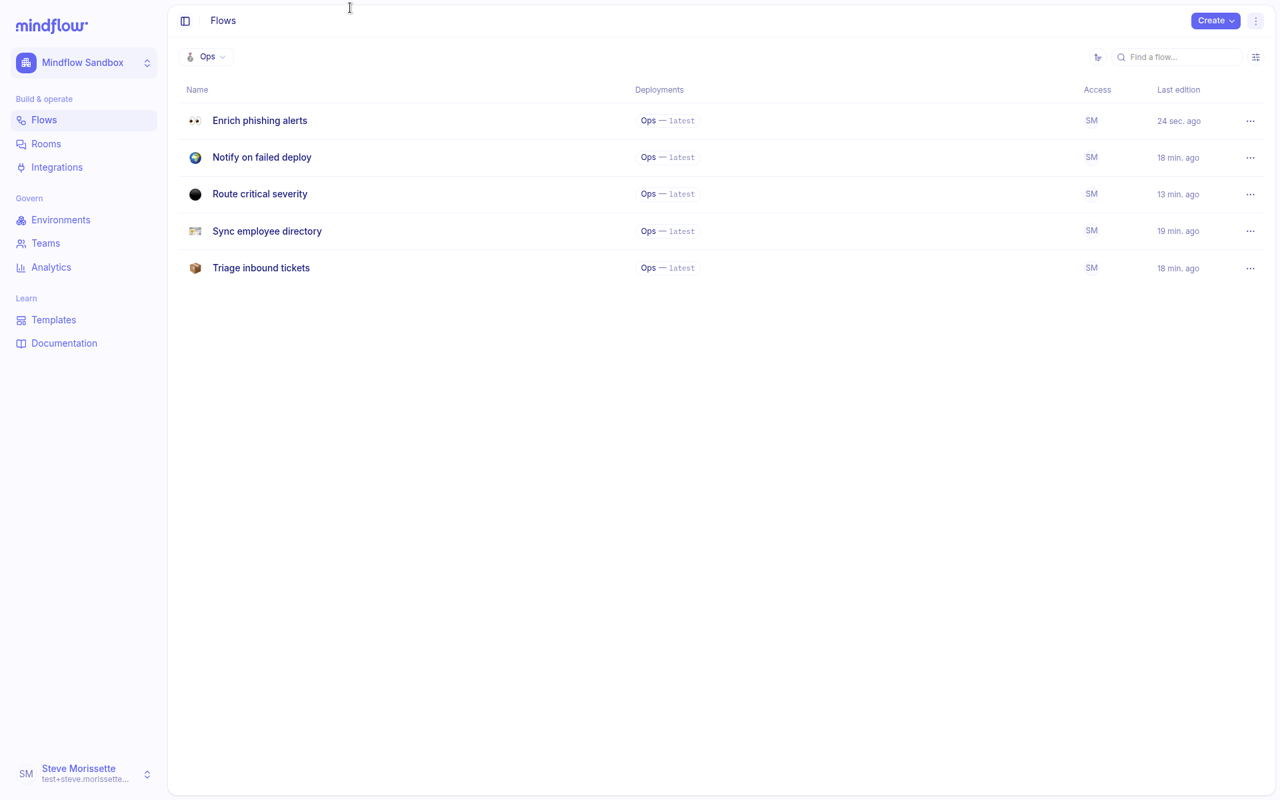
Section titled “Table views for flows, environments, and teams”Flows, environments, and teams pages now support a table layout with filters and a cards toggle. Switch views when you need denser lists, metadata counts, or faster scanning across many items.
For more details, see Create flows and agents.
Credential lookup on AI··Task tools
Section titled “Credential lookup on AI··Task tools”AI··Task tools that call services can now use Credential Lookup the same way service steps do. Set a credential name so each run resolves the right credential in the current environment.
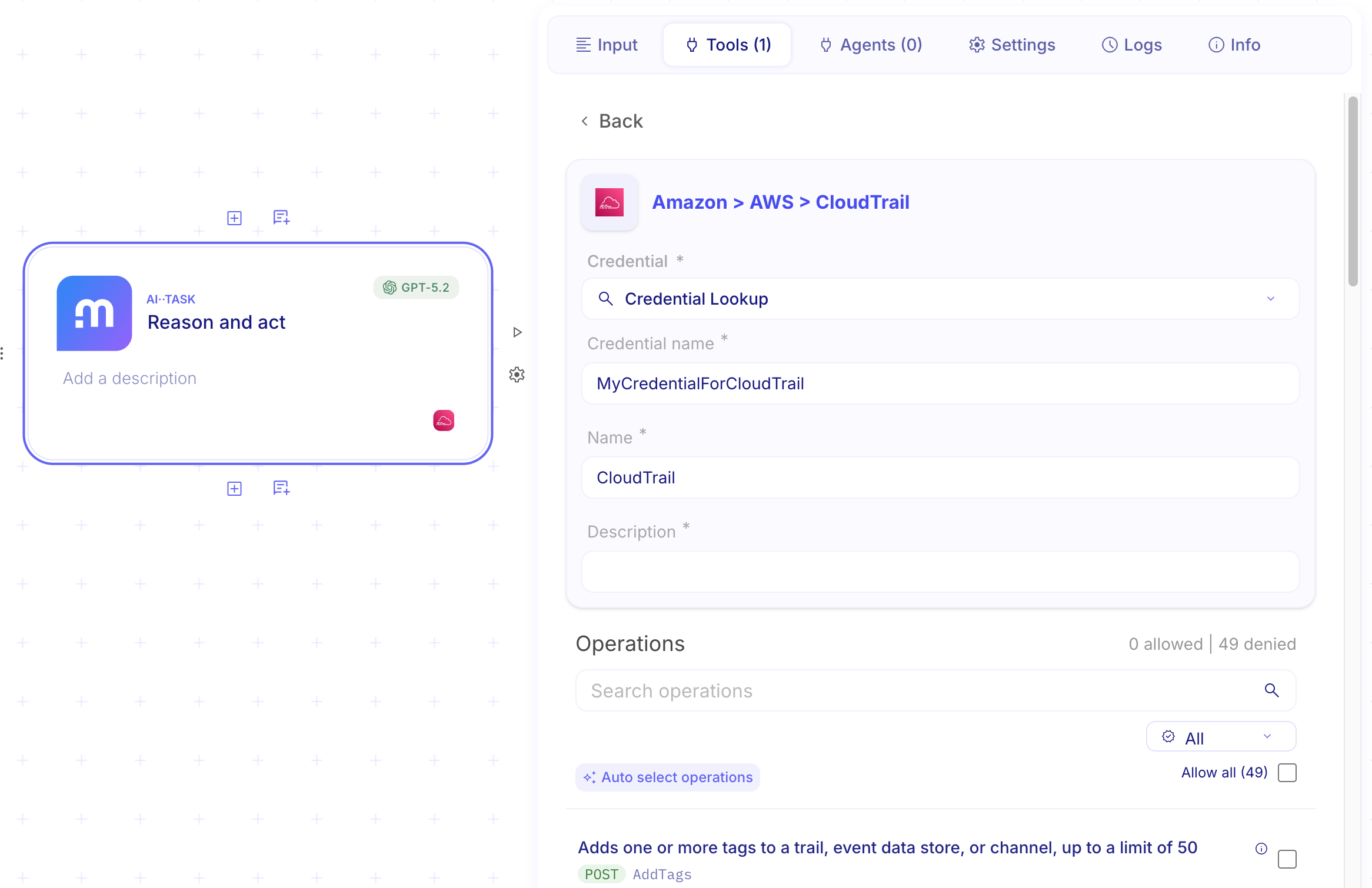
For more details, see Look up service credentials by name at runtime.
Condition evaluation in the run log
Section titled “Condition evaluation in the run log”When you open a Condition link in the run log inspector, Studio now shows how each compared value evaluated. You can see why a branch was taken without guessing from the final path alone.
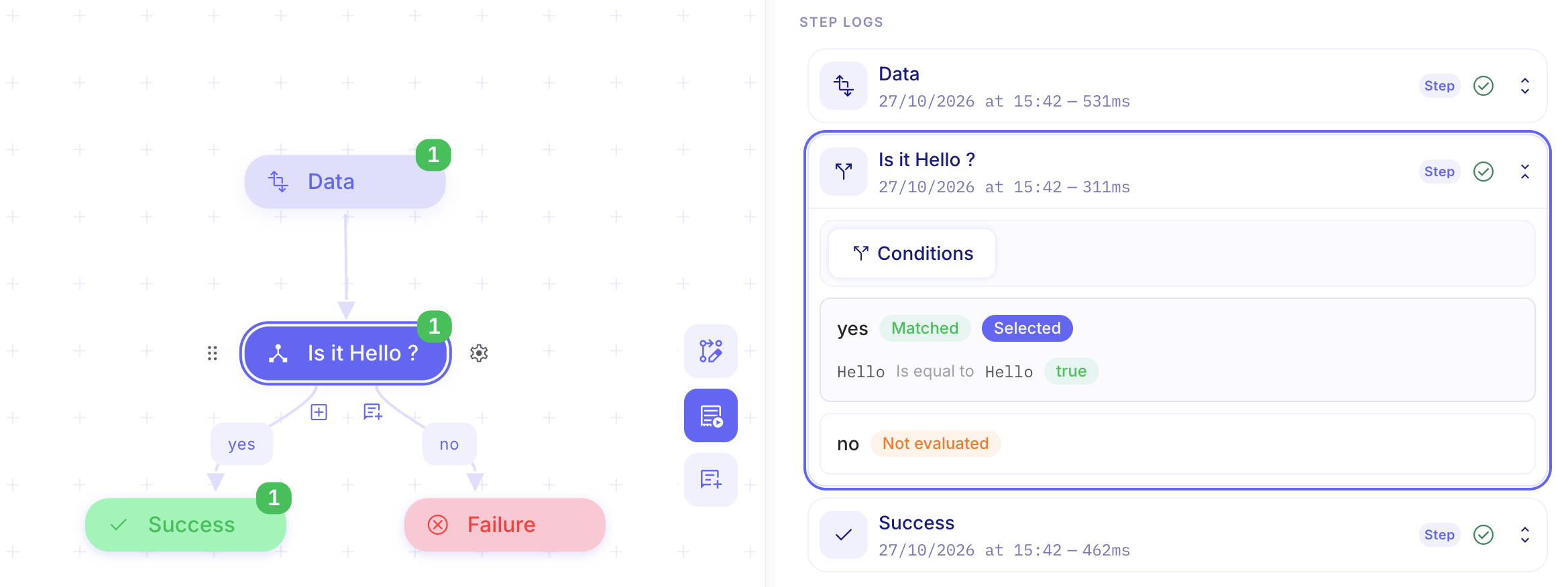
For more details, see Branch with a Condition.
Share flow permissions from the designer
Section titled “Share flow permissions from the designer”The designer header now includes a flow permissions popover. Invite people or teams and adjust access without leaving the canvas.
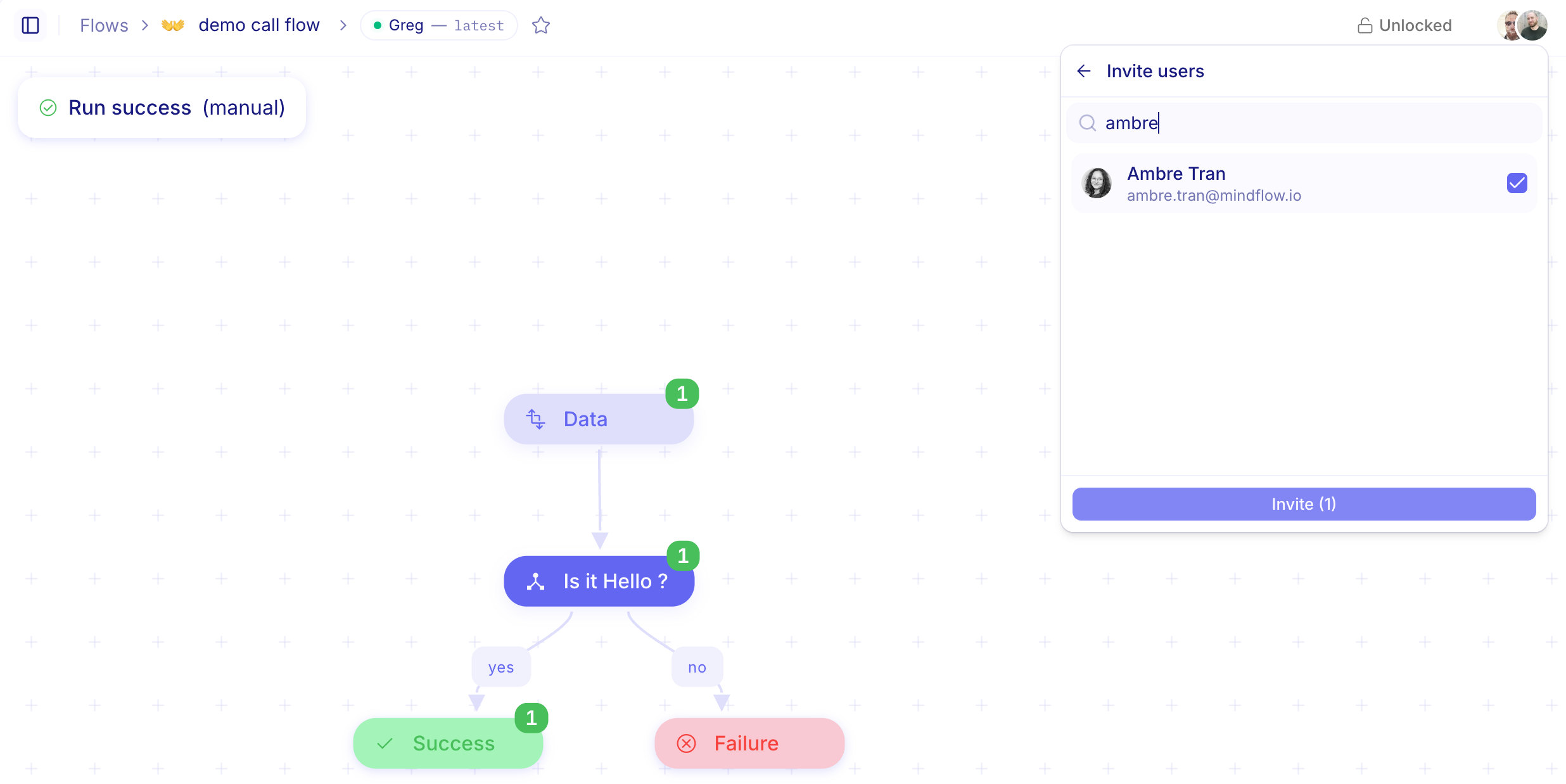
For more details, see Manage permissions (RBAC).
Webhook security status on the canvas
Section titled “Webhook security status on the canvas”Webhook triggers show security status badges on the step itself—for example an open lock when the trigger has no API key protection—so you can check status on the canvas before you deploy, without opening the inspector.
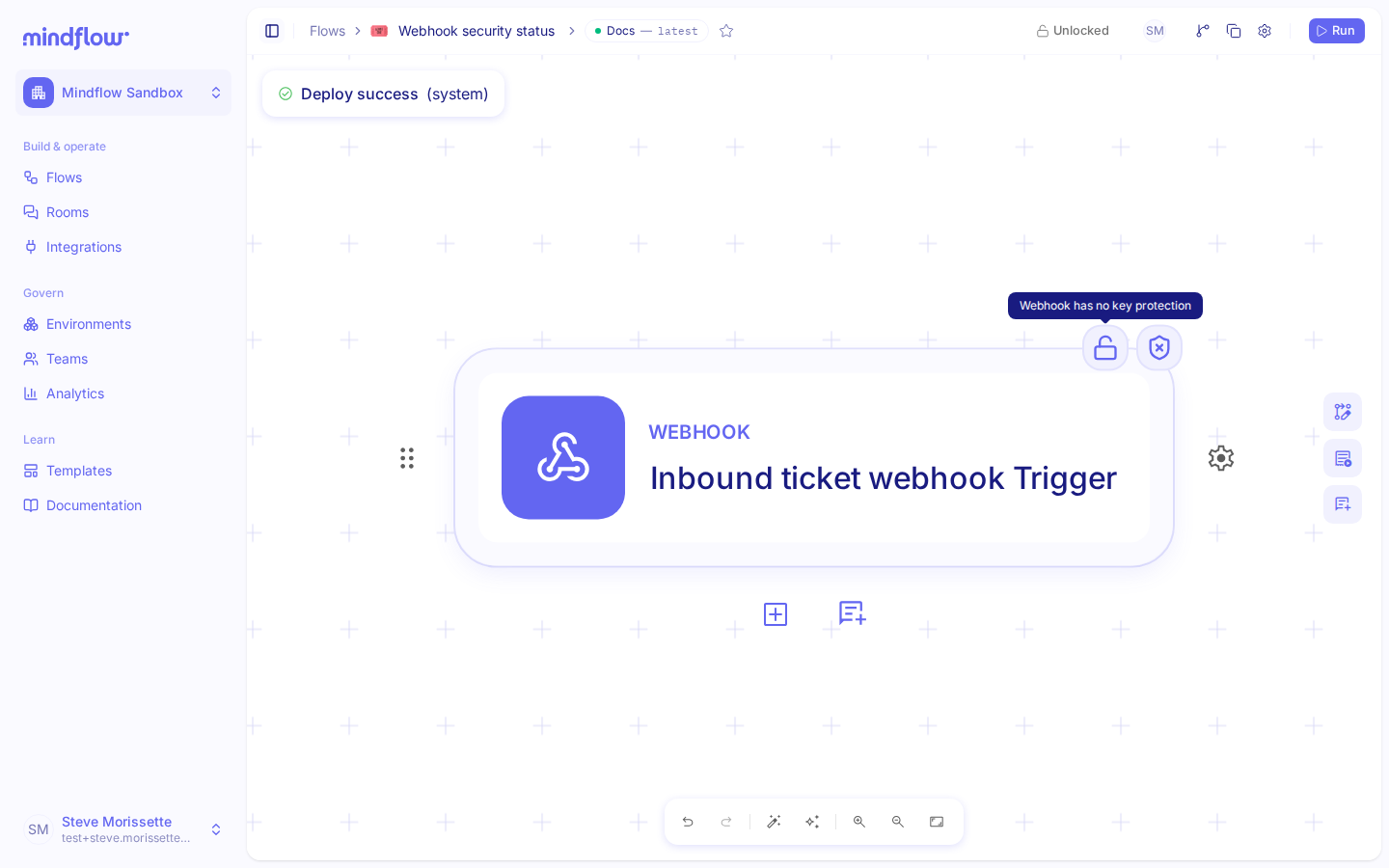
For more details, see Run a flow through a webhook.
New models available
Section titled “New models available”You can now select these models in AI··Task and other model pickers:
- GPT-6 Sol — complex coding and agent work
- GPT-6 Luna — lower-cost, high-volume workloads
- Mistral Large 4 — strong multimodal work
- Claude Sonnet 5.5 — long-context reasoning and coding
- Claude Haiku 5.5 — fast, cost-sensitive tasks
For more details, see AI··Task: A simple guide.
Claude models through Azure AI Foundry
Section titled “Claude models through Azure AI Foundry”Azure AI Foundry credentials can now run Claude deployments. Create or update an Azure AI Foundry credential with your Claude deployment names, then pick those models in AI··Task.
For more details, see Bring your own LLM.
CHANGES
Section titled “CHANGES”Designer controls in the page header
Section titled “Designer controls in the page header”Flow actions that used to sit in a floating toolbar (deployments, documentation, permissions, and related controls) now live in the designer page header, so they stay visible while you work on the canvas.

Sidebar hover peek
Section titled “Sidebar hover peek”When the Studio sidebar is collapsed, hover over the edge to peek at navigation without pinning it open. Click away or leave the rail to hide it again.
Clearer OAuth errors in Studio
Section titled “Clearer OAuth errors in Studio”When an OAuth provider rejects a credential connect or refresh, Studio now shows the provider’s error message so you can fix the configuration without guessing.
Smoother canvas while Note AI is writing
Section titled “Smoother canvas while Note AI is writing”While AI is generating or editing a Note on the canvas, panning and zooming stay responsive instead of stuttering until the text finishes.
- Failure notification emails could be sent twice for the same failed run. (#6883)
- Copying or importing a flow could keep the source flow’s notification recipients. (#7276)
- Pasting a step could drop inputs that referred to the copied step. (#7182)
- Email steps could lose linked data after you edited them. (#7168)
- AI··Build chat could clear the conversation, break mentions, or show the wrong step icons. (#7297)
- Condition values could show the wrong type in the inspector. (#7296)
- The For each inspector could hide under the Logs panel. (#7327)
- Pressing Space to rename a step could fail while Logs was open. (#7330)
- Flow timeout errors could open the wrong place instead of flow settings. (#7309)
- Running a script as a dry run could leave no entry in the run log. (#7287)
- The step menu could be hard to open until you selected the step first. (#7298)
- A pinned sidebar could appear above a modal dialog. (#7265)
- Opening credential usage details could crash the environment page when a linked flow, environment, or AI··Room no longer existed. (#7316)
- Rich text notes could break after pasting HTML, or mishandle email links. (#7378)
- AI··Task could miss highlighted or detailed content when reading an attached PDF. (#7319)
- AI··Task JSON output could fail for some OpenAI Responses models (for example GPT-6 Luna). (#7261)
- Uploading a file attachment to Jira could fail. (#7304)
- CrowdStrike NGSIEM lookups could leave out the filename. (#7281)
- Credential inventory from one organization could be visible in another. (#7340)
- AI··Rooms from one organization could be created or opened from another. (#7342)