

Aliens
New worlds unlocked 🛸 — smarter credential tracking, multi-environment flows, and new integrations land to supercharge your automation universe. The term ‘alien’ is derived from the Latin word ‘alienus’, which means ‘belonging to another’. In popular culture, aliens are often depicted as beings from other planets with advanced technology and unique physical characteristics
One flow, multiple deployments 🚀
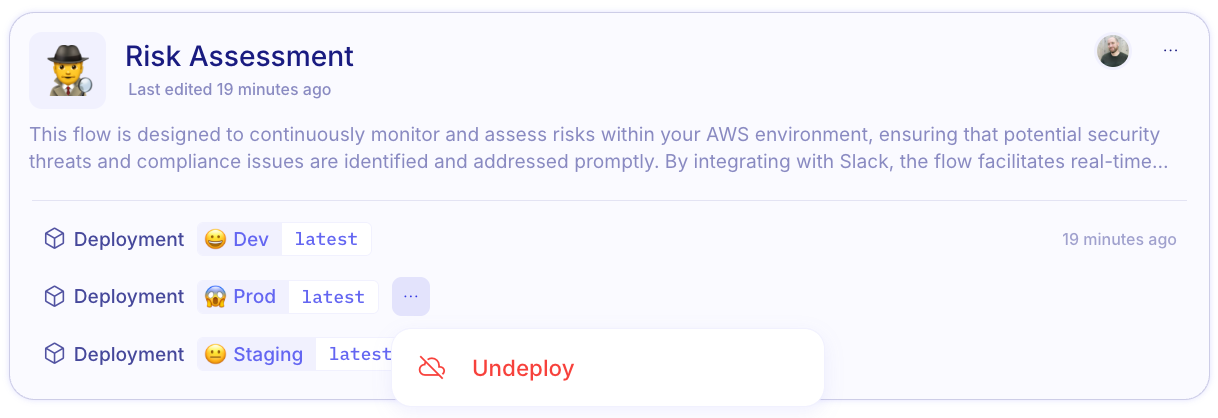
Section titled “One flow, multiple deployments 🚀”Previously, Mindflow’s “Environment” concept was limited to deploying each flow in just one environment at a time. Now, you can deploy the same flow across multiple environments simultaneously (limited to the latest version for now, with additional version support coming in a future release). This means your identical flow definition can run with completely different credentials and execution contexts depending on which environment it’s operating in.
How can you leverage multiple environments?
Section titled “How can you leverage multiple environments?”Here are several use cases:
-
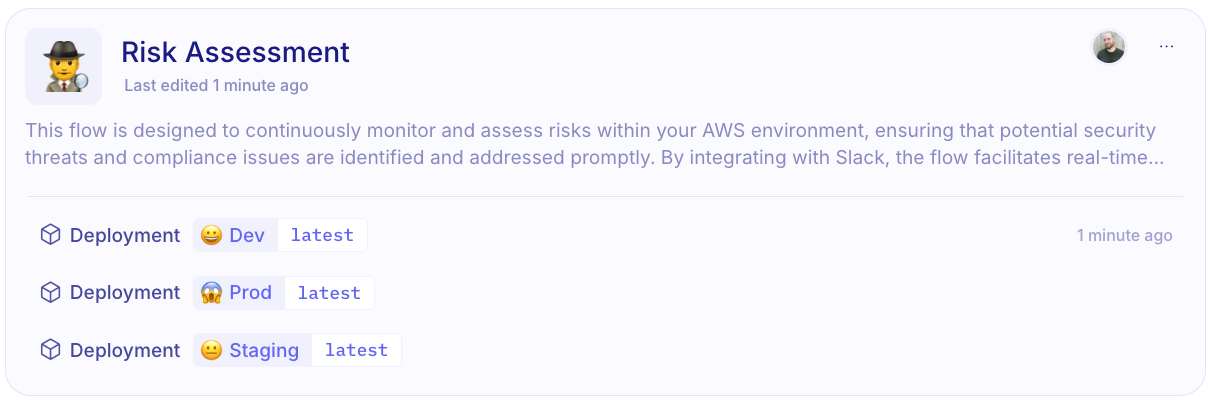
Flow lifecycle management: Deploy a flow first in a “Developer” environment to build it, then in a “Staging” environment to test it. Once you are confident, you can deploy it to the “Production” environment.
-
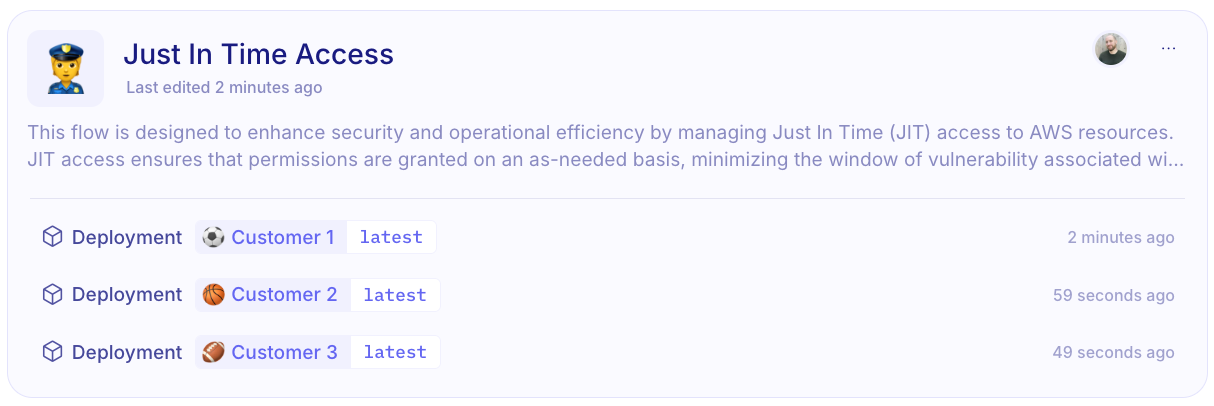
Managed Security Service Providers (MSSPs): Utilize a single flow for different customers, each with their own set of credentials. In the following example, we can see a “Just In Time Access” flow deployed for three customers.
-
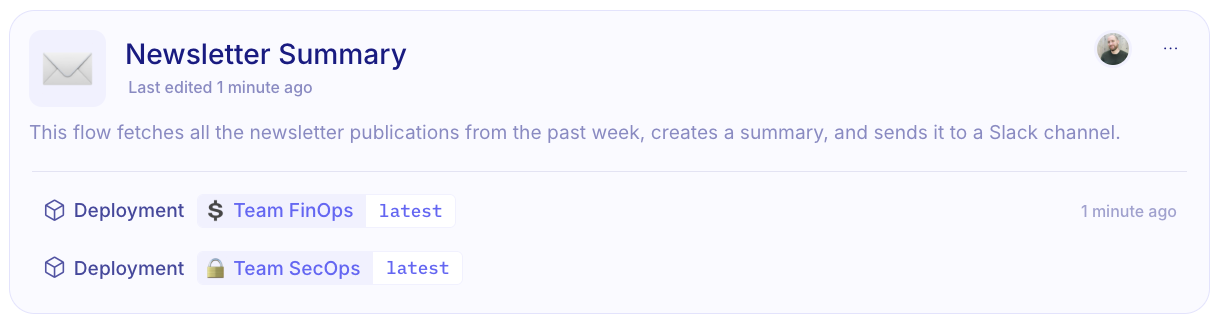
Team collaboration: Enable different teams to use the same flow, each within their own environment.
How to switch between environments
Section titled “How to switch between environments”You can easily switch from one environment to another in the designer by using the dropdown menu to the right of the flow name.
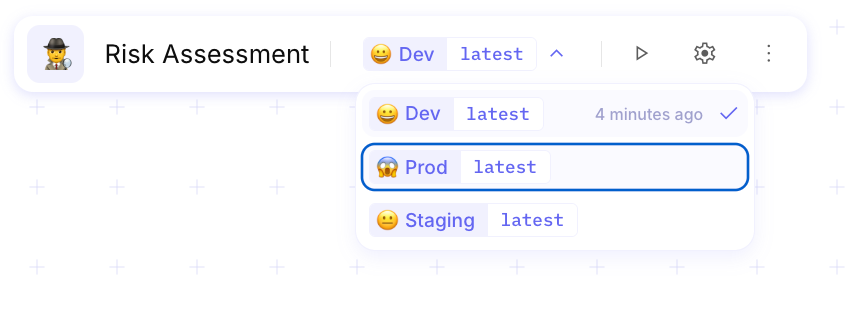
When you switch environments, the credentials are automatically replaced with those from the newly selected environment.
How to deploy or undeploy a flow
Section titled “How to deploy or undeploy a flow”To deploy a flow into a new environment, simply click on the top right corner of a flow and select “Deploy flow…”
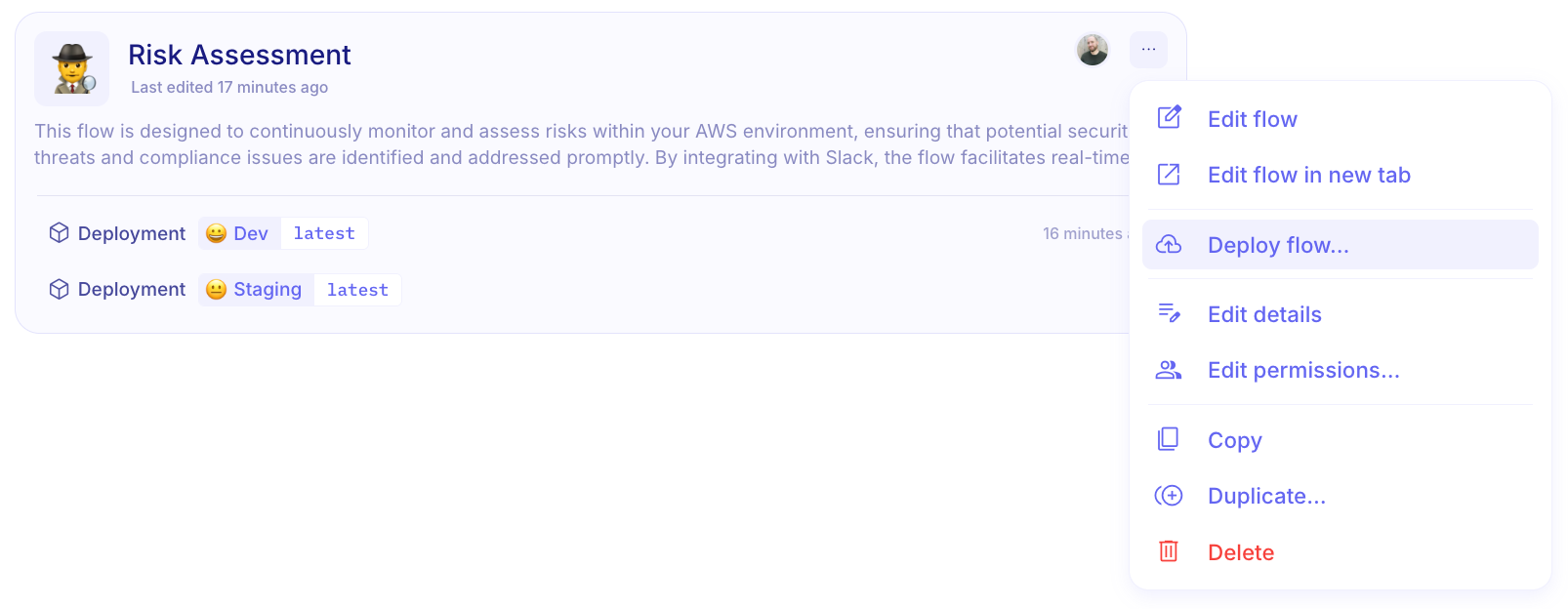
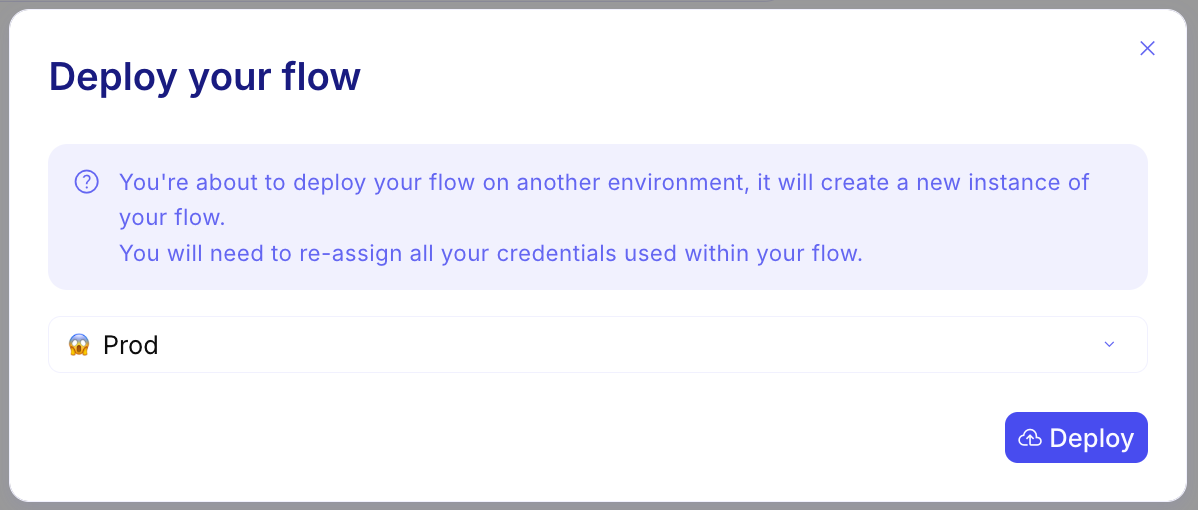
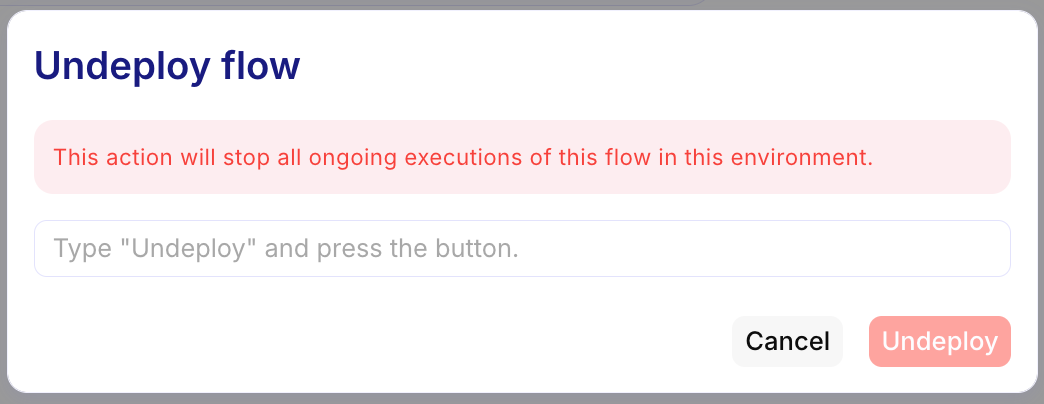
To undeploy a flow, simply click on the … menu of a Deployment and select “Undeploy”
CHANGES
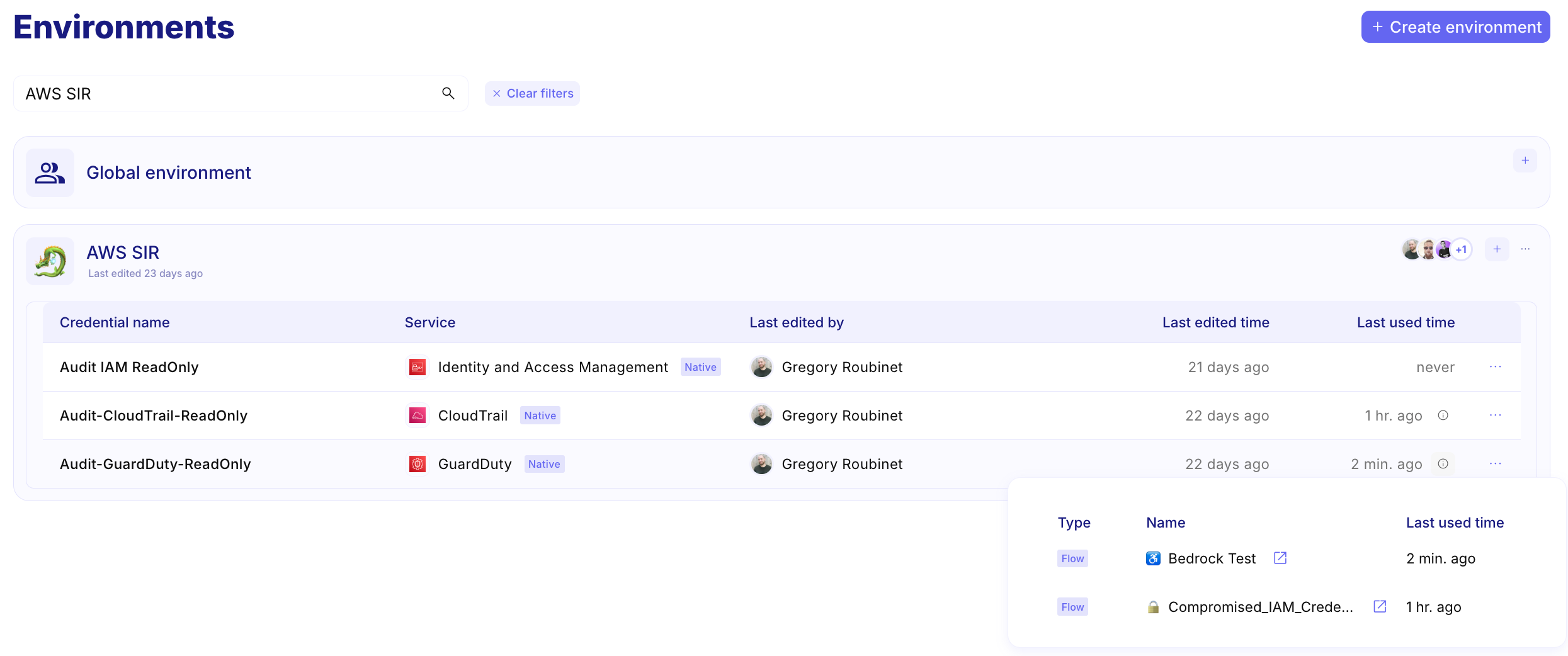
Section titled “CHANGES”Tracking credential usage 🔑
Section titled “Tracking credential usage 🔑”Ref: #7471
The Environments section now includes helpful new details to better manage your credentials — specifically, the “last used” timestamp and a list of flows that have accessed each credential.
- Clicking the AI··Task badge only displays partial information. (#8459)
- AI··Rooms are not correctly configured to use mTLS and fixed IP addresses. (#8435)
- The Stop button in the Log tab does not display the confirmation modal. (#8026)
- Large payloads for AI··Task are not handled properly. (#8191)
- The custom credential is not automatically selected when the correct service is chosen. (#6642)