

Tengu

In Japanese folklore, a tengu is a winged mountain spirit that guards sacred peaks and tests travelers who climb too proudly.
This release lets you attach files from earlier steps to AI··Task, document a flow from the designer toolbar, choose GPT-6 Astra and Gemini 3.8 Flash, and create Akamai EdgeGrid and Oracle Cloud Infrastructure API key credentials.
Attach files to AI··Task
Section titled “Attach files to AI··Task”You can now attach files from earlier email triggers or service step responses so an AI··Task can analyze them with your prompt. Pick a response body or email attachments as file pills; each run resolves those files again from that execution.
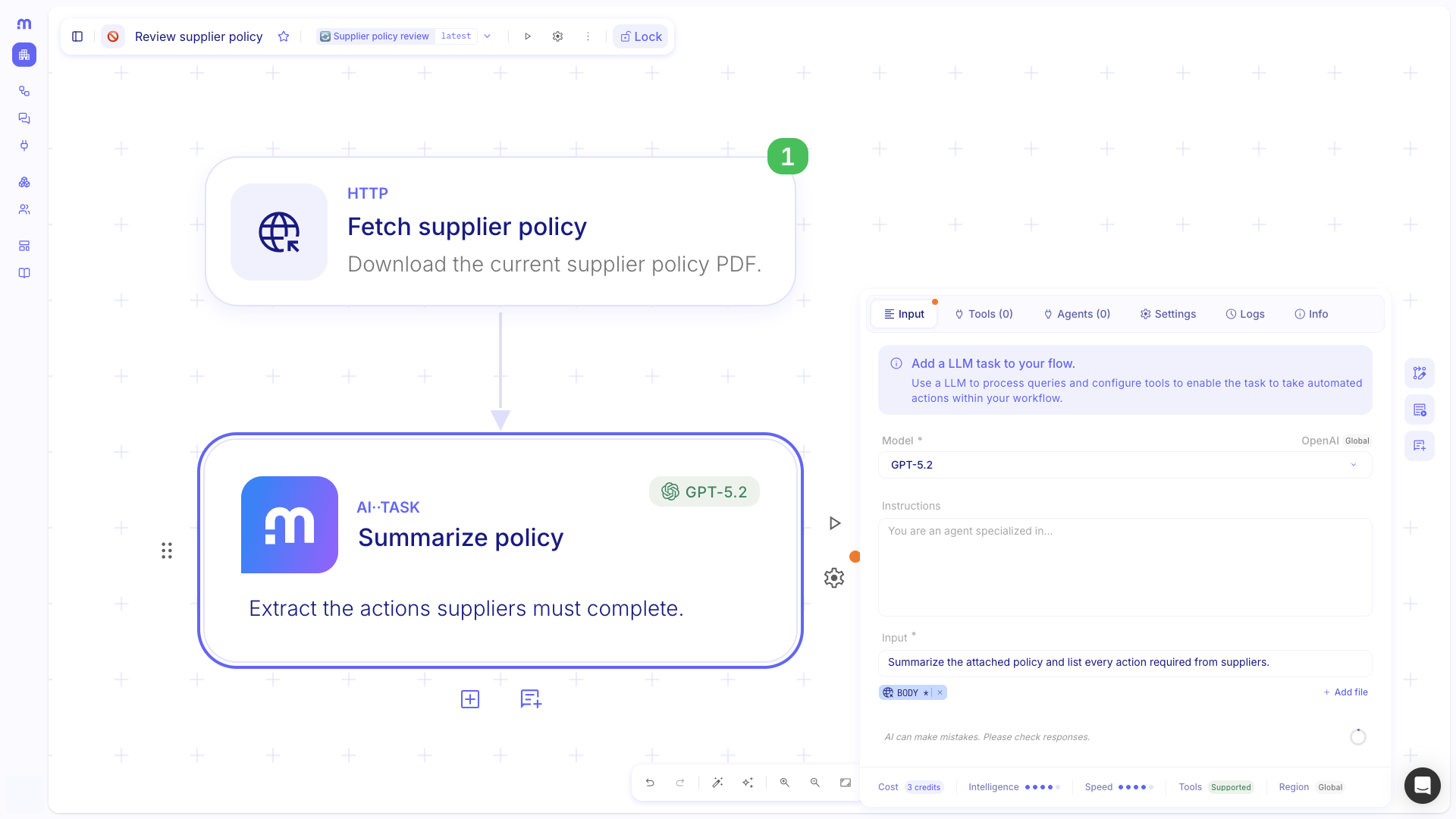
For more details, see Analyze files with AI··Task.
Document a flow from the toolbar
Section titled “Document a flow from the toolbar”The designer toolbar now includes Document workflow. One click generates readable AI··Note documentation for the current flow so reviewers can see what the automation does without leaving the canvas.
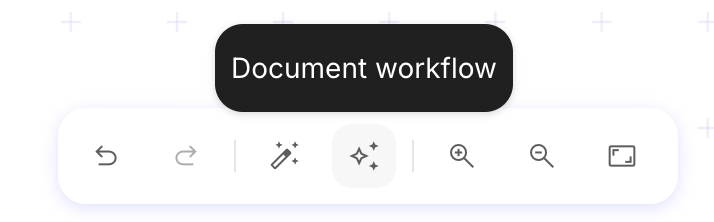
For more details, see AI··Build: Faster flow creation.
GPT-6 Astra and Gemini 3.8 Flash
Section titled “GPT-6 Astra and Gemini 3.8 Flash”You can now select GPT-6 Astra and Gemini 3.8 Flash in AI··Task and other model pickers. Use Astra for long-horizon professional work, and Gemini 3.8 Flash when you want a fast multimodal model.
For more details, see AI··Task: A simple guide.
Akamai EdgeGrid credentials
Section titled “Akamai EdgeGrid credentials”You can now create an Akamai EdgeGrid credential in Studio and use it with Akamai integrations that require EdgeGrid authentication.
For more details, see Create and manage credentials.
Oracle Cloud Infrastructure API key credentials
Section titled “Oracle Cloud Infrastructure API key credentials”You can now create an OCI API Key Signature credential for Oracle Cloud Infrastructure services that authenticate with an API signing key.
For more details, see Create and manage credentials.
CHANGES
Section titled “CHANGES”Model routing label is now Region
Section titled “Model routing label is now Region”On model details, the former Routing label is now Region, so the regional path for a model call is easier to recognize.
Add-step menu includes vendor credential services
Section titled “Add-step menu includes vendor credential services”When you connect a vendor-style credential, matching services now appear in the add-step catalog so you can call them without hunting for the integration first.
For more details, see Call native integrations.
Richer editing for AI··Task prompts and Notes
Section titled “Richer editing for AI··Task prompts and Notes”AI··Task Instructions and Input, plus canvas Note / AI··Note steps, now use Studio’s rich text editor. Headings, lists, and other formatting render while you type; you can switch an AI··Task field to raw markdown when you need the source. Flow documentation on the canvas is easier to write and scan.
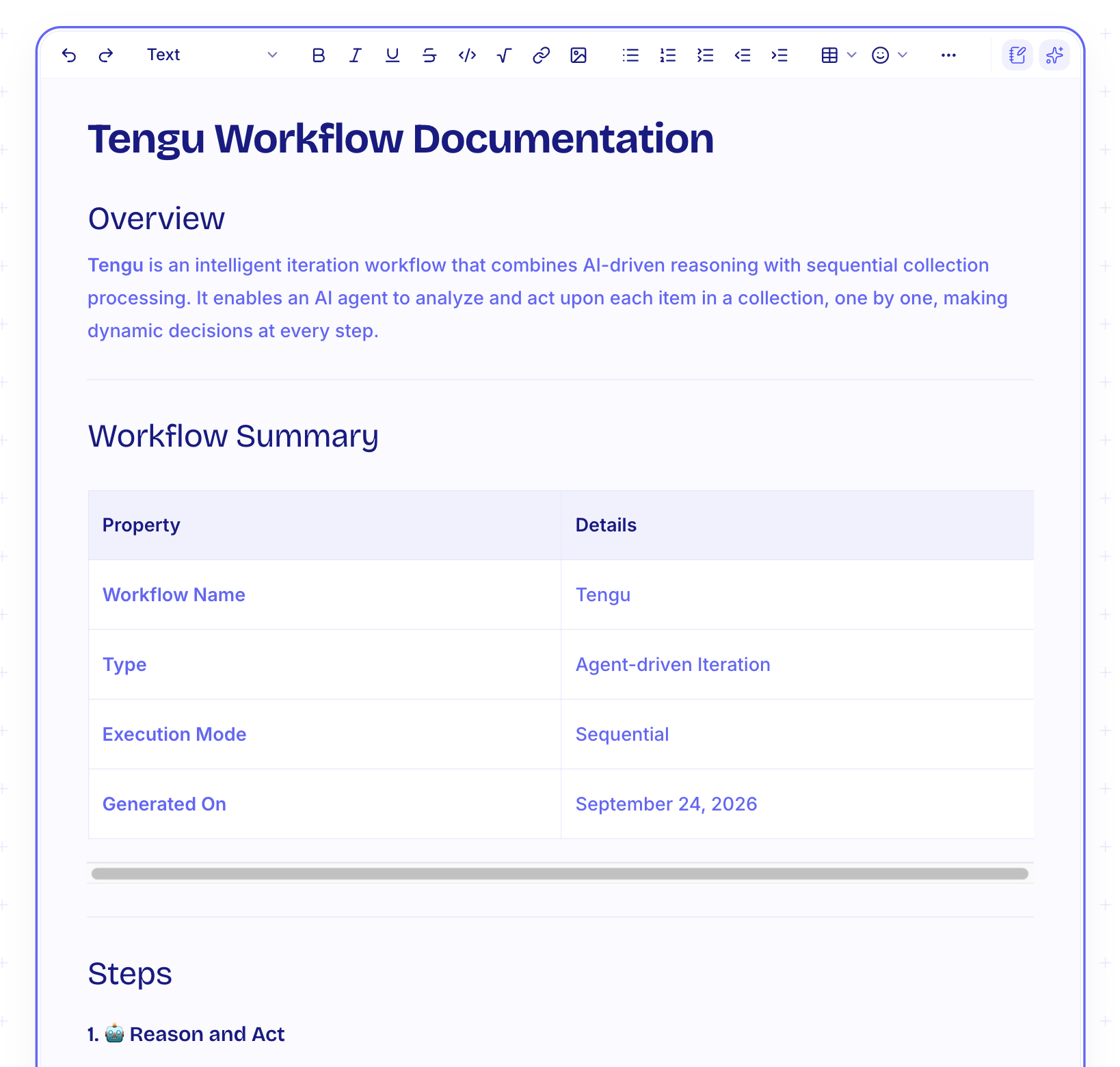
For more details, see AI··Task: A simple guide and Handy tools.
- Signing out could leave Studio in a broken state until you refreshed. (#7132)
- OAuth refresh and certificate-based client authentication could fail after a credential update. (#7229)
- OAuth2 client authentication could fail when the client ID needed special encoding. (#7208)
- OIDC credentials with a generic issuer could reject a valid ID token. (#7211)
- Starting a flow could fail when variables or binary values used an unsupported wire format. (#7217)
- Flow previews could fail to show binary step results. (#7210)
- Credential lookup could resolve the wrong credential when the same name existed in Global and the environment. (#7133)
- AI proxy models could disappear after you edited an Advanced credential. (#7135)
- Step selection could clear while you edited a step with logs open. (#7128)
- Public templates could open or behave incorrectly. (#7113)
- Opening the designer could jump the canvas before the layout settled. (#7101)
- AI··Task could require Input even when the step only needed attached files. (#7180)
- Very large data constants could fail to save on a step. (#7077)
- Live dry-run logs and failure email links could miss the step you meant to open. (#7134)