

Orc
This release introduces Chathook triggers to invoke flows from chatrooms with live streaming replies, plus service mocking and smarter AI··Task tool configuration.It also delivers multiple UX/platform improvements (sub-agents, dry-run scripts, Mistral model support, AI-assisted note editing) and a set of bug fixes
In Tolkien’s original lore, orcs were not created independently — they were corrupted and twisted versions of elves, captured and tortured by the dark lord Morgoth to forge a new brutal race to serve his armies
Invoke flows from chat rooms with live streaming 💬
Section titled “Invoke flows from chat rooms with live streaming 💬”Ref: #11229,#11638,#11630
You can now call any flow directly from a chatroom, enabling simple interaction with your flows as naturally as chatting with an agent.
Add the new Chathook Trigger to a flow, deploy it to an environment, and invoke it from a chatroom by mentioning the flow in your message. The chat message, conversation context, and sender information are automatically passed into the flow, making it easy to power AI··Tasks, API calls without leaving the conversation. Enable Reply in chat on AI··Task steps to stream responses directly into the chatroom and persist agents’ conversation memory to maintain context across interactions in the same chatroom.
In the example below, we add a Chathook step to our ip analysis flow
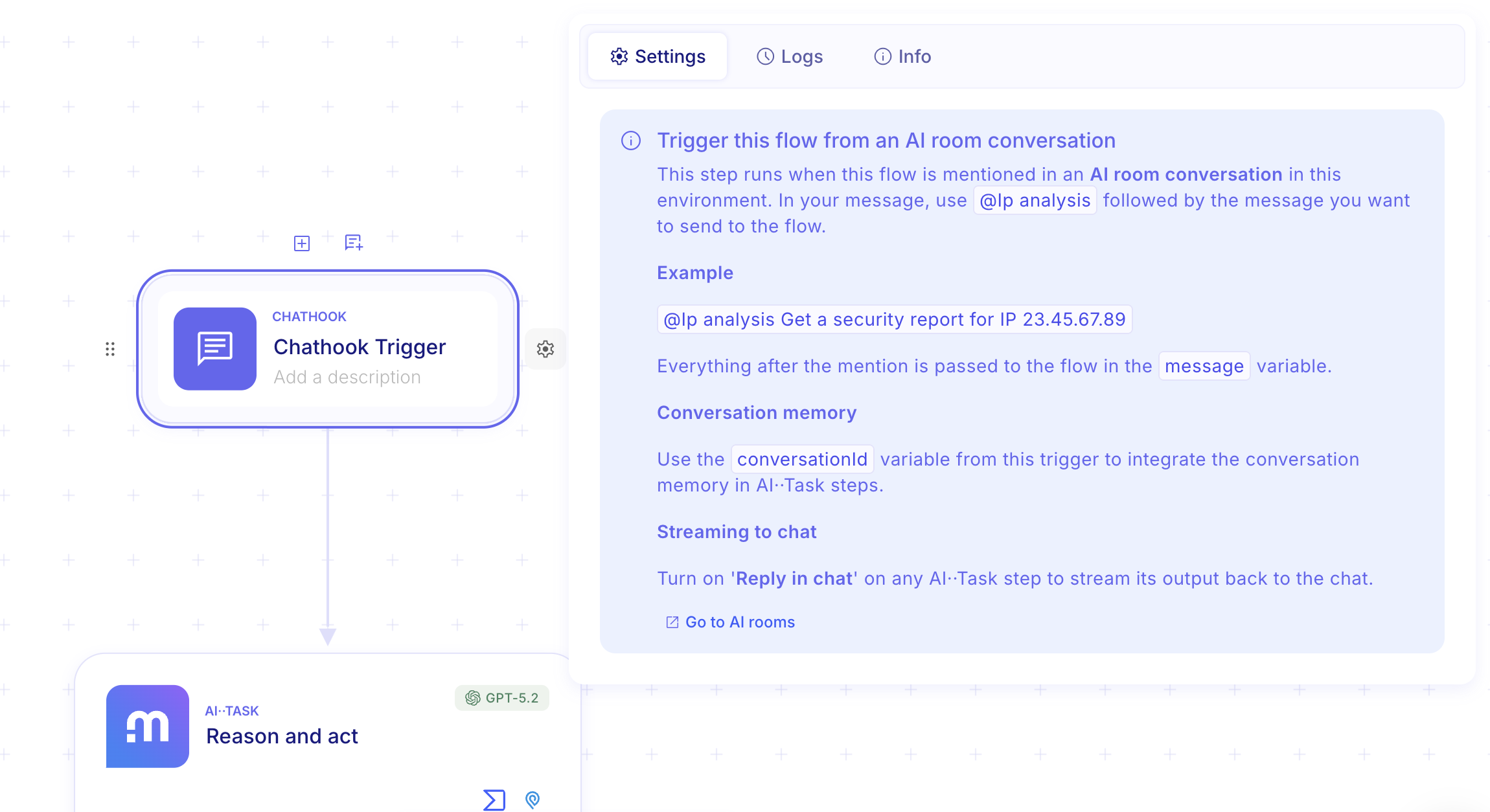
This makes the flow callable from any chatroom in the same environment.
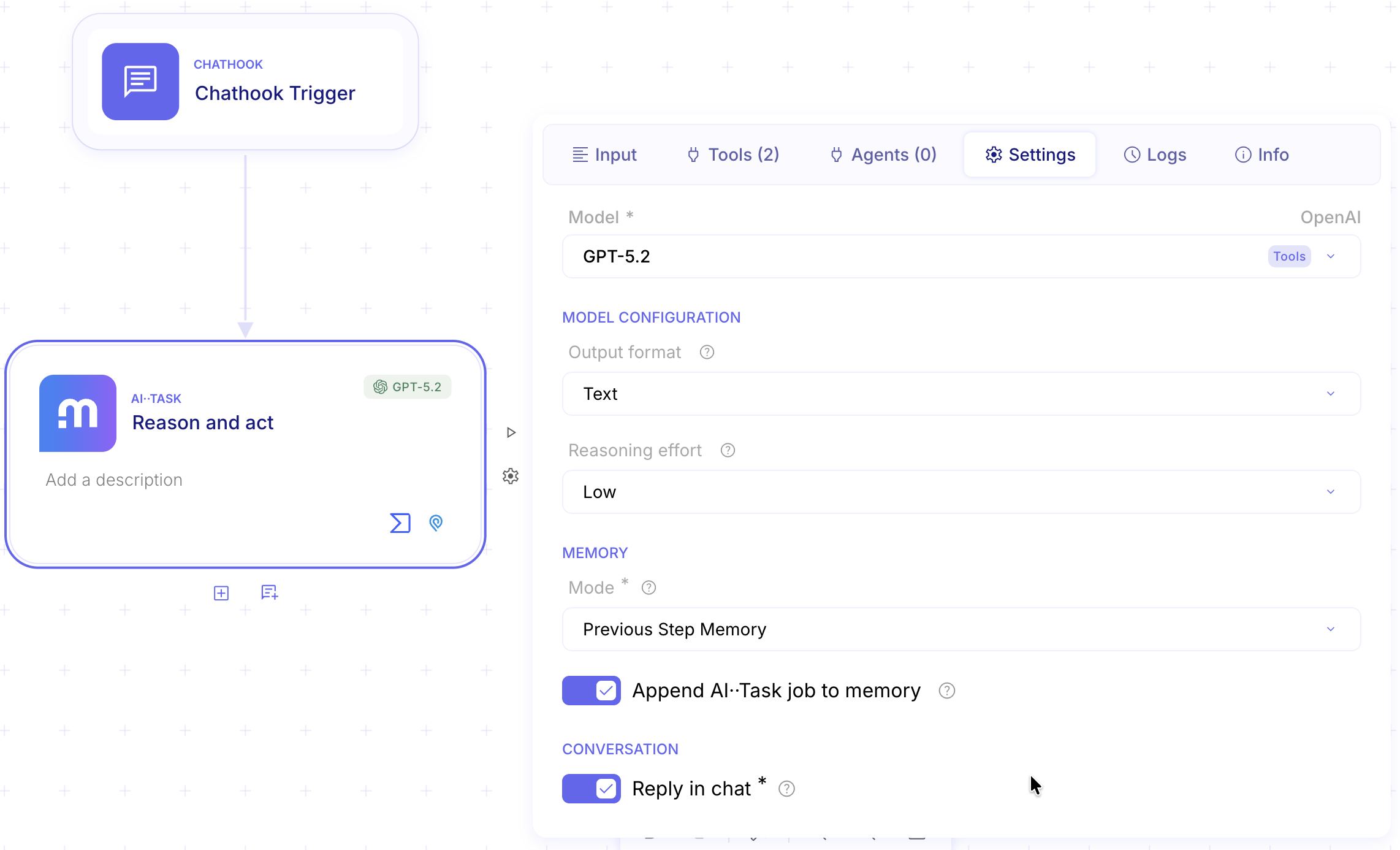
Enable the reply in chat setting in your AI··Task to stream its output back to the chat, and configure memory access to use the chatroom’s conversation memory — Previous step memory after a Chathook uses the chatroom’s conversation memory.
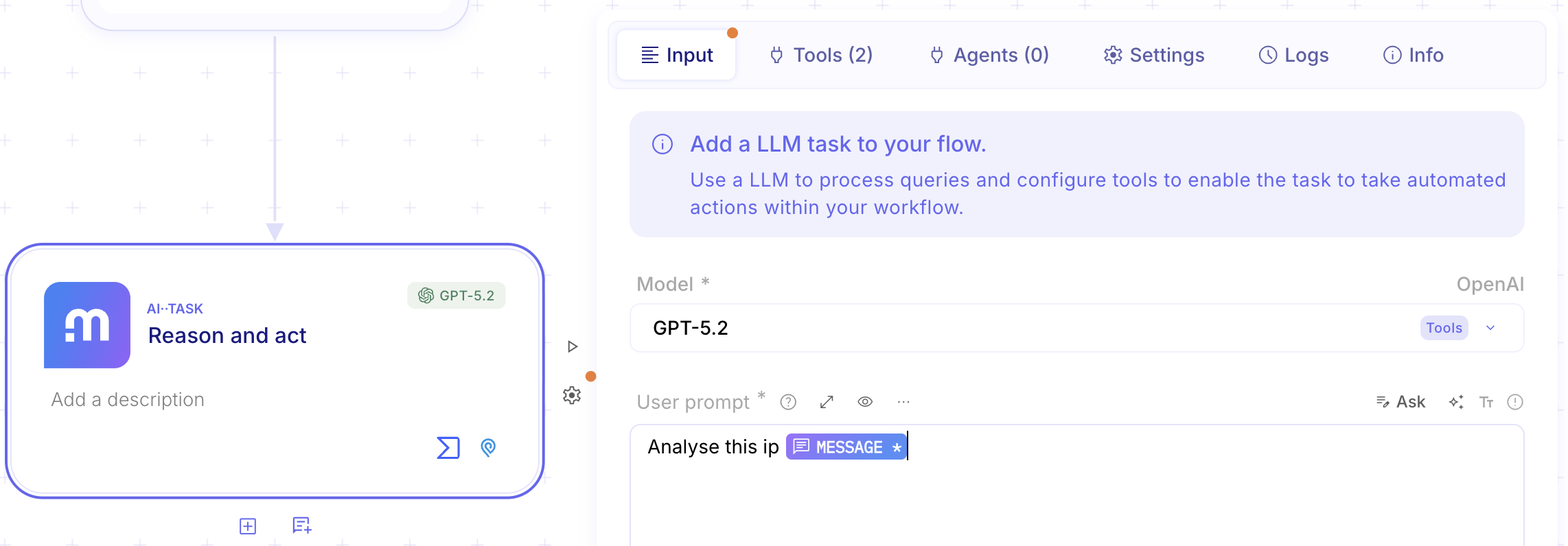
In the prompt, pick the message from the Chathook trigger:
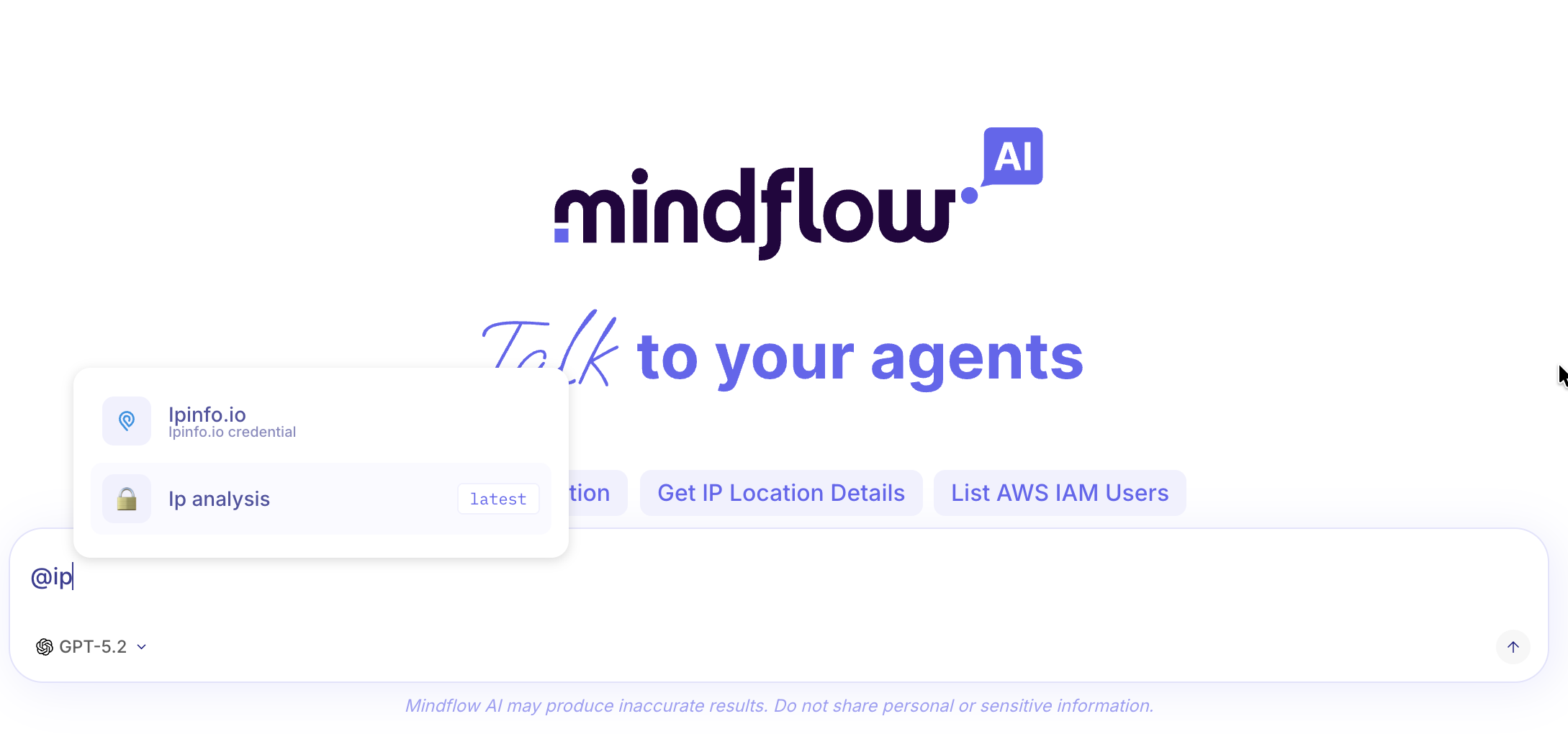
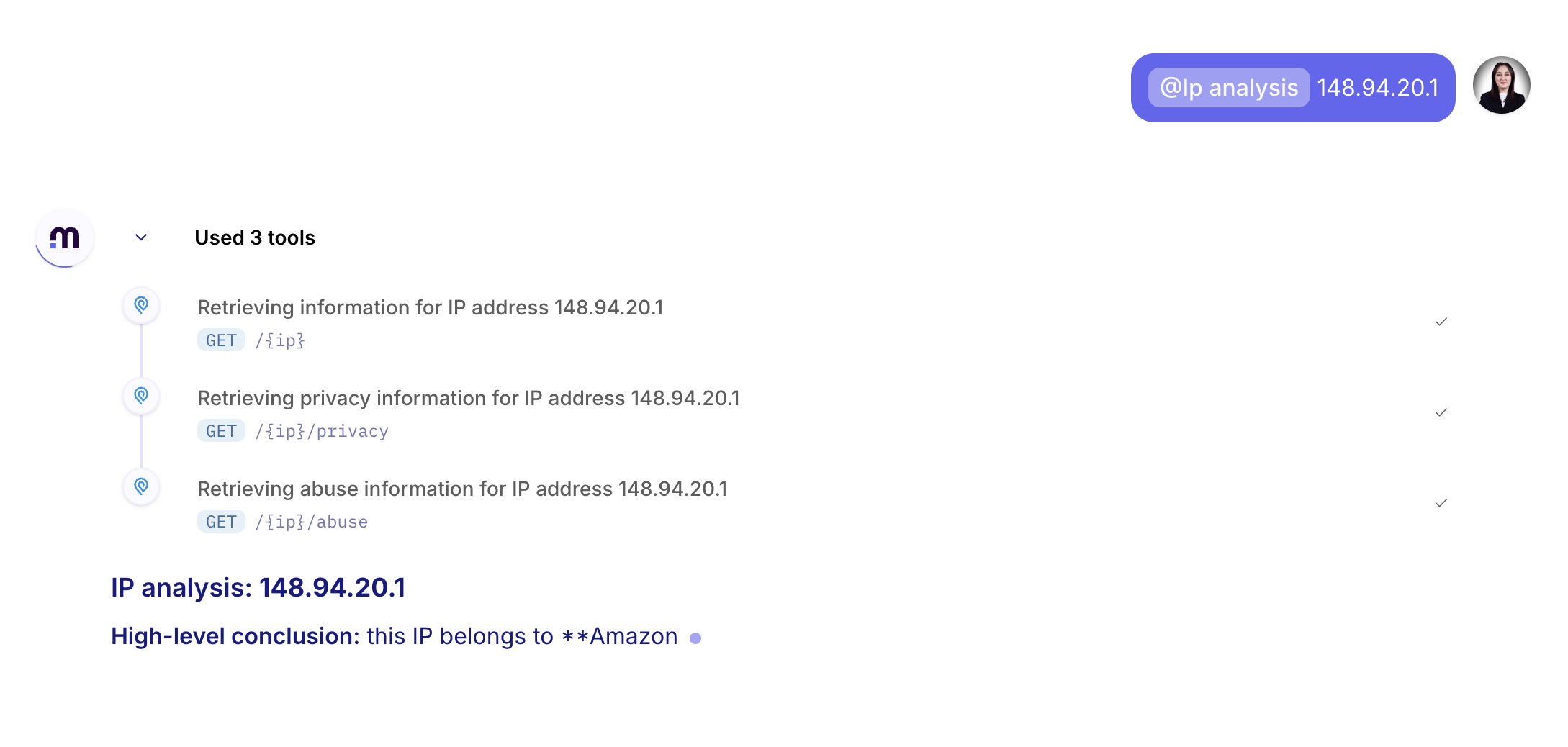
In a chatroom, you can now invoke the Ip analysis flow and specify the ip to analyse and get the output streamed live to the chatroom.
Service Mock 🔗
Section titled “Service Mock 🔗”Ref: #11578
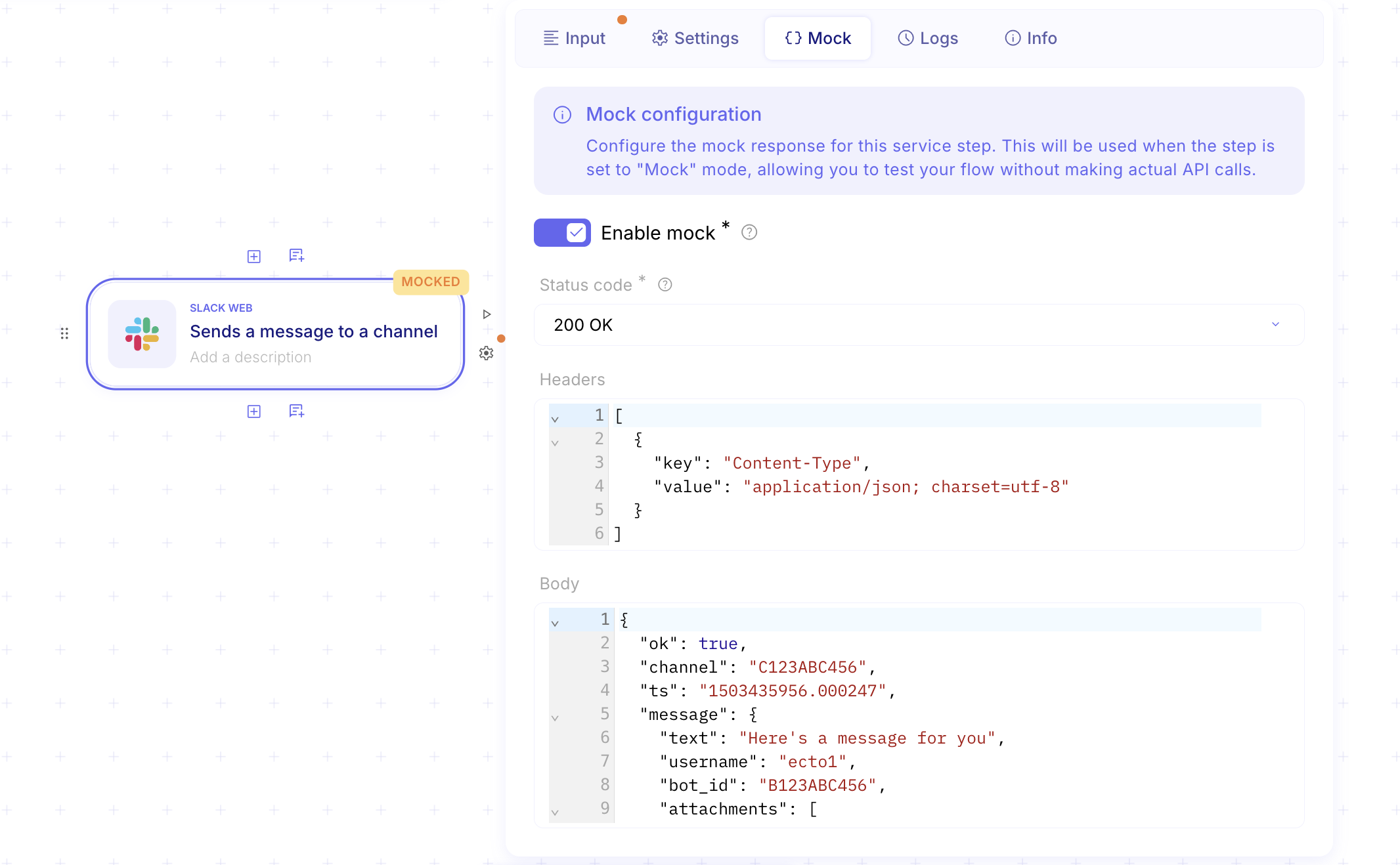
You can now mock external service responses directly in your Flow steps, so you can build and test without needing live credentials.
Define the expected HTTP status code, headers, and body (similar to the Webhook response UI), and Mindflow will use that simulated response when the step runs—making it easy to iterate quickly, validate downstream payload handling, and reliably test error scenarios. Mocked steps are clearly indicated in the builder so you always know when a Flow is running against simulated data.
Automatic AI··Task service tool configuration 🤖
Section titled “Automatic AI··Task service tool configuration 🤖”Ref: #11564
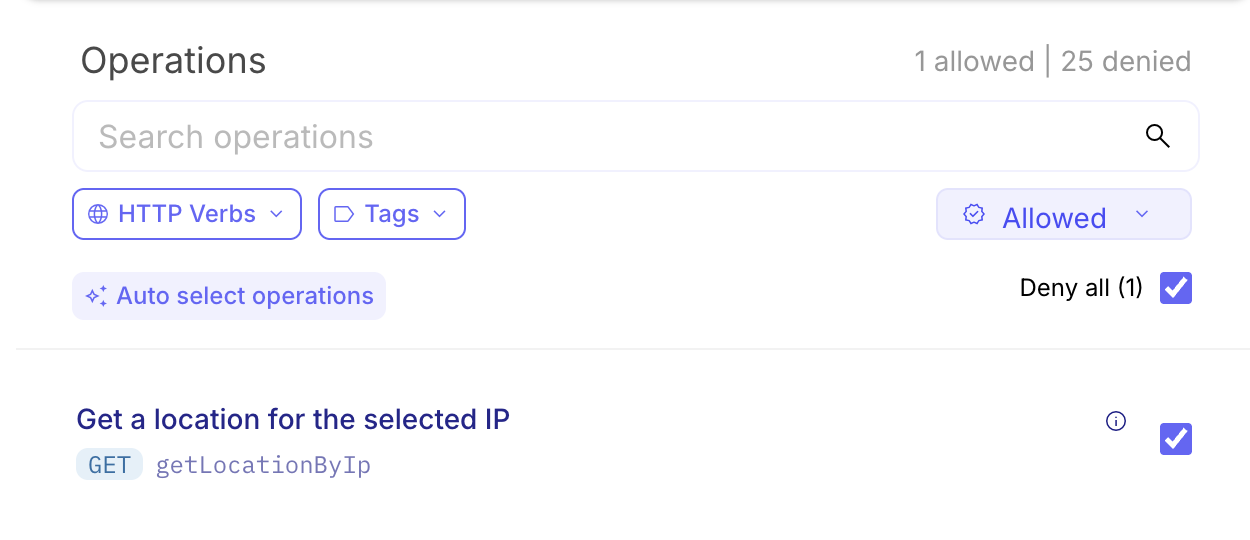
You can now let AI do the heavy lifting when configuring your AI··Task service tool. A new “Auto-select operation” button analyzes your user prompt, task description, and context to instantly suggest and apply the most relevant operation, all within seconds. The selection is applied directly in the UI, so you can review, adjust, or revert it at any time with no risk to your workflow
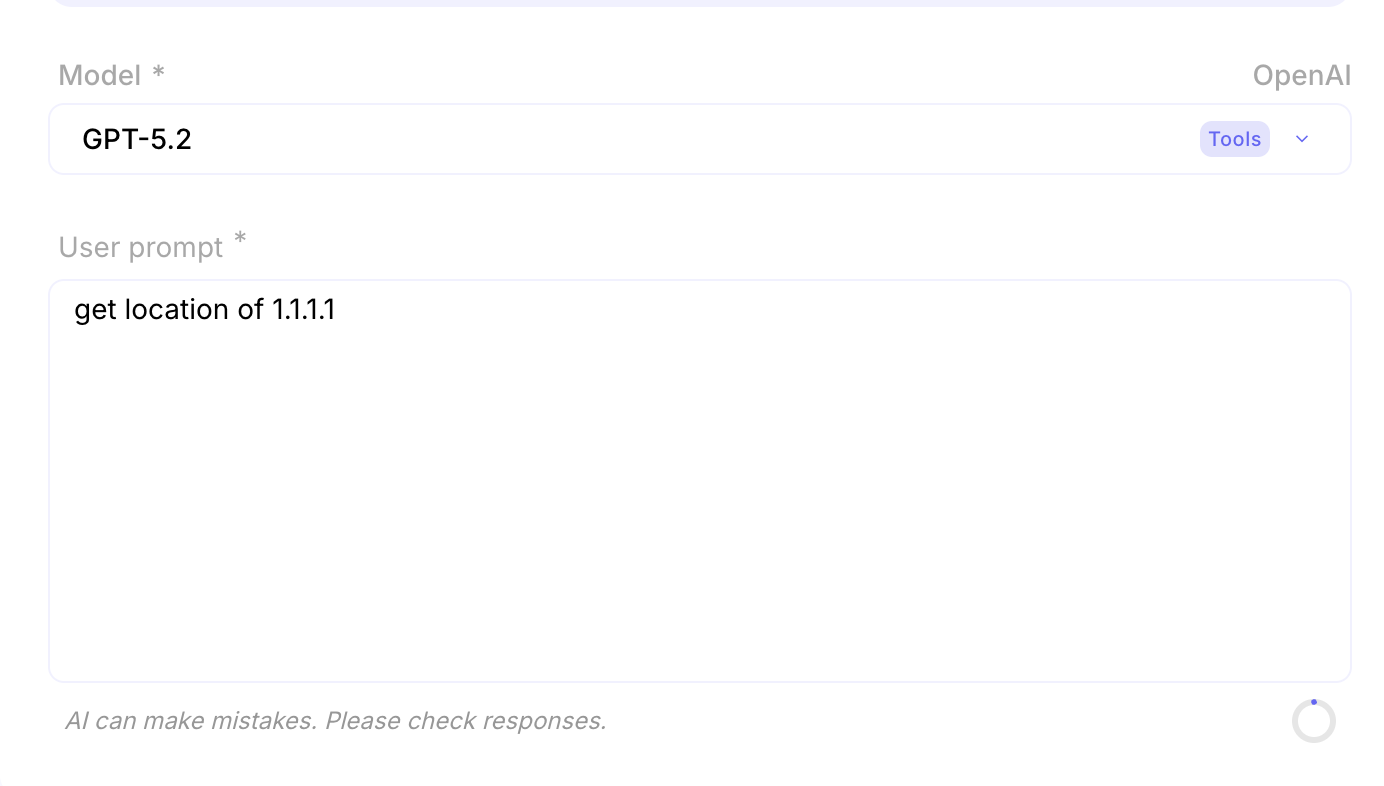
In the example below, we set a prompt to get a location of a specific ip
Then add the IP Info tool and click on Auto Select Operations
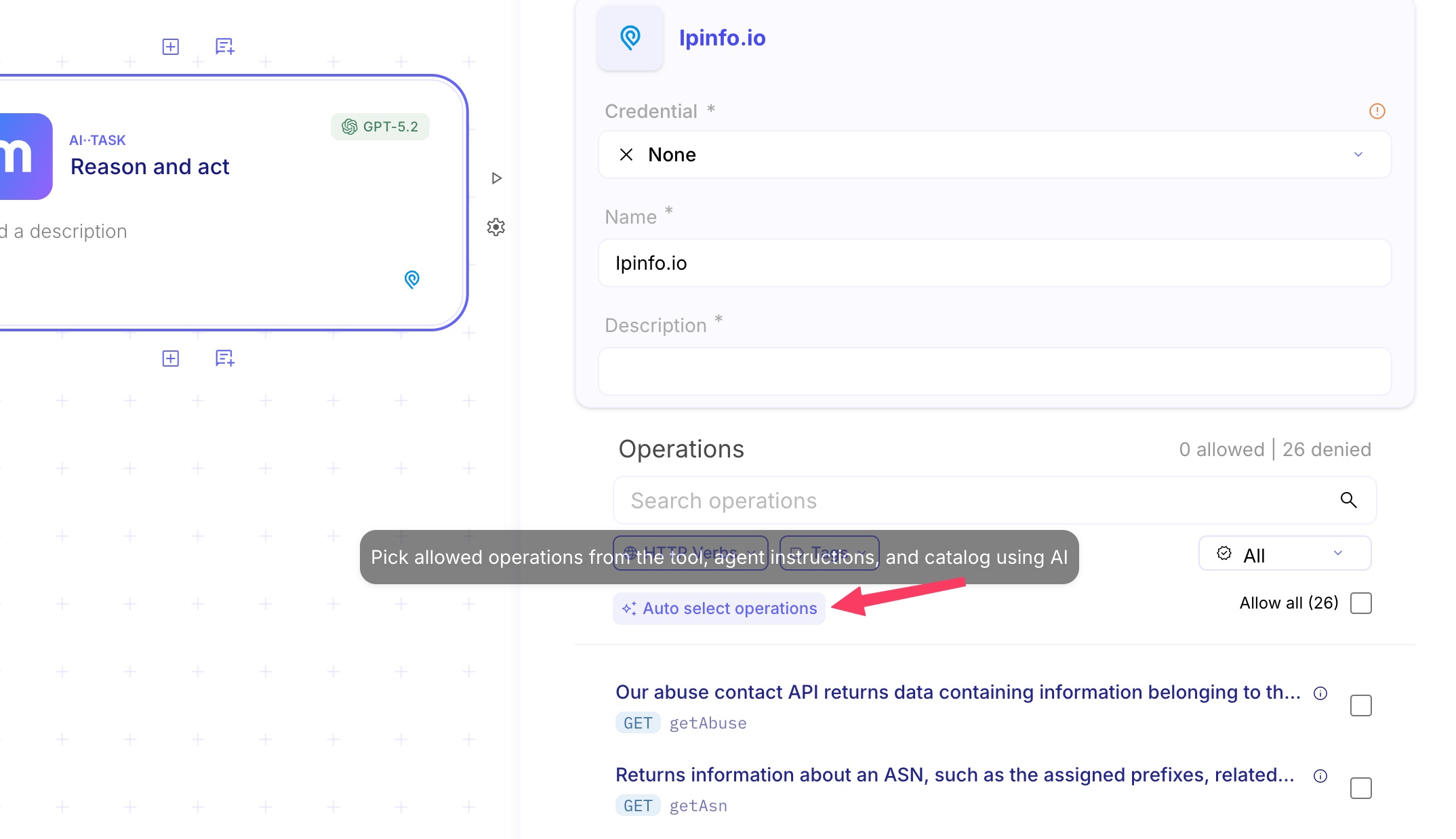
That’s it, no more need to be an API expert anymore 😎 Based on your prompt and the selected tool, all the required operations are automatically selected in just a few seconds
Improved Webhook security 🔗
Section titled “Improved Webhook security 🔗”Ref: #11725
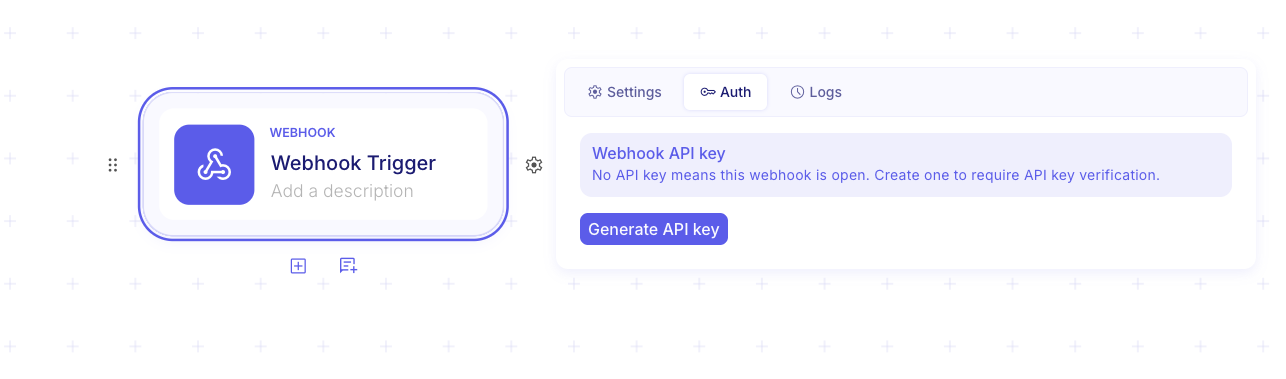
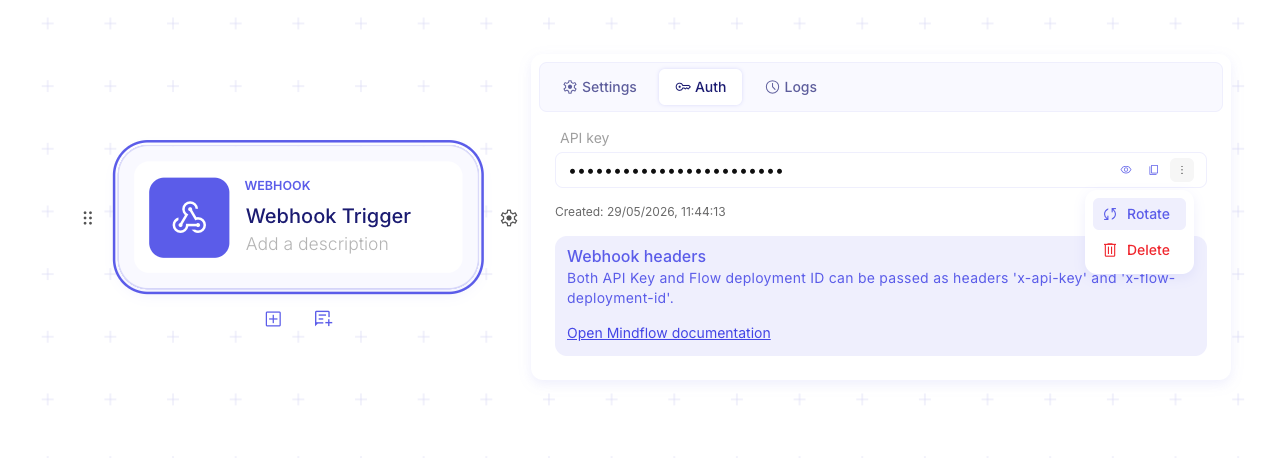
From now on, each flow has its own API key. In the Webhook trigger step, there is a new “Auth” tab to manage this flow’s API key. When adding a Webhook trigger, you can set an API key to make your flow more secure. By default, the Webhook trigger has no API key, and the flow can be triggered without one. You can rotate or delete the API key at your discretion. Any user who views the API key or copies it (or the URL used to trigger the flow when an API key is set) will create an auditable record.
CHANGES
Section titled “CHANGES”Improved AI··Task design 🤖
Section titled “Improved AI··Task design 🤖”Ref: #11587
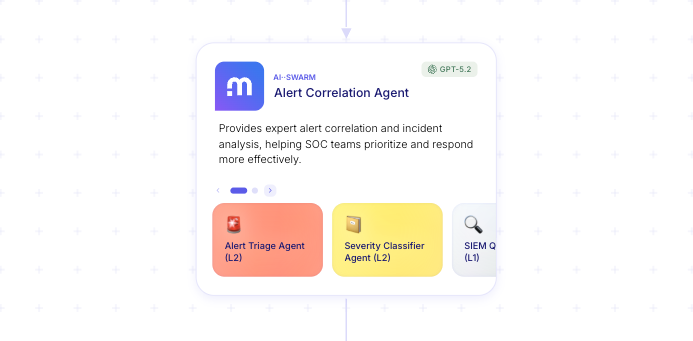
AI••Tasks have been redesigned with a new interface that now surfaces sub-agents directly within the task view. This gives users a clearer visualization of how work is delegated across sub-workflows, making it easier to understand, organize, and orchestrate complex automation flows.
Dry-run support for Script steps 🧪
Section titled “Dry-run support for Script steps 🧪”Ref: #11241
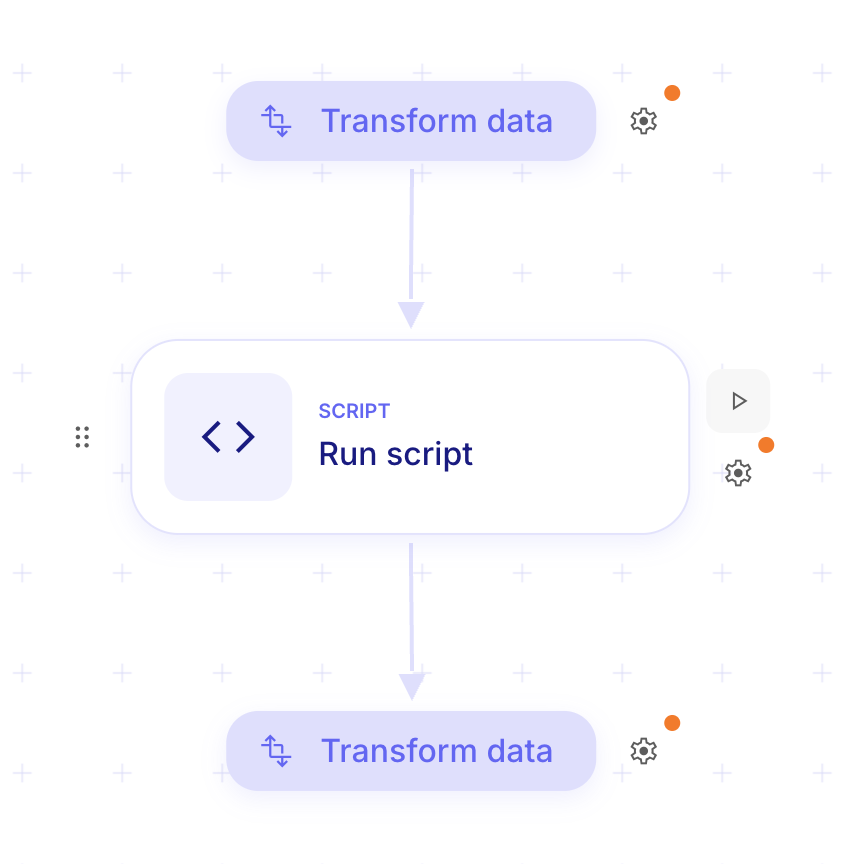
You can now test your Script steps before deploying them to production using the new dry-run feature. Previously, to run a Script step in the middle of a Flow, you had to execute the entire Flow end-to-end. Dry-run makes it much more convenient to validate your script logic quickly, without needing to run the full Flow. Simply trigger a dry-run directly from the interface to instantly execute your script and review the results, giving you greater confidence before rolling out changes.
Better Mistral AI models support 🌬️
Section titled “Better Mistral AI models support 🌬️”Ref: #11561
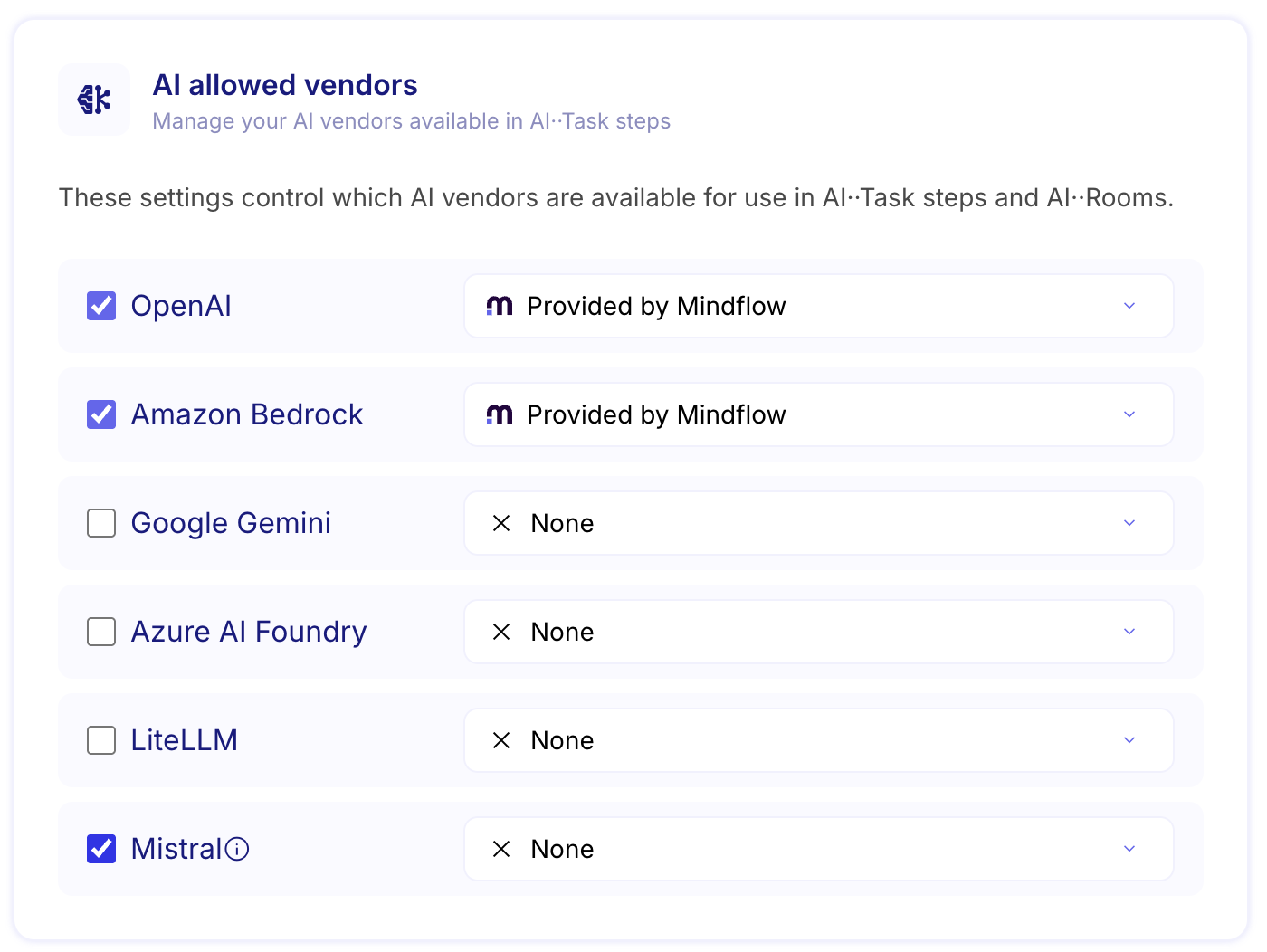
You can now connect your agents to Mistral AI models, expanding your options beyond existing integrations. This gives you greater flexibility to choose the AI model that best fits your use case, performance needs, and preferences — without changing your existing setup.
Simpler Note step with AI✏️
Section titled “Simpler Note step with AI✏️”Ref: #11412
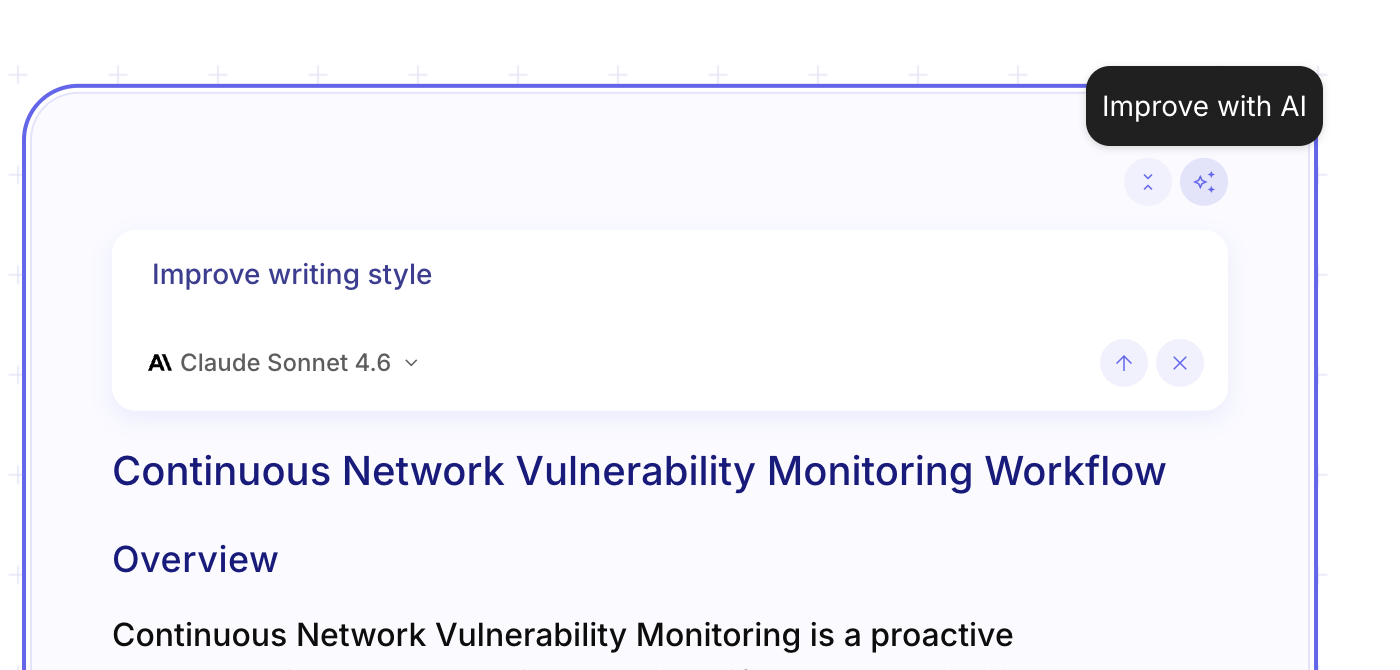
Note Steps now include AI-assisted editing to help you document workflows faster and more effectively. Generate structured flow documentation in one click, rewrite notes using natural language prompts, or instantly refine tone and clarity. With an integrated prompt bar built directly into the canvas, teams can create and update documentation more seamlessly—keeping workflows clear, consistent, and easy to maintain.
- Encode/Decode Base64 function doesn’t support binary data (#11546)
- Transform variables doesn’t support binary data (#11545)
- Meraki API Array Parameter Variable Naming (#11695)
- Improved support for copy-pasting from tooltips (#11569)
- Creating a step between two steps with a trigger present. (#11553)
- Calling a flow step not working in distributed ForEach (#11540)
- Link order is not updated when deleting a link. (#11533)
- Warning not displayed in inputs required by Flowhook (#11457)