

Tenable
About Mindflow
Section titled “About Mindflow”Mindflow is an AI-driven automation platform designed for SecOps. It empowers teams to operate at a new level of performance by intuitively automating repetitive mundane tasks and seamlessly orchestrating all their tools. With the largest library of integrated services in the market and revolutionary generative-AI automation, Mindflow makes impactful automation simple and gives back power to IT practitioners.
You can find a demo of Mindflow here.
Step-by-Step Integration Guide for Tenable in Mindflow
Section titled “Step-by-Step Integration Guide for Tenable in Mindflow”Generating API Keys in Tenable
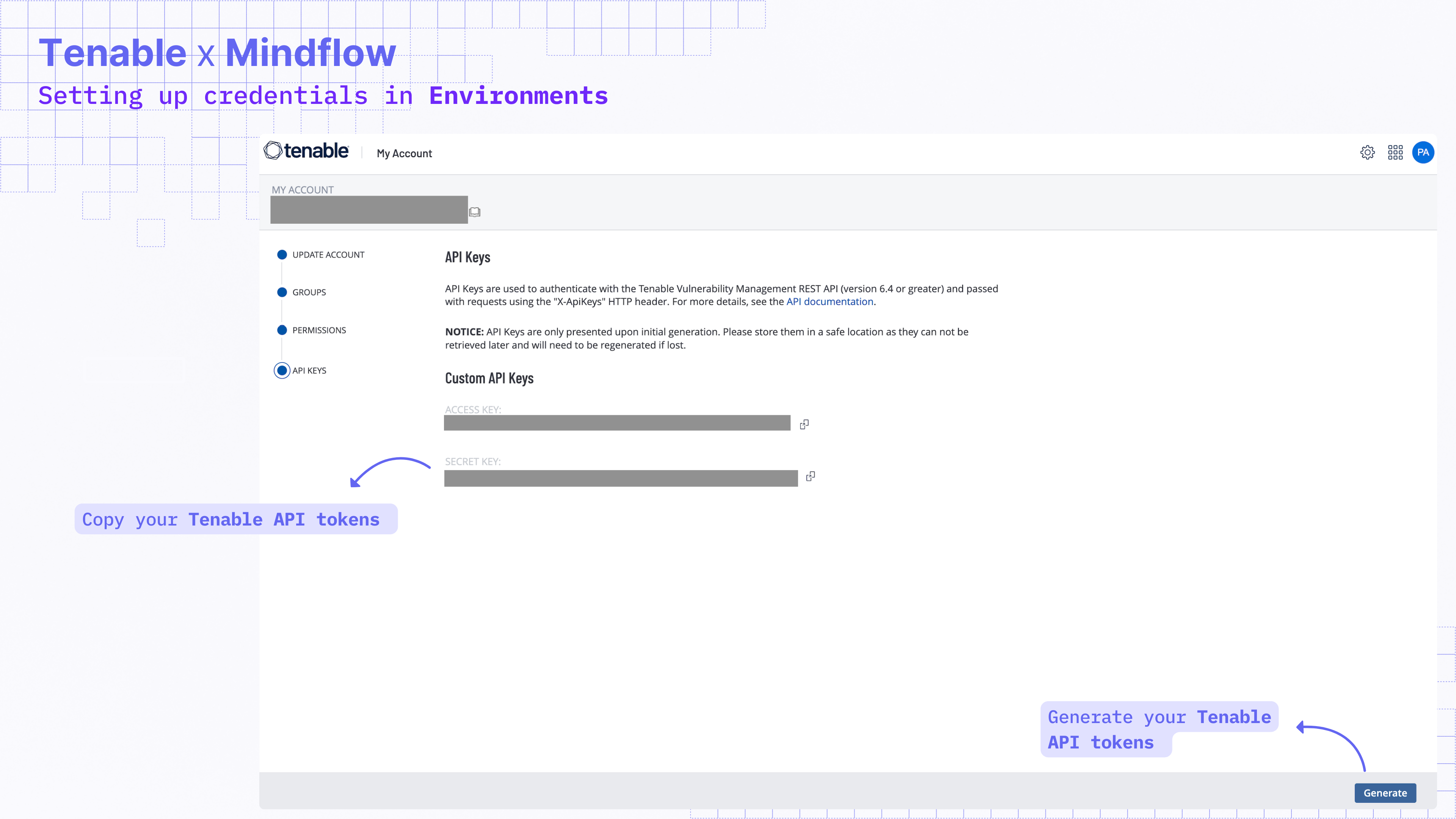
Section titled “Generating API Keys in Tenable”To integrate Tenable with Mindflow, you need an API key. Follow these steps to generate one:
- Log in to your Tenable account.
- Navigate to Settings > My Account.
- Click on API Keys in the left sidebar.
- Click Generate to create a new API key.
- Copy both the Access Key and Secret Key.
Activating Tenable Integration in Mindflow
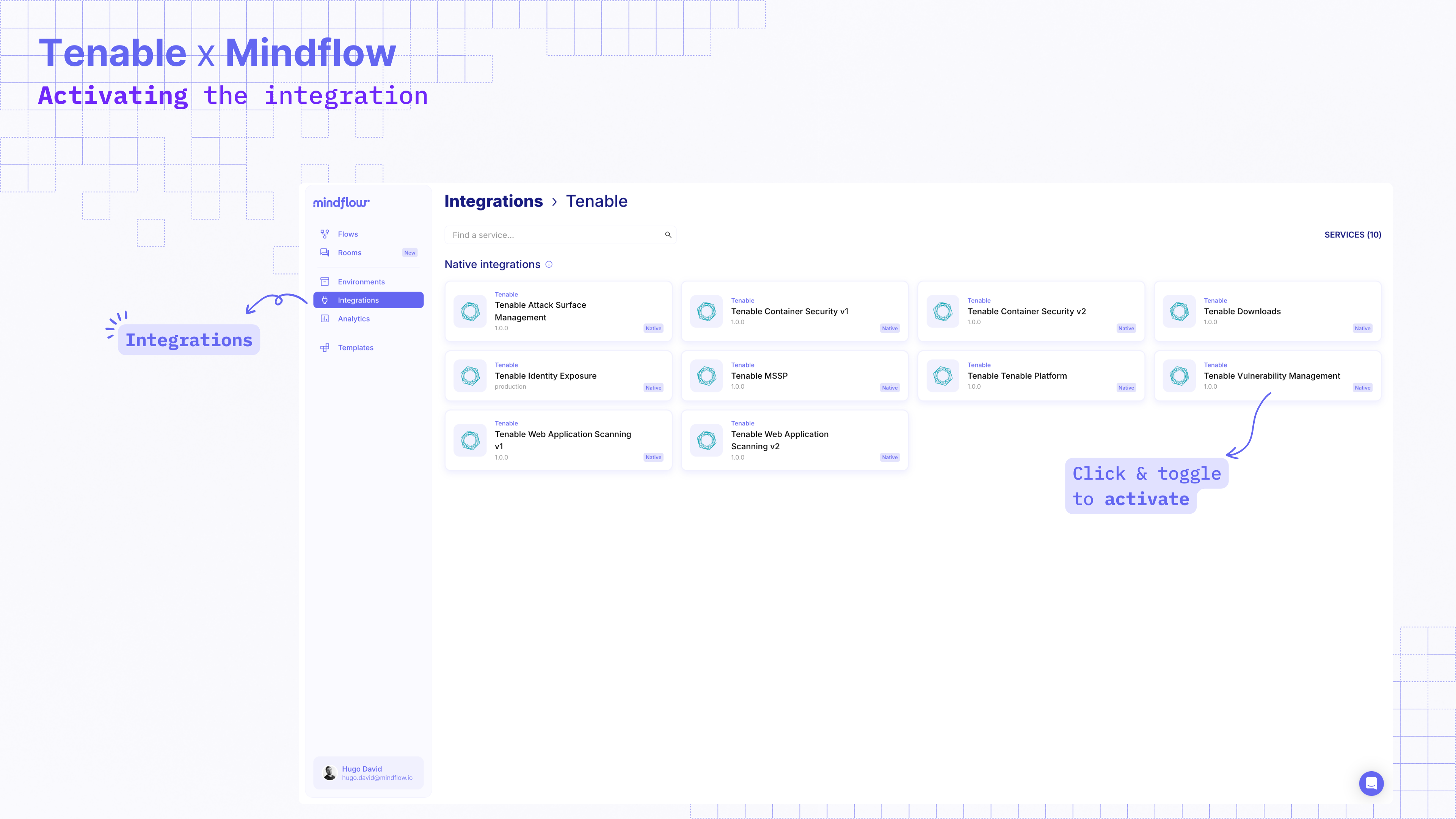
Section titled “Activating Tenable Integration in Mindflow”Once you have your API keys, activate the integration in Mindflow:
-
Log in to your Mindflow Studio account.
-
Navigate to Integrations in the left menu.
-
Search for Tenable in the integrations list.
-
Toggle to activate the Tenable integration.
Setting Up Tenable Credentials in Mindflow
Section titled “Setting Up Tenable Credentials in Mindflow”-
Go to Environments in Mindflow.
-
Choose whether to create the Tenable credential for a specific environment or for the Global Environment.
- Global Environment credentials can be used across multiple workflows.
-
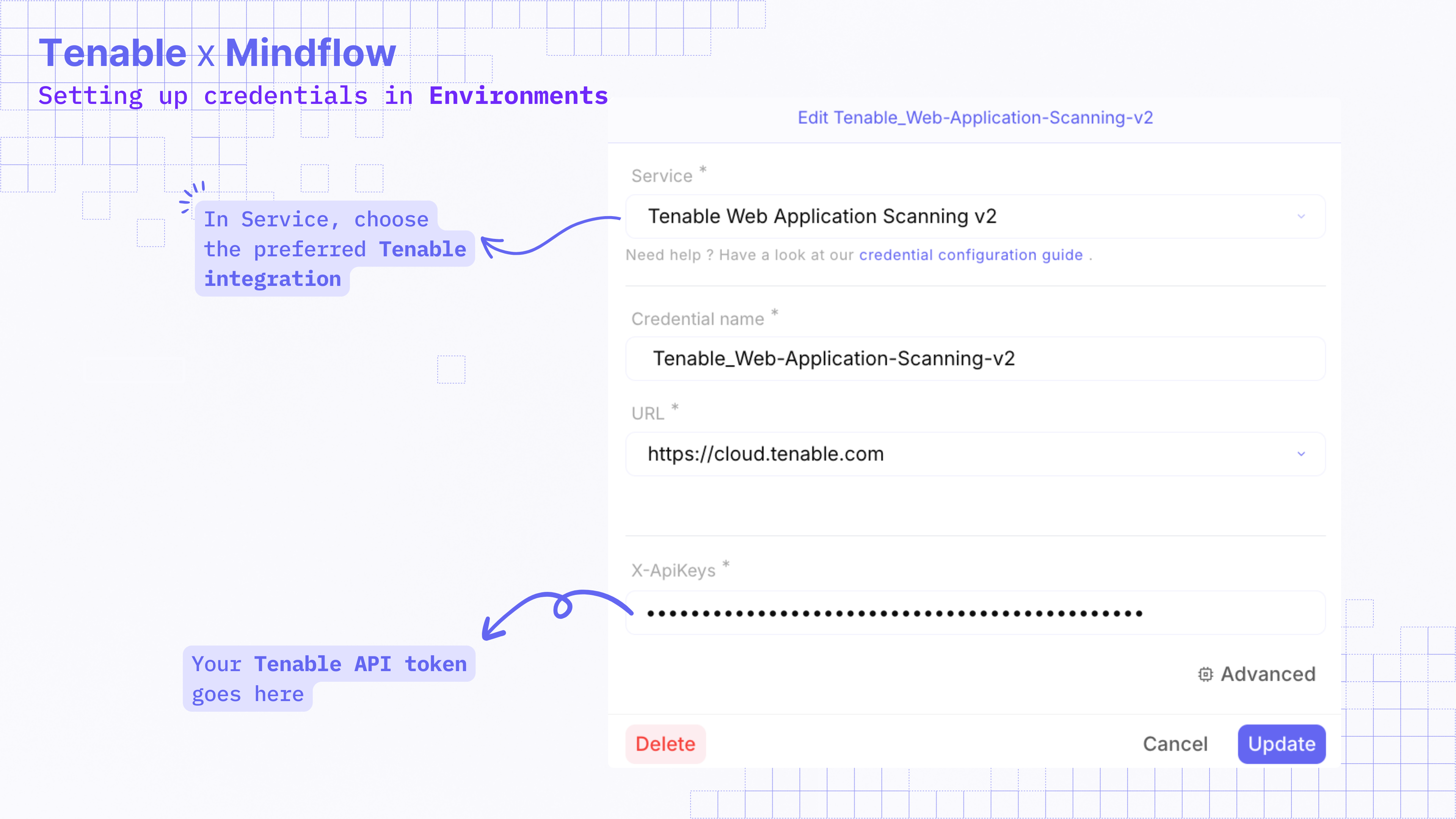
Click Create Credential.
-
In the Credential Creation popup:
- Choose the correct Tenable service (e.g., Tenable Web Application Scanning, Tenable Vulnerability Management).
- Enter the Access Key from Tenable.
-
Click Create to save the credential.
Building an Automation Flow with Tenable
Section titled “Building an Automation Flow with Tenable”Now that the integration is set up, you can build workflows:
-
Go to Flows in Mindflow Studio.
-
Click Create to open a new empty canvas.
-
Add the Tenable integration step to your workflow.
-
Click the gear icon ⚙ next to the Tenable step.
-
Under the Settings tab, select the Tenable credential you created earlier.
-
Customize the workflow with additional integrations as needed.
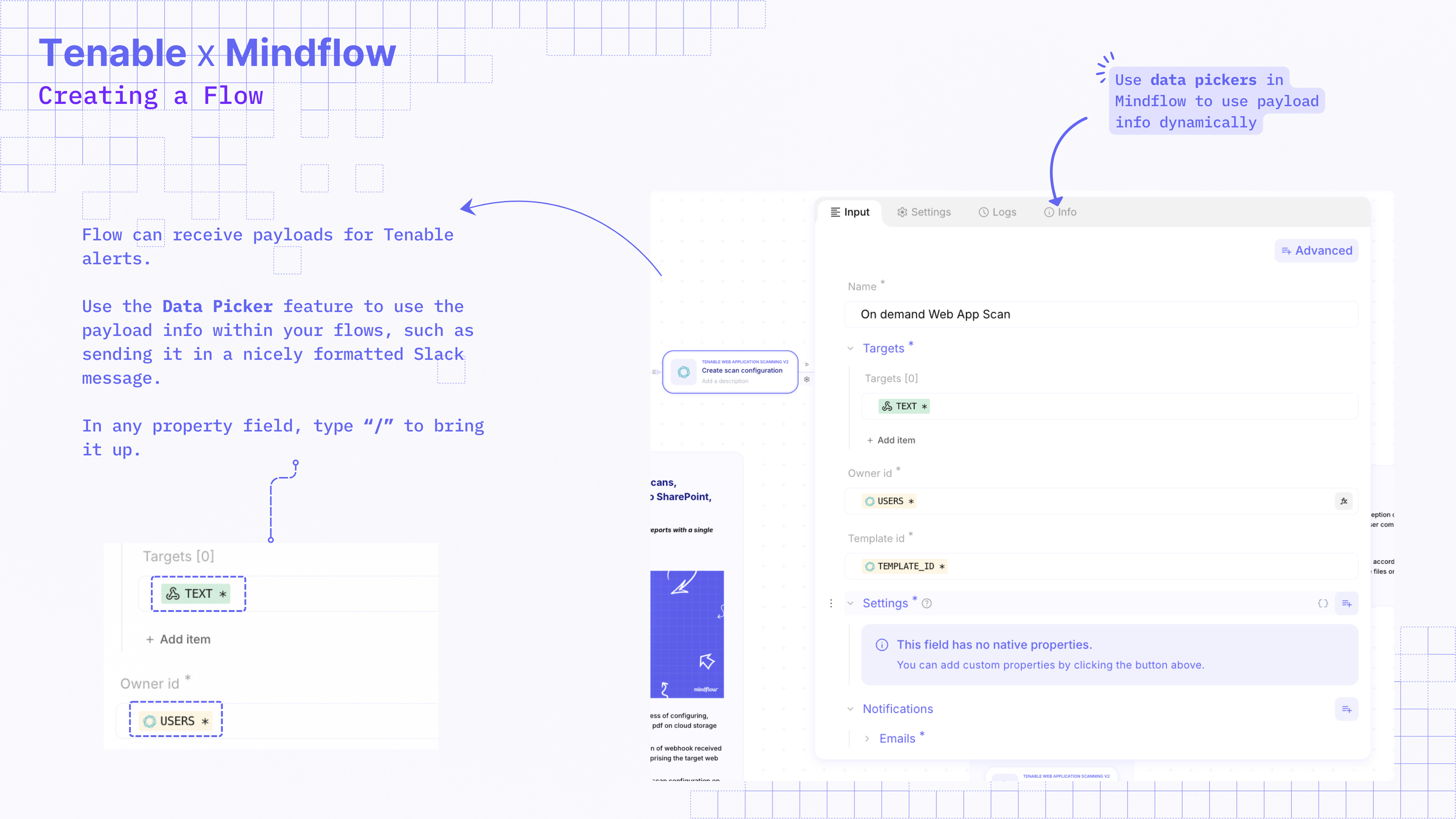
✅ Your Tenable workflow is ready! You can now automate vulnerability scans, security assessments, and more with Mindflow.
Supported Tenable Integrations in Mindflow
Section titled “Supported Tenable Integrations in Mindflow”Mindflow supports multiple Tenable integrations, including:
- Tenable Vulnerability Management
- Tenable Web Application Scanning
- Tenable Attack Surface Management
- Tenable Identity Exposure
- Tenable Container Security
- Tenable MSSP
- Tenable Platform
- Tenable Downloads
Support Requests
Section titled “Support Requests”If you need help with this integration, please contact support@mindflow.io or the use chat button at the bottom right of the screen in the Mindflow platform.