

Splunk
This guide walks you through setting up a Splunk credential using HTTP Basic Access within Mindflow. Configuring this credential allows your Mindflow automations to securely authenticate and interact with your Splunk environment.
Prerequisites
Section titled “Prerequisites”Before you begin, ensure you have the following information from your Splunk instance:
- The API URL/Address for your Splunk instance (e.g.,
https://{name}.splunkcloud.com:8089). - Your Splunk username or associated email address.
- Your Splunk password.
Step-by-Step Guide
Section titled “Step-by-Step Guide”Step 1: Navigate to Credential Creation
Section titled “Step 1: Navigate to Credential Creation”-
Log in to your Mindflow account and navigate to the Environments page.
-
Locate the Global environment section.
-
On the right side of the Global environment row, click the + (plus) icon to Create global credential.

Step 2: Select the Splunk Service
Section titled “Step 2: Select the Splunk Service”-
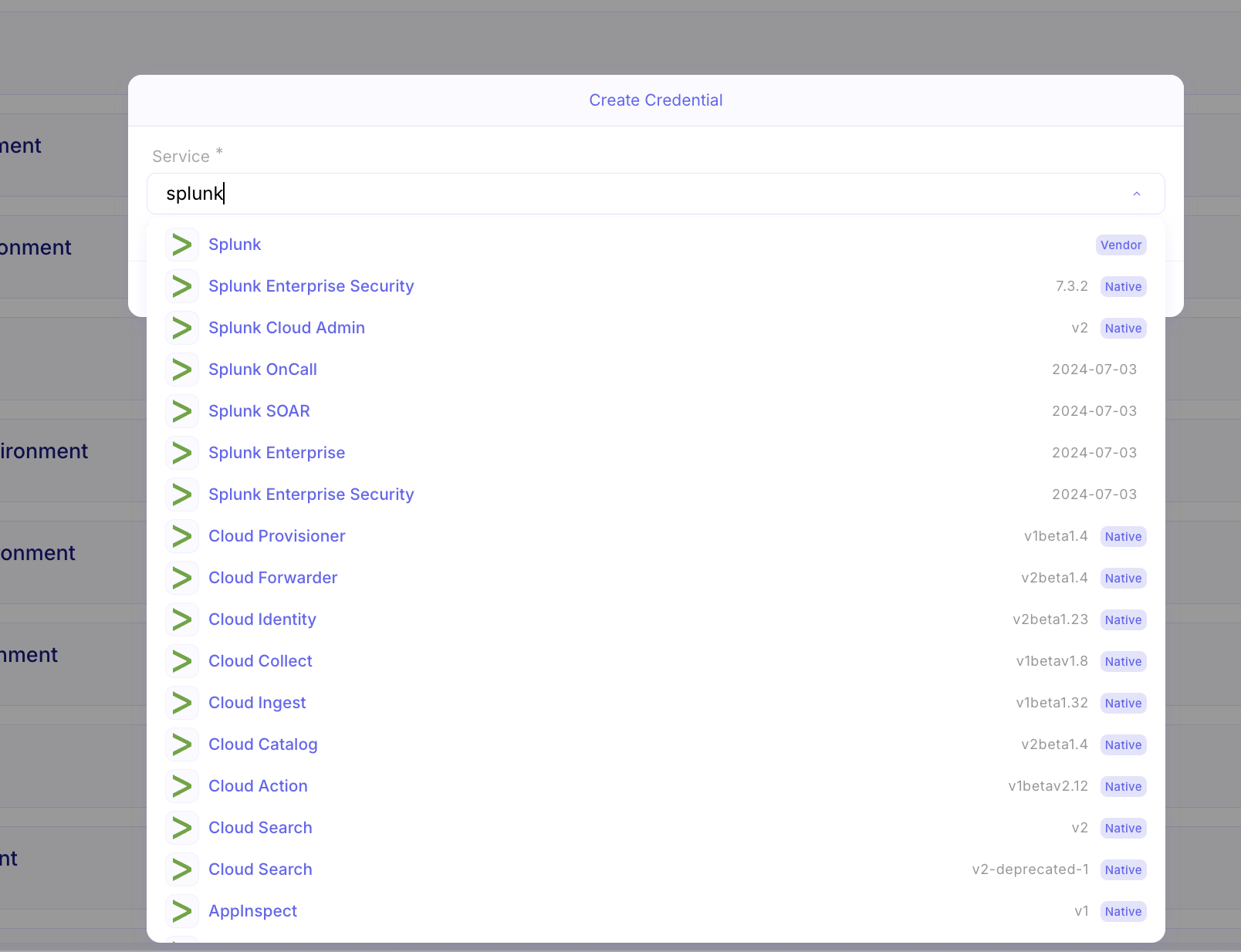
In the modal that appears, click into the Service * search field.
-
Type
splunkto filter the available integrations. -
You can either select the primary Splunk option from the dropdown list (indicated by the blue Vendor badge). This will allow you to use that credentials over all Splunk APIs. Also, you can scope that credential to a specific Splunk API, link Splunk Enterprise Security. In such case, you will only be able to use that credential with Splunk Enterprise Security.
Step 3: Enter Configuration Details
Section titled “Step 3: Enter Configuration Details”Fill out the credential form with your specific instance details:
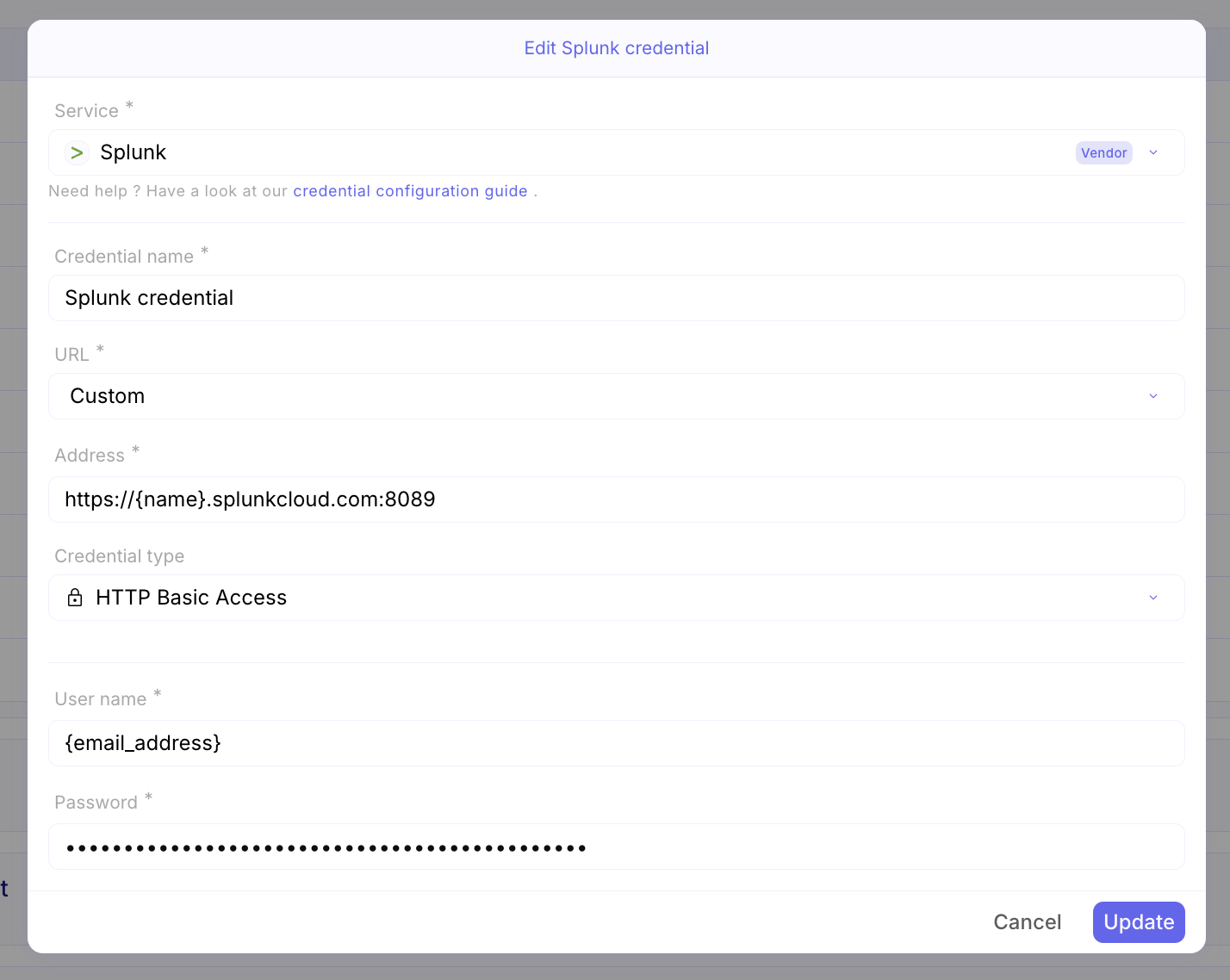
- Credential name *: Enter a recognizable name for your team to identify this connection (e.g.,
Splunk credential). - URL *: Open the dropdown and select Custom.
- Address *: Input the full API address of your Splunk instance (e.g.,
https://{name}.splunkcloud.com:8089). - Credential type: Open the dropdown menu and select HTTP Basic Access.
- User name *: Enter your Splunk username or email address.
- Password *: Enter your secure Splunk password.
Step 4: Save and Finalize
Section titled “Step 4: Save and Finalize”Once all required fields (marked with an asterisk *) are populated, click the blue Create button (or Update if you are editing an existing credential) in the bottom right corner of the window.
Your Splunk credential is now securely stored in your Global environment and ready to be used in your Mindflow flows.