

Salesforce
Introduction
Section titled “Introduction”To integrate Salesforce into Mindflow, you will need to create and configure an External App within Salesforce, then create and configure a Credential in Mindflow.
This guide will walk you through the different steps to create and set up an External App in Salesforce and the configuration of the related credential in Mindflow.
Prerequisites
Section titled “Prerequisites”- A service account dedicated to automation, for traceability and auditability purposes.
- Admin rights to create External Client Apps.
- Logged in your Mindflow platform.
Walkthrough
Section titled “Walkthrough”-
Log in to your Salesforce environment.
-
Click the gear icon on the top right of your screen.
-
Click
Setup.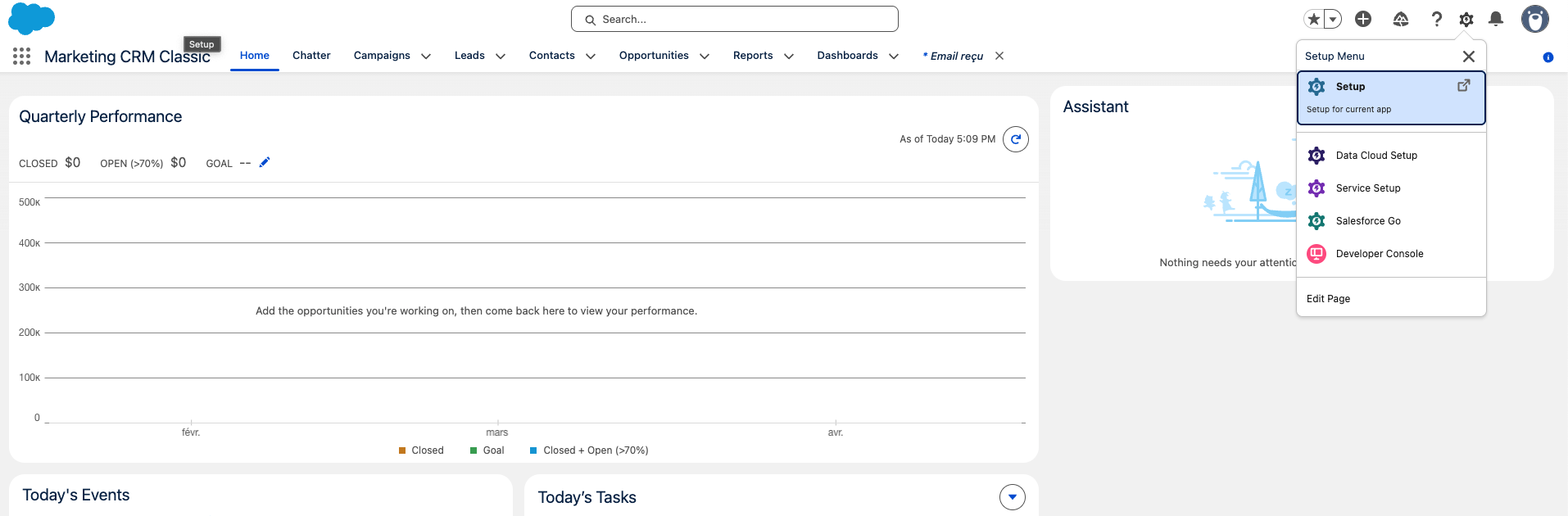
-
On the left navigation bar, open Apps then click on
External Client Apps.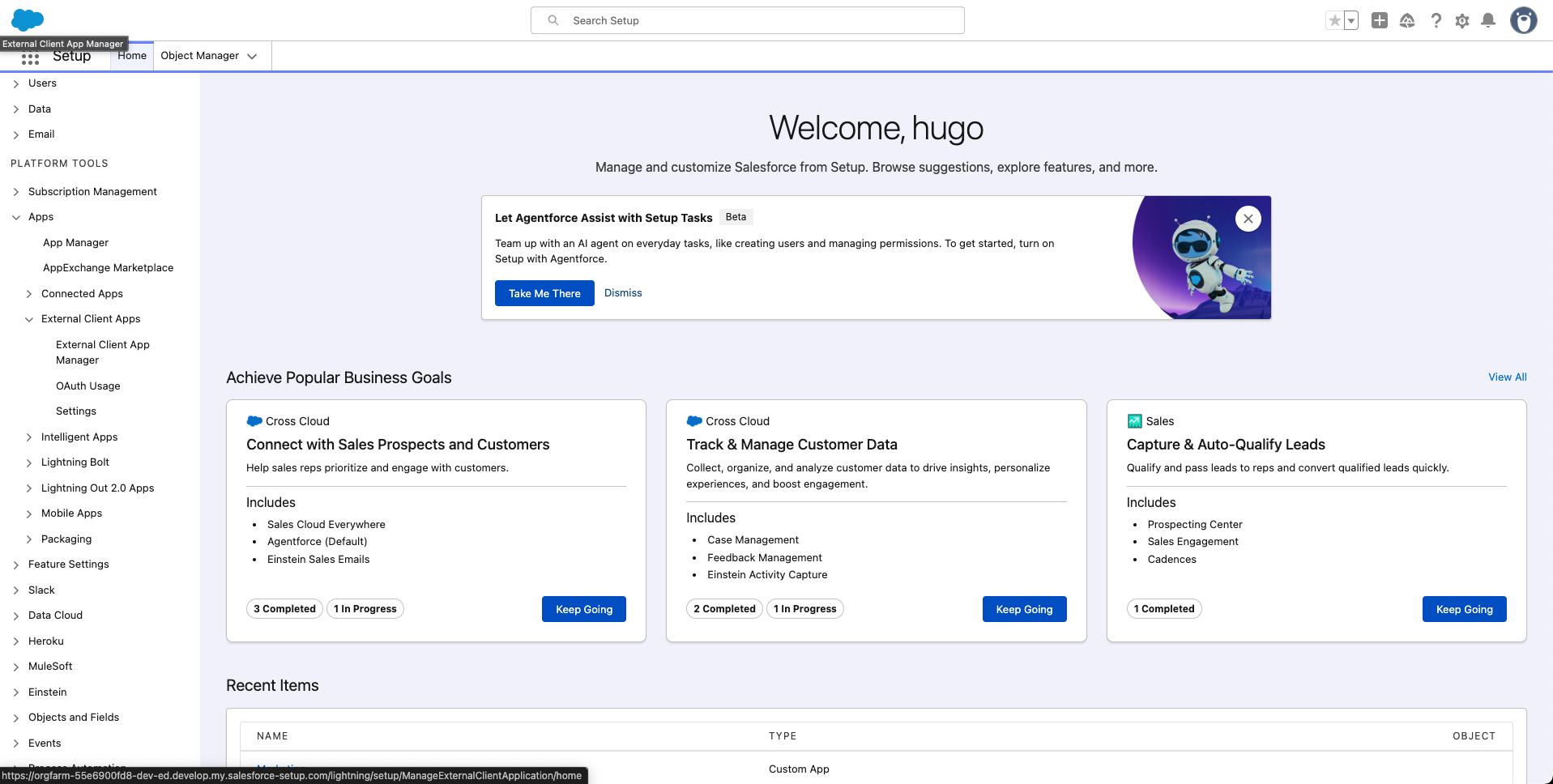
-
Then, on the right of the window, click
New External Client App.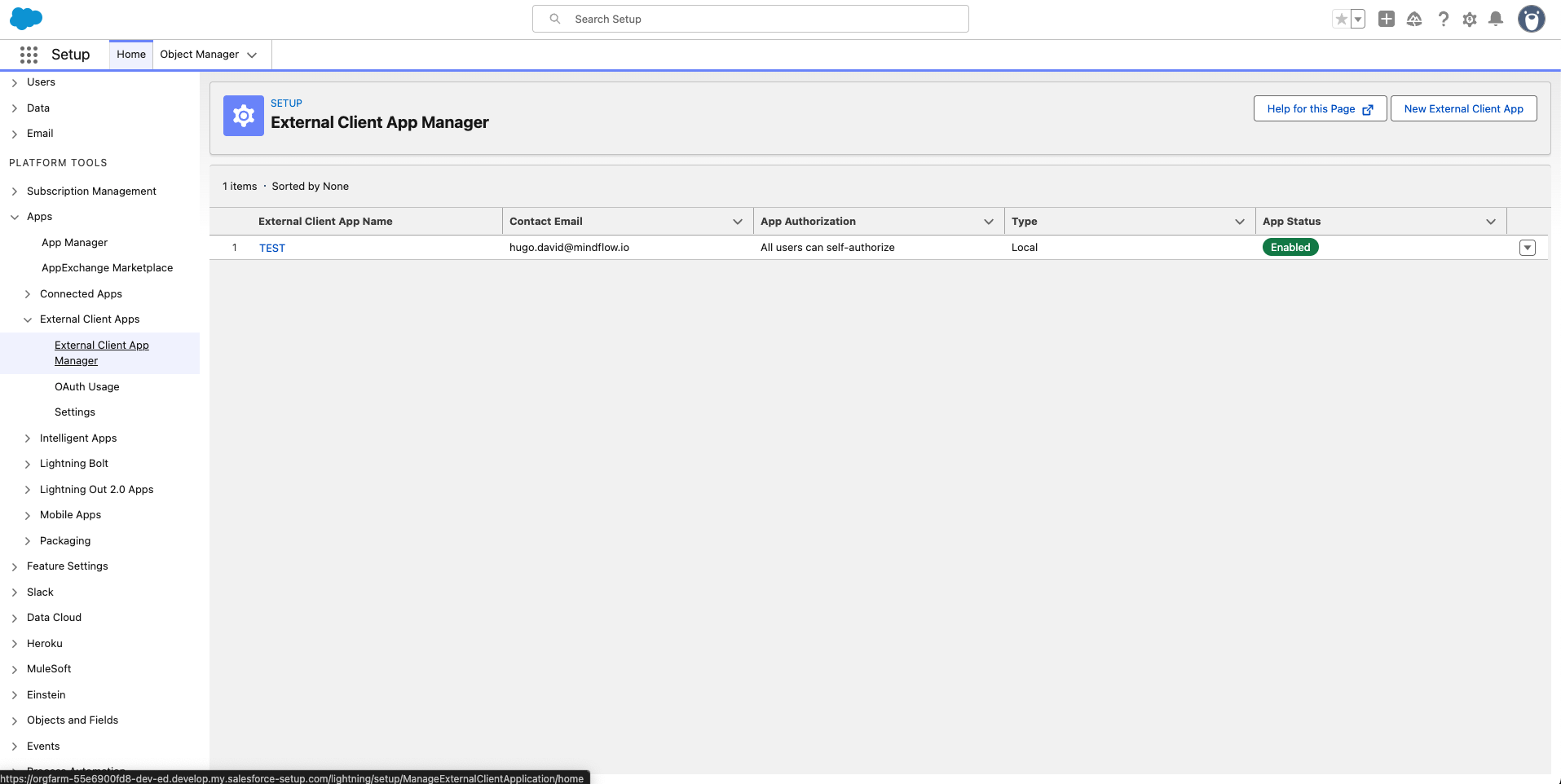
-
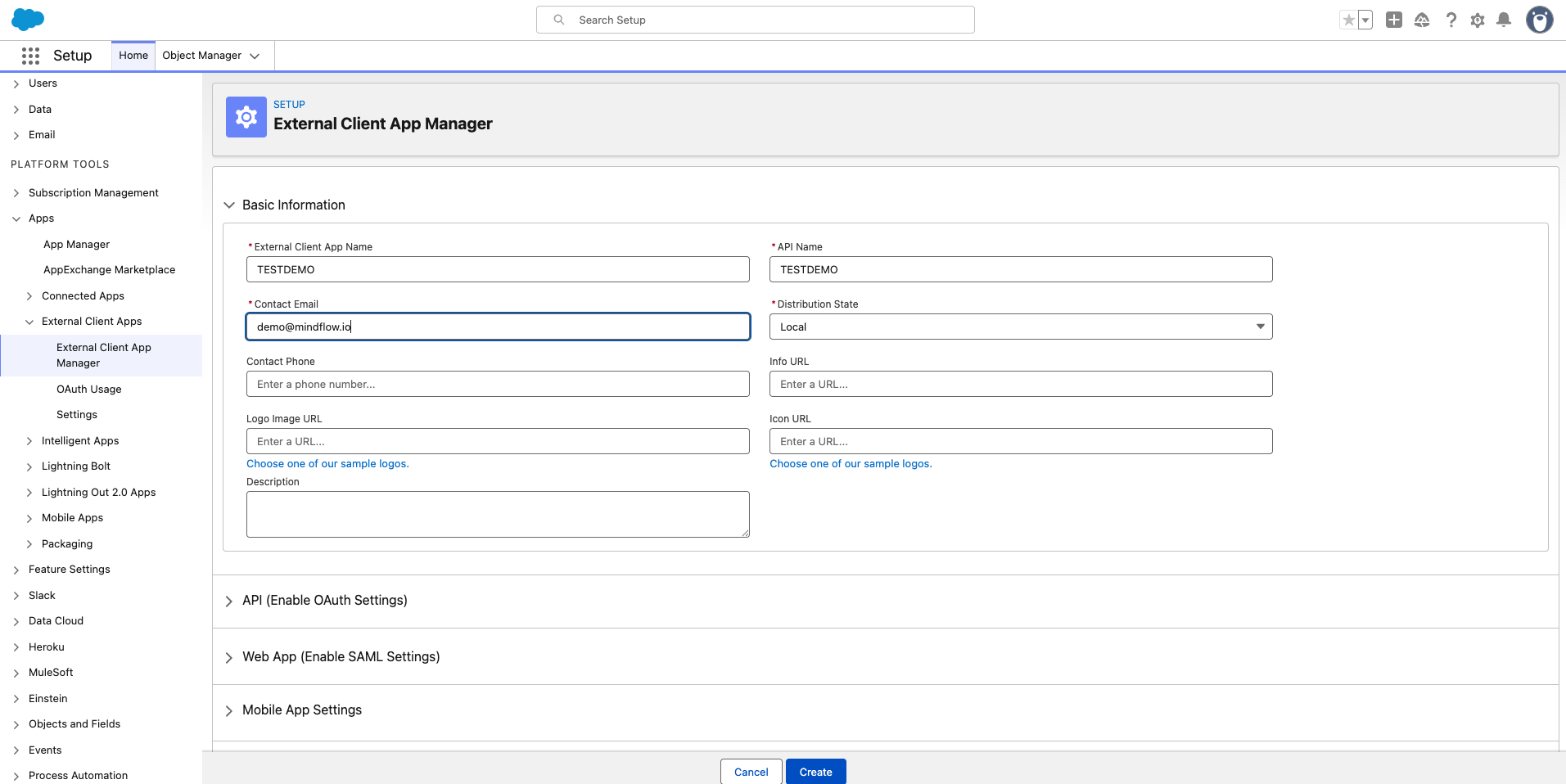
In Basic Information, give a name to the External App, a contact email, and Distribution State.
-
Open API (Enable OAuth Settings), click
Enable OAuth. -
Populate the callback URL with
https://login.salesforce.com/services/oauth2/callback. -
As OAuth Scopes, only select
Manager user data via APIs (api)andPerform requests at any time (refresh_token, offline_access). Find a list of all available scopes within the Scopes section of this document.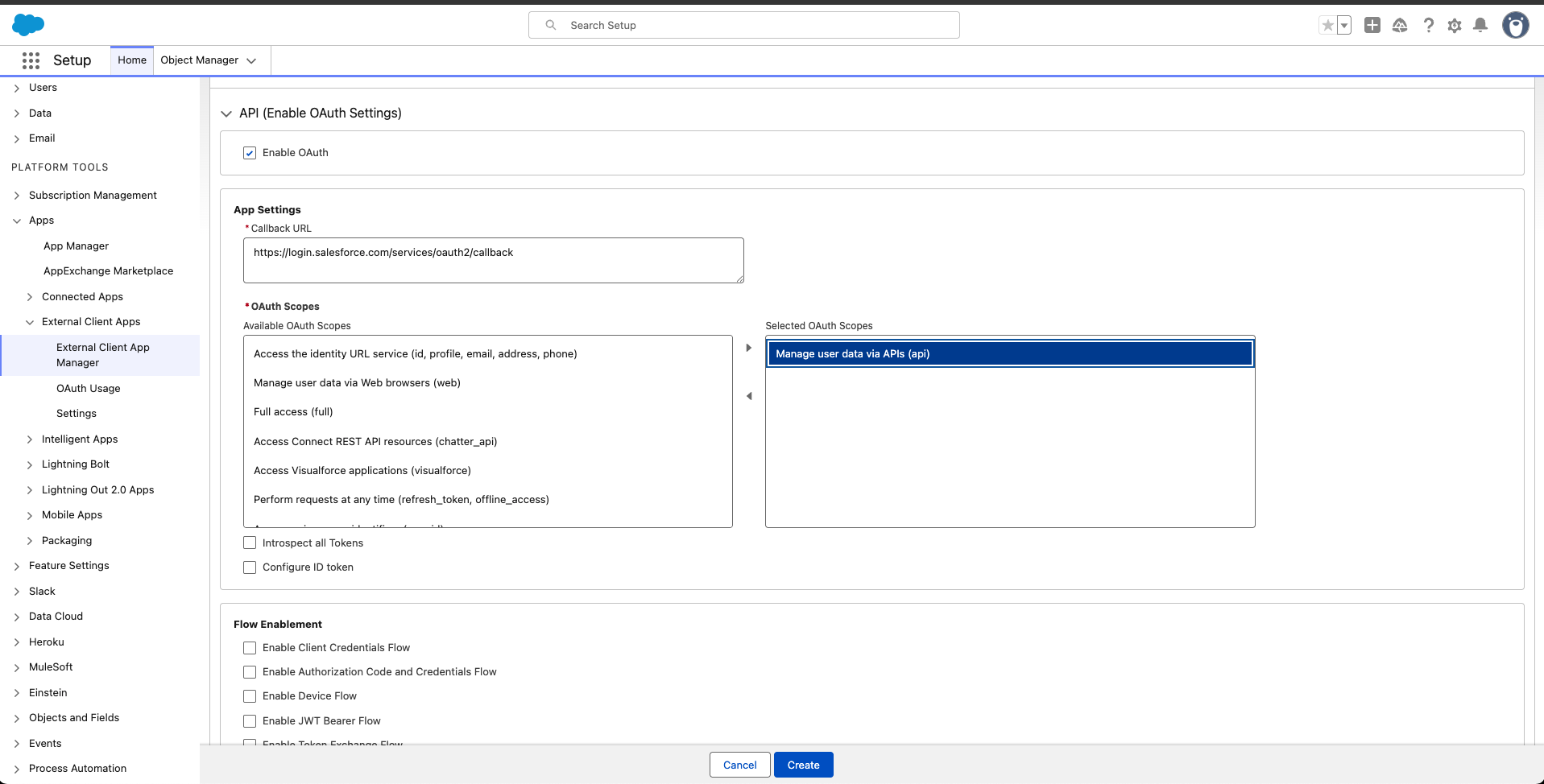
-
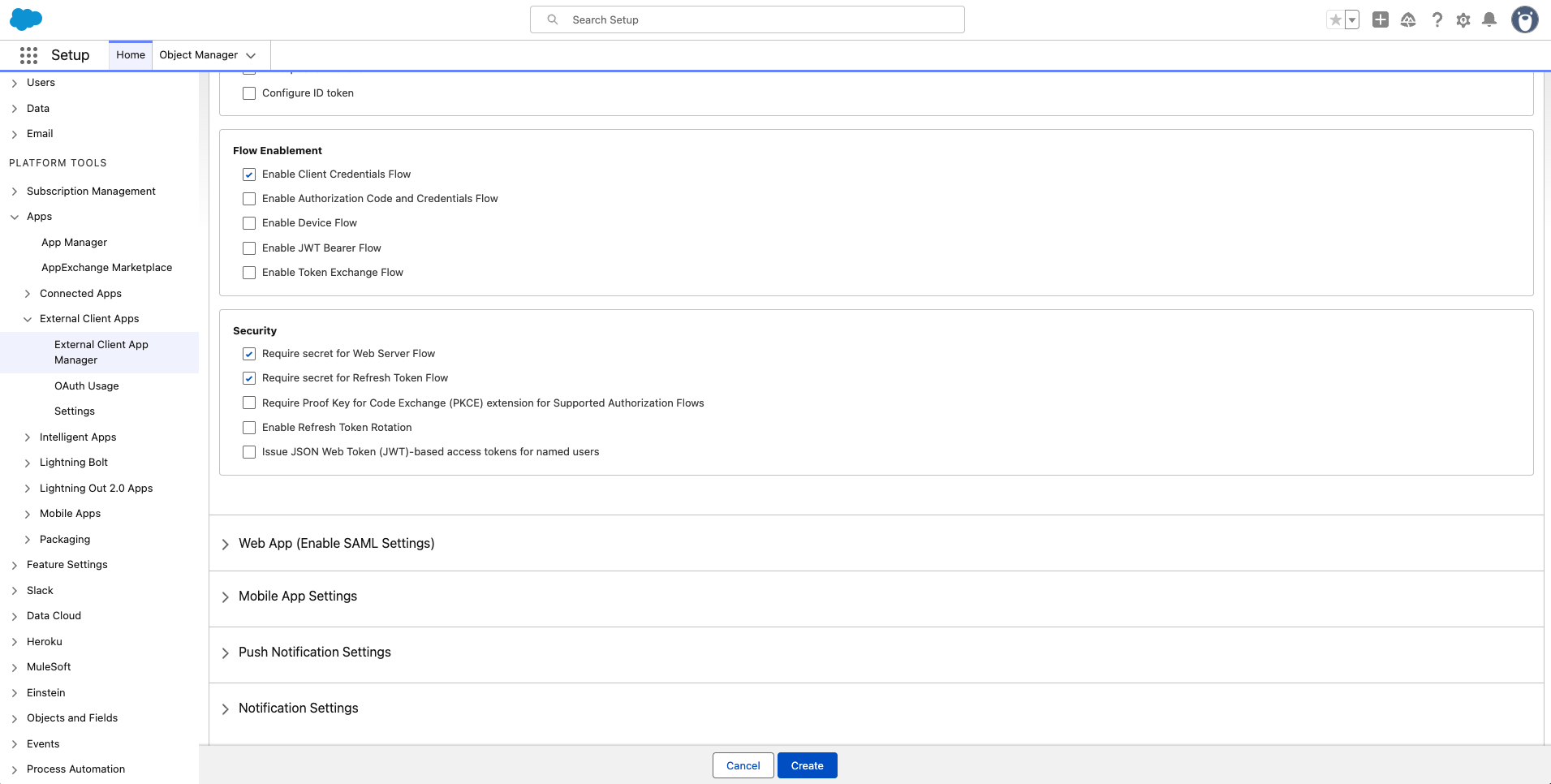
Within Flow Enablement, only enable
Enable Client Credentials Flow. -
Within Security, start by enabling
Require secret for Web Server FlowandRequire secret for Refresh Token Flow. You will be able to add more settings later on.
-
You’re set, click
Create.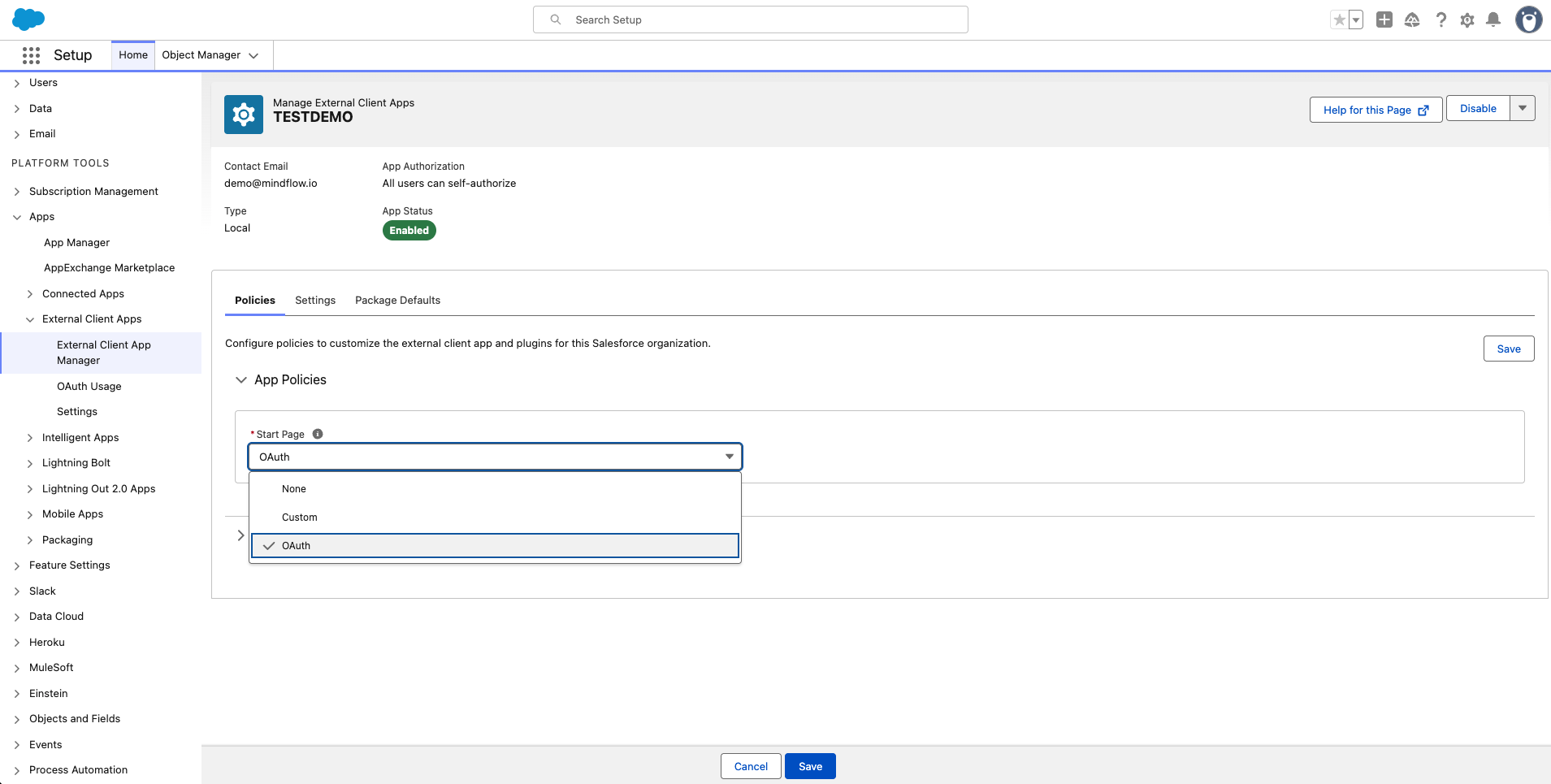
-
Now, within the App panel and the Policies blade, select
OAuthwithin Start page dropdown. -
As the OAuth Start URL, fill in your environment URL up until
…force.com.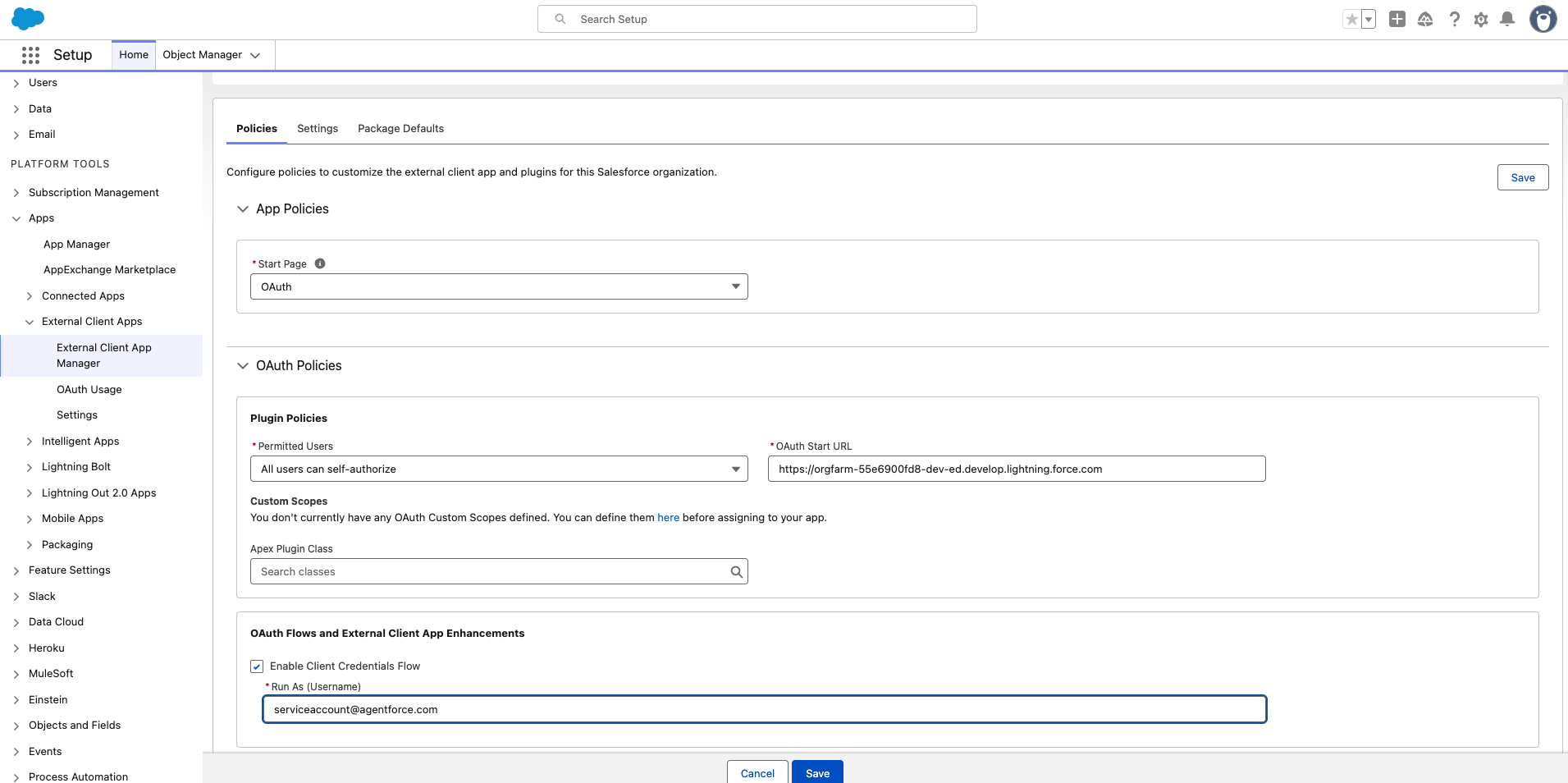
-
Within OAuth Flows and External Client App Enhancements, enable
Enable Client Credentials Flowand, set, as Run as, a service account email address.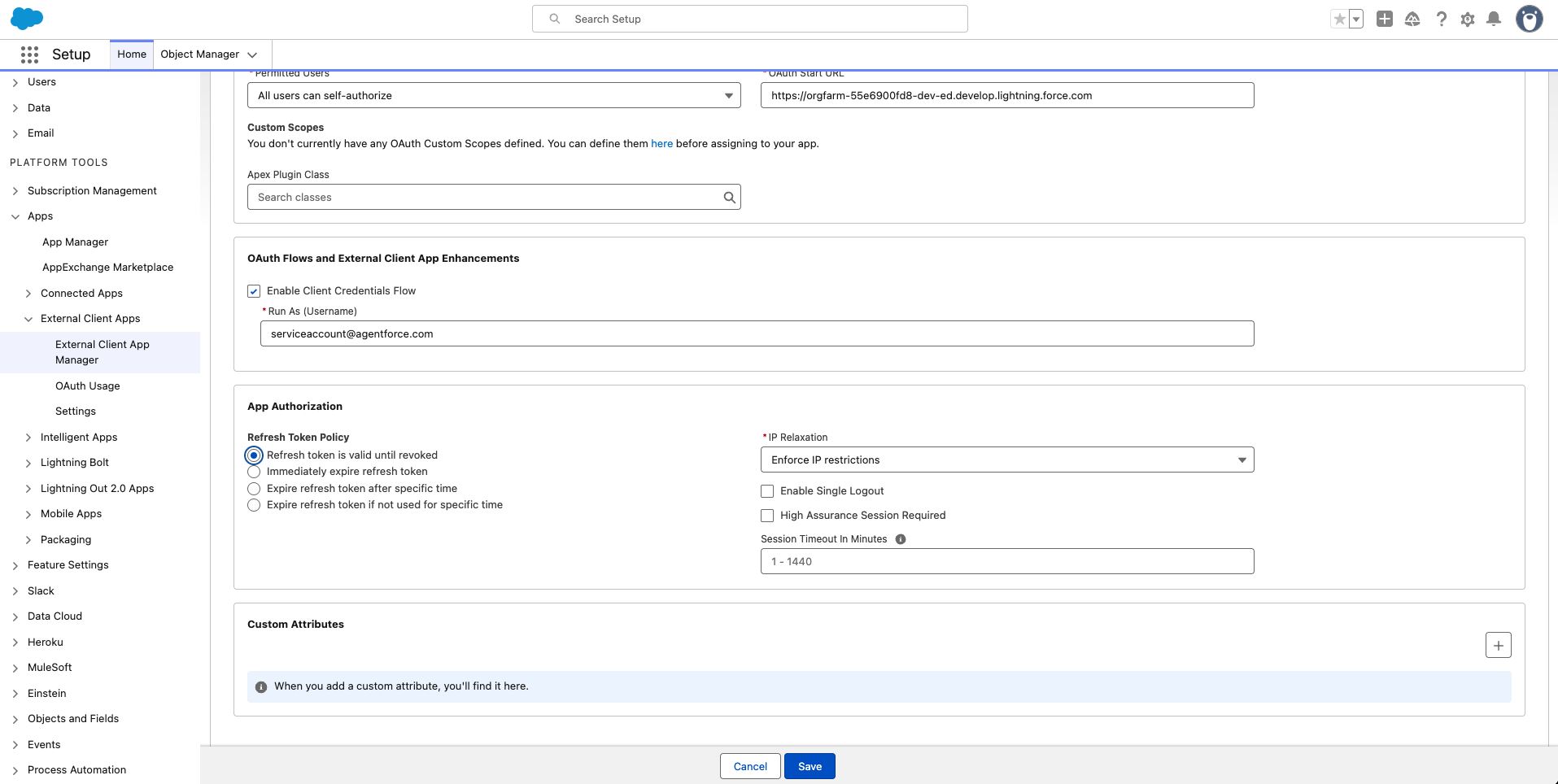
-
Note that you are able, in App Authorization, to enforce some limitations, such as Refresh token validity period, IP whitelisting, etc. Depending on your subscription plan, you may benefit from IP whitelisting. Reach your Customer Success to know more about that.
-
Click
Save. -
Now, on to the last part. Open the Settings blade of the app you created. Open OAuth Settings and click on
Consumer Key and Secret.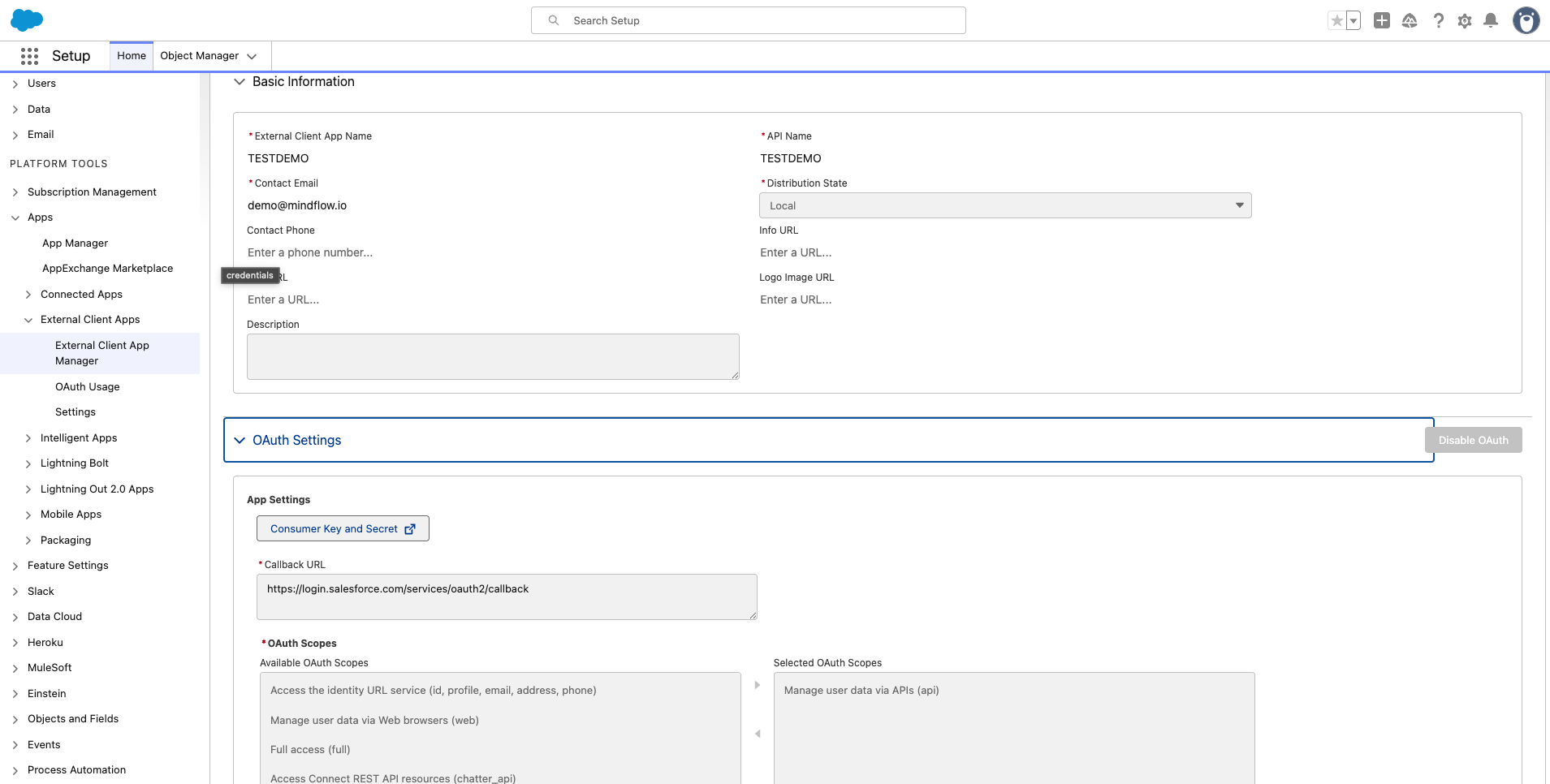
-
This will open a new window requesting to approve the access through a temporary code sent to your email address.
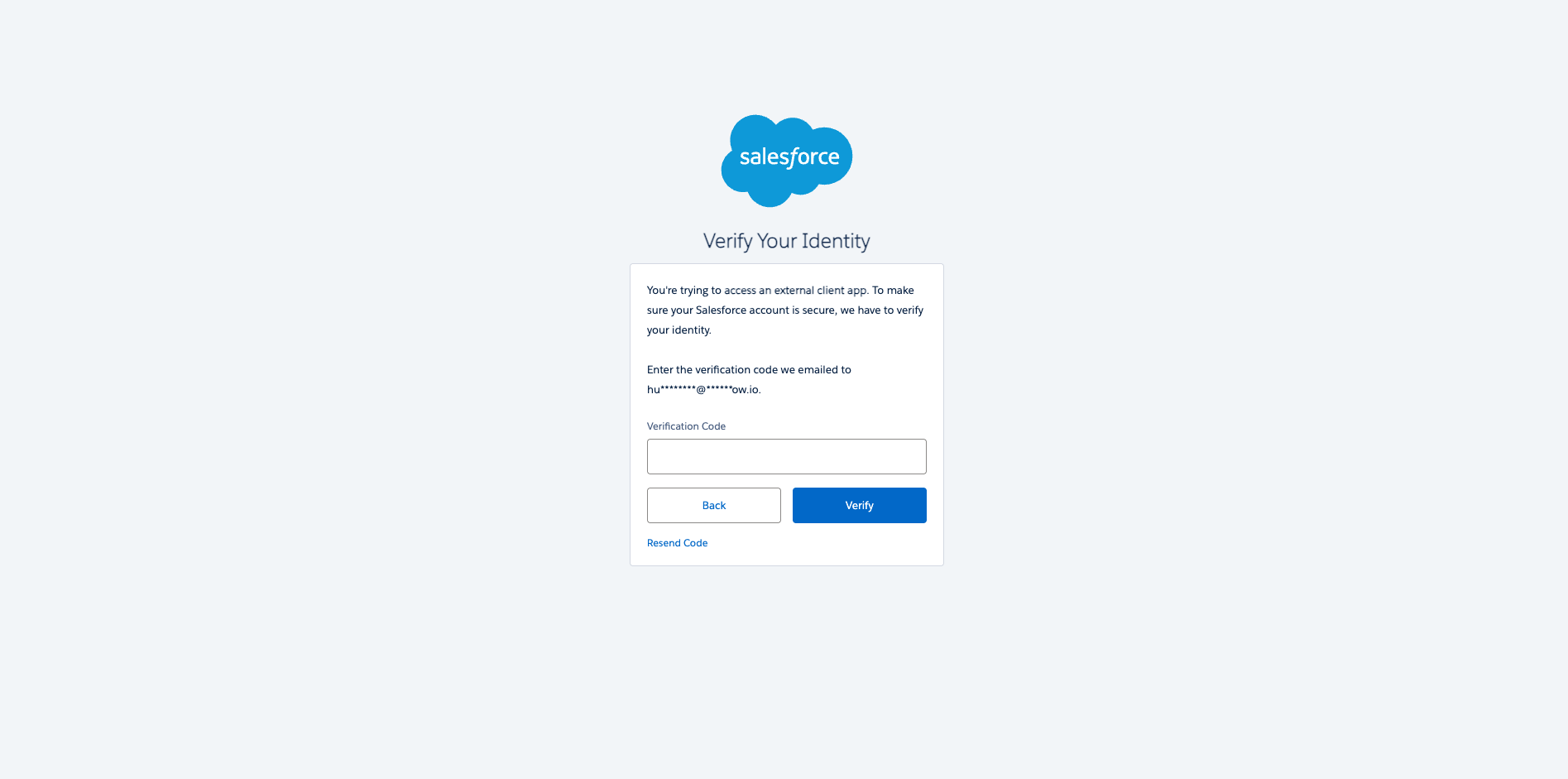
-
Once done, you will be able to see yout
Consumer Keyand yourConsumer Secret. Store them in a secure manner. You will need them to configure the credential in Mindflow.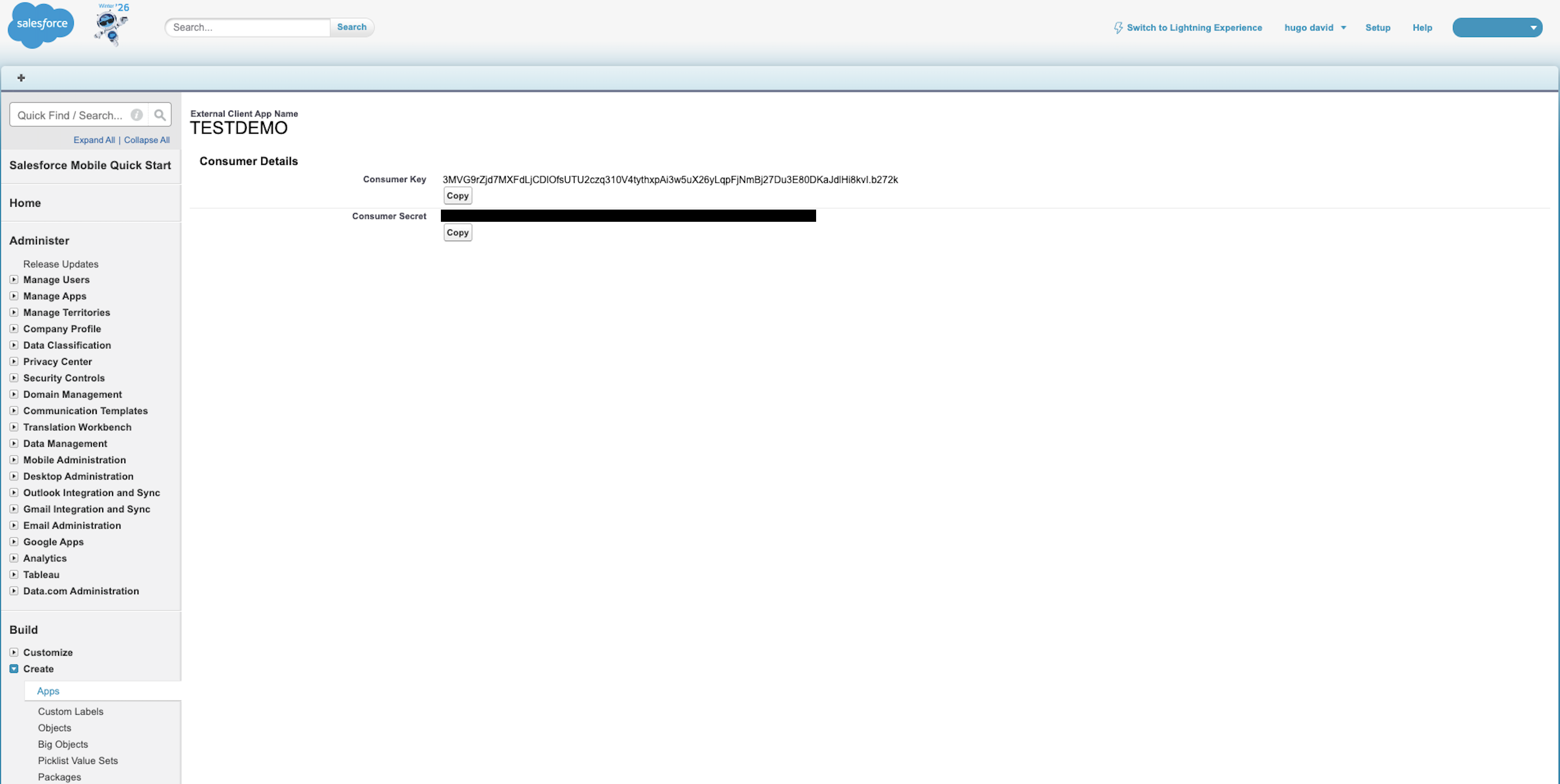
-
Now, login to Mindflow. Open the Environments tab and, within the target environment, click Create a credential (if credentials already exist in the target environment, click the
+icon on the right, right next to the Environment’s members icons.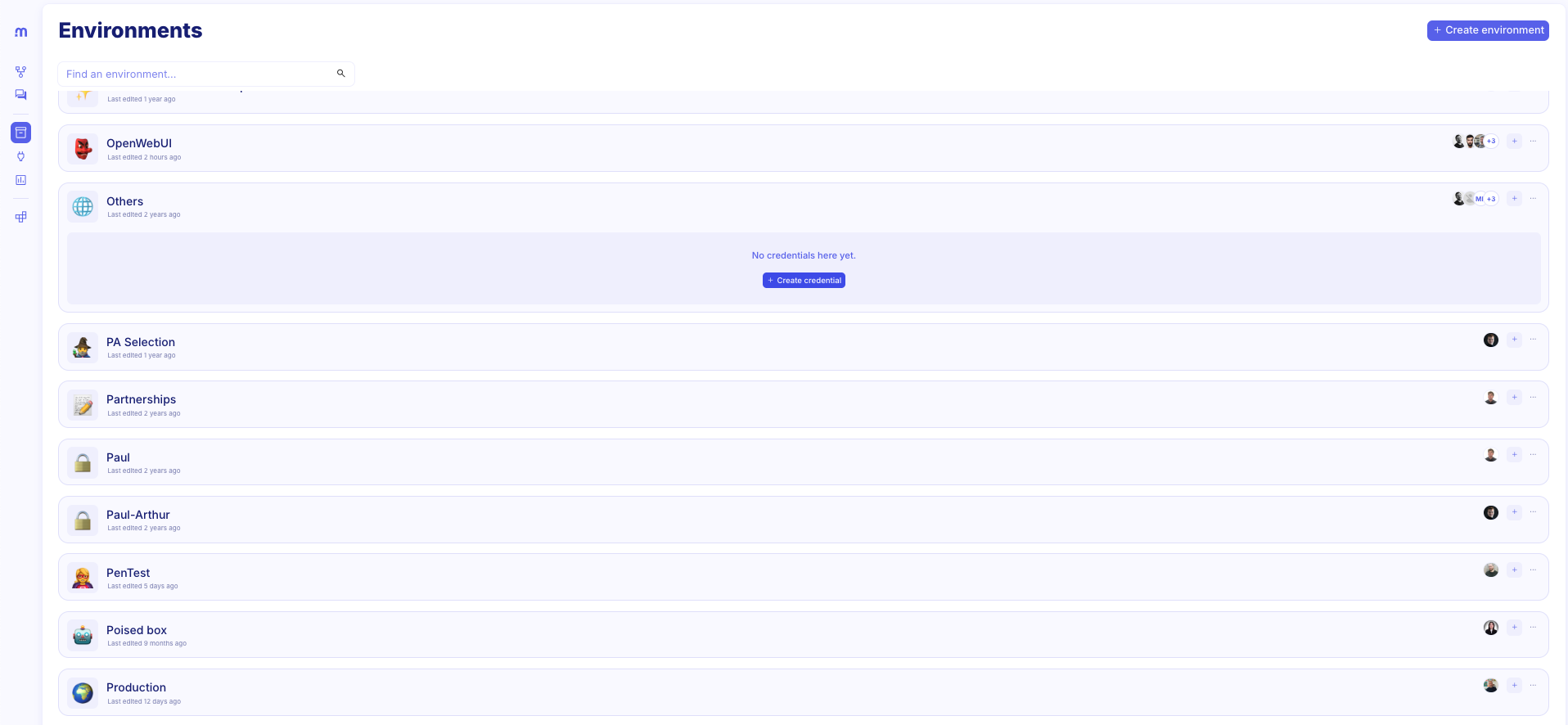
-
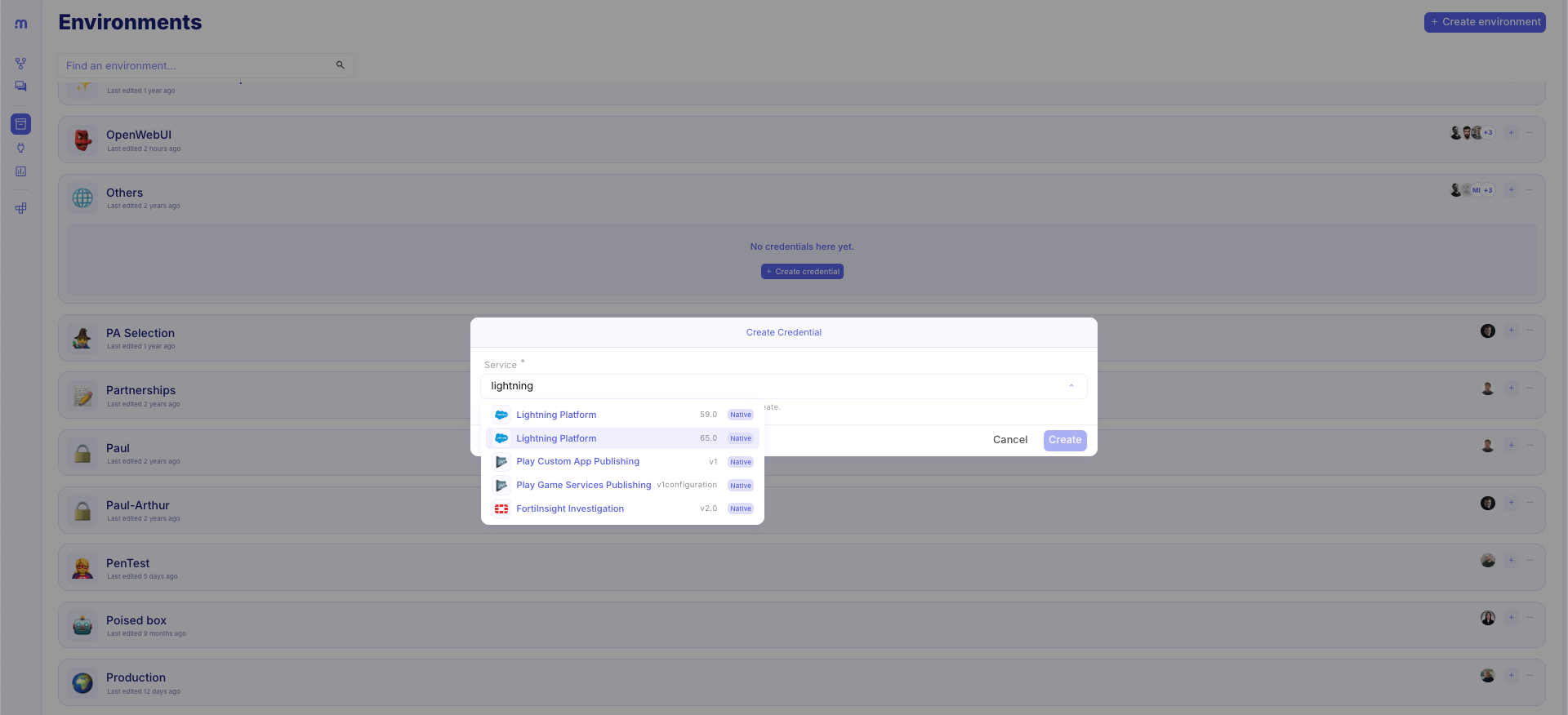
Then, within Service, look for Lightning Platform API (mind the different versions, choose v65.0).
-
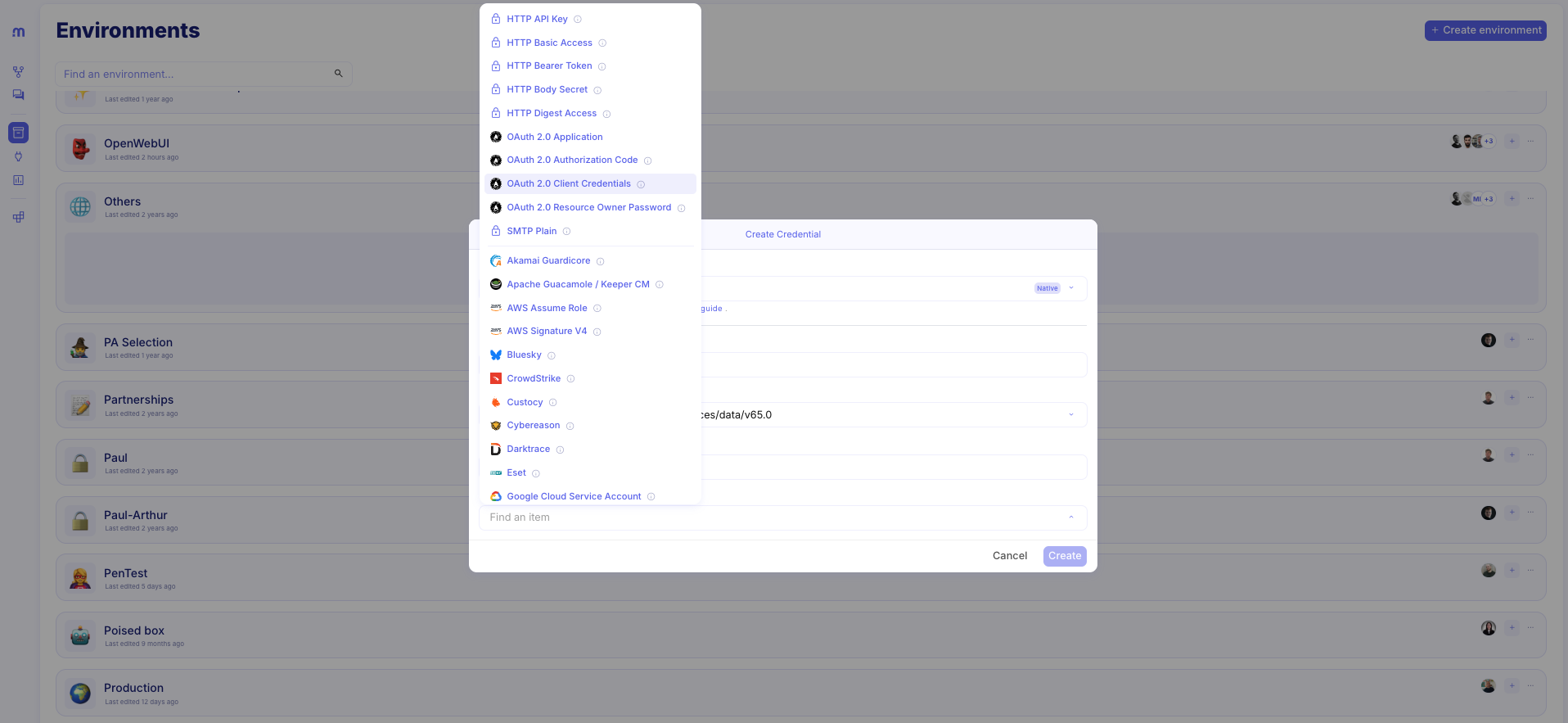
Once select, the form will update with new fields. Start by setting the Credential type to OAuth 2.0 Client Credentials.
-
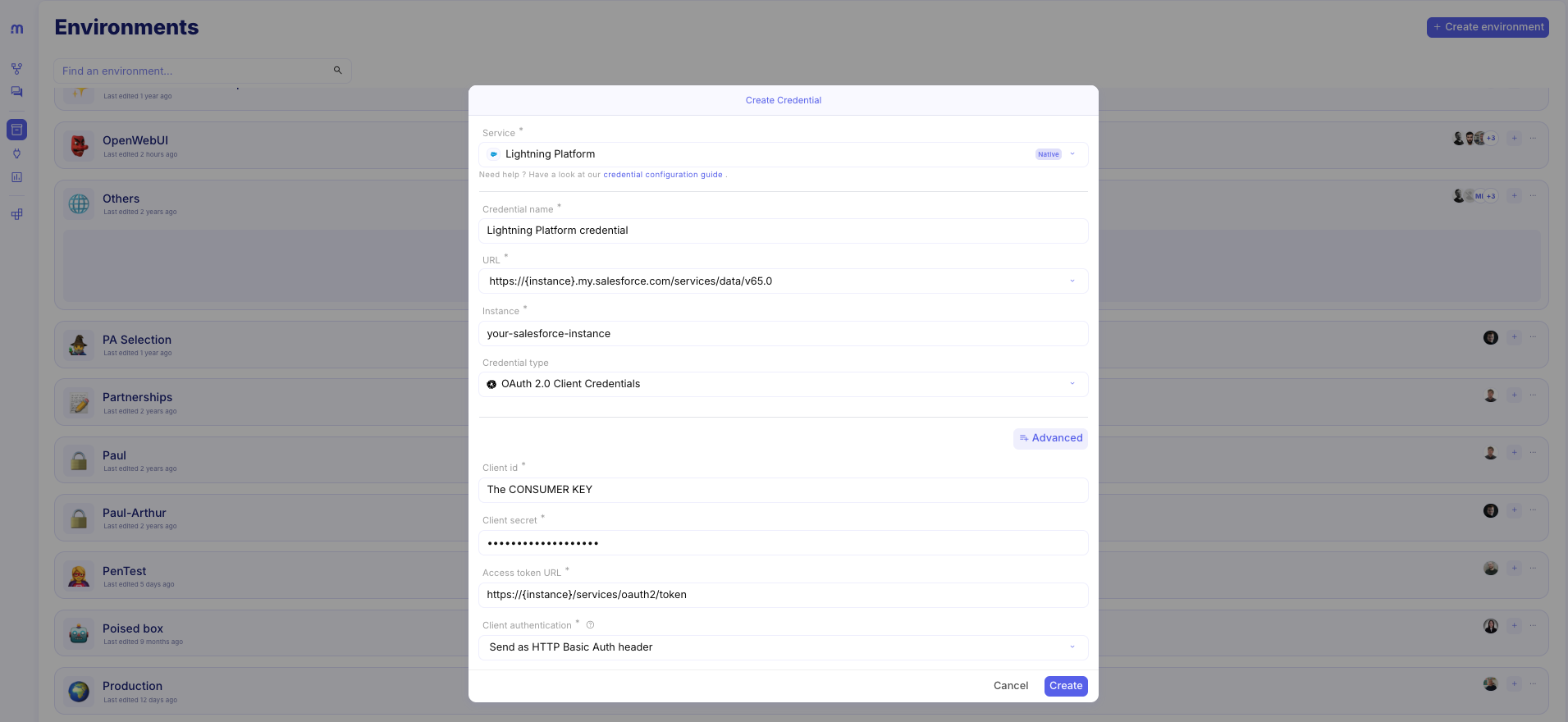
Then:
- update the Instance field with your Salesforce environment name.
- Within Client Id, copy and paste your Consumer Key.
- Within Client Secret, copy and paste your Consumer Secret.
- Within Access Token URL, replace {instance} with your environment name up until
…salesforce.com.
-
Click
Save. Your integration to Saleforce is configured!
Scopes
Section titled “Scopes”Identity and Core Access
Section titled “Identity and Core Access”- id, profile, email, address, phone: Allows the app to access the Identity URL service to retrieve specific user profile details.
- openid: Grants access to the current user’s unique identifier via the OpenID Connect protocol.
- web: Allows the app to use the logged-in user’s session to manage data via a web browser.
- api: Grants access to all Salesforce REST, SOAP, and Bulk API resources for data management.
- full: Provides access to all data and services accessible by the user, including all other specific scopes.
Feature-Specific Access
Section titled “Feature-Specific Access”- chatter_api: Grants access to Chatter REST API resources, including feeds, groups, and users.
- visualforce: Allows the application to access and render custom Visualforce pages.
- lightning: Grants access to Lightning Experience features and custom Lightning components.
- content: Allows the app to manage Salesforce Content resources like Libraries, Files, and Documents.
- wave_api: Provides access to the Analytics (CRM Analytics) REST API resources and datasets.
- eclair_api: Specifically grants access to the geo-spatial chart data used within Analytics.
- pardot_api: Allows the app to manage Pardot marketing automation services and data.
- sfap_api: Grants access to the underlying Salesforce API Platform services.
- chatbot_api: Provides the permissions necessary to interact with Salesforce Einstein Chatbot services.
- interaction_api: Grants access to the Interaction Service API for real-time event processing.
- einstein_gpt_api: Allows the application to interact with generative AI and Einstein GPT services.
Data Cloud (CDP) Scopes
Section titled “Data Cloud (CDP) Scopes”- cdp_api: A “master scope” that grants access to all Data Cloud API resources.
- cdp_ingest_api: Allows the application to push or stream data into Data Cloud via the Ingestion API.
- cdp_profile_api: Grants access to Unified Profile data and calculated attributes within Data Cloud.
- cdp_query_api: Allows the app to execute ANSI SQL queries against Data Cloud data lakes.
- cdp_segment_api: Grants permission to manage and retrieve Data Cloud segments for marketing.
- cdp_identityresolution_api: Allows management of the rules that link various data points to a single person.
- cdp_calculated_insight_api: Grants access to predefined multidimensional metrics known as Calculated Insights.
Headless and Session Management
Section titled “Headless and Session Management”- refresh_token, offline_access: Allows the app to request a new access token without the user re-logging in (maintains long-term access).
- pwdless_login_api: Grants access to the Headless Passwordless Login API for custom authentication flows.
- forgot_password: Allows the app to trigger and manage the Headless Forgot Password process.
- user_registration_api: Grants access to the Headless Registration API to sign up new users.
- custom_permissions: Allows the app to check for specific custom permissions assigned to the user.