

Create Webhook Rules
To configure a webhook in Crowdstrike, follow this guide. First of all, you must enable the feature.
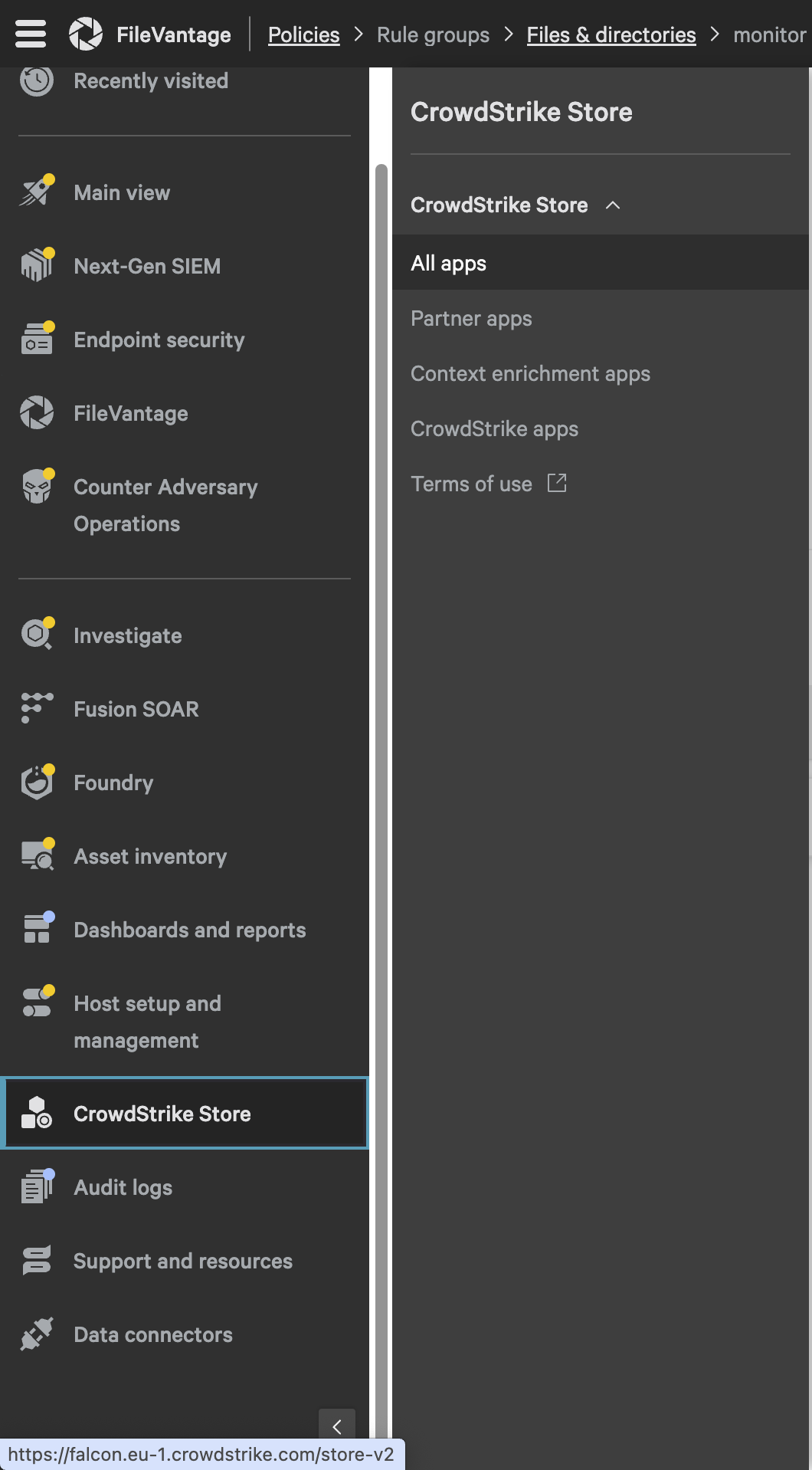
- Navigate to the main menu on the platform.
- Locate and click on the “CrowdStrike Store” section.
- In the dropdown menu, select the “All apps” option.
This gives you access to the CrowdStrike Store, where you can see all the third-party and native applications listed.
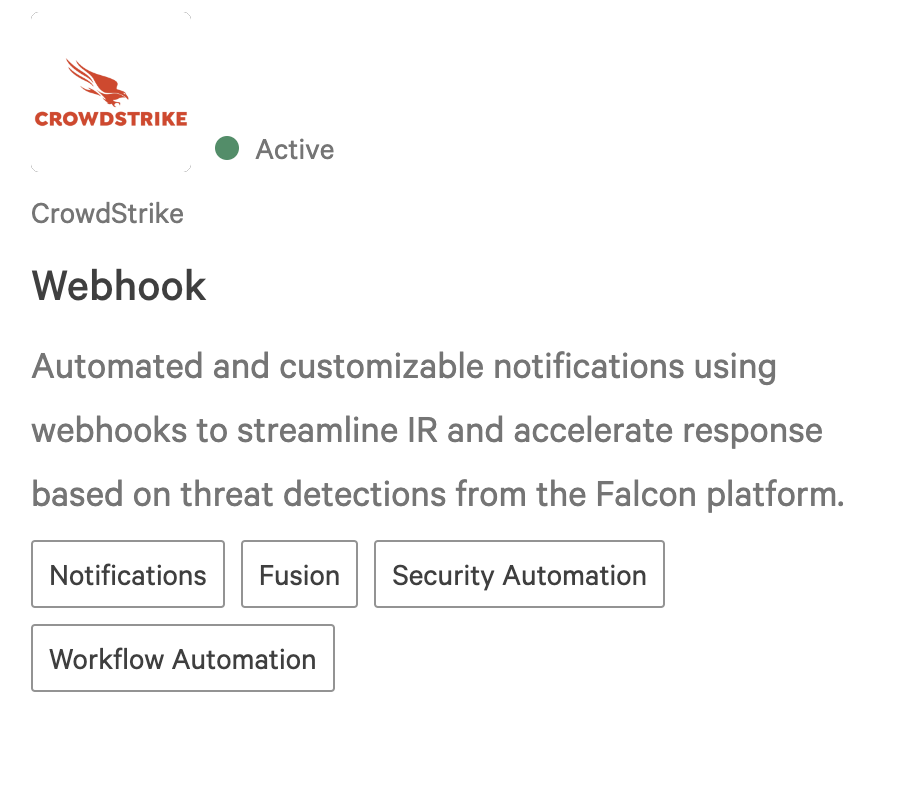
You need to search for webhook among native applications.
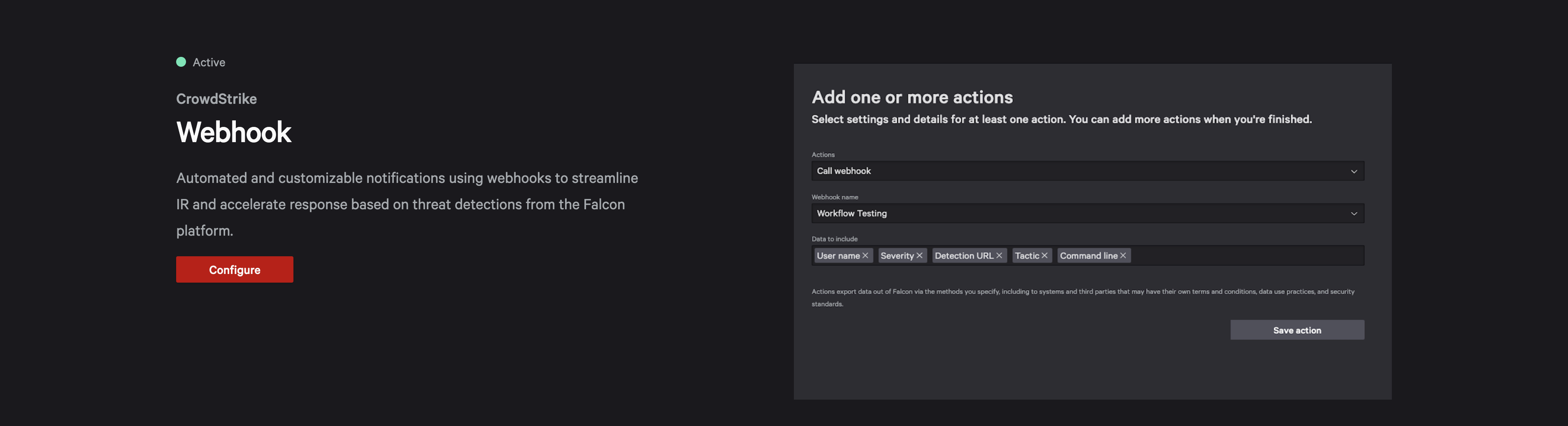
Click on Configure.
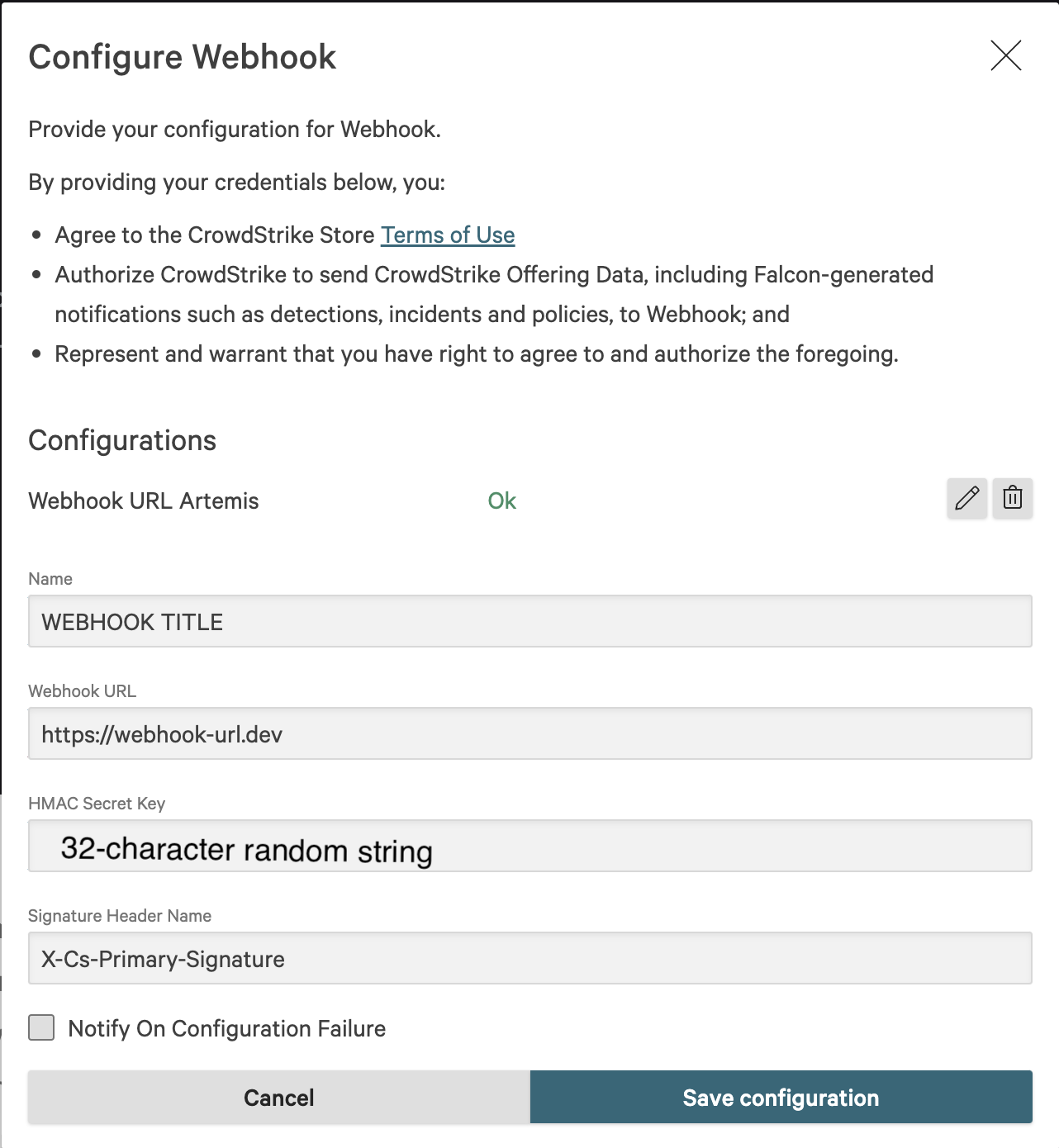
then save configuration.
Then, you must create a workflow inside Fusion SOAR to trigger the webhook when a condition is met.
-
Navigate to the main menu on the platform.
-
Locate and click on the “Fusion SOAR” section.
-
In the dropdown menu, select the “Workflows” option.
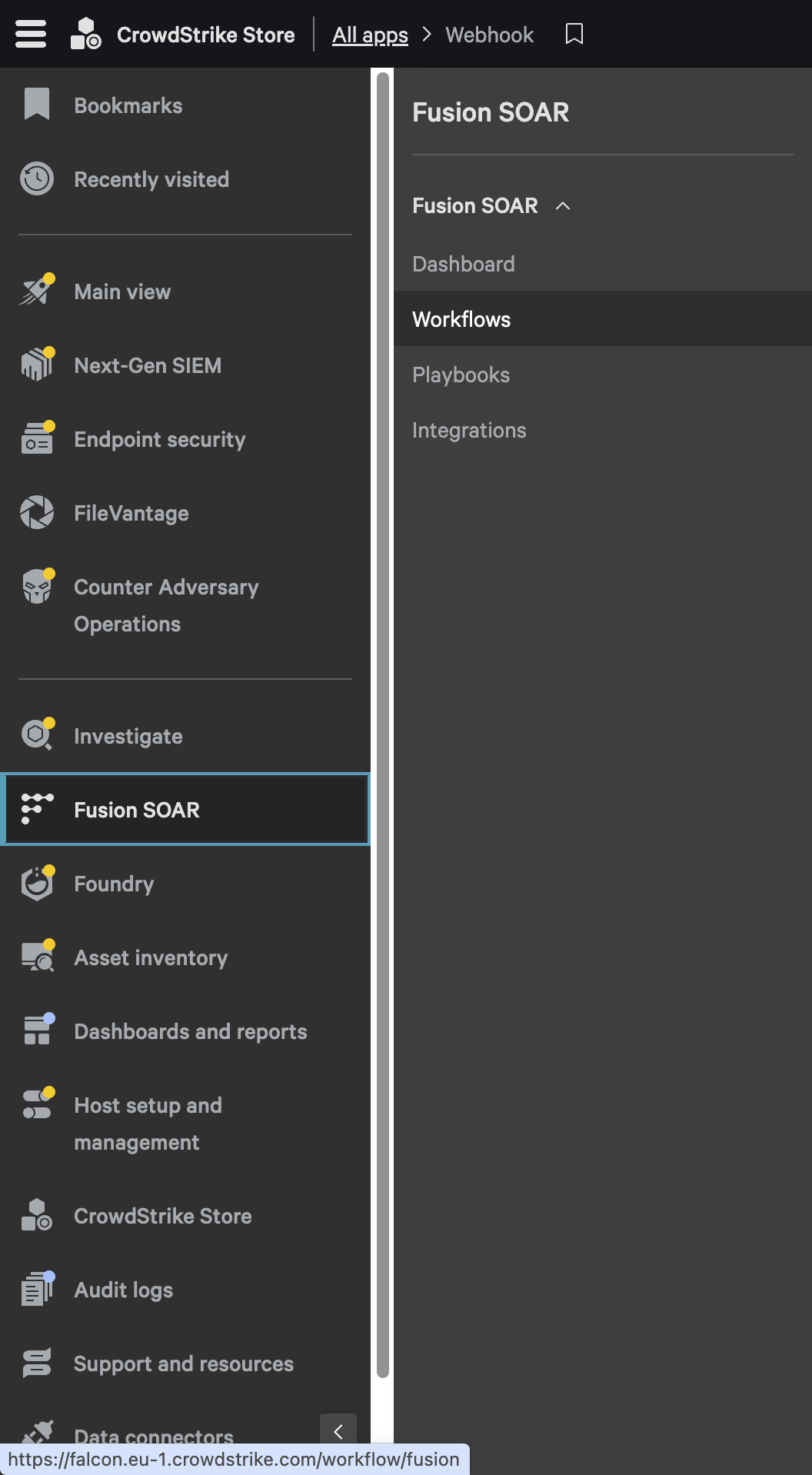
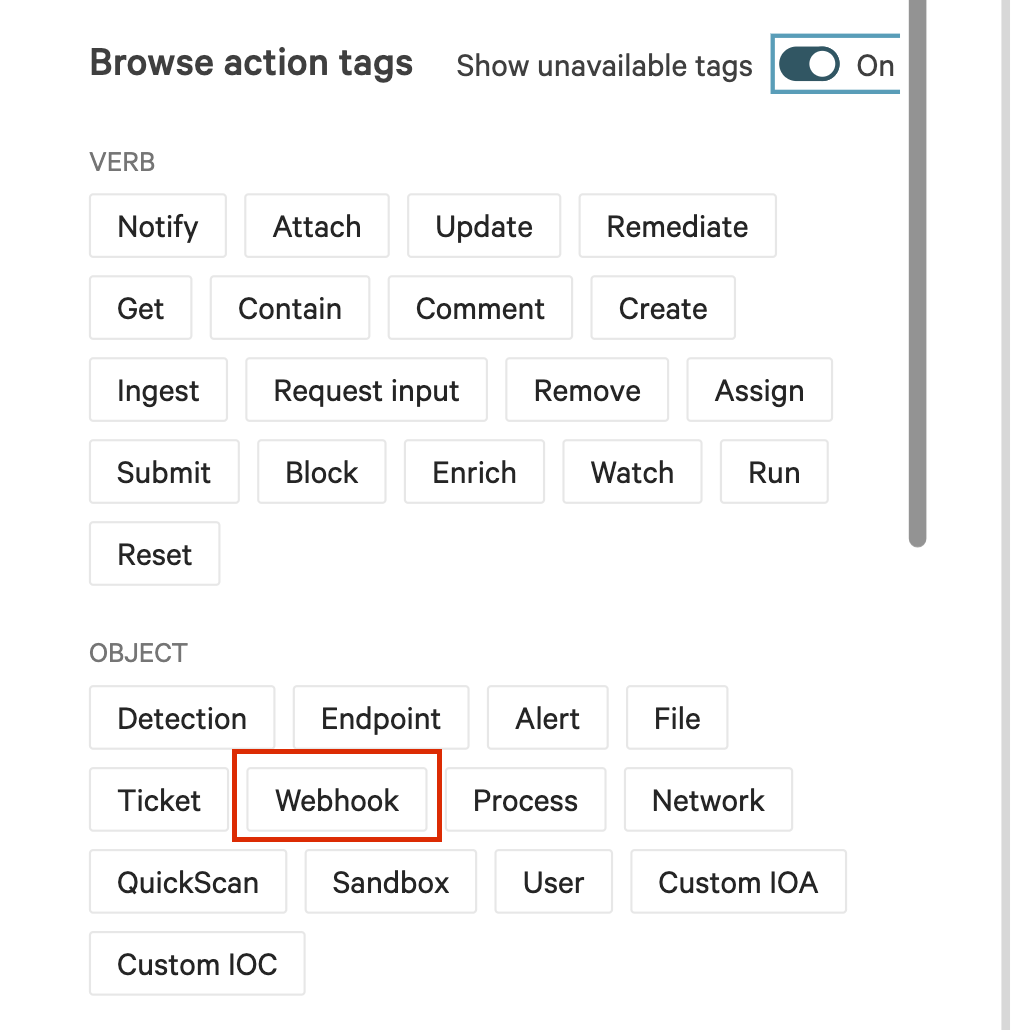
Define the workflow trigger action such as a new detection, a new incident, a downloaded file, … Then add the Webhook action in the following sequential steps.
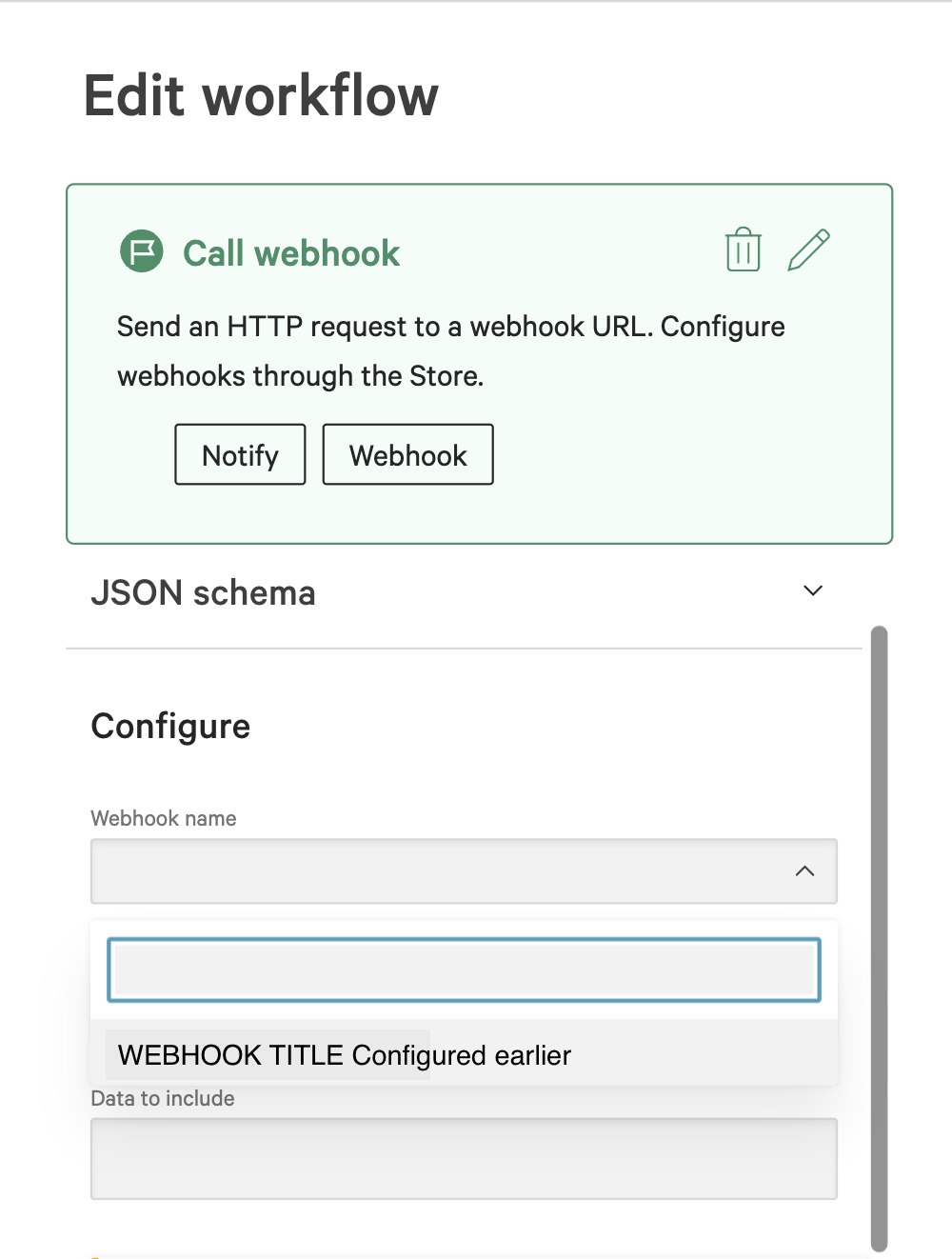
Select the previously configured webhook name.
You can define the data to be sent in the Webhook call either by selecting the fields of interest or by editing a custom json. By default you can select all the available field.
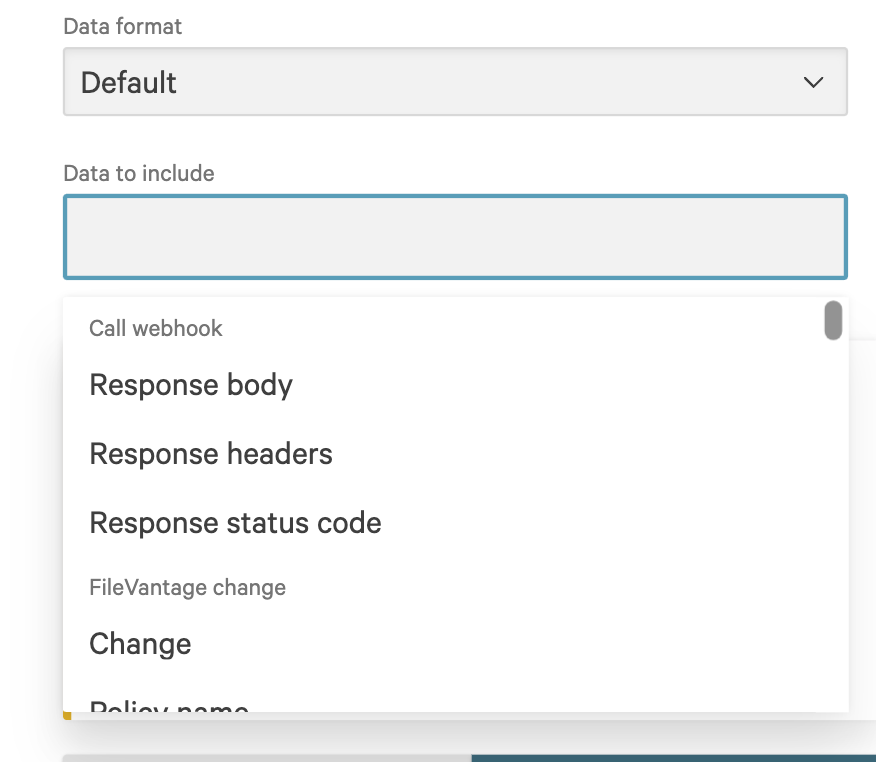
or create custom JSON.