Navigation and file operations on SharePoint
Microsoft SharePoint • Microsoft Graph • Mindflow
Overview
Section titled “Overview”This guide explains how to navigate SharePoint files and folders through Mindflow using Microsoft Graph steps (Sites + Files). It extends this page with the key identifiers you will see in Graph responses and how to chain them to list folders/files and download content.
Key concepts (Site ID, Drive ID, Drive Item ID)
Section titled “Key concepts (Site ID, Drive ID, Drive Item ID)”When working with SharePoint content via Microsoft Graph, you will typically manipulate three identifiers:
- Site ID
- Identifies a SharePoint site (example: a team site such as
https://…sharepoint.com/sites/Demo). - You usually obtain it first (from a prior step or an input variable), then use it to list drives.
- Identifies a SharePoint site (example: a team site such as
- Drive ID
- Identifies a document library inside a site (Graph calls it a “drive”).
- You obtain it by listing drives for a given site.
- Drive item ID
- Identifies an item inside a drive.
- A drive item can be:
- a folder (that you can list children for)
- a file (that you can download / read metadata for)
- Special case:
rootis a valid drive item reference representing the top-level of the drive.
About @microsoft.graph.downloadUrl
Section titled “About @microsoft.graph.downloadUrl”Many Graph “drive item” responses include a @microsoft.graph.downloadUrl:
- It is a pre-authenticated direct download link generated by Microsoft.
- It typically expires, so you should avoid storing it long-term.
- Best practice: generate / use it close to the moment you need to download.
- In folder traversal flows, you will see fresh
@microsoft.graph.downloadUrlvalues returned again when you list children and inspect individual items.
Navigating sites and folders (typical chain)
Section titled “Navigating sites and folders (typical chain)”Below is the most common navigation pattern:
- List drives from a site (Sites)
- Pick the correct drive ID (document library)
- List children of a drive item (Files) starting from
rootor from a folder drive item ID - For each returned item:
- If it is a folder: keep its drive item ID to list deeper
- If it is a file: use its metadata (including
@microsoft.graph.downloadUrl) for file operations
Step 1 — List drives from a site
Section titled “Step 1 — List drives from a site”Mindflow step: Microsoft Graph - Sites → “Get drives from sites (sites_ListDrives…)”
Inputs
Section titled “Inputs”Site id(required)- The SharePoint site identifier you want to browse.
Output (what to look for)
Section titled “Output (what to look for)”The response returns a list of drives (document libraries). Typical fields:
value[n].id→ Drive ID (this is what you will pass to the Files steps)value[n].name→ Human-readable library name (example:Documents)value[n].webUrl→ The SharePoint URL for that libraryvalue[n].driveType→ OftendocumentLibrary
Example screenshots (sensitive data obfuscated)
Section titled “Example screenshots (sensitive data obfuscated)”-
Screenshot 1 — List drives step (input): shows the “Get drives from sites …” step with the
Site idfield populated.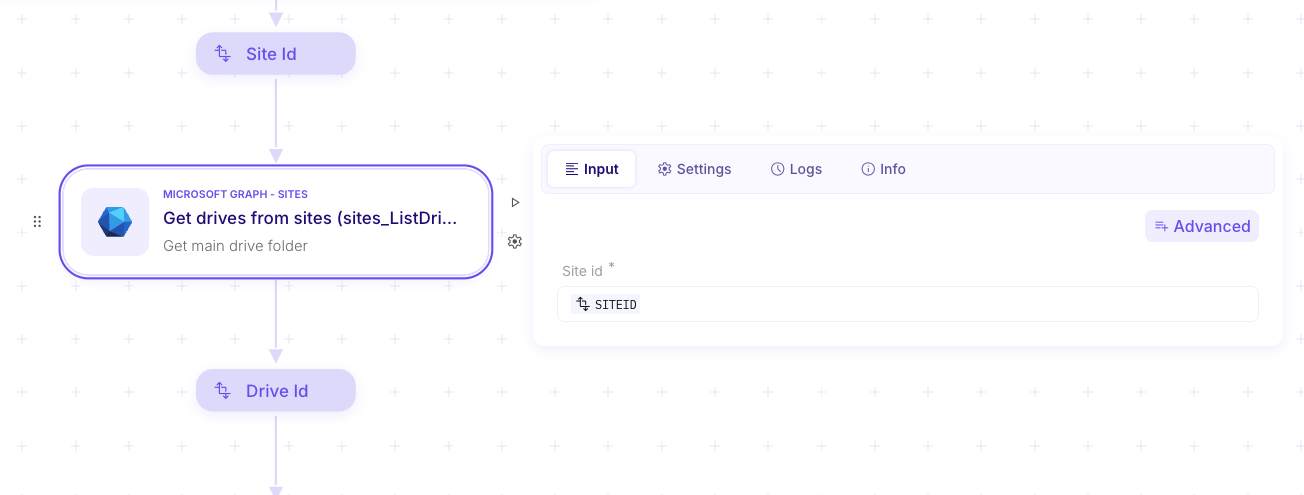
-
Screenshot 2 — List drives step (output): highlights the returned
value[0].id(Drive ID),name, andwebUrl.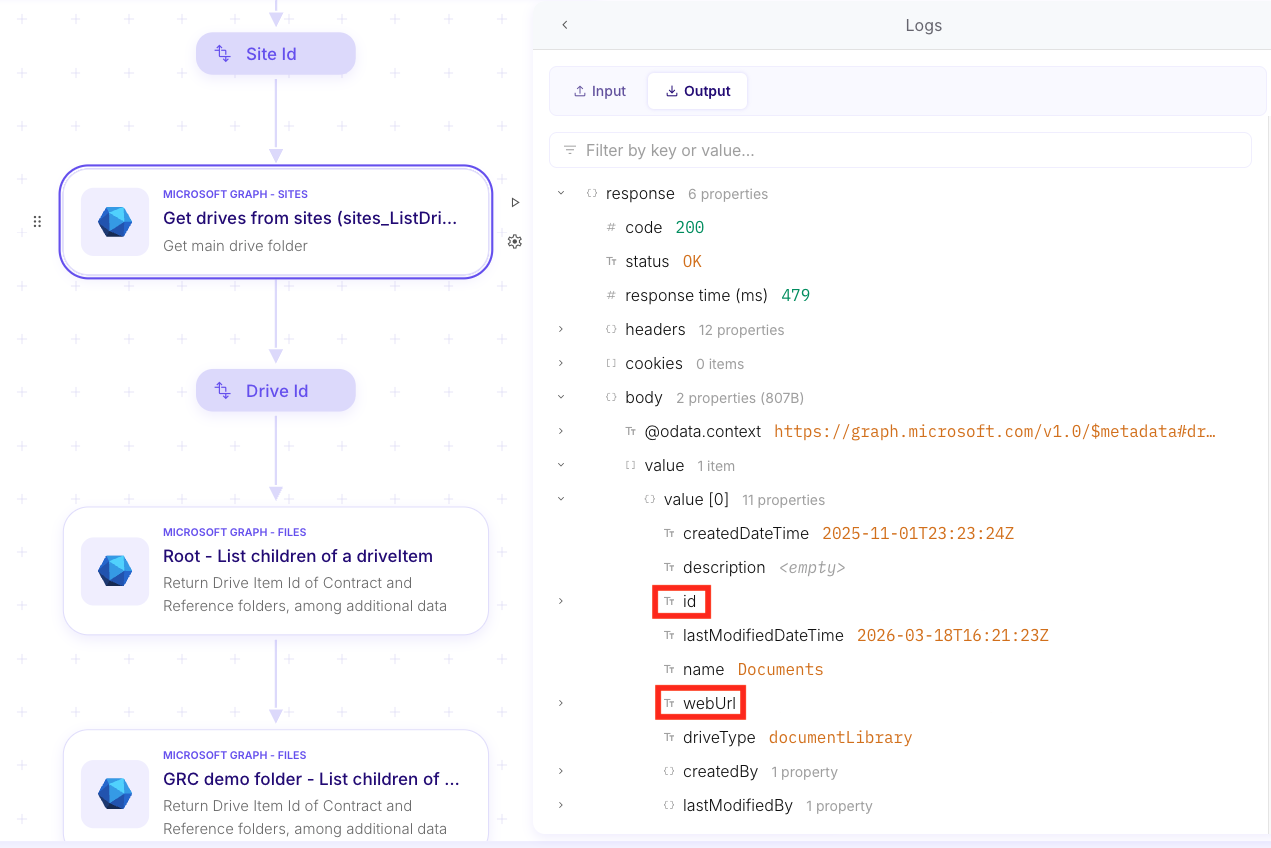
Step 2 — List children from the drive root
Section titled “Step 2 — List children from the drive root”Mindflow step: Microsoft Graph - Files → “List children of a driveItem”
Inputs
Section titled “Inputs”Drive id(required)- Use the drive
idreturned by the previous step.
- Use the drive
Drive item id(required)- Use
rootto start from the top level of the document library.
- Use
Output (what to look for)
Section titled “Output (what to look for)”The response returns the items directly under that folder:
value[n].id→ Drive item IDvalue[n].name→ File or folder namevalue[n].folder→ Present when the item is a foldervalue[n].file→ Present when the item is a filevalue[n].webUrl→ Browser link in SharePointvalue[n].@microsoft.graph.downloadUrl→ Pre-authenticated download URL (ephemeral)
Example screenshots (sensitive data obfuscated)
Section titled “Example screenshots (sensitive data obfuscated)”Add the screenshot(s) below:
-
Screenshot — Root children listing (input): shows
Drive id = …andDrive item id = root.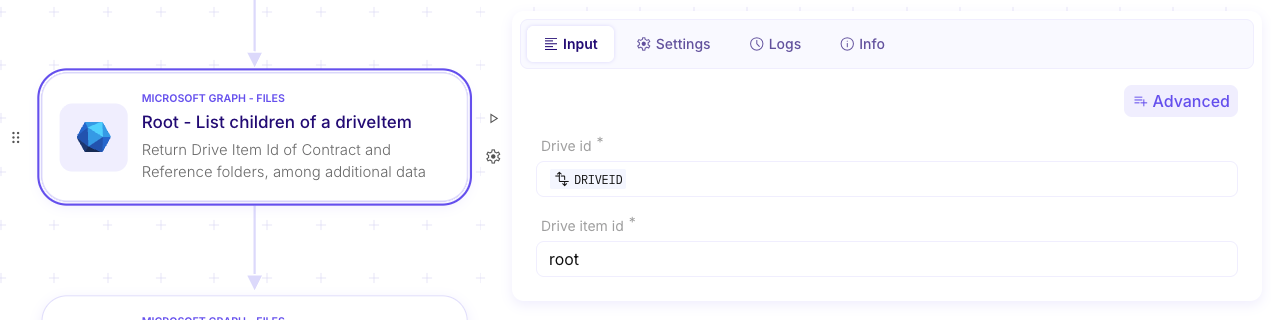
-
Screenshot — Root children listing (output): highlights the returned
valuearray and at least one item’sid,name, and (when present)@microsoft.graph.downloadUrl.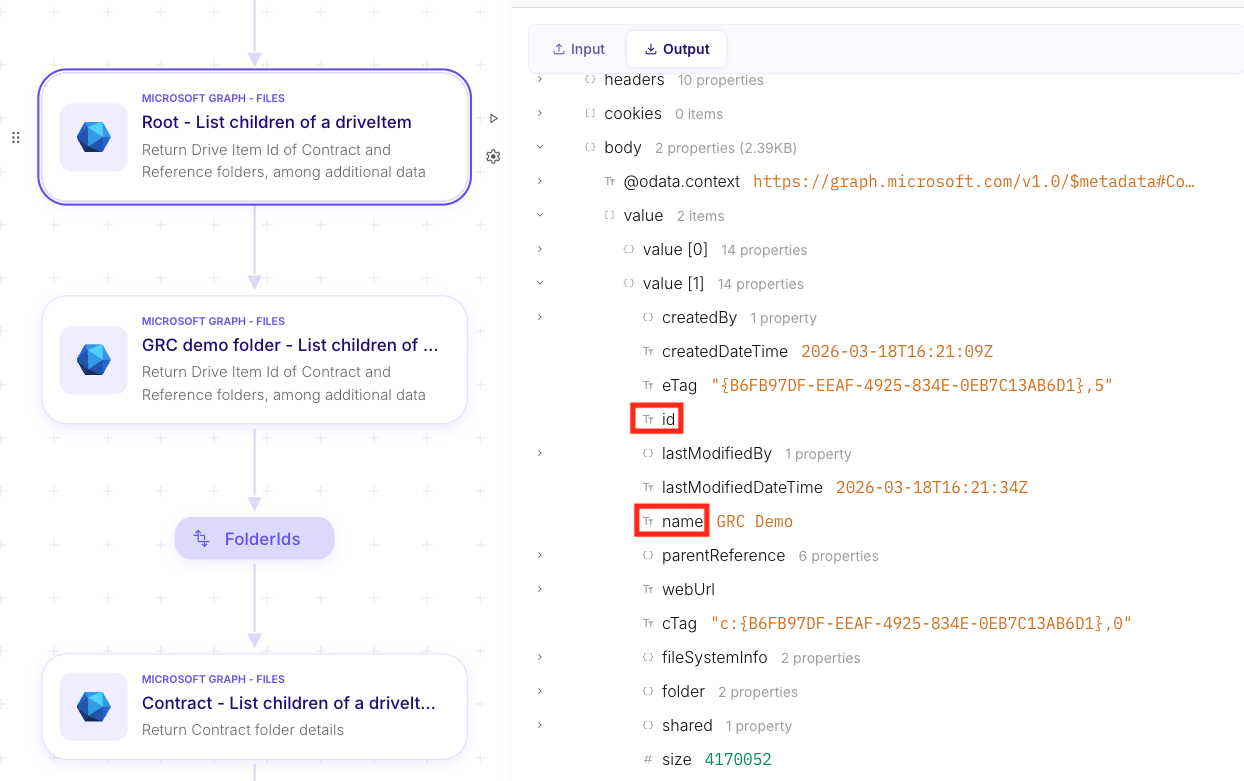
-
Screenshot — Additional children listing example (output with download URL): highlights the
@microsoft.graph.downloadUrlfield returned for a file item (example download link).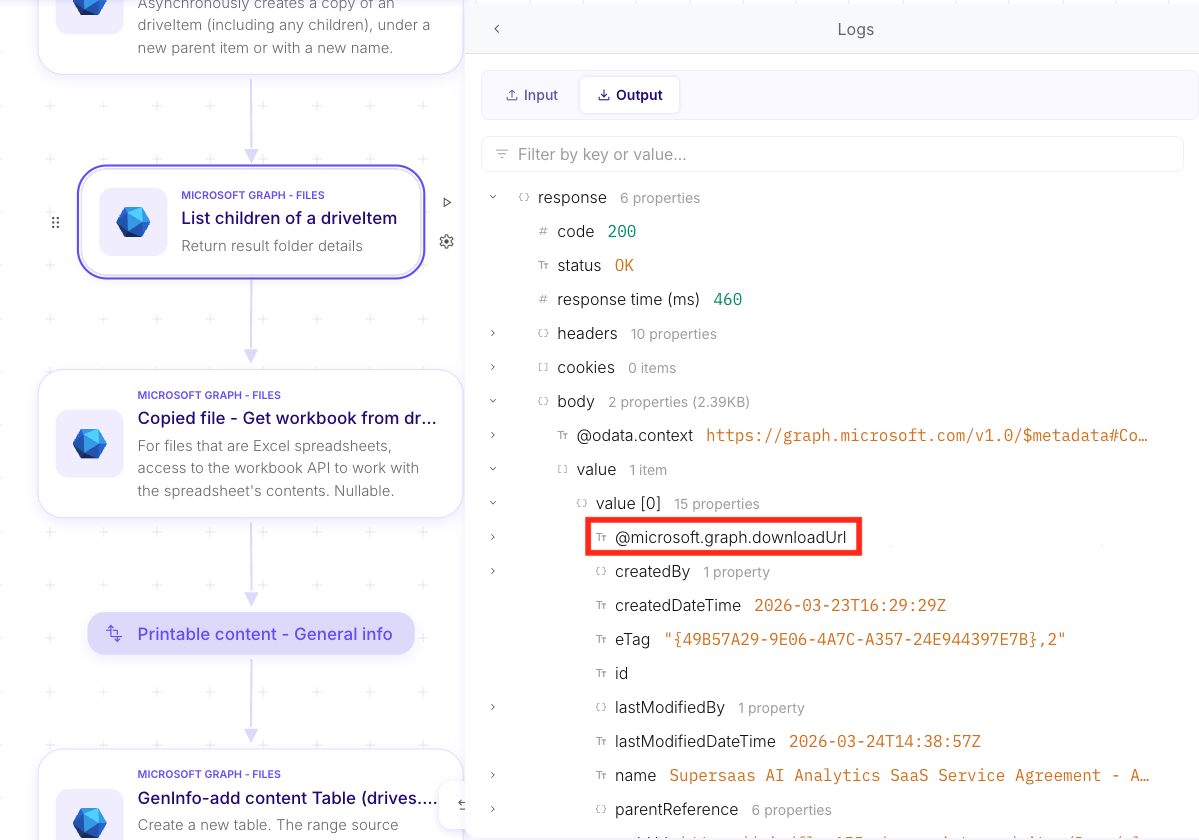
Step 3 — Traverse into a folder (repeatable)
Section titled “Step 3 — Traverse into a folder (repeatable)”Mindflow step: Microsoft Graph - Files → “List children of a driveItem”
Inputs
Section titled “Inputs”Drive id(required)- Same drive ID as before.
Drive item id(required)- Set to the folder’s
value[n].idreturned by the previous listing.
- Set to the folder’s
Output
Section titled “Output”Same shape as the root listing, but scoped to that folder.
Example screenshots (sensitive data obfuscated)
Section titled “Example screenshots (sensitive data obfuscated)”Add the screenshot(s) below:
-
Screenshot — Folder children listing (input): shows
Drive item idset from the selected folder’sid(variable/token).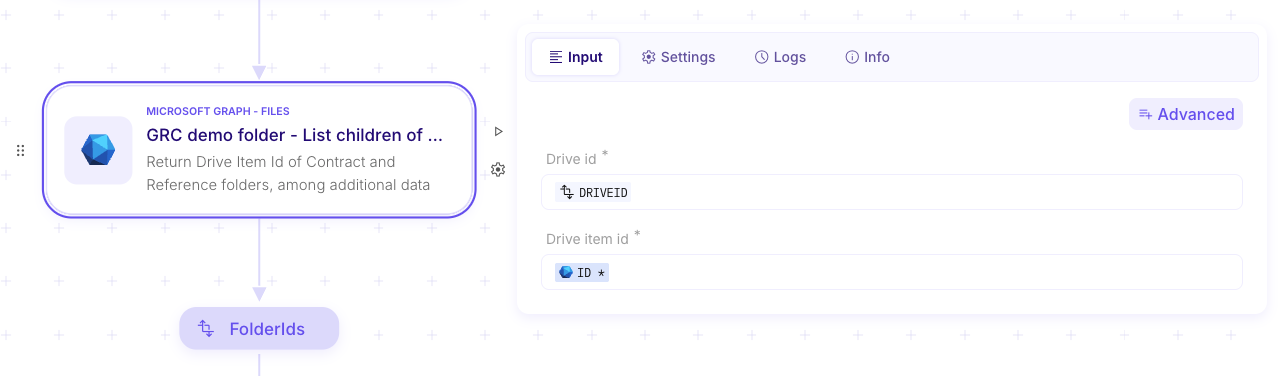
-
Screenshot — Folder children listing (output): highlights the folder name (e.g.,
GRC Demo) and the items returned inside it.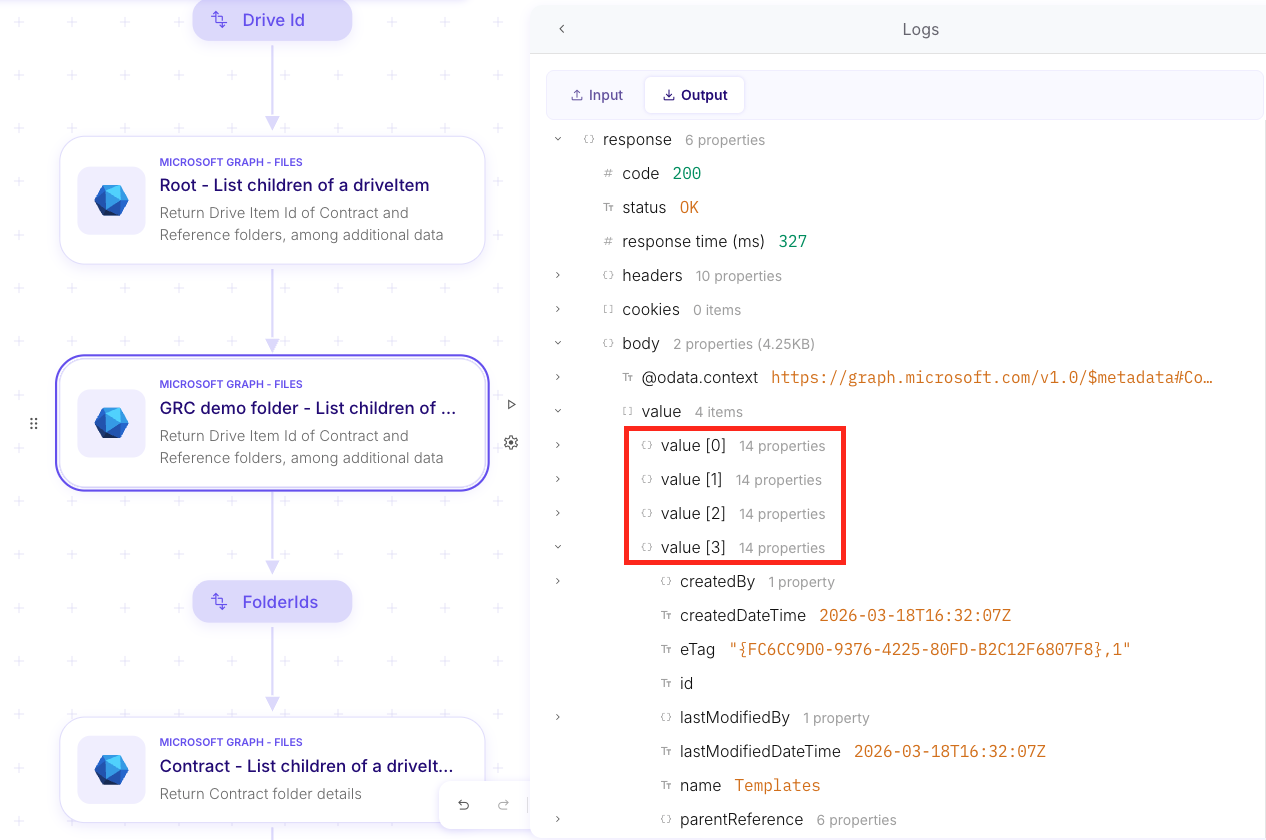
Downloading, uploading, and sharing files
Section titled “Downloading, uploading, and sharing files”This section shows common file operations you can implement once you can navigate to the correct drive item.
Download a file (using @microsoft.graph.downloadUrl)
Section titled “Download a file (using @microsoft.graph.downloadUrl)”A common pattern is:
- Identify the target file drive item (from a folder listing)
- Read its
@microsoft.graph.downloadUrl - Perform an HTTP
GETon that URL to retrieve the binary content
Inputs
Section titled “Inputs”@microsoft.graph.downloadUrl- Use the
@microsoft.graph.downloadUrlreturned by Microsoft Graph for the target file.
- Use the
Output (what to look for)
Section titled “Output (what to look for)”- The HTTP response body contains the file bytes (content-type depends on the file: XLSX/PDF/etc.).
Example screenshots (sensitive data obfuscated)
Section titled “Example screenshots (sensitive data obfuscated)”Add the screenshot(s) below:
-
Screenshot — HTTP Request (input): shows an HTTP step configured with
Method = GETandURL = MICROSOFT.GRAPH.DOWNLOADURL.
-
Screenshot — HTTP Request (output) (
Screenshot 2026-03-25 at 15.48.18.png): shows a successful response (code = 200,status = OK) and the returned binary content-type.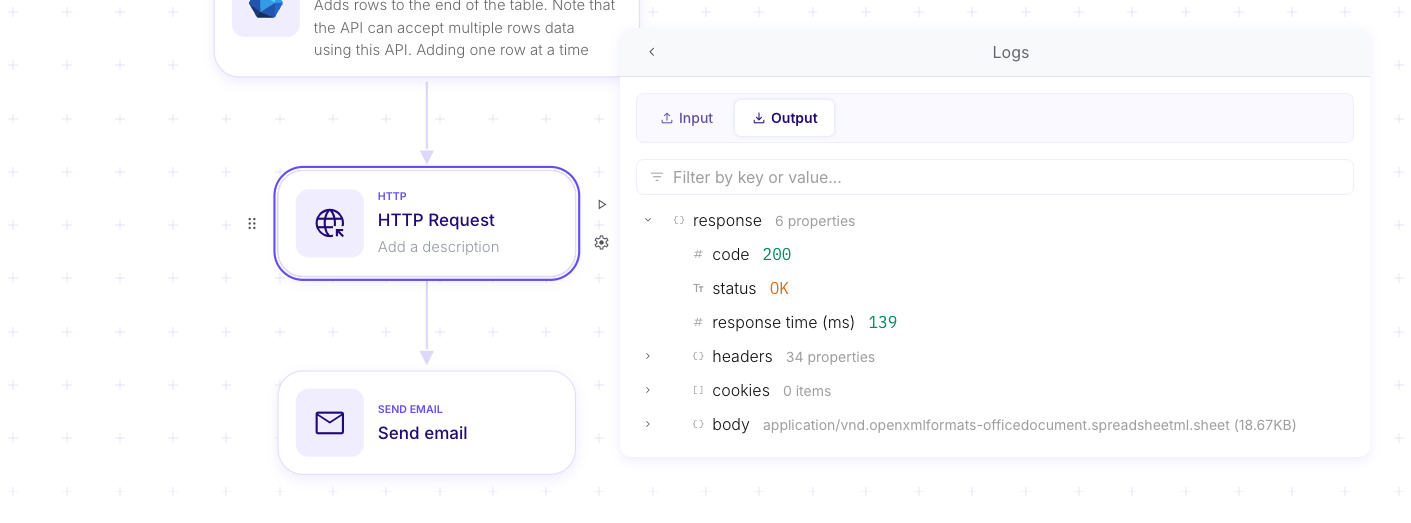
Copy a file
Section titled “Copy a file”When you need to produce an output file in SharePoint (for example, a result workbook based on a template), the simplest approach is often to copy an existing reference/template file into a destination folder, optionally renaming it.
This avoids dealing with raw upload/update semantics and keeps your flow based on drive item IDs.
Example: “Copy” a file into a folder
Section titled “Example: “Copy” a file into a folder”Mindflow step: Microsoft Graph - Files → “Copy”
Inputs
Section titled “Inputs”Drive id- The drive (document library) that contains the source item.
Drive item id- The source file drive item ID to copy.
Name- The destination filename.
Item reference.id- The destination folder drive item ID (where the copy should be created).
Output (what to look for)
Section titled “Output (what to look for)”- A response indicating the copy job has been accepted.
- In most cases, you then list the destination folder to retrieve the new file’s drive item ID.
Example screenshots (sensitive data obfuscated)
Section titled “Example screenshots (sensitive data obfuscated)”Add the screenshot(s) below:
-
Screenshot — Copy step (input): shows
Drive id,Drive item id(source),Name, andItem reference.id(destination folder).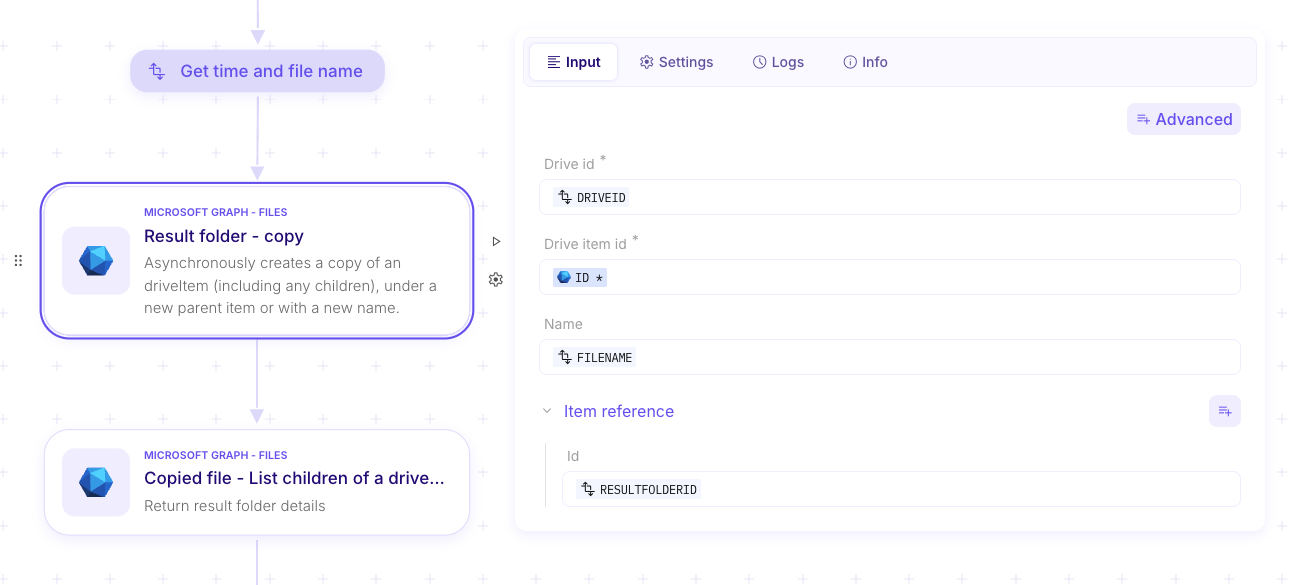
Retrieve the copied/new file (list children + filter)
Section titled “Retrieve the copied/new file (list children + filter)”After a copy/upload, you often need to retrieve the newly created file’s drive item ID.
Mindflow step: Microsoft Graph → Files → “List children of a driveItem”
Inputs
Section titled “Inputs”Drive id- The drive where the destination folder lives.
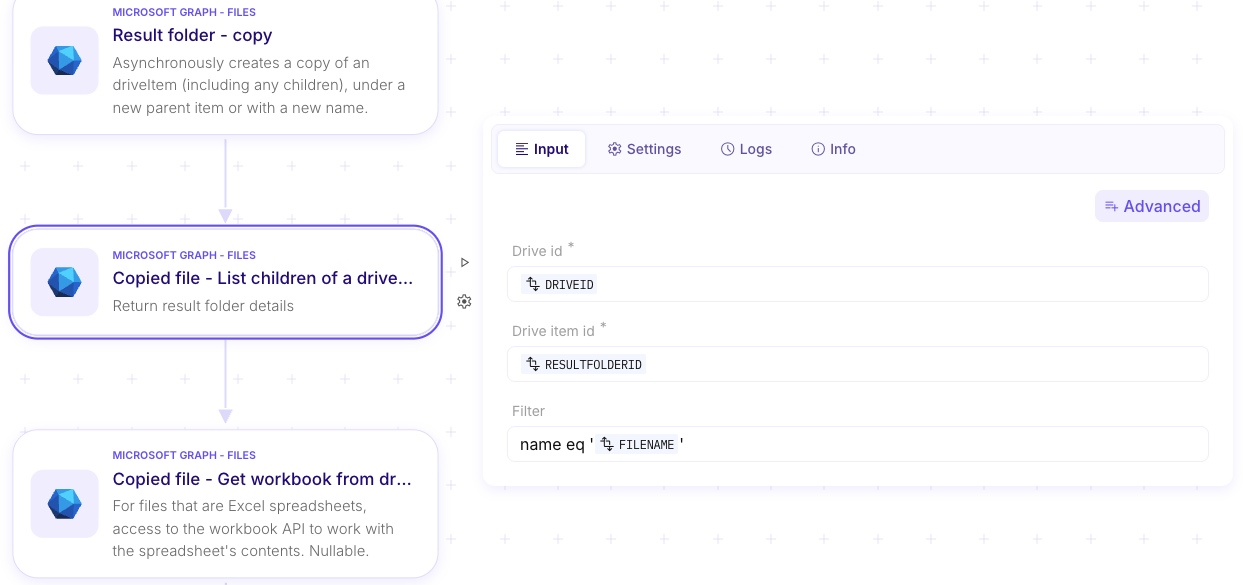
Drive item id- The destination folder drive item ID (example:
RESULTFOLDERID).
- The destination folder drive item ID (example:
Filter(optional — enable via the Advanced button shown in the screenshot)- You can filter the results by file name using Microsoft Graph filter syntax.
- Use the operator
eqand wrap the expected name in single quotes. - The value must be the full file name, including its extension.
- Example:
name eq 'FILENAME'
Output (what to look for)
Section titled “Output (what to look for)”- The returned item entry for the file (capture its
id,name, and optionally@microsoft.graph.downloadUrl).
Example screenshots (sensitive data obfuscated)
Section titled “Example screenshots (sensitive data obfuscated)”Add the screenshot(s) below:
-
Screenshot — List children (input): shows the destination
Drive item idand aFilterby name.