PagerDuty
PagerDuty + Mindflow Integration Benefits
Section titled “PagerDuty + Mindflow Integration Benefits”- Notify on-call responders based on critical incidents, specific triggers or thresholds detected by Mindflow
- Enrich PagerDuty incidents with actionable data from Mindflow’s extensive integrations catalog with context, such as user activities, threat intelligence, or related incidents, directly in PagerDuty.
- Use Mindflow’s security orchestration automation and response (SOAR) capabilities in workflows to categorize alerts by urgency and send appropriately prioritized incidents to PagerDuty.
- Automatically update in PagerDuty, such as acknowledgments or resolutions, based on information received from workflows in MIndflow for consistent and accurate incident management.
- Resolve PagerDuty alerts seamlessly when Mindflow detects that predefined resolution criteria have been met, such as service metrics returning to normal.
- Extend PagerDuty’s functionality by orchestrating with 4,000+ integrations, AI··Agents, or dynamic data transformation and filters.
How it Works
Section titled “How it Works”- Mindflow integrates the PagerDuty APIs to enable mutual users to automate their workflows and orchestrate PagerDuty with 4000+ tools on the marketplace.
- Events triggered or received in Mindflow from 3rd party integrations can automatically create new incidents or update existing ones in PagerDuty.
- Mindflow workflows can enable users to enrich PagerDuty incidents by adding contextual data from other integrated tools in the user’s stack (ex: SIEM, EDR, MDM, communication channels, etc.).
- Mindflow has a bi-directional integration with PagerDuty. Incidents are updated and synchronized in real-time.
- When incidents are resolved in Mindflow based on user-configured filters and conditions, they are automatically closed in PagerDuty, reducing manual work and improving operational efficiency.
Requirements
Section titled “Requirements”- PagerDuty integrations require an Admin base role for account authorization. If you do not have this role, please reach out to an Admin or Account Owner within your organization to configure the integration.
- The user must have the access to generate and use API keys
Support
Section titled “Support”If you need help with this integration, please contact support@mindflow.io or the use chat button at the bottom right of the screen in the Mindflow platform.
Integration Walkthrough
Section titled “Integration Walkthrough”Integrating With a PagerDuty Service
Section titled “Integrating With a PagerDuty Service”-
From the Configuration menu, select Services.
-
There are two ways to add an integration to a service:
- If you are adding your integration to an existing service or a service without any integration:
- Click the “+Add another integration” on the integrations tab in the service
- Search “Mindflow” and select it to add the integration to your service
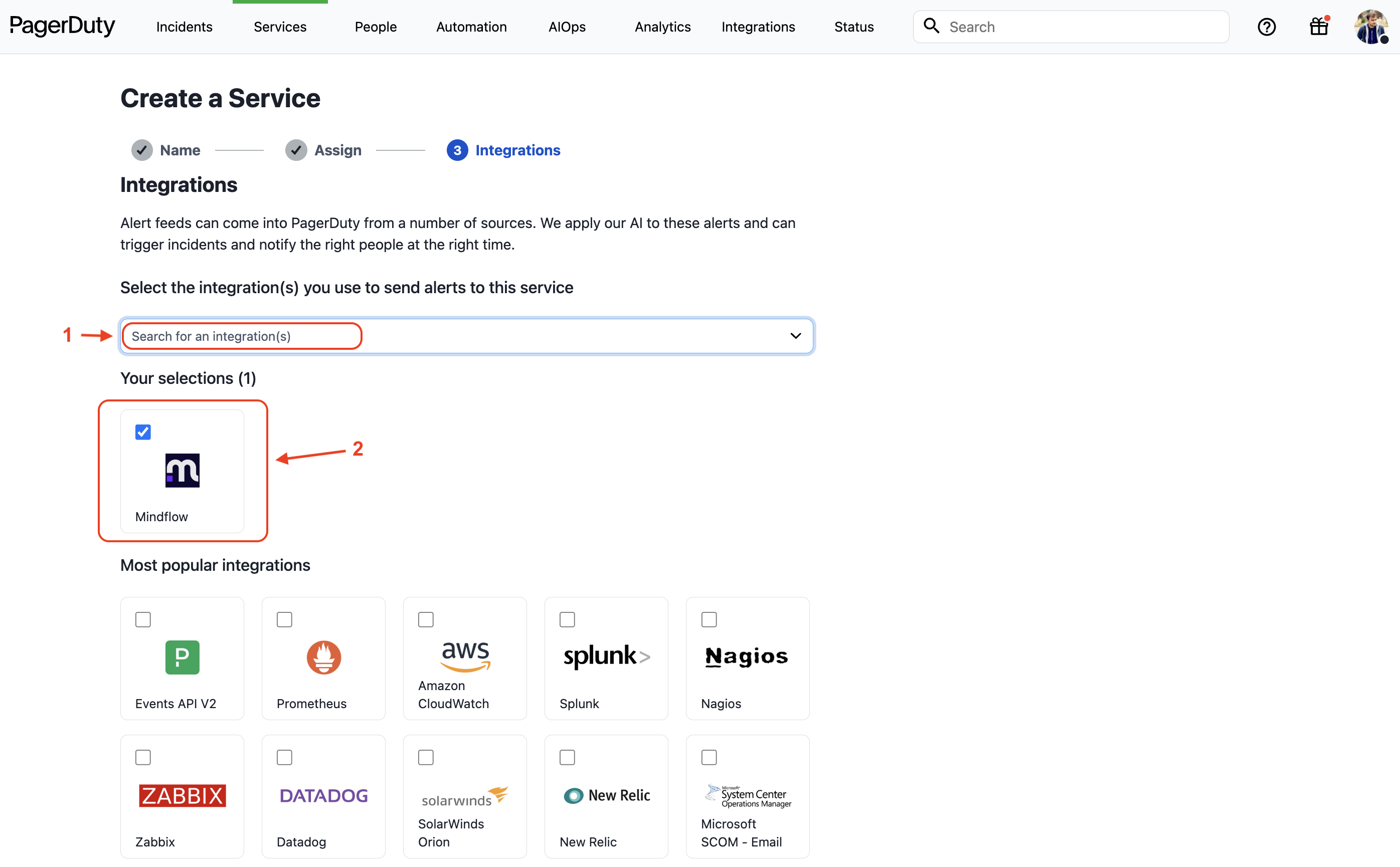
- If you are creating a new service for your integration: Please read our documentation in section Configuring Services and Integrations and follow the steps outlined in the Create a New Service section, selecting Mindflow as the Integration Type in step 4. Continue with the In Mindflow section (below) once you have finished these steps.
- If you are adding your integration to an existing service or a service without any integration:
-
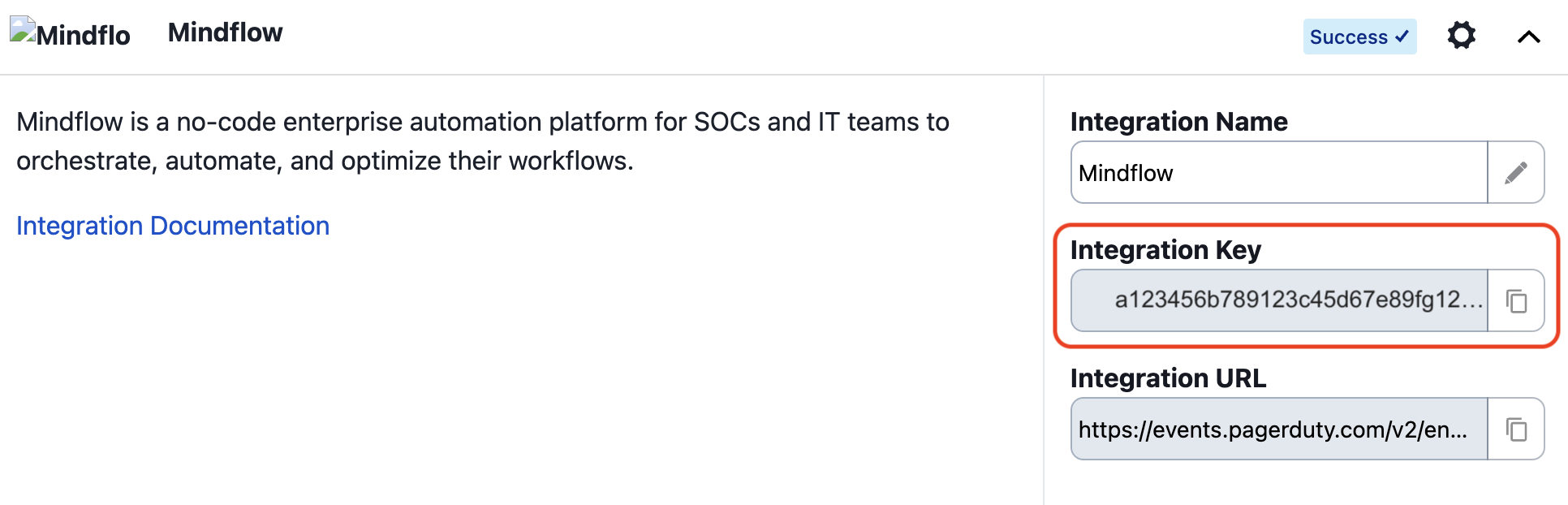
In the Integrations tab on the service page, you will find the Integration Key. Keep this key saved in a safe place, as it will be used when you configure your workflows In Mindflow in the next section.
Creating PagerDuty API Keys
Section titled “Creating PagerDuty API Keys”- In PagerDuty, from the top-level menu click on Integration → API Access Keys
- Create a new API key and save it for later. It will be used in setting up your PagerDuty credentials step in Mindflow
In Mindflow
Section titled “In Mindflow”Activating PagerDuty Events V2 API in Mindflow
Section titled “Activating PagerDuty Events V2 API in Mindflow”-
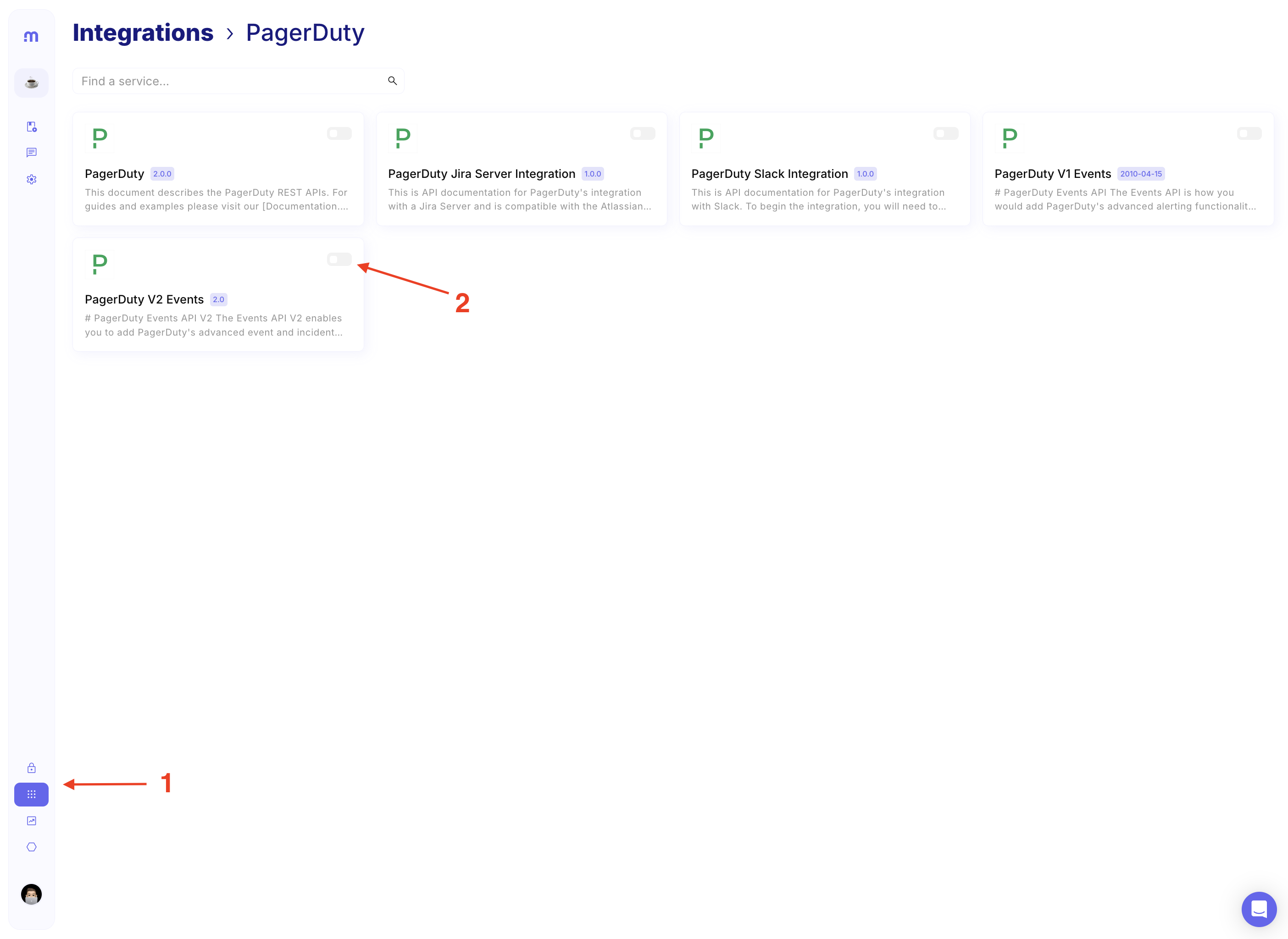
Go to Integrations
-
Search for PagerDuty
-
Toggle and activate the PagerDuty Events V2 integration.
- Mindflow supports PagerDuty API, PagerDuty Events V2 API, PagerDuty Jira Server Integration API, and PagerDuty Slack Integration API.
-
The PagerDuty Events V2 integration has now been activated
Setting up PagerDuty Credentials
Section titled “Setting up PagerDuty Credentials”Now, we will use the API key you created previously in the “Creating PagerDuty API Keys” step.
- In Mindflow, go to the Vault
- Click on +Create to open the new credential creation popup
- Complete the popup fields as described below:
- Service: Search and select PagerDuty V2 Events
- Credential Name: Give a name to credential, at users’ discretion
- Workspace: Choose the Mindflow workspace you want to allocate the credential to. You can also allocate the credential to all workspaces.
- Credential type: Choose HTTP API Key
- Headers: Add the PagerDuty API key in correct format.
Authorization: Token token=y_NbAkKc66ryYTWUXYEu. You can learn more about API authentication in PagerDuty docs.
Your PagerDuty credential is ready to use. All credentials in the Vault are stored in customer specific cloud tenants and are not exposed in any logs, telemetry, or workflows.
Automating PagerDuty
Section titled “Automating PagerDuty”-
Go to your workspace and create a new workflow
-
Open the workflow → Click on
+or right click anywhere → Choose PagerDuty Events V2 integration -
Choose an API call
-
Build your workflow as per your use case
-
Click on settings ⚙️ toggle to open the API call settings and fill in the relevant information
- For PagerDuty Events V2 API, Routing Key = Integration Key (mention above)
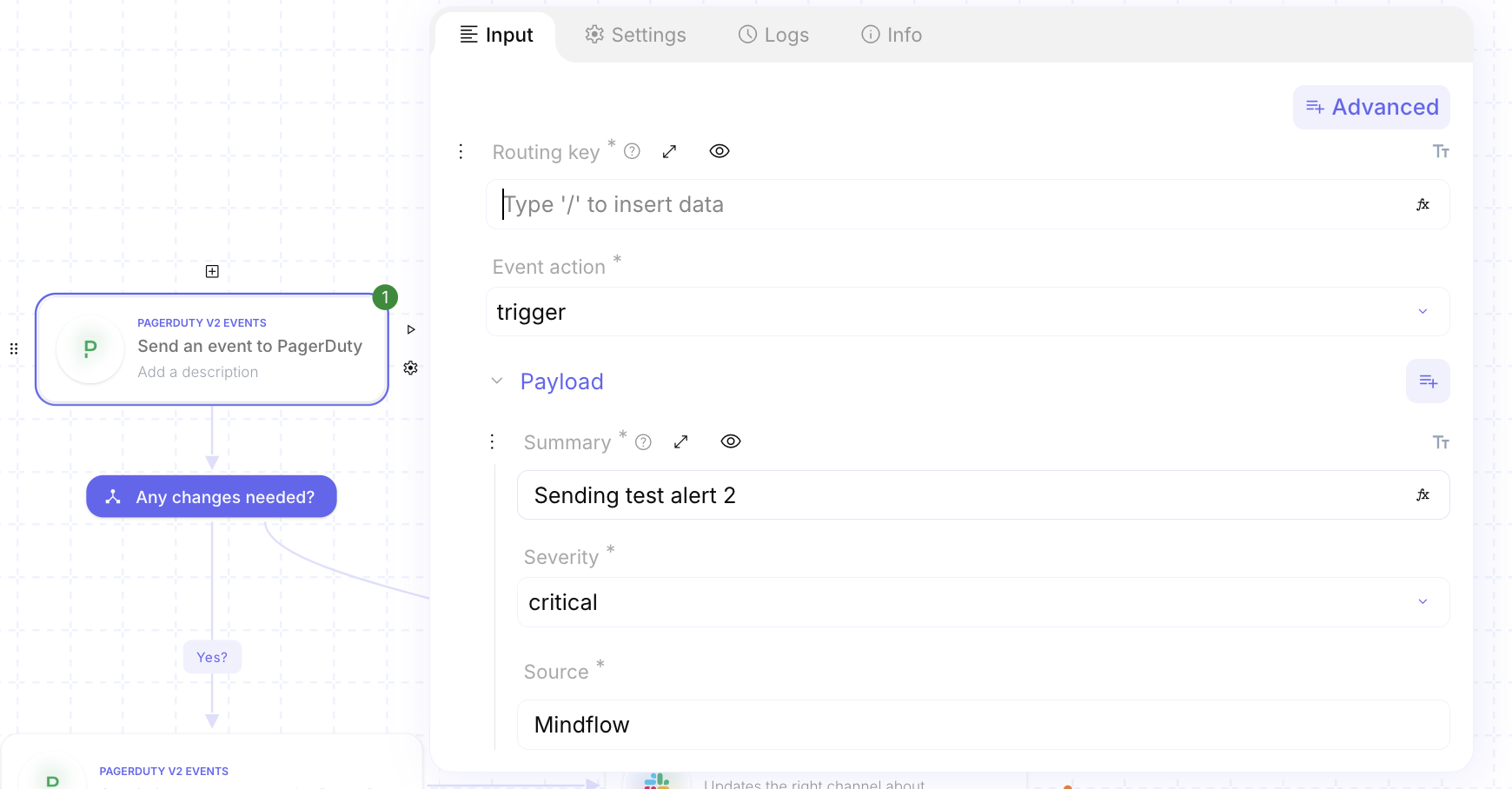
-
The rest of the fields are depending on the API call. Some API calls might require properties such as Dedup key, Payload, etc. They can be added by clicking on Advanced.
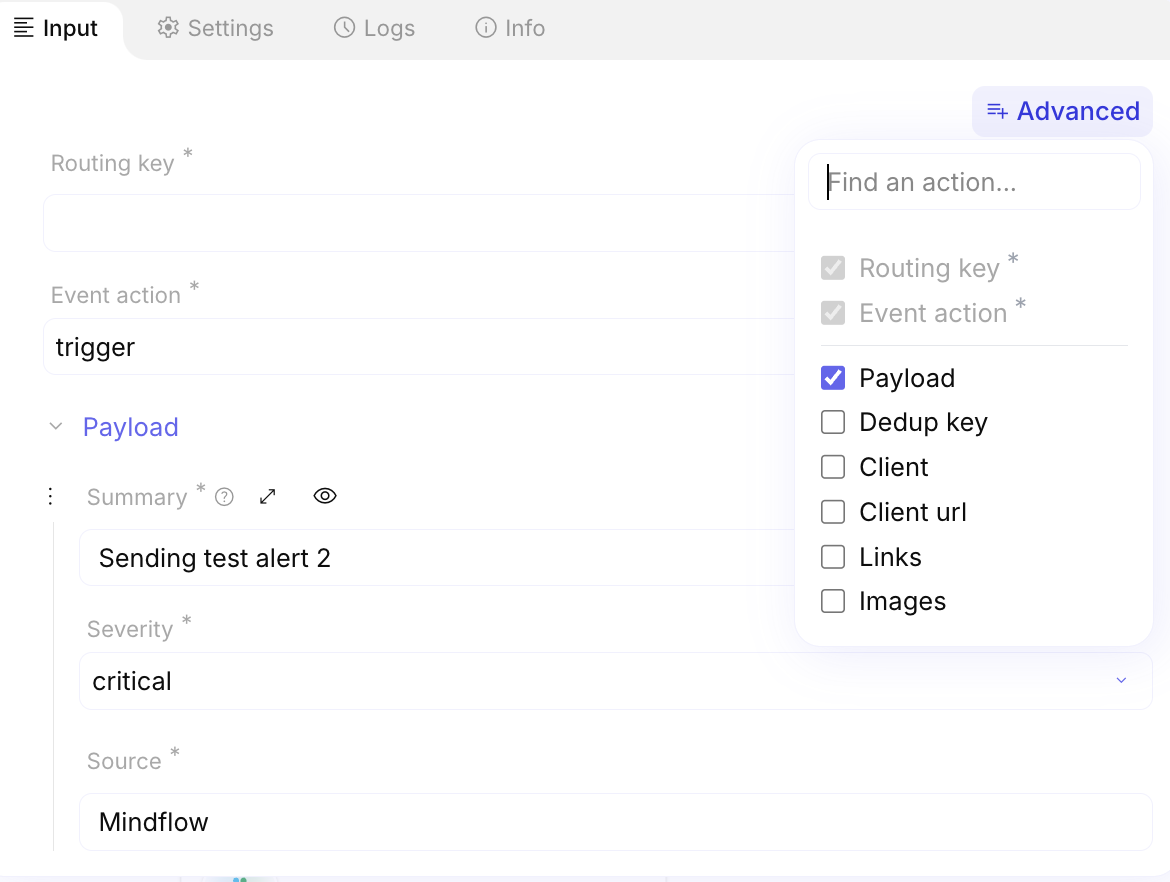
How to Uninstall
Section titled “How to Uninstall”-
Go to Vault in Mindflow
-
Search for your PagerDuty credentials
-
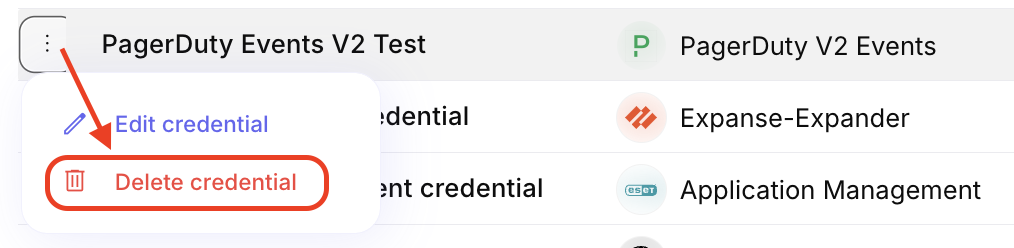
Click on menu toggle on the left of the credential and click “Delete credential”