fetch a data hosted in a S3 bucket
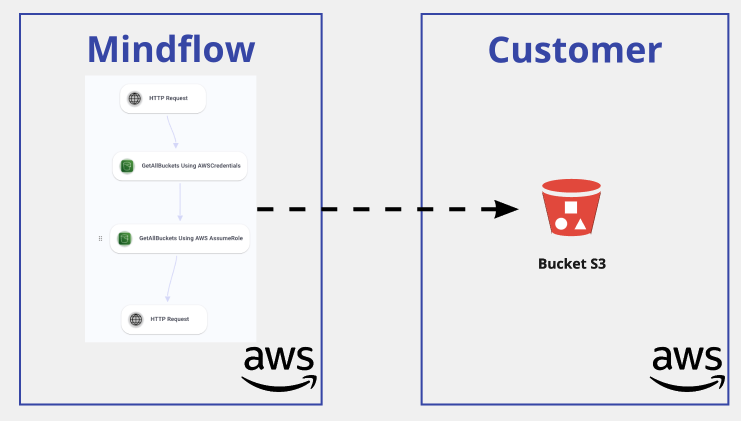
The customer wants to use a playbook to fetch a data hosted in a S3 bucket on his own account.
Solutions
Section titled “Solutions”AWS Credentials
Section titled “AWS Credentials”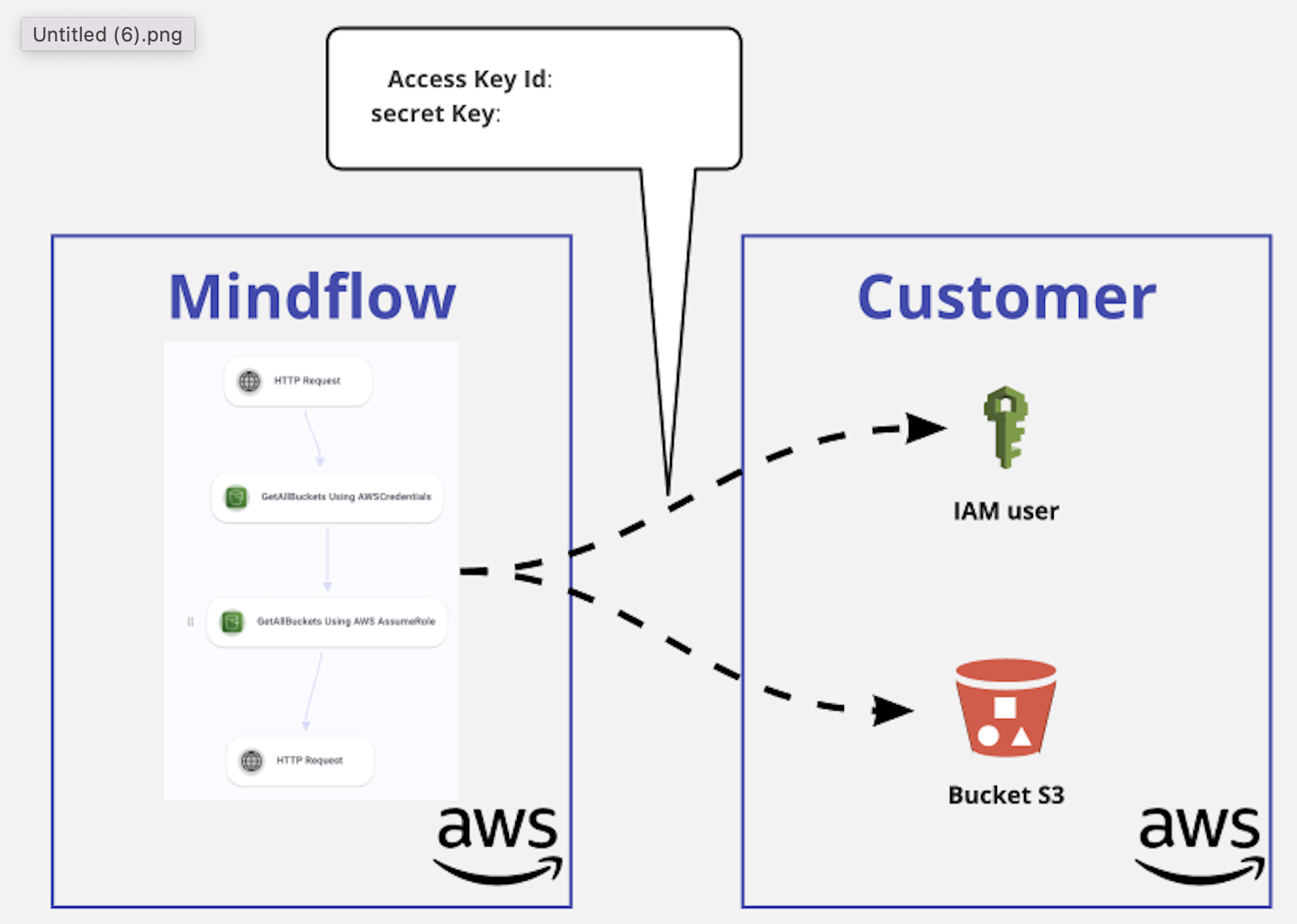
AWS Configuration
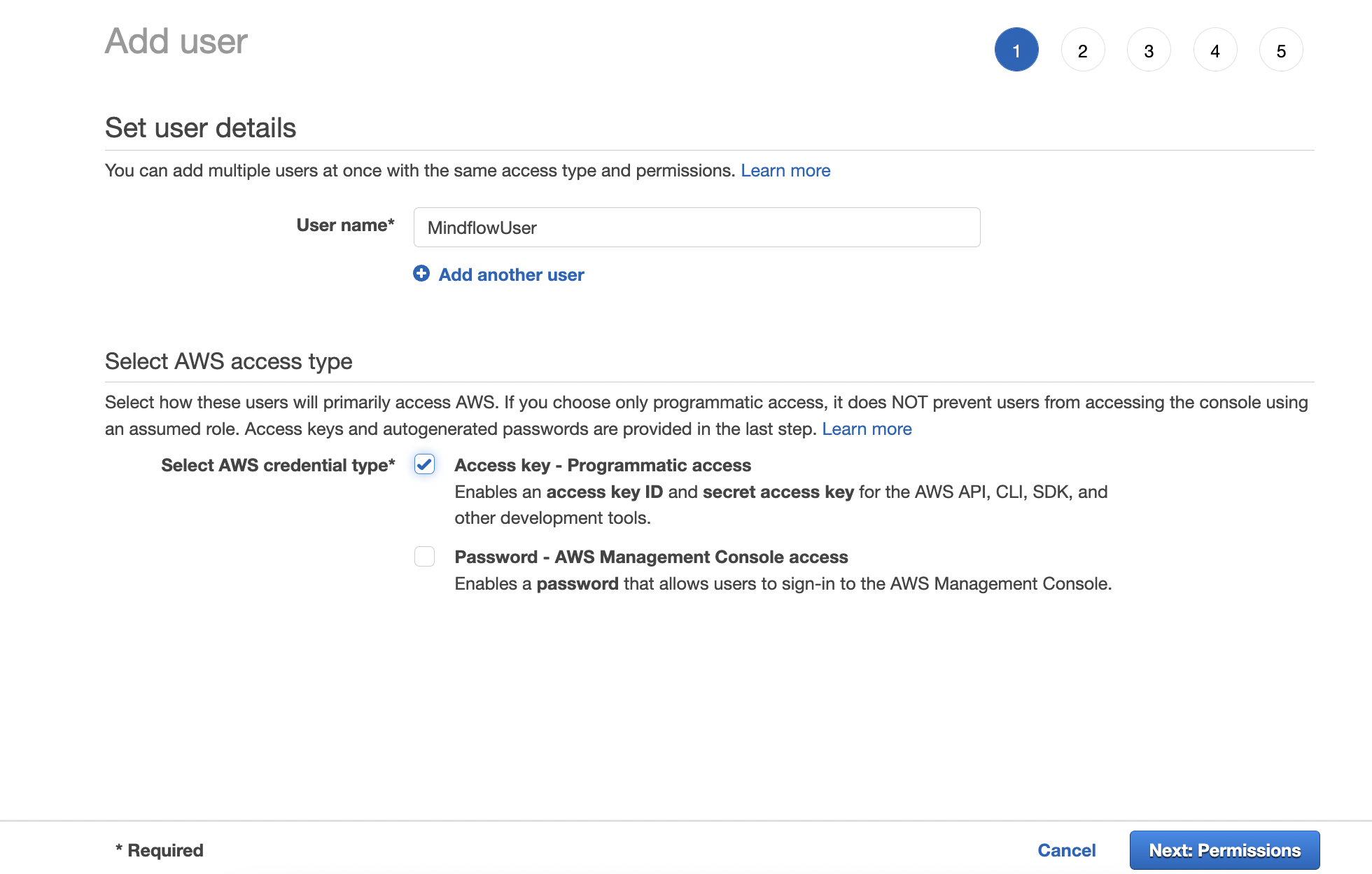
Section titled “AWS Configuration”The customer needs to create an IAM user. For that he should go under IAM and click on Add users
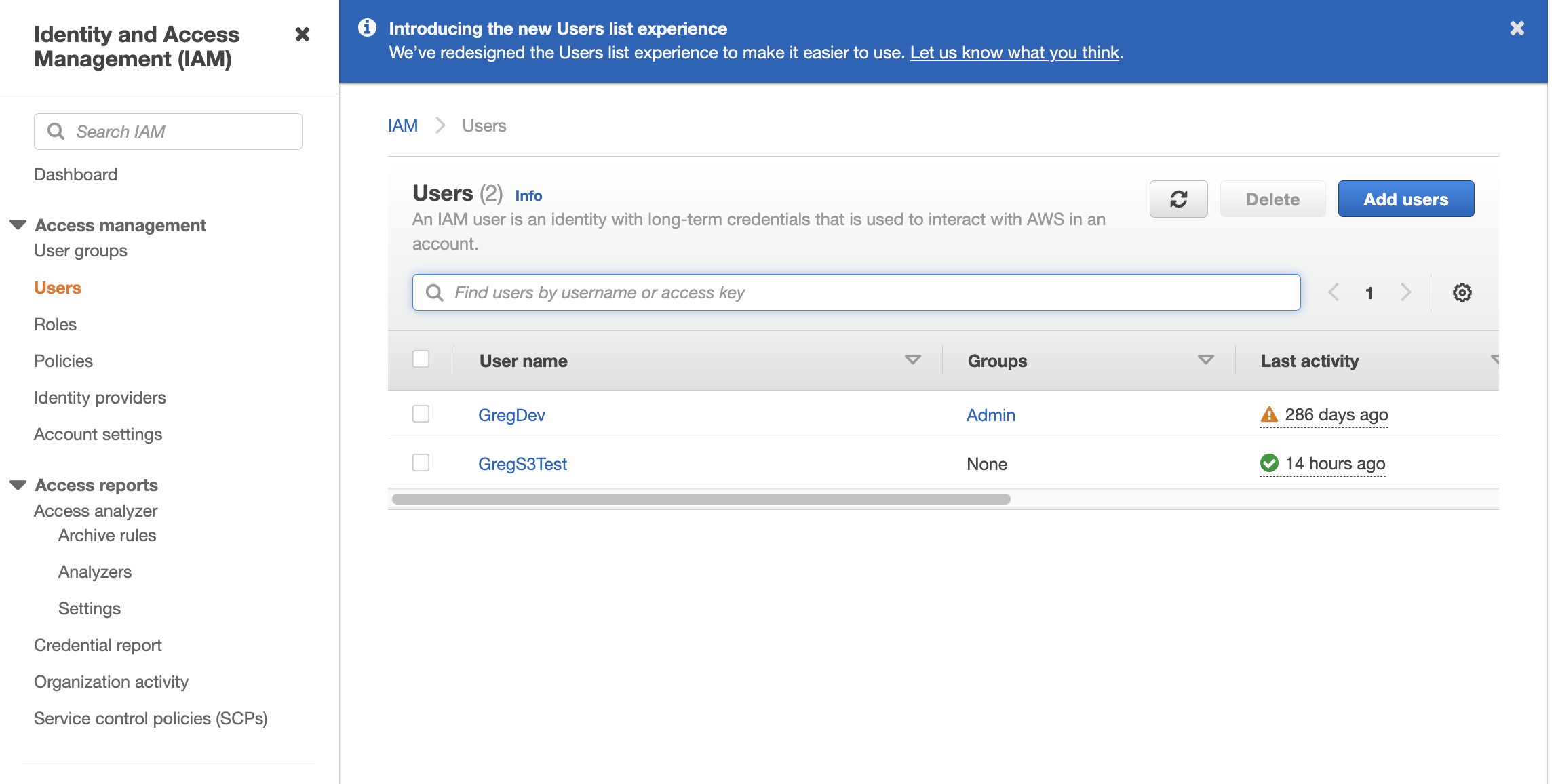
Then choose a name for the user and grant him an Access key
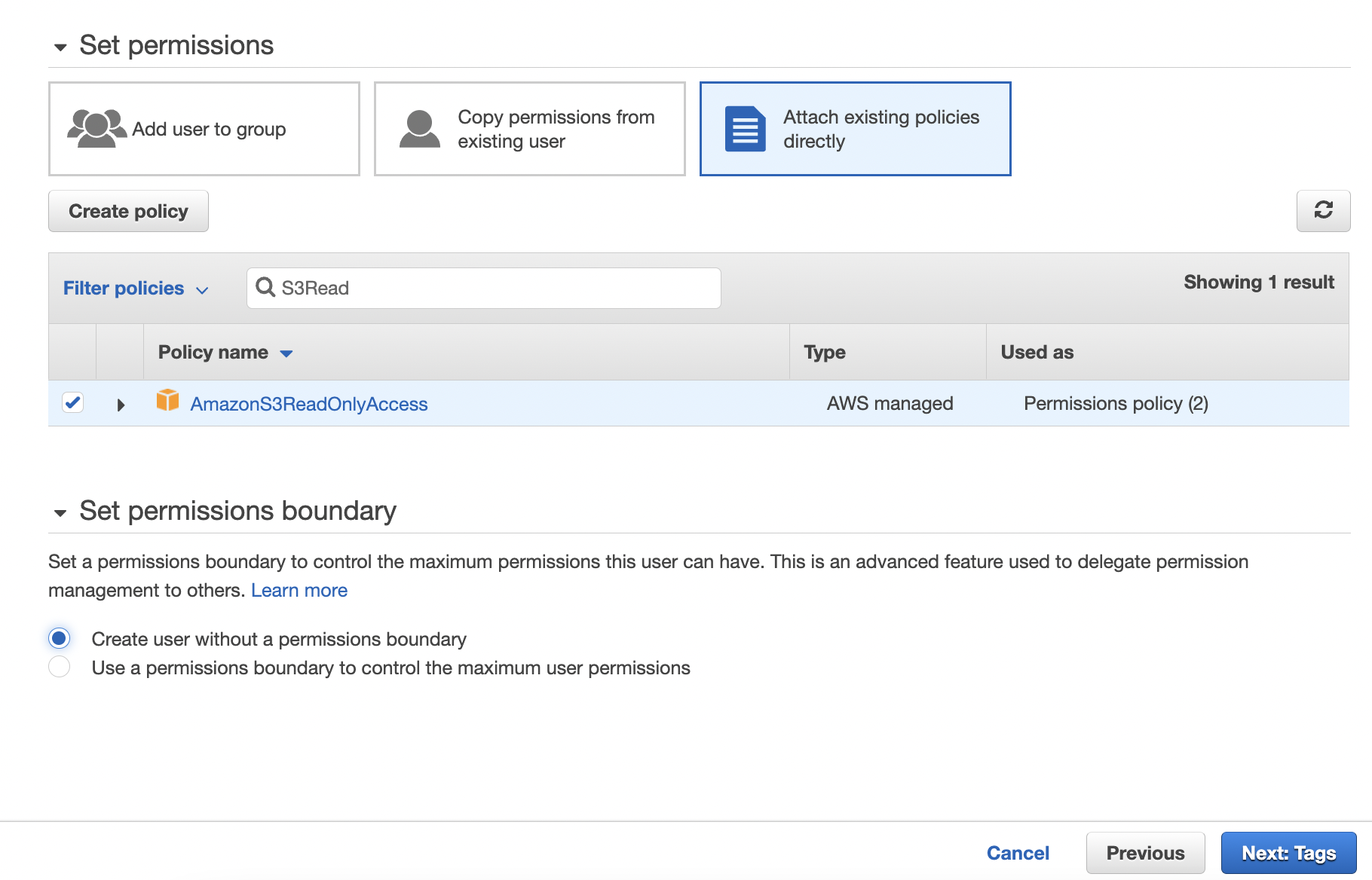
Then set the rights. In this example we create a user that will access all S3 buckets in read only. For additional security, a boundary could be set, for example the rights could be restricted to a single bucket.
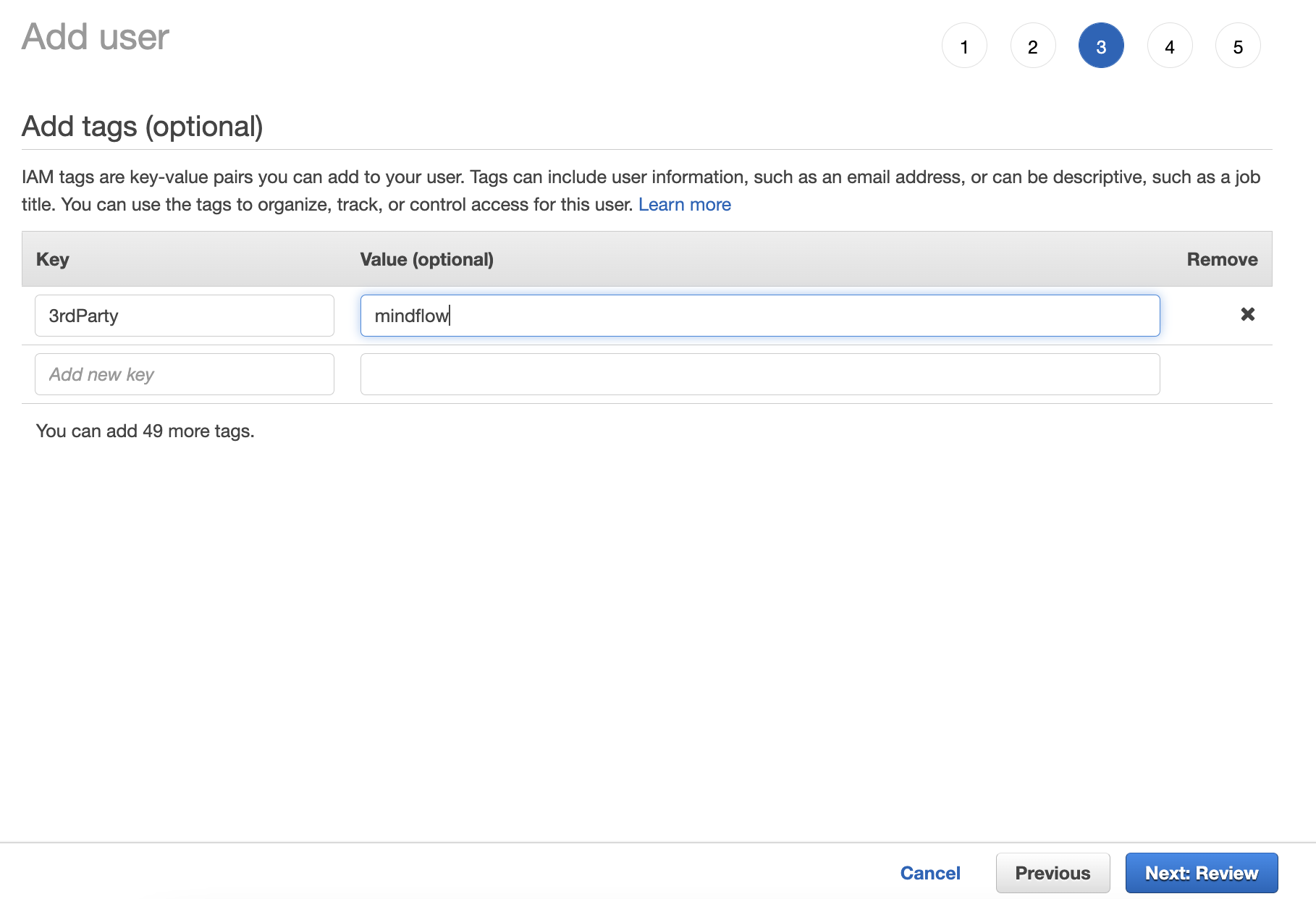
Add some tags
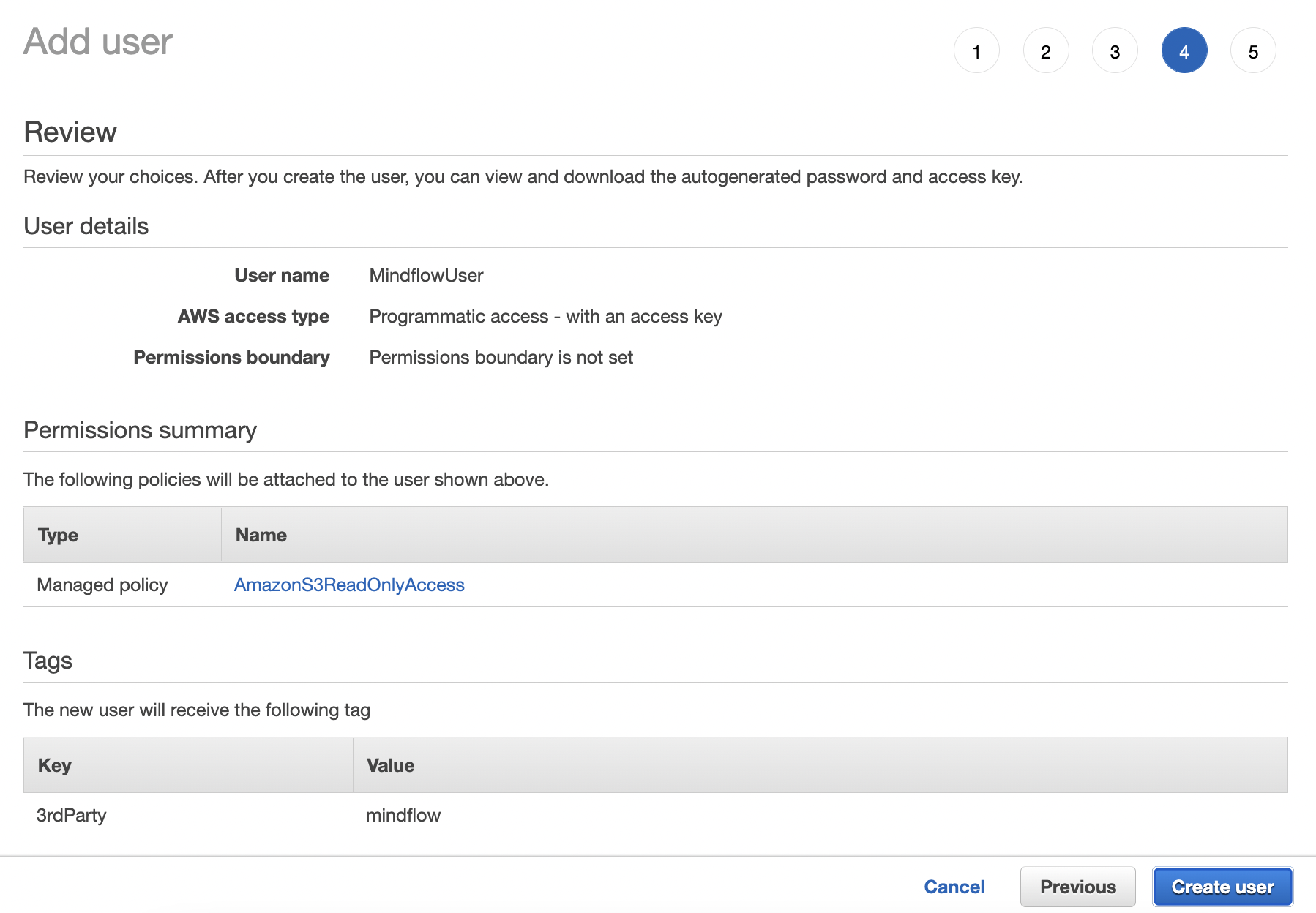
Review the user and click on create user
Mindflow Configuration
Section titled “Mindflow Configuration”In the Vault, create a new credential.
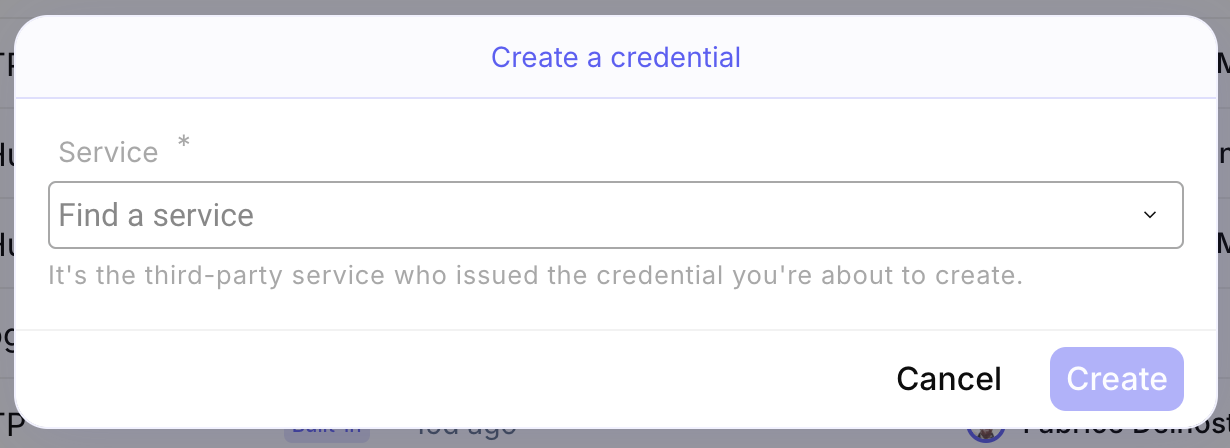
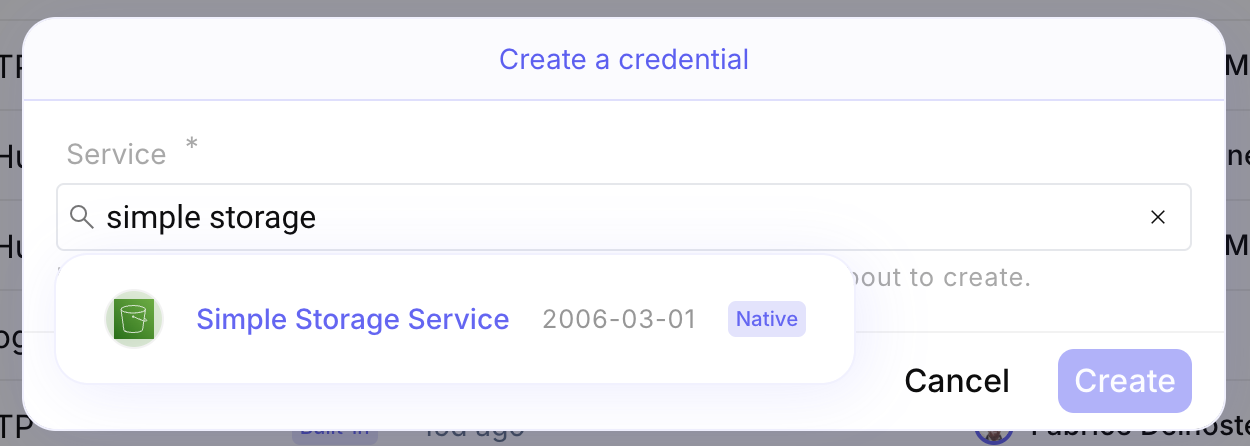
In Credential type, select AWS Signature V4.
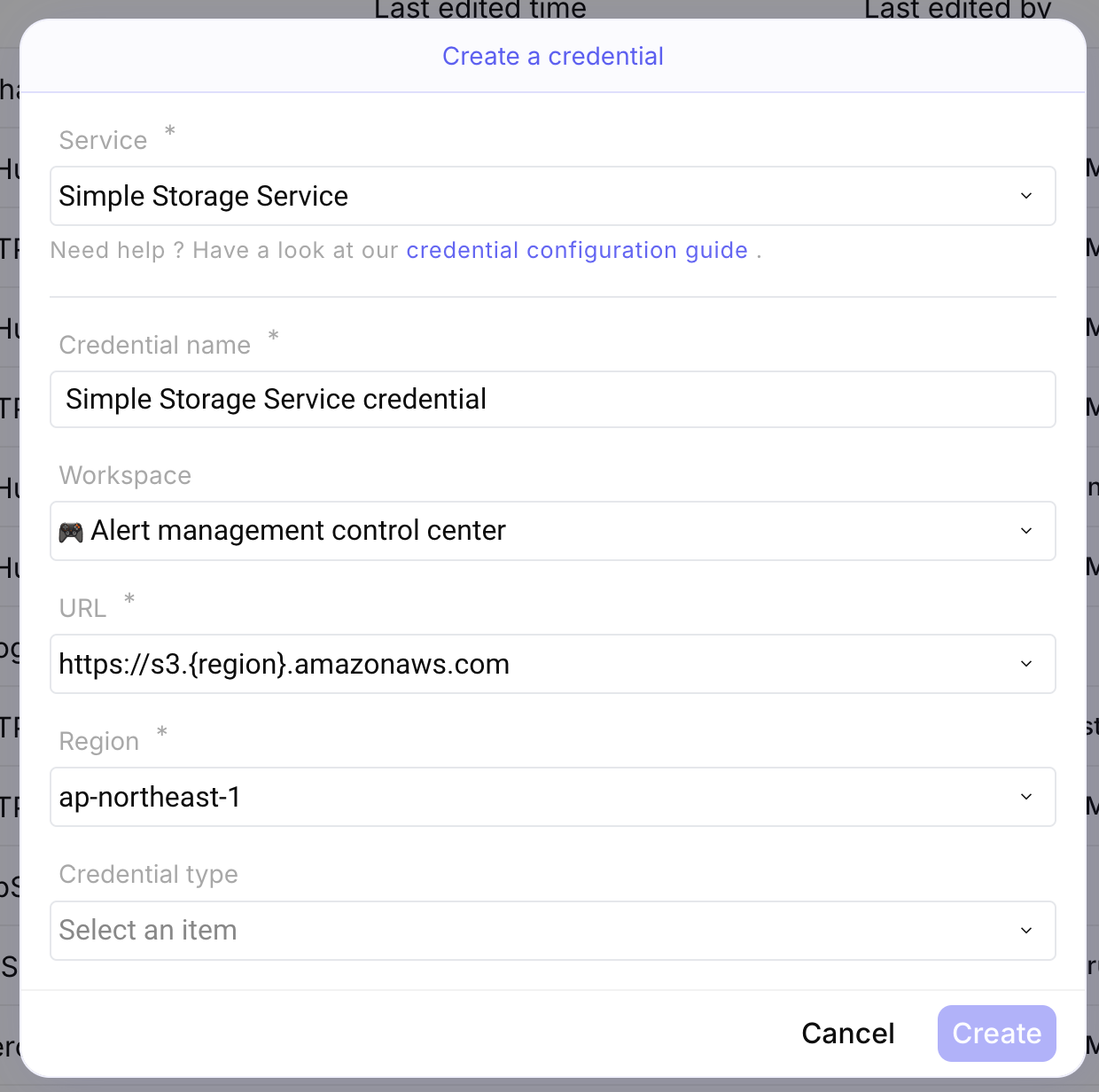
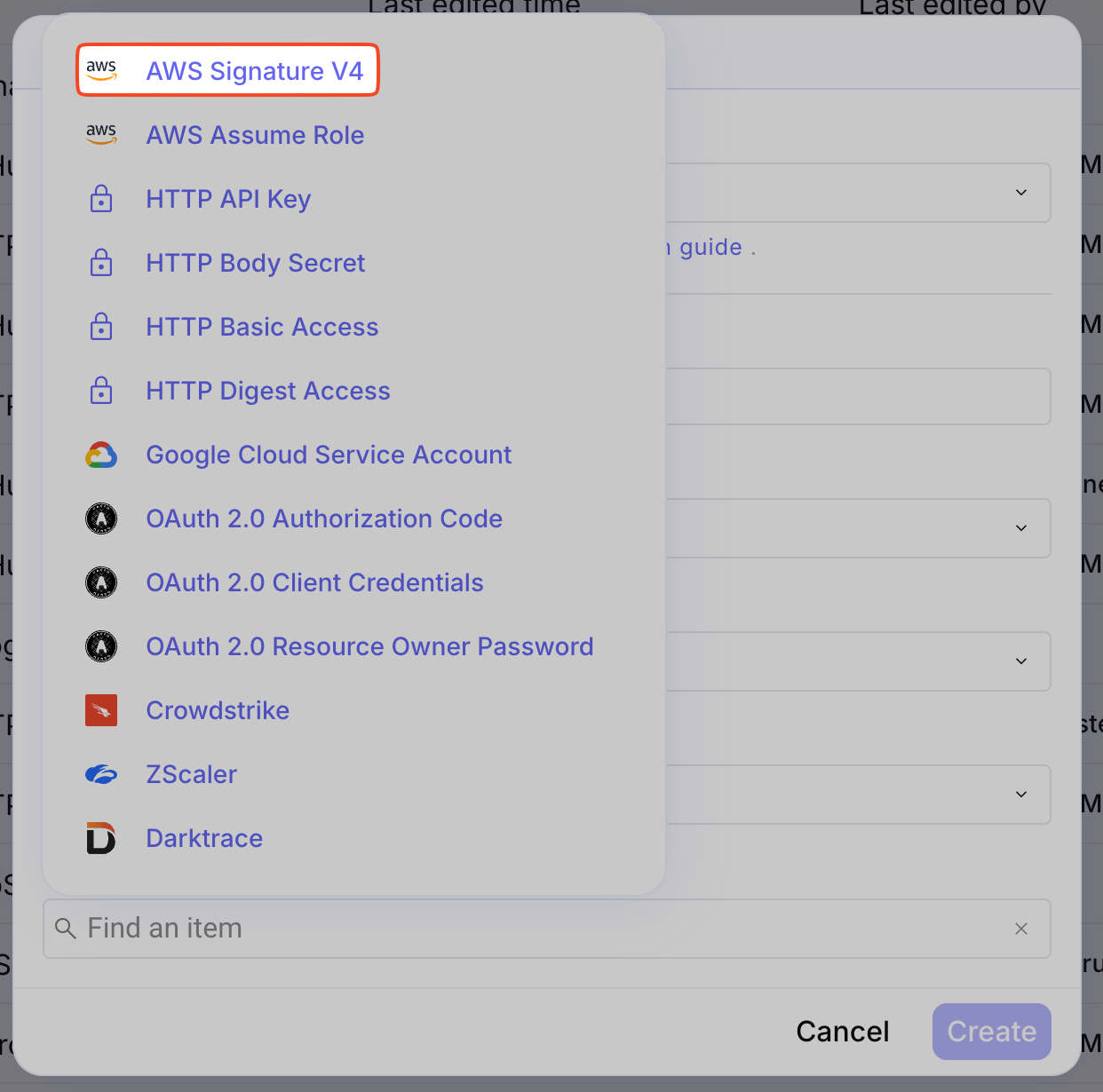
Fill the configuration form with the previously created access key and secret.
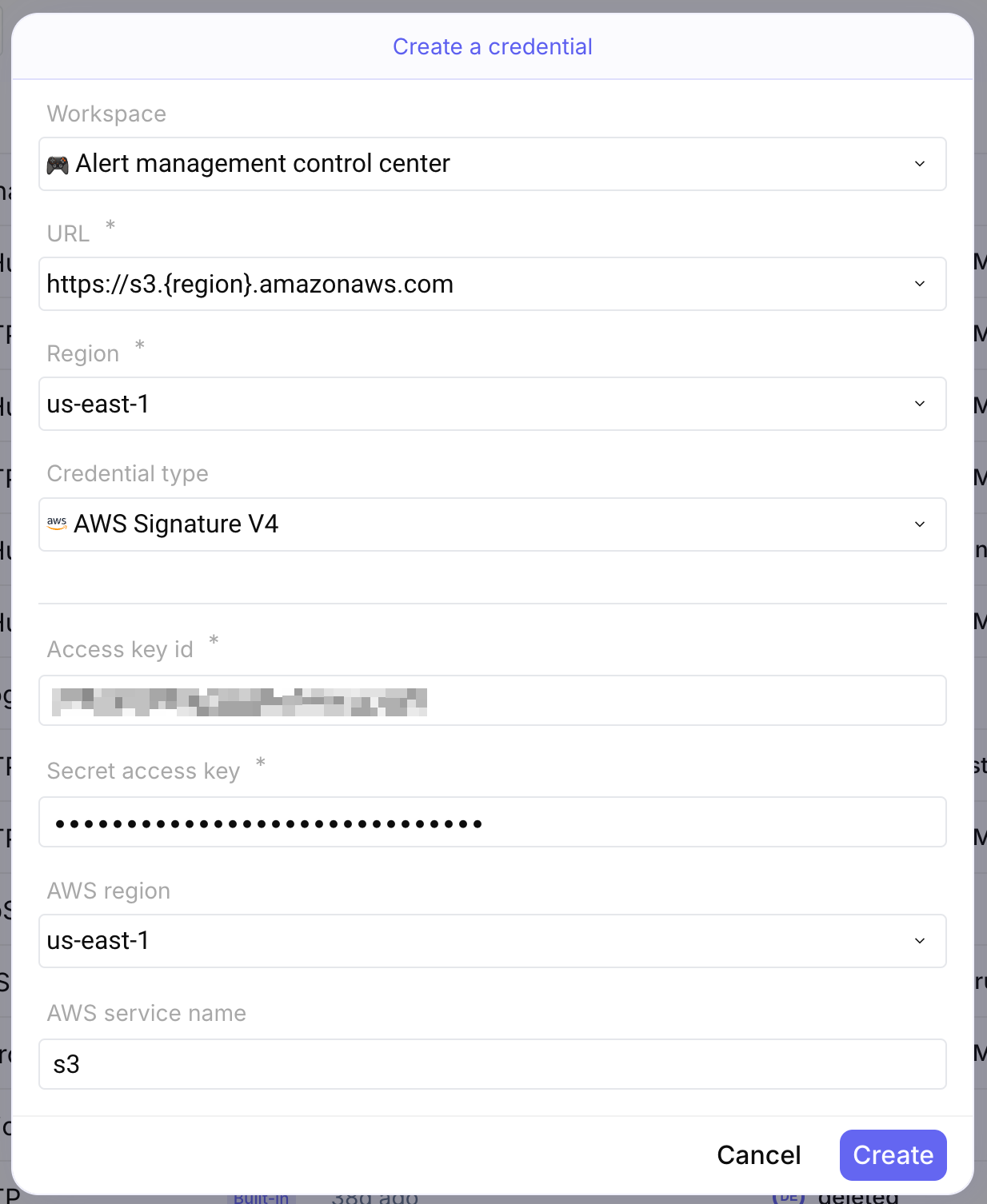
You’re done ! You can configure any AWS S3 step with this credential.
AWS Assume Role Credentials
Section titled “AWS Assume Role Credentials”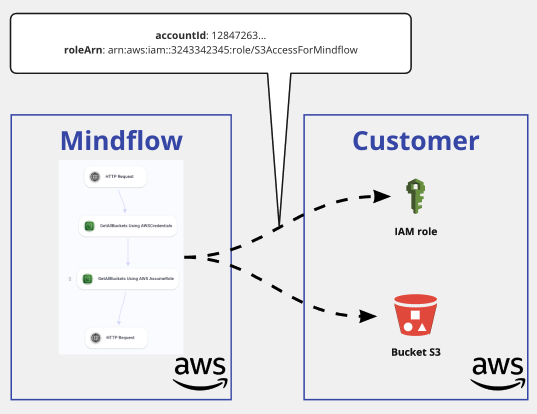
Retrieve Mindflow’s AWS account id
Section titled “Retrieve Mindflow’s AWS account id”In the Vault, create a new credential.
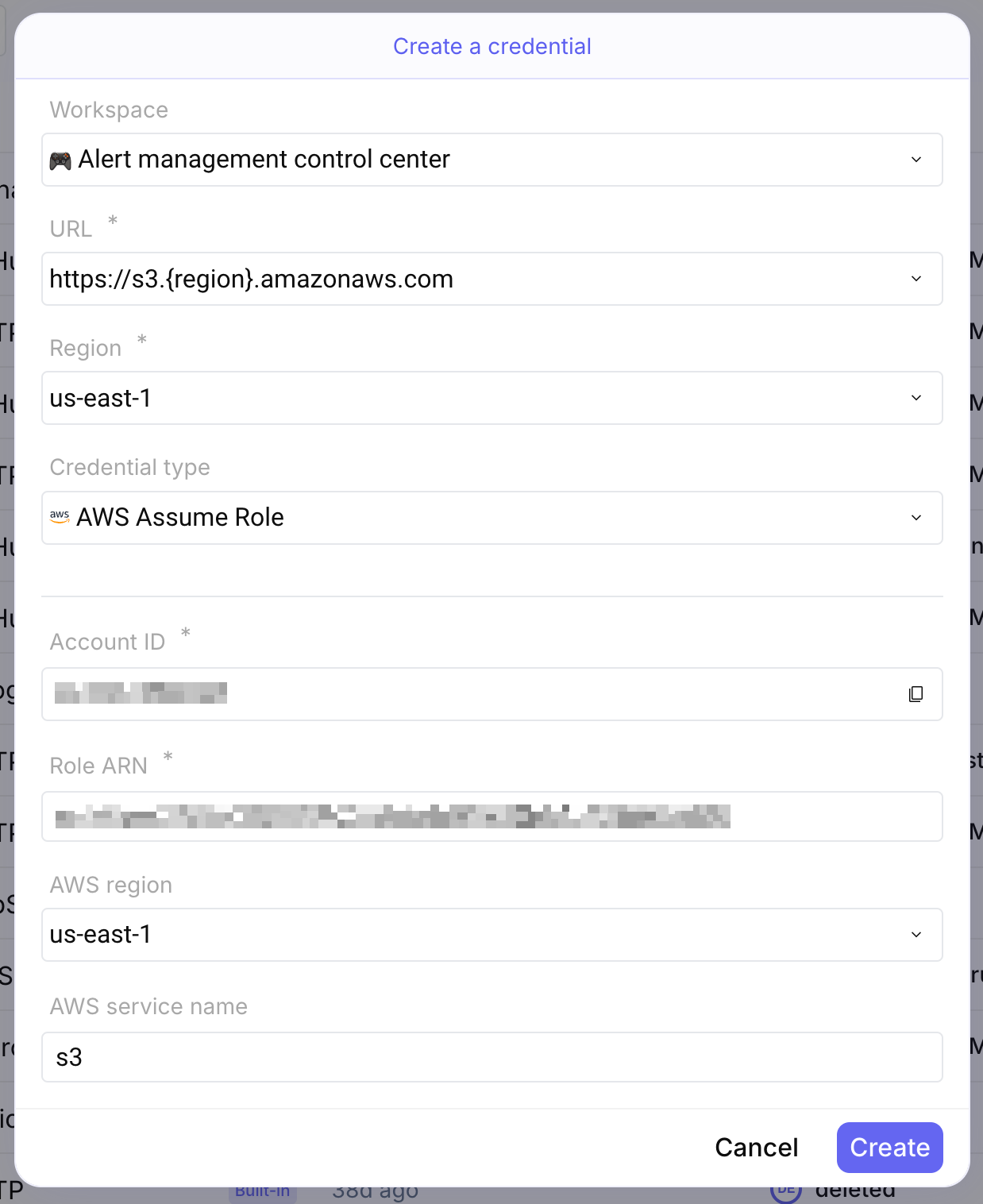
In Credential type, select AWS Assume Role.
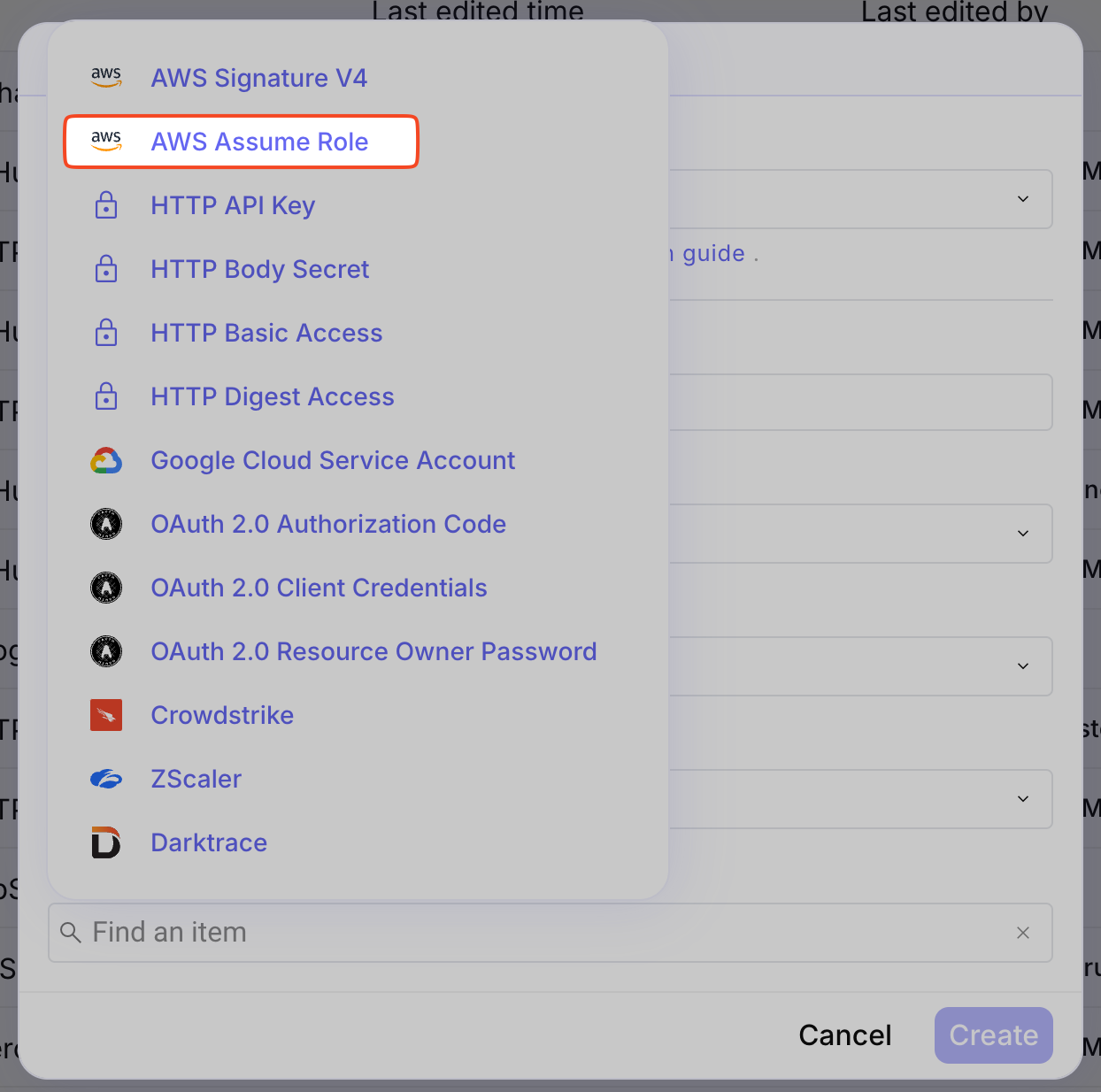
Once selected, Mindflow account id will appear as an item of the configuration form.
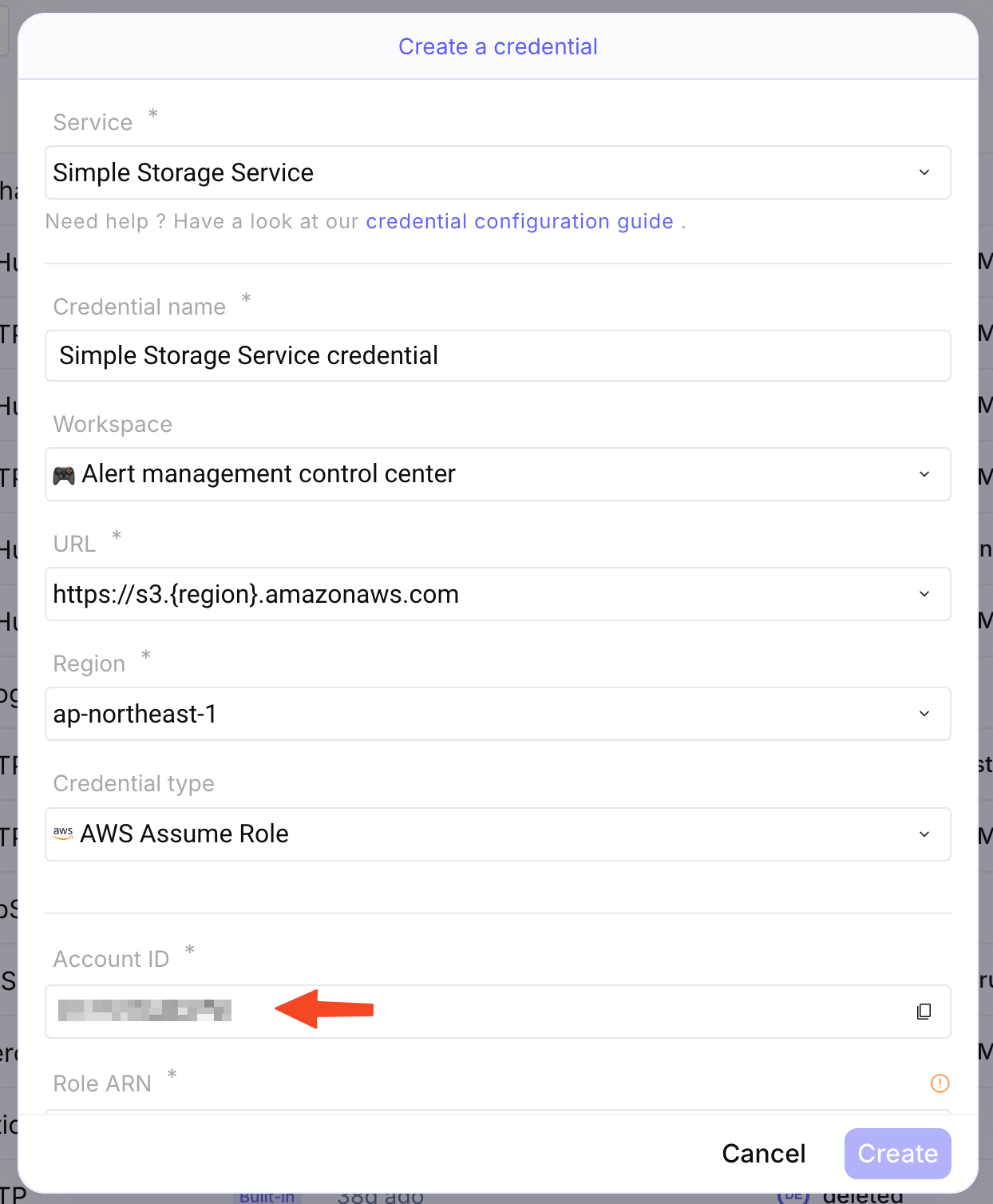
Copy the id and save Mindflow’s tab for later. We need to create a role in the AWS Console before going further.
Create the AWS IAM role
Section titled “Create the AWS IAM role”Create a Role under IAM.
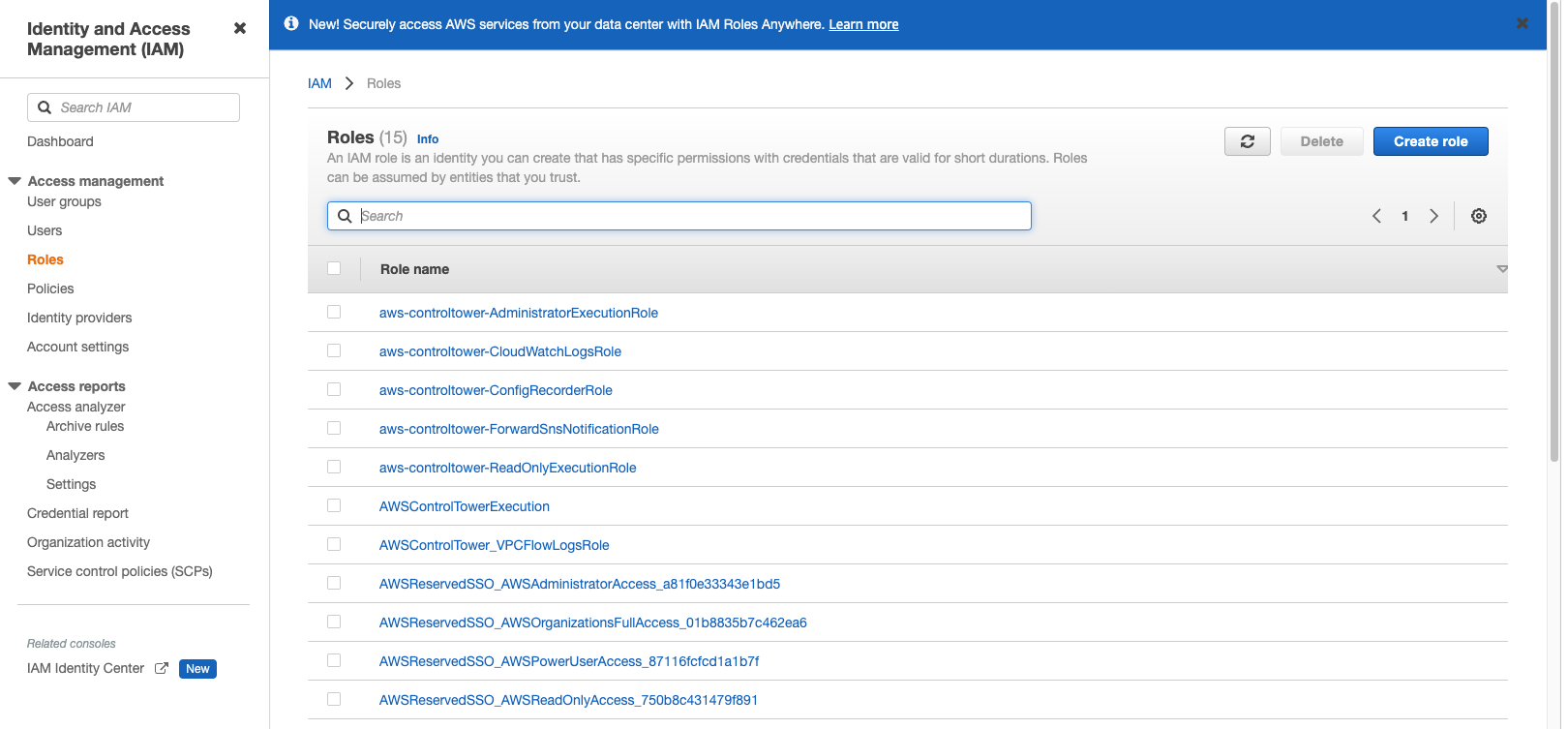
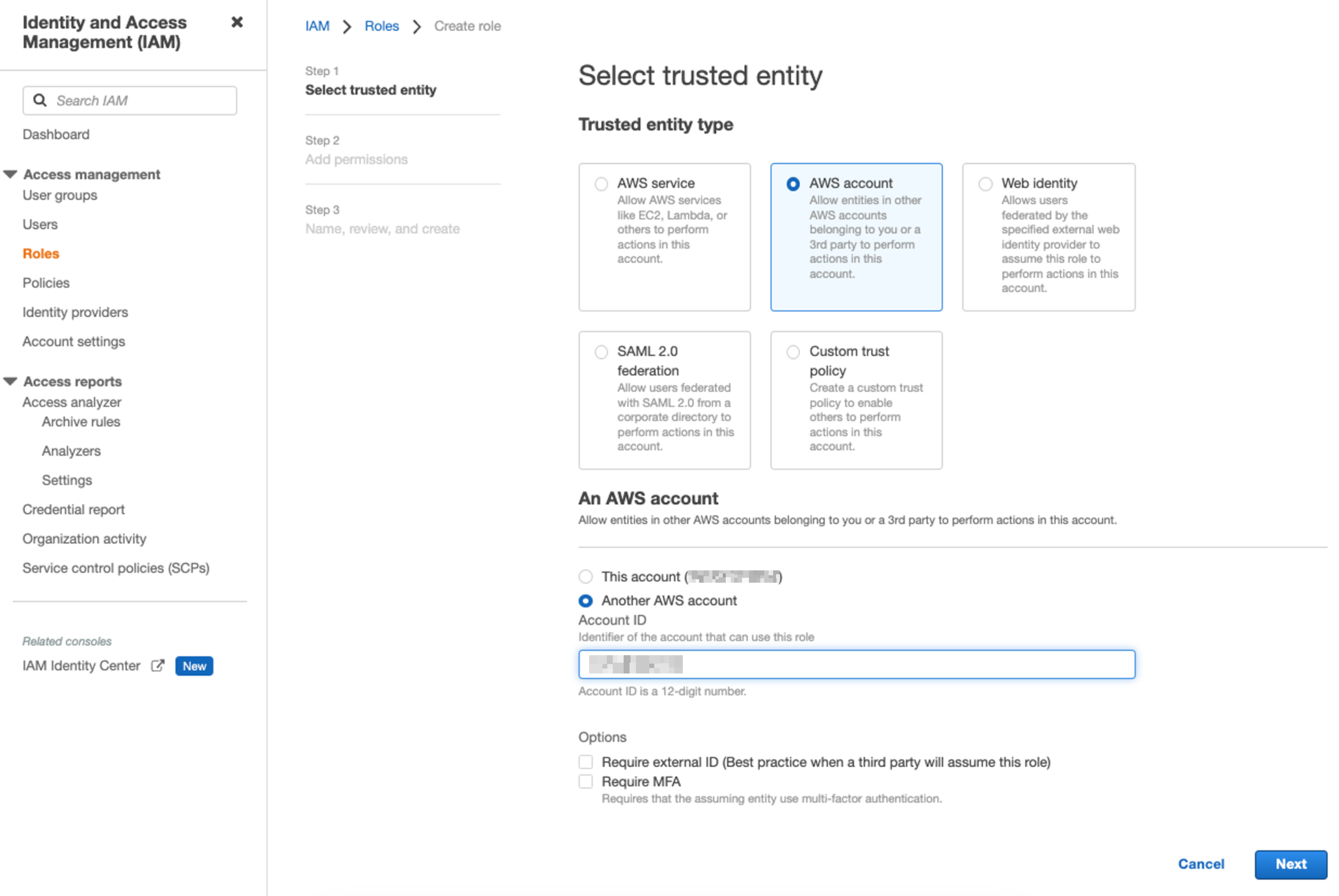
Then add the Mindflow AccountId as the trusted entity.
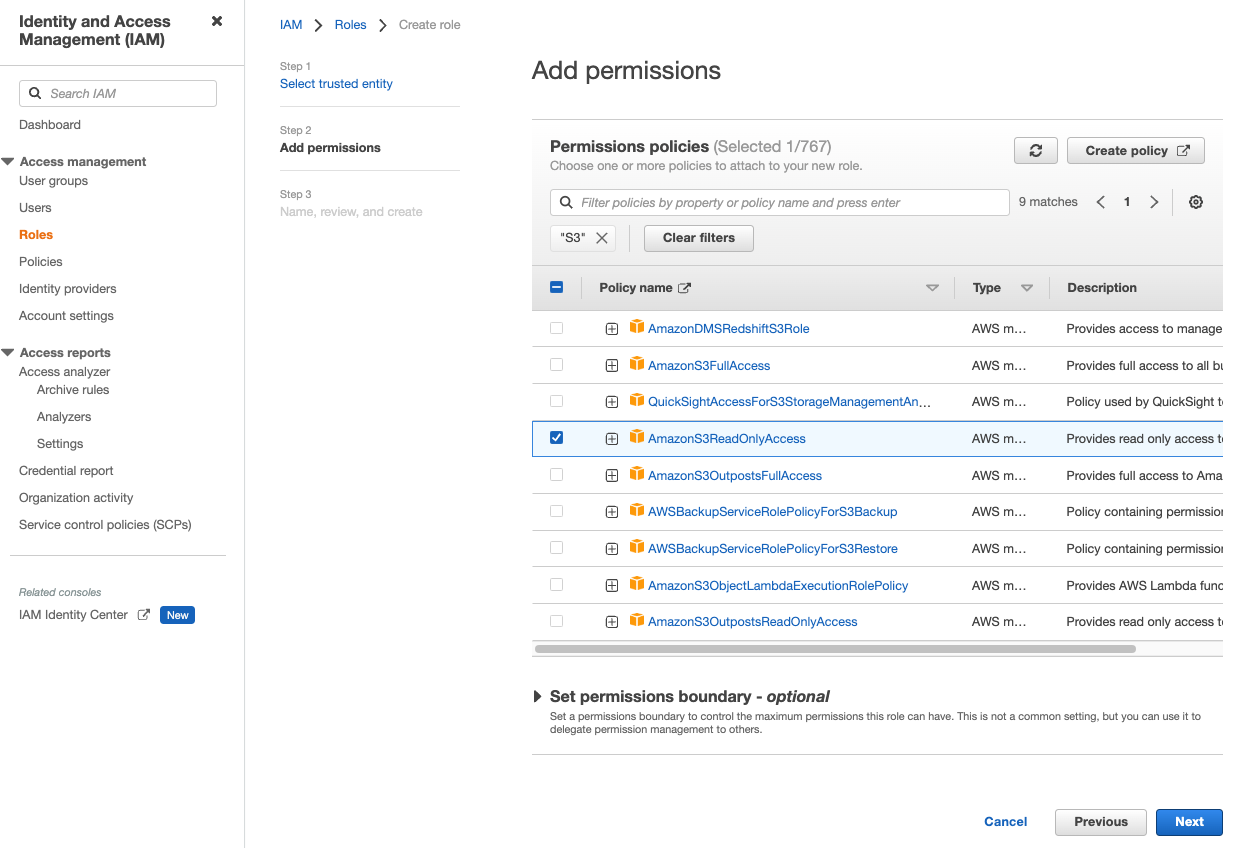
Then add the appropriate rights to the role. In this example we add S3ReadOnly access role.
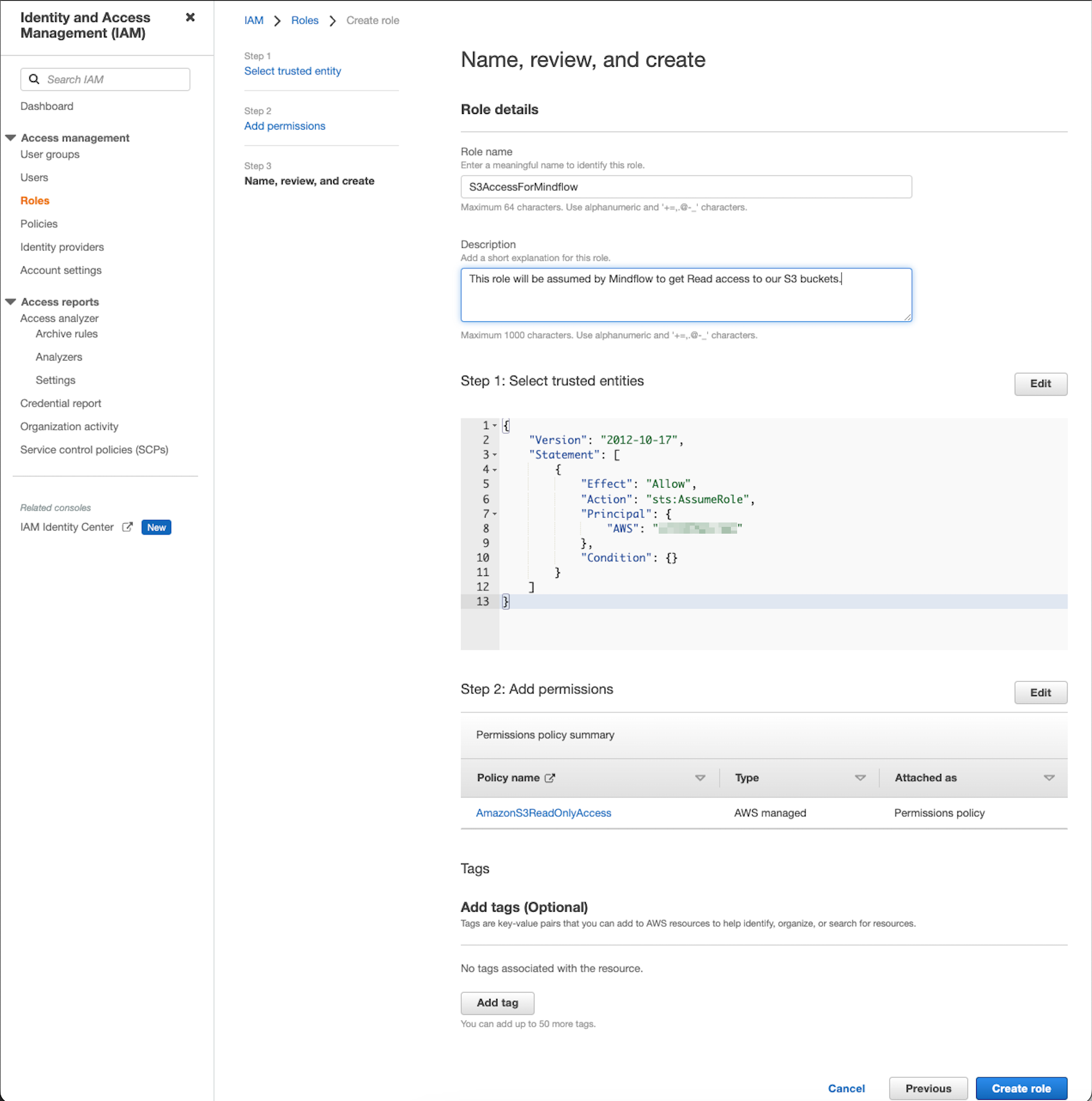
Review and Create role.
Create the credential
Section titled “Create the credential”Back in Mindflow’s tab, fill the rest of the form with the created role’s ARN. Also make sure that the correct region and service are used.
Finally the appropriate AWS service can be used.