

GitHub
Learn how to securely authenticate Mindflow with your GitHub repositories using a fine-grained Personal Access Token (PAT). This guide walks you through generating the required token in GitHub and configuring the API credential within your Mindflow environment.
Generate a Fine-Grained GitHub PAT
Section titled “Generate a Fine-Grained GitHub PAT”To allow Mindflow to interact with your GitHub data securely, you must first create a repository-scoped access token.
-
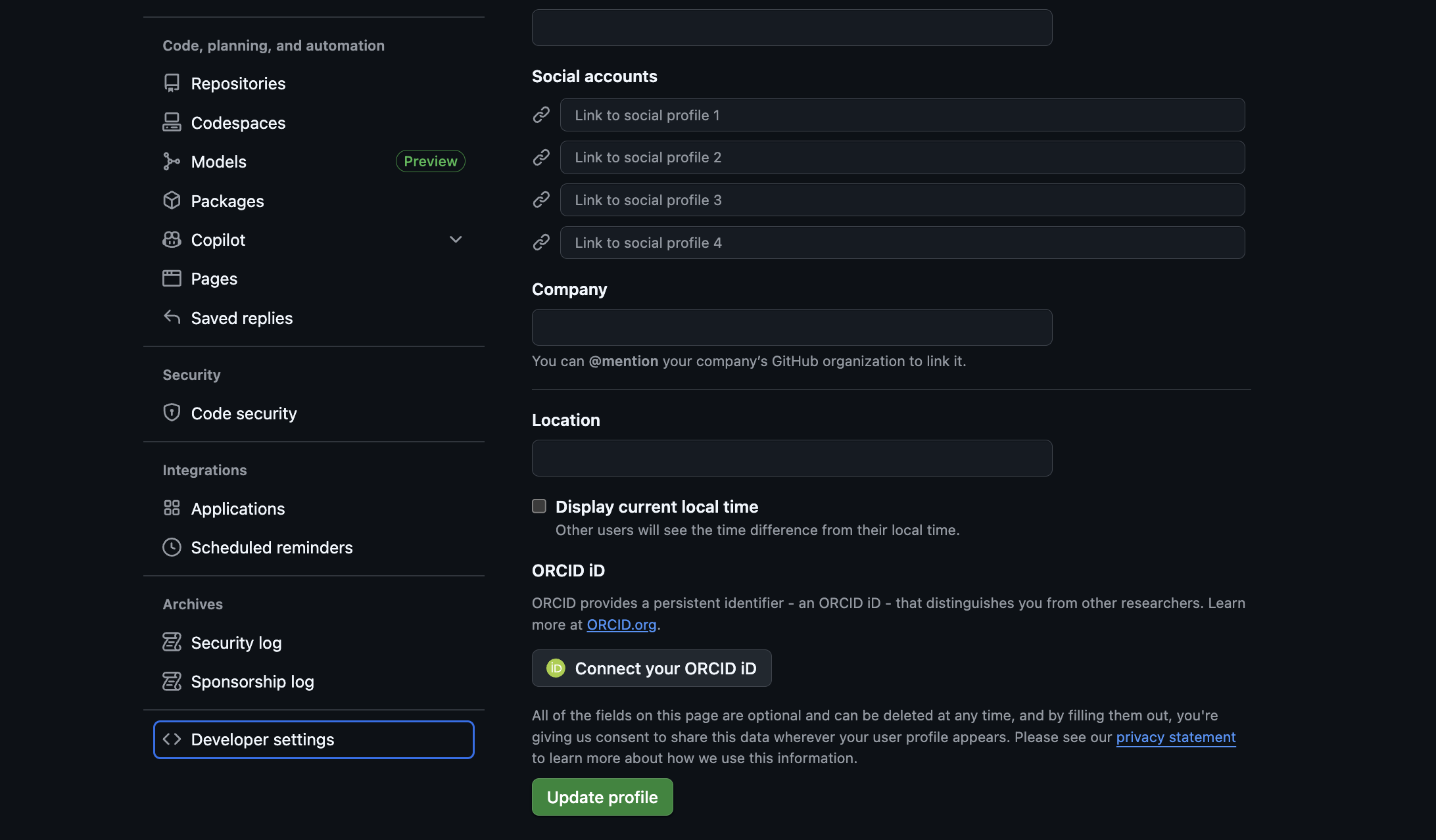
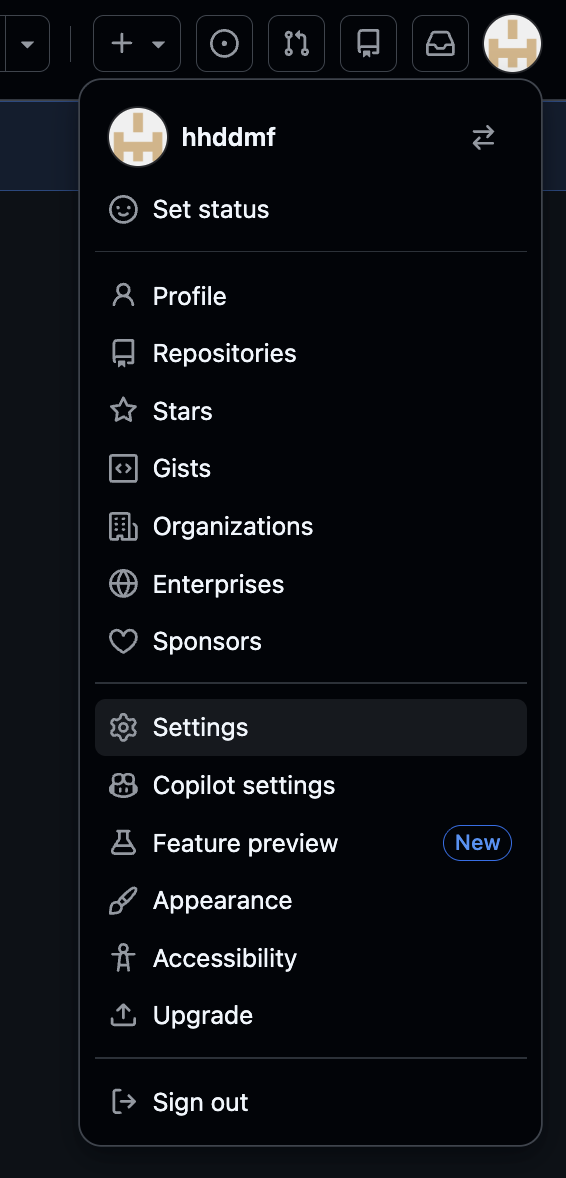
Access Developer Settings Log in to GitHub, click your profile picture in the top-right corner, and select Settings. Scroll down the left sidebar and click Developer settings.
-
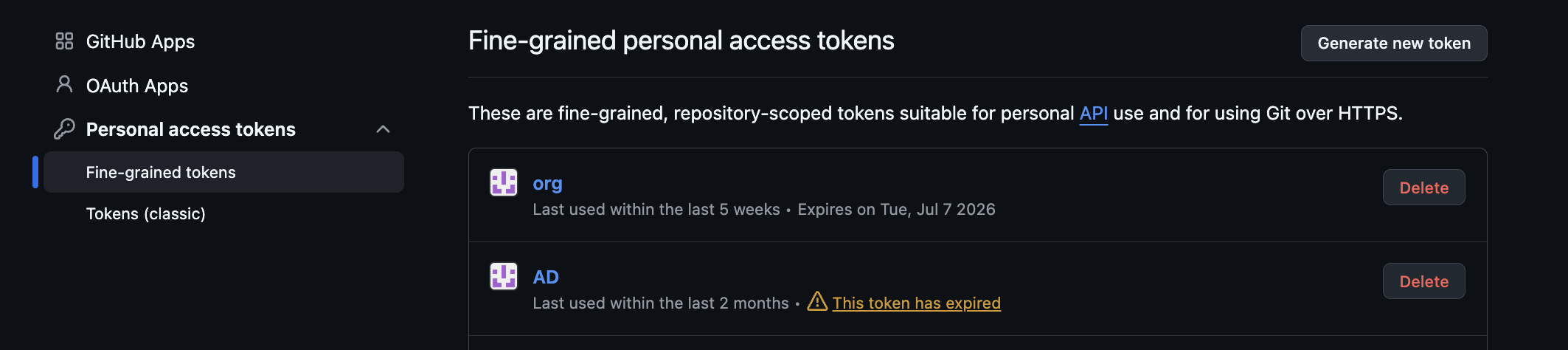
Navigate to Fine-Grained Tokens In the left menu, expand Personal access tokens and select Fine-grained tokens. Click the Generate new token button.
-
Configure Token Details
- Token name: Enter a recognizable name (e.g.,
Mindflow Integration). - Expiration: Select an appropriate lifespan for your token (e.g.,
30 days).
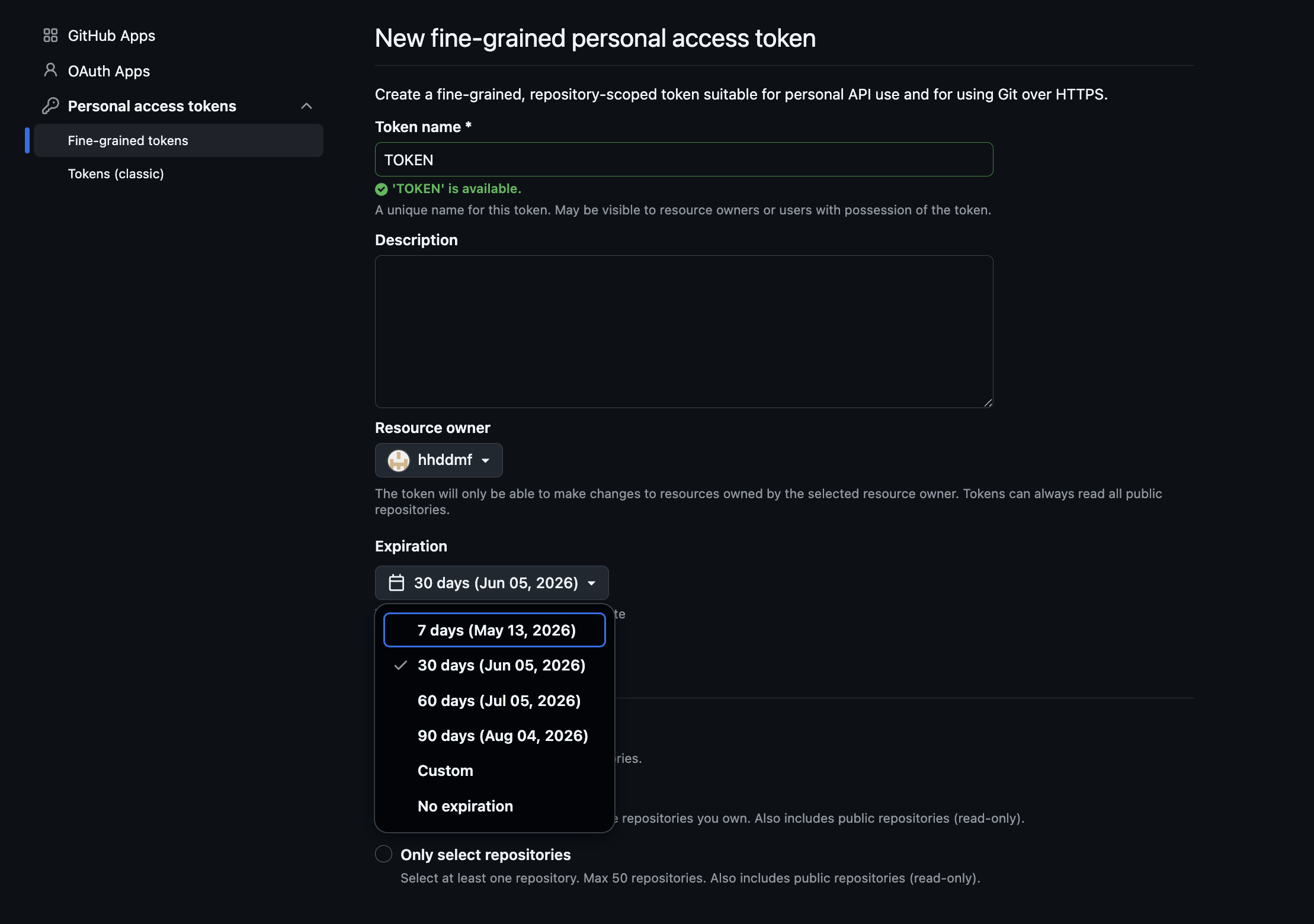
- Token name: Enter a recognizable name (e.g.,
-
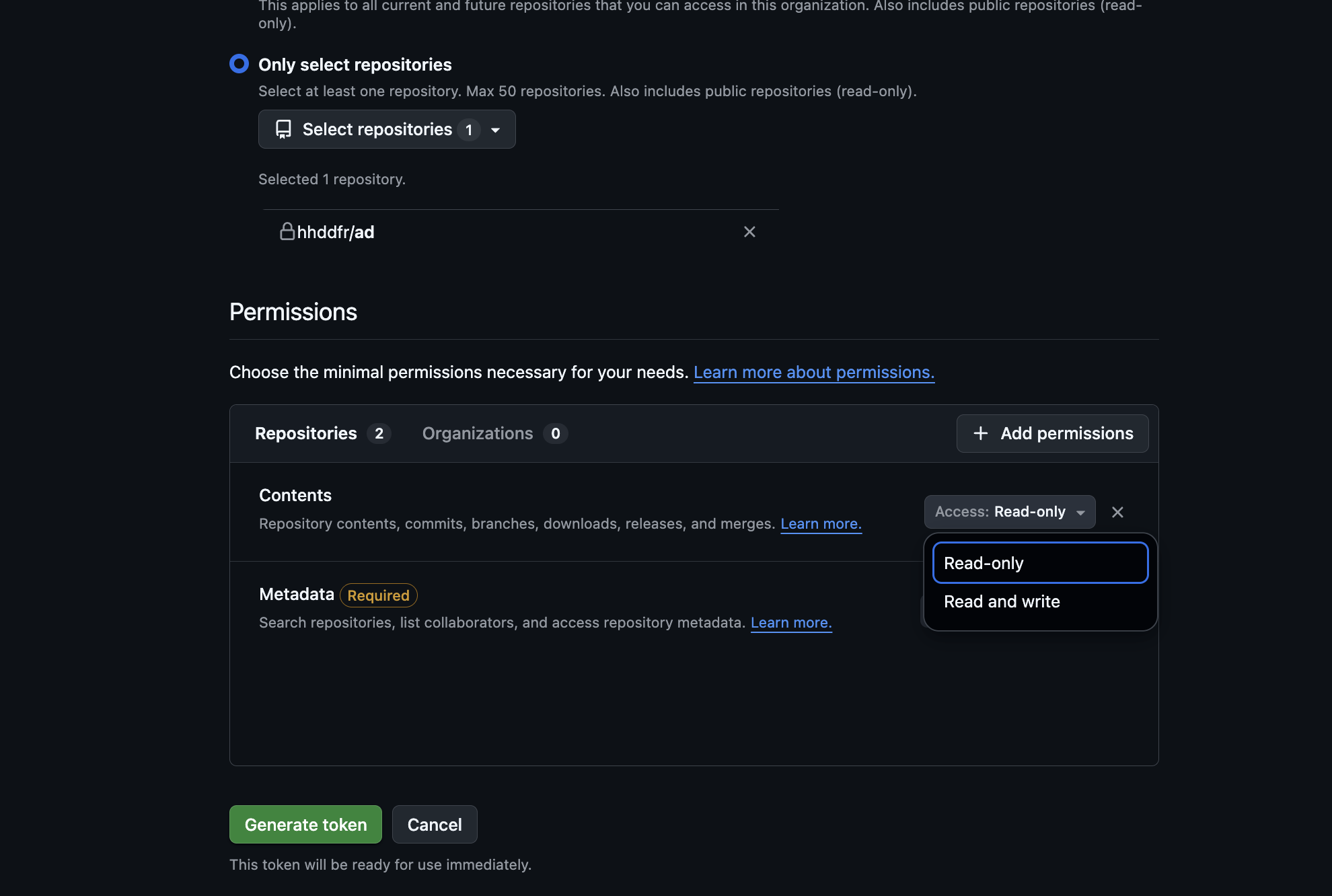
Set Repository Access
Under the Repository access section, select Only select repositories and choose the specific repositories you want Mindflow to access.
-
Assign Permissions
Expand the Repository permissions section. Assign the minimal access required for your workflow. For standard read operations, configure the following:
- Contents:
Read-only - Metadata:
Read-only
- Contents:
-
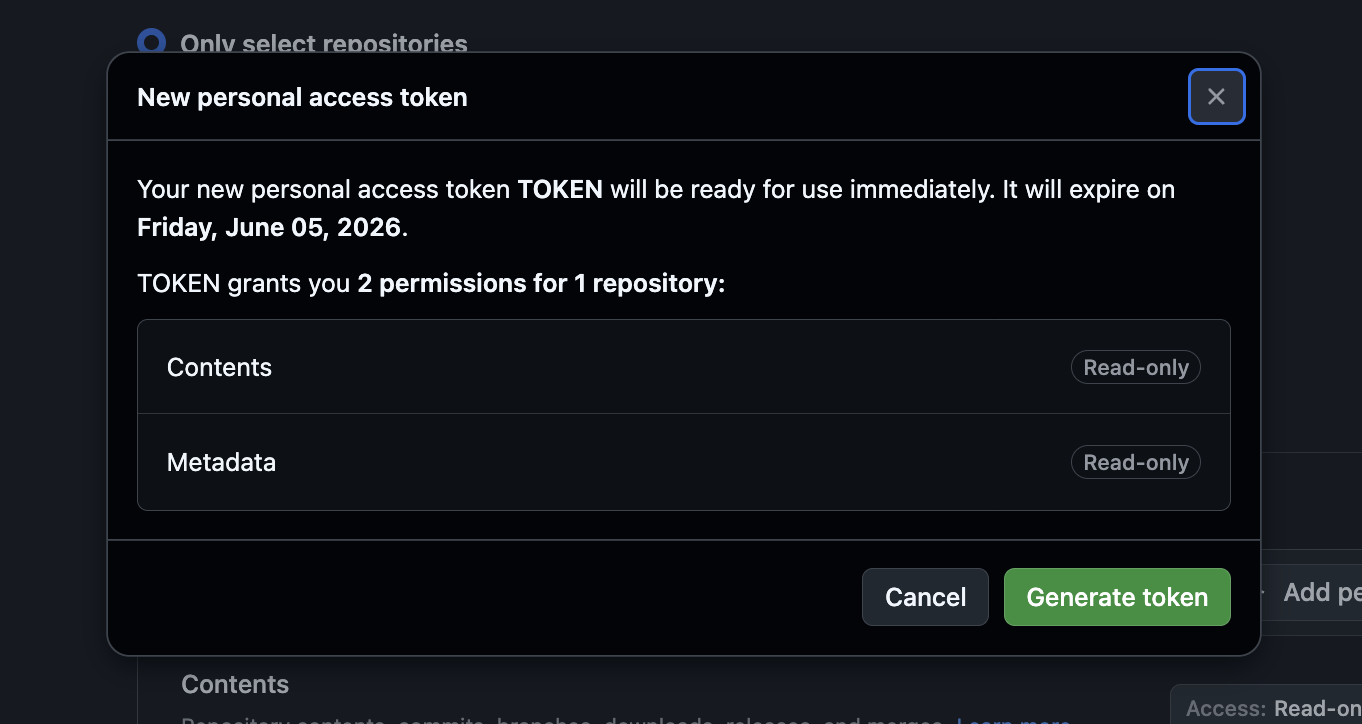
Generate and Save
Scroll to the bottom and click Generate token.
Configure the API Credential in Mindflow
Section titled “Configure the API Credential in Mindflow”Once your GitHub PAT is generated, you can set up the authentication credential in your Mindflow dashboard.
-
Navigate to Environments
Open Mindflow and go to the Environments page.
-
Create a Credential
Locate the target environment or within the Global Environment section and click the + Create credential button on the right side.

-
Select the Integration Service
In the Service search bar, type
GitHuband select either the GitHub option labeled with theNativebadge or Vendor.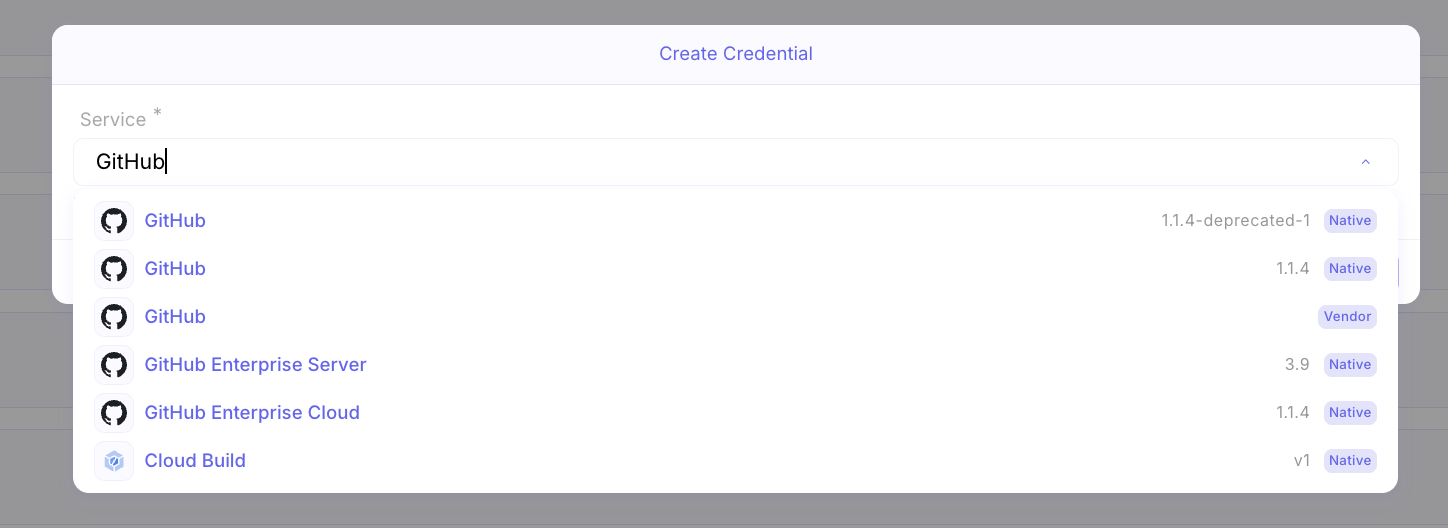
-
Configure Credential Details
Fill out the form with the following parameters:
- **Credential name:** Enter a clear identifier (e.g., `GitHub credential`). - **URL:** Ensure this is set to `https://api.github.com`. - **Credential type:** Select **HTTP API Key** from the dropdown menu.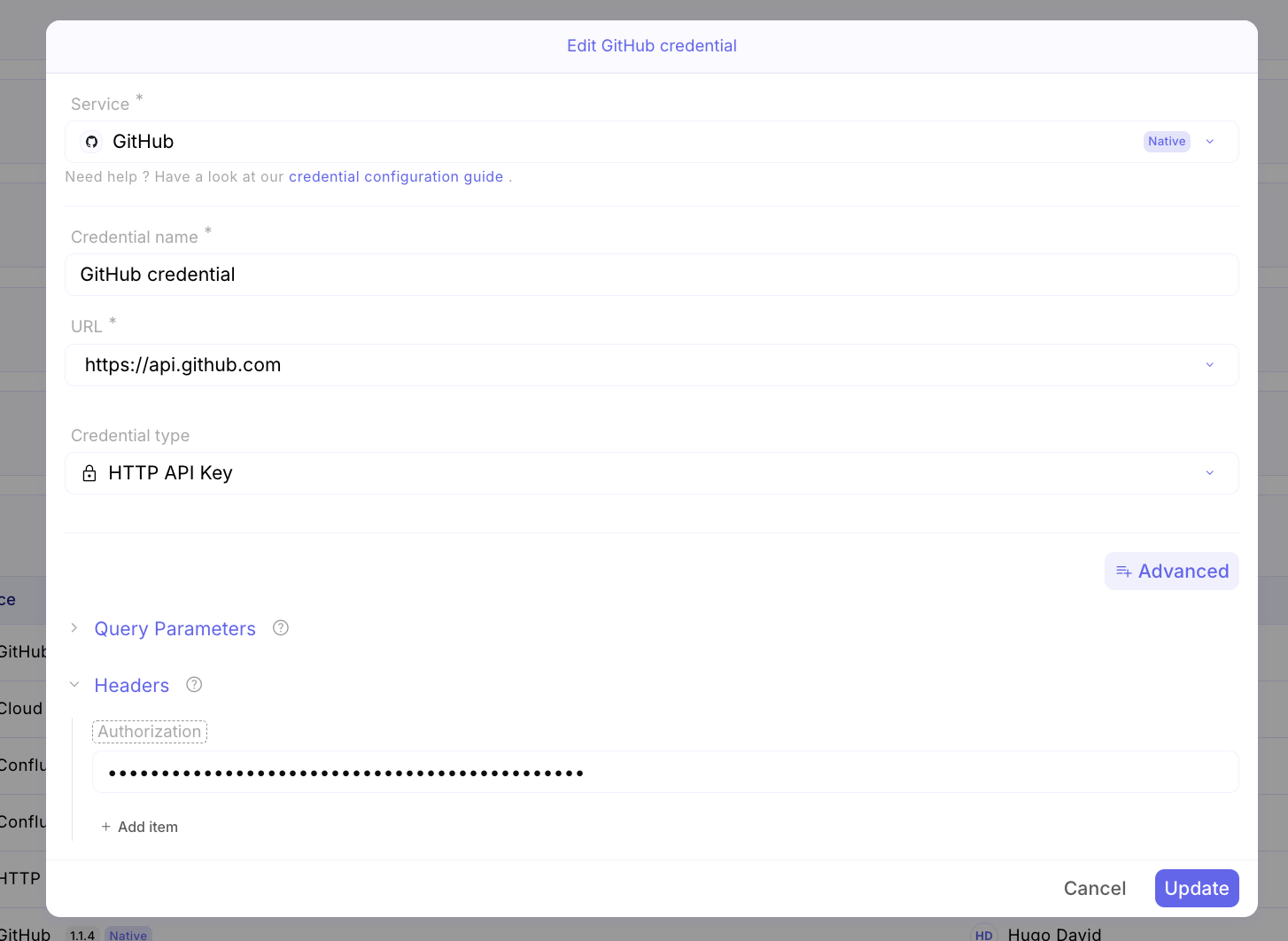
-
Set the Authorization Header
- Click the Advanced button to reveal additional settings.
- Expand the Headers menu and click + Add item.
- In the Key field, enter:
Authorization - In the Value field, enter:
Bearer<your_pat_token>“
-
Save the Credential
Click Update (or Create) to save your configuration. Your GitHub integration is now ready to use in your Mindflow workflows.